You have a story in your head, a tablet on the table, and about forty app store results that all promise to make you the next big webcomic artist. Most of them won't. The right comic drawing app is the one that gets out of your way, handles panels without a fight, and exports pages you can actually share. This article sorts through the free options, the best apps for iPad and Android, and the part most artists skip: getting your finished pages in front of readers online with a tool like Flipbooks AI.
Here's the short version. Free apps are good enough to finish a full graphic novel. Paid apps save you time. And no matter which you pick, your pages need a home that feels like a real comic, not a messy folder of JPEGs.
What Makes a Good Comic Drawing App
Before comparing names, decide what you actually need. A painting app and a comic app are not the same thing, even when they share brushes.
Panel and Page Tools
Comics are built from rectangles. A solid app lets you draw panel borders, split them, and keep gutters even. Some apps have dedicated panel rulers and speech bubble tools. Others expect you to draw everything by hand. If you plan to produce more than a few pages, panel tools will save you hours.
Pressure Sensitivity and Brushes
Inking is where comics live or die. Look for a pen with real pressure response and stabilization, which smooths out wobbly lines. A good G-pen or round brush matters more than a library of 200 watercolor presets you will never touch.
Export Formats That Matter
This is the one people forget. You will want:
- PNG or JPG for posting single pages on social media
- PDF for multi-page sharing and print files
- PSD or layered files for backups and future edits
- High resolution output (300 DPI at your intended print size)
💡 Pro tip: Set your canvas size before you draw the first line. A common comic page size is 6.625 x 10.25 inches at 300 DPI. Resizing later softens your linework.
Free Comic Drawing Apps Worth Trying
You do not need to spend a cent to start. These free options have been used to produce real, published webcomics.
Ibis Paint X
Available on iOS and Android, Ibis Paint X is free with ads and offers a large brush library, layers, and panel tools. It also includes a screentone feature that comic artists love. The ads can be removed with a one time purchase. It is arguably the easiest entry point on a phone or small tablet.
MediBang Paint
MediBang Paint was built with manga and comics in mind. It has panel creation tools, speech bubble tools, and cloud storage so you can switch between devices. It runs on iPad, Android, Windows, and Mac. For a free app, the comic specific toolset is hard to beat.
Krita
Krita is free and open source, with serious brush engines and animation support. It is mainly a desktop app, with a tablet version for Android and Chromebooks that varies in polish. If you also draw on a computer, it is a strong free pick.
Free App Comparison
| App | Platforms | Panel Tools | Cost Model | Best For |
|---|
| Ibis Paint X | iOS, Android | Basic | Free with ads | Beginners, phone drawing |
| MediBang Paint | iOS, Android, Windows, Mac | Strong | Free with optional extras | Manga and webcomics |
| Krita | Windows, Mac, Linux, Android | Manual | Free | Painterly comics |
| Tayasui Sketches | iOS, Android | Minimal | Free with paid upgrade | Quick sketches and thumbnails |
✅ Best practice: Draw your thumbnails in a free app first. If the story survives rough sketches, then decide whether a paid app is worth the money.
Best Comic Drawing Apps for iPad
The iPad with an Apple Pencil is arguably the most popular comic setup, and the app choices are excellent.
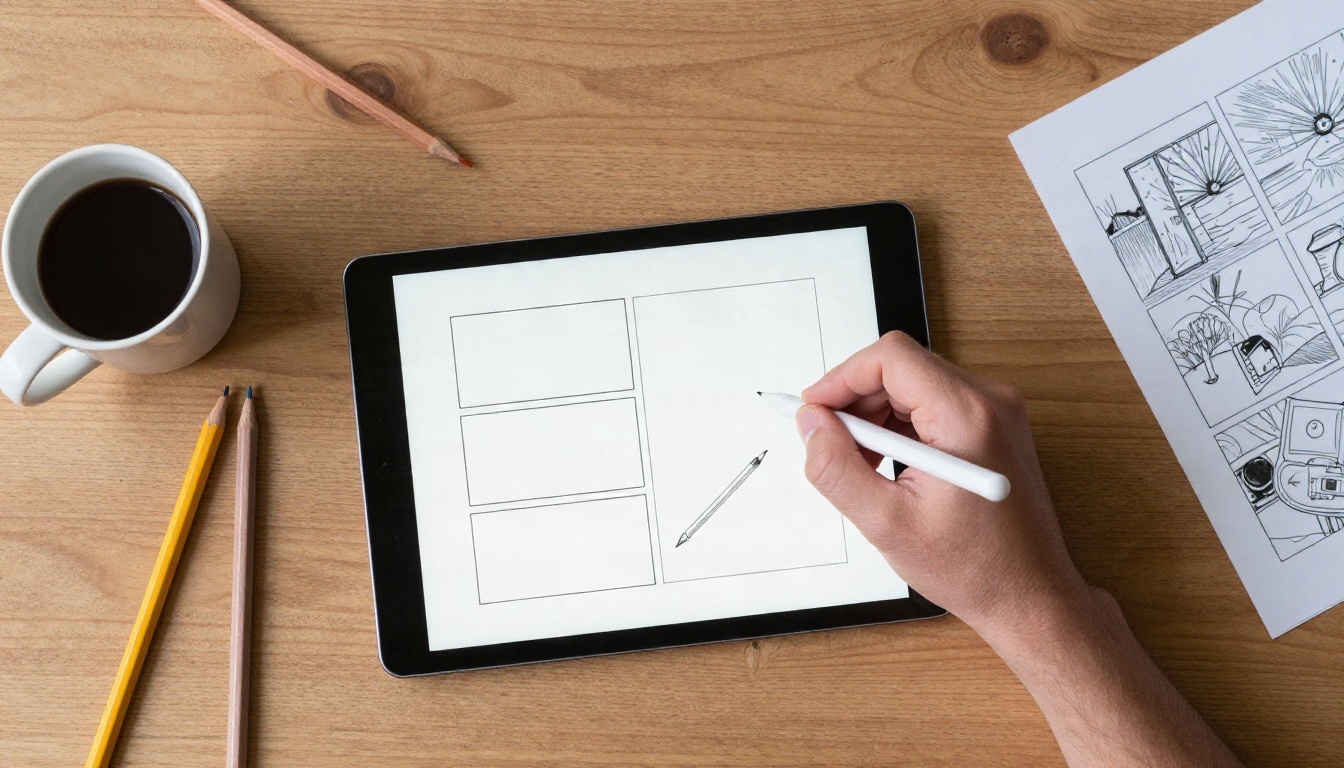
Procreate
Procreate is a one time purchase with no subscription, which is rare. Its inking feels natural, it handles large canvases well, and its brush engine is superb. The drawback for comics: it has no built in multi page workflow, so you manage pages as separate canvases. Many artists accept that trade for the drawing feel.
Clip Studio Paint
Clip Studio Paint is the closest thing to an industry standard for comics. It has panel rulers, perspective guides, 3D pose models, speech balloon tools, and multi page project files. The iPad version is typically subscription based, so check current pricing before you commit. If you plan to publish a long series, this is the one that scales.
Concepts and Other Picks
Concepts offers a flexible infinite canvas that suits storyboarding and rough layouts. Pair it with a finishing app and you have a very efficient pipeline.
iPad App Comparison
| App | Pricing Style | Multi Page Support | Learning Ramp | Standout Feature |
|---|
| Procreate | One time purchase | No | Gentle | Natural inking feel |
| Clip Studio Paint | Subscription or plan based | Yes | Moderate | Panel and balloon tools |
| Concepts | Free tier plus upgrades | Limited | Gentle | Infinite canvas |
| MediBang Paint | Free | Yes | Gentle | Cloud sync |
Best Comic Drawing Apps for Android
Android tablets have grown into serious drawing devices, especially with a decent stylus. The software has caught up.
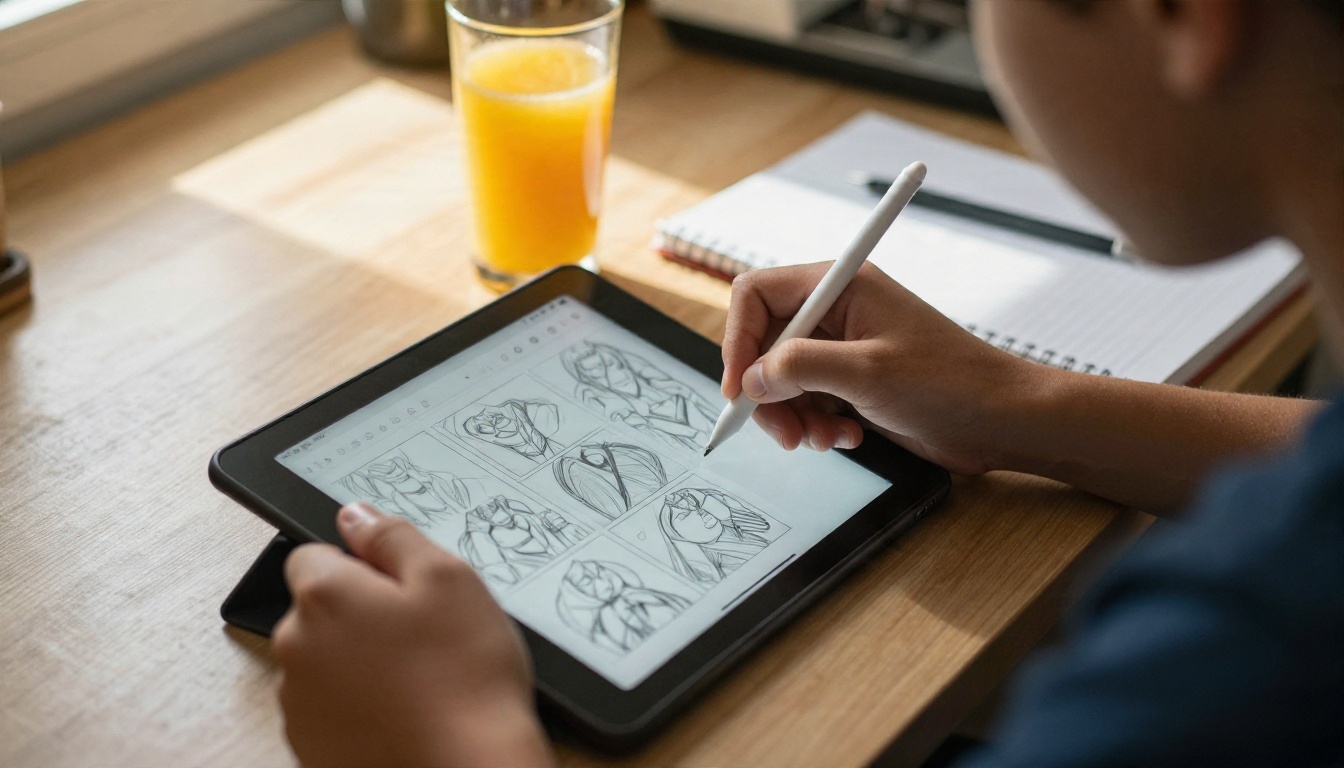
Clip Studio Paint on Android
The same panel and balloon tools that make Clip Studio Paint popular on iPad work on Android tablets and many phones. Performance depends on your hardware, so a mid range tablet with 6 GB of RAM or more is a safer bet.
Infinite Painter
Infinite Painter is a strong Android native app with a clean interface, layers, and good brush control. It is a great option if you want a painting focused app that still exports comic pages cleanly.
Ibis Paint X and MediBang on Android
Both free apps run smoothly on most Android devices, and both include features comic artists actually use. For a beginner on a budget, this pairing is hard to argue with.
⚠️ Watch out: Cheap styluses without pressure sensitivity make every app feel bad. Test your pen with a simple line weight exercise before blaming the software.
Free vs Paid: The Real Cost
Free does not mean limited in every way, and paid does not mean better in every way. Here is how the trade off usually looks.
| Factor | Free Apps | Paid Apps |
|---|
| Upfront cost | None | One time fee or subscription |
| Panel tools | Often basic or manual | Dedicated rulers and balloon tools |
| Multi page projects | Sometimes | Usually yes |
| Ads | Common | Rare |
| Export options | PNG, JPG, sometimes PDF | PNG, JPG, PDF, PSD, print ready |
| Time saved per page | Low | Moderate to high |
A practical rule: if you finish one page a month as a hobby, free is plenty. If you publish weekly, a paid app with panel tools pays for itself in saved hours.
How to Share Comic Pages Online
Finishing the art is only half the job. Readers need a clean way to flip through your story, and posting twenty separate images on social media breaks the reading flow.
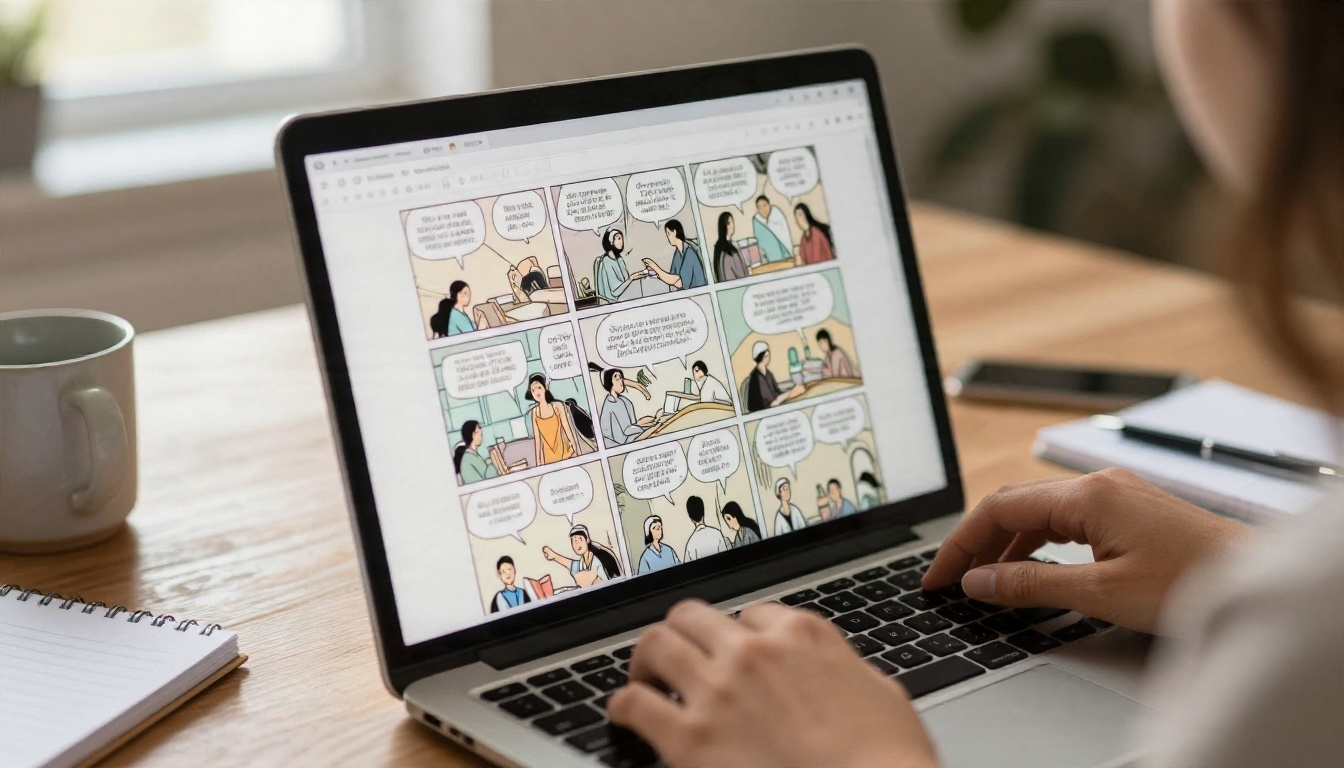
Common Ways to Publish
- Social media posts: great for single pages and teasers, bad for long stories
- Webcomic platforms: built in audience, but you follow their rules and layouts
- Your own website: full control, but you need a reader that feels like a book
- PDF downloads: easy, but readers must open a file and scroll vertically
- Flipbooks: page turning online reader you can link or embed anywhere
Export Your Pages as a PDF
Most comic apps can export a multi page PDF. If yours exports single images, combine them into one PDF with a free tool or your computer's built in print to PDF option. Keep file size reasonable: aim for a PDF under 50 MB so uploads stay quick.
💡 Pro tip: Name your pages with leading zeros (page01, page02, page10) so they sort in the right order when you combine them.
Why a Flipbook Works for Comics
A comic is a physical reading experience: you turn the page, and the reveal on the next page lands. A flipbook keeps that rhythm. Readers get the page turn animation, the two page spreads, and a clean layout that works on phones and desktops. That is why more creators now use the PDF to Flipbook Converter instead of a plain PDF link.
How to Create a Comic Flipbook with Flipbooks AI
You can go from finished pages to a shareable comic in a few minutes. Here is the full process using Flipbooks AI.
Step 1: Sign Up and Upload
- Go to Flipbooks AI and create an account.
- Click the option to create a new flipbook.
- Upload your comic PDF. The platform converts each page into a flipbook page automatically.
- Wait a few moments while the pages process. Large, high resolution PDFs take slightly longer.
Step 2: Customize the Look
Once your pages appear, you can shape the reading experience:
- Branding: add your logo, series title, and color scheme
- Background: pick a color that suits your art, such as dark for noir and light for slice of life
- Page effects: adjust the page turning feel and sound
- Multimedia: embed videos, audio, or links, for example a soundtrack or a behind the scenes clip
- Mobile responsive layout: readers get a clean view on phones without pinching and zooming
If you build a portfolio around your comics, the Digital Portfolio Creator and Portfolio Flipbook Builder are worth a look. For longer stories, the Interactive E-Book Publisher is a natural fit.
Step 3: Choose Your Sharing Method
| Sharing Option | Best For | Notes |
|---|
| Direct link | Social bios, messages, newsletters | One URL, works anywhere |
| Embed code | Your own website or blog | See Embed Flipbook on Website |
| Password protection | Early access, patrons, drafts | Only people with the password can read |
| Offline download | Readers without a stable connection | Reading without internet |
Flipbooks AI never adds watermarks, so your art stays clean. Unlimited flipbooks are available on the Standard plan and above, which suits creators publishing a new chapter each week.
Step 4: Track Your Readers
On the Professional plan, you get analytics and lead generation. Analytics show you how many people opened your comic and which pages they reached. Lead generation lets you collect email addresses before readers continue, which is handy for building a mailing list. Check the pricing plans to see which tier fits your publishing schedule.
✅ Best practice: Put a short "subscribe for the next chapter" page near the end of every flipbook. Readers who finish a chapter are your warmest audience.
Real Examples You Can Copy
Seeing how other creators use these tools makes the process easier to picture.

The Weekly Webcomic Artist
A webcomic artist draws on an iPad in Clip Studio Paint, exports a PDF each Friday, and uploads it to a flipbook. The link goes out to a newsletter and a social profile. Readers always land on the same page, and the artist checks analytics to see which chapters hold attention.
The Student Zine Maker
A student draws an eight page zine on an Android tablet using MediBang Paint, exports it as a PDF, and shares a password protected flipbook with classmates. No printing costs, no lost copies, and the zine can be embedded in a class website later.
The Indie Author with a Graphic Novel
An indie author finishes a 120 page graphic novel and wants early readers to review it. They upload the PDF, set a password, and send it to a small group. After feedback, they publish the final version with a public link and an embed on their author site.
Quick Scenario Comparison
| Creator Type | Drawing App | Export | Sharing Method |
|---|
| Weekly webcomic artist | Clip Studio Paint | Multi page PDF | Public link plus newsletter |
| Student zine maker | MediBang Paint | PDF | Password protected link |
| Indie graphic novelist | Procreate plus PDF tool | Combined PDF | Password for beta, public embed later |
| Hobbyist on a phone | Ibis Paint X | PNG pages to PDF | Direct link in social bio |
Common Mistakes to Avoid
Even good artists trip over the same problems. Watch for these:
- Drawing at low resolution. You cannot add detail later. Start at 300 DPI.
- Skipping bleed and margins. If you ever print, keep important art away from the edges.
- Mixing page sizes. One odd page ruins the flipbook flow. Keep every page identical.
- Using tiny lettering. Phone readers will squint. Make speech text large enough to read on a small screen.
- Forgetting backups. Save layered files in cloud storage after every session.
Ready to Publish Your Comic?
The best comic drawing app is the one you will actually open every day. Start free with Ibis Paint X or MediBang Paint, move to Procreate or Clip Studio Paint when you want faster workflows, and keep your export settings consistent from page one.
When your pages are ready, give them a home that feels like a real book. Get started for free on Flipbooks AI, upload your PDF, and send readers a single link. You can also browse all flipbook tools to find a layout that matches your style, or compare pricing plans to pick the tier that suits your release schedule.
Your story is ready. Now let people read it.



