Your best photos are probably sitting in a camera roll right now, buried between screenshots and receipts. Nobody scrolls back three years to find them, and sending 200 loose files over chat is a miserable way to share a wedding or a trip. A better route is to create an album online: pick your photos, set them on pages that flip like paper, add a song, and share the whole thing with one link. With Flipbooks AI you can do that in an afternoon, without design skills and without a watermark stamped across your memories.
This article walks through the full process, from choosing a free tool to sending the final link. You will see what to prepare, how the page-flip effect works, how to add music, and which privacy settings matter when the album holds family photos.
Why Build a Photo Album Online
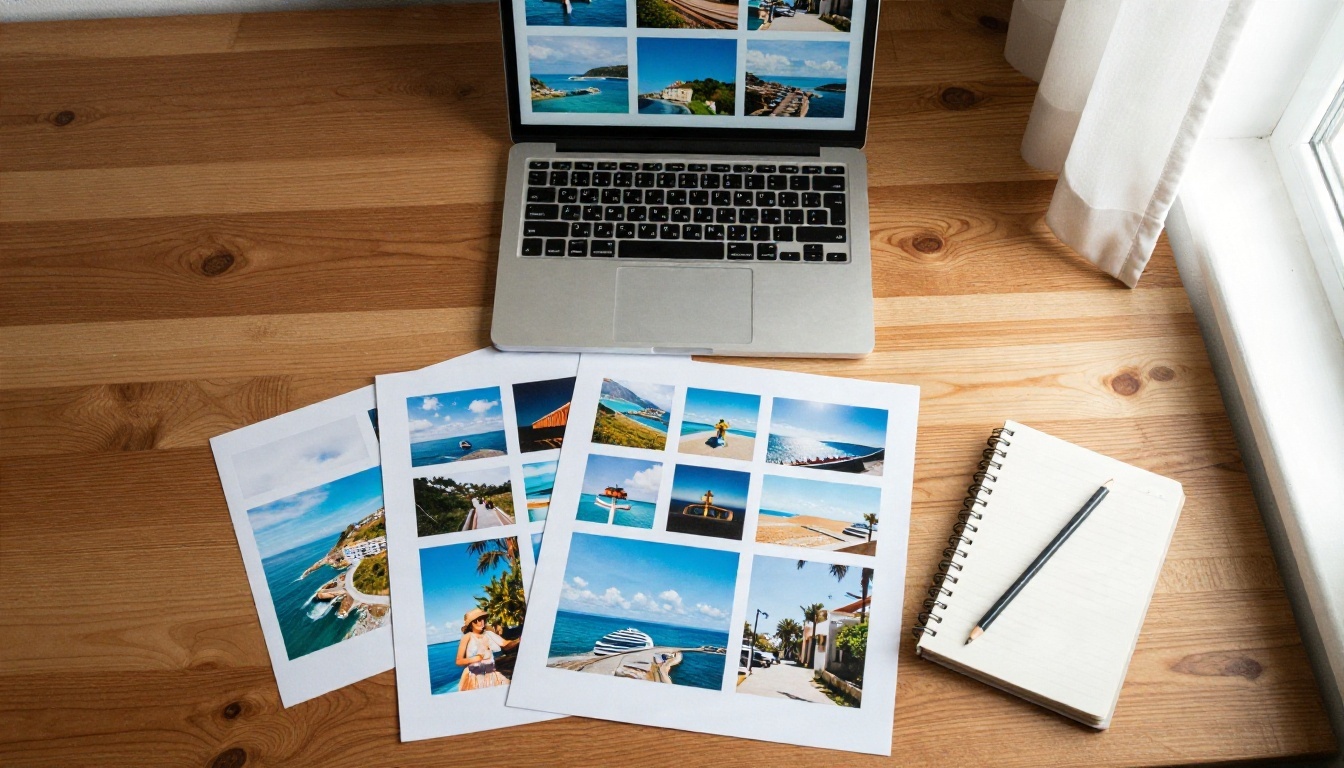
Paper Albums Have Limits
A printed album is lovely, but it exists in one place. Only one person can hold it at a time, it fades, it costs money per copy, and a spilled coffee can end it. If your cousin lives in another country, she waits for a parcel or never sees it at all.
What a Digital Album Adds
An online album keeps the part people love, the physical feeling of turning a page, and removes the limits. It opens on a phone, a tablet or a laptop. It can play background music. It can be updated after the fact. And the same link works for one grandmother or for 300 wedding guests.
| Feature | Printed Album | Camera Roll Folder | Online Flipbook Album |
|---|
| Page-turn feel | Yes | No | Yes, animated |
| Background music | No | No | Yes |
| Share with many people | Costly, slow | Messy | One link |
| Works on a phone | No | Yes | Yes, responsive |
| Edit later | Reprint needed | Yes | Yes, replace the file |
| Cost per extra viewer | High | Free | Free |
💡 Pro tip: Treat the online album as the master copy for sharing and a printed one as the shelf copy. They do different jobs, and making both takes very little extra effort.
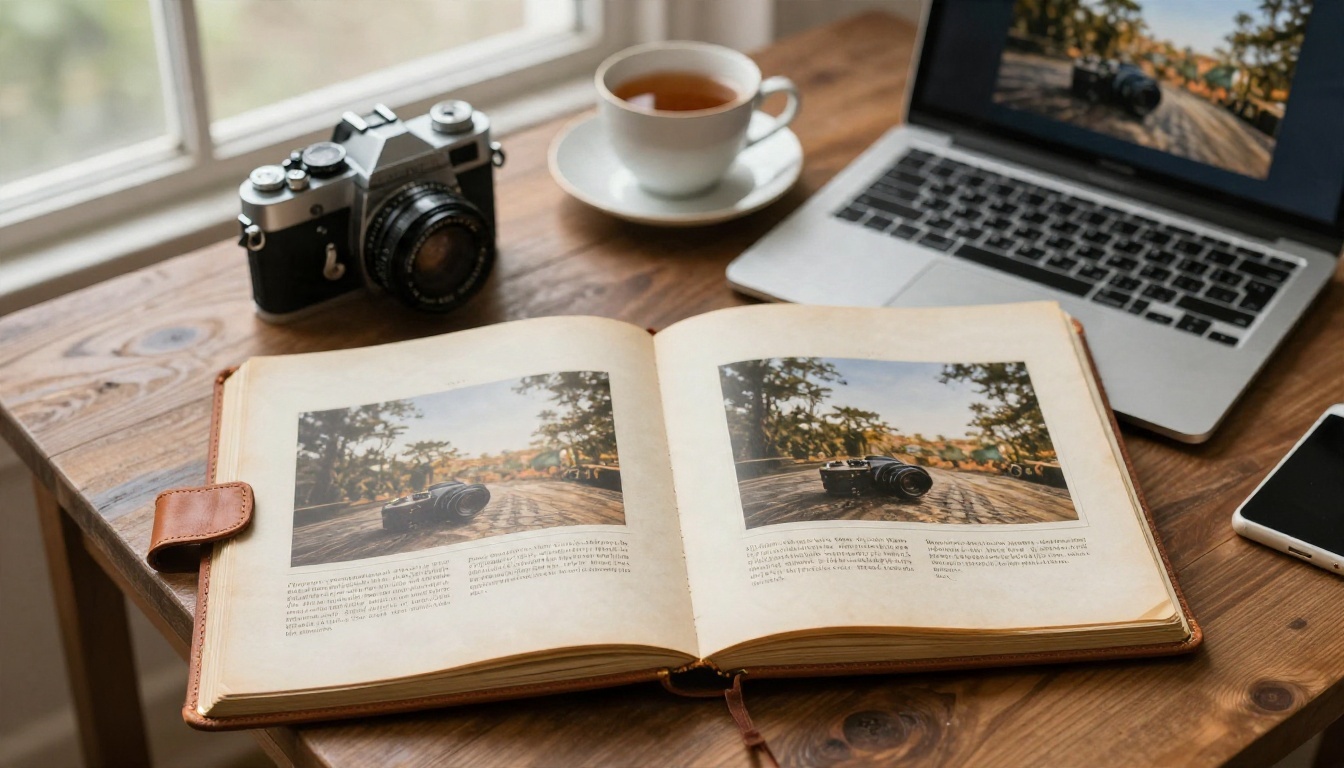
Free Ways to Make an Album
Photo Apps vs Flipbook Tools
Most people start with a photo app or a slideshow maker. Those are fine for a quick reel, but they rarely give you actual pages. A flipbook tool does the opposite: it takes a document made of pages and presents it with a realistic turn animation, a cover, and a spine.
| Option | Page-Flip Effect | Music | Share by Link | Watermark Risk |
|---|
| Phone gallery app | No | Sometimes | Shared album link | Low |
| Slideshow maker | No | Yes | Video file | Often on free tier |
| Social media post | No | Limited | Platform dependent | None, but public |
| Flipbook platform | Yes | Yes | Yes | None on Flipbooks AI |
What Free Should Really Mean
Free tools are tempting, but read the fine print before uploading 300 family photos. Watch for these traps:
- Forced watermarks across every page.
- Expiry dates that delete your album after 30 days.
- Public by default settings you cannot change.
- Low resolution exports that make faces look soft.
⚠️ If a tool will not tell you whether your album stays online and private, assume the worst and pick another one.
You can test Flipbooks AI for free and compare plan limits before you commit to anything. Features like no watermarks, mobile-responsive viewing and embedded audio are part of the platform, so your album looks the same on every screen.
Prepare Your Photos First
Choose a Story Arc
A good album has a beginning, a middle and an end, even if it is just a long weekend. Before you touch any software, spend ten minutes sorting. Here is a simple order that works for almost any occasion:
- Opening page: one strong, wide photo that sets the place or mood.
- Build-up: arrival, preparation, small details.
- The main event: your best 15 to 25 images, mixed between wide shots and close-ups.
- Quiet moments: food, hands, faces, the stuff people forget to photograph.
- Closing page: a calm image, ideally a sunset, a group shot or a goodbye.
Aim for 20 to 40 photos for a first album. More than 60 and viewers start skimming, which defeats the point.
Export Photos to PDF
Flipbook platforms turn a PDF into pages, so your photos need to live in one. You have several easy paths:
- Canva, Google Slides or PowerPoint: one photo per slide, then export as PDF.
- Word or Pages: insert images, set the page size, save as PDF.
- Your phone's print dialog: select photos and choose "Save as PDF."
| Tool | Best For | Typical Setup Time |
|---|
| Google Slides | Quick albums with captions | 20 minutes |
| Canva | Collage layouts, borders | 30 to 45 minutes |
| PowerPoint | Full control over positions | 30 minutes |
| Phone print to PDF | Fast, no layout | 5 minutes |
✅ Best practice: Export at a landscape page size such as 16:9 or 4:3 if most of your photos are horizontal. Mixed orientations look cramped if you do not plan for them.
Keep each image under about 2 MB before placing it. The file stays fast to load and still looks sharp on a retina screen.
How to Create an Album with Flipbooks AI
Once your PDF is ready, the rest takes minutes. The PDF to Flipbook Converter handles the conversion, and the wider tools directory has templates for specific albums.
Upload and Convert
- Go to Flipbooks AI and create an account. It takes under a minute.
- Click the button to start a new flipbook and drop in your PDF.
- Wait a few seconds while each PDF page becomes a flippable page. You will see a preview with the first spread open.
- Give the album a title, such as "Lisbon, September," and a short description.
Everything happens in the browser. There is nothing to install and no software to update.
Customize the Page-Flip Effect
Open the customization panel and you will find the settings that give the album its personality:
- Background color: warm cream suits wedding and family albums, dark charcoal makes landscape photos pop.
- Page effects: adjust the shadow and curl so the turn feels like thick photo paper or thin magazine stock.
- Custom branding: add a logo or a name if the album is for clients, such as a photographer's proofing gallery.
- Single page or two-page spread: two pages feels like a real book on a desk, single page is better for phones.
💡 If you shoot portraits, a single column layout on mobile keeps faces large. The mobile-responsive viewer switches automatically, but test it on your own phone before sharing.
Preview Before You Publish
Click through the album once at normal speed and once on your phone. Check these four things:
- Are any photos cropped at the edges?
- Does the first page load quickly?
- Do captions stay readable on a small screen?
- Do page turns feel smooth, with no stutter?
Add Music to Your Album
Music is what turns a set of images into a mood. Flipbooks AI lets you embed audio inside the flipbook so a track plays while the viewer flips through the pages. Upload an MP3 or add a link, set the volume, and decide whether it loops.
Choosing the Right Track
Pick the song for the viewer, not for yourself. A wedding album with a soft acoustic piece feels intimate. A road trip album with an upbeat indie track feels like the drive itself. Instrumental music is safest because lyrics compete with what people are looking at.
| Album Type | Suggested Mood | Loop? |
|---|
| Wedding | Soft piano or acoustic guitar | Yes |
| Travel | Upbeat indie or world rhythms | Yes |
| Baby's first year | Gentle lullaby style | Yes |
| Graduation | Warm, hopeful, slow build | No |
| Memorial | Quiet instrumental | Yes, low volume |
Rights and Volume
Use music you own, music you have permission for, or royalty-free tracks. A private link shared with family is much lower risk than a public post, but it is still worth choosing licensed audio if the album may spread.
- Keep volume at roughly 30 to 40 percent so viewers can raise it if they want.
- Trim silence at the start so the song begins as soon as page one opens.
- Never rely on music alone to explain the story. Captions still matter for people viewing on mute.
Share Your Album by Link
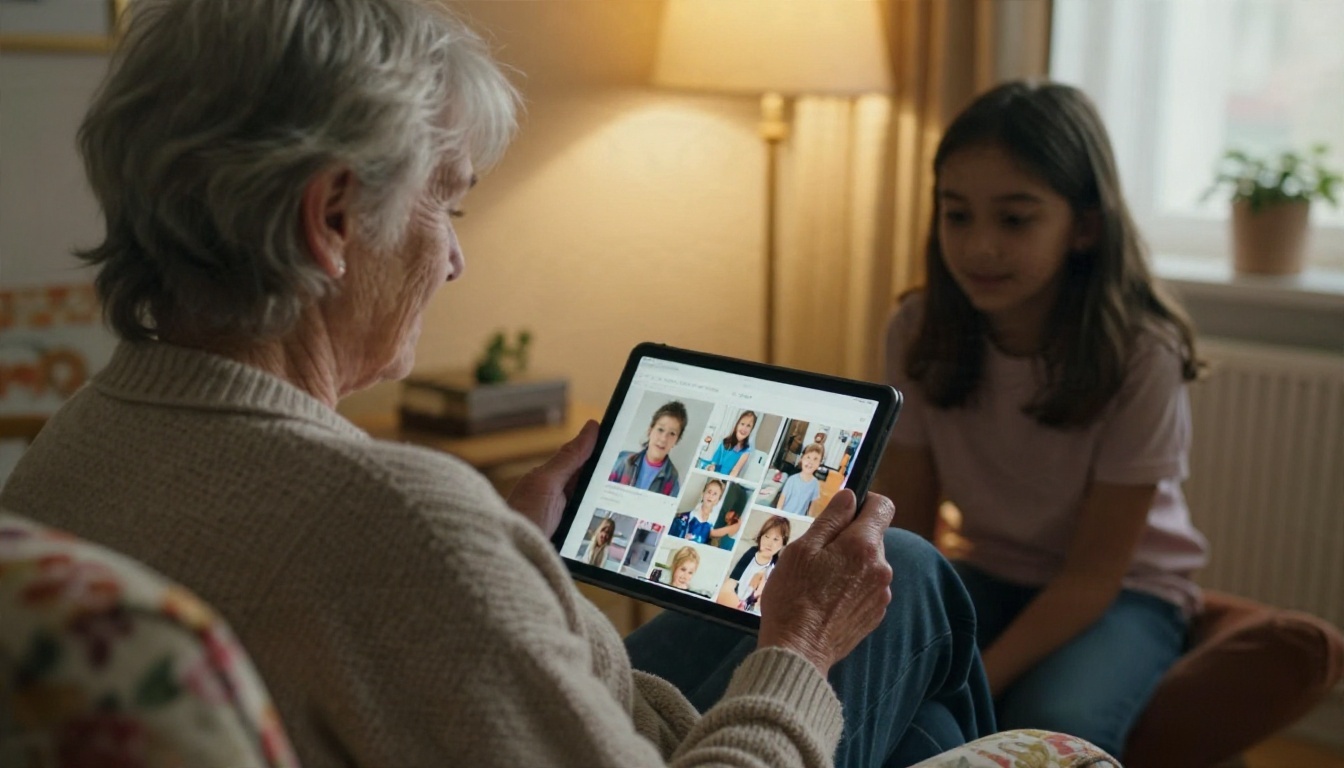
This is where an online album beats every other format. Once published, you get a URL that opens the album in any browser. No app, no login for viewers, no attachments that bounce.
Direct Link
Copy the link, paste it into a message, an email or a group chat. That is the entire process. Grandparents who struggle with apps usually manage this just fine, since all they do is tap and read.
Password Protection
For anything personal, turn on password protection. Share the link in one message and the password in another, or give the password in person. Weddings, baby photos and private family events deserve this extra step.
⚠️ A link without a password can be forwarded by anyone who has it. If the album includes children or home details, protect it.
Embed on a Website
If you run a blog, a wedding site or a small photography page, grab the embed code and paste it into your page. The Embed Flipbook on Website tool explains how the code works on different site builders.
| Sharing Method | Setup Effort | Privacy Level | Best For |
|---|
| Direct link | Seconds | Anyone with the link | Casual sharing |
| Link plus password | A minute | Restricted | Family, weddings |
| Embed code | Few minutes | Depends on the host page | Websites, portfolios |
| Offline download | One click | Copy leaves the platform | Sending to someone with poor internet |

Analytics and Extras
Paid plans add features that matter when the album is for an audience rather than just family. The Professional plan includes analytics so you can see how many people opened the album and how far they read, plus lead generation if a photographer wants to collect contact details before a gallery opens. Offline downloads let relatives save the album for places without a signal. Check the pricing plans to see which tier covers your needs, and note that unlimited flipbooks arrive with the Standard plan and above.
Real Albums People Make
A Wedding Album for Guests
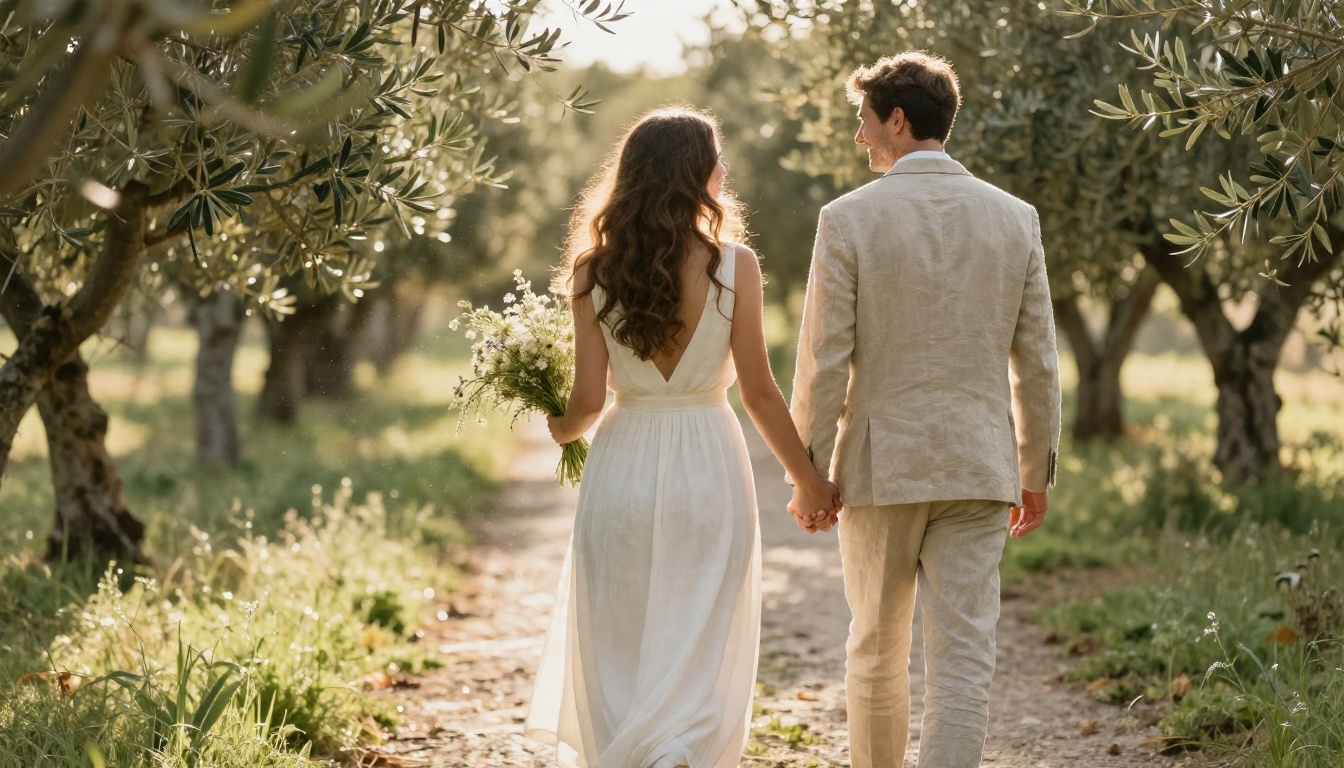
A couple finishes their photographer's gallery and exports 60 selects to a PDF. They add a soft piano track, protect the album with a password, and put the link on the thank-you card. Guests scan a QR code and flip through on their phones. For a ready-made starting point, try the Wedding Album Flipbook tool.
A Trip Album with Captions
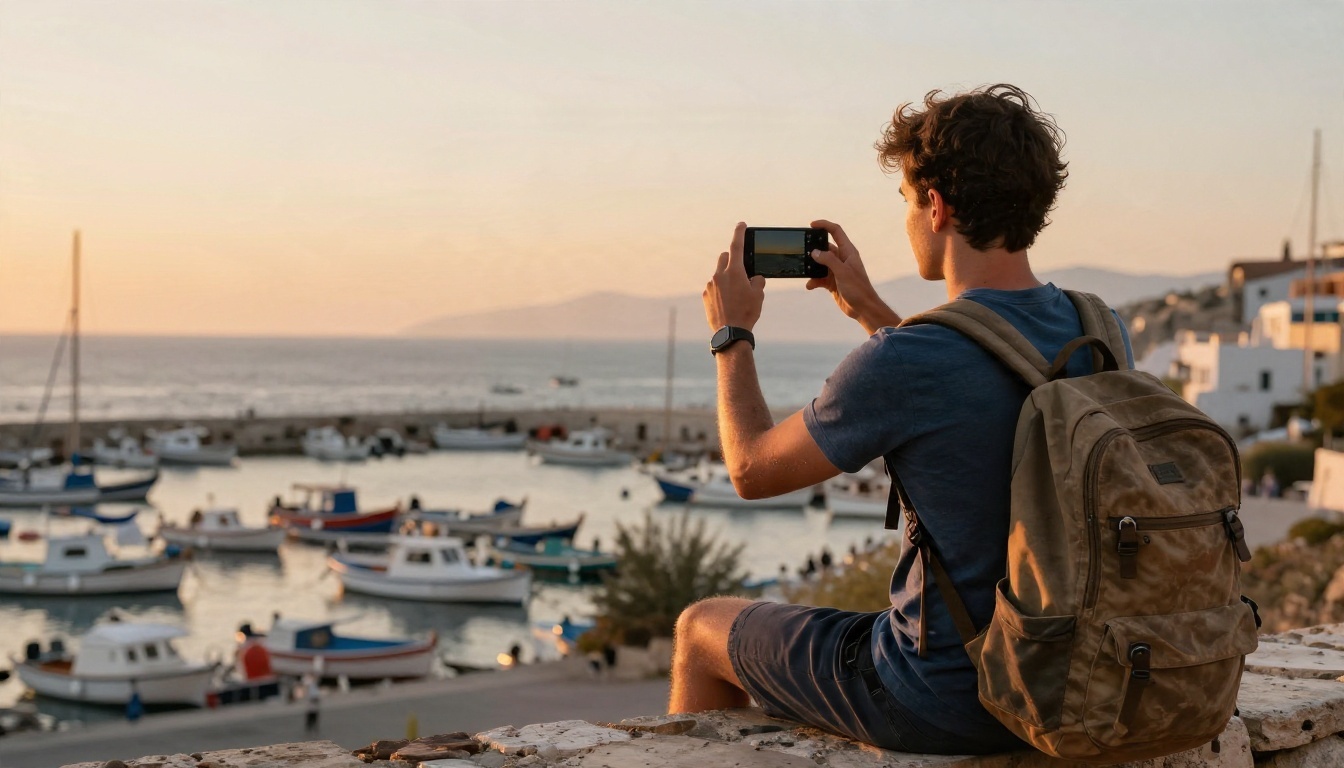
After ten days along the coast, a traveler builds a 30-page album, one location per spread, with a line of text about each stop. An upbeat track plays on loop. Friends who asked "how was it?" get a link instead of a long voice note. If you plan trips often, the same layout works for itineraries, and photographers can borrow it for a photography portfolio.
A Baby's First Year
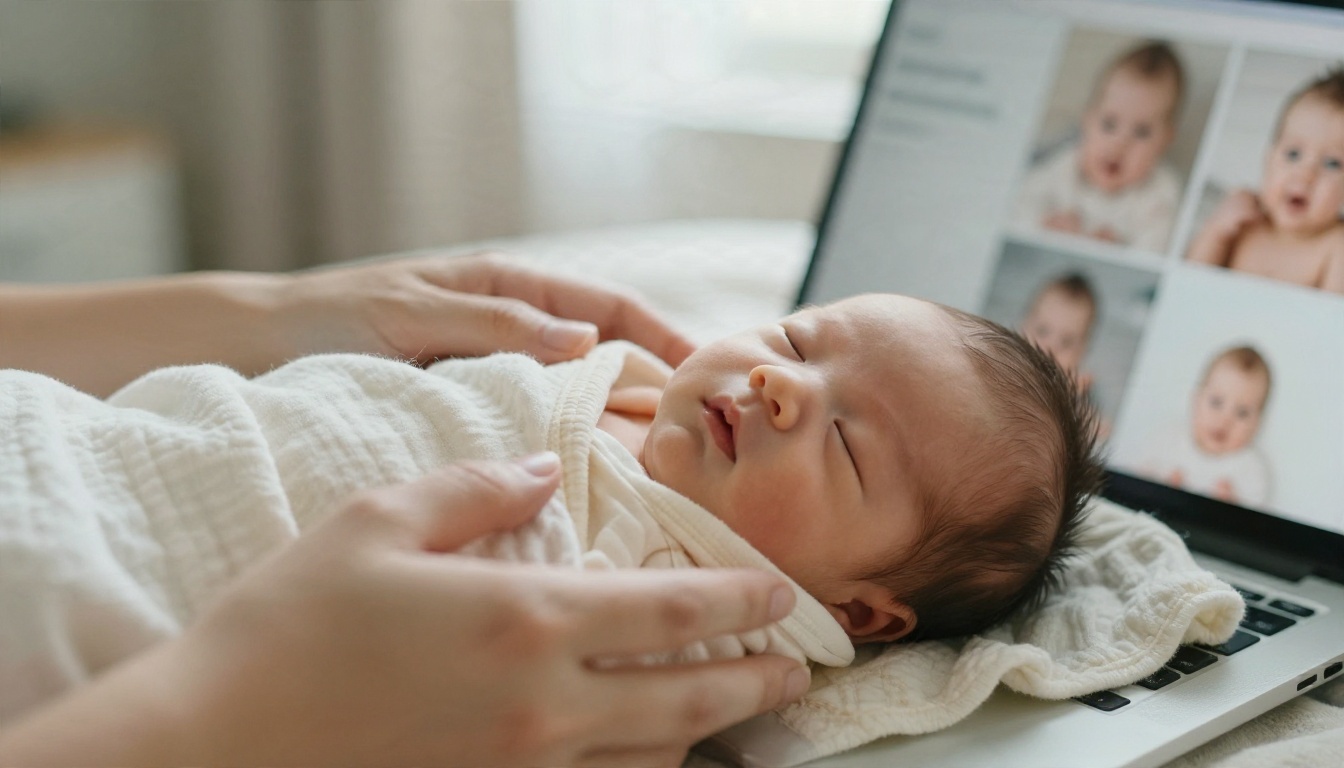
New parents add one page a month for twelve months. They keep the same PDF file, add pages, and re-upload so the album grows with the child. A lullaby plays softly, and grandparents get a password for the link. It becomes a slow, shared diary rather than a single event.
Three Mistakes to Avoid
- Too many photos. Fifty near-identical beach shots bore everyone. Cut duplicates ruthlessly.
- Tiny text. Captions that look fine on a monitor vanish on a phone. Use at least 18 pt in your PDF.
- Skipping the privacy step. Decide who should see the album before you hit publish, not after.
Make Your Album Today
You do not need a design degree, a printing budget or a free weekend. You need 30 good photos, a PDF, a song you like, and ten minutes. The rest is a link.
Ready to build yours? Get started for free on Flipbooks AI, browse the full list of flipbook tools for albums, portfolios and keepsakes, and compare pricing plans when you want analytics, unlimited albums or offline downloads. Your photos have waited long enough in that camera roll.



