You finished the last panel. The lettering is clean, the colors sit right, and now you have a folder of loose image files that nobody can read in order. That gap between "I made a comic" and "people are reading my comic" is where most creators stall. The good news: a create comics app covers the drawing side for free, and a tool like Flipbooks AI handles the publishing side by turning your pages into a flipbook with a real page turn effect, a shareable link and an embed code.
This article walks through the whole path. You will see which free apps are worth installing, how to prepare pages so they export cleanly, how to build the flipbook step by step, and how to share it so readers actually open it on a phone.
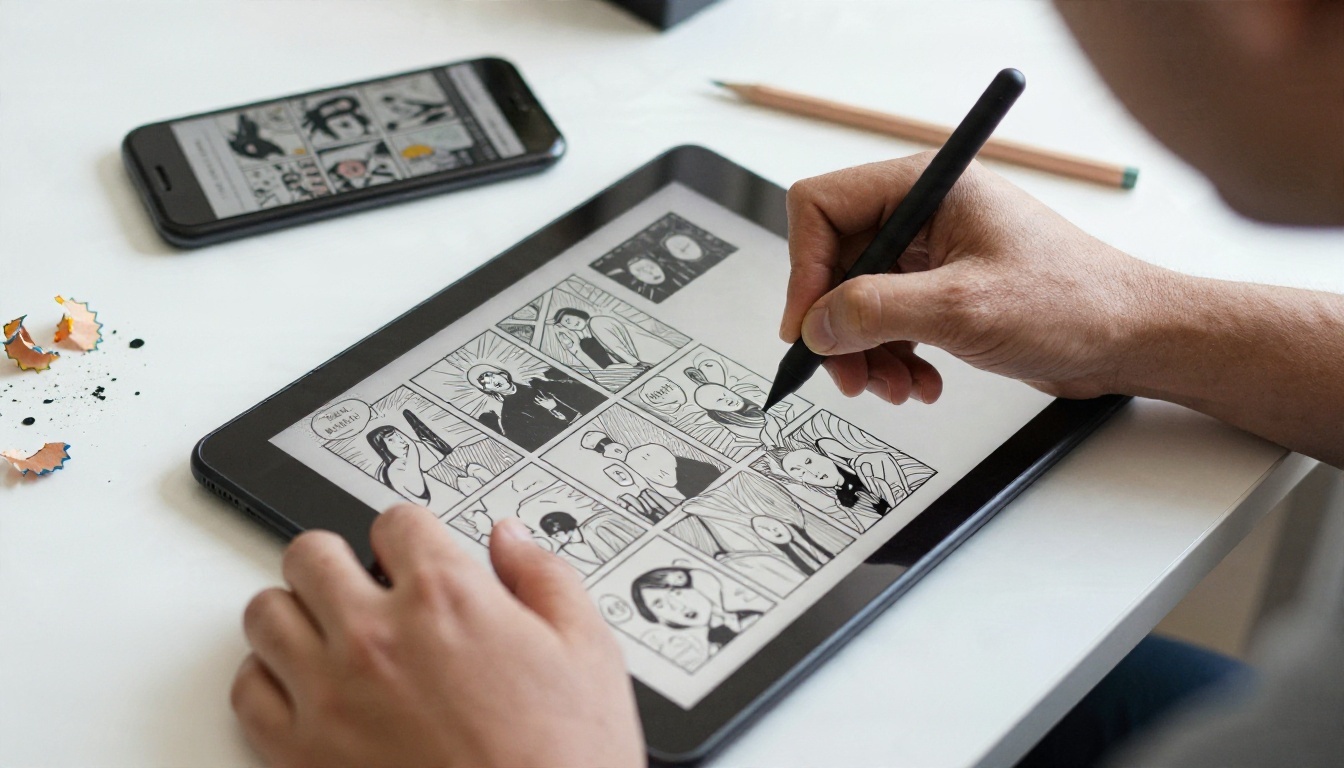
What a Comics App Really Does
Search for a comic maker and you will land on dozens of tools that look similar but solve different problems. Some give you a blank canvas and a brush. Others hand you speech bubbles and ready made panel grids. A few mix both.
Drawing Apps Versus Layout Apps
A drawing app is built for artists who create their own linework. You get layers, pressure sensitive brushes, rulers and perspective guides. A layout app is built for people who want a finished page fast: you drop in photos or stock characters, pick a panel template and type your dialogue.
Neither is better. A solo artist drawing a fantasy series wants the first kind. A teacher making a six page science strip for a class wants the second.
Match the App to Your Skill Level
Be honest about where you stand today. If you have never inked a page, a layout app will get you to a readable comic in an afternoon. If you already draw daily, a drawing app respects your hand and your style.
| App Type | Best For | Typical Output | Learning Curve |
|---|
| Drawing app | Original art, long series | PNG, PSD, PDF | Medium to steep |
| Layout app | Quick strips, classroom comics | PNG, PDF | Gentle |
| Photo comic app | Memes, family stories | JPG, PNG | Very gentle |
| Vertical scroll platform | Webcomics for phones | Platform hosted | Medium |
💡 Pro tip: Whatever you pick, confirm it can export to PDF or high resolution PNG. Those two formats are what the flipbook step needs later.
Free Comic Creator Options Worth Trying
Free does not have to mean weak. Several popular tools give you a real working setup at no cost, though limits change often, so check each site before you commit.
Free Tools for Drawing From Scratch
- Krita: Open source painting software with a deep brush engine, animation tools and no paywall. It runs on Windows, macOS and Linux.
- MediBang Paint: A lightweight option with built in comic panel tools, screentones and cloud sync across devices.
- Clip Studio Paint (free tier or trial): Loved by manga artists for its panel tools and perspective rulers. Check the current free limits before planning a long project.
Free Tools for Templates and Panels
- Canva: Its free plan includes comic strip templates, speech bubbles and a drag and drop editor. It suits quick projects and school work.
- Pixton: Made for building characters and scenes without drawing. Popular in classrooms, with a limited free option.
- Phone apps: Many mobile comic makers let you turn photos into panels with filters and captions.
| Tool | Skill Needed | Panel Templates | Export to PDF | Cost Model |
|---|
| Krita | Medium | Manual setup | Yes | Free |
| MediBang Paint | Low to medium | Built in | Yes | Free with optional upgrade |
| Clip Studio Paint | Medium | Built in | Yes | Trial or limited free use |
| Canva | Very low | Yes | Yes | Free plan with paid extras |
| Pixton | Very low | Scene based | Yes | Limited free access |
⚠️ Watch out: Some free tiers add a watermark or limit the number of pages. Test an export before you build a whole issue, or you may find a logo stamped on every page.
Plan Your Pages Before You Draw
Most export problems start in the first five minutes, when the canvas is created at the wrong size. Fix this now and the rest of the process gets easy.
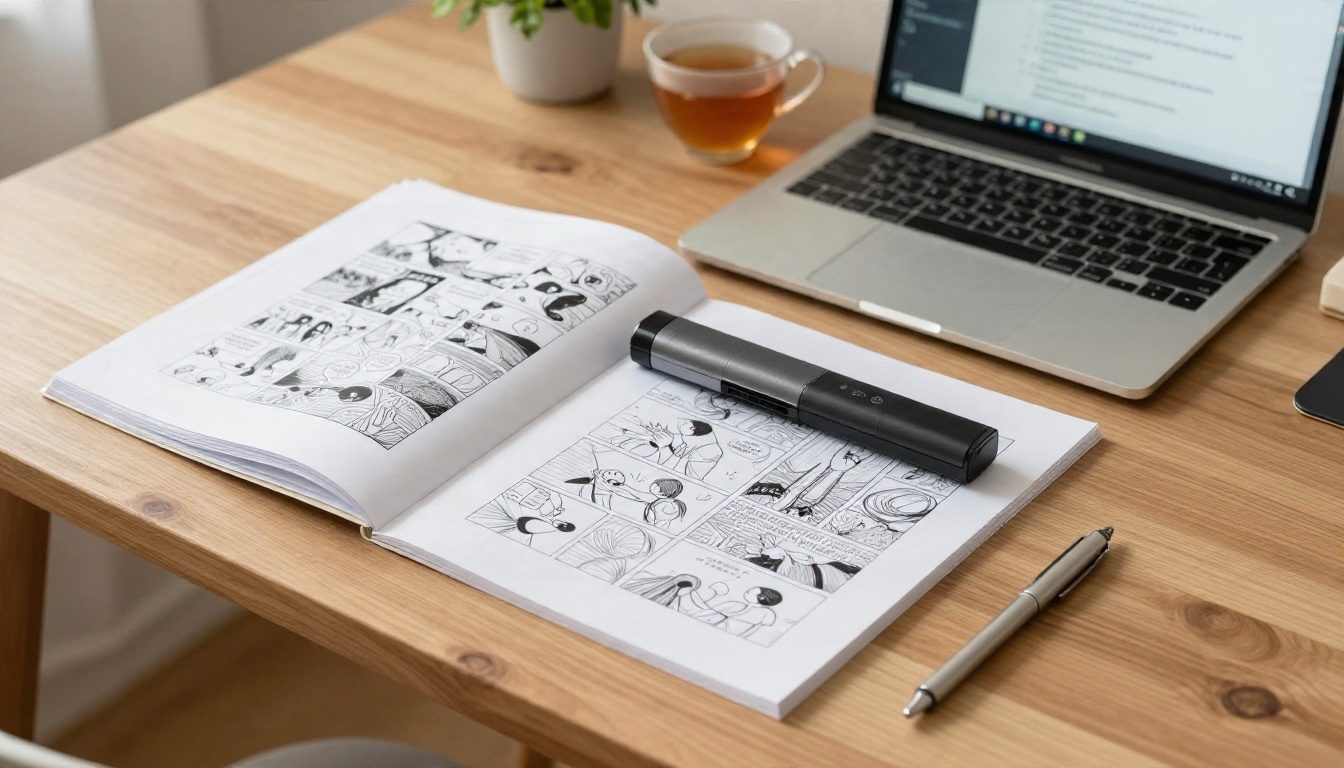
Page Size and Resolution
Pick one page size and keep every page identical. Mixed sizes create awkward jumps when a reader turns the page. For a digital first comic, a portrait page around 1800 by 2700 pixels is sharp on phones and tablets without making the file huge.
If you plan to print too, work at 300 DPI from day one. You can always shrink a large page for screens, but you cannot add detail to a small one.
Reading Order and Spreads
Decide early whether your comic reads left to right or right to left. Plan the page count carefully: in a flipbook, the front page sits alone on the right, and later pages pair up as spreads. A splash image across two pages looks stunning, but only if it lands on the correct pair.
| Setting | Recommended Value | Why It Matters |
|---|
| Page ratio | 2:3 portrait | Matches most comic formats |
| Resolution | 150 to 300 DPI | Sharp on screen, ready for print |
| Color mode | RGB for screen, CMYK for print | Prevents dull colors |
| File names | 01, 02, 03 and so on | Keeps pages in order |
| Margins | 5 percent safe area | Stops text from touching edges |
Turn Pages Into a Flipbook
A folder of images is not a comic experience. A flipbook is. Readers see a real book with pages that curl and turn, they can zoom into your linework, and they never have to scroll through a pile of separate files.
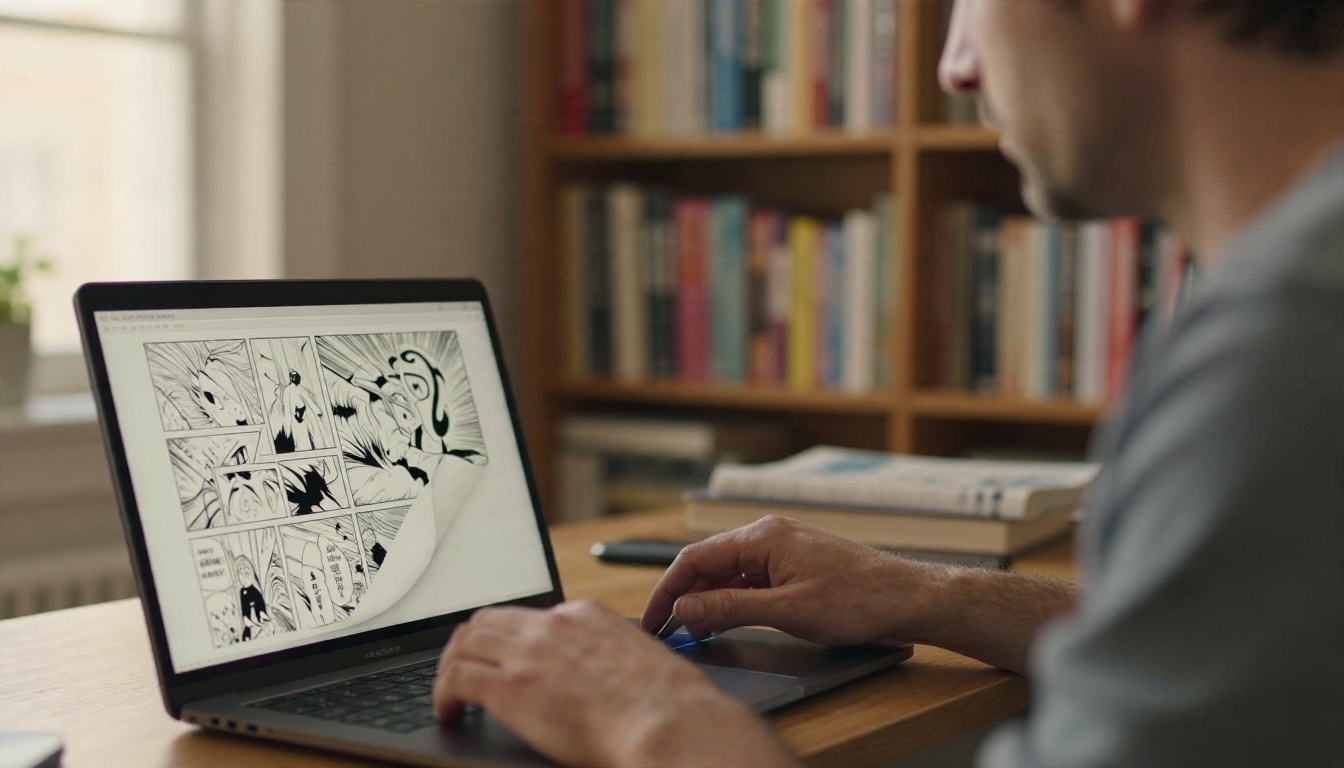
Export Your Pages as One PDF
Most comic apps can export every page into a single PDF. If yours only saves images, combine them with any free PDF merger or print to PDF from an image viewer. Check the page order before moving on, since fixing it later means re-uploading.
✅ Best practice: Keep the PDF under a sensible size. Very large files upload slowly on weak connections. If your file is heavy, reduce image quality slightly instead of shrinking the page dimensions.
How to Create a Comic Flipbook with Flipbooks AI
The PDF to Flipbook Converter does the heavy lifting. Here is the process from start to finish.
- Open the platform. Go to Flipbooks AI and create an account. You can try it before you pay.
- Upload your PDF. Drag your exported comic into the upload area. The platform converts each page into a flipbook page automatically, so you do not touch any code.
- Check the preview. Flip through every page. Look for pages in the wrong order, cut off speech bubbles and any blurry panels.
- Customize the look. Choose a background color that suits your story, such as dark charcoal for a noir comic or soft cream for a children's book. Adjust the page effects and the page turn feel, and add your own branding if you publish under a studio name.
- Add multimedia. Drop in a short audio loop, a video trailer or a link to your next chapter. Embedded videos and audio make a comic feel alive.
- Publish. Save the flipbook and copy the link. Your comic is now live and readable on desktop and phone.
The platform adds no watermarks, ever, and the design is mobile responsive, so a reader on a small screen still gets a clean, readable page.
💡 Pro tip: If you make a long series, the Interactive E-Book Publisher and the E-Book Flipbook Generator are good places to start, since each chapter can become its own flipbook.
Customize for Mobile Readers
Over half of comic readers open links on a phone. Test your flipbook on a small screen before you share it. If dialogue becomes hard to read, enlarge the lettering in your source file and re-export, since pinch zoom is a backup, not a plan.
Share Your Comic Online
Publishing is only half the work. A great comic with a hidden link finds no readers. The method you pick depends on who you want to reach.
| Sharing Method | Best Use | Effort | Control Level |
|---|
| Direct link | Social posts, messages | Very low | Medium |
| Embed code | Blogs, portfolio sites | Low | High |
| Password protection | Drafts, paid chapters, beta readers | Low | Very high |
| Offline download | Readers without a connection | Low | Medium |
| QR code on print | Conventions, flyers | Low | Medium |
Direct Links and Embeds
A direct link is perfect for Instagram bios, Discord servers and email. For your own site, use the Embed Flipbook on Website option. You paste a short snippet into your page and the comic appears inline, with no redirect.
Password Protection for Drafts
Not every comic is ready for the world. Password protection lets you send an early chapter to beta readers, an editor or paying supporters without making it public. When the chapter is polished, remove the password and share the open link.
Offline Downloads and Analytics
Readers on trains and planes appreciate offline downloads. If you want to see what works, the Professional plan adds analytics and lead generation, so you can watch how many people open each chapter and collect emails from the readers who want updates. Compare options on the pricing page.
💡 Pro tip: Put a lead form at the end of chapter one. Readers who finish a first chapter are the ones who want chapter two, so they are the best audience for your newsletter.
Real Examples From Indie Creators
Theory is useful, but seeing how people apply it makes the plan concrete. These scenarios show how the same workflow adapts to different goals.
The Convention Table
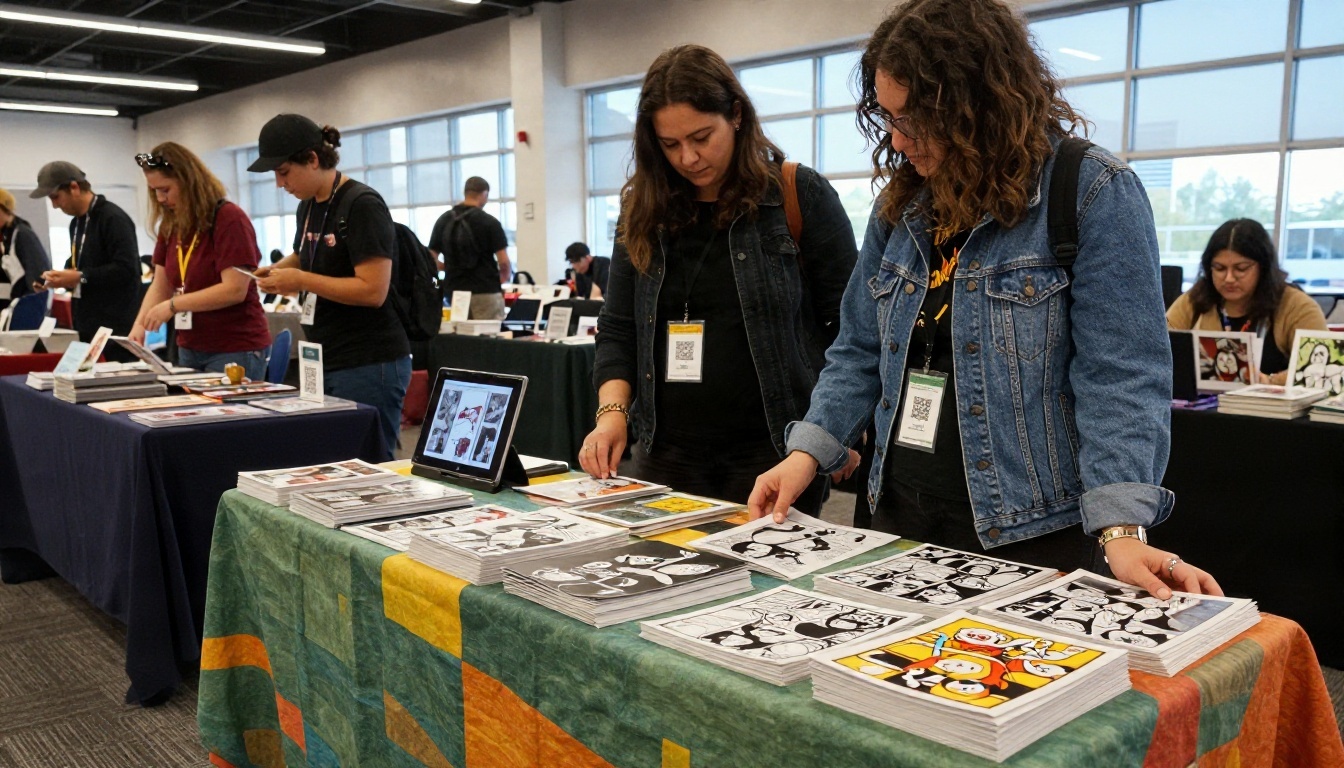
An indie artist prints a small run of a minicomic and places a QR card on the table. Visitors who do not buy still scan the code and read a free preview chapter as a flipbook. Some of them come back and buy the print edition after reading. The flipbook works as a sample that never runs out.
The Portfolio Builder
An illustrator applying for studio jobs combines three short comics into one document. With the Digital Portfolio Creator, the portfolio opens like a book, which feels far more polished than a folder of links.
The Classroom Project
A teacher has students draw a six page comic about a science topic. The class combines every strip into a single anthology, and the Course Material Publisher turns it into one shareable class book that parents can open at home.
Print Versus Digital Readers
Some readers will always want paper. Others will only ever read on a phone. Offering both is easy: print a small batch from the same PDF and publish the flipbook for everyone else.
| Format | Strength | Weakness | Best Audience |
|---|
| Printed minicomic | Tactile, collectible | Cost and shipping | Convention visitors |
| Flipbook | Instant, shareable, free to read | Needs a screen | Online readers |
| Raw image folder | Quick to make | Hard to read in order | Nobody, really |
| Scroll platform | Built in audience | Platform rules apply | Webcomic fans |
Common Mistakes to Avoid
Even careful creators repeat the same errors. Here are three that cost the most time.
- Mixing page sizes. One landscape page in a portrait book breaks the flow. Keep every page identical.
- Tiny lettering. Text that looks fine on a monitor becomes unreadable on a phone. Test on a real device.
- Skipping the preview. A missing page or a duplicated page is embarrassing once the link is public. Flip through the preview every time.
⚠️ Heads up: Check your rights before publishing. If you used stock characters, fonts or photos inside a layout app, read the license terms to be sure you can share the result online.
Publish Your First Comic Today
You do not need a huge budget or a publisher to put a comic in front of readers. A free create comics app gets the pages made, a clean PDF holds them together, and a flipbook gives them a professional reading experience that works on every screen.
Here is the short version of the plan:
- Pick one free app that matches your skill level.
- Set one page size and keep it consistent.
- Export a single PDF and check the page order.
- Convert it with the PDF to Flipbook Converter.
- Share the link, embed it on your site, or lock it with a password while you polish.
Ready to publish? Get started for free on Flipbooks AI, browse all the flipbook tools for portfolios, e-books and more, or compare pricing plans when you want analytics, lead generation and unlimited flipbooks for your whole series.



