Most restaurants get the menu wrong. Not the food, not the prices, not even the layout. They get the feel wrong. A badly formatted PDF shared as a link, a photo of the paper menu taken on a phone, a generic template from a free tool that looks like every other restaurant on the block. The result is a menu that signals mediocrity before a single dish is read.
The good news: creating a restaurant menu that looks like it was professionally printed is no longer a task reserved for design agencies with four-figure budgets. With the right approach, the right tools, and an understanding of what makes print look print, you can produce something that commands attention, builds trust, and keeps customers coming back. Flipbooks AI has become one of the fastest ways to get there.
Why the Printed Look Still Commands Respect
The Psychology Behind Printed Menus
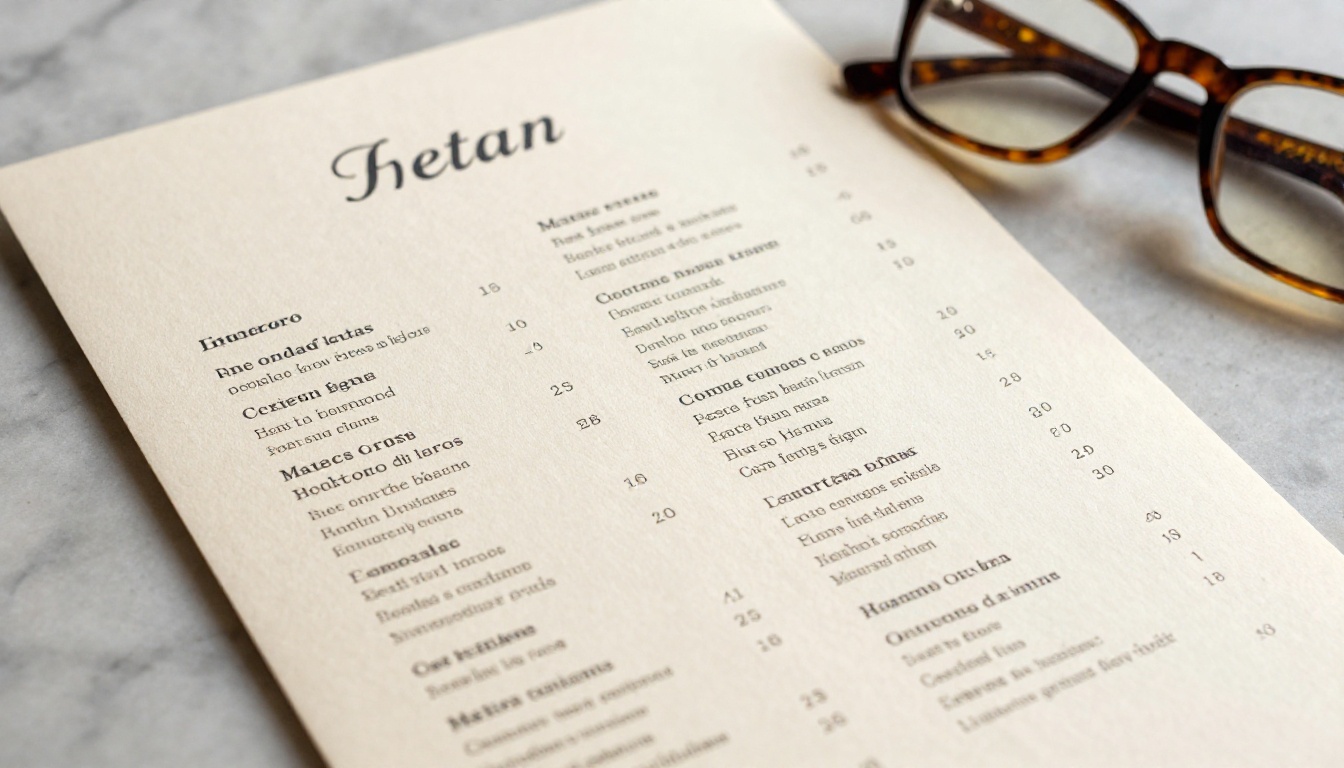
Before a customer reads a single dish name, they have already formed an impression. A printed menu, or something that convincingly mimics one, signals investment. It says the restaurant cares about details. Research in hospitality consistently shows that menu presentation affects willingness to pay. Diners at upscale restaurants expect a tactile, visual experience that matches the quality of the food.
Digital menus broke that trust for many restaurants. QR codes linking to blurry PDFs or mobile-unfriendly image stacks became the post-pandemic default. Customers got functional menus, but they lost something. The weight of a menu, the sensation of flipping a page, the confidence of a well-kerned typeface on quality paper stock: all of that disappeared.
What the best restaurants are doing now is bridging the gap. They design for print quality first, then deploy digitally. The result is a menu that feels considered, regardless of whether it is held in hand or viewed on a phone.
What "Print-Like" Actually Means Digitally
A menu that looks like print shares several visual characteristics with its physical counterpart:
- High ink density simulation: Deep, saturated colors that feel rich rather than screen-bright
- Serif or oldstyle typography: Fonts with fine strokes, bracketed serifs, and optical sizing
- Paper texture: Subtle cream or off-white backgrounds that suggest stock weight
- Tight leading and tracked spacing: Text that breathes like offset-printed copy
- Consistent margins and grid: A layout that reads as intentional, not assembled
- No screen-native conventions: No glowing drop shadows, no flat color fills, no rounded-corner boxes that scream "made in a free tool"
Getting these details right is the difference between a menu that earns a second look and one that gets swiped past.
Design Foundations That Make It Work
Typography That Feels Premium
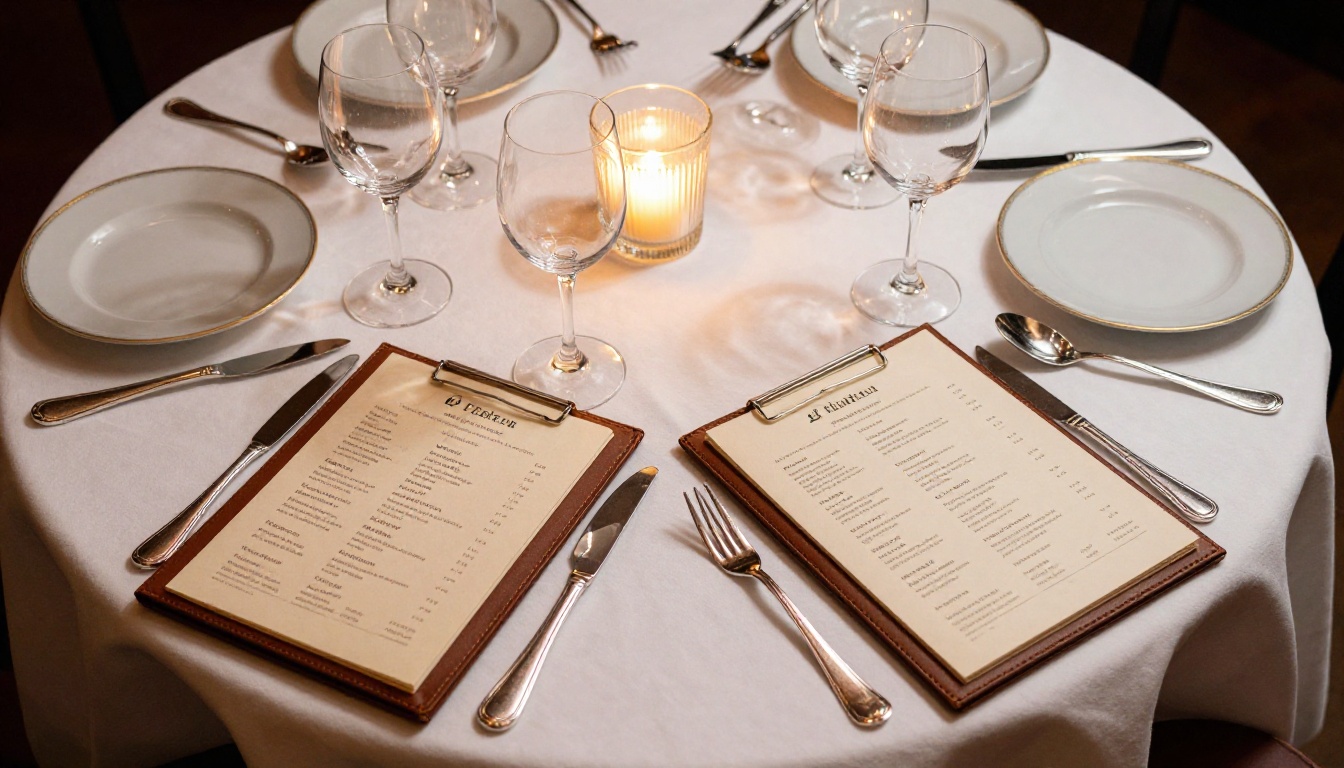
Typography is the single most important design decision in a restaurant menu. The right typeface family does more for the print feel than any texture or layout trick.
For fine dining and upscale bistros, serif typefaces like Garamond, Cormorant Garamond, or Playfair Display bring old-world authority. These fonts were originally cut for letterpress, which means their proportions carry a physical legacy. Use them at slightly larger sizes than you think you need: small text on screen loses the detail that gives serifs their character.
For casual and contemporary restaurants, geometric sans-serifs with a touch of humanity work well. Aktiv Grotesk, DM Sans, or Libre Franklin avoid the clinical feel of pure geometric fonts while maintaining modern clarity.
Type setting rules that matter most:
- Line height: 1.5 to 1.7x the font size for body copy
- Tracking: Slightly loose (5-10 units) for headings, tight (-5 to 0) for price numerals
- Column width: 55-65 characters per line maximum
- Hierarchy: Three clear levels (heading, subheading, body), each with distinct weight contrast
Color and Paper Texture Simulation
The background of your menu design carries enormous psychological weight. Pure white (#FFFFFF) reads as a screen. Cream tones in the range of #F9F3E8 to #EDE3D1 read as paper. The difference feels subtle in a color picker and enormous in practice.
For ink color, replace pure black (#000000) with a rich black that leans slightly warm: #1A1209 or a dark charcoal mixed from CMYK values (60, 40, 40, 100). This is how offset printing actually renders black, and your eye recognizes it subconsciously.
💡 Add a very subtle paper texture overlay at 3-5% opacity in your design software. A fine grain, not visible at a glance but present when you look closely, gives the page dimensionality that flat colors cannot replicate.
Layout and White Space Rules
Print designers live by the grid. Every element on a printed page sits within a structure of columns, gutters, and baselines. Digital-native designers often skip this discipline, and the result is menus that feel assembled rather than designed.
Use a simple 6 or 8-column grid with consistent gutters (typically 4-5mm in print, which translates to about 16-20px at screen resolution). Maintain the same margin on all four sides. Let content breathe: white space is not wasted space in premium menu design, it is a signal of confidence.
The PDF Workflow Advantage
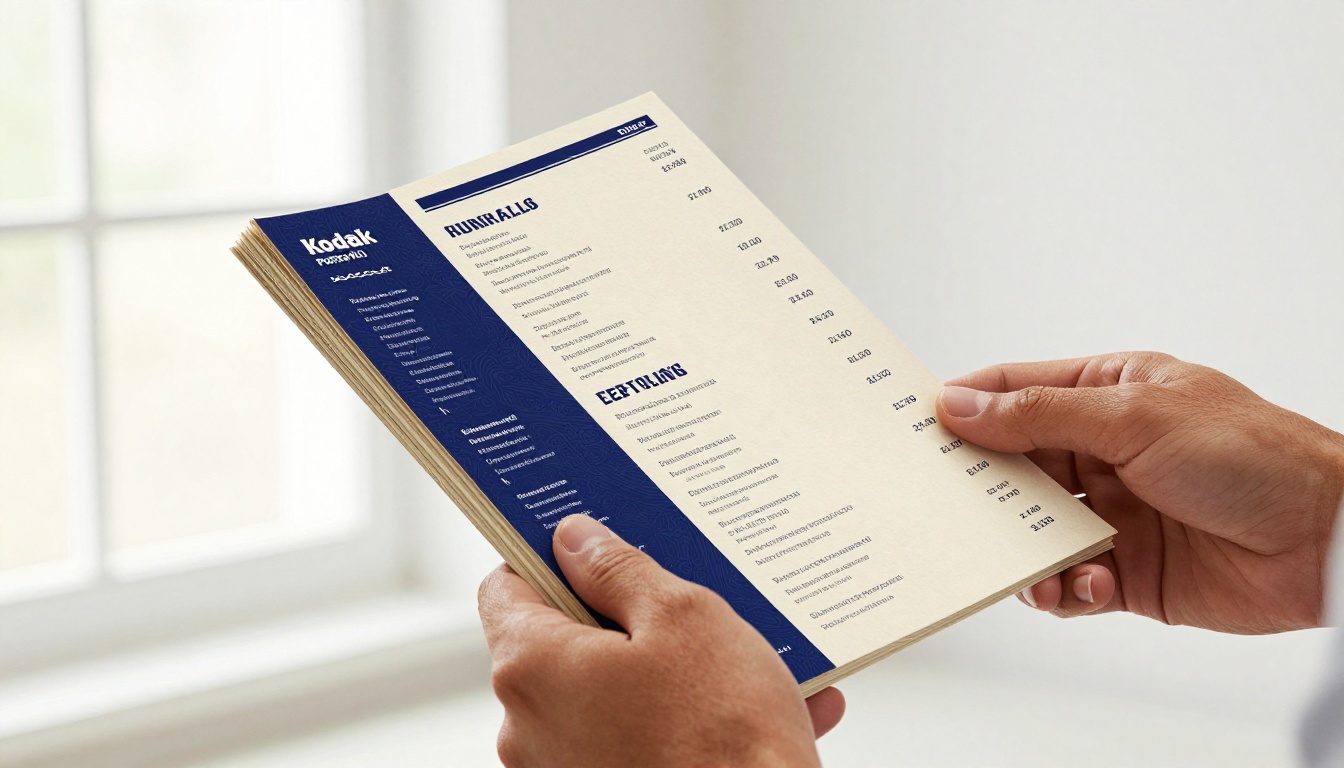
The cleanest path to a print-quality digital menu starts with designing for print first, then converting to a digital format that preserves every design decision. This means using software that outputs high-fidelity PDFs: Adobe InDesign, Affinity Publisher, or a well-configured Canva with print preset settings.
When you export a PDF for print, you control the elements that matter most in the final output:
- Bleed and trim settings (3mm bleed is standard)
- Color profile (CMYK for print accuracy, or sRGB with print-simulation overlay)
- Font embedding (ensures your typeface renders correctly anywhere)
- Image resolution (300 DPI minimum for all embedded photography)
A PDF built this way, when viewed digitally, retains every quality detail. And when that PDF is uploaded to a platform like Flipbooks AI, it becomes an interactive flipbook with genuine page-turn physics that replicate the physical act of reading a printed menu.
Comparing Menu Creation Tools
Not all digital menu tools deliver the same results against the criteria that matter for print-quality output:
| Tool | Print-Quality PDF | Page-Turn Effect | Custom Branding | Analytics | Entry Price |
|---|
| Flipbooks AI | Yes | Yes (realistic) | Yes | Yes (Pro) | Free |
| Canva | Partial | No | Limited | No | Freemium |
| Adobe Acrobat | Yes | No | No | No | Subscription |
| Issuu | Partial | Yes | Limited | Paid only | Freemium |
| Yumpu | Partial | Yes | Limited | Paid only | Freemium |
⚠️ Tools that convert your PDF to flat images lose all typography sharpness. Always verify that your platform preserves vector text rendering rather than rasterizing the content.
Why Flipbook Format Works for Menus
A flipbook is not just a novelty effect. For restaurant menus, the page-turn mechanic is functionally meaningful. It mirrors exactly how a physical menu is consumed: page by page, section by section, with context from the spread as a whole.
This matters because customers reading a flat-scroll PDF skip sections. Customers reading a flipbook browse. The lateral navigation, combined with the tactile animation of a turning page, creates an experience that matches the offline dining ritual. It also makes your menu shareable. A link to a beautifully presented interactive menu is something guests forward to each other. A raw PDF link is not.
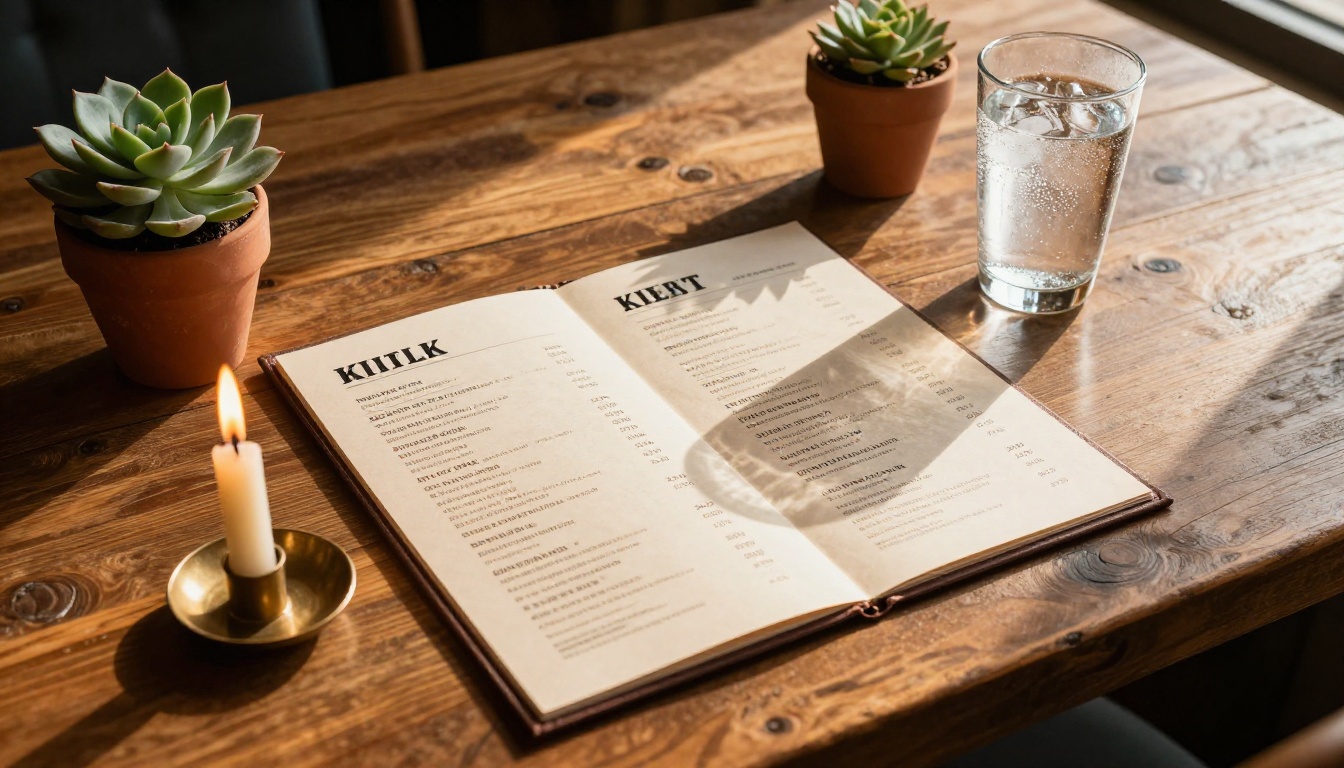
Flipbooks AI has a dedicated Restaurant Menu Creator built specifically for this use case. The workflow takes a well-designed PDF and transforms it into an interactive, shareable menu in minutes. Here is the exact process:
Step 1: Design and Export Your PDF
Before uploading, ensure your menu PDF meets print-quality standards:
- Design in a print-first tool (InDesign, Affinity Publisher, or high-res Canva)
- Set page size to your actual menu dimensions (common sizes: A4, US Letter, or 5.5 x 8.5 inches)
- Embed all fonts before exporting
- Export at minimum 150 DPI (300 DPI preferred)
- Save as PDF/X-1a for maximum compatibility
Step 2: Upload to Flipbooks AI
- Create an account on Flipbooks AI (free to start)
- Click "New Flipbook" from your dashboard
- Select "Upload PDF" and choose your menu file
- The platform converts your PDF while preserving all vector text, embedded images, and colors
- Your flipbook appears in the editor within seconds
Step 3: Customize Your Flipbook
This is where digital surpasses print. With Flipbooks AI, you can add layers to the experience that a physical menu cannot offer:
- Custom branding: Add your restaurant logo to the flipbook frame, match background colors to your brand palette
- Page effects: Enable the realistic paper texture overlay and page-curl shadow for maximum print feel
- Sound: Optional subtle page-turn audio on flip (enhances the sensory experience significantly)
- Embedded video: Add a short clip of a signature dish directly onto the relevant menu page
✅ Use a dark frame color matching your restaurant's primary brand color. It creates a "menu in hand" visual effect that reinforces the print-quality impression at first glance.
Step 4: Set Sharing Options
Flipbooks AI provides several distribution modes depending on your use case:
- Direct link: Share via WhatsApp, Instagram bio, or Google Business profile
- Embed code: Drop the flipbook directly into your restaurant website
- QR code: Print and place on tables, linking to the live interactive menu
- Password protection: Useful for private tasting menus or event-specific versions
Step 5: Track What Works
With the Professional plan on Flipbooks AI, you gain access to analytics that no printed menu can offer:
- Which pages are viewed most frequently
- Where readers drop off (signals sections that need redesign)
- How long guests spend on each page
- Lead generation forms embedded directly into the flipbook
This data is actionable. If your drinks page consistently gets skipped, the layout needs work. If guests linger on the dessert section, consider expanding it with seasonal additions.
What Different Restaurant Types Actually Need
Fine Dining Requirements
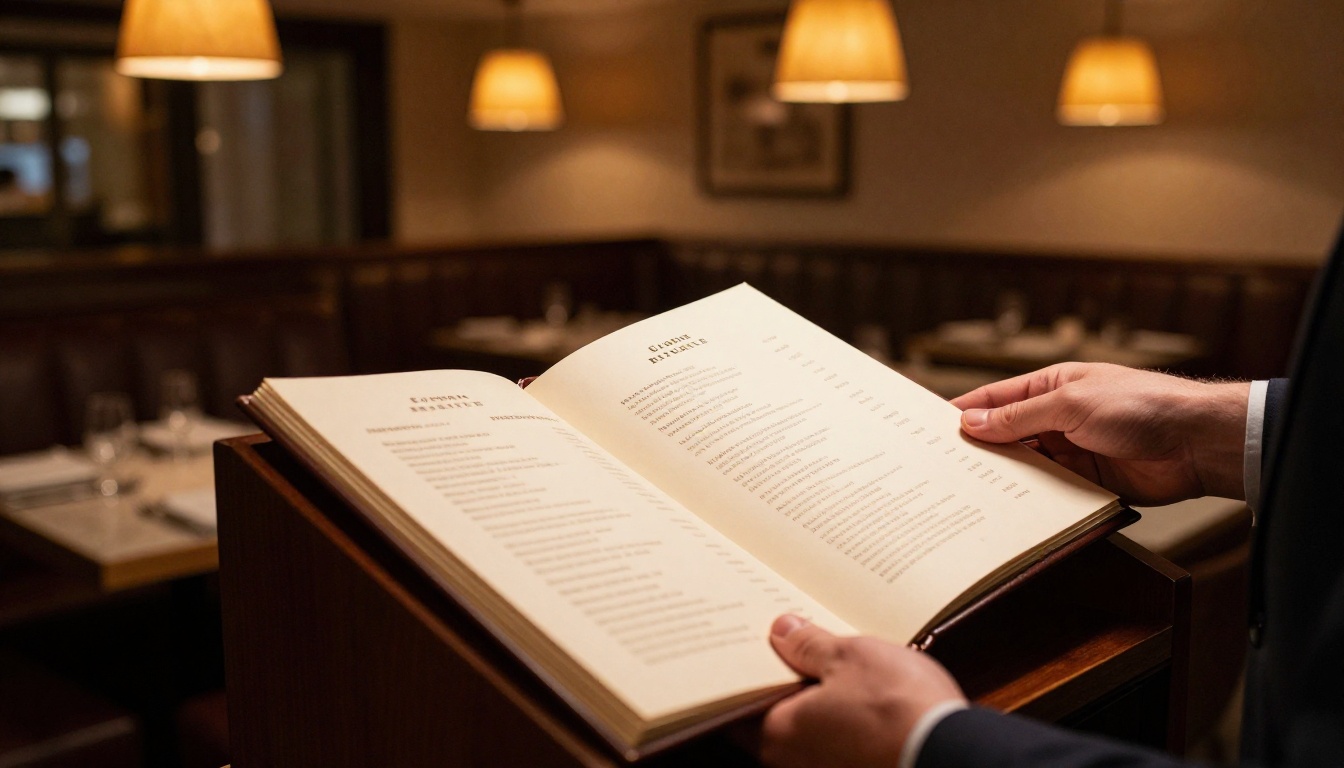
Fine dining menus operate on a different set of rules. The menu itself is part of the experience, and guests arrive with high expectations. This format demands:
- Heavy paper weight simulation (cream background, warm color palette, generous margins)
- Minimal pages with a curated selection (a short menu is a confident menu)
- Typographic restraint: no more than two typeface families across the entire document
- Handcrafted design details: illustrated borders, monogram logos, or seasonal artwork used sparingly
For fine dining applications, the ability to upload a beautifully designed PDF and have it rendered with full typographic fidelity makes Flipbooks AI the strongest choice currently available.
Fast Casual and Bistro Needs
Speed and clarity matter here. Customers need to read and decide quickly, especially during lunch rushes. Print-quality in this context means:
- Bold, legible hierarchy with clear categories and strong contrast
- Color-coded sections for fast navigation between starters, mains, and drinks
- Photography that makes items look genuinely appetizing at small sizes
- A format that loads instantly on mobile without loss of quality
The Menu Flipbook Designer tool handles this use case well, with templates calibrated for high-information-density pages.
Café and Bakery Formats
Cafés often run rotating menus with frequent changes. The print-quality look matters, but so does update speed. A menu that looks professionally printed but can be updated in ten minutes is the ideal scenario.
With Flipbooks AI, you can update the source PDF and re-upload, and all existing links automatically serve the new version. No reprinting, no new QR codes, no need to communicate updated URLs to staff. The Spa & Wellness Menu format also adapts cleanly for boutique cafés with curated wellness-focused offerings.
What Separates Premium from Generic
3 Common Mistakes That Ruin the Print Feel
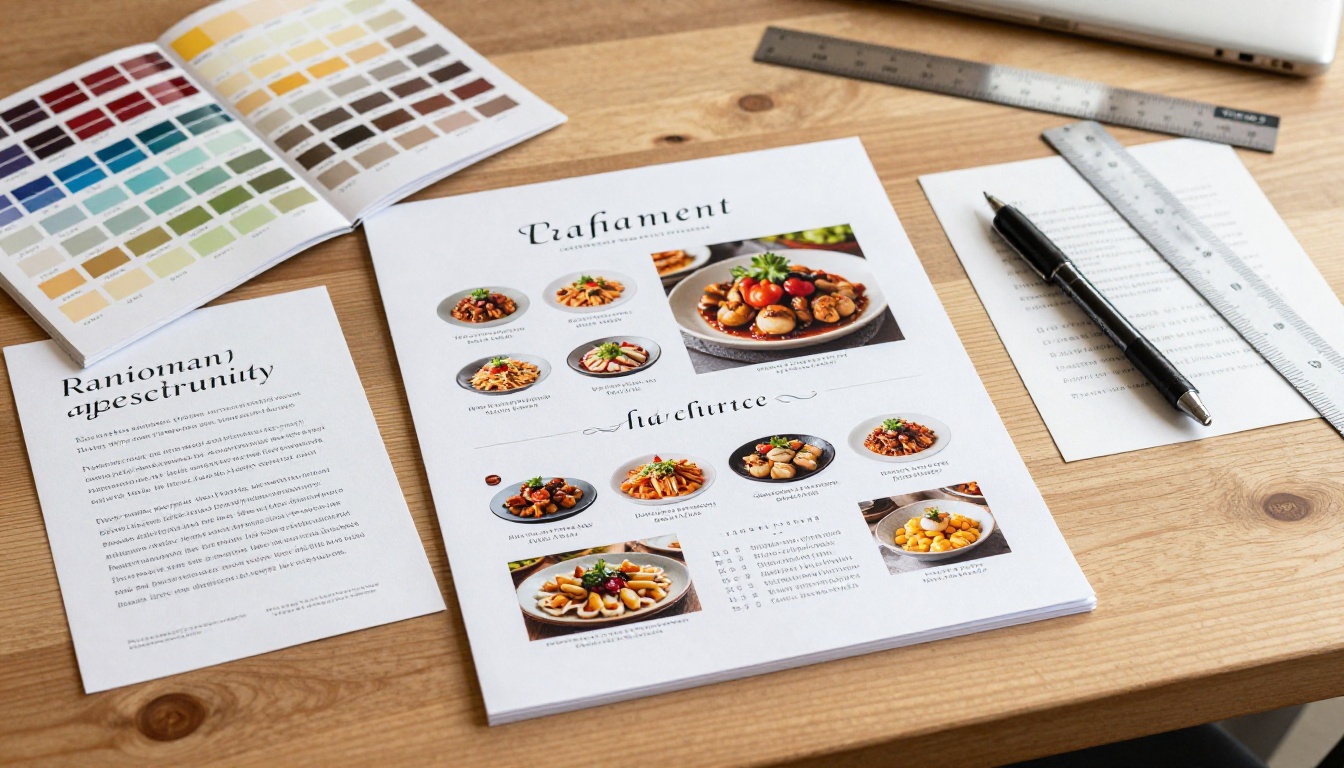
Most restaurant menus that fail to read as print make the same small errors repeatedly. Avoiding them is straightforward once you know what to watch for:
| Mistake | Why It Reads as "Digital" | The Fix |
|---|
| Pure white background (#FFFFFF) | Looks like a webpage, not paper | Use warm cream tones (#F5EDD8 or similar) |
| System fonts (Arial, Helvetica) | Generic, no print heritage | Use Garamond, Playfair Display, or EB Garamond |
| RGB color mode only | Colors shift unpredictably on different displays | Design in CMYK, convert to sRGB for screen output |
| Centered all text throughout | Weak hierarchy, signals amateur design | Left-align body copy, center section headers only |
| Low-resolution photography | Blurry images destroy the premium impression | Minimum 300 DPI for all embedded food images |
| Inconsistent spacing | Random gaps signal no underlying grid | Use baseline grid with consistent margin units throughout |
| Drop shadows with glow spread | Screen-native visual convention, not print | Use tight, low-opacity offset shadows or remove entirely |
Elements That Elevate Everything
Certain design choices separate a functional menu from one that earns genuine compliments:
- Divider lines: Thin rules (0.25pt to 0.5pt) between items add structure without heaviness
- Small caps: Use small capitals for section headers instead of all-caps for more elegance and readability
- Ornamental details: A single decorative element, a fleur-de-lis, a small vine, or a geometric border, applied with restraint and consistency
- Price alignment: Right-align prices to a consistent column, never left-flush with dish names
- Footnotes: A small italic footnote for allergen info or sourcing notes signals transparency and genuine care
💡 Study printed menus from restaurants you admire. Scan them at high resolution and analyze the grid. Most of what makes them look authoritative is structural, not decorative.
Flipbooks AI Plans at a Glance
Choosing the right plan depends on how many menus you need and which features matter most. Here is how the options break down specifically for restaurant use:
| Feature | Free | Standard | Professional |
|---|
| Number of flipbooks | Limited | Unlimited | Unlimited |
| Custom branding | No | Yes | Yes |
| Watermark | Yes | No | No |
| Password protection | No | Yes | Yes |
| Analytics dashboard | No | No | Yes |
| Lead generation forms | No | No | Yes |
| Offline downloads | No | No | Yes |
| Embed videos and audio | No | Yes | Yes |
| Mobile-responsive design | Yes | Yes | Yes |
For most independent restaurants, the Standard plan removes watermarks and enables custom branding: the two features most critical to maintaining the print-quality illusion at every touchpoint. Professional adds analytics, which is particularly valuable for restaurants running seasonal or event menus where understanding guest behavior informs future redesigns.
Explore pricing plans to see current rates and find what fits your operation.
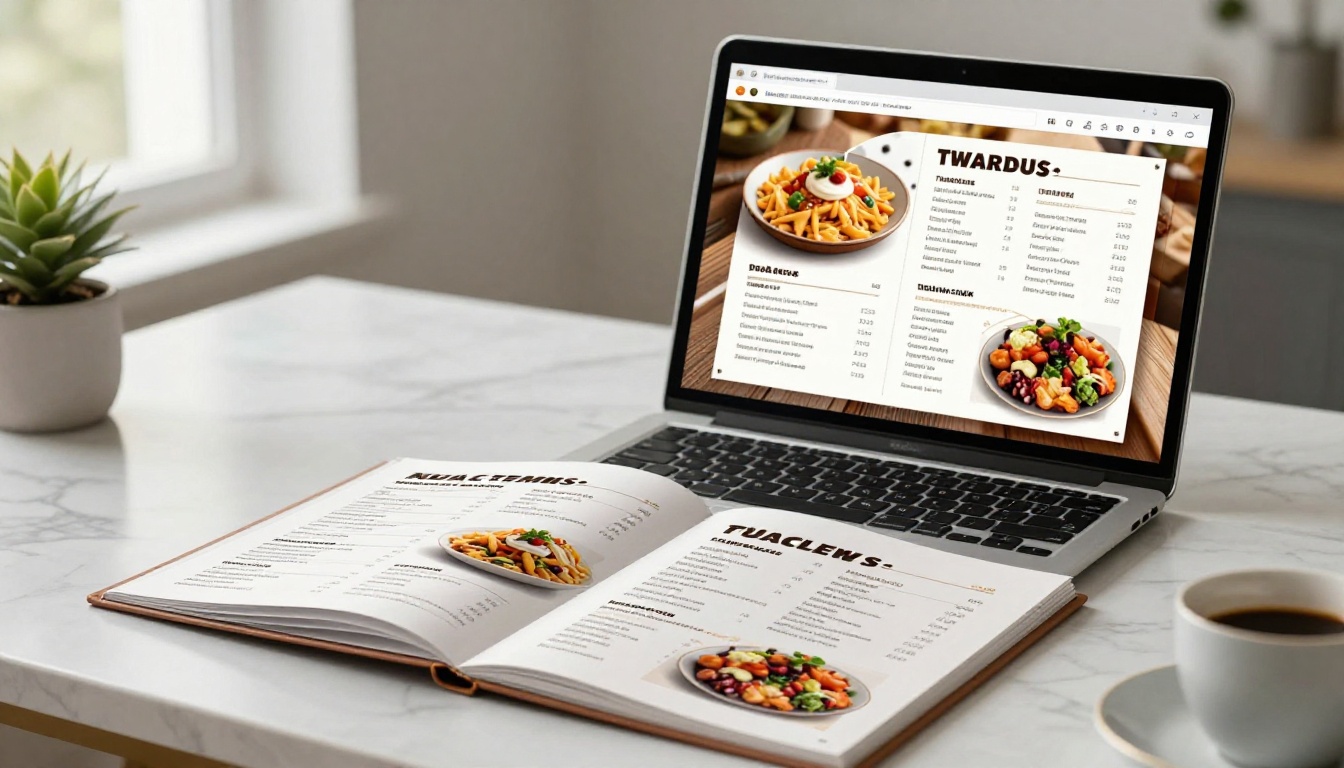
The gap between a restaurant menu that looks printed and one that looks digital is not a matter of budget. It is a matter of decisions: the right typeface, the right background tone, the right grid, and the right platform for delivery. Every one of those decisions is accessible right now.
Design your PDF with the principles laid out above, upload it to Flipbooks AI, and you will have something that guests share, remember, and associate with quality. The printed menu is not dead. It just moved online, and the restaurants that recognize this first will own the perception advantage for years to come.
Ready to create yours? Get started for free on Flipbooks AI and use the Restaurant Menu Creator to have your first print-quality digital menu live within the hour. Compare pricing plans when you are ready to remove watermarks and add full branding. Browse all available menu and flipbook tools to find the format that fits your restaurant best.



