Your phone holds thousands of photos, but almost nobody sees them. They sit in a camera roll, mixed with screenshots, receipts and blurry test shots, while your family keeps asking you to "send the pictures from the trip." A good digital photo album app fixes that: it sorts the memories, tells a story, and lets other people view them with a single link. In this article you will see which free options are worth your time, which online alternatives give you more control, and how a page-turning album built with Flipbooks AI can turn a pile of pictures into something people actually open.
What a Photo Album App Should Do
Before comparing apps, decide what you need the app for. Most people mix up two very different jobs, and that mix-up is why so many albums end up forgotten.
Storage vs. Presentation
Storage means keeping your originals safe. Presentation means showing a chosen set of them in a clear order. A cloud backup is great at the first job and mediocre at the second. A grid of 800 thumbnails is not an album, it is a warehouse.
A real album has a beginning, a middle and an end. It has captions, a cover page, maybe a few short notes about who is in the picture. That is why printed albums survived for a century, and why the best digital versions copy their logic.
Five Questions Before You Pick
Ask yourself these before installing anything:
- Who will view it? Close family on phones, or a wider group on laptops?
- Do viewers need an account? Forcing grandma to register is the fastest way to lose her.
- How many photos? 40 curated shots and 4,000 raw ones need different tools.
- How private is it? Baby pictures and wedding photos deserve more than a public link.
- How long should it last? Some free tiers shrink or change rules over time.
💡 Pro tip: Write down your answers in one line, for example: "40 photos, 12 relatives, no logins, private." That sentence will filter out most options in under a minute.
Free Photo Album Apps Compared
Free apps are the natural starting point. They sync with your phone, back up pictures automatically and offer shared albums. Limits and policies change often, so treat the figures below as typical free allowances and check each provider's current terms.
| App | Typical free storage | Share by link | Viewer needs account? | Best for |
|---|
| Google Photos | 15 GB shared with your Google account | Yes | Usually no for link viewing | Android users, automatic backup |
| iCloud Shared Albums | 5 GB iCloud storage | Yes, public website option | No for public link | iPhone and iPad families |
| Amazon Photos | Unlimited full resolution photos with Prime | Yes | Sometimes | Prime members |
| OneDrive | 5 GB | Yes | Optional | Windows users |
| Dropbox | 2 GB | Yes | No for view links | Small, curated sets |
Google Photos
It is the default pick for a reason. Search is excellent, backup is automatic, and a shared album link opens in any browser. The weak spot is the shared storage: your photos compete with email attachments and Drive files for the same 15 GB. It also has little control over page order beyond the album sequence, and no cover, no captions beyond short text, no page-turning feel.
iCloud Shared Albums
If everyone in the family uses an iPhone, this is painless. Friends can add their own pictures, and a public website option lets people without Apple devices browse. The free 5 GB fills quickly though, and design choices are close to zero.
Amazon Photos and Others
Amazon Photos is generous for Prime members, with full resolution photo storage and family sharing. OneDrive and Dropbox work as quiet alternatives, particularly if you already use them for documents. All three share a pattern: they are storage first, storytelling second.
⚠️ Watch out: "Free" often means free until your storage fills up. Check what happens to shared links if you stop paying or downgrade, because some providers disable sharing or delete content after long periods over the limit.
Online Alternatives Worth Trying
If a backup app feels too much like a filing cabinet, step sideways. Two families of tools handle presentation better.
Cloud Folders With Preview
Create a folder, drop in 30 to 60 selected photos, and share the folder link. It is quick, and viewers can download originals. But you get a plain file list, no page order feel, and no way to see who opened it.
Flipbook Albums
A flipbook album turns your photos into pages that flip like a real book, right in the browser. You arrange the photos in a design tool or layout app, export a PDF, and upload it. The result is a clean page-turning album with its own link, which opens on phones, tablets and desktops without an app or an account.
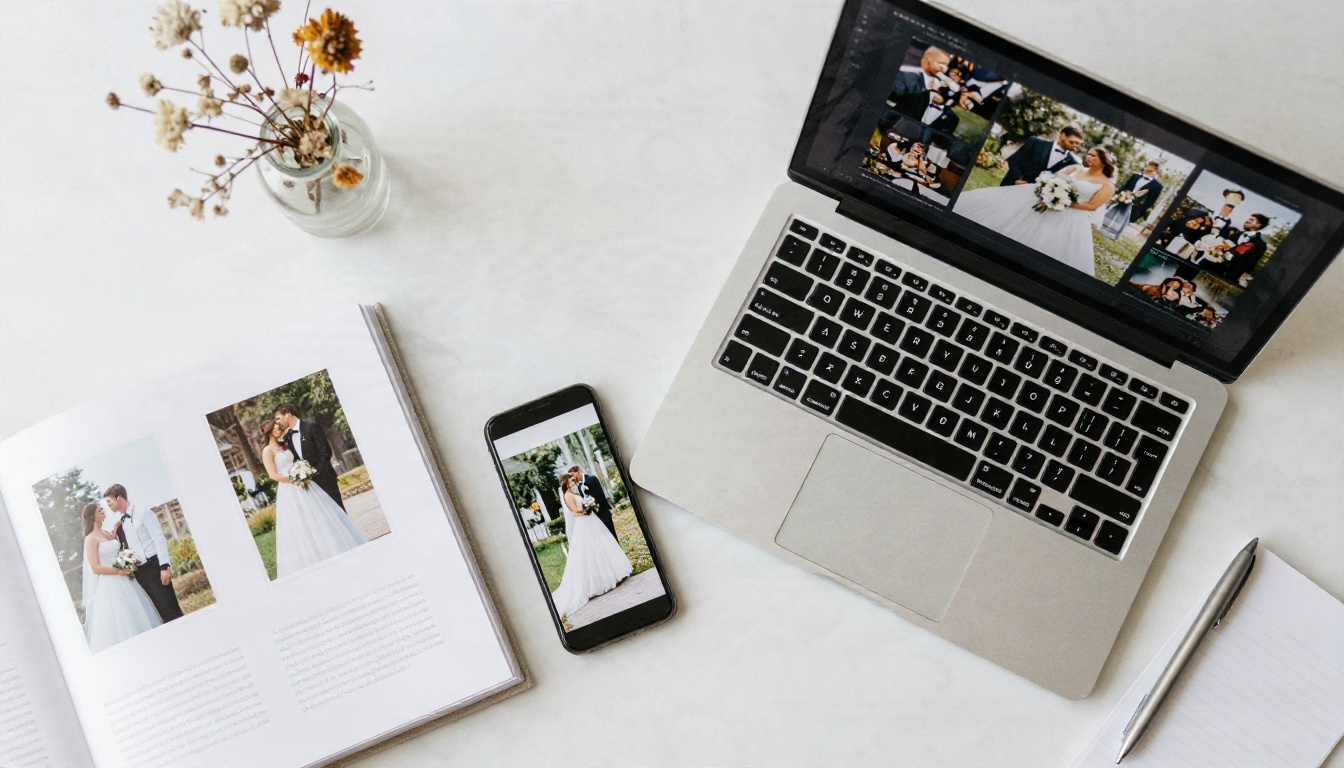
Here is how the three approaches compare:
| Feature | Backup app album | Cloud folder | Flipbook album |
|---|
| Page order and layout | Basic grid | File list | Full control, page by page |
| Captions and text | Short | None | Any amount |
| Page-turning feel | No | No | Yes |
| Viewer login required | Sometimes | Sometimes | No |
| Password protection | Limited | Often paid | Available |
| Open stats | Rarely | Rarely | Available on Pro |
| Works as a gift | Weak | Weak | Strong |
✅ Best practice: Keep your originals in a backup app and publish your best photos as a flipbook. Think of the first as the archive and the second as the exhibition.
Sharing by Link, Done Safely
A link is the easiest way to share, and also the easiest way to overshare. Anyone who has the URL can usually open it, and links forwarded in group chats travel further than you intended.
View-Only vs. Collaborative Links
There are two link types, and they solve different problems:
- View-only links let people see the album but not change it. Best for finished stories like weddings, birthdays and holiday recaps.
- Collaborative links let others upload their own photos. Best for events where many guests take pictures, such as a reunion or a school trip.
For most family use, publish a view-only album and keep a separate collaborative folder for contributions. That way the final album stays tidy.
Privacy Checklist
Run through this list every time before you send a link:
- Is the album public, unlisted or private? Know which one you chose.
- Is there a password for sensitive content such as children, home interiors or documents?
- Did you strip location data from photos that show your home or your kids' school?
- Do you know who has the link right now? Can you disable it later?
- Are you sharing in a private chat rather than a public post?
⚠️ Heads up: Photos taken on phones often carry GPS coordinates inside the file. Many apps remove them on upload, but not all do. When in doubt, share a PDF or flipbook made from exported images, which usually drops that metadata.
How to Build One With Flipbooks AI
This is the practical part. You can build a shareable, private, page-turning album in about fifteen minutes. The process works for a wedding, a vacation or a baby's first year, and the dedicated Wedding Album Flipbook tool is a ready-made starting point for the most popular case.
Step 1: Prepare and Upload
- Pick 30 to 60 photos. Fewer is better. If you hesitate over a picture, leave it out.
- Arrange them in any layout app you like (Canva, Pages, PowerPoint, Google Slides) and add short captions: a date, a place, a name.
- Export the result as a PDF.
- Go to Flipbooks AI and create a free account.
- Upload the PDF using the PDF to Flipbook Converter. The conversion takes a few moments and keeps the page order exactly as exported.
If your album is mostly pictures from a shoot, the Photography Portfolio tool offers a layout that lets large images breathe.
Step 2: Customize the Look
Once your PDF has become a flipbook, open the editor and adjust the details:
- Background color: a soft cream or charcoal makes photos pop.
- Page effects: choose the page-turn animation and sound that match your style.
- Branding: add a logo or a title if the album is for a business or a studio. For a family album, skip it.
- Multimedia: embed a short video clip or a background track, such as the song from the first dance.
- Mobile view: check how pages look on a phone, since that is where most relatives will open it.
There are no watermarks, so your album looks like yours and nothing else.
💡 Pro tip: Put your strongest photo on page one and your funniest on the last page. People always remember the beginning and the end.
Step 3: Share With Control
You have several sharing options:
| Option | How it works | When to use it |
|---|
| Direct link | Copy the URL and paste it into a message | Family chats, quick sharing |
| Password protection | Viewers need a password to open | Private events, children, sensitive images |
| Embed code | Paste a snippet into a site or blog | Photographers, wedding pages, personal sites |
| Offline download | Viewers save a copy | Guests with unreliable internet |
To place the album on your own page, follow the Embed Flipbook on Website instructions. It takes a single snippet of code.
Pro Features Worth Knowing
If you are sharing in a professional context, say a studio sending galleries to clients, the Professional plan adds analytics to see how many people opened the album, lead generation forms to capture contact details, and extra options for offline downloads. Compare pricing plans to see which tier matches your volume. The Standard plan and above allow unlimited flipbooks, which is handy if you publish a new album every season.
Real Examples That Work
Abstract advice only goes so far, so here are three real-world setups.
The Wedding Album
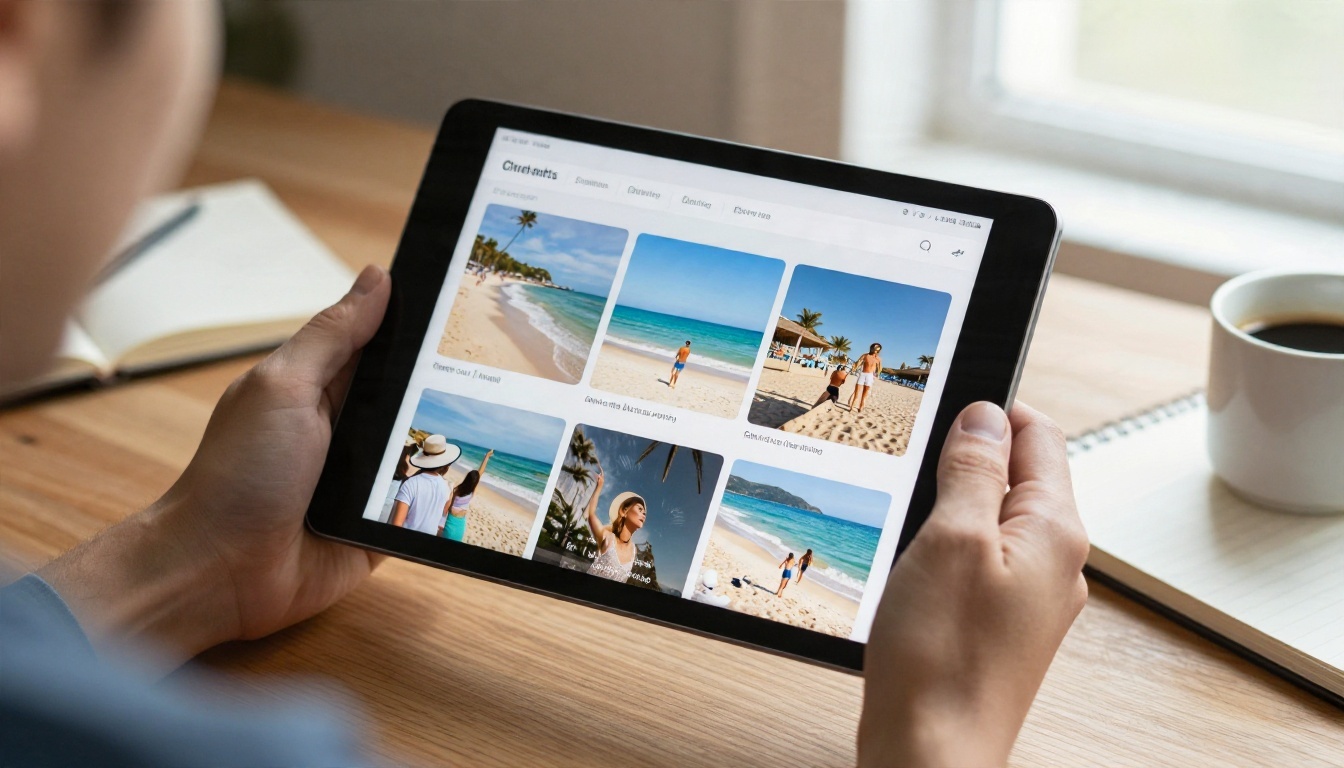
A couple receives 600 photos from their photographer. They choose 80, arrange them chronologically from morning preparation to the last dance, and export a PDF. The flipbook gets a password, and the link goes to 40 guests. Result: nobody has to download a 2 GB zip file.
The Family Trip
A parent uses a free backup app to collect everyone's pictures after a week abroad. Then they pick 35 favorites, add one-line captions and publish a flipbook. Aunts, uncles and cousins open it in seconds. Trying a themed format? The Travel Guide Flipbook tool works nicely for trips with maps and notes.
The Grandparent Gift
A young father sends a view-only link to the grandparents every month with the newest photos of their grandchild. No accounts, no apps, no confusion. They tap the link, flip pages with a finger, and that is all.
Here is a quick view of which setup suits which situation:
| Situation | Best option | Why |
|---|
| Automatic backup of everything | Google Photos or iCloud | Set it once, forget it |
| Sharing 200+ raw photos with friends | Cloud folder | Fast, downloadable originals |
| Wedding or milestone album | Flipbook album | Order, captions, password |
| Monthly baby updates for relatives | Flipbook or shared album | No login for viewers |
| Client gallery for a photographer | Flipbook with embed | Branding and analytics |
| Memorial or tribute | Flipbook with audio | Music, text and photos together |
Common Mistakes to Avoid
- Sharing too many photos. Fifty great photos beat five hundred average ones. People close an album when it feels endless.
- Skipping captions. A date and a name turn a picture into a memory. In ten years you will not remember who is on the left.
- Using a public link for private moments. Choose a password or a private chat.
- Forgetting about older relatives. If they need an account, a code or an app install, they will not open it. Test the link on the least technical person in your family.
- Relying on one place. Keep originals in at least two locations: your phone's cloud backup and an external drive.
- Ignoring mobile. Most people will open the link on a phone. Preview it there before sending.
✅ Best practice: Send the link with a short message such as "Tap the link, then swipe left to turn the pages." Clear instructions raise the chance that people actually open it.
Pick Your Setup Today
The best digital photo album app is rarely a single app. It is a small system: a free backup service for safety, a curated selection for the story, and a link people can open without friction.
Here is a simple plan you can finish this weekend:
- Turn on automatic backup in your phone's photo app.
- Choose one event and select 30 to 60 photos.
- Arrange them in a PDF with short captions.
- Create your free flipbook on Flipbooks AI.
- Add a password if the content is private, then share the link.
Want more ideas? Browse all flipbook tools for yearbooks, recipe books, lookbooks and portfolios, or compare pricing plans when you are ready to publish unlimited albums. Your memories deserve more than a camera roll, and the people you love deserve a link that simply works.



