You typed "free flip book generator" into a search bar, dropped in a PDF, and then the fine print showed up: a 15 MB file cap, a watermark across every page, or a share link that dies after seven days. It happens constantly. The word "free" in this category covers everything from a genuinely useful tool to a demo that falls apart the moment a real client opens it. This article lays out exactly where the limits sit for PDF upload, embedding and sharing, so you can pick a tool before wasting an afternoon. We also show how to publish a clean page-turning document on Flipbooks AI in a few minutes.

What "Free" Really Means
A flip book generator turns a static PDF into a digital publication with page-turn animation, zoom, search and a shareable URL. Readers open it in a browser, no download needed. Brochures, catalogs, menus, magazines and reports all work well in this format because people already expect to flick through them.
Search intent behind this keyword is mostly transactional with a practical streak. You want a tool you can use today, and you want to know what it costs before you commit. So let's talk about the real price tags hiding behind the word "free".
The Usual Free Tier Caps
Most free plans are built to let you test the product, not run a business on it. Here is the pattern you will see across the category:
| Limit | Typical free plan | What it means for you |
|---|
| PDF file size | Small cap, often a few dozen MB | Image-heavy catalogs may be rejected |
| Page count | Capped per document | Long reports need splitting |
| Number of flipbooks | One to a handful | Old projects get replaced or deleted |
| Watermark | Provider logo on pages or toolbar | Looks unprofessional to clients |
| Link lifespan | Sometimes expires | Printed QR codes can break |
| Embedding | Limited or branded | Site visitors see someone else's ad |
| Analytics | None | No idea who read what |
Limits change often, so treat any table, including this one, as a pattern and not a promise. Always check the current plan page of whichever tool you pick, and look at Flipbooks AI pricing for the up-to-date numbers on this platform.
Watermarks and Branding
The watermark is the most visible trade-off. Some tools stamp a logo on the corner of every page. Others add a banner when the flipbook is embedded. A few place the brand in the reader toolbar only, which is easier to live with.
⚠️ A watermark on a client-facing catalog or a hotel brochure can cost you more credibility than a paid plan costs in a month. Decide early whether the document is a test or a deliverable.
Flipbooks AI takes a clear stance here: no watermarks, ever. That applies to every flipbook you publish, so what you see in preview is what your reader sees.
PDF Upload Limits That Matter
Upload is where most frustration starts. You have a finished PDF from InDesign, Canva or Word, and the converter rejects it or mangles it.
File Size and Page Count
Size caps are the first wall. A text-only report is tiny, but a 60-page fashion lookbook with full-bleed photography can run past 100 MB. When a tool refuses the file, you have three options:
- Compress the PDF with your design software's export settings (target 150 dpi for screen reading).
- Split the document into chapters and publish them as separate flipbooks.
- Switch tools to one that accepts larger files.
Page count caps behave similarly. A free plan might allow a short brochure but reject a 200-page manual. If you publish training material, check this limit before you build the whole thing.
💡 Export your PDF as "smallest file size" or "screen quality" before uploading. Readers on phones will not see the difference, and conversion finishes faster.
Fonts, Images and Links That Break
Size is not the only problem. A converter can accept your file and still deliver a worse document. Watch for these:
- Missing fonts: if fonts are not embedded in the PDF, text can shift or swap to a default.
- Flattened links: clickable buttons in the PDF may stop working after conversion.
- Low-resolution pages: aggressive compression makes small print blurry on zoom.
- Spread vs. single pages: a two-page spread exported as one wide page can break the page-turn effect.
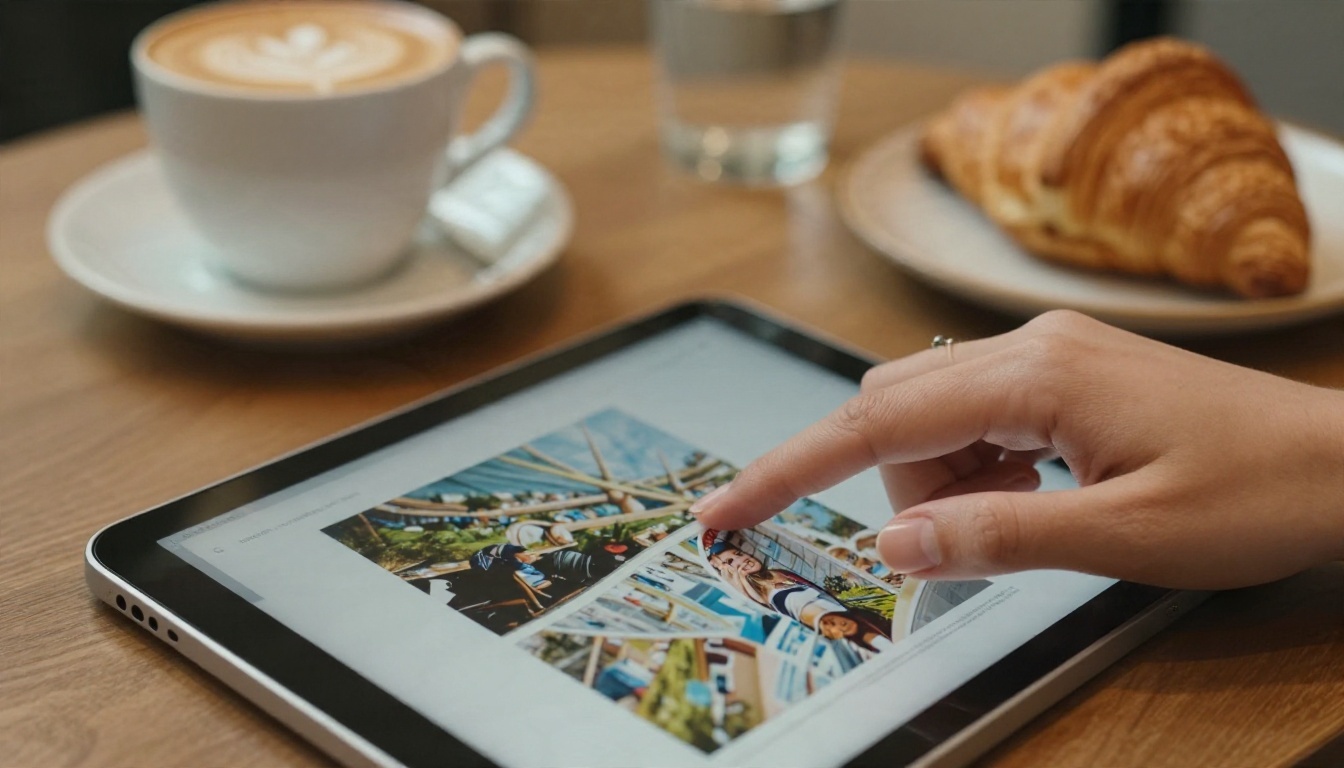
Before you share anything, open the converted flipbook on a desktop, a tablet and a phone. Click every link. Zoom into the smallest text. Two minutes of checking saves an embarrassing email later.
The PDF to Flipbook Converter handles the conversion in the browser, and you can preview the result before sending it to anyone.
Embed Limits Worth Checking
Sharing a link is fine. Embedding a flipbook inside your own website is where a tool proves it was built for professionals.

Iframe, Script or Plugin
Most generators offer an embed code you paste into your page builder. The details differ:
| Embed method | Best for | Watch out for |
|---|
| Iframe code | WordPress, Wix, Squarespace, custom HTML | Fixed height can crop on mobile |
| Script snippet | Developers who want control | Can be blocked by strict security policies |
| Direct link button | Newsletters, social bios | Visitors leave your site |
| Popup or lightbox | Landing pages | Slower load if the file is large |
Free plans sometimes disable embedding or inject a banner into the frame. If your goal is a catalog on your product page, confirm embedding is allowed and unbranded before building anything.
Responsive Sizing
A flipbook that looks great at 1200 pixels wide can turn into a postage stamp on a phone. A good embed scales with its container, switches to a single-page view on small screens and keeps the toolbar usable with a thumb.
✅ Test your embed on a real phone, not just a resized browser window. Touch targets and page-turn gestures behave differently.
For step-by-step instructions, see the Embed Flipbook on Website tool page.
Share Limits and Privacy
Once the flipbook exists, the next question is who can open it, how long, and how many times.

Public Links and Expiry
A public link works like any web page: anyone with the URL can read it. That suits a menu, a lookbook or a product catalog. Problems appear when the link:
- expires after a trial period, breaking printed QR codes and old emails,
- changes when you update the file, so previous shares point nowhere,
- shows ads or related content from other users.
A stable URL matters more than people expect. If you print 500 flyers with a QR code, that link has to survive for months.
Password Protection
Not every document should be public. Pricing sheets, investor decks, internal manuals and draft proposals need a gate. Password protection lets you share the link widely while only people with the password can read.

Many free plans do not include it. Flipbooks AI supports password protection for private content, so you can send a confidential flipbook to a single client without emailing a heavy PDF around.
| Sharing option | Public link | Password protected | Embedded |
|---|
| Anyone can open | ✅ | ❌ | ✅ |
| Good for confidential files | ❌ | ✅ | ❌ |
| Works in QR codes | ✅ | ✅ | N/A |
| Lives on your own site | ❌ | ❌ | ✅ |
How to Create a Flipbook with Flipbooks AI
Here is the actual workflow, from blank page to published link. It takes about five minutes for a typical brochure.
Step 1: Create Your Account
Head to Flipbooks AI and create an account. You land in a dashboard where every flipbook you build is stored in one place.
Step 2: Upload Your PDF
- Click the button to add a new flipbook.
- Drag your PDF into the upload area, or pick it from your computer.
- Wait while the platform converts each page. A short document finishes in seconds.
- Check the preview: page order, image sharpness, link behavior.
If the file is rejected, compress it first and try again. The converter works best with PDFs exported at screen resolution.
Step 3: Customize the Look
This is where a plain PDF becomes a branded experience. Inside the editor you can adjust:
- Branding: add your logo and name so the reader feels like your site.
- Colors: match the background and toolbar to your brand palette.
- Page effects: choose how pages turn, from a soft curl to a flat slide.
- Multimedia: embed videos and audio directly on pages for tutorials, interviews or product demos.
The layout is mobile-responsive by default, so readers on phones get a single-page view without extra setup.
Step 4: Share It
When you are happy, publish. You then pick how it reaches readers:
- Direct link for email, chat and social posts.
- Embed code to paste into your website.
- Password protection for private documents.
- Offline download for readers with a poor connection.
Step 5: Use the Pro Features
If you need to know who reads your content, the Professional plan adds analytics and lead generation. You can see which pages get the most attention and capture contact details before a reader opens a gated catalog. Standard plans and above include unlimited flipbooks. Compare options on the pricing page.
💡 Start with a single flipbook as a trial. Upload the heaviest PDF you have. If it converts cleanly and the embed behaves on mobile, the rest will be easy.
Real-World Use Cases
The same tool serves very different jobs. Here is how different people put a free flip book generator to work.
A Restaurant Menu
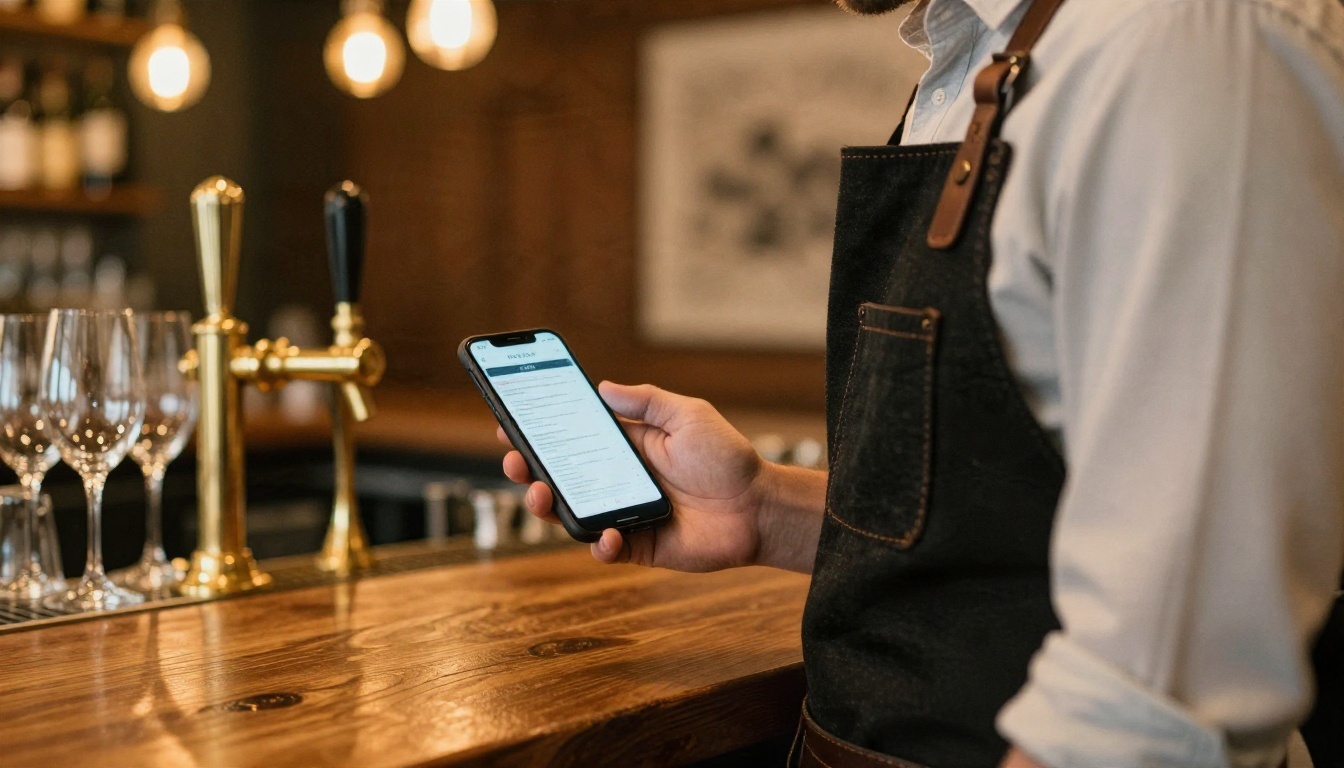
A restaurant owner updates seasonal dishes every few weeks. Reprinting menus costs money, but a QR code on each table pointing to a flipbook costs nothing once it is set up. When the menu changes, upload the new PDF and the same link keeps working. Try the Restaurant Menu Creator for a ready-made starting point.
A Small Product Catalog

A potter or boutique owner sends wholesale buyers a lookbook. A flipbook beats a giant email attachment because it opens instantly, shows photos in high resolution and can sit behind a password for trade-only pricing. The Product Catalog Generator and the Digital Catalog Maker are built for exactly this.
Course Material

Teachers and trainers distribute workbooks, syllabi and manuals. A flipbook keeps everything in one link, works on any device and does not require students to install software. See the Course Material Publisher for a tailored setup.
Reading on the Move

Over half of web traffic comes from phones, so your readers are likely on a train, in a queue or on a sofa. If the flipbook loads slowly or the text is too small, they leave. Light files, readable fonts and a single-page mobile view matter more than fancy effects.
| Use case | Best format | Recommended settings |
|---|
| Restaurant menu | Short flipbook, 4 to 10 pages | Public link, QR code |
| Wholesale catalog | 20 to 60 pages | Password protection |
| Training manual | Long document | Embed in intranet |
| Magazine or newsletter | Regular releases | Public link, offline download |
| Client proposal | Short, polished | Password plus analytics |
Common Mistakes to Avoid
After watching people publish dozens of flipbooks, the same errors keep surfacing.
Uploading Without Compressing
A 200 MB PDF can take minutes to convert and loads slowly for readers. Compress before you upload.
Ignoring the Mobile View
Desktop looks fine, so people stop testing. Open the link on a phone before you send it.
Choosing by Price Alone
A tool that is free but adds a watermark can cost you a client. A tool with a short link lifespan can ruin a print run. Compare the full set of limits, not just the price tag.
Forgetting Link Stability
If you plan to print a QR code, confirm the link will remain active and will not change when you update the file.
⚠️ Never print a QR code for a trial link. Publish on a plan that guarantees the URL will stay live.
Here is a quick comparison to keep handy when you evaluate any generator:
| Question to ask | Why it matters |
|---|
| Is there a watermark? | Brand image |
| What is the maximum file size? | Large catalogs |
| Can I embed without branding? | Website pages |
| Does the link expire? | QR codes and print |
| Can I add a password? | Private documents |
| Are analytics included? | Measuring results |
| Does it work well on phones? | Majority of readers |
Pick Your Generator Today
A free flip book generator is a great way to test the format, as long as you know which limits will bite. Check upload size and page count, confirm embedding is allowed without branding, and make sure your share link will stay alive. Then publish a real document and open it on three devices.
Ready to create your first flipbook? Get started for free on Flipbooks AI, with no watermarks on anything you publish. Browse all flipbook tools and templates to find the right fit for menus, catalogs, brochures and reports. When you need unlimited flipbooks, analytics or lead capture, compare pricing plans and choose what works for you.



