A PDF magazine is easy to export and surprisingly hard to enjoy. Readers pinch, scroll sideways, lose their place and close the tab. A flip magazine online fixes that by turning the same file into a page-turning experience that feels like holding the real issue, and on Flipbooks AI you can start without paying and without a watermark stamped across your work.
This article walks through what a good flip magazine looks like, which page settings shape the reading experience, and how to share or embed the finished issue so people actually open it. You will find real examples, comparison tables, a step-by-step tutorial and a short list of mistakes to avoid.
Why Flip Magazines Still Work
Magazines are built around spreads: two pages that work together, with a photograph on one side and a story on the other. A normal PDF viewer destroys that rhythm by showing one long scroll. A flipbook brings the spread back.
The Print Feel on a Screen
When a page curls and lands, readers slow down. That small animation signals "this is an issue, not a document." It also gives your layout designer some credit, because the spreads you carefully balanced are finally seen the way you planned them.
Speed Beats Printing
Printing a 48-page magazine means proofs, a press slot and shipping. A digital issue goes live the moment the PDF is converted. You can fix a typo on Tuesday and have the corrected issue online on Tuesday.
Who Uses Them
- Independent publishers releasing monthly or quarterly issues
- Brands that want a lookbook or seasonal edition without printing costs
- Schools and clubs sharing newsletters with parents and members
- Agencies presenting client reports in a format that feels designed
- Event teams publishing programs that attendees open on their phones
💡 Pro tip: Treat the flipbook as the main edition, not a lazy copy of the print file. Design your spreads knowing they will be viewed on a laptop or a phone.
Flipbook Examples Worth Copying
Reading about page flips only gets you so far. Here are the formats that perform well, and what each one does right.
Fashion and Lifestyle Issues
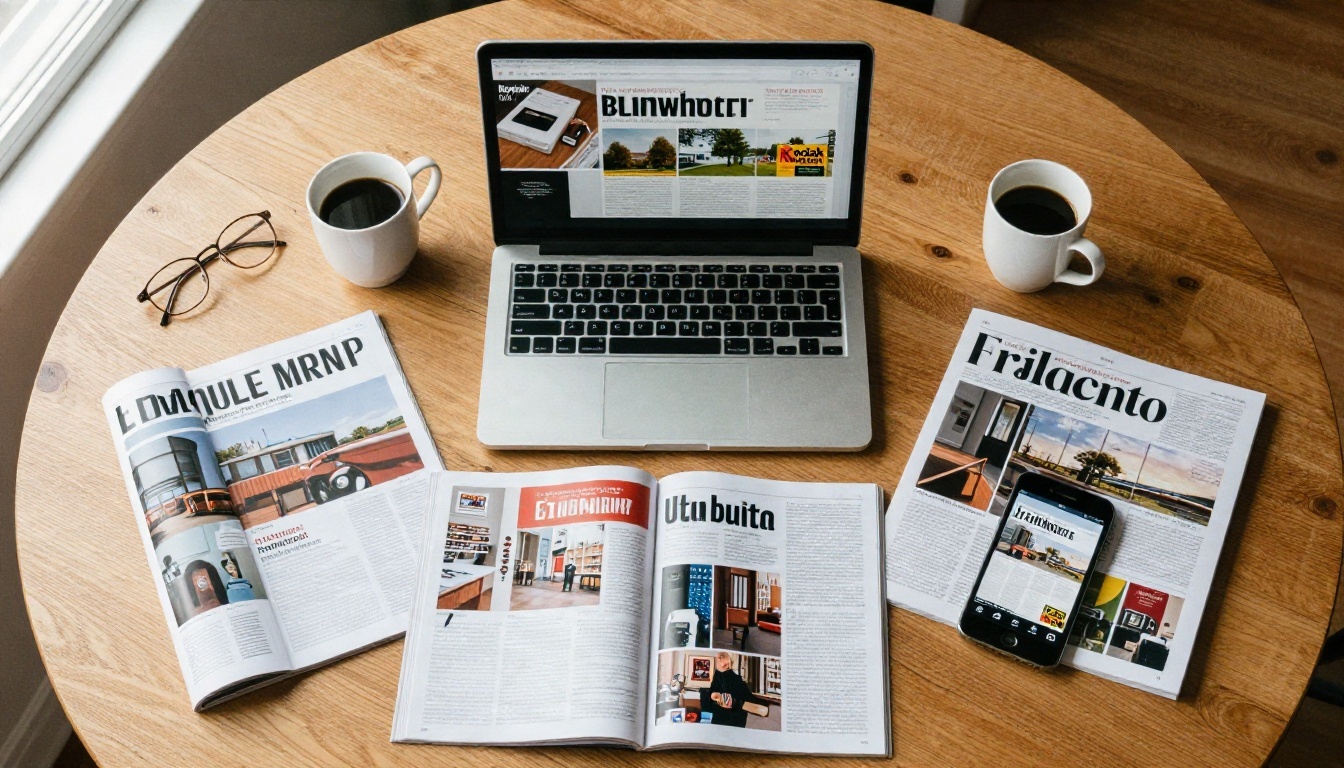
Large photography, very little text and bold front pages. A fashion label can publish a seasonal issue where each spread is a full-bleed image with a short caption. The Interactive Lookbook Designer suits this style, because it keeps images big and sharp when readers zoom in.
Business and Corporate Magazines
Internal magazines, customer stories and company updates work well when the first page promises something specific. A software company, for example, might publish a quarterly customer magazine with case studies, a short product timeline and a contact page. Linked table of contents entries let busy readers jump straight to the story they care about.
Education and Community Newsletters
A school can send one link to every family instead of attaching a heavy PDF to an email. The School Newsletter Creator and the Newsletter Flipbook Publisher are built for this kind of recurring edition.
Portfolios and Event Programs
Photographers and designers can show work in sequence, with the page flip acting as pacing. Event teams can publish a schedule and speaker list that attendees open on the day, using the Event Program Maker.
| Magazine type | Best page count | Strongest feature | Typical share method |
|---|
| Fashion lookbook | 20 to 40 | Full-page imagery, zoom | Social link, embed on shop |
| Customer magazine | 24 to 48 | Clickable contents, links | Email, website embed |
| School newsletter | 4 to 12 | Fast loading on phones | Email, parent portal |
| Event program | 8 to 24 | Schedule links, maps | QR code, event page |
| Portfolio | 16 to 36 | Image quality, pacing | Direct link, password link |
Page Settings That Change Everything
Two flip magazines made from the same PDF can feel completely different, and the difference comes down to settings. These are the ones worth thinking about before you publish.

Layout and Page Size
Decide first whether readers see a single page or a double-page spread. Spreads suit magazines designed in pairs. Single pages suit portrait documents and phones, where a spread would shrink the text to nothing.
Your source PDF matters more than any setting. Export at the final trim size, keep fonts embedded, and avoid crop marks. If the PDF has a strange aspect ratio, the flipbook will inherit it.
Flip Effect and Speed
A realistic curl with a soft shadow feels natural for a lifestyle title. A fast, light flip works better for a long report that people skim. Slow animations look lovely in a demo and irritating on page 31.
Background, Colors and Branding
Pick a background that lets the pages breathe. A neutral grey or soft cream keeps attention on the issue. Add your logo and brand color to the toolbar so the viewer feels like part of your website. Custom branding is part of what separates a professional issue from a generic viewer.
Links, Video and Audio
Turn website addresses and email addresses into clickable links. You can also embed videos and audio so a behind-the-scenes clip sits next to the article it belongs to. Keep media short, because readers expect a magazine, not a film festival.
| Setting | What it controls | Good default | Watch out for |
|---|
| Single or double page | How much of the issue is visible | Spread on desktop, single on mobile | Tiny text on small screens |
| Flip effect | Animation style and feel | Soft curl | Slow effects on long issues |
| Background | Frame around the pages | Neutral grey or cream | Busy images behind text |
| Branding | Logo, colors, toolbar | Logo plus one brand color | Too many colors |
| Links and media | Interactive elements | Contents, web links, short clips | Heavy video files |
| Download | Offline copy for readers | On for reports, off for premium issues | Giving away paid content |
⚠️ Warning: If your PDF contains low-resolution photos, no setting will rescue them. Check images at 100% zoom before converting.
How to Make a Flip Magazine Free
The fastest route is the PDF to Flipbook Converter. If you want a tool tuned for editorial layouts, the Magazine Flipbook Creator and the E-Magazine Publishing Tool follow the same flow.
Step 1: Create Your Account
Go to Flipbooks AI and sign up. Plan details, including what is included at each level, are listed on the pricing page.
Step 2: Upload Your PDF
- Click the upload button and select your magazine PDF.
- Wait while the file is converted into pages. A 40-page issue is usually ready quickly.
- Check the preview and flip through every spread. Look for cropped text or missing fonts.
Step 3: Set Up the Look
- Choose single page or spread layout.
- Select a flip effect and a background color.
- Add your logo and brand color.
- Add links to your website, shop or social pages.
- Drop in video or audio where it adds something.
Step 4: Choose Sharing Rules
Decide whether the magazine is public, hidden behind a link or password protected. Then decide if readers can download an offline copy.
Step 5: Publish and Test
Open the final link on a laptop and on a phone. Flip a few pages. Tap every link. Only then send it out.
✅ Best practice: Test the flipbook on a real phone, not just a narrow browser window. Touch behavior and loading speed can differ.
Extras for Professional Plans
Teams that publish regularly often want more than a link. The Professional plan adds analytics and lead generation, so you can see which pages get attention and collect contact details before readers continue. Standard plans and above allow unlimited flipbooks, which helps if you publish many issues a year. Compare options on the pricing page.
| Feature | Starting out | Standard and above | Professional |
|---|
| No watermarks | Yes | Yes | Yes |
| Mobile-responsive viewer | Yes | Yes | Yes |
| Password protection | See plan details | Yes | Yes |
| Unlimited flipbooks | Check pricing | Yes | Yes |
| Analytics | No | Check pricing | Yes |
| Lead generation | No | Check pricing | Yes |
Sharing Options Compared
A flip magazine nobody opens is just a nice file. The way you share it decides how many people see it.

Direct Links
The simplest option. Each flipbook gets its own address that you can paste into an email, a chat message or a social post. It opens in any browser with no app and no download.
Password Protection
For paid issues, internal updates or client reports, add a password. Only people who receive it can open the flipbook. This works well for member-only editions or a confidential company report, and you can change the password between issues.
Email and Social
Put a strong front-page screenshot in your email and link it to the flipbook. Readers click images far more readily than plain text links. For social posts, a short line about the lead story works better than "new issue out now."
QR Codes for Print and Events
Add a QR code to a printed flyer, a poster or an event badge. It sends people straight to the digital issue, which is useful for conferences and shops.
| Method | Setup time | Privacy level | Best for |
|---|
| Direct link | Seconds | Open to anyone with the link | Newsletters, social posts |
| Password link | A minute | Restricted | Paid issues, client reports |
| Email campaign | 10 minutes | Depends on list | Subscribers, customers |
| QR code | 5 minutes | Open | Events, retail, print |
| Website embed | 10 minutes | Follows your site | Public magazines, landing pages |
💡 Pro tip: Use a different link in each channel if your plan supports it. You will see which channel actually sends readers.
Embed Options for Your Website
Sharing a link sends people away from your site. Embedding keeps them there. The Embed Flipbook on Website tool gives you code you can paste into your page.
Pasting the Embed Code
- Open your flipbook and copy the embed code.
- In your website editor, add a custom HTML block.
- Paste the code and save.
- Preview the page on desktop and mobile.
Most website builders accept this kind of block, including WordPress, Wix, Squarespace and Webflow. If yours does not, a plain HTML page will always work.
Sizing for Every Screen
Set the width to 100% of the container and give the height a sensible ratio so the magazine does not squash on phones. A responsive viewer adjusts the page layout automatically, which is why a spread on a laptop becomes a single page on a handset.
Where to Place It
- A dedicated "Read the Magazine" page that you link from your main menu
- A blog post that introduces the new issue and embeds it under the intro
- A landing page where the flipbook sits above a subscribe form
- A resource area for past issues, each with its own embed
| Placement | Reader intent | Pros | Cons |
|---|
| Dedicated page | High | Clean, easy to link | Needs a menu entry |
| Blog post | Medium | Good for search traffic | Issue may get buried |
| Landing page | High | Pairs with sign-up form | Needs a design pass |
| Archive page | Medium | Shows your history | Many embeds can slow the page |
⚠️ Warning: Do not place several large flipbooks on one page. Each loads its own pages, so an archive of ten embeds will feel slow. Use thumbnails that link to separate pages instead.
Mistakes That Hurt Readers
Most weak flip magazines fail in predictable ways. Check your draft against these before you hit publish.
Mistake 1: A Heavy, Unoptimized PDF
A 200 MB file loads slowly on mobile data, and readers leave. Compress images to a sensible resolution before conversion, and keep the original for print.
Mistake 2: No Clear First Page
Your front page is your shop window. If it carries tiny text or a crowded layout, nobody flips. Use one strong image and a short title.
Mistake 3: Forgetting the Click Path
If readers cannot jump to a story, they stop at page five. Add a clickable contents page and link the last page back to your website, shop or contact form.
You can also review the whole tools directory for other formats such as the Interactive E-Book Publisher or the Digital Portfolio Creator if your content needs a different structure.
Publish Your First Issue Today
You already have the hard part: a finished magazine. The rest takes a few minutes. Upload the PDF, pick a layout, set your branding, choose how to share, and paste the embed code into your site.
Your readers are already holding a phone. Give them an issue that turns pages the way they expect.



