How to Add a Buy Button to Your Flipbook (and Actually Drive Sales)
Most digital flipbooks look great but never lead to a sale. This article shows you exactly how to add buy buttons, product links, and conversion-focused calls to action inside your flipbook, so every page flip becomes a potential transaction. From setup steps to placement tactics and real-world scenarios across retail, food, real estate, and beauty, you will find what you need to turn a static document into a revenue-generating sales tool.
Most people create a beautiful flipbook, share it online, and wait. They watch page view counts climb. They see readers spending time on each spread. But nothing sells. The flipbook looks polished, it loads fast, and readers genuinely engage with it, yet there is no moment where browsing turns into buying. That gap between attention and action is exactly what a buy button solves.
If you sell products, services, packages, or bookings, a buy button embedded directly inside your flipbook collapses the distance between "I like this" and "I bought this." This article walks you through every step of making it happen, from the mechanics of how clickable buttons work inside a flipbook to placement strategy, real-world use cases, and how to know if your buttons are actually driving revenue.
Why a Static Flipbook Costs You Sales
A flipbook without interactive links is a read-only brochure. It informs. It impresses. It builds brand awareness. But it does not convert.
When a reader finishes your product catalog and closes the tab, that moment of purchasing intent disappears. They may remember your brand. They may plan to search for your store later. But most will not. The average window between "I want this" and "I actually bought it" is measured in seconds, not hours.
The buy button problem is a friction problem. Without one, you are asking readers to remember a product, open a new tab, search your website, find the item, add it to the cart, and check out. That is five or six steps. A properly placed buy button inside the flipbook reduces it to one: tap here, buy now.
The cost people underestimate is intent. Someone browsing your catalog is a warm lead. They chose to open it. They are flipping through it on purpose. That is the highest-value moment to capture a purchase, and a static flipbook throws it away completely.
What a Buy Button in a Flipbook Actually Does
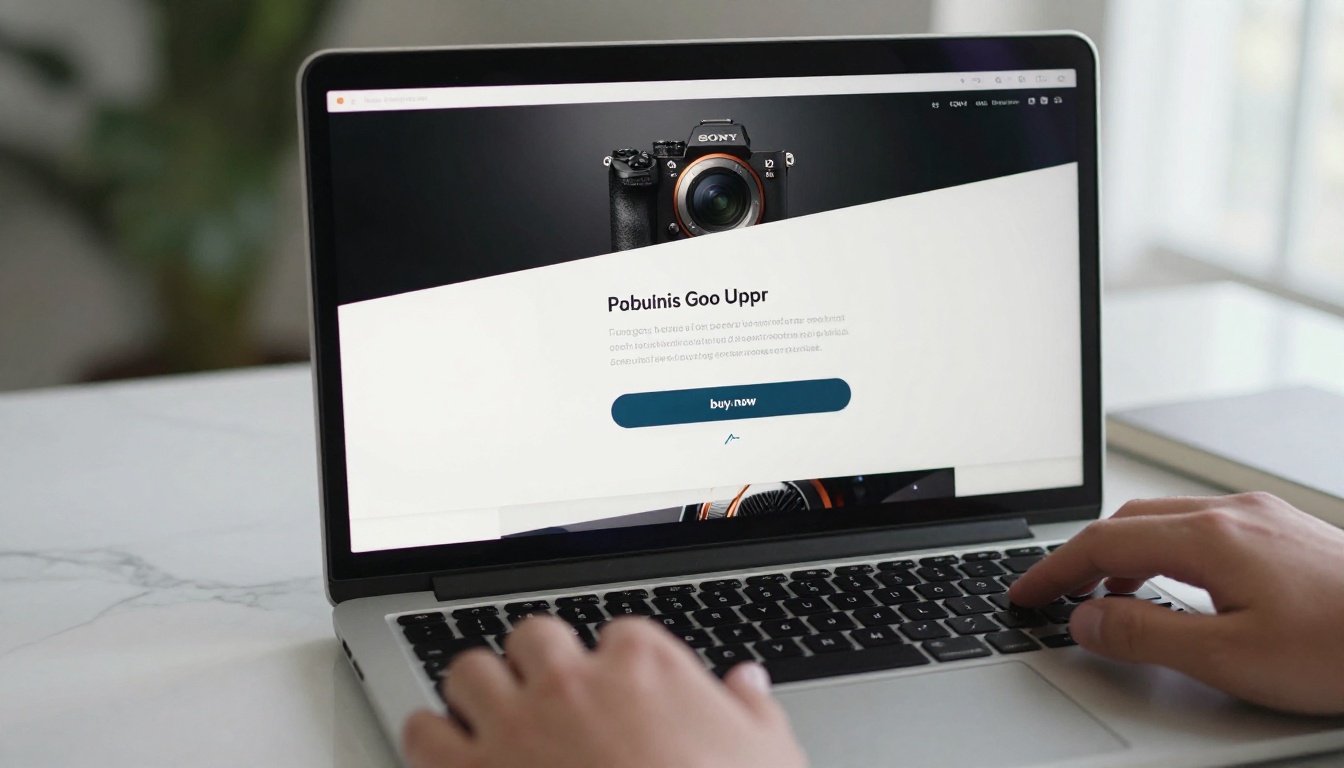
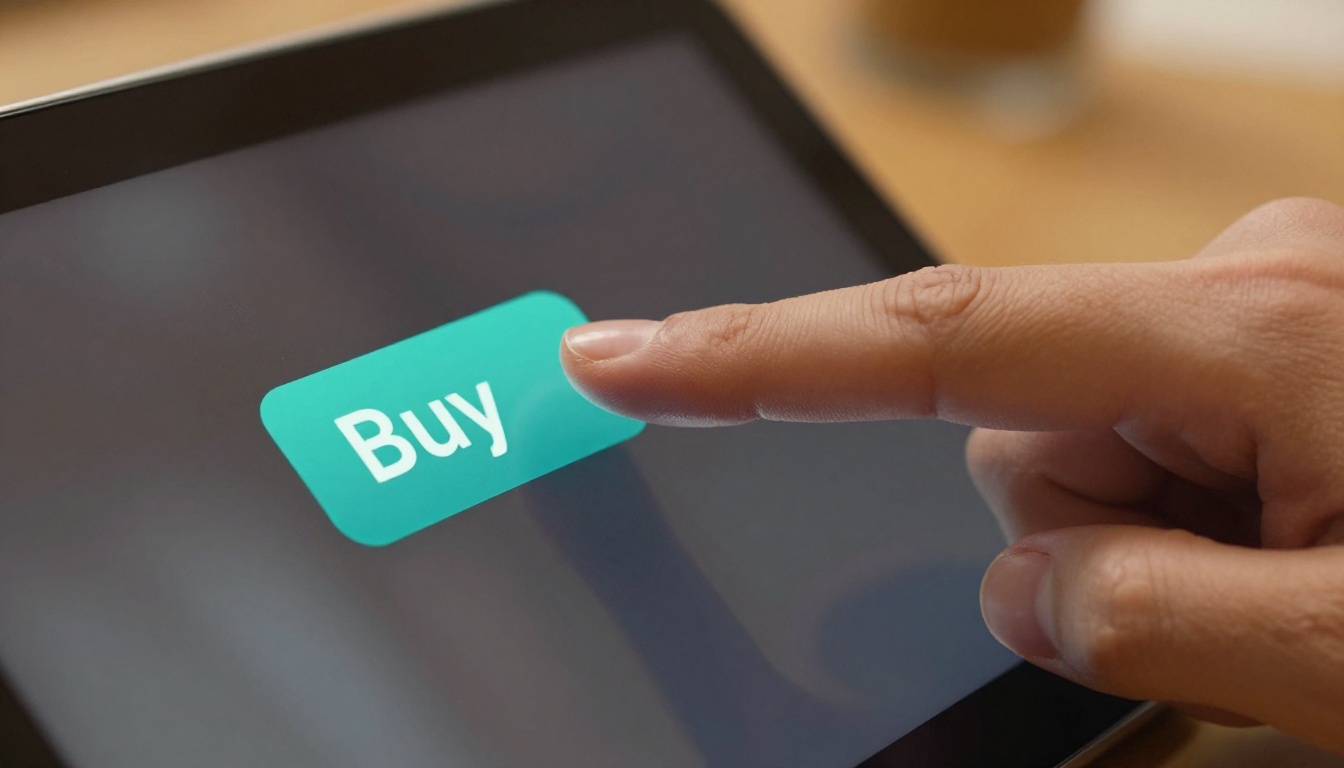
The buy button inside a flipbook is a clickable link overlay placed on top of a specific area of a page. When a reader clicks or taps it, they are taken to an external URL: your product page, checkout, booking form, or payment link.
The flipbook does not process payments. It does not store card details. It acts as the point of discovery and decision, routing motivated buyers directly to wherever your checkout lives. This separation is actually an advantage: you keep all your existing payment infrastructure intact, and the flipbook becomes the front-end sales layer.
Common link destinations for buy buttons include:
A product page on your Shopify, WooCommerce, or Etsy store
A Stripe or PayPal direct payment link
A WhatsApp number for direct order messages
A booking calendar such as Calendly or Acuity
A quote request or inquiry form
A dedicated landing page for a promotion or limited-time offer
💡 Think of your flipbook as a digital sales rep. It presents, it persuades, and then it hands the customer off to your register.
Types of Flipbooks That Need Buy Buttons
Not every flipbook requires a buy button, but most commercial ones do. Here is a breakdown of which formats benefit most and what kind of button fits each:
Flipbook Type
Primary Use Case
Ideal Button Type
Product Catalog
Showcase items for sale
"Buy Now" or "Shop This"
Fashion Lookbook
Seasonal collection preview
"Add to Cart" or "Order Here"
Restaurant Menu
Food and drink ordering
"Order Now" or "Reserve a Table"
Real Estate Brochure
Property listings
"Book a Viewing" or "Contact Agent"
Beauty Catalog
Skincare and makeup products
"Shop the Look"
Service Brochure
Packages and pricing
"Get a Quote" or "Book Now"
Event Program
Tickets and merchandise
"Buy Tickets"
Price List
Wholesale or retail pricing
"Request Invoice"
Spa and Wellness Menu
Treatments and sessions
"Book This Service"
The pattern is consistent: wherever a reader would naturally pause to make a decision, a buy button should be waiting.
How to Add a Buy Button to Your Flipbook with Flipbooks AI
Flipbooks AI makes this process straightforward. You do not need to code anything or install a third-party plugin. The link overlay functionality is built directly into the editor. Here is how to set it up from start to finish:
Step 1: Upload Your PDF
Go to Flipbooks AI and log into your account. From the dashboard, click Create New Flipbook and upload your PDF file. This could be a product catalog, a restaurant menu, a lookbook, or any document you have already designed.
The platform converts the PDF into a fully interactive page-turning flipbook automatically. This typically takes under a minute depending on file size.
✅ Before uploading, design your buttons visually inside the PDF itself using your brand colors and a clear label like "Buy Now." The overlay you add in step three will sit invisibly on top of this designed element, making it clickable without any extra styling needed.
Step 2: Open the Page Editor
Once the flipbook is generated, open the Page Editor. Navigate to the specific page where you want to place the buy button. For product catalogs, this is typically each individual product page. For menus, it might be a category section or a highlighted dish.
Step 3: Add a Link Overlay
In the editor toolbar, select the Add Link or Hotspot option. Draw a rectangle over the area where you want the button to appear. Position it:
Over a product photo so the image itself becomes clickable
Below a price listing, directly beside the number
On a visually designed button element from your original PDF
Step 4: Enter Your Checkout URL
In the link settings panel, paste the destination URL. Set the link to open in a new tab so the reader does not lose their place in the flipbook. Use the most direct URL possible, linking straight to the specific product or checkout, not to your homepage.
For products with multiple variants, link to the specific variant page if your platform supports it, so the reader lands on exactly the product they just saw.
Step 5: Repeat for Every Product
Add a buy button to every item available for purchase. For a 20-product catalog, this takes around 15 to 20 minutes. For a restaurant menu with many items, consider linking by category rather than item by item for a cleaner experience.
Step 6: Publish and Share
Once all links are placed, click Publish. You can now:
Share the flipbook via a direct URL through email or social media
Add a QR code on printed materials that links directly to the flipbook
Password protect it for wholesale buyers using a private link
💡 See pricing plans if you need analytics to track exactly how many people click your buy buttons and which pages perform best.
Where to Place Buy Buttons for Maximum Impact
Placement matters as much as the button itself. Here is what consistently drives clicks:
Next to the price: Pricing and purchasing intent are mentally linked. A buy button beside a visible price point removes all friction. The decision is already forming; the button executes it before the reader changes their mind.
Below the product image: After viewing a product photo, readers naturally glance downward. Place the button there, not in the header or sidebar where it competes with navigation.
At the end of a category section: For catalogs organized by product type or category, a "Shop the Full Collection" button at the end of each section captures readers who browsed the whole spread and are now in a buying mood.
On a dedicated order page: Some sellers design a specific "How to Order" page inside their PDF, listing all payment methods and options, with prominent buttons linking to each. This works particularly well for wholesale catalogs and B2B service brochures.
What to avoid:
The first page: Readers are not ready to buy before they have seen anything. Save that prime real estate for your strongest image or headline.
Vague button labels: "Click Here" underperforms every time. "Buy This Dress" or "Order Today" are specific, action-driven, and contextually clear.
Homepage links: Always deep-link directly to the product or checkout page. Every extra click a buyer has to take after tapping your button is a potential exit point.
What to Link Your Buy Buttons To
The destination URL is the variable that determines whether a click turns into a sale. Here is a side-by-side comparison of the most common options:
Destination
Best For
Conversion Potential
Notes
Product page on your store
Most e-commerce businesses
High
Familiar checkout flow with trust signals
Stripe or PayPal payment link
Freelancers, small sellers
High
Direct to payment, no extra browsing
WhatsApp direct link
Local businesses, custom orders
Medium-High
Personal touch, builds rapport
Contact or inquiry form
B2B services, high-ticket offers
Medium
Good for consultative sales cycles
Booking link (Calendly etc.)
Service businesses
Medium-High
Removes the phone call barrier completely
Dedicated landing page
Promotions, limited-time offers
High if optimized
Requires a purpose-built page
⚠️ Always test every link after publishing. A broken buy button is worse than no button at all: it signals unprofessionalism to someone who was ready to purchase.
Buy Button Best Practices That Actually Work
Getting the mechanics right is only half the equation. The other half is psychology. Here is a comparison of what converts versus what does not:
Element
What Works
What Does Not Work
Button text
"Buy Now," "Shop This," "Order Today"
"Click Here," "See More," "Link"
Position on page
Next to price or below product image
Buried at page bottom or in the header
Link destination
Direct product or checkout page
Homepage or general category listing
Visual design
High contrast, distinct color, clearly visible
Blends into the background, too small to notice
Link behavior
Opens in a new tab
Closes the flipbook when clicked
Mobile tap area
Large enough for thumbs, touch-friendly
Too small to tap without zooming
Post-publish testing
Tested on both desktop and mobile
Assumed to work without verification
The single biggest mistake sellers make is treating the buy button as an afterthought. They design the whole flipbook, upload it, and then add one small invisible overlay in a corner. That button will not convert. Make the button part of the design from the very beginning: visible, intentional, and impossible to miss.
Real-World Use Cases That Drive Revenue
Retail and Fashion
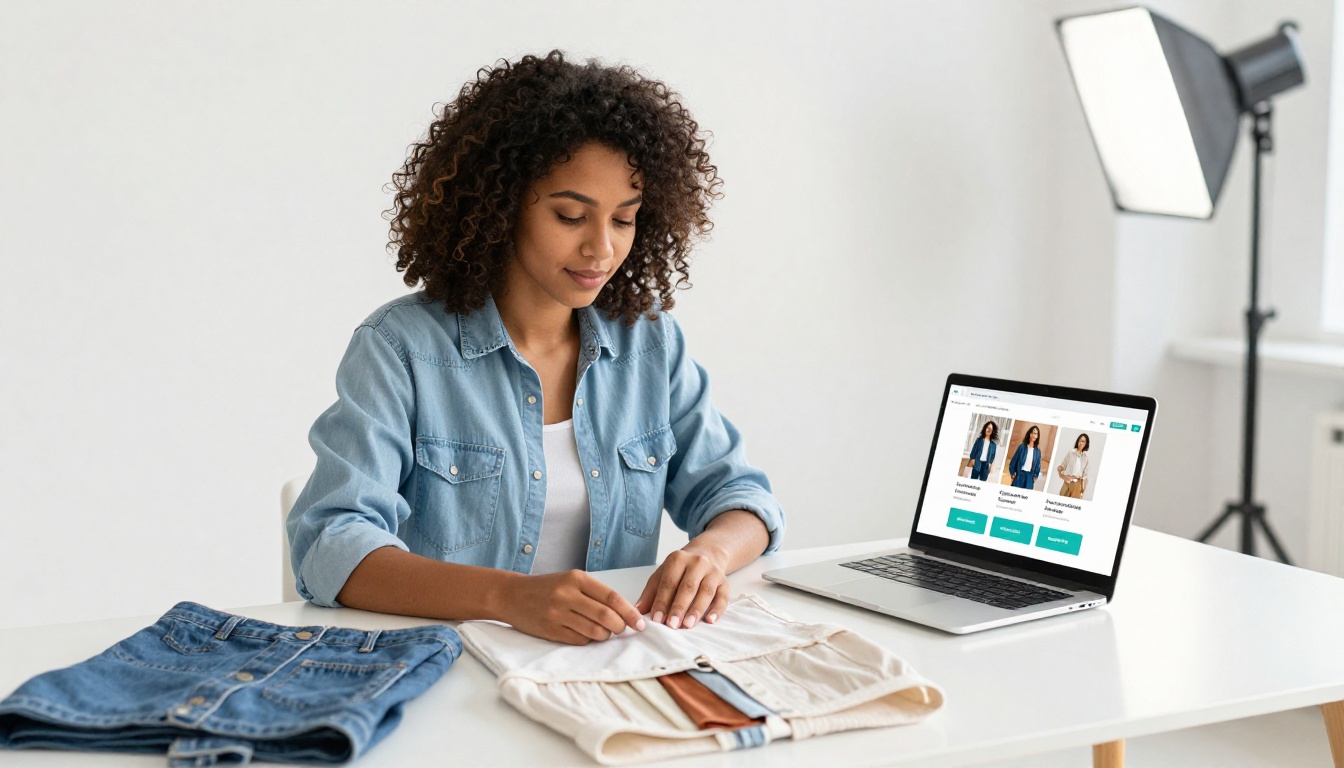
A clothing boutique builds a seasonal lookbook using the Interactive Lookbook Designer. Each outfit spread includes a "Shop This Look" button linking to a collection page on their Shopify store. By adding buy buttons to 12 outfits across 24 pages, they turn a standard PDF into a shoppable magazine without any additional technology or developer involvement.
Alternatively, the Fashion Catalog Creator works well for brands that prefer a product-by-product layout over editorial spreads, giving each item its own page with pricing and a direct purchase link.
Restaurants and Food Businesses
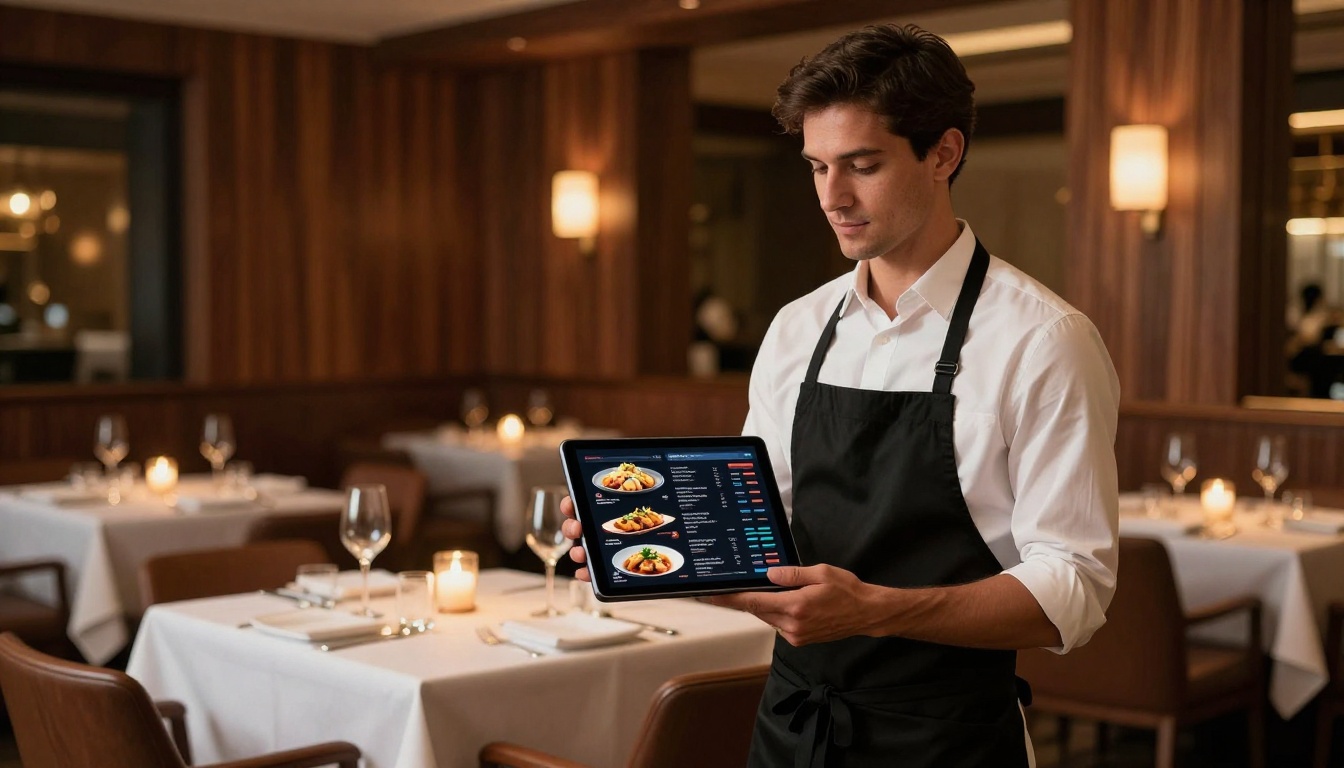
A restaurant embeds a digital menu built with the Restaurant Menu Creator directly on their website and prints a QR code for each table. Each menu section includes an "Order Online" button linked to their delivery platform. Customers who scan the QR code can browse the full menu and order, removing the friction of navigating a third-party app from scratch.
The same format works for food trucks, catering companies, and meal prep services, any business where a customer sees a dish and needs a fast path to purchasing it.
Real Estate
A property developer uses the Real Estate Brochure Creator to present a new residential development. Each property listing page includes a "Book a Viewing" button linked to a Calendly scheduling page. Qualified leads book directly from the flipbook without a phone call, and the developer can see which units are generating the most interest based on click data.
Beauty and Cosmetics
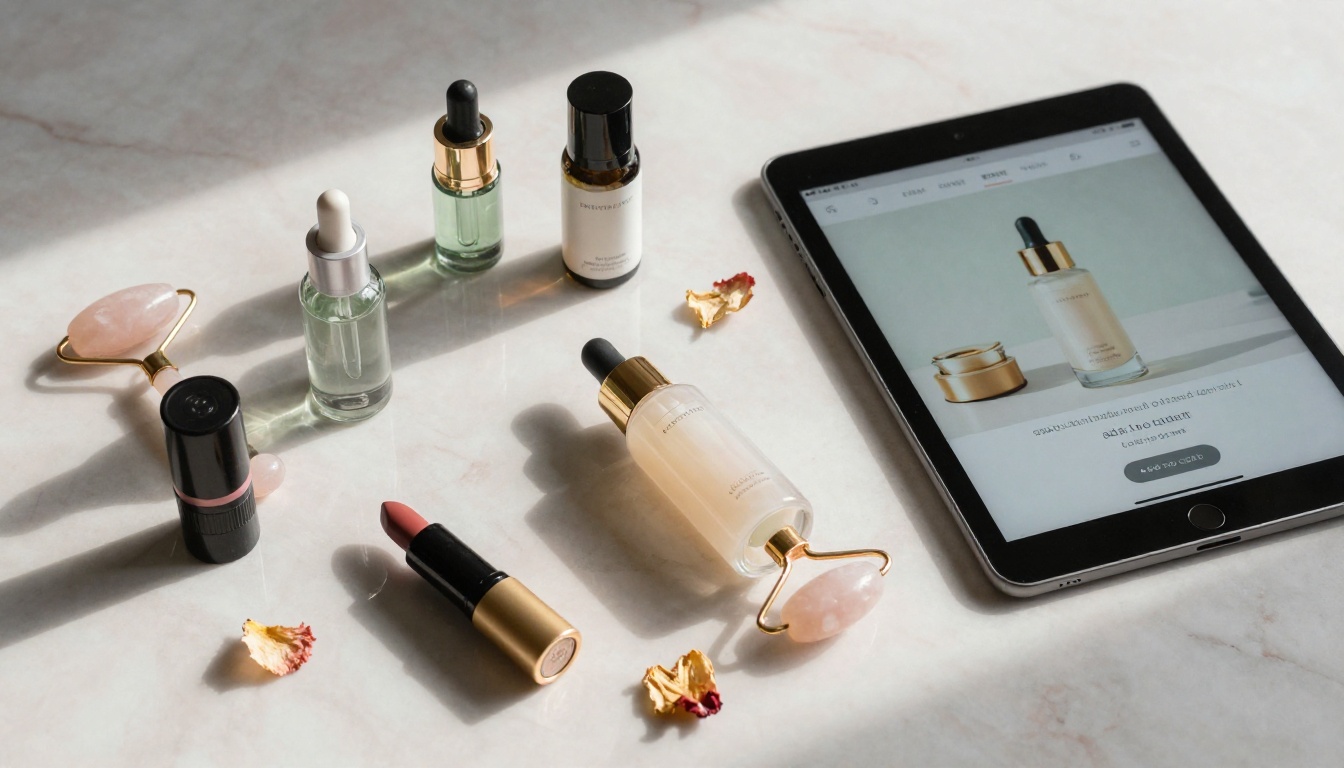
A skincare brand creates a seasonal product catalog using the Digital Catalog Maker. Each product has a dedicated page with a full-size image, ingredient highlights, a customer review, and a "Shop Now" button linking directly to that product on their store. The result is a catalog that reads like a magazine and functions like a product page, with no dead-end pages and no "go find it yourself" moments.
Tracking Whether Your Buy Buttons Are Converting
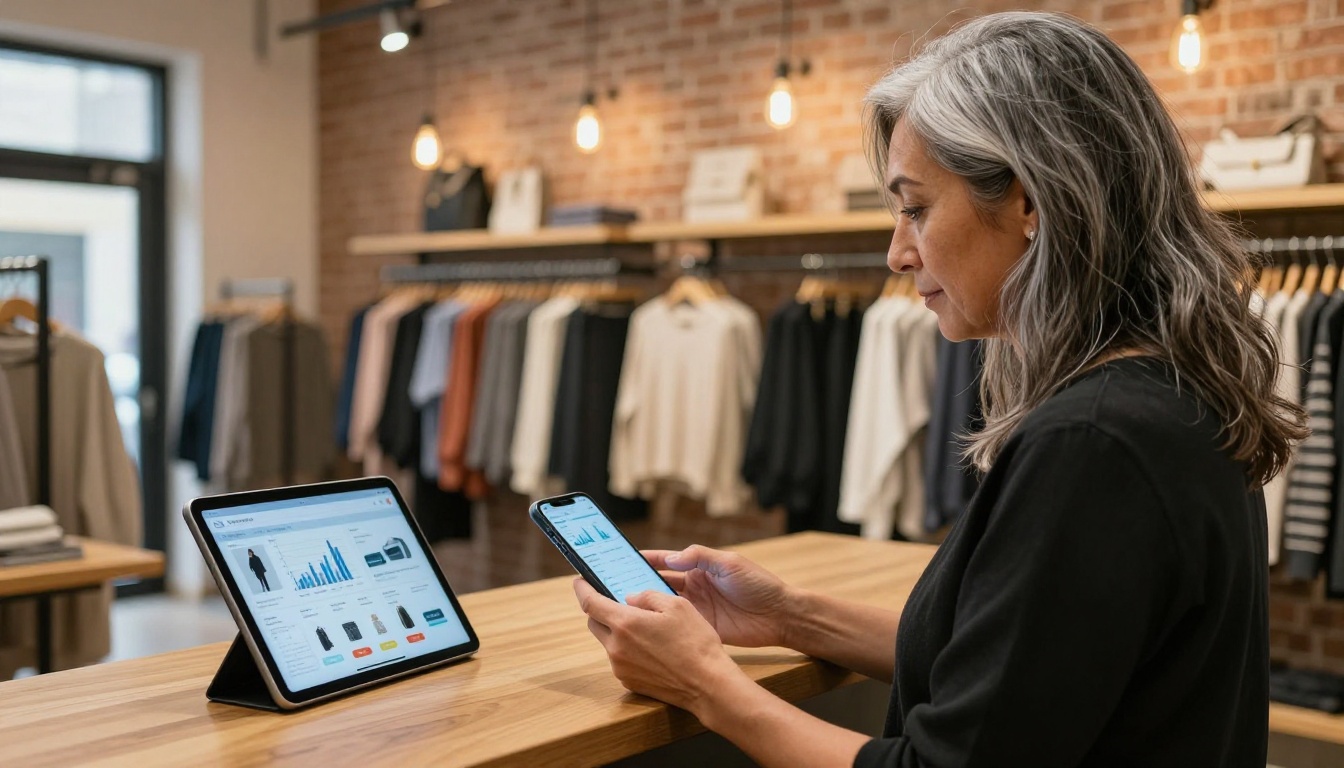
Adding buttons is step one. Knowing whether they are working is step two. With Flipbooks AI's Professional plan, you get access to analytics and lead generation features that show you how readers interact with your flipbook, including which pages receive the most time and attention, and where readers drop off.
For buy button performance specifically, combine flipbook analytics with UTM parameters. Add a UTM tag to each buy button URL:
Then track those parameters in Google Analytics or your store's reporting dashboard. This tells you exactly which products, pages, and flipbook campaigns are generating real revenue.
💡 Professional plan users also get offline download options and password protection for private catalogs. Offline access means your flipbook works at trade shows and in-person meetings, even without a data connection.
A few numbers worth tracking once your buy buttons are live:
Click-through rate per button: Which products are readers clicking on most? These are your bestsellers in waiting.
Read time before first click: How long before someone clicks? If it is very long, the button may not be visible enough or prominent enough on that page.
Conversion rate from flipbook sessions: Out of everyone who opened the flipbook, what percentage clicked at least one buy button?
Revenue from flipbook traffic: With UTM tags in your store analytics, you will see an exact revenue figure attributed to each flipbook campaign.
Make Every Page Flip Count
A flipbook with a buy button is not just a document. It is a sales channel that works while you sleep, travels wherever a link can go, and does not require anyone to be on the phone or at the register.
The formula is simple: take what you already have, whether that is a PDF product catalog, a brochure, a lookbook, or a menu, upload it to Flipbooks AI, and add buy buttons to every item worth selling. It takes less than an hour. The flipbook does the rest.
Ready to turn your next catalog into a checkout machine? Create your account on Flipbooks AI and start adding buy buttons today. Or compare plans to find the right tier for your business volume.