Animated flipbooks hold attention in a way static PDFs simply cannot. When a page curls, a video autoplays, or a button pulses with a subtle motion cue, readers stay longer, click more, and remember the content better. Whether you're publishing a product catalog, a marketing brochure, or an educational course, adding animation to your flipbook changes how people interact with what you've built. Flipbooks AI makes this process straightforward for anyone, even without design or coding experience.
This article breaks down every animation type available in modern digital flipbooks, how to apply each one effectively, and how to build a fully animated flipbook from scratch without touching a line of code.
Why Static Flipbooks Lose Readers Fast
The attention problem with flat pages
Reading a static PDF online carries zero incentive to keep going. There's no feedback, no reward, no motion to guide the eye. Studies on digital reading behavior consistently show that interactive publications see 2-3x longer average session times compared to flat documents.
Animation in a flipbook isn't decoration. It's a functional signal: this page has more to offer. A subtle fade-in on a call-to-action, a video thumbnail that plays on hover, a page-turn with realistic curl physics all signal to the reader that this publication is alive and worth finishing.
What "animation" actually means in flipbooks
The word "animation" covers several distinct behaviors in the context of digital flipbooks:
- Page-turn effects: The physical simulation of pages curling and flipping
- Element animations: Text, images, or graphics that fade, slide, or scale as a page loads
- Embedded media: Video and audio that play directly inside the flipbook
- Interactive hotspots: Clickable zones that trigger pop-ups, links, or tooltips
- Scroll-triggered motion: Elements that animate as the reader scrolls through a spread
Each type serves a different purpose. Knowing which one fits your content is the first step.

4 Animation Types That Actually Work
Page-turn physics: the baseline
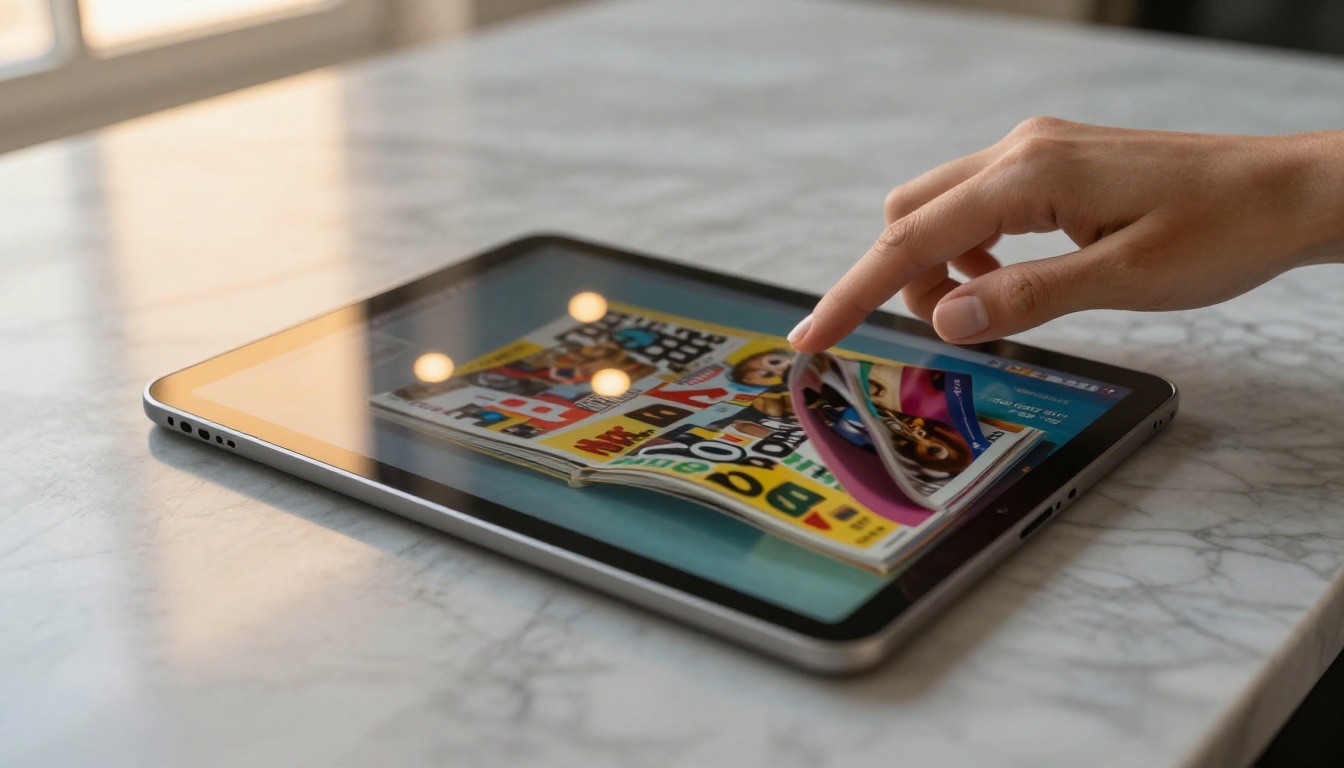
The page-flip animation is what makes a flipbook a flipbook rather than a slideshow. Realistic page curl uses physics-based rendering to simulate paper weight, shadow, and curl speed. On mobile devices, readers can swipe to turn pages manually, reinforcing the physical metaphor.
The quality of this animation varies significantly between platforms. Look for:
- Adjustable flip speed
- Shadow depth control
- Mobile swipe support
- Auto-flip mode for presentations
Element-level animations
These are animations applied to specific objects on a page: a headline that slides in from the left, a product image that fades up, a price tag that pulses briefly to draw attention. These effects work best when they're subtle and purposeful, not decorative.
⚠️ Warning: Overloading a single page with multiple competing element animations creates visual chaos. Limit active animations to 1-2 per page spread.
Embedded video and audio
This is the most impactful animation you can add. A video that autoplays silently when a page loads, or a product demo that plays on click, delivers information at a density that text and images cannot match.
💡 Pro tip: Use silent autoplay for background atmosphere videos, and click-to-play for demo or explainer content. This respects the reader's context (public spaces, headphones off) while keeping the content available.
Interactive hotspots and links
Hotspots are invisible clickable zones overlaid on your flipbook pages. They can:
- Open a pop-up with product details
- Link to an external URL
- Trigger a form or lead capture
- Play a specific video clip
When used in a product catalog or portfolio, hotspots turn passive browsing into an active shopping or inquiry experience.
Not all animation formats deliver the same results across devices. Here's how the main options compare:
| Format | Quality | File Size | Mobile Support | Browser Compatibility |
|---|
| HTML5 CSS Animations | High | Small | Excellent | Universal |
| Embedded MP4 Video | Very High | Large | Good | Universal |
| GIF Loops | Medium | Very Large | Good | Universal |
| SVG Animations | High | Tiny | Excellent | Modern browsers |
| WebGL Effects | Highest | Medium | Limited | Modern browsers |
For most flipbook use cases, HTML5 CSS animations combined with embedded MP4 video give the best balance of quality, compatibility, and load speed.
How to Add Page Transition Effects
Choosing the right flip style
Page transitions fall into a few categories. Each one creates a distinct reading experience:
| Transition Type | Best For | Feel |
|---|
| Hard page curl | Magazines, portfolios | Premium, tactile |
| Soft page fold | Brochures, catalogs | Gentle, editorial |
| Slide transition | Presentations | Modern, clean |
| Fade | Reports, annual reviews | Professional, minimal |
| Book spine flip | Thick publications | Realistic, immersive |
For a fashion catalog or lookbook, a hard page curl reinforces the premium feel. For a corporate annual report, a clean fade keeps the focus on content rather than effects.
Setting flip speed and auto-play
Flip speed affects how confident or leisurely a reader feels. A fast flip suits quick-reference content (price lists, menus). A slower, deliberate flip works for editorial content where the reader is meant to pause.
Auto-flip mode moves through pages automatically at a set interval, useful for digital signage displays, trade show screens, or presentations running without a presenter.
Embedding Video and Motion Inside Your Pages
Where video works best
Not every page needs a video. The highest-impact placements are:
- Opening spread: A short atmospheric video immediately signals that this flipbook is different
- Product feature pages: Demo videos replace paragraphs of feature descriptions
- Testimonial pages: A 30-second video testimonial carries more weight than a pull quote
- How-to or tutorial pages: Step-by-step processes are inherently better shown than described
Video embed vs. video link
There's a meaningful difference between embedding a video directly into the flipbook page (so it plays inline, within the publication) and linking out to an external video. Embedded video keeps the reader inside your content. External links send them away.
Flipbooks AI supports direct video embedding within pages, so the viewing experience stays seamless and branded throughout.
✅ Best practice: Keep embedded videos under 90 seconds for inline page content. Longer explainer videos work better as linked resources from a hotspot.
Audio: the underused animation layer
Background audio is rarely discussed in flipbook animation context, but it's genuinely effective for specific content types:
- Restaurant menus with ambient dining atmosphere audio
- Real estate brochures with property tour narration
- Children's educational flipbooks with read-along audio
The key is giving readers clear controls to pause or mute. Auto-playing audio without visible controls is one of the fastest ways to lose a reader.
Animated Flipbook in 7 Steps
This section walks through building a fully animated digital flipbook on Flipbooks AI from start to finish. No coding required.
Step 1: Create your account
Go to flipbooksai.com/account and sign up. The free plan lets you test the platform. For unlimited flipbooks and animation features, check the pricing page to pick the right plan.
Step 2: Upload your PDF
Once in your dashboard, click Create New Flipbook and upload your PDF. The platform converts it automatically into a page-by-page flipbook with the default page-curl animation already applied. The conversion takes under a minute for most documents.
💡 Pro tip: Design your PDF with bleed edges (3mm) and high-resolution images (300 DPI minimum) to ensure the page-turn animation looks sharp at all zoom levels.
Step 3: Set your page transition style
Inside the flipbook editor, open Settings and find the Animation panel. Choose your page flip style (hard curl, soft fold, slide, or fade), set flip speed, and enable or disable shadow depth. For most publications, the hard curl at medium speed with full shadow is the strongest visual option.
Step 4: Embed video on specific pages
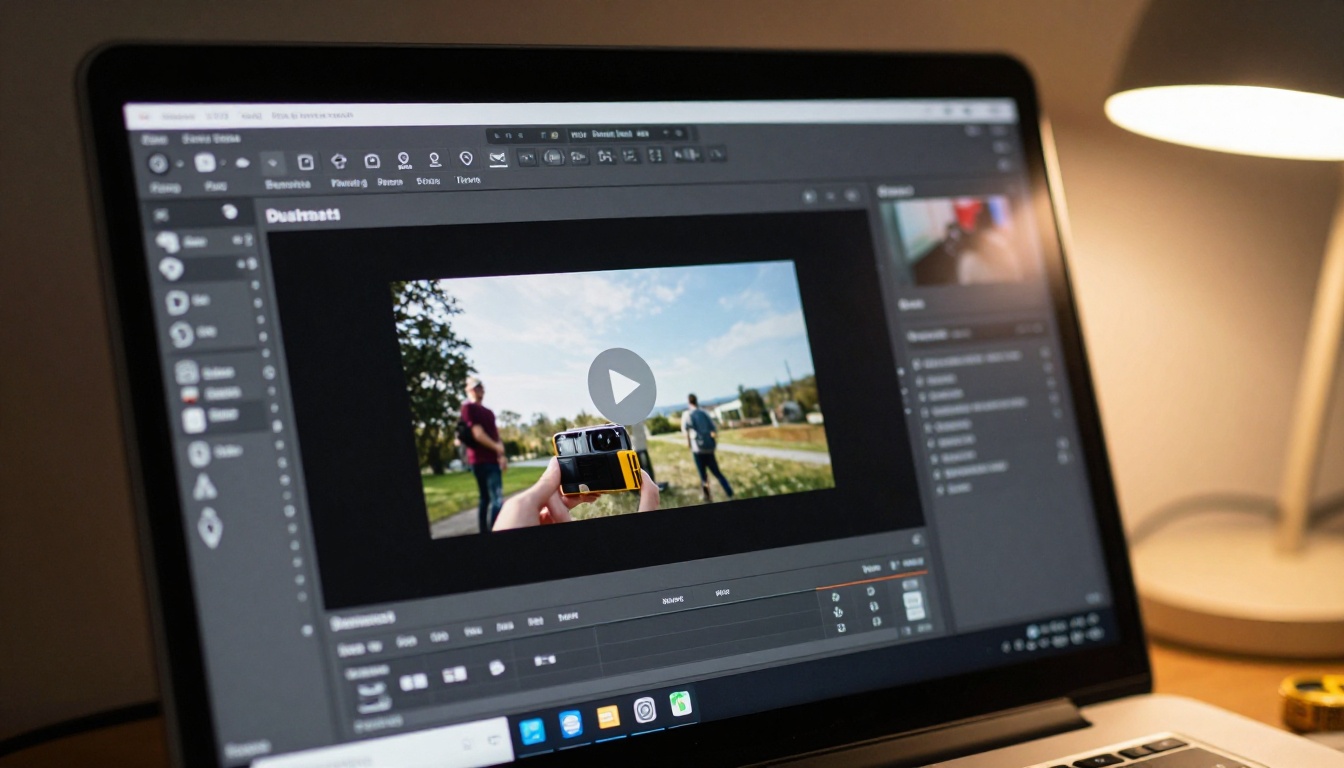
Navigate to the page where you want video. Click Add Media, choose Video, and either paste a YouTube/Vimeo URL or upload an MP4 directly. Position the video player on the page, resize it, and set it to autoplay silently or click-to-play.
Step 5: Add interactive hotspots
Use the Hotspot tool to draw a clickable zone over any element on the page. Link it to:
- A URL (product page, booking form, external site)
- A pop-up with additional text or imagery
- An email address or phone number
- Another page within the same flipbook
This turns a static product photo in your digital catalog into a direct purchase path.
Step 6: Customize branding
Under Appearance, upload your logo, set brand colors for the toolbar and page background, and add a custom domain if you're on the Professional plan. The toolbar and navigation elements are all white-labeled, with no platform watermarks on any paid plan.
Step 7: Publish and share
Click Publish to generate your live flipbook URL. Share options include:
- Direct link: Copy and share anywhere
- Embed code: Paste into any website or landing page with the Embed Flipbook on Website tool
- Password protection: Restrict access to specific audiences
- QR code: Link physical print materials to the digital version

Animation Timing: What Works
The 3-second rule for element animations
Any element animation (fade, slide, scale) should complete within 3 seconds of the page loading. If an animation takes longer than that, the reader has already moved past the moment where it would have had impact. The sweet spot is 0.4 to 0.8 seconds for most effects.
Staggered animation for lists
When revealing a bulleted list or a series of features, stagger each item with a 100-150ms delay between appearances. This creates a natural reading rhythm and prevents the reader from being overwhelmed by everything appearing at once.
When to use no animation
Some content categories perform better with zero element animations:
- Legal documents and compliance reports: Animations can undermine a formal tone
- Dense data tables: Motion distracts from reading numbers accurately
- Print-replica archives: If the goal is to mirror a physical document exactly, keep it static
The page-turn effect can still be present. But element-level motion should be off.
| Feature | Flipbooks AI | Basic PDF Viewer | Static HTML Publisher |
|---|
| Page-curl animation | Yes | No | No |
| Embedded video | Yes | No | Limited |
| Interactive hotspots | Yes | No | Limited |
| Custom branding | Yes | No | Yes |
| No watermarks | Yes (paid) | No | Yes |
| Password protection | Yes | No | Varies |
| Analytics | Yes (Professional) | No | Varies |
| Mobile-responsive | Yes | Yes | Varies |
| Embed on website | Yes | Limited | Yes |
| Offline download | Yes | Yes | No |
A basic PDF viewer shows pages. An animated digital flipbook built on Flipbooks AI creates an experience.
Real-World Animation Use Cases
Product catalogs that sell while you sleep
A furniture retailer uploads their seasonal catalog as a PDF. With page-curl animation active, video demos embedded on feature product pages, and hotspots linked to the shopping cart, the flipbook catalog becomes a self-contained sales tool. The Furniture Catalog Maker and Product Catalog Generator tools are built specifically for this workflow.
Restaurant menus with atmosphere
A high-end restaurant creates a digital menu where each section fades in as it loads, a short video of the kitchen team plays on the chef's page, and dishes link to full ingredient descriptions in a pop-up. Customers browsing before a visit arrive with decisions already made. The Restaurant Menu Creator handles the conversion automatically.
Portfolio presentations that get callbacks
A photographer or designer embeds their best work with zoom hotspots, adds a short intro video on the first spread, and sets a slow hard-curl animation to give each page the weight it deserves. The Photography Portfolio tool is purpose-built for this.
Real estate brochures with virtual tours
A property listing brochure embeds a walkthrough video on the floor plan page, links room photos to a 360-degree viewer via hotspot, and uses a fade transition to keep the tone professional. Interested buyers spend more time with the property before calling. The Real Estate Brochure Creator fits this use case directly.
How to Avoid Animation Overload
The hierarchy of motion
Not every animation deserves the same prominence. Prioritize:
- Page-turn animation: Always present, consistent, brand-reinforcing
- One embedded video per high-priority page: Placed where it adds real information value
- Hotspots on actionable elements: Products, CTAs, contact info
- Element animations for hero text or opening spreads: Subtle, purposeful
Resist the urge to animate everything. Every animation you add competes with every other animation for the reader's attention.
Testing on mobile before publishing
Over 60% of flipbook views happen on mobile devices. Before publishing, preview your flipbook on a phone. Verify that:
- The page-curl responds correctly to swipe gestures
- Embedded videos play on tap without requiring external app launches
- Hotspot zones are large enough to tap accurately with a finger
- Text remains readable at smaller screen sizes
✅ Best practice: Set your PDF layout to landscape for desktop-primary publications, and portrait for mobile-first audiences.
Analytics: how animation affects behavior
On the Professional plan, flipbook analytics show you exactly which pages readers spend the most time on, where they drop off, and which hotspots get the most clicks. This data tells you whether your animation choices are working.
If readers are dropping off at page 3, that page might have a slow-loading embedded video. If a product hotspot has zero clicks, the clickable area might be too small or the visual cue too subtle.

Your Next Animated Flipbook Starts Here
Adding animation to a flipbook is not a technical challenge anymore. It's a creative one. The tools exist to do everything described in this article without writing a single line of code. The decision is which animations serve your content and which ones would just get in the way.
Start with a solid page-flip transition, add one embedded video where it genuinely replaces 300 words of description, and layer in hotspots on your most important calls to action. That combination alone puts your publication far ahead of anything a static PDF can offer.
Ready to build it? Create your account on Flipbooks AI and upload your first PDF today. Browse all available tools to find the right template for your use case, and check the pricing plans to pick the option that fits your publishing volume.



