Hyperlinks are what separate a dead document from a living one. A PDF sitting in someone's inbox does nothing on its own. But a flipbook with clickable links? That's a different story entirely. Readers can jump to your store, fill out a form, or navigate directly to the page they need, all without leaving the reading experience. If you're using Flipbooks AI to create your digital publications, adding hyperlinks is one of the most impactful things you can do to improve results.
This article walks you through every type of link you can embed, how to set them up correctly, where they matter most, and what to avoid.
What Types of Links Can You Embed?
Before touching any settings, it helps to know what's actually possible. Flipbooks support several distinct link types, and choosing the right one for each situation changes how readers interact with your content.
External URL Links
These send the reader to any webpage outside the flipbook: your product page, a booking form, a social media profile, or a third-party resource. They're the most commonly used link type and the most versatile.
Internal Page Links
Internal links jump the reader to a specific page within the same flipbook. This is particularly useful for long publications like annual reports, training manuals, or catalogs where readers need to navigate non-linearly.
Email Links (Mailto)
A mailto link opens the reader's default email client with your address pre-filled. It's a frictionless way to invite direct contact without forcing anyone to copy-paste an address.
Phone Links (Tel)
On mobile devices, a tel link triggers a phone call with a single tap. For service businesses, this is one of the highest-converting link types available.
Anchor Links
Anchor links jump to a specific element within the same page, similar to how they work on a website. These work well for table-of-contents style navigation at the start of a long document.
Link Type Reference Table
| Link Type | Use Case | Opens In |
|---|
| External URL | Product pages, bookings, social media | New tab |
| Internal Page | Long documents, tables of contents | Same flipbook |
| Email (mailto) | Contact forms, support requests | Email client |
| Phone (tel) | Service inquiries, direct calls | Phone dialer |
| Anchor | Section navigation within a page | Same view |
Why Clickable Links Change Everything
Static documents ask readers to do one thing: read. Interactive flipbooks with hyperlinks ask readers to act. That shift from passive to active consumption drives real, measurable outcomes.
Consider a fashion catalog. Without links, a reader browses, closes the document, and maybe remembers to search for a product later. With clickable links on each item, the path from "I like this" to "I bought this" takes seconds.

The same principle applies across every industry:
- Real estate agents link each listing directly to a property detail page or virtual tour
- Restaurants link each menu item to an online ordering system
- Event organizers link to registration pages, venue maps, and speaker bios
- Educators link to supplementary videos, quizzes, and resource downloads
- Retailers link product images directly to cart pages for instant purchasing
💡 Pro tip: The more relevant and specific your link destination is, the higher your click-through rate. Linking a product name to the exact product page outperforms linking it to a generic homepage every time.
How to Add Links with Flipbooks AI (Step-by-Step)
Flipbooks AI includes a built-in link editor that works directly inside the flipbook builder. No coding required, no external plugins needed.
Step 1: Sign In and Open Your Publication
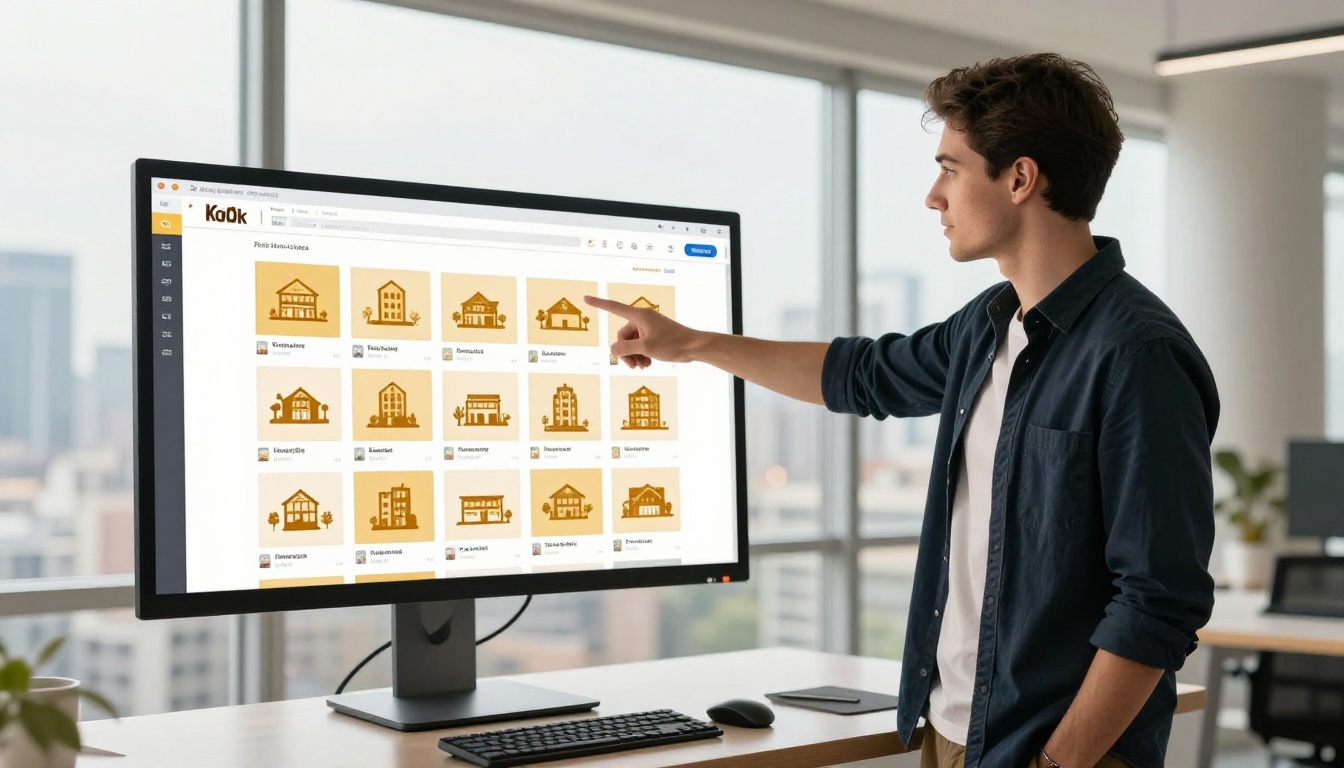
Head to flipbooksai.com/account and sign in. From your dashboard, open an existing flipbook or upload a new PDF to convert it into a digital flipbook.
Step 2: Select the Page to Edit
Navigate to the page where you want to add a link. You can zoom in on specific areas to make precise selections easier, especially useful for text-heavy pages with multiple potential link targets.
Step 3: Select Your Link Target
Click or highlight the element you want to make clickable. This can be:
- A block of text or a specific word
- An image or graphic element
- A button shape
- A blank area you want to turn into a hotspot
Step 4: Open the Link Settings Panel
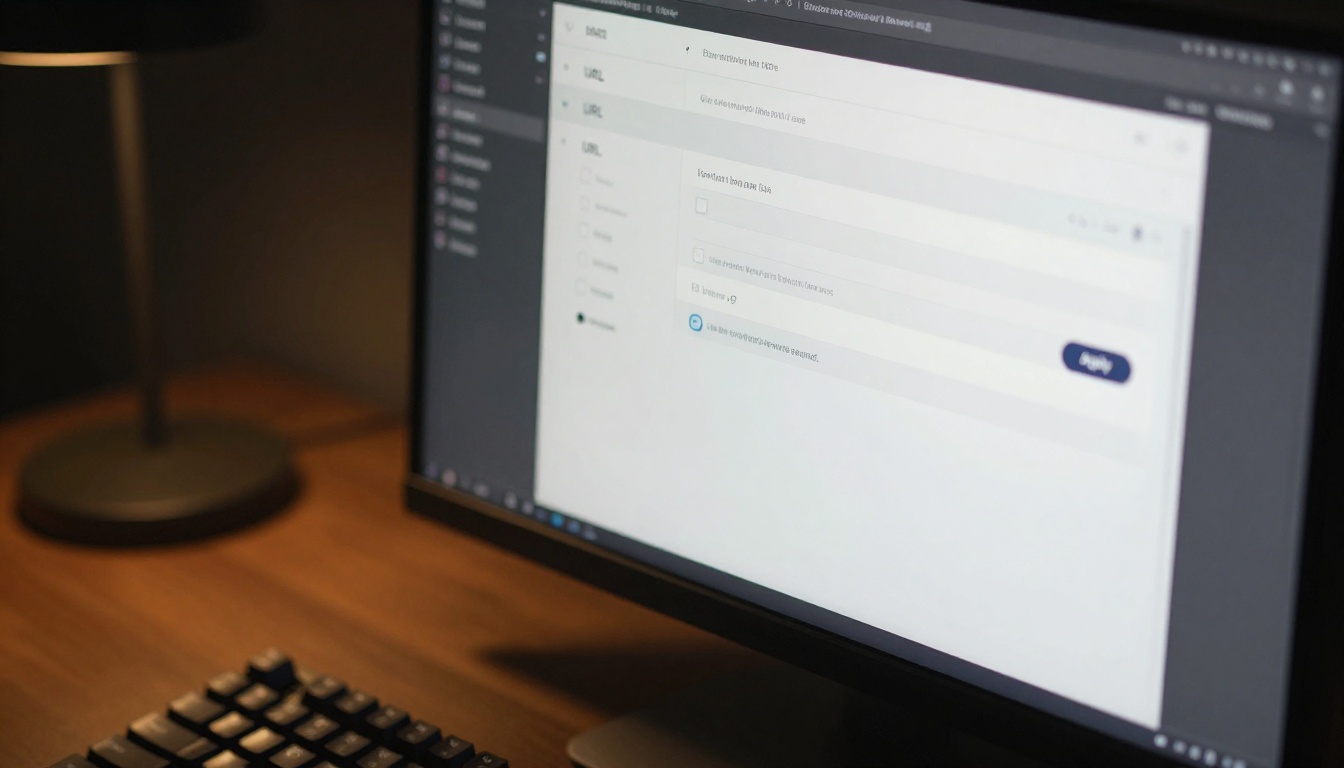
With your element selected, click the link icon in the toolbar. A settings panel appears with the following fields:
- URL field: Paste your destination link here
- Link type: Choose from URL, mailto, tel, or internal page
- Open in new tab: Toggle on (recommended for all external links)
- Apply to selection: Confirm and save the link
Step 5: Test Every Link in Preview Mode
Before publishing, click through each link in preview mode. Confirm that:
- The link opens the correct destination
- External links open in a new tab
- Internal links land on the right page
- Mobile behavior matches desktop behavior
Step 6: Publish and Share
Once tested, publish your flipbook. Share via direct link, embed it on your website, or send the URL directly to your audience.
✅ Best practice: Use "open in new tab" for all external links. This keeps readers inside your flipbook instead of navigating away entirely.
Internal vs External Links: Which Should You Use?
Both serve distinct purposes. The mistake most people make is over-relying on one and ignoring the other.
| Factor | Internal Links | External Links |
|---|
| Purpose | Navigation within the flipbook | Drive traffic to outside pages |
| Best For | Long reports, catalogs, manuals | Product pages, sign-ups, social |
| Reader Experience | Stays inside the publication | Goes to a new destination |
| Conversion Goal | Deeper reading, section access | Purchases, leads, contact |
| Mobile Behavior | Seamless flipbook navigation | Opens browser or app |
For most publications, the ideal approach mixes both. Use internal links for a table of contents or chapter navigation. Use external links for calls-to-action, product references, and social profiles.
⚠️ Warning: Never link to a page that requires a login your reader doesn't have. A broken or inaccessible destination kills trust instantly.
Real-World Use Cases for Flipbook Links
The best way to see where hyperlinks add value is to see them working in specific contexts.

Product Catalogs
A product catalog with clickable items is essentially a shoppable magazine. Link every product image and name directly to its purchase page. Add a "Request a Quote" mailto link on the last page. The catalog stops being a passive reference and becomes an active sales tool.
Restaurant Menus
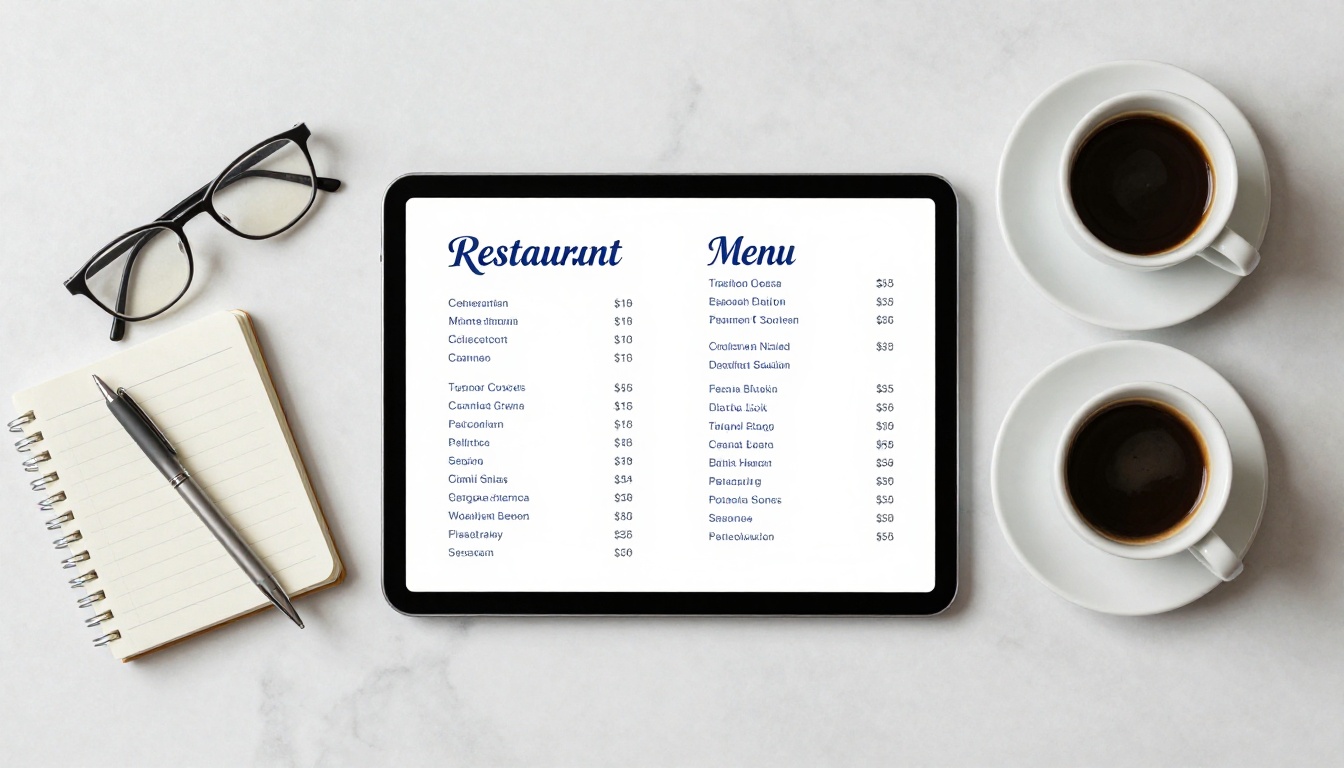
A restaurant menu flipbook benefits from "Order Now" links that go directly to the online ordering system, tel links for reservations, and links to allergen information pages. Diners get everything they need without picking up the phone.
Real Estate Brochures
A real estate brochure with individual property links is far more useful than a static PDF. Each listing links to its full details, virtual tours link to video walkthroughs, and the agent's contact info uses mailto and tel links for instant outreach.
E-Books and Training Manuals
Long-form publications like training manuals or interactive e-books rely heavily on internal navigation. A clickable table of contents at the front lets readers jump directly to the chapter they need. Footnotes can link to source material.
Event Programs
An event program with links to speaker bios, session schedules, venue maps, and post-event feedback forms turns a printed-style document into a full event companion.

Common Mistakes When Adding Links
Getting links into your flipbook is straightforward. Getting them right takes a bit more attention.
Linking Too Many Things
When everything is a link, nothing stands out. Readers develop link blindness the same way they do banner blindness. Reserve links for high-value actions: purchases, sign-ups, direct contact, or critical navigation.
Using Generic Link Text
"Click here" tells a reader nothing about where they're going. "View the full product range" or "Book a table" sets clear expectations and performs significantly better.
Forgetting Mobile Users
More than half of flipbook readers are on mobile devices. Tap targets need to be large enough to hit accurately. A tiny linked word is easy to click on desktop and nearly impossible to tap on a phone.
Skipping the Test Phase
A link that worked during setup can break after a destination page is updated, moved, or deleted. Test every link before each major distribution push.
Not Using UTM Parameters
If you're linking to your own website, add UTM parameters to track exactly which flipbook, which page, and which link element drove the traffic. This turns your flipbook from a black box into a measurable marketing channel.
💡 Pro tip: Structure your UTM parameters like this: ?utm_source=flipbook&utm_medium=digital-catalog&utm_campaign=spring-2026 to get clean, actionable data in your analytics dashboard.
Link Tracking and Analytics
Knowing that links exist is one thing. Knowing how many readers clicked them, on which pages, and at what point in the reading journey is another level entirely.
With Flipbooks AI's Professional plan, you get access to built-in analytics that track reader behavior across your publications. This includes:
- Page view data: Which pages readers spend the most time on
- Click tracking: Which links get clicked and how often
- Device breakdown: Desktop vs mobile reader split
- Lead generation: Capture reader information through embedded forms
- Export reports: Download data for external analysis
This data lets you optimize future publications based on what actually drives action, not what you assume should drive action.
Analytics Feature Comparison
| Feature | Standard Plan | Professional Plan |
|---|
| Page view tracking | Basic | Detailed per-page data |
| Link click tracking | No | Yes |
| Lead generation forms | No | Yes |
| Reader device data | No | Yes |
| Export reports | No | Yes |
| Offline downloads | No | Yes |
| Password protection | Yes | Yes |
| Custom branding | Yes | Yes |
If link performance matters to your business, the Professional plan pays for itself quickly. Compare all plans to see what's included at each tier.
The link strategy that works for a catalog doesn't automatically translate to a newsletter or a portfolio. Each format has its own reading patterns and conversion goals.

| Flipbook Format | Primary Link Type | Main Goal |
|---|
| Product Catalog | External (product pages) | Sales conversion |
| Restaurant Menu | Tel + External (ordering) | Reservations and orders |
| Real Estate Brochure | External (listings) + Mailto | Lead generation |
| Training Manual | Internal (chapters) | Reading navigation |
| Event Program | External (session details) | Attendee information |
| Portfolio | External (project pages) | Client inquiries |
| Newsletter | External (articles) | Traffic to main site |
| Annual Report | Internal + External | Stakeholder communication |
Use this table as a starting point, then adapt based on what your specific audience actually needs from the document.
Making Links Visible Without Cluttering the Design
A common design tension: hyperlinks need to be findable, but they cannot overwhelm the visual layout. A few principles that work well in practice:
- Consistent link styling: Use one color for all hyperlinks throughout the document. Readers learn the pattern after the first page.
- Button-style CTAs: For primary actions like "Buy Now" or "Book a Demo", use a styled button element rather than inline text links. Buttons draw the eye and signal importance.
- Hover states: In digital flipbooks, a subtle color change or underline on hover signals interactivity to readers who are exploring the page.
- Icon hints: A small arrow or external link icon next to linked text tells the reader what to expect before they click.
- White space: Do not pack links too close together. Physical separation helps readers identify and choose between options.
✅ Best practice: Limit each flipbook page to 3-5 clickable elements maximum. More than that and readers stop paying attention to any of them.
Take Your Flipbook from Static to Interactive
Hyperlinks are not a finishing touch. They are core infrastructure for any digital publication that expects to drive real action from readers. Whether you're building a shoppable catalog, a navigable training manual, or a brochure that converts browsers into buyers, the links you add determine how far your content travels.
Flipbooks AI makes the entire process straightforward, from uploading your PDF to adding links, embedding the result on your website, and tracking how readers interact with every page.
Ready to build your first interactive flipbook? Create your account and start adding links today. Or browse all available tools and templates to find the right format for your use case. If you're considering the analytics and lead generation features, see all pricing plans to choose what works for your needs.



