Static flipbooks are fine for reading. The moment you add an embedded video that plays on a specific page, or a button that sends readers directly to a product checkout, the publication stops being passive and starts working for you. That shift from page-turning to action-taking is exactly why interactive content matters, and it's why knowing how to add video and links inside a flipbook is one of the most practical skills in digital publishing today.
Flipbooks AI gives you the tools to do this without technical headaches. Whether you're building a restaurant menu, a fashion lookbook, or a real estate brochure, embedding videos and hyperlinks takes minutes. Here's everything you need to know.
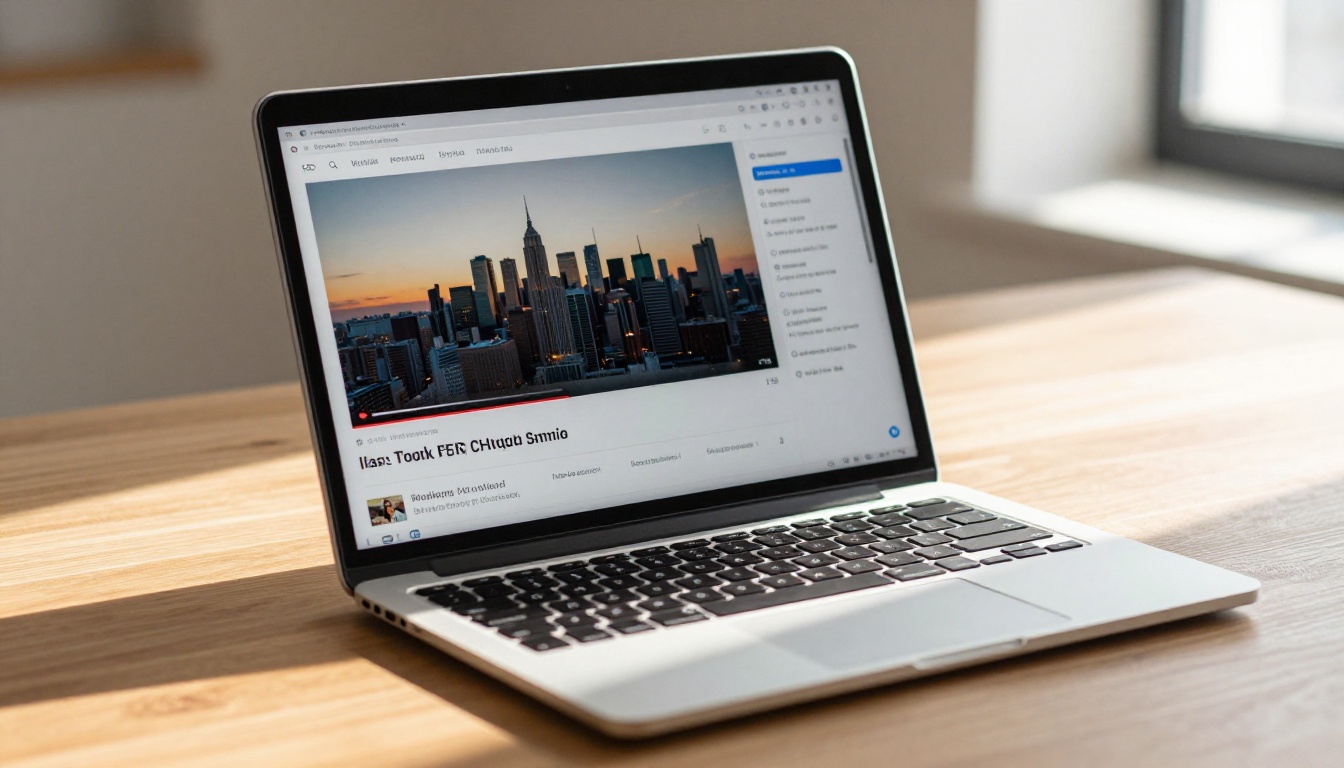
Why Readers Skip Static Flipbooks
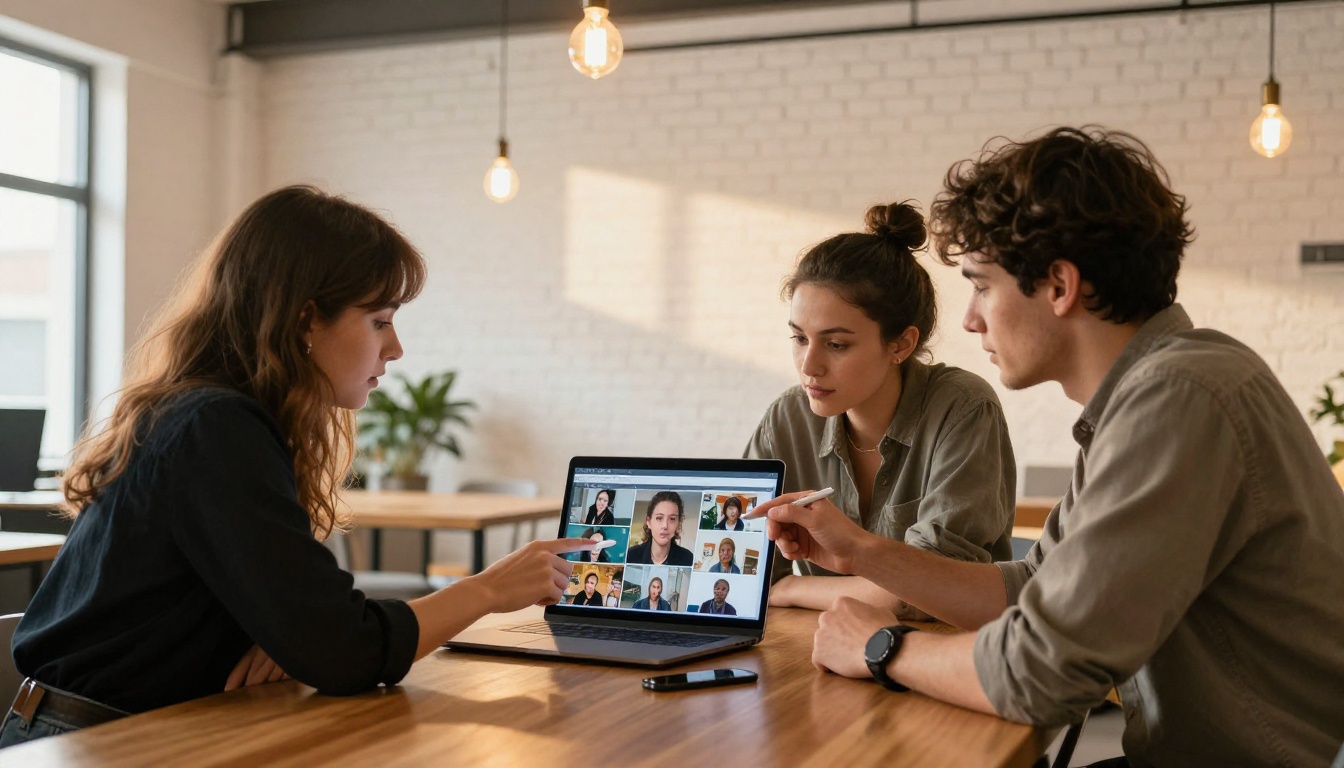
Digital readers have short attention spans and high expectations. A flat PDF converted to a flipbook gives them something to look at. An interactive flipbook gives them something to do. The difference shows up in how long they stay, how far they flip, and whether they take any action after reading.
What Readers Actually Want
When someone opens a digital product catalog or a hotel brochure, they want to be moved. A video showing a hotel suite in 60 seconds does more than five paragraphs of copy ever could. A clickable "Book Now" button removes the friction of having to search for the website separately. These aren't nice-to-haves anymore. They're what readers expect from professional digital publications.
The Two Elements That Make a Flipbook Interactive
There are two primary types of interactive content that transform a flipbook from a document into an experience:
- Embedded videos: YouTube videos, Vimeo clips, or self-hosted MP4 files displayed directly inside flipbook pages
- Clickable hyperlinks: URLs that open in a new tab, mailto: links for email, phone links, and internal page navigation
Both can be placed precisely on any page, overlaid on any background image or text, and sized to fit your layout.
Not all embeds work the same way. The table below breaks down the main options and what each is best suited for:
| Media Type | Best For | Supported Sources | Behavior |
|---|
| YouTube Video | Product demos, tutorials, brand stories | YouTube URL | Opens inline player on click |
| Vimeo Video | Premium video content, portfolios | Vimeo URL | Opens inline player on click |
| MP4 / Hosted Video | Privacy-sensitive or offline content | Direct video URL | Streams directly on the page |
| Hyperlink (URL) | Product pages, landing pages, booking forms | Any https:// URL | Opens in new tab |
| Email Link | Contact forms, newsletter signups | mailto: address | Opens email client |
| Phone Link | Service businesses, restaurants | tel: number | Opens dialer on mobile |
💡 For most use cases, YouTube or Vimeo embeds are the easiest to manage. You update the source video without touching the flipbook.

YouTube and Vimeo Embeds
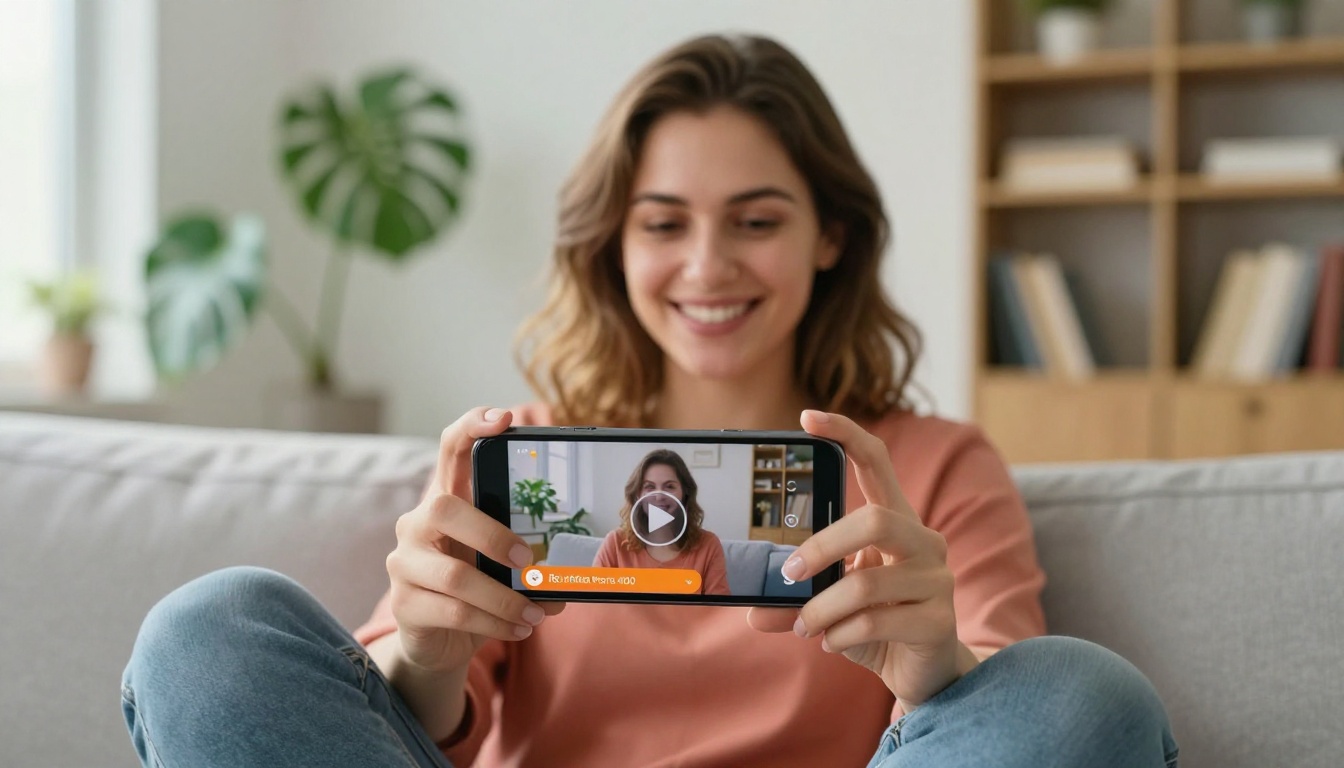
YouTube and Vimeo are the most common video sources because they're already hosted, fast to load, and mobile-friendly. You just need the video URL. When a reader clicks the video thumbnail on the flipbook page, the player opens inline without redirecting them away from the publication.
This works especially well for:
- Product demonstrations in a sales catalog
- Chef introduction videos in restaurant menus
- Property walkthrough clips in real estate brochures
- Brand story videos in annual reports or press kits
Self-Hosted MP4 Videos
If you need privacy, or you're distributing content offline, a direct MP4 link works well. This is common in training manuals where videos are hosted on a private server or internal CDN. The flipbook loads and plays the video without relying on YouTube infrastructure.
Hyperlinks and Buttons
A hyperlink in a flipbook behaves exactly like a link on any web page. You can attach it to a word, a button graphic, an image thumbnail, or a call-to-action area. When clicked, the link opens in a new browser tab, keeping the reader inside the flipbook.
⚠️ Always use https:// links. HTTP links may be blocked in some browser environments, especially on mobile.
How to Add Video to a Flipbook
Adding video to a flipbook page is a precise, deliberate process. You're not just dropping a video file into the document. You're placing an interactive video zone on a specific region of a specific page.
Picking the Right Video Source
Before you embed anything, choose based on where your audience will view the content:
- Public web audiences: Use YouTube or Vimeo. No hosting costs, no buffering issues, automatic mobile optimization.
- Private or internal use: Use a direct MP4 link from a secure server.
- Offline-capable publications: Use Flipbooks AI's offline download feature (Professional plan) alongside self-hosted video.
Step-by-Step: Adding Video with Flipbooks AI
Here's how to add an embedded video to your flipbook on Flipbooks AI:
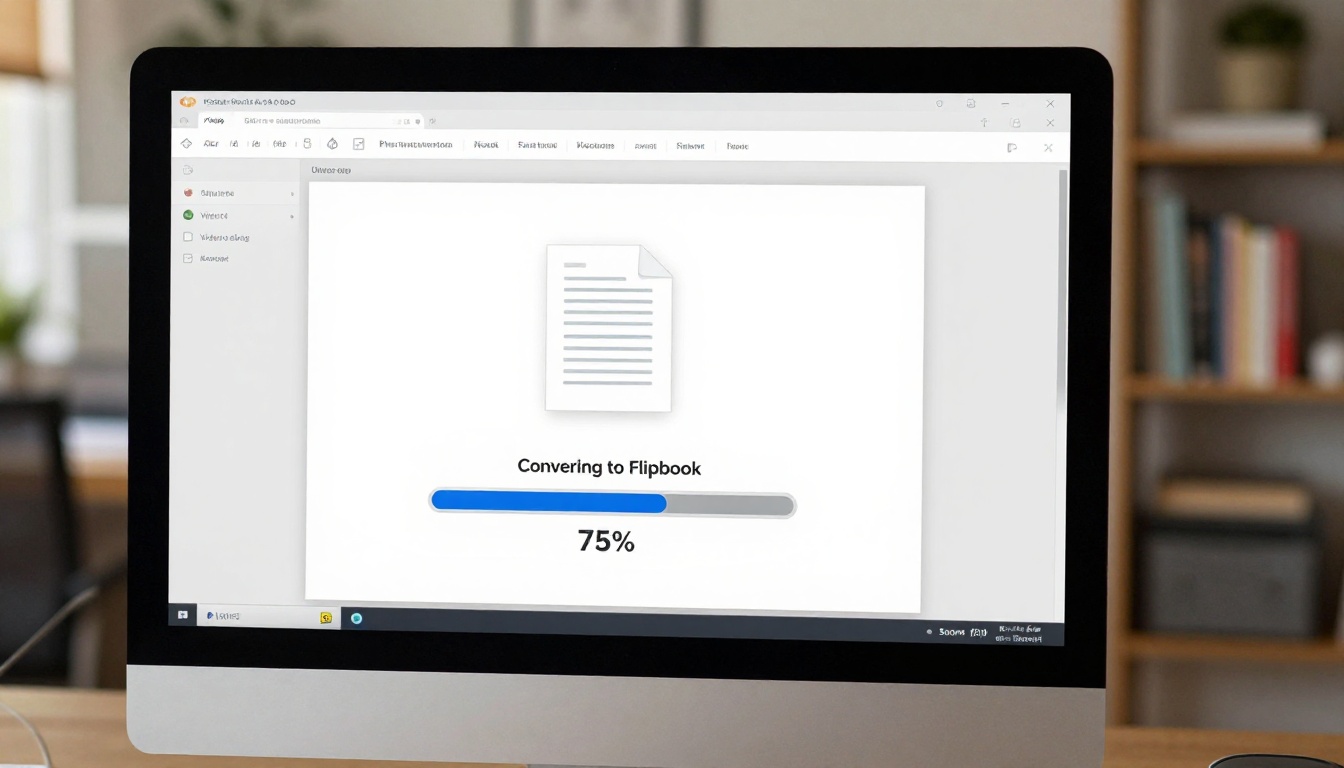
- Upload your PDF using the PDF to Flipbook Converter. Drag and drop your file into the uploader. Conversion takes under a minute for most documents.
- Open the editor once the flipbook is generated. You'll see a page-by-page view of your content.
- Navigate to the target page where you want the video to appear.
- Select the Video Embed tool from the toolbar. Click the area on the page where you want the video zone placed, then drag to set the size.
- Paste the video URL into the embed field. This can be a YouTube URL, Vimeo URL, or direct MP4 link.
- Set the trigger behavior: choose whether the video plays on click (recommended) or autoplays when the page is turned.
- Preview on mobile using the built-in preview toggle to confirm the video zone scales correctly on small screens.
- Save and publish.
✅ Place the video on a page with minimal competing text. A full-bleed background image with the video zone centered creates a cinematic feel that readers respond to.
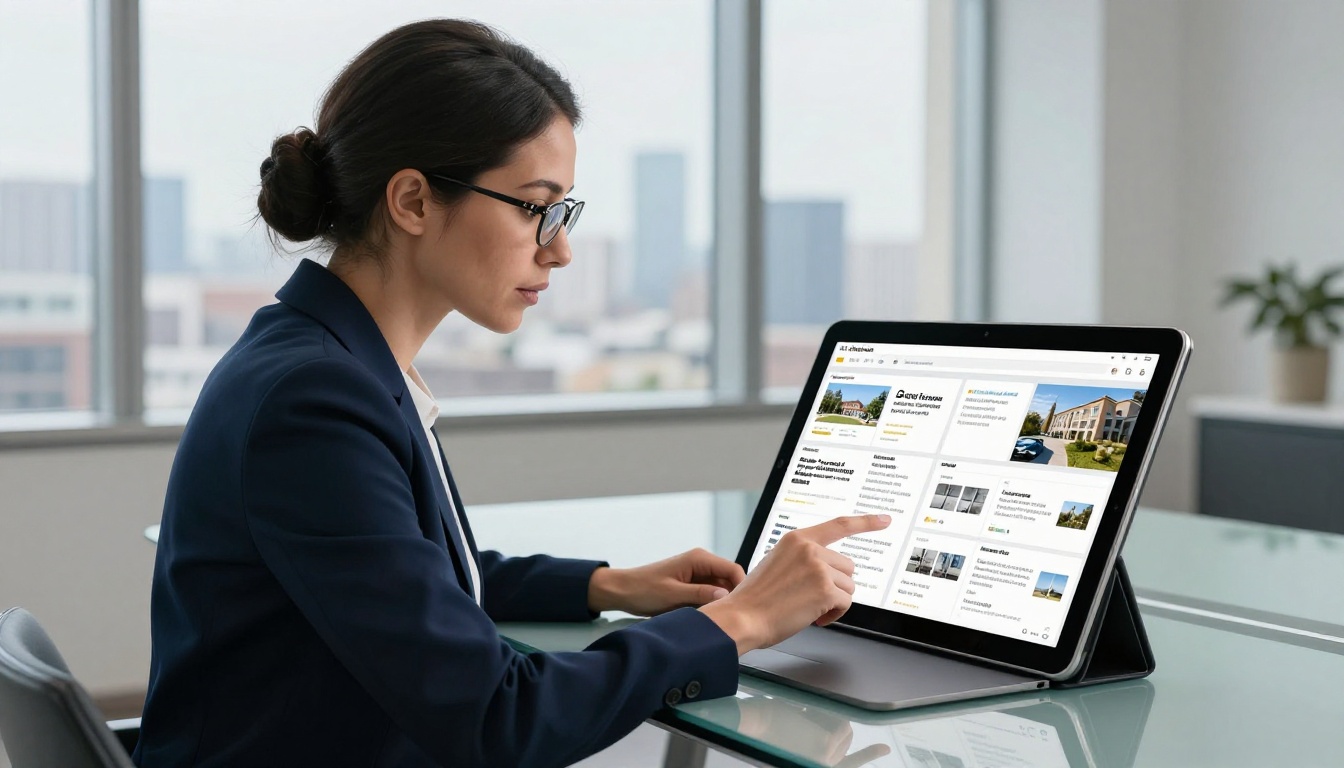
How to Add Clickable Links to Flipbook Pages
Links are even simpler to add than videos, and in many cases they drive more direct ROI. A "Shop Now" button on a product catalog page is one click away from a sale.
URL Links vs. Email vs. Phone Links
These three link types serve different purposes:
| Link Type | Format | When to Use |
|---|
| Web URL | https://yoursite.com | Product pages, booking forms, social profiles |
| Email | mailto:you@email.com | Contact requests, newsletter signups |
| Phone | tel:+15551234567 | Service businesses, click-to-call buttons |
💡 On mobile devices, phone links (tel:) open the device dialer automatically. This is a conversion-boosting feature for any service business using a flipbook brochure.
Step-by-Step: Adding Links with Flipbooks AI
- Open your flipbook in the Flipbooks AI editor.
- Select the target page where you want the link.
- Choose the Link tool from the side toolbar. Draw a zone over the text, button, or image area you want to make clickable.
- Enter the destination URL in the link field. Use https:// for web URLs, mailto: for email, or tel: for phone.
- Set the opening behavior: new tab is standard and keeps readers in the flipbook.
- Add a visual cue if the linked area isn't already a button. A subtle border highlight or a small arrow icon lets readers know the area is clickable.
- Test the link using the live preview before publishing.
Real-World Use Cases That Work
The combination of video and links inside a flipbook isn't theoretical. These scenarios are already working for businesses across industries.
Real Estate: Virtual Tour Integration
A real estate agent publishes a property brochure using the Real Estate Brochure Creator. On the main property page, they embed a 90-second virtual tour video. Below the video zone, they add a "Schedule a Viewing" button linked to their Calendly booking page. Readers flip through the property photos, watch the tour without leaving the brochure, then book a viewing in one click.
Restaurants: Menu Videos That Sell
A restaurant uses the Restaurant Menu Creator to build their digital menu. On the signature dish page, they embed a 30-second chef's table video showing the dish being plated. A "Reserve a Table" link in the corner opens the reservation system directly. The menu doubles as a sales tool with zero additional effort from the front-of-house team.
Product Catalogs: Demo Videos Per Item
A furniture brand uses the Digital Catalog Maker to build a seasonal catalog. Each sofa listing has a video embed showing the piece in a styled room, rotating 360 degrees. A "Buy Now" button links directly to the product page on their e-commerce store. The catalog becomes a shoppable experience rather than a static price list.
| Industry | Video Use | Link Use |
|---|
| Real Estate | Virtual property tours | Booking forms, contact pages |
| Restaurants | Chef videos, dish presentations | Reservation systems, delivery apps |
| Fashion | Lookbook runway clips | Shop pages, size guides |
| Hotels | Room tours, amenity showcases | Direct booking, special offers |
| Education | Course introduction videos | Enrollment forms, resource downloads |
| Fitness | Workout demo clips | Membership signups, class schedules |
What You Get on Each Plan
Video embedding and hyperlinks are available across Flipbooks AI plans, but the depth of features varies. Here's how the plans stack up for interactive content:
| Feature | Free | Standard | Professional |
|---|
| Embedded videos (YouTube/Vimeo) | Yes | Yes | Yes |
| Clickable hyperlinks | Yes | Yes | Yes |
| Unlimited flipbooks | No | Yes | Yes |
| Custom branding (no watermark) | No | Yes | Yes |
| Password protection | No | Yes | Yes |
| Analytics and reader tracking | No | No | Yes |
| Lead generation forms | No | No | Yes |
| Offline downloads | No | No | Yes |
| Custom domain embedding | No | Yes | Yes |
✅ Standard plan is the sweet spot for most businesses. It removes watermarks, allows unlimited publications, and includes embed codes for adding your flipbook to any website.
Tips for Better Interactive Flipbooks
Having the tools is one thing. Using them well is another. These are the practices that separate polished interactive publications from cluttered ones.
Video Placement That Works
- One video per spread is the rule of thumb. Two videos on the same page compete for attention and slow down load times.
- Place video above the fold on the page, so it's immediately visible when the reader arrives at that spread.
- Use a strong thumbnail frame: the static frame readers see before clicking should be visually compelling. On YouTube, you can choose a custom thumbnail.
- Keep videos under 2 minutes. Beyond that, completion rates drop significantly.
Link Styling and UX
- Make clickable areas obvious. Don't rely on readers to find hidden links. Use button-style containers with visible borders or contrasting background colors.
- Use action-oriented text: "Book Now", "See the Collection", "Download the Price List" outperform vague link labels like "Click Here".
- Limit links per page to 3 or fewer. Too many clickable areas create decision paralysis.
Mobile First
More than half of flipbook readers open publications on mobile devices. Keep this in mind:
- Video zones should be at least 150x100 pixels to be tappable on small screens.
- Phone links (
tel:) add instant value for any service business. Readers can call directly from the flipbook.
- Use the mobile preview in the editor before publishing. What looks balanced on desktop can feel cramped on a phone screen.
How to Share Your Interactive Flipbook
Once your flipbook has videos and links set up, getting it in front of the right audience is the next step. Flipbooks AI offers several distribution options:
- Direct link: Share a URL directly via email, social media, or messaging apps
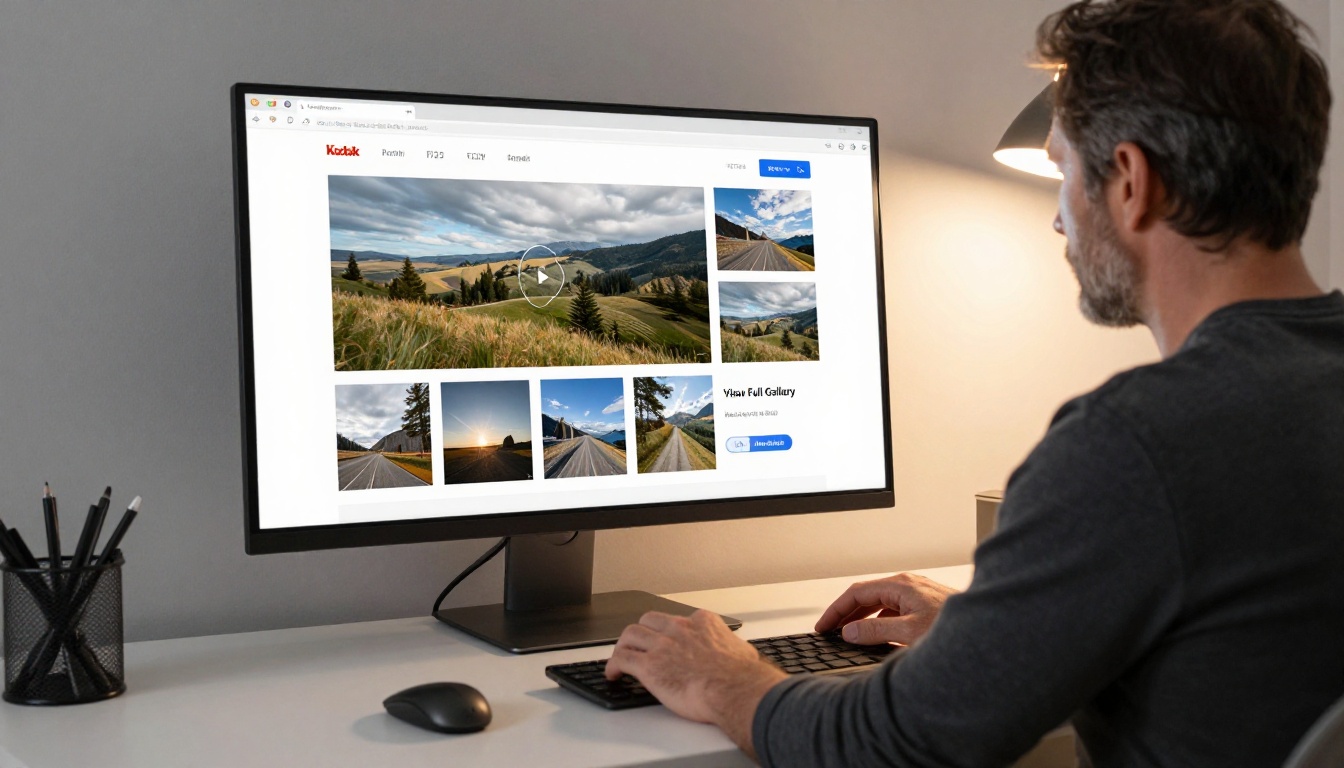
- Embed code: Paste a snippet into any website to display the flipbook inline, using the Embed Flipbook on Website tool
- Password protection: Lock sensitive publications such as proposals, internal reports, or client-specific catalogs behind a password
- QR code: Generate a QR code linking to the flipbook for print materials
💡 Embedding the flipbook on your website using the Embed Flipbook on Website tool keeps readers on your domain, which benefits SEO and session time metrics.
Analytics: Seeing What Gets Clicked
On the Professional plan, analytics let you see exactly which pages readers visit, how long they spend on each spread, and which video or link zones get the most interaction. This data is invaluable for refining upcoming publications.
You can find out:
- Which pages have the highest drop-off, signaling where to restructure the content
- Which video has the highest play rate, so you can replicate that format elsewhere
- Which link drives the most clicks, helping you prioritize that CTA in later editions
Pair interactive content with reader analytics and your flipbook becomes a measurable marketing asset, not just a document. Check out pricing plans to see if Professional features fit your workflow.
From Static to Interactive in Minutes
The gap between a PDF someone closes after ten seconds and a flipbook they interact with for several minutes comes down to a few deliberate additions: a video on the right page, a link in the right place, a button that leads somewhere worth going.
The tools to do this are already waiting. Create your first interactive flipbook on Flipbooks AI, upload your PDF, and start adding videos and links in the editor. It takes minutes, and the difference in reader response is immediate.
Browse all flipbook tools and templates to find the right starting point for your use case, or compare pricing plans to choose the features that fit your publishing needs.



