Static pages don't close deals. A flipbook stuffed with embedded videos and clickable hyperlinks turns passive readers into active participants, and the data backs this up: publications with multimedia content hold readers two to three times longer than plain text formats. Whether you are building a product catalog, a digital magazine, or a corporate training manual, the difference between a flipbook people scroll through once and one they bookmark and share comes down to interactivity. This article covers every step, format, and practical approach you need to add videos and links that work every time, on every device. Flipbooks AI makes the entire process faster than most people expect.
Why Static Flipbooks Lose Readers Fast
The Attention Problem
Reading a static PDF is a passive experience. The eyes move, the brain registers text, and very little sticks. When you add a video that plays right inside the page, or a button that takes the reader directly to a product page, you shift from broadcasting to conversing. Readers who interact with content are more likely to remember it, act on it, and return to it.
For businesses, this is not a minor upgrade. A product catalog where the reader can watch a 30-second demo video on the same page as the product specs converts at a dramatically different rate than one where they have to close the document, search YouTube, and hope they find the right video.
What Interactive Layers Actually Add
| Feature | Static Flipbook | Interactive Flipbook |
|---|
| Video playback | None | Inline YouTube, Vimeo, or hosted video |
| Clickable links | None | External URLs, internal page jumps, email, phone |
| Reader behavior | Passive scrolling | Active clicking, watching, exploring |
| Time on page | ~45 seconds average | 3+ minutes with multimedia |
| Conversion potential | Low | Significantly higher |
| Mobile compatibility | Basic | Fully responsive with touch controls |
The gap is significant. Interactive flipbooks are not a nice-to-have feature; they are the baseline expectation for any digital publication meant to drive action.
Types of Links You Can Add to a Flipbook
Not all links are the same. Choosing the right type of hyperlink for the right context changes how useful your flipbook actually is.
External URL Links
These are the most common: a word, button, or image that opens a webpage in a new tab. Use them to point readers to your product pages, booking forms, social media profiles, or any external resource. Always set them to open in a new tab so the reader does not lose their place in the flipbook.
Internal Page Navigation Links
Internal links jump the reader to a specific page within the same flipbook. A table of contents where each chapter title is a clickable link is the most practical example. They reduce friction, especially in long publications where scrolling through dozens of pages is tedious on mobile.
Email and Phone Links
A mailto: link opens the reader's email client pre-addressed to you. A tel: link on mobile dials a number directly. For a restaurant menu, a spa brochure, or a real estate document, this single feature can be the difference between a lead and a missed opportunity.
File Download Links
Some platforms allow you to link to a downloadable file, such as a price list PDF or a high-resolution image. This is useful for trade catalogs, technical manuals, and event programs where readers want something they can print or save locally.
| Link Type | Best Use Case | Opens In |
|---|
| External URL | Product pages, booking forms, social profiles | New tab |
| Internal page jump | Table of contents, section navigation | Same flipbook |
| Email (mailto) | Contact forms, inquiry buttons | Email client |
| Phone (tel) | Restaurant menus, real estate brochures | Phone dialer |
| File download | Price lists, spec sheets, high-res assets | Download prompt |
| Anchor scroll | Long-form editorial content | Same page |
💡 Always test every link on both desktop and mobile before publishing. A link that works in the editor sometimes behaves differently after publishing, especially tel: links on desktop browsers.
How to Embed Videos in a Flipbook
Video is the most powerful multimedia element you can add to a flipbook. The key is choosing the right format and placement so the video enhances the content instead of interrupting it.
YouTube and Vimeo Embeds
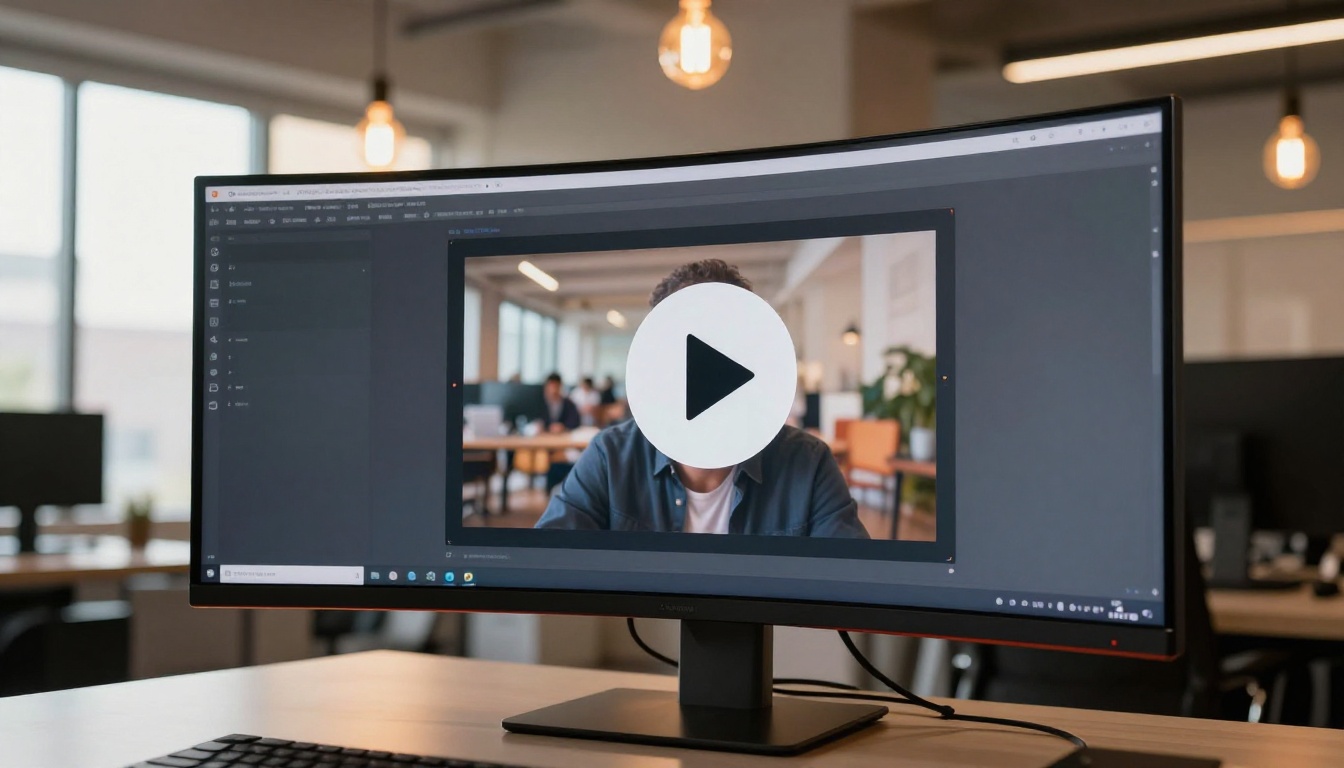
The most common approach is pasting a YouTube or Vimeo URL into the video embed field. The platform handles hosting, streaming, and quality adaptation. The video appears as a thumbnail on the page and plays inline when the reader clicks it.
This is the method most marketers use for product demos, testimonials, and how-to content. The major advantage is that these videos load fast on any connection because they are served from YouTube's or Vimeo's CDN infrastructure.
Hosted Video Files
Some platforms support direct MP4 uploads or links to self-hosted video files. This gives you full control over the video content without sending readers to a third-party platform. It is the better choice for private publications, internal training manuals, or content where you do not want YouTube's related video suggestions appearing after playback.
Autoplay vs. Click-to-Play
| Setting | Autoplay | Click-to-Play |
|---|
| First impression | Immediate visual impact | Clean, quiet page layout |
| Mobile experience | Often muted or blocked | Reader controls playback |
| Best for | Hero sections, visual backgrounds | Educational content, demos |
| Risk | Can feel intrusive | Readers may skip if not prompted |
⚠️ Autoplay with sound is blocked by most modern browsers on mobile. If you use autoplay, assume the video will play silently until the reader taps to unmute.
Where to Place Videos for Maximum Impact
Placement matters as much as the video itself. Here is what consistently works across different publication types:
- Top of a product page: A 15-30 second demo video right below the product headline reduces the need for long descriptions.
- Inside a tutorial section: Step-by-step process videos on the exact page where the instructions appear keep readers from switching tabs.
- On a testimonial page: A video review carries more weight than a text quote. One well-placed testimonial video in a real estate brochure can outperform three pages of copy.
- At the end of a chapter: A short recap video consolidates what the reader just read and reinforces retention.
Adding Videos and Links with Flipbooks AI
Flipbooks AI includes native support for embedded videos and clickable links across all plans. Here is the full process from account creation to a published interactive publication.
Step 1: Create Your Account
Go to flipbooksai.com/account and sign up. The process takes under two minutes. No credit card required to start.
Step 2: Upload Your PDF
Click New Flipbook and upload your PDF. The platform converts it into a page-turning digital publication automatically. Conversion preserves your original layout, fonts, and images without distortion.
✅ If you do not have a PDF ready, Flipbooks AI offers pre-built templates for every use case, from product catalogs to training manuals, so you can start with a solid structure immediately.
Step 3: Open the Interactive Editor
Once your flipbook is created, open the Interactive Editor. You will see a page-by-page view of your publication with an overlay toolkit on the side panel.
Step 4: Add a Video Embed
- Click the Video button in the editor toolbar.
- Draw a bounding box on the page where you want the video to appear.
- Paste your YouTube or Vimeo URL, or upload an MP4 directly.
- Choose whether the video plays on click or autoplays when the reader reaches that page.
- Resize and reposition the video box to fit your layout.
- Click Save.
The video thumbnail is immediately visible on the page. Readers see it as part of the design, not as a foreign element they have to search for.
Step 5: Insert Clickable Links
- Select the Link tool from the toolbar.
- Highlight the text, button, or image you want to make clickable.
- Enter the destination URL, email address, phone number, or target page number.
- Set the link to open in a new tab for all external URLs.
- Click Apply and save.
You can add as many links per page as needed. A product catalog page might have the product name linked to the store page, the price linked to a pricing comparison, and a "Request Sample" button linked to a contact form, all on the same page.
Step 6: Preview on Mobile and Desktop
Before publishing, use the built-in preview mode to check your flipbook on both desktop and mobile viewports. Tap every link. Play every video. Confirm that video boxes are not covering important text on smaller screens.
💡 Resize video boxes slightly smaller than you think necessary. Mobile screens compress layouts more than the desktop preview suggests, and a video that looks perfectly sized on a 27-inch monitor can dominate an entire phone screen.
Step 7: Publish and Share
Click Publish. Flipbooks AI gives you several distribution options immediately:
- A direct shareable URL you can paste into emails, social posts, and messaging apps.
- An embed code to place the flipbook on your website.
- Password protection for private or internal publications.
- Analytics on the Professional plan to see which pages readers spend the most time on and which links they click.
Real-World Use Cases
The combination of videos and links produces different results depending on the publication type. Here are specific scenarios where this interactivity pays off directly.
Product Catalogs with Video Demos
A furniture retailer can embed a 20-second room walkthrough video on each product page. Readers see the piece in context, not just against a white background. The "Shop Now" link below the video sends them directly to the product page. The Digital Catalog Maker and Furniture Catalog Maker tools are built for this kind of product-forward layout.
Real Estate Brochures with Virtual Tours
A real estate agent can embed a Matterport or YouTube virtual tour video on the property page. Below the tour, links to the listing, a mortgage calculator, and a booking form give the reader every next step without leaving the brochure. The Real Estate Brochure Creator supports this flow out of the box.
Restaurant Menus with Dish Videos
A restaurant can embed a short video of signature dishes being plated on the relevant menu section. A tel: link button for reservations at the bottom of every page means a reader can call in under 30 seconds. The Restaurant Menu Creator handles this exact layout well.
Training Manuals with Instructional Videos
HR teams building onboarding materials can embed walkthrough videos for each process: how to submit expenses, how to use internal tools, how to fill out compliance forms. A clickable table of contents at the front makes the manual a reference document people actually use, not a PDF they read once and ignore.
| Use Case | Video Type | Link Types Used |
|---|
| Product catalog | Demo video, product walkthrough | Shop page, inquiry form |
| Real estate brochure | Virtual tour, agent introduction | Listing page, booking form, tel |
| Restaurant menu | Dish preparation, chef profile | Reservation tel, website |
| Training manual | Process walkthrough, screen recording | Internal pages, external systems |
| Fashion lookbook | Runway clips, styling tips | Product pages, size guide |
| Event program | Speaker bios, preview clips | Ticket link, venue map |
Common Mistakes That Break Your Links and Videos
Getting interactivity right takes more than clicking "add link." These are the failures that appear most often in published flipbooks.
Using Relative URLs
Always use full URLs starting with https://. A relative path like /products/item-1 will not work because the flipbook does not know your domain. Every external link must be a complete URL.
Embedding Videos Without a Thumbnail
If a video fails to load, readers see a blank box. Always upload or set a thumbnail image for every video embed. It acts as a visual placeholder and makes it clear something clickable is on the page.
Overlapping Link Zones
If two link zones overlap on the same page, clicks in the overlap area will trigger one unpredictably. Space them apart, or confirm that boundaries are clearly separated in the editor before saving.
Not Testing on Real Devices
The editor preview is useful but not identical to the published experience. Share the published URL with one person on a phone and one on a laptop before going live. Verify that videos play correctly, all tap targets are reachable, and links open in new tabs as expected.
⚠️ Tap targets for links should be at least 44x44 pixels on mobile. Tiny inline text links are nearly impossible to hit accurately with a finger on a small phone screen. Use styled buttons for any call-to-action link.
More than half of all flipbook views happen on mobile. This single fact should shape every decision about how you size and place videos and links.
Flipbooks AI uses a responsive layout engine that automatically scales video and link zones relative to page dimensions. A video you place on a page will remain proportionally positioned regardless of screen size. A few additional practices are worth following:
- Keep videos in the upper 60% of a page so they are visible without scrolling on small screens.
- Use large, tappable button-style links rather than small inline text links for any call to action.
- Test portrait and landscape orientations separately, since layout behavior differs between the two.
- Avoid multiple video embeds on a single page. One video per page is the practical maximum on mobile without creating a cluttered, slow-loading experience.
- Check autoplay behavior on iOS and Android separately. These platforms handle autoplay policies differently, and what works on one may be muted or blocked on the other.
Plan Features for Video and Link Embedding
Not every plan gives you the same multimedia capabilities. Here is how Flipbooks AI plans compare on the features that matter most for interactive content.
| Feature | Free | Standard | Professional |
|---|
| Clickable hyperlinks | Yes | Yes | Yes |
| YouTube / Vimeo embeds | Yes | Yes | Yes |
| MP4 video upload | Limited | Yes | Yes |
| No watermarks | No | Yes | Yes |
| Unlimited flipbooks | No | Yes | Yes |
| Password protection | No | Yes | Yes |
| Analytics and tracking | No | No | Yes |
| Lead generation forms | No | No | Yes |
| Offline downloads | No | Yes | Yes |
| Custom branding | No | Yes | Yes |
For most content creators and small teams, the Standard plan covers everything needed for fully interactive flipbooks. For marketing teams that need to see which videos readers actually watched and which links they clicked, the Professional plan adds analytics that make optimization possible.
What to Do With Your Interactive Flipbook Next
An interactive flipbook with working videos and links is not a finished product; it is a starting point. Once you publish, the next moves are straightforward:
- Share the direct URL in email campaigns, social posts, and messaging apps.
- Embed the flipbook on your website using the embed code. The Embed Flipbook on Website tool walks through every placement option, including iFrame and responsive container setups.
- Check your analytics on the Professional plan to see which pages have the highest drop-off rates. If readers consistently leave before reaching your embedded video, move the video to an earlier page.
- Update links and videos without republishing. Flipbooks AI's live editing features let you swap a seasonal product video, update a promotional URL, and have the changes appear everywhere the flipbook is already embedded.
- Protect sensitive publications with a password if the content is for a specific audience, such as a private trade catalog or an internal training program.
Ready to build your first interactive flipbook? Create your account on Flipbooks AI and start with a free conversion today. Browse all available tools and templates to find the perfect starting point for your use case, and compare pricing plans when you are ready to go watermark-free and unlimited.



