Your brand colors are not decoration. They are recognition. The moment someone opens a digital publication and sees the exact same cobalt blue or terracotta orange from your logo and website, something clicks in their mind. They feel the consistency. They trust it. Flipbooks AI makes this level of brand control accessible in minutes, and the result is a flipbook that feels like a natural extension of your identity, not a generic PDF with page-flip effects bolted on top.
This article walks through every step of applying your brand colors to a flipbook, from gathering your hex codes to customizing each interface element, so your next digital publication looks like it was built from scratch by a dedicated design team.
Why Brand Color Consistency Matters
The psychology behind color recognition
Color is the first visual element processed by the human brain, arriving before shape, text, or layout. Studies on brand perception consistently show that color increases brand recognition by up to 80% in certain contexts. When your flipbook's navigation bar, button accents, and background tones align with your established palette, readers do not consciously notice the alignment. They simply feel that the publication belongs to your brand.
This subconscious recognition is particularly powerful in digital publications because readers encounter them across many different contexts: shared links, embedded website viewers, email campaigns. Every touchpoint is an opportunity to reinforce or dilute your brand identity. A flipbook in your exact colors reinforces it at every single page turn.
💡 Brands with consistent color usage across all channels, from printed materials to digital publications, generate significantly higher perceived trust and professionalism among their audience.
What happens when colors don't match
A flipbook using generic blue navigation on a brand built around a forest-green identity does more damage than most people realize. It signals one of two things to the reader: either the brand does not care about details, or the publication is unofficial. Neither builds confidence.
The repair is simple but requires intentionality before you hit publish: every color visible in your flipbook interface should trace directly back to your official brand palette. There are no acceptable exceptions in a professional context.
Building Your Color Palette Before You Start
Primary, secondary, and accent colors
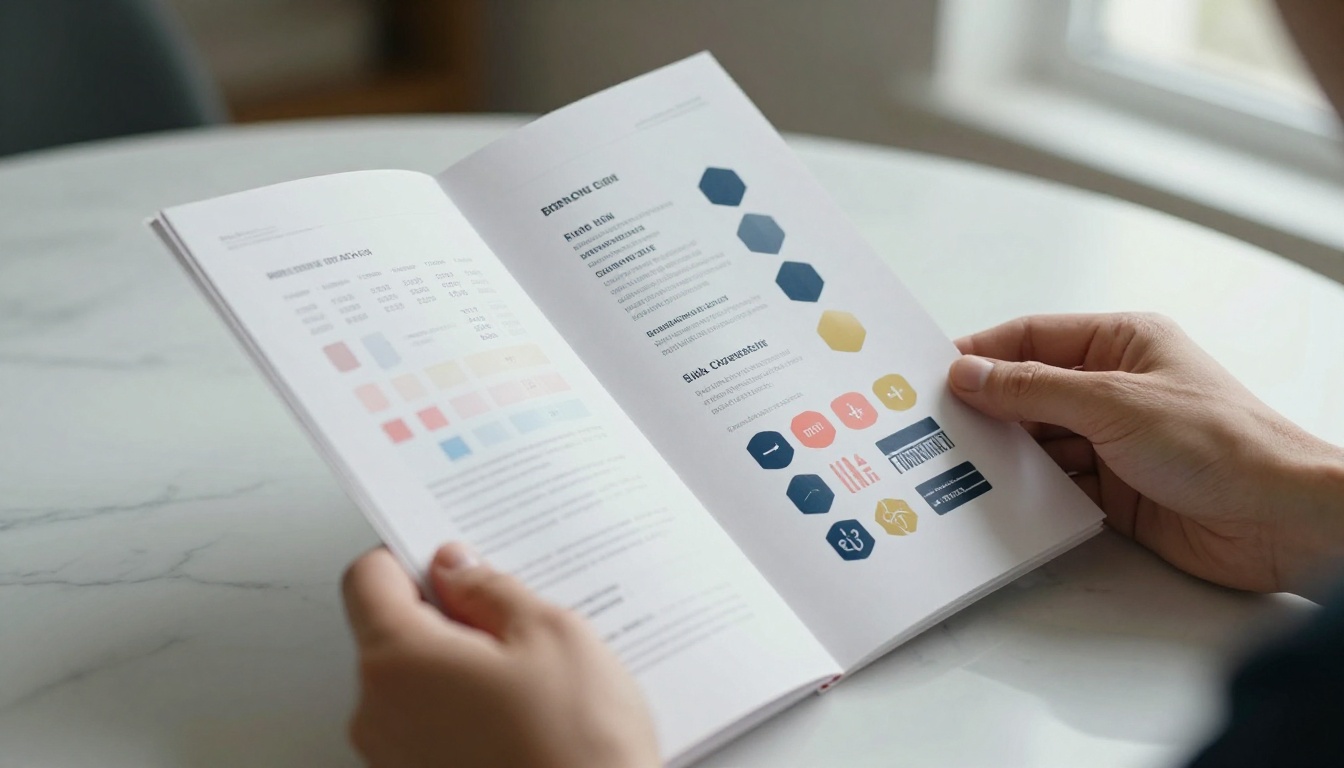
Most brand systems operate on three tiers of color. Before you open your flipbook editor, identify exactly which color belongs in which role. Applying them without a clear hierarchy is one of the most common reasons branded flipbooks still look off.
| Color Role | Definition | Flipbook Application |
|---|
| Primary | Your dominant brand color | Navigation bar, main headers, cover background |
| Secondary | Complements the primary | Button accents, chapter markers, highlighted sections |
| Accent | High-contrast detail color | Hover states, active page indicators, CTAs |
| Neutral | White, cream, or light gray | Page backgrounds, body text areas |
Using this four-tier structure keeps every interface element intentional and prevents the common mistake of treating all palette colors as equally prominent.
Where to find your hex codes
Hex codes live in several places depending on how your brand was documented:
- Adobe Illustrator or InDesign: Open any branded file, click a colored element, and read the hex code from the color panel
- Figma or Sketch: Select a design component and the hex value appears in the right sidebar under "Fill"
- Brand guidelines PDF: Professionally designed brands include a style guide with exact hex, RGB, and CMYK values for every palette color
- Browser color sampler: If your brand only exists on your website, a browser extension like ColorZilla lets you sample exact colors from any live page
⚠️ Never eyeball a color or approximate it from memory. A color that "looks like" your brand blue in a flipbook editor will appear noticeably different on different screens, and your audience will feel the discrepancy even if they cannot name it. Always use the exact hex code.
How to Add Your Brand Colors to a Flipbook Step by Step
Flipbooks AI provides a visual branding panel that lets you apply your colors directly without touching any code. Here is the complete process from first upload to final publication.
Step 1: Upload your PDF to Flipbooks AI
Head to Flipbooks AI and create an account if you have not already. Once inside your dashboard:
- Click New Flipbook
- Upload your PDF file (brochure, catalog, magazine, annual report, or any other document)
- Wait for the automated conversion. Flipbooks AI processes your PDF and generates a page-turning digital version with no manual formatting required
- Your flipbook opens in the editor, ready for full customization
✅ Design your PDF page content using your brand fonts and colors before uploading. The flipbook editor controls the interface colors surrounding your pages, not the content within them.
Step 2: Open the branding panel
Once your flipbook loads in the editor:
- Locate the Design or Customize tab in the editor sidebar
- Click into the branding or color settings section
- You will see labeled input fields for each interface element: background color, navigation bar, buttons, highlights, and active state indicators
This is where your prepared hex codes go to work.
Step 3: Set your primary color
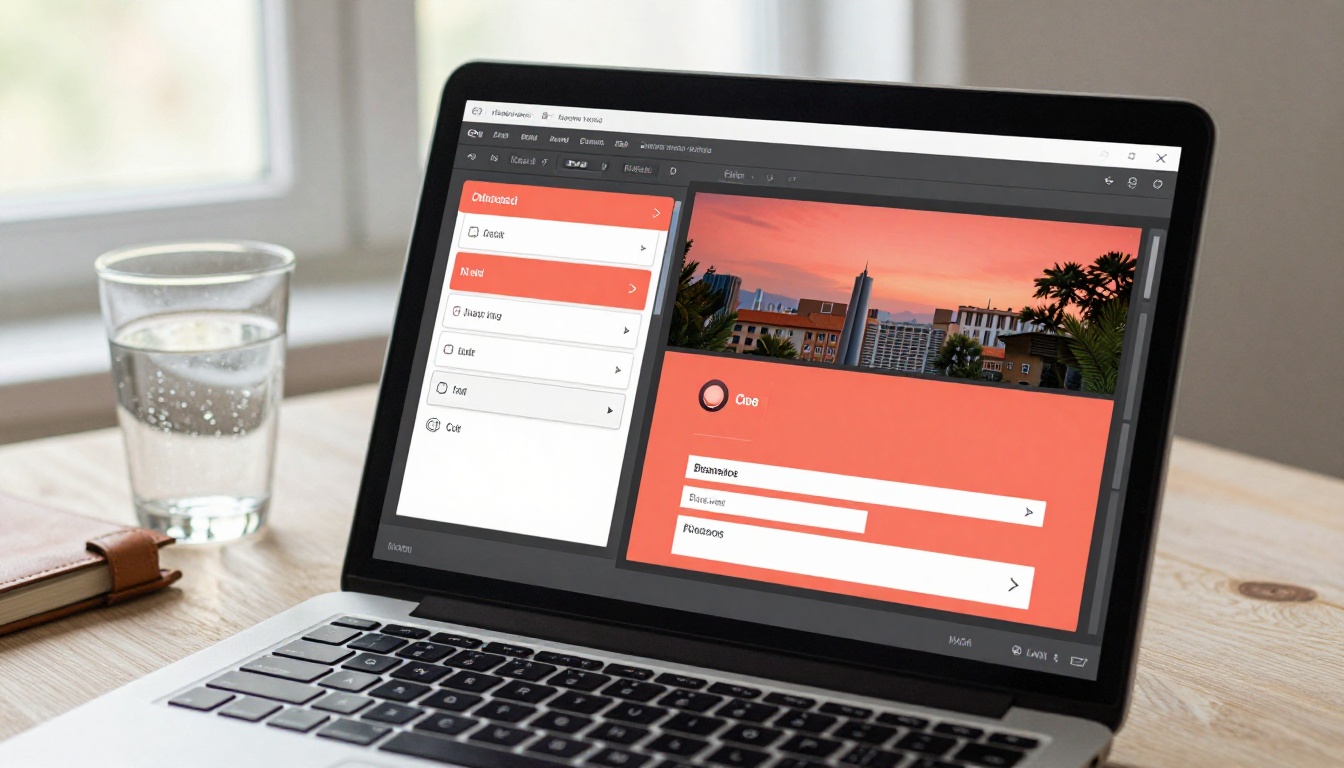
Start with the most visible element: the navigation bar or the main interface color. This is the element readers interact with on every page, so it carries the most brand weight in the viewer experience.
- Click the color swatch next to Navigation Color or Primary Color
- A color picker appears
- Paste your hex code directly into the hex input field
- The live preview updates immediately so you can verify the result before saving
Step 4: Customize navigation buttons and accents
Repeat the hex code input process for each secondary interface element:
- Button color: Apply your secondary brand color to action buttons (download, share, zoom)
- Active or highlight color: Use your accent color for the currently selected page indicator and hover states
- Background stage color: For most brands, a neutral white or off-white works best. Luxury or tech brands with dark aesthetics can apply a rich dark neutral here for dramatic effect
Step 5: Preview across devices
Before publishing, use the built-in preview feature to check your branded flipbook on:
- Desktop at full browser width
- Tablet viewport
- Mobile portrait orientation
Colors can shift between screen technologies (OLED versus LCD), and saturated colors in particular can appear differently on mobile. If something looks off in the mobile preview, slightly reduce saturation for that specific element rather than changing the core hex code.
Step 6: Publish and distribute
With colors confirmed across all viewports:
- Click Publish to make your flipbook live
- Copy the direct link for sharing via email, social media, or messaging platforms
- Use the embed code to place the flipbook directly on your website with all branding intact
- Enable password protection if the flipbook is intended for a specific audience rather than public access

Which Flipbook Elements You Can Customize
Background and cover colors
The cover is the first impression. If your brand uses a deep primary color, applying it as the cover background with white text creates an immediate, high-contrast brand statement. Lighter brands typically work better with a white or cream background and colored accents in the typography and framing elements.
Within the flipbook viewer, the "stage" area surrounding your pages (the space between the edge of the pages and the browser window) can be set to any color. Matching this to your background or a very dark neutral gives the impression that your flipbook exists in its own branded environment, not inside a generic viewer.
Navigation bars and buttons
Navigation elements are the most interacted-with parts of any flipbook. A bar in your exact brand color makes the interface feel native rather than external. When readers click, flip pages, or jump to a chapter, every interaction happens within your color context. Buttons for actions like downloading, sharing, or viewing a table of contents benefit most from your secondary or accent color, giving them enough contrast to stand out without disrupting the overall palette.
Text, icons, and link colors
For text and icons that appear in the flipbook interface itself (separate from your PDF page content), setting link and icon colors to your brand's accent or highlight color keeps even minor details cohesive. A navigation icon in your brand's coral reads as intentional. The same icon in a random default blue reads as an oversight.
Brand Color Mistakes to Avoid
Using too many colors at once
Your palette may contain six or eight approved colors, but a flipbook interface has a limited number of customizable zones. Applying a different color to every zone creates visual noise rather than brand cohesion. The rule: restrict interface customization to your primary color and one accent. Reserve secondary and tertiary palette colors for the PDF content itself, where they have more room to breathe.
Poor contrast ratios between text and background
A brand color that reads beautifully on a large printed header can become unreadable as small interface text at low contrast. Test every color combination you apply against established accessibility guidelines:
| Element Combination | Minimum Contrast Ratio |
|---|
| Body text on background | 4.5:1 |
| Large text or interface icons | 3:1 |
| Navigation text on colored nav bar | 4.5:1 |
| Button label on button background | 4.5:1 |
Free tools like WebAIM Contrast Checker let you input two hex codes and get an instant pass or fail against these thresholds. Run every combination you plan to use before finalizing.
Neglecting mobile color behavior
Highly saturated colors (vivid reds, electric greens, deep purples) can oversaturate on OLED mobile screens to the point of looking neon rather than branded. If your brand palette uses saturated colors, test the mobile preview carefully. A version of your primary color with 10-15% lower saturation often looks more accurate on OLED displays while appearing nearly identical on standard desktop monitors.

Real-World Brand Color Approaches by Industry
Different industries apply flipbook colors with distinct visual strategies. Here is how the approach shifts depending on your field and audience.
Retail and fashion brands
Fashion brands typically operate within a minimal, high-contrast palette: black, white, and one statement accent. For a fashion catalog or interactive lookbook, this restraint makes product photography the visual star while the brand color appears precisely in navigation accents and chapter headings. Luxury segments almost universally use black or very dark navy as the flipbook interface background with gold or cream accents, communicating premium value before a reader processes a single word of copy.
Real estate and property
Real estate agencies use brand colors to communicate stability and authority. A real estate brochure or digital portfolio in navy blue with gold accents signals those qualities before any property description is read. The brand color in the navigation becomes part of the trust architecture.

Restaurants and hospitality
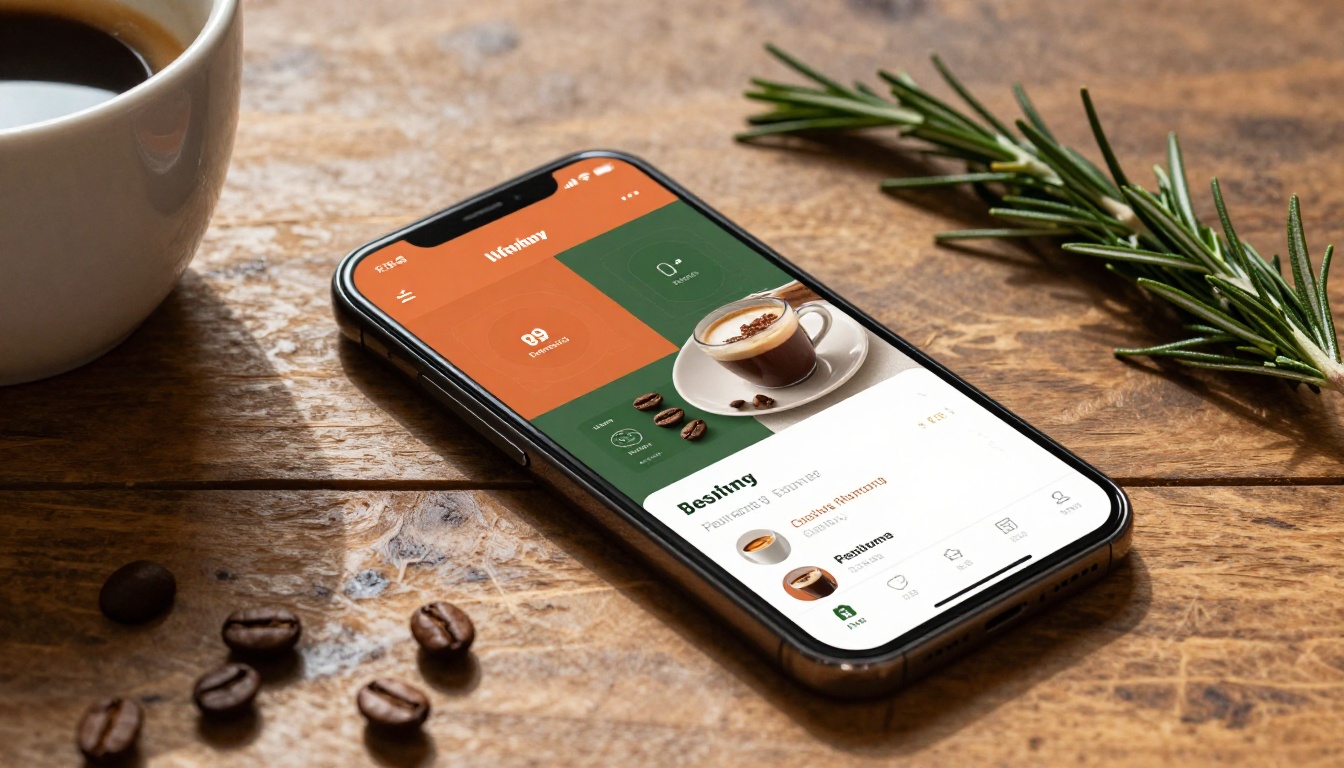
For a restaurant menu creator or spa and wellness menu, the flipbook color palette sets the dining or relaxation mood before a single dish description or treatment price is read. Terracotta and forest green signals farm-to-table. Deep burgundy and cream communicates fine dining. Soft sage and warm sand reads as wellness and calm. The brand color in the navigation bar acts as a silent mood-setter for the entire experience.
Color Customization Across Flipbooks AI Plans
The depth of branding control available to you depends on your plan. Here is a clear breakdown of what each tier offers:
| Feature | Free | Standard | Professional |
|---|
| Custom primary color | ✅ | ✅ | ✅ |
| Full button and accent color control | Limited | ✅ | ✅ |
| Remove Flipbooks AI branding | ❌ | ✅ | ✅ |
| Custom domain for flipbook links | ❌ | ❌ | ✅ |
| Password protection | ❌ | ✅ | ✅ |
| Analytics and lead capture | ❌ | ❌ | ✅ |
| Offline download option | ❌ | ✅ | ✅ |
| Unlimited flipbooks | ❌ | ✅ | ✅ |
✅ For any professional publication where brand consistency is a priority, the Standard plan is the practical minimum. Removing the Flipbooks AI branding means your audience sees only your colors, your identity, and your content.
Compare all options at the pricing page and pick the tier that fits your publishing volume and brand requirements.
Keeping Colors Consistent Across Your Entire Flipbook Library
If your organization produces multiple flipbooks across the year (a quarterly report, a seasonal product catalog, event programs, training manuals), color consistency across the entire library amplifies the branding effect. Each publication reinforces the palette, and the palette reinforces the brand.
A simple system for maintaining that consistency at scale:
- Document your brand preset in a shared file: A short internal document with your exact hex codes, labeled by role (primary, secondary, accent, neutral), accessible to everyone who creates flipbooks
- Designate one master template flipbook: Build one perfectly branded flipbook with all color settings dialed in, then use it as the starting point for every new project
- Run a one-minute color check before every publish: Compare each new flipbook's interface colors against the preset document before it goes live
When every publication from your organization shares the same color language, readers begin to recognize your content before they read the title. That recognition is the return on the small investment of getting your hex codes right.

Your Brand in Every Page Turn
Brand colors applied to a flipbook are not a cosmetic detail. They are a strategic signal. Every reader who opens your publication and sees your exact palette receives confirmation: this is deliberate, this is professional, this is the same brand I recognize everywhere else.
The process is direct with Flipbooks AI: upload your PDF, enter your hex codes into the branding panel, preview across devices, and publish. The output is a digital publication that feels less like a converted file and more like a purpose-built brand experience at every page turn.
Ready to apply your brand colors to your first flipbook? Create your account and start building in minutes, no design software required. Browse all available tools and templates to find the right format for your next publication. When you are ready to access full branding controls, compare pricing plans to choose the tier that fits your needs.



