Most people open content on their phones. That's not a prediction, it's just reality. More than 60% of web traffic comes from mobile devices, and if your flipbook breaks on a small screen, half your audience bounces before they read page two. Flipbooks AI is built to solve that problem from the ground up, with mobile-responsive output that works automatically, no matter which phone someone picks up.
This article walks you through everything: what makes a flipbook phone-friendly, the formats and settings that matter, how to publish a flipbook anyone can open in seconds, and a step-by-step walkthrough for creating one that looks sharp on every device.
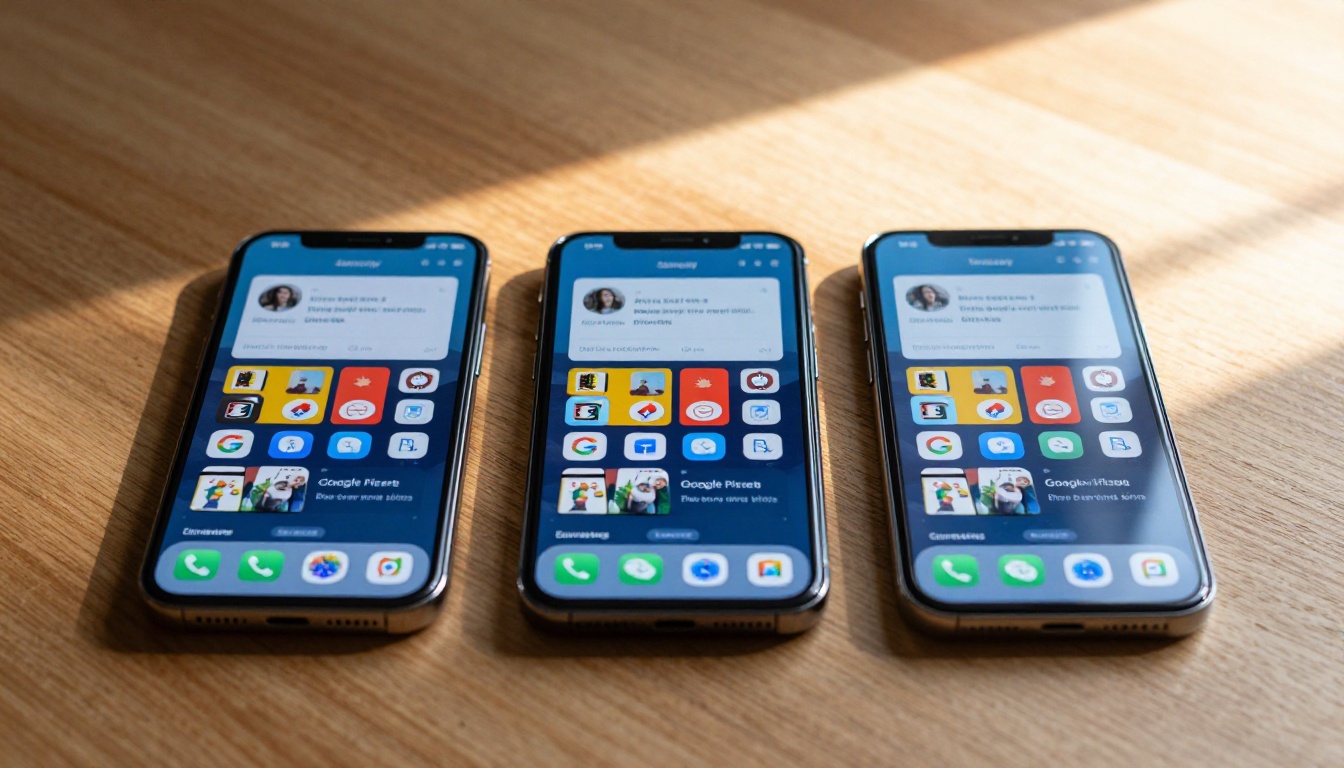
Why Most Flipbooks Fail on Phones
A flipbook that looks great on a laptop can be a nightmare on a phone. The most common failures are:
- Fixed-width layouts that don't scale to a smaller screen
- Flash-based rendering (now dead on all mobile browsers)
- PDF-only downloads that require a separate app to open
- Heavy file sizes that stall on mobile data connections
- Small tap targets that make navigation frustrating
The fix isn't complicated, but it requires choosing the right platform from the start.
⚠️ Avoid Flash-based flipbook tools. Flash has been dead since 2020. Any tool still relying on it will produce content that simply won't open on iPhones, Android phones, or most modern browsers.
What "Mobile-Responsive" Actually Means
A mobile-responsive flipbook doesn't just shrink to fit a smaller screen. It:
- Reflows layout based on the device's viewport width
- Scales text so it's readable without pinching and zooming
- Repositions navigation controls for thumb-friendly access
- Loads optimized image sizes instead of serving desktop-resolution files to mobile users
- Works in any browser without plugins, apps, or downloads
HTML5 is the standard that makes all of this possible. When you convert a PDF to an HTML5 flipbook, you get a web-based document that runs natively in Chrome, Safari, Firefox, and every mobile browser in existence.
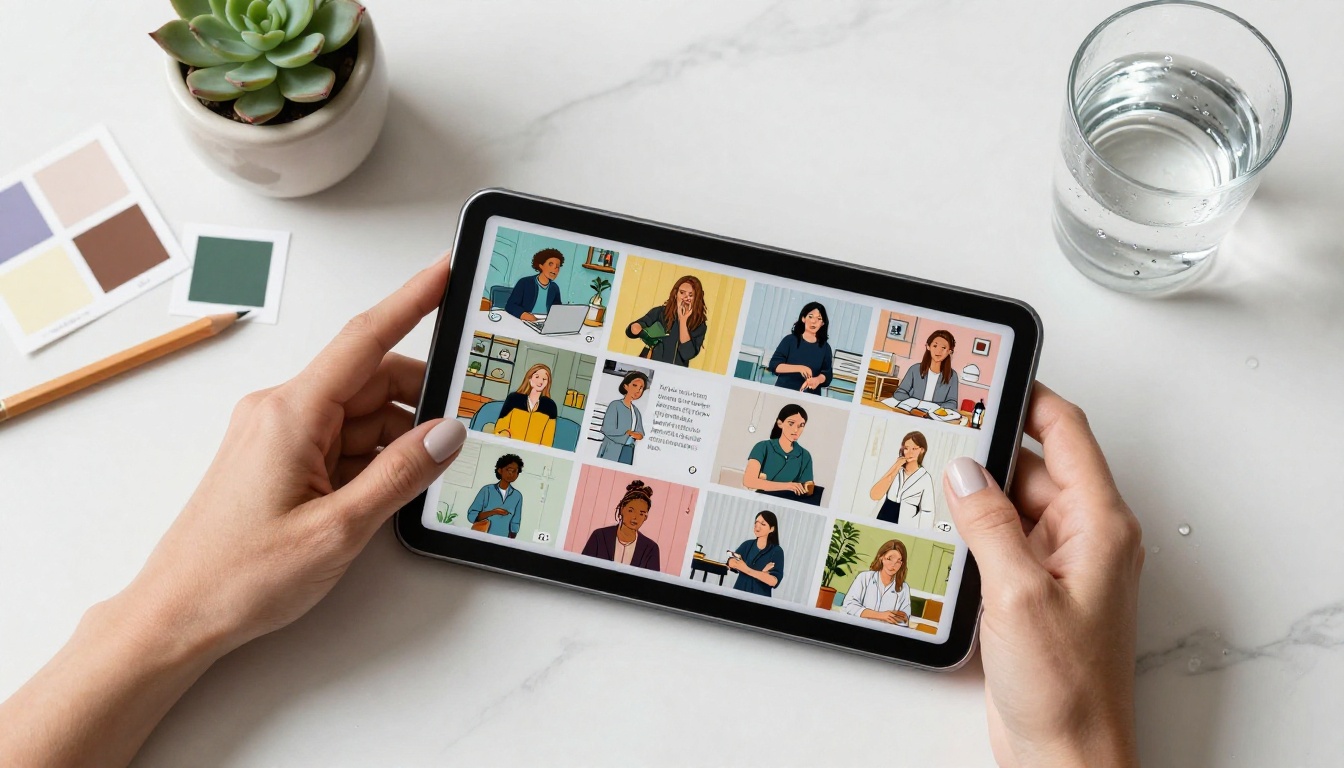
Not all flipbook formats are equal. Here's how the main options stack up for mobile compatibility:
| Format | Mobile Compatible | App Required | Page-Turn Effect | Best For |
|---|
| HTML5 Flipbook | ✅ Yes | ❌ No | ✅ Yes | Web publishing, sharing links |
| PDF | ⚠️ Partial | Sometimes | ❌ No | Downloading, print |
| Flash Flipbook | ❌ No | ❌ (broken) | ✅ Yes | Legacy only (avoid) |
| Native App | ✅ Yes | ✅ Required | ✅ Yes | App-specific projects |
HTML5 wins every time for mobile flipbook publishing. It's the only format that delivers the full page-turning experience without requiring users to install anything.
iPhone vs. Android: What's Different
Both platforms support HTML5 flipbooks without issues. The differences worth knowing:
- Safari (iPhone): Strict about autoplay media. Audio and video inside flipbooks won't autoplay, but will play on tap.
- Chrome (Android): Slightly more permissive with media. Page animations tend to run smoother on higher-end Android devices.
- Screen aspect ratios: iPhones tend toward taller aspect ratios (9:19.5), while Android phones vary widely. A well-built responsive flipbook handles both automatically.
💡 Pro tip: Always preview your flipbook on both an iPhone and an Android device before publishing. What looks perfect on one may have minor spacing quirks on the other.
How to Create a Phone-Ready Flipbook with Flipbooks AI
Flipbooks AI handles mobile optimization automatically. You don't need to configure responsive settings, optimize images for different screen sizes, or test across browsers. Here's how to create your first fully mobile-compatible flipbook.

Step 1: Prepare Your PDF
Before uploading, optimize your source file:
- Use standard fonts (Arial, Helvetica, Times) or embed custom fonts in the PDF
- Compress images inside the PDF to reduce file size without visible quality loss
- Set page size to a consistent ratio (A4 or US Letter works well)
- Avoid thin hairlines (less than 0.5pt) that disappear on small screens
A clean PDF produces a clean flipbook. Garbage in, garbage out.
Step 2: Create an Account and Upload
- Go to Flipbooks AI and create your account. The process takes under two minutes.
- From your dashboard, click New Flipbook.
- Drag and drop your PDF file or click to browse.
- The platform converts your PDF to HTML5 automatically. This takes between 15 seconds and a few minutes depending on page count.
✅ No watermarks. Flipbooks AI does not add watermarks to your published flipbooks, even on the free tier.
Step 3: Customize for Mobile
Once your flipbook is converted, configure it for the best phone experience:
- Auto-spread off: Disable the two-page spread for mobile views so readers see one page at a time instead of two tiny pages side by side
- Navigation bar: Choose bottom-bar navigation for mobile, which is easier to reach with thumbs
- Font size minimum: Set a minimum font scaling to 12pt so text never becomes unreadable on small screens
- Page background: Use a solid color rather than a texture to reduce render overhead on slower mobile connections
- Custom branding: Add your logo and brand colors under Settings > Branding for a professional, app-like feel
Step 4: Choose Your Sharing Method
Flipbooks AI gives you several ways to publish:
Direct link: Share a URL that anyone can open on any device. No app, no download. Works in every browser.
Embed code: Drop a flipbook directly into your website or blog. Scales to fit the container automatically. Get the embed snippet from the Embed Flipbook on Website tool.
Password protection: Lock sensitive content behind a password. Ideal for client presentations, internal reports, or exclusive content. Viewers still open it in the browser on their phone.
QR code: Generate a QR code pointing to your flipbook. Print it on business cards, menus, or product packaging. Scanning opens the flipbook directly on the phone.
💡 QR codes are underrated for mobile. Print a QR code on physical materials and your audience gets a seamless bridge from the real world to your digital content, opening instantly on their phone.
Step 5: Test Before Publishing
Before sending the link to anyone:
- Open the flipbook URL on your iPhone
- Open it on an Android phone (or use browser DevTools mobile simulation)
- Test in both portrait and landscape orientation
- Tap through at least 5-6 pages to verify smooth performance
- Check that any embedded images or videos load correctly
If something looks off, return to customization settings. Small adjustments often fix issues immediately.

What Types of Flipbooks Work Best on Mobile
Not all content types translate equally well to small screens. Here's an honest breakdown:
The highest-scoring content types share one trait: they're visual-first with minimal small text. On a 6-inch screen, dense paragraphs of body copy require zooming. Layouts built around images with short supporting text perform best.
Common Mistakes That Break Mobile Flipbooks
Too Much Text Per Page
Long paragraphs on a desktop page become a magnification exercise on a phone. If your PDF was designed for print, consider reformatting it with shorter text blocks and larger font sizes before conversion.
Dense Data Tables
Spreadsheet-style tables with many columns collapse badly on small screens. Replace them with visual charts, icons, or break them into multiple simpler tables.
Overloaded Page Count
A flipbook with 200 pages takes longer to initialize on mobile. For phone-first audiences, aim for 20-50 pages. If your content is longer, consider splitting it into chapters or volumes.
Ignoring Load Time
High-resolution images slow everything down. Before uploading your PDF, compress embedded images to 150 DPI for screen-only viewing. This cuts file size dramatically without affecting visual quality.
⚠️ Screen resolution vs. print resolution: Print needs 300 DPI. Screens display at 72-150 DPI. If your PDF was built for print, re-export it at screen resolution before uploading to save significant loading time on mobile connections.
No Offline Option
For audiences in areas with poor connectivity, consider enabling offline downloads on the Flipbooks AI Professional plan. This lets viewers download the flipbook once and read it without a signal.
Real-World Use Cases Where Mobile-First Matters
Restaurants: A QR code on each table links to an interactive menu flipbook. Customers scan, browse, and order from their phones without handling a physical menu. The Restaurant Menu Creator makes this production-ready in minutes.
Real Estate Agents: Send property brochures as a flipbook link via SMS or WhatsApp. Clients open them instantly on their phone while still standing in front of the property. No app. No download. Instant access.
Fashion Brands: Seasonal lookbooks sent via email or Instagram link open directly in the mobile browser as a full swipeable flipbook experience. The Interactive Lookbook Designer is built for exactly this.
Event Planners: Print QR codes in event programs or invitations. Guests scan and get the full event schedule as a beautifully designed flipbook on their phone.
Educators: Course materials published as flipbooks let students access content from any device, at home or in class, without printing or specific software.

Plan Comparison: What You Get at Each Tier
Picking the right plan before you start saves time. Here's what's available:
| Feature | Free | Standard | Professional |
|---|
| Flipbooks | Limited | Unlimited | Unlimited |
| Watermarks | None | None | None |
| Custom branding | ❌ | ✅ | ✅ |
| Password protection | ❌ | ✅ | ✅ |
| Embed on website | ❌ | ✅ | ✅ |
| Analytics | ❌ | ❌ | ✅ |
| Lead generation | ❌ | ❌ | ✅ |
| Offline downloads | ❌ | ❌ | ✅ |
| Embed video/audio | ❌ | ✅ | ✅ |
The Standard plan covers most use cases with ease. The Professional plan adds analytics and lead generation tools, which are valuable if you're using flipbooks as part of a sales or marketing workflow.
💡 Analytics for mobile: On the Professional plan, you can track which pages your audience spends the most time on, broken down by device type. This data is extremely useful for optimizing your next flipbook for phone readers specifically.
Thumb Navigation: The Detail Most Creators Overlook
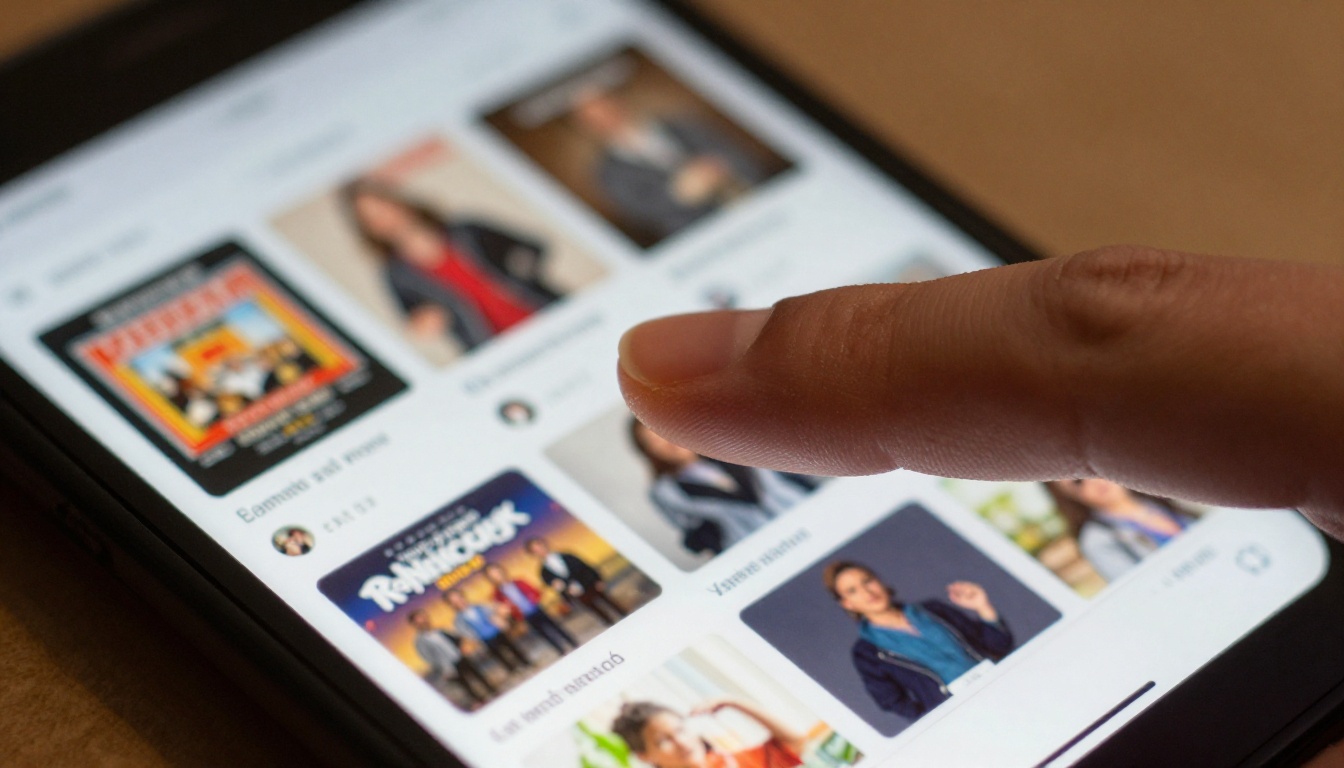
When someone reads a flipbook on their phone, they're almost always using their thumb to swipe and tap. That means:
- Navigation arrows need to be large enough to tap (minimum 44x44px touch target)
- Swipe gestures should work naturally (left-right for page turns)
- The table of contents should be accessible without precision tapping
- Zoom controls should be intuitive and not interfere with swipe navigation
Flipbooks AI handles all of this in its default mobile layout. Controls are positioned at the bottom of the screen within natural thumb reach, and swipe gestures map to page turns exactly as users expect.
Accessibility on Mobile Devices
A phone-friendly flipbook isn't just about screen size. Accessibility makes your content available to more people:
- Text contrast: Use high-contrast text (minimum 4.5:1 ratio) so it's readable in bright sunlight outdoors
- Font size: Never go below 14pt for body text in the source PDF
- Alt text for images: Add descriptive alt text to images in your PDF before conversion. Screen readers on mobile rely on this.
- Color-blind safe palettes: Avoid using color alone to convey information. Add labels and patterns as backup.
These aren't just best practices for accessibility. They also improve the experience for everyone reading your flipbook in non-ideal conditions: outside in sunlight, on a moving train, or with an older phone with a dimmer screen.
From PDF to Phone in Under 5 Minutes
The honest reality: creating a phone-compatible flipbook used to take hours of technical work. HTML export settings, image optimization scripts, responsive CSS adjustments. Now the process is:
- Export your design as a PDF
- Upload to Flipbooks AI
- Wait 30-60 seconds for conversion
- Configure branding and navigation settings
- Share the link
That's the entire workflow. No code. No plugins. No compatibility testing across 50 device configurations.

Make Your First Mobile Flipbook Today
There's no reason to publish content that breaks on half your audience's devices. With the right platform, every flipbook you create is automatically optimized for every phone, every browser, and every screen size from the moment you hit publish.
Ready to create a flipbook that works everywhere? Get started for free on Flipbooks AI and have your first mobile-ready flipbook live in minutes.
Want to dig into specific use cases? Browse all flipbook tools to find templates built for your industry, from restaurant menus and real estate brochures to fashion lookbooks and corporate reports.
If you need the Professional plan's analytics and lead generation features, compare everything on the pricing page and choose the tier that fits your workflow.



