Notion is where a lot of people manage their entire work life — projects, wikis, client portals, team docs. But when it comes to sharing beautiful, page-turning documents inside a workspace, most people settle for uploading a PDF and calling it a day. There's a better option: embedding an interactive flipbook directly into any Notion page. With Flipbooks AI, you can convert your PDF into a real page-flipping publication and share it inside Notion using just a URL.
Why Notion Users Reach for Flipbooks
Notion is exceptional for structuring information, but it was never designed to display visual documents with impact. Drop a PDF into a Notion page and what you get is a flat, downloadable attachment. No animation, no page turns, no reader-friendly browsing experience. That works fine for internal reference files, but when you're sharing a product catalog, portfolio, report, or magazine with a client or team, it falls short.
Static PDFs Kill the Reading Experience
A PDF attachment in Notion forces the reader to either download the file or open it in a basic preview window. There's no interactivity, no responsive layout for mobile, and no way to track whether anyone actually opened it. For a quick internal doc, that's tolerable. For client-facing content, it's a missed opportunity.
Flipbooks Add Real Depth to Notion Pages
An embedded flipbook solves all of that. Readers can flip through pages directly inside the Notion page, without downloading anything. The page-turn animation creates a natural reading flow, and because the flipbook is hosted externally and embedded via URL, it stays live and always up to date.
💡 If you update your flipbook, any Notion page already embedding it will automatically show the new version. No need to re-embed.

What You Need Before You Start
The process is straightforward, but there are two things you need in place before anything else works.
A Flipbook With a Public Share URL
Notion's embed system works by pulling content from a URL. That means your flipbook needs to be:
- Hosted online (not saved locally on your computer)
- Publicly accessible (or accessible to anyone with the link)
- Returned from a domain that allows embedding
Flipbooks AI handles all three automatically. Every flipbook you create gets a dedicated public URL the moment you publish it. No developer setup, no iframe code to write manually.
A Notion Page With Edit Access
You'll need edit access to the Notion page where you want to embed the flipbook. View-only pages won't let you add new blocks. If you're working inside a shared workspace, make sure you have at least "Can edit" permissions on the target page.
How Notion Embeds Actually Work
Before walking through the steps, it helps to understand what Notion is doing under the hood when you add an embed block.
The /embed Command
Notion uses a block-based editor. Every paragraph, image, header, and table is a separate block. Embed blocks work exactly the same way — they're just blocks that render an external URL inside an iframe-style container directly in the page.
To add one, you type /embed on a blank line in Notion, press Enter, and Notion opens a URL input field. Paste your link there and Notion fetches the content and displays it inline.
What Notion Can and Cannot Embed
Notion supports embedding content from a wide range of sources, but not everything works. The external service needs to either appear on Notion's approved embed list, or support open embedding through standard oEmbed or iframe protocols.
| Content Type | Notion Support | Display Quality |
|---|
| YouTube / Vimeo | Full native support | Excellent |
| Figma / Miro | Full native support | Excellent |
| Google Docs / Sheets | Supported via link | Good |
| External flipbooks (via URL) | Embed block | Good to Excellent |
| Raw PDFs | Preview attachment | Limited |
| Airtable / Typeform | Full native support | Excellent |
Flipbooks hosted on platforms that serve clean public URLs (like Flipbooks AI) embed reliably in Notion using the standard /embed block.
Creating Your Flipbook With Flipbooks AI
Before embedding anything in Notion, you need a flipbook with a shareable URL. Flipbooks AI is built exactly for this. You upload a PDF, and within seconds you have a live, page-turning digital publication ready to share or embed anywhere.
Step 1: Upload Your PDF
Head to flipbooksai.com and create a free account. Once you're in, click "Create Flipbook" and upload your PDF. The platform accepts files of all sizes, from one-page flyers to 300-page catalogs.
The conversion is automatic. Flipbooks AI processes each page and renders it with a realistic page-turn animation. You don't need to configure anything technical.
Step 2: Customize Branding and Appearance
After the PDF uploads, you can adjust:
- Background color and texture
- Page flip animation style (soft curl, hard page, and more)
- Custom branding including your logo and brand colors
- Password protection if the content is private or sensitive
- Embed settings such as auto-play and start page
This is where Flipbooks AI stands apart from basic PDF converters. The customization options are deep enough to match any brand without being overwhelming.
Step 3: Publish and Copy the Share URL
Once the flipbook looks right, click Publish. Flipbooks AI generates a permanent public URL for your flipbook. Copy that URL. That's the link you'll paste into Notion.
✅ The share URL works for both the "Share" and "Embed" options in Notion. Try both to see which display format works better for your specific layout.
Embedding the Flipbook in Notion
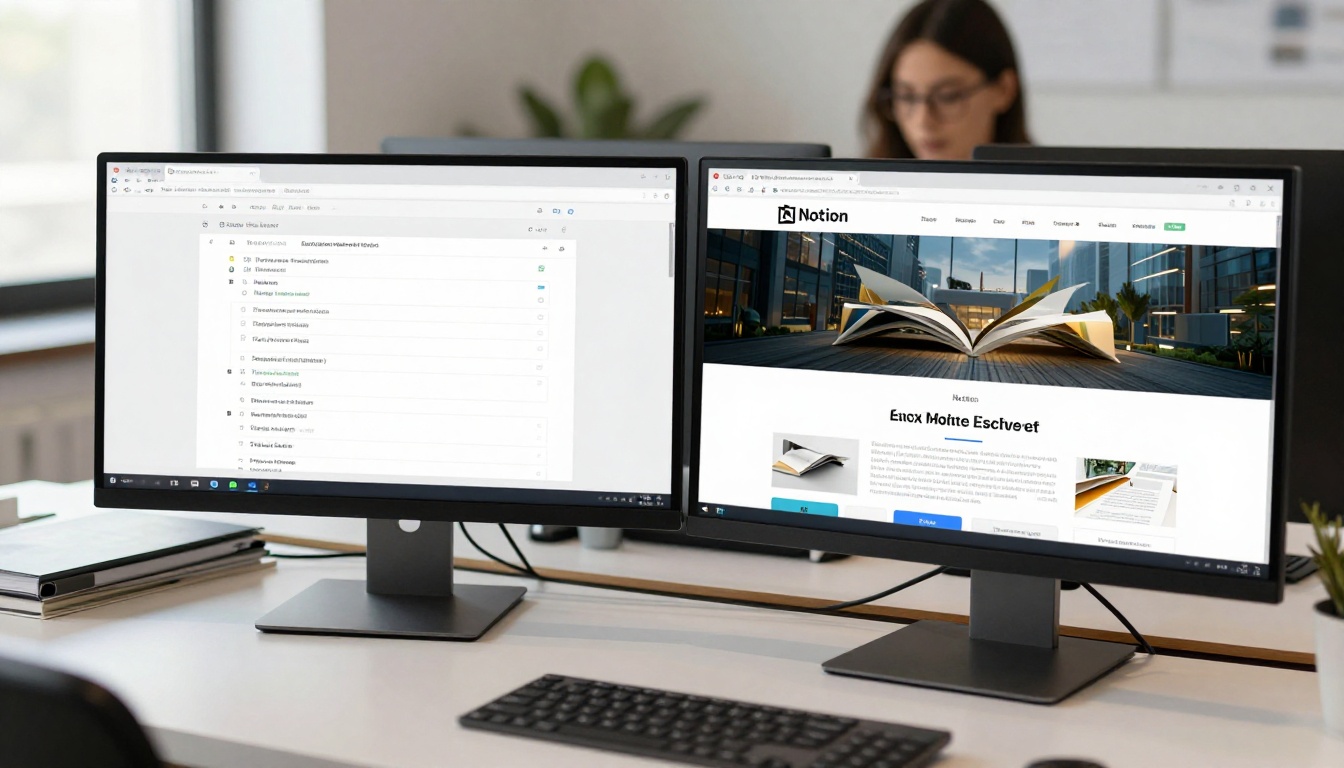
With your flipbook URL copied, you're ready to add it to Notion. This part takes about 30 seconds.
Step 1: Open Your Notion Page
Navigate to the Notion page where you want the flipbook to appear. Click on an empty line to place your cursor there.
Step 2: Type /embed
With your cursor on a blank line, type /embed and select "Embed" from the dropdown menu that appears. Notion will open a small dialog with a URL input field and a blue "Embed link" button.
Step 3: Paste Your Flipbook URL
Paste the Flipbooks AI share URL into the input field and click "Embed link." Notion will fetch the flipbook content and render it directly on the page inside an interactive block.
Step 4: Resize the Block
Once the embed appears, you can drag the edges of the block to resize it. Making it wider and taller gives readers more room to flip through pages without squinting. For most flipbooks, a full-width block at around 600-700px height works well.
⚠️ If Notion says "This content cannot be embedded," try using the full published URL rather than a preview or draft link. Flipbooks AI's published URLs are always embed-friendly.
Step 5: Position and Align
You can move the embed block anywhere on the page by dragging it, just like any other Notion block. Place it after a short intro paragraph, inside a toggle, or alongside a column block for a more designed layout.

Embed vs. Bookmark vs. Link in Notion
When you paste a URL into Notion, it offers you a few options. Each behaves differently, and knowing which to pick saves time.
| Option | What It Does | Best For |
|---|
| Embed | Renders the content inline on the page | Flipbooks, videos, interactive tools |
| Bookmark | Shows a styled preview card with title and image | Blog posts, external articles, landing pages |
| Mention | Creates an inline link | Quick reference within text |
| Dismiss | Pastes the raw URL as plain text | When you just want the link |
For flipbooks, always choose Embed. The other options will either show a static thumbnail or just a link — neither of which gives readers the interactive page-flipping experience.
Common Embed Problems and How to Fix Them
The Embed Block Shows a Broken Preview
This almost always means Notion couldn't fetch the content from the URL. Check three things:
- Is the flipbook published? Draft or unpublished flipbooks don't have public URLs. Make sure you clicked "Publish" in Flipbooks AI before copying the URL.
- Is the URL complete? Copy the full URL from the browser address bar, not a shortened or private preview link.
- Is the page publicly accessible? If you set a password on the flipbook, Notion won't be able to embed it without authentication.
The Flipbook Doesn't Display on Mobile
Notion's mobile app handles embeds differently from the desktop version. On mobile, embedded content sometimes shows as a link rather than inline. This is a Notion limitation, not a flipbook issue. Readers on mobile can tap the embed to open the flipbook in a browser tab, where it displays correctly.
Flipbooks AI flipbooks are fully mobile-responsive, so once a reader opens it in a browser, it adapts automatically to their screen size.
The Embedded Content Loads Slowly
Large PDFs with many pages can take a moment to fully render. If loading speed matters, consider:
- Optimizing the source PDF before uploading (compress images, reduce file size)
- Setting the flipbook to load pages progressively rather than all at once
- Embedding just a specific starting page using URL parameters if the platform supports it

Best Use Cases for Flipbooks Inside Notion
Embedding a flipbook in Notion works across almost any industry or workflow. Here are the scenarios where it delivers the most value.
| Use Case | Document Type | Why It Works |
|---|
| Client onboarding portal | Welcome brochure, service overview | Clients get a polished first impression without downloading files |
| Product team wiki | Product catalog, feature roadmap | Visual format is faster to browse than nested pages |
| Real estate workspace | Property brochures, market reports | High-image documents shine in page-flip format |
| Marketing hub | Campaign lookbooks, brand guidelines | Branded flipbooks reinforce visual identity in context |
| Education and training | Course materials, training manuals | Students flip through content at their own pace |
| Event planning | Event programs, schedules | Easy to update; Notion page always shows the latest version |
| Restaurant management | Menu, catering packages | Menu flipbooks embed cleanly for team reference |
| Annual reports | Financial summaries, impact reports | Stakeholders get a professional, interactive document |
Each of these document types can be created and converted on Flipbooks AI. The platform includes specific tools like the Digital Portfolio Creator, Real Estate Brochure Creator, Training Manual Flipbook, and Annual Report Creator to make the whole process faster.

Flipbooks AI Plans at a Glance
If you're deciding whether to start with a free plan or go paid before embedding your first flipbook, here's how the plans break down.
| Feature | Free | Standard | Professional |
|---|
| Flipbooks created | Limited | Unlimited | Unlimited |
| Watermarks | Yes | No watermarks | No watermarks |
| Custom branding | No | Yes | Yes |
| Password protection | No | Yes | Yes |
| Analytics and tracking | No | No | Yes |
| Lead generation tools | No | No | Yes |
| Offline downloads | No | No | Yes |
| Embed anywhere | Yes | Yes | Yes |
For embedding into Notion, the Standard plan is enough to get a clean, brand-consistent flipbook without watermarks. If you want to track how many people viewed the embedded flipbook or capture leads from within Notion, the Professional plan has analytics and lead generation built in.
Compare all plans to find what fits your workflow.
Tips for Getting the Most Out of This Setup
A few things that make the embed experience noticeably better for both you and your readers:
- Use a toggle block to wrap the embed if the page is long. This lets readers expand the flipbook only when they want to read it, keeping the overall page clean and fast.
- Add a heading above the embed so readers know what they're looking at before they interact with it.
- Link to the flipbook directly in addition to the embed. Some Notion users prefer opening content in a full browser tab for a wider view.
- Keep the source PDF updated in Flipbooks AI. Since the embed pulls from a live URL, any update you publish automatically reflects in Notion without re-embedding.
- Use password protection for sensitive documents. Even if someone stumbles on the Notion page, they won't access the flipbook content without the password.
💡 Flipbooks AI supports embedding flipbooks on any website, not just Notion. The same URL works for websites, client emails, and other platforms simultaneously.

Ready to Add Your First Flipbook to Notion?
The process is simple: create a flipbook on Flipbooks AI, publish it to get a public URL, then paste that URL into a Notion embed block. That's it. The result is an interactive, page-flipping publication embedded directly into your workspace, accessible to anyone with access to the page.
Whether you're building a client portal, a team wiki, a product hub, or a training space, interactive flipbooks make the content inside Notion noticeably more engaging and easier to browse than static PDFs ever could be.
Start for free on Flipbooks AI and have your first flipbook embedded in Notion in under 10 minutes. To compare what's included at each tier before committing, check the pricing page. And if you want inspiration for what to create next, browse all available tools across catalogs, brochures, portfolios, menus, reports, and more.



