How to Export Figma Designs to a Flipbook (Step-by-Step)
A detailed walkthrough for designers who want to turn their Figma frames into a polished, interactive flipbook. From the right PDF export settings in Figma to uploading, customizing, and sharing your flipbook, this covers every step with practical tips and tool comparisons to help you present design work at its best.
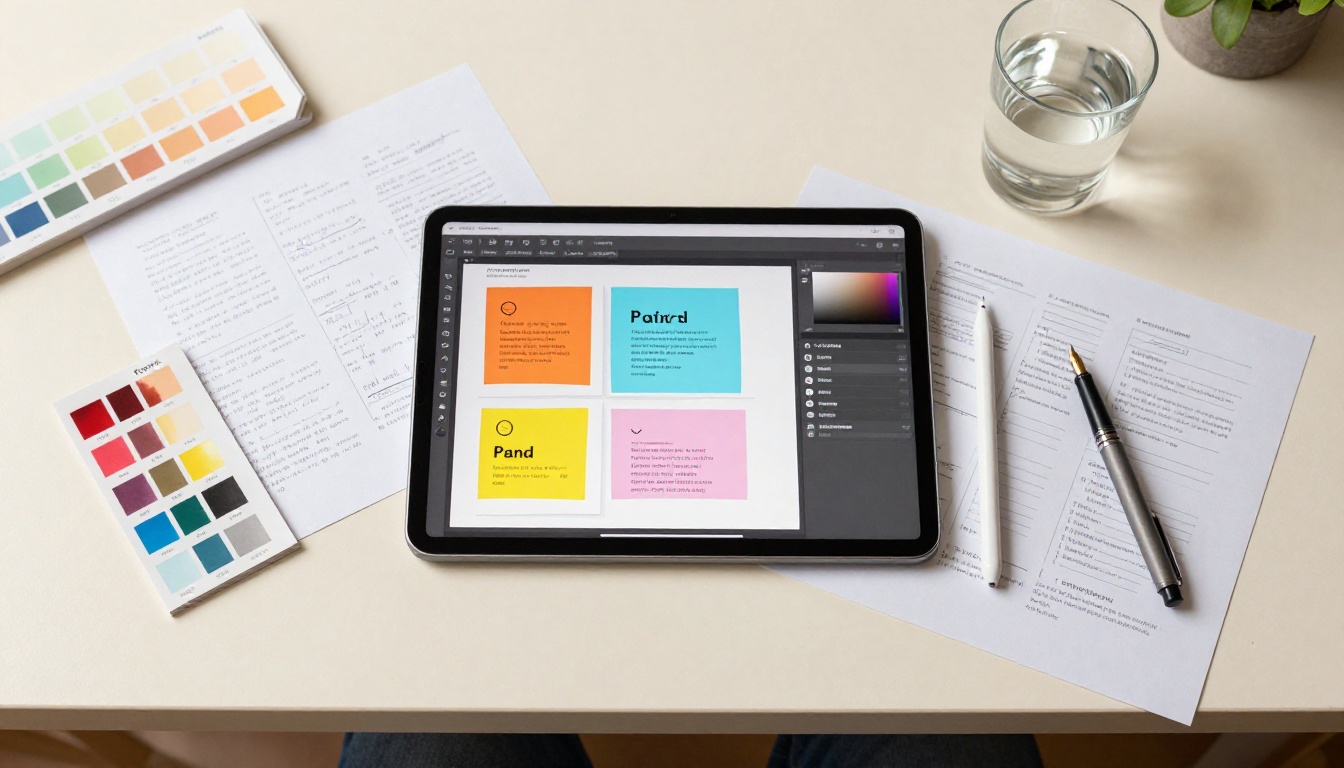
Exporting your Figma designs to a flipbook is one of the fastest ways to go from static prototype to a shareable, interactive presentation that actually impresses clients. If you've been sending flat PDFs or screen-recording Figma prototypes to share your work, there's a better workflow. Flipbooks AI turns any PDF export from Figma into a polished, page-turning digital publication in minutes, with no coding, no complex software, and no watermarks.
This article walks you through every step: how to properly export from Figma, how to upload and convert that file, how to customize the result, and how to share it with the world or keep it private. Whether you're building a design portfolio, a product walkthrough, or a client presentation, this workflow works.
Why Flipbooks Beat Static PDFs for Design Work
What Clients Actually Want to See
Most clients don't open PDFs the way you intend. They scroll to the bottom, miss the flow, and lose the narrative thread you spent days crafting. A flipbook recreates the reading experience: page by page, animated page turns, full-screen immersion. It feels intentional. It communicates craft.
Sending a flipbook link instead of a PDF attachment signals that you care about the presentation layer, not just the deliverable itself. That detail changes how clients perceive the quality of the work.
The Problem with Static File Sharing
Static Figma exports create friction. Recipients need the right PDF viewer. File sizes balloon. Version control becomes a mess of email attachments. Links expire. And none of it works well on mobile.
An interactive flipbook solves all of this:
Single URL that works on any device
No app required for the viewer
Real-time updates when you republish
Analytics to see who viewed it and for how long (on Professional plans via Flipbooks AI pricing)
What You Need Before You Start
Figma Setup Checklist
Before touching the export panel, make sure your Figma file is ready:
All content frames are named clearly (the names become page labels)
Frames are set to a consistent aspect ratio (16:9 for presentations, A4 for documents)
No missing fonts or unresolved component overrides
Prototype links and interactions are not required for the flipbook (they don't carry over to PDF anyway)
Images are embedded at 2x or higher resolution
⚠️ Rasterized images in Figma export at exactly the resolution you set. If you export at 1x, images in your flipbook will look soft on retina screens. Always export at 2x minimum.
Frame Organization Tips
The order of your frames in the Figma canvas is the order they appear in the exported PDF. If you're using multiple pages in Figma, each page exports independently. For a flipbook, you want all frames on a single Figma page in sequence.
Use Auto Layout frames for consistent padding
Name frames sequentially: 01_Cover, 02_Introduction, 03_Problem, etc.
Group supporting layers inside each frame so they don't accidentally appear as top-level frames in the export
Step 1 — Export Your Figma Design as a PDF
Export a Single Frame
Right-click any frame on the canvas and select "Export [Frame Name]". In the export panel on the right sidebar, choose PDF from the format dropdown. Click Export and you're done.
For a single-frame export, the PDF will be exactly the dimensions of that frame. This is useful for cover pages or hero sections.
Export Multiple Frames at Once
This is the core workflow for flipbook creation. To export multiple frames as a single multi-page PDF:
Select all the frames you want to include. Click the first frame, then Shift-click or Cmd/Ctrl-click the rest.
In the right sidebar, scroll down to the Export section and click the + button.
Set the format to PDF.
Click Export [N] layers.
Figma outputs a single PDF where each selected frame becomes one page, in the order they appear on your canvas from top to bottom, left to right.
💡 Use Figma's Frames to Pages plugin to quickly arrange all your design frames into the correct export order if your canvas layout is complex.
PDF Settings That Matter
When exporting from Figma, these settings have the biggest impact on flipbook quality:
Setting
Recommended Value
Why
Format
PDF
Required for flipbook conversion
Scale
2x or higher
Crisp rendering on retina and 4K screens
Color Profile
Display (sRGB)
Most accurate colors in browsers
Clip Content
ON
Prevents content overflow from appearing
Include Overlapping Layers
ON
Keeps all visual elements intact
Step 2 — Upload Your PDF to Flipbooks AI
Creating Your Account
Head to Flipbooks AI and create a free account. The free tier lets you create and publish flipbooks immediately, so you can test the full workflow before committing to a plan.
Once logged in, you land on your dashboard where all your flipbooks are organized.
The Upload Process
Click Create New Flipbook from the dashboard
Drag your exported Figma PDF into the upload area, or click to browse your files
Flipbooks AI automatically processes the file, splitting each PDF page into a flipbook page
Within seconds, your design appears as a fully interactive page-turning publication
The PDF to Flipbook Converter handles everything automatically: page splitting, rendering optimization, and mobile responsiveness. No additional configuration needed at this stage.
✅ Keep your PDF under 100MB for fastest processing. Most Figma exports are well within this range, especially at 2x scale for typical presentation decks.
Step 3 — Customize Your Flipbook
Branding and Colors
After the initial conversion, the real creative work begins. Flipbooks AI gives you full control over how your flipbook looks and feels:
Logo upload: Add your client's or your own brand logo to the flipbook header
Color theme: Set the flipbook background, toolbar, and accent colors to match the brand
Custom domain: Point the flipbook to your own domain (Professional plan)
No watermarks: On every paid plan, ever
This is where Figma exports become truly white-label ready. A client receiving a flipbook link branded entirely in their colors won't see the tool behind it, only the experience.
Adding Multimedia
One significant advantage flipbooks have over PDFs: you can embed media that PDFs can't contain.
Videos: Embed YouTube or Vimeo links directly into pages, great for product demos in a design presentation
Audio: Add background music or narration to specific pages
Hyperlinks: Add clickable links to any page element for deeper interaction
Page Effects and Navigation
Flipbooks AI offers several page-turn animation styles, each suited to different presentation contexts:
Effect
Best For
Classic Page Flip
Client presentations, portfolios
Slide
Clean, modern product walkthroughs
Fade
Editorial, magazine-style content
Scroll
Long-form documents, reports
You can also enable or disable the table of contents, thumbnail navigator, zoom controls, and full-screen mode depending on how you want the reader to interact with your work.
Step 4 — Share and Embed Your Flipbook
Direct Link Sharing
Once published, your flipbook gets a unique URL. Share it anywhere: email, Slack, Notion, LinkedIn, client portals. Recipients click the link and the flipbook opens instantly in their browser. No app, no download, no account required on their end.
Embedding on a Website
Use the Embed Flipbook on Website tool to generate an iframe embed code. Paste it into any HTML page, WordPress site, Webflow, or Squarespace to show the flipbook inline.
This makes it simple to add an interactive portfolio piece directly to a case study page.
Password Protection
For confidential client work, Flipbooks AI supports password-protected flipbooks. Set a password before sharing, and only people with that password can view the content. The link itself remains shareable, but the content stays private.
💡 This is ideal for sending design reviews to clients before final approval, without worrying about the work being shared publicly or indexed by search engines.
How to Create a Design Portfolio Flipbook with Flipbooks AI
Flipbooks AI is built for exactly this use case. Here's how to turn your Figma portfolio into a live, shareable flipbook:
Organize your Figma portfolio file. One frame per project spread, with your name and title on a cover frame. Keep all frames on a single Figma page in sequence.
Export all frames as a single multi-page PDF using the method above: 2x scale, sRGB color profile.
Go to Flipbooks AI and upload the PDF. The converter processes it automatically.
In the customization panel, add your logo or name, set your brand colors, and choose the "Classic Page Flip" effect for that premium feel.
Add your website URL as a clickable link on the back cover page.
Publish and copy the link. Add it to your LinkedIn bio, email signature, and personal website.
The Digital Portfolio Creator is purpose-built for this workflow, with templates tailored for creative professionals. The Portfolio Flipbook Builder gives you additional layout controls if you want to go further than a basic PDF conversion.
Compared to static PDFs or a Figma "view only" prototype link, a portfolio flipbook is:
More impressive: The page-turn animation adds perceived value
More accessible: Works on any device without a Figma account
More trackable: View analytics available on Professional plan
More professional: No external branding, no file attachments, no friction
Figma Export Formats Compared
Before committing to PDF for flipbook conversion, it's worth seeing how all Figma export formats compare for this use case:
Export Format
Flipbook Compatible
Vector Quality
File Size
Best Use Case
PDF
✅ Yes
High
Medium
Flipbooks, print, presentations
PNG
❌ No
Raster only
Large
Single image assets
JPG
❌ No
Raster only
Small
Photo-heavy exports
SVG
❌ No
Perfect vectors
Small
Web assets, icons
WebP
❌ No
Raster only
Very small
Web optimization
PDF is the only format that preserves multi-page structure in a single file, making it the correct and only practical choice for flipbook conversion. All other formats require manual reassembly, which eliminates the efficiency of the workflow entirely.
Flipbooks AI Plans at a Glance
Feature
Free
Standard
Professional
Flipbooks
3
Unlimited
Unlimited
Watermarks
Yes
No
No
Password Protection
No
Yes
Yes
Custom Branding
No
Yes
Yes
Analytics
No
No
Yes
Lead Generation
No
No
Yes
Offline Downloads
No
No
Yes
Embed on Website
Yes
Yes
Yes
Video Embedding
No
Yes
Yes
Custom Domain
No
No
Yes
Explore pricing plans to find the tier that fits your workflow. For most freelance designers, Standard removes watermarks and unlocks branding at an accessible price point. Professional makes sense once you're sending flipbooks as part of a formal sales or client delivery process, and need analytics to know who's actually reading.
Each of these use cases follows the same core workflow: export from Figma as a multi-page PDF, upload to Flipbooks AI, customize branding, share. The difference is in which tool template you choose, and how you configure the customization options for that specific audience.
Common Figma Export Mistakes (and How to Fix Them)
Wrong Frame Sizes
The mistake: Mixing frame sizes in a single export (e.g., some frames are 1920x1080 and others are 1200x800).
What happens: The PDF viewer, and therefore the flipbook, will have inconsistent page sizes. Some pages look zoomed in, others have white padding that breaks the visual flow.
The fix: Before exporting, select all frames and check that the W and H values in the sidebar are consistent. Resize any outliers before exporting.
Missing Fonts
The mistake: Using fonts in Figma that aren't installed locally, or using Google Fonts that weren't converted to local files.
What happens: Figma substitutes missing fonts with a fallback, which can destroy your typography hierarchy. The PDF (and therefore the flipbook) looks nothing like your design.
The fix: Before exporting, go to File > Font Replacement in Figma. Any missing fonts will be flagged. Replace them or install the original fonts before running the export.
Low Resolution Exports
The mistake: Exporting at 1x scale to keep file sizes small.
What happens: On any retina or high-DPI screen (which includes most modern laptops and phones), images inside the PDF look visibly blurry. Clients notice this immediately, and it undercuts the quality of the work.
The fix: Always export at 2x scale minimum. If your design uses photography or detailed illustrations, use 3x. The file size increase is worth the quality gain.
⚠️ One edge case: if your Figma file has vector shapes only with no raster images, 1x PDFs still look sharp because vectors scale losslessly. The resolution setting only matters when you have embedded raster content.
Exporting Hidden Layers
The mistake: Not checking which layers are visible before export. Some designers hide work-in-progress layers or guides on the canvas but forget to clean them up.
What happens: Hidden layers don't export, which is usually fine. But if you have "hidden" frames that are actually just off-canvas, they may be included in a multi-select export.
The fix: Before selecting frames for export, do a quick scan of your canvas at zoom-out level (Cmd/Ctrl + Shift + H to fit all) and manually exclude any stray frames from your selection.
Take Your Figma Work Further
There's no good reason to keep sending flat PDFs for design work that deserves better presentation. The Figma to flipbook workflow takes about 5 minutes once you've done it once, and the difference in how clients perceive the work is immediate and noticeable.
Ready to try it? Get started for free on Flipbooks AI and convert your first Figma export today. If you're working across different design contexts, browse all flipbook tools to find templates built for your specific use case. And when you're ready to remove watermarks and add your own branding, compare pricing plans to find what works for you.