Those shoeboxes in the attic hold something irreplaceable. Faded Kodachrome prints from the 1970s, scalloped-edge black-and-white portraits from the 1950s, candid snapshots from family reunions nobody quite remembers clearly anymore. The problem is that a shoebox is not a story. It is a pile. A flipbook turns that pile into something alive, something you can feel in your hands or share on a screen, something that plays out across pages like a tiny silent film of your family's life. Flipbooks AI makes the digital version of this experience beautifully simple, even if your photos are decades old and slightly crinkled at the corners.
This is the full process, from pulling those photos out of storage all the way to sharing a finished digital flipbook with family members who never expected to see their grandfather walking across a yard in 1963 suddenly come to life.
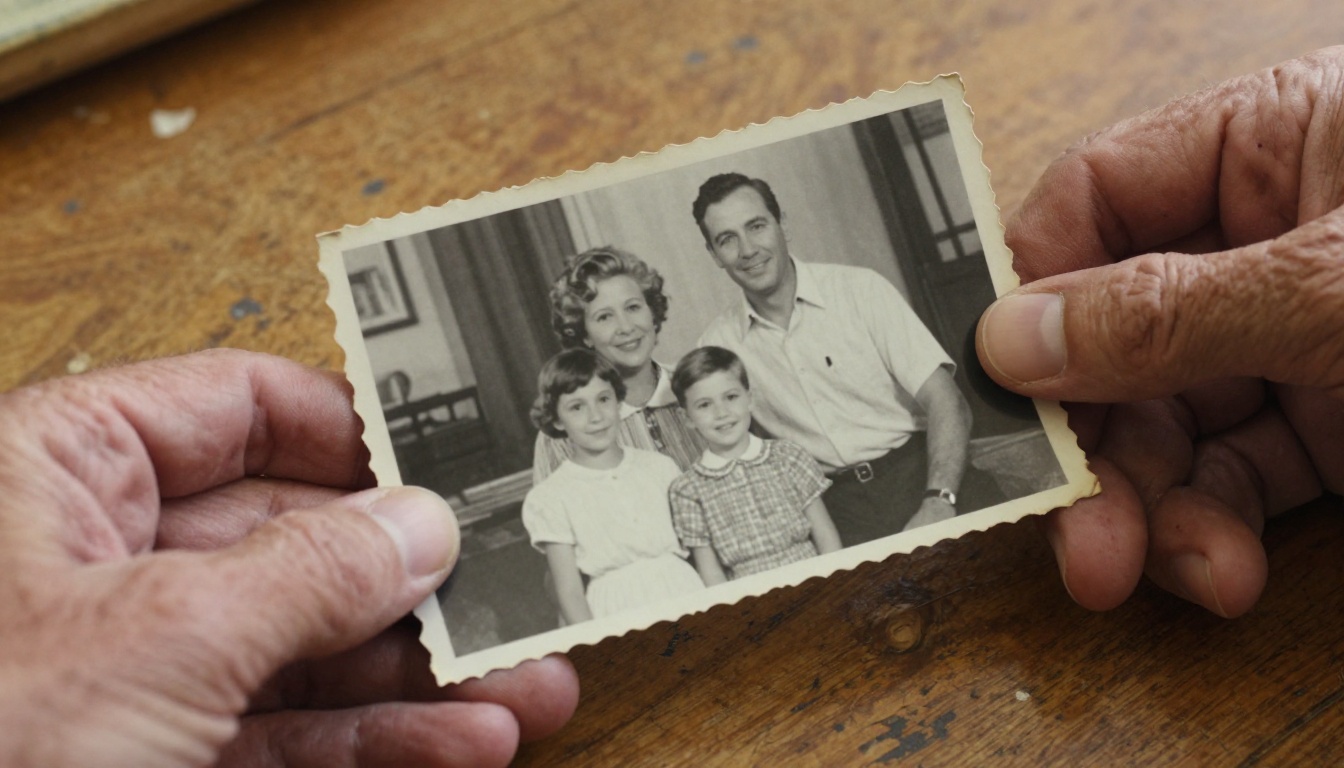
Why Old Family Photos Come Alive in a Flipbook
Static photos are wonderful, but they ask a lot of the viewer. You have to supply the narrative yourself, imagine what happened before and after the shutter clicked. A flipbook removes that mental work. When photos are sequenced and flipped in rapid succession, the brain fills in the gaps and perceives motion, emotion, and time passing.
The magic of motion from still images
The flipbook effect works on the same principle as cinema. Each image is a frame, and when frames move fast enough, the eye reads them as continuous action. With old family photos, you are not just animating images. You are animating someone's actual life. A sequence showing a baby's first birthday, then a toddler walking, then a school photo, then a graduation portrait creates a deeply moving experience in under ten seconds of page-turning.
Which photos work best (and which don't)
Not every family photo is flipbook material, and that is perfectly fine. The ones that work best share a few qualities.
Photos that work well:
- Sequential shots taken in the same location, showing movement or time passing
- Portrait sequences of the same person at different ages
- Event series from a single day (holidays, birthdays, vacations)
- Growth sequences of children over years
- Candid action shots where subjects are mid-motion
Photos to use sparingly:
- Heavily staged formal portraits with no visual connection to surrounding shots
- Very dark or heavily damaged prints without some restoration work first
- Images with radically different orientations (portrait vs. landscape mixed randomly)
💡 Pro tip: The more visual consistency between frames, the smoother and more satisfying the flip. Photos taken in the same light, same location, or showing the same subject work best as a sequence.
What You Need Before You Start
Gathering and sorting your collection
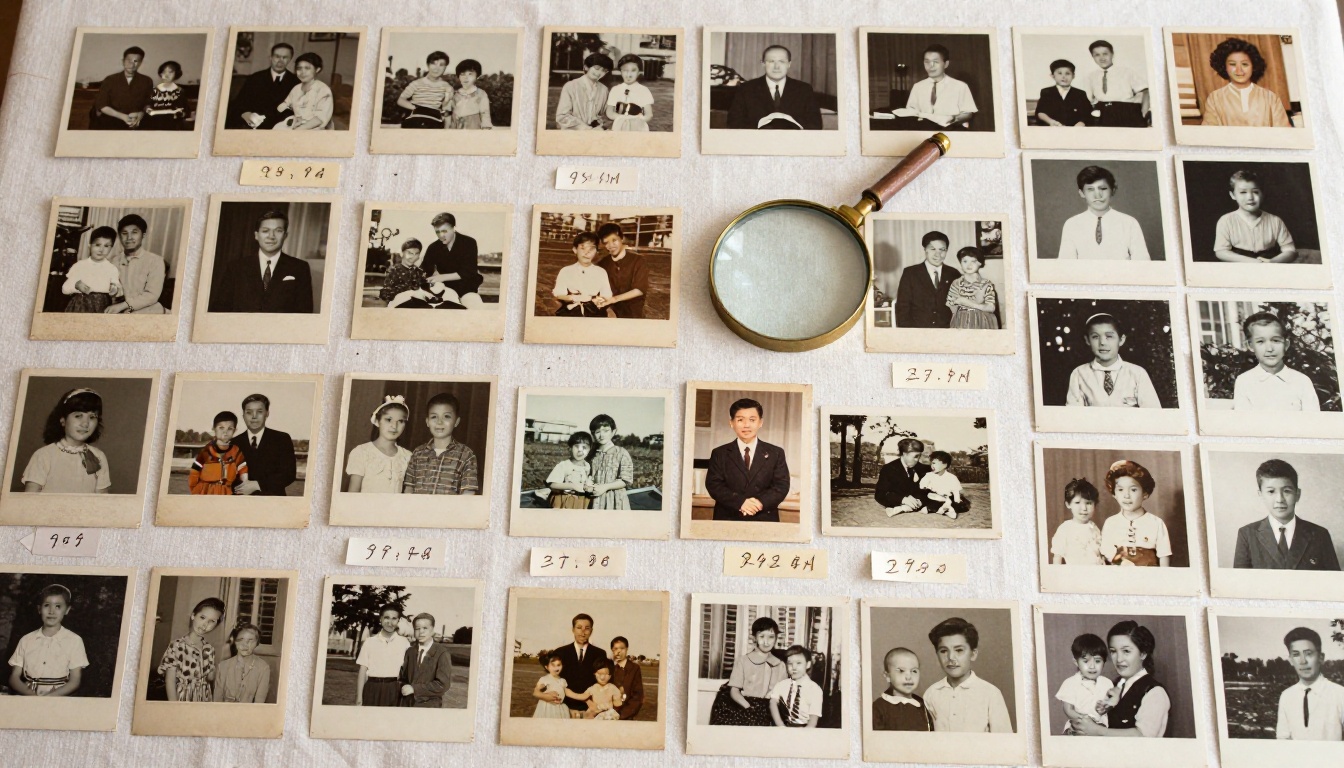
Before any scanning begins, pull everything out and do a rough sort. This step saves enormous time later. Lay photos on a large table or floor space and group them by decade, by person, or by event. You do not need a perfect system. You just need rough categories so you can later decide which sequences have enough material to become a flipbook.
Equipment checklist
Here is what you will realistically need to complete this project from start to finish.
| Item | Purpose | Notes |
|---|
| Flatbed scanner | High-quality digitization | Epson Perfection V39 or similar |
| Smartphone camera | Alternative scanning method | Use a scanning app for best results |
| Microfiber cloth | Cleaning scanner glass | Essential for dust-free scans |
| Cotton gloves | Handling fragile originals | Prevents oil transfer to prints |
| External hard drive or cloud storage | Backup of scanned files | Always keep two copies |
| Photo editing software | Basic restoration | Adobe Lightroom, GIMP, or Luminar |
| PDF creation tool | Preparing flipbook file | Adobe Acrobat, Canva, or Word |
| Flipbooks AI account | Publishing the final flipbook | Free to start |
⚠️ Warning: Never clean old photographic prints with water or alcohol. Use only dry, clean microfiber cloth and handle by edges only.
How to Scan Old Photos for Best Results
The quality of your scans determines everything downstream. A low-resolution scan produces a blurry flipbook. Spending a few extra minutes getting each scan right pays off enormously when you see the final result.
Flatbed scanner settings
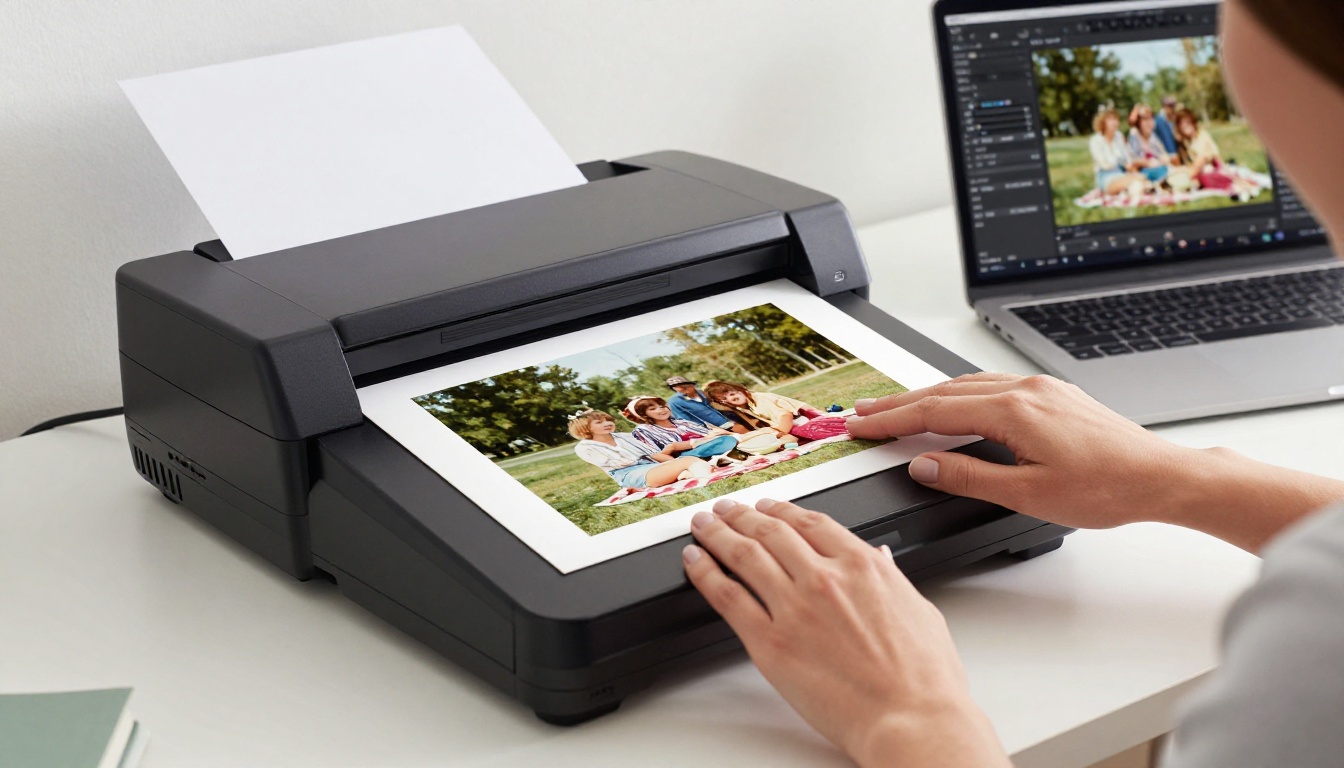
A dedicated flatbed scanner produces the cleanest results for old prints. Here are the settings that matter most.
Resolution: Scan at a minimum of 600 DPI for standard prints. For small prints (wallet size, photo booth strips) or photos you want to crop heavily, use 1200 DPI. For negatives or slides, go to 2400 DPI or higher.
Color mode: Use 24-bit color even for black-and-white photos. This captures subtle tonal variations that pure grayscale mode misses and gives you more flexibility during editing.
File format: Save as TIFF for archival quality. If storage space is a concern, high-quality JPEG (quality 95 or above) works fine for flipbook output.
Dust removal: Most modern flatbed scanners include a digital ICE or similar dust-and-scratch reduction feature. Use it on color prints. Turn it off for black-and-white photos, as it can remove genuine image detail.
Using your smartphone as a scanner
A good smartphone camera can produce surprisingly excellent results for old photos. The key is controlling the light.
- Place photos on a flat, matte black surface to eliminate reflections
- Shoot in bright, even, indirect daylight (near a window but not in direct sun)
- Use a scanning app like Microsoft Lens, Google PhotoScan, or Apple's built-in document scan rather than the regular camera app
- Hold the phone directly overhead, perfectly parallel to the photo, to avoid distortion
- Lock the exposure by tapping and holding on the photo before shooting
File format and resolution guide
| Scan Type | Recommended DPI | Format | Typical File Size |
|---|
| Standard color print (4x6") | 600 DPI | TIFF or JPEG | 10-25 MB |
| Small prints (wallet, booth) | 1200 DPI | TIFF | 30-60 MB |
| Black-and-white prints | 600-800 DPI | TIFF | 8-20 MB |
| Slides and negatives | 2400+ DPI | TIFF | 80-200 MB |
| Already-digital photos | Native resolution | JPEG | Varies |
💡 Pro tip: Create a consistent file naming convention from the start. Something like 1965_summer_vacation_001.jpg makes sorting and sequencing dramatically easier later.
Organizing Your Photos for Flipbook Sequencing
Once your photos are scanned and backed up, the real creative work begins: deciding which photos go where and in what order.
How many photos do you actually need
This is the question most people ask first. The honest answer is: more than you think, but probably not as many as you have.
| Flipbook Length | Photos Needed | Flip Duration | Best For |
|---|
| Short (30-60 sec flip) | 15-30 photos | Quick keepsake | Single event or portrait series |
| Medium (1-2 min flip) | 30-60 photos | Satisfying story arc | Childhood years, decade retrospective |
| Long (3-5 min flip) | 60-150 photos | Full family history | Multi-generational story |
| Extended archive | 150+ photos | Complete legacy | Full family documentary flipbook |
For a first project, aim for the medium range (30-60 photos). This is manageable to scan, easy to sequence, and creates a genuinely moving result without becoming overwhelming.
Chronological vs. thematic ordering
There are two main sequencing approaches, and both have real merit.
Chronological ordering works best when you have photos spanning many years of the same person or family. Watching someone age across a flipbook is one of the most emotionally powerful experiences this format offers. Start with the earliest photo, end with the most recent.
Thematic ordering works best when you have many photos from a single type of event across different years. A Christmas flipbook showing the same family opening gifts from 1968 to 2005 creates a beautifully repetitive, rhythmic effect that feels like a ritual remembered.
✅ Best practice: Before committing to a sequence, print thumbnails of all your selected photos at small size and arrange them physically on a table. This lets you feel the visual rhythm before you invest time in the digital assembly.
Restoring and Editing Your Scanned Photos
Old photos often have issues: yellowing, fading, dust spots, scratches, and color shifts. A little editing goes a long way toward making your flipbook look polished rather than weathered.
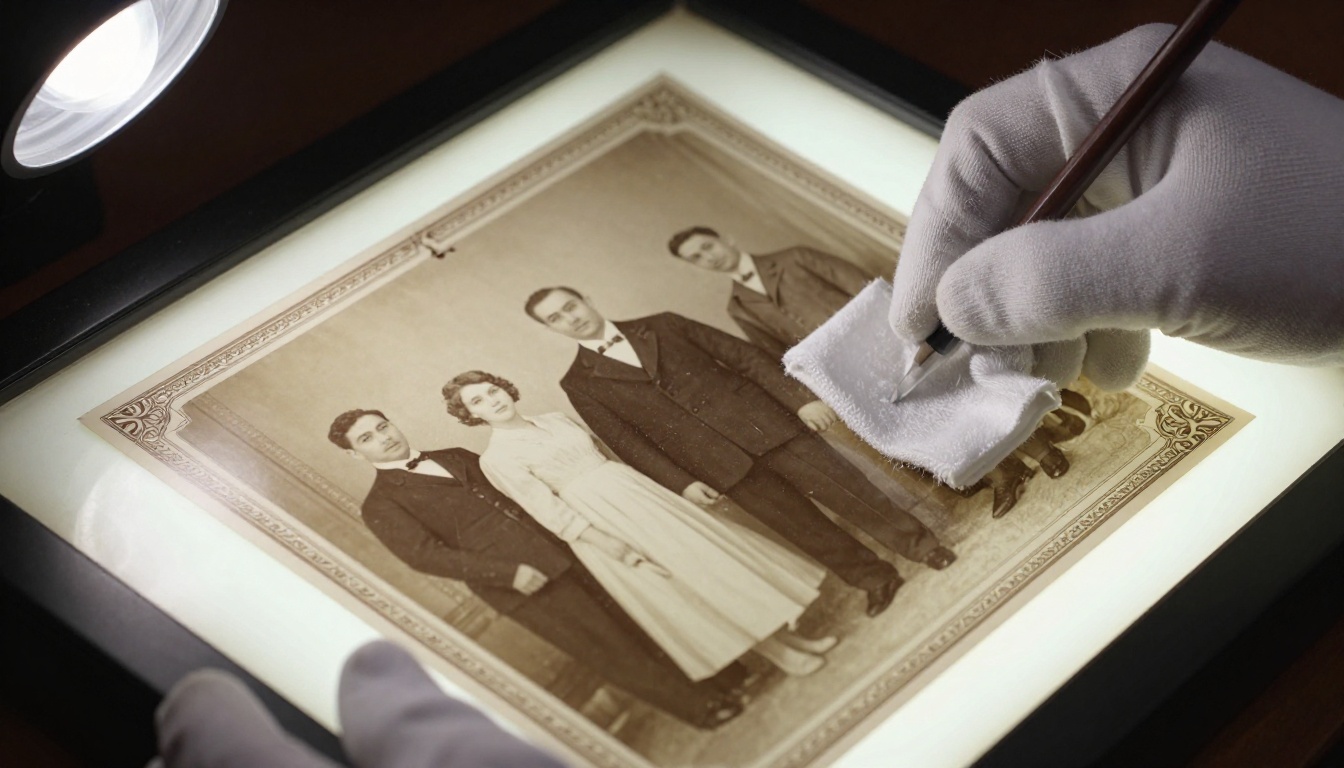
Quick fixes that make a big difference
You do not need to become a photo restoration expert. These four adjustments alone will dramatically improve most old photos.
- Auto white balance correction: Old color photos shift toward yellow or magenta over time. Most editing software has a one-click auto white balance or "remove color cast" feature.
- Exposure and contrast adjustment: Faded photos look washed out. Increase contrast slightly and lift the midtones to restore the original depth.
- Dust spot removal: Use the healing brush or clone stamp to remove dust specs from the scan. Focus on large obvious spots first.
- Crop for consistency: Decide on a consistent aspect ratio for all your flipbook images (16:9 works well for digital). Crop all photos to this ratio before assembly.
Free tools for photo restoration
| Tool | Platform | Best For | Cost |
|---|
| GIMP | Windows/Mac/Linux | Full editing control | Free |
| Lightroom Mobile | iOS/Android | Quick batch edits | Free (limited) |
| Remini | iOS/Android | AI-powered face sharpening | Free (limited) |
| Luminar Neo | Windows/Mac | One-click restoration | Paid |
| Google Photos | Web/Mobile | Auto-enhance, straighten | Free |
💡 Pro tip: Edit all your flipbook photos in one batch session using the same settings adjustments. Visual consistency across frames makes the final flip feel smooth and intentional rather than jumpy.
Building Your Digital Flipbook with Flipbooks AI
This is where your scanned, sequenced, and edited family photos transform into something truly shareable. Flipbooks AI converts your photo collection into a beautiful page-turning digital flipbook that works on any device and can be shared with a single link.
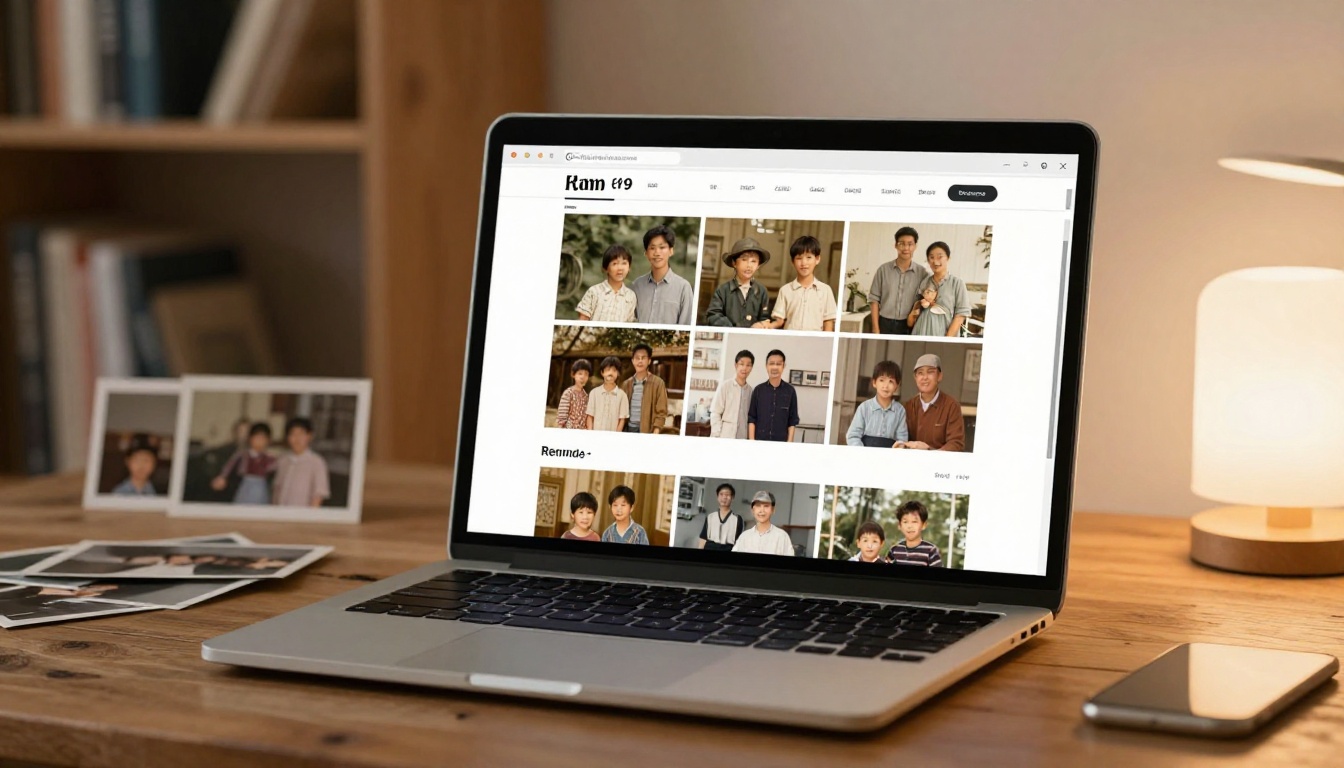
Step 1: Prepare your PDF
Before uploading to Flipbooks AI, you need to compile your sequenced photos into a single PDF file. Each page of the PDF becomes one page of the flipbook.
- In Canva: Create a presentation, set your chosen dimensions, place one photo per slide, then export as PDF
- In Adobe Acrobat: Use File > Create > Combine Files, add your photos in order, save as PDF
- In Microsoft Word: Insert each photo full-page, one per page, then Save As PDF
- In Apple Pages: Similar approach, one full-page image per page, export as PDF
Keep all images at the same dimensions within the PDF. Mixing portrait and landscape orientations within a single flipbook creates jarring transitions.
Step 2: Create your account and upload
Create a free account on Flipbooks AI. The upload process takes under a minute:
- Click New Flipbook from your dashboard
- Drag and drop your PDF file or click to browse
- Wait for the conversion, which typically completes in 30-60 seconds for a standard photo collection
- Your flipbook is immediately ready to preview
Step 3: Customize the presentation
This step separates a good flipbook from a great one. Flipbooks AI gives you control over how the final experience looks and feels.
- Cover image: Set a specific page or upload a dedicated cover image
- Background color: Choose a color that complements your photos' era (warm cream for vintage, clean white for modern collections)
- Page flip sound: Enable the subtle page-turn sound effect for a tactile feel, especially effective for physical-feeling family albums
- Title and description: Add the family name, date range, and a short dedication
Step 4: Set privacy and sharing options
Old family photos are personal. Flipbooks AI includes password protection so you can share your flipbook only with family members who have the link and password. This is ideal for sensitive heirloom collections you would not want publicly indexed.
Sharing options available:
- Direct link: Send via email, WhatsApp, or family group chat
- Embed code: Embed the flipbook directly into a family website or memorial page
- Social sharing: Share to social platforms directly from the flipbook viewer
- Password protection: Restrict access to invited family members only
Step 5: Add multimedia and annotations (optional)
If you have digitized video clips or audio recordings alongside your photos, Flipbooks AI supports embedding video and audio directly into flipbook pages. Imagine a flipbook of grandmother's photos with a recording of her voice on the final page. The Photography Portfolio tool and the general PDF to Flipbook Converter both support rich media embedding.
Flipbooks AI plan comparison
| Feature | Free | Standard | Professional |
|---|
| Number of flipbooks | 1 | Unlimited | Unlimited |
| Password protection | No | Yes | Yes |
| Custom branding | No | Yes | Yes |
| Analytics | No | No | Yes |
| Offline downloads | No | No | Yes |
| Lead generation tools | No | No | Yes |
| Watermarks | None | None | None |
| Video/audio embed | No | Yes | Yes |
✅ Best practice: Start with the free plan to test your first family flipbook. Upgrade to Standard when you are ready to create multiple albums and share them privately with family.
Sharing and Preserving Your Family Flipbook
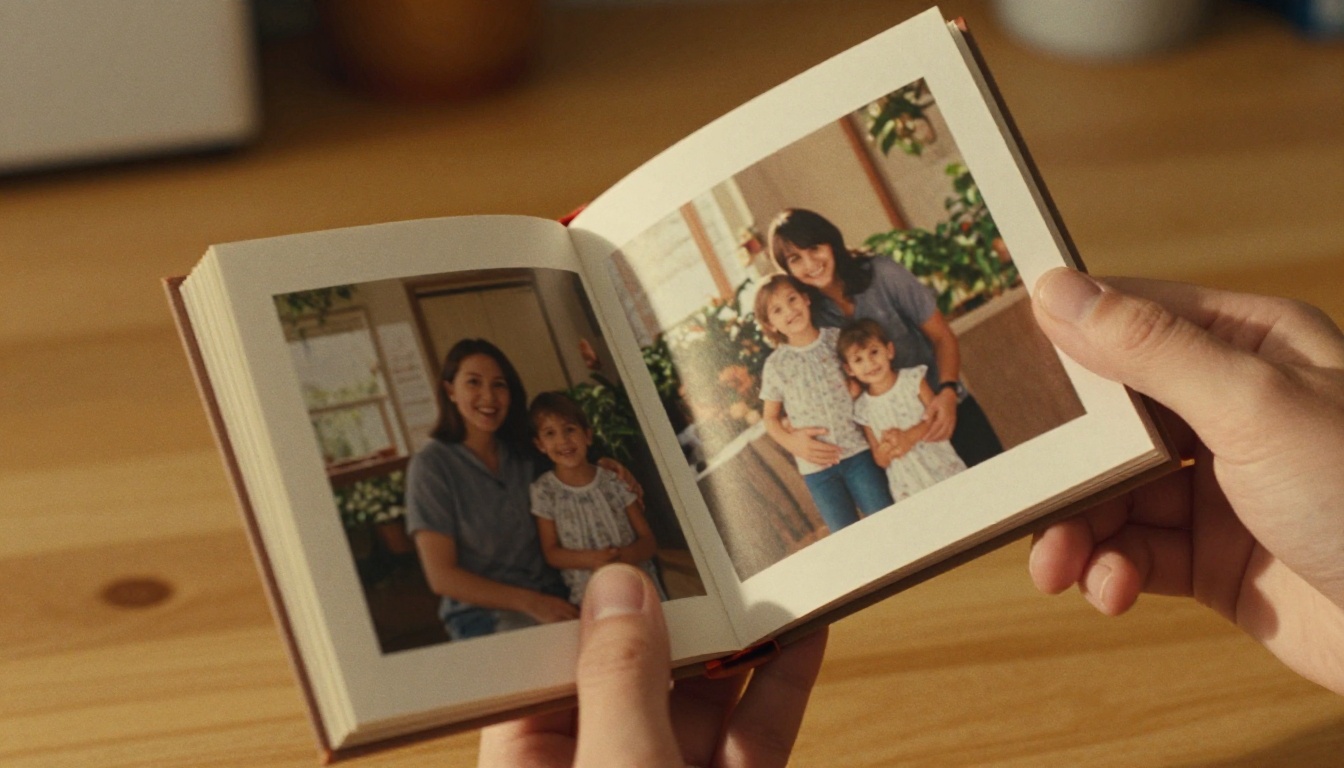
Sharing across generations
One of the most practical advantages of the digital flipbook format is how easily it reaches people across different levels of technical comfort. A grandmother who cannot navigate a cloud storage folder can click a link in an email and immediately see her family history playing out in a flipbook viewer. No app downloads, no logins required on the viewer side.
Sharing scenarios that work particularly well:
- Holiday gatherings: Share the link in the family group chat before a holiday. It becomes a conversation starter and a shared experience
- Memorials and anniversaries: A flipbook covering someone's life is a deeply meaningful tribute that can be shared with all attendees
- Family reunions: Create a flipbook covering the family history and display it on a laptop or tablet at the reunion
- Long-distance family: Relatives who cannot physically attend can still experience the emotional impact of seeing decades of family history in motion
Protecting and archiving your work
Creating the flipbook is only half the preservation task. The other half is making sure the source files are protected.
- Cloud backup: Store your master TIFF or high-quality JPEG scans in at least two cloud locations (Google Drive and iCloud, for example)
- External drive backup: Keep a physical backup on an external hard drive stored separately from your home
- Annual check: Set a calendar reminder to verify your backups are intact once a year
- Share the source files: Email the original scanned photos to multiple family members so no single point of failure can destroy the collection
⚠️ Warning: Digital storage formats become obsolete. JPEG and TIFF are both very well established and unlikely to become unreadable, but always store your originals in widely supported formats rather than proprietary software formats.
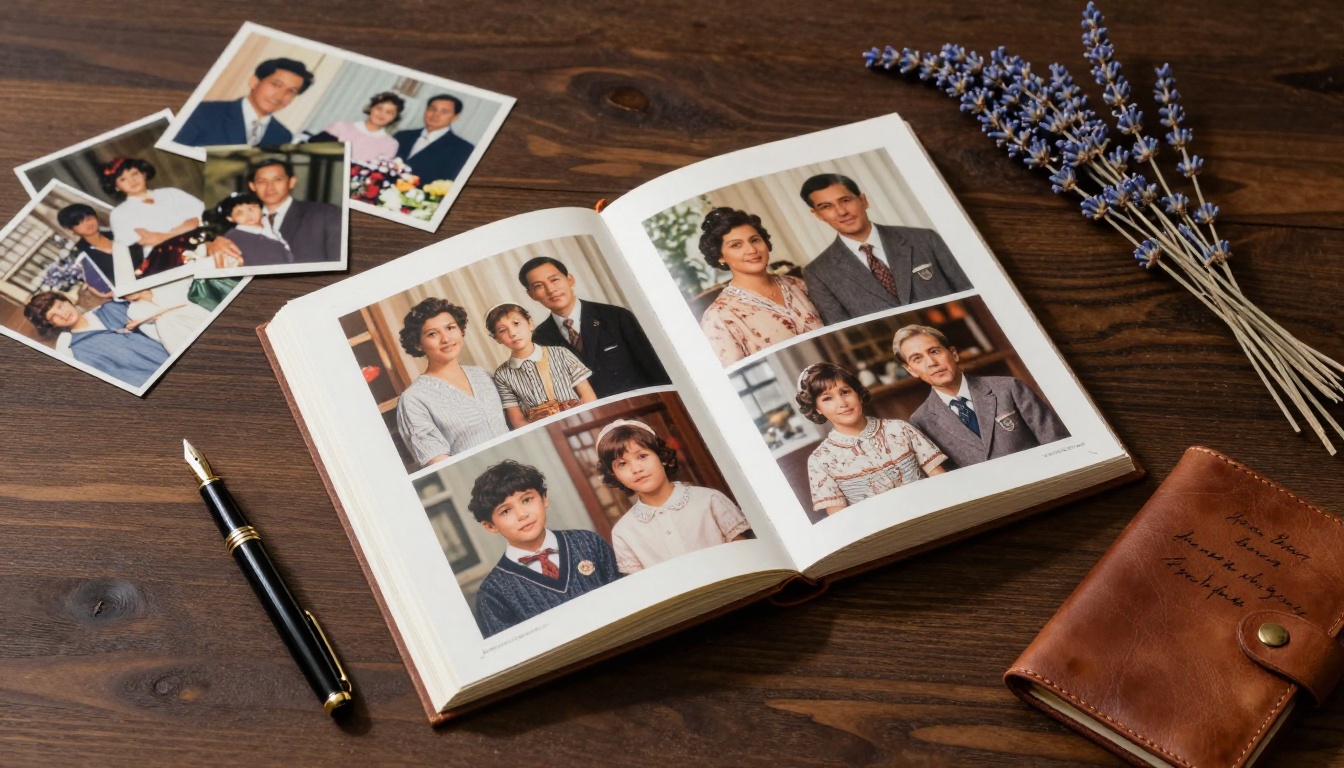
From one flipbook to a full family archive
Once you have made your first flipbook, the process becomes intuitive. Many families find themselves building an entire library: one flipbook per decade, one per person, one per family branch. The Wedding Album Flipbook tool works beautifully for preserving old wedding photos specifically. The Yearbook Flipbook Maker is perfect for school years. Browse all flipbook tools to find the format that fits each collection in your archive.
The Professional plan includes analytics so you can see which family members have actually opened and spent time with each flipbook, which is oddly moving information when you know what is inside.
Your Family's Story Deserves Better Than a Shoebox
Every year, more old prints fade beyond recovery. Every year, family members who remember the context behind each photo become fewer. The window to preserve these stories in a meaningful format is real, and it is not unlimited.
The good news: you do not need to do it all at once. Start with one shoebox. Pull out twenty photos that clearly form a sequence. Scan them over a weekend. Assemble a PDF. Upload it to Flipbooks AI and watch decades of family history come alive in under a minute of page-turning.
That first flipbook takes a few hours total. Every subsequent one takes less time. And the result, a digital heirloom that any family member anywhere in the world can open on their phone and experience, is worth far more than the time it costs.
Ready to start? Create your free account and upload your first family photo collection today. When you are ready for more features, explore the pricing plans to find what fits your family archive. And if you want to see all the specialized tools available for different types of photo collections, browse flipbooksai.com/tools for the full range of options.



