Most people can tell instantly when a yearbook feels cheap. The photos are muddy, the fonts are inconsistent, the colors look washed out on screen, and flipping through it feels like reading a Word document. Getting a digital yearbook to feel like print is not about adding more graphics or using fancier templates. It is about understanding what makes a printed yearbook feel the way it does, and then reverse-engineering those qualities into your digital files. Tools like Flipbooks AI have changed what is possible for school yearbook teams working without a professional printing budget.
The gap between a yearbook that looks amateurish and one that feels like it came off a commercial press comes down to a handful of specific decisions: resolution, color profiles, typography, layout grids, and the simulation of physical texture. Each one is fixable. This article walks you through all of them.
Why Print Still Sets the Standard
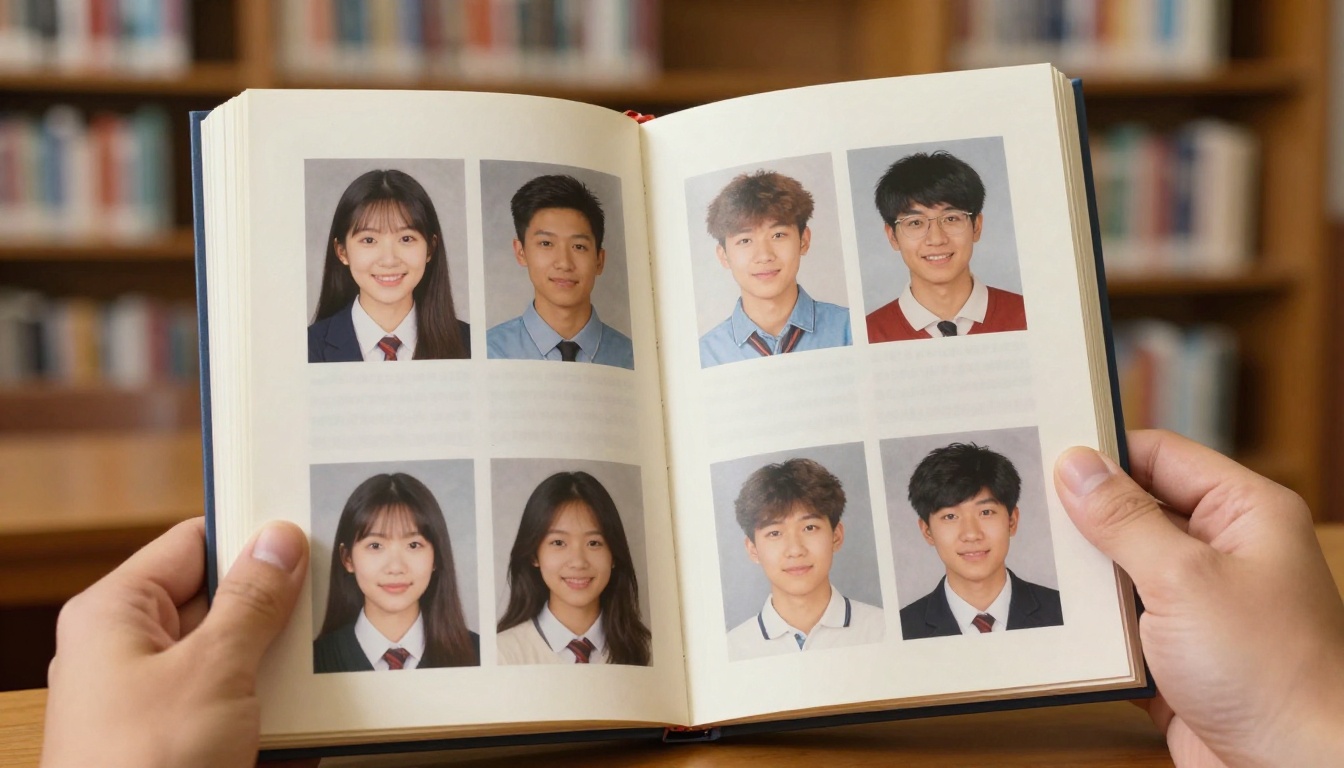
There is a reason physical yearbooks end up in attic boxes 40 years later while digital files disappear in hard drive crashes. Print has a sensory quality that screen-based media has never fully replicated. The weight of coated paper, the slight resistance as you turn a page, the warm color cast of photographs printed with CMYK inks on matte stock: these things create a memory artifact rather than just a document.
What "Print Quality" Actually Means
When designers say "print quality," they are describing a combination of factors:
- Resolution: 300 DPI minimum for photographs, 600 DPI for fine text
- Color depth: Full CMYK range rather than compressed RGB
- Consistency: Every page feels intentional, not randomly assembled
- Typography control: Fonts chosen for readability at small sizes, consistent tracking and leading
The good news is that every one of these qualities can be simulated in a well-designed digital yearbook. You do not need a printing press. You need a plan.
The Tactile Problem and Its Digital Solution
Print has texture. Paper has micro-tooth, ink has depth, binding has weight. None of that translates to a screen unless you deliberately add it. The designers who produce print-quality digital publications use a combination of overlay textures, subtle grain filters, and warm color grading to trigger the same visual associations your brain makes when looking at a physical page.
💡 Even a 3% paper grain overlay on your page backgrounds will instantly make a digital yearbook read as more "printed" to the human eye.
Photo Prep: The Foundation of Print Quality
The single biggest differentiator between a yearbook that looks great and one that looks cheap is photo quality. Blurry, over-compressed, or inconsistently lit portrait photos will ruin an otherwise well-designed layout.
Resolution Requirements for Yearbook Photos
| Photo Type | Minimum Resolution | Recommended |
|---|
| Senior portraits | 300 DPI at print size | 400 DPI |
| Candid and event photos | 200 DPI at print size | 300 DPI |
| Full-bleed page backgrounds | 150 DPI at print size | 200 DPI |
| Club and team group shots | 250 DPI at print size | 350 DPI |
For digital-only yearbooks, these DPI numbers translate to pixel dimensions. A portrait displayed at 3 x 4 inches on a 1920px-wide page should be at least 900 x 1200 pixels. Feed the layout anything smaller and the softness will show immediately on any modern screen.
Color Profiles Explained
RGB versus CMYK is the conversation that confuses most yearbook designers. Here is what actually matters:
| Profile | Best For | How It Looks |
|---|
| sRGB | Screen-only digital yearbooks | Bright, saturated, slightly cool |
| Adobe RGB | High-quality digital with potential future print | Wider gamut, more neutral |
| CMYK | Commercial print | Slightly warmer, muted highlights |
| CMYK simulation in RGB | Digital-only with print feel | Warm, rich, slightly desaturated highlights |
For a yearbook that feels like print without actually going to press, shoot and edit in Adobe RGB, then apply a CMYK simulation profile during export. Most photo editors include a "print" or "matte paper" soft proof setting that approximates the slight warmth and reduced highlight punch of printed photographs. That warmth is exactly what makes a photo look "printed."
⚠️ Never deliver portrait photos in compressed JPEG format below quality 90. Compression artifacts in skin tones are visible even on phone screens and destroy the print-quality illusion instantly.
Consistent Skin Tone Grading
Nothing breaks yearbook consistency faster than 200 different photographers submitting portraits with different white balance and exposure settings. Before placing any photo in your layout:
- Open all portraits in batch photo editing software
- Apply a standard correction preset (warm white balance at 5500K, slight contrast lift, gentle skin tone curve)
- Export at full resolution to a master folder
- Only place from the corrected master folder into your layout
Typography That Reads Like a Real Book
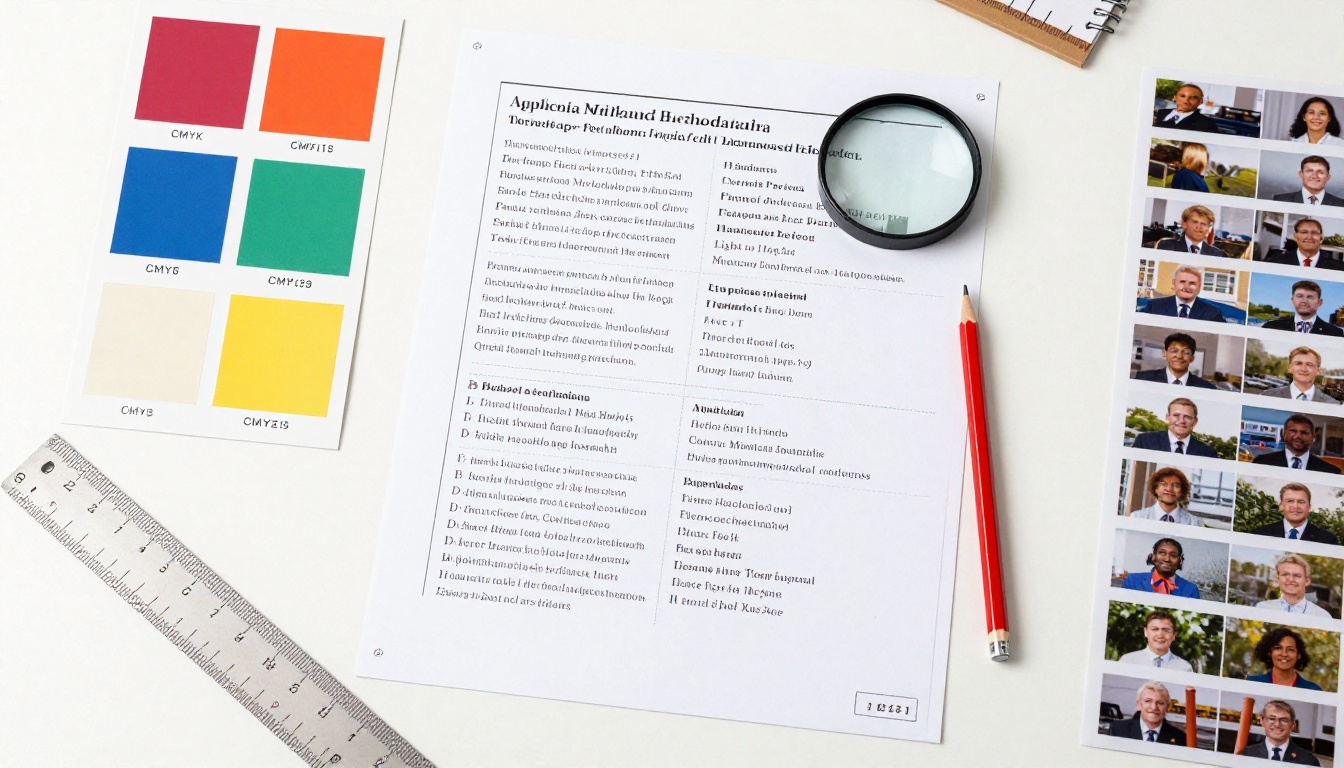
Printed books have used serif typefaces for body text for centuries because serifs improve readability at small sizes on paper. Digital screens historically favored sans-serif fonts because of pixel rendering. That distinction has mostly collapsed on modern high-DPI screens. For a print-feel yearbook, lean into serif typography.
Font Pairings That Work
| Role | Good Choices | What to Avoid |
|---|
| Senior name labels | Garamond, Caslon, Times New Roman | Comic Sans, Script fonts |
| Section headers | Playfair Display, Libre Baskerville | Generic system fonts |
| Captions | Source Serif Pro, Lora | Bold sans-serif at small sizes |
| Pull quotes | Cormorant Garamond Italic | All-caps decorative fonts |
| Body text (bio sections) | Georgia, Palatino | Condensed fonts below 9pt |
Spacing and Optical Margins
Print designers obsess over leading (line spacing) and tracking (letter spacing) because ink on paper behaves differently from pixels on screen. For print-feel digital layouts:
- Leading: Set line height to 145-155% of font size for body text
- Tracking: Slightly loosen tracking on all-caps labels (10-20 units)
- Optical margin alignment: Hanging punctuation in pull quotes creates the "professional typesetting" look immediately
💡 Add a faint ruled baseline grid to your layout document and snap all text boxes to it. Every line of text aligning to the same vertical rhythm is the invisible quality mark that separates professional print layouts from DIY designs.
Layout Rules Borrowed From Print Design
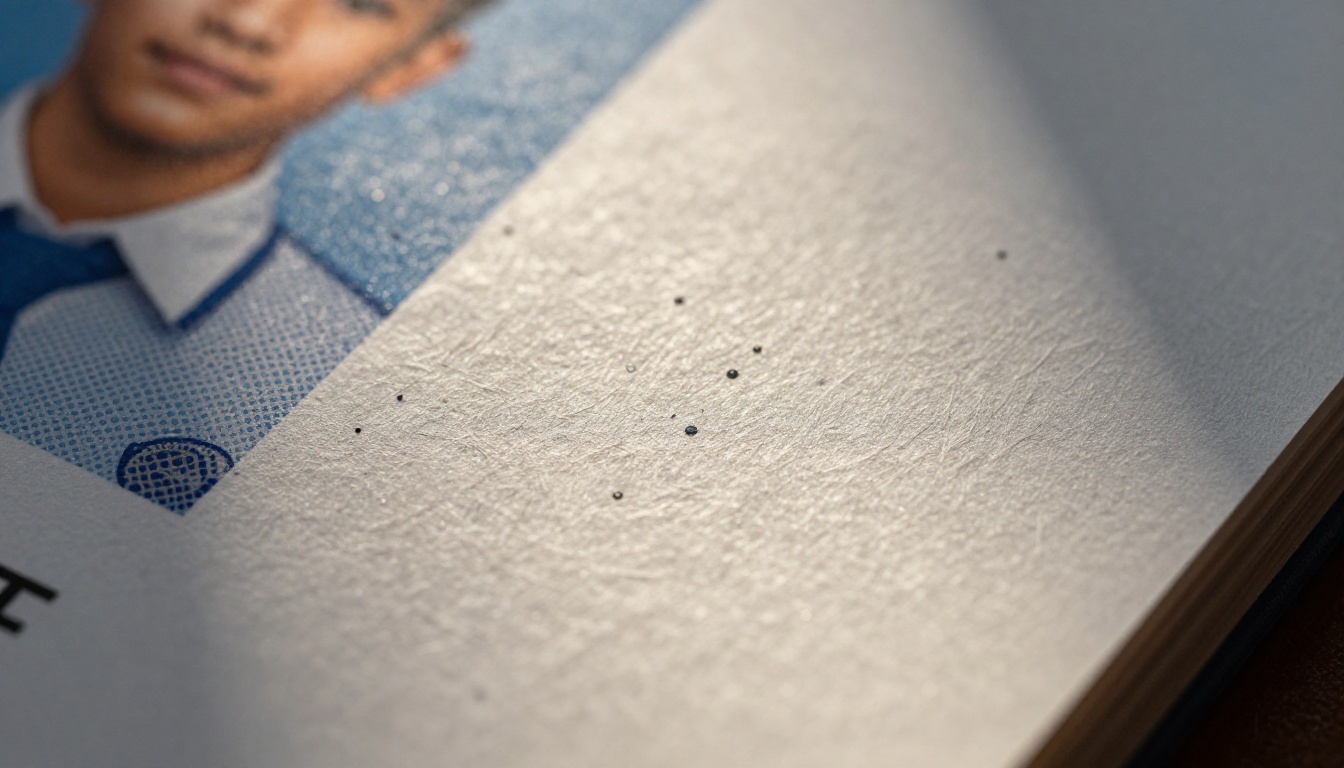
Print designers work with physical constraints: bleed zones, safe margins, gutter compensation. Even in a digital yearbook, applying these rules produces the same professional result.
Bleed, Margins, and Safe Zones
- Bleed zone: Add 3mm of content extension beyond the page edge on full-bleed photos (even for digital, this prevents harsh crop edges at screen boundaries)
- Safe margin: Keep all critical text and portrait faces at least 12mm from the page edge
- Gutter margin: Add an extra 5mm of interior margin on double-page spreads to compensate for the center binding area
Grid Systems for Portrait Pages
The classic yearbook portrait grid follows a simple rule: odd-number columns (3, 5, or 7 per row) create more dynamic layouts than even-number arrangements. Standard commercial yearbooks use a 5-column grid for senior portrait sections because it balances density with readability.
For candid photo sections, switch to a modular grid where photos occupy 1, 2, or 4 grid cells, and no two adjacent photos are the same size. The visual variety mimics the editorial photo layouts of high-end print magazines.
Color Grading for That Warm, Inky Feel
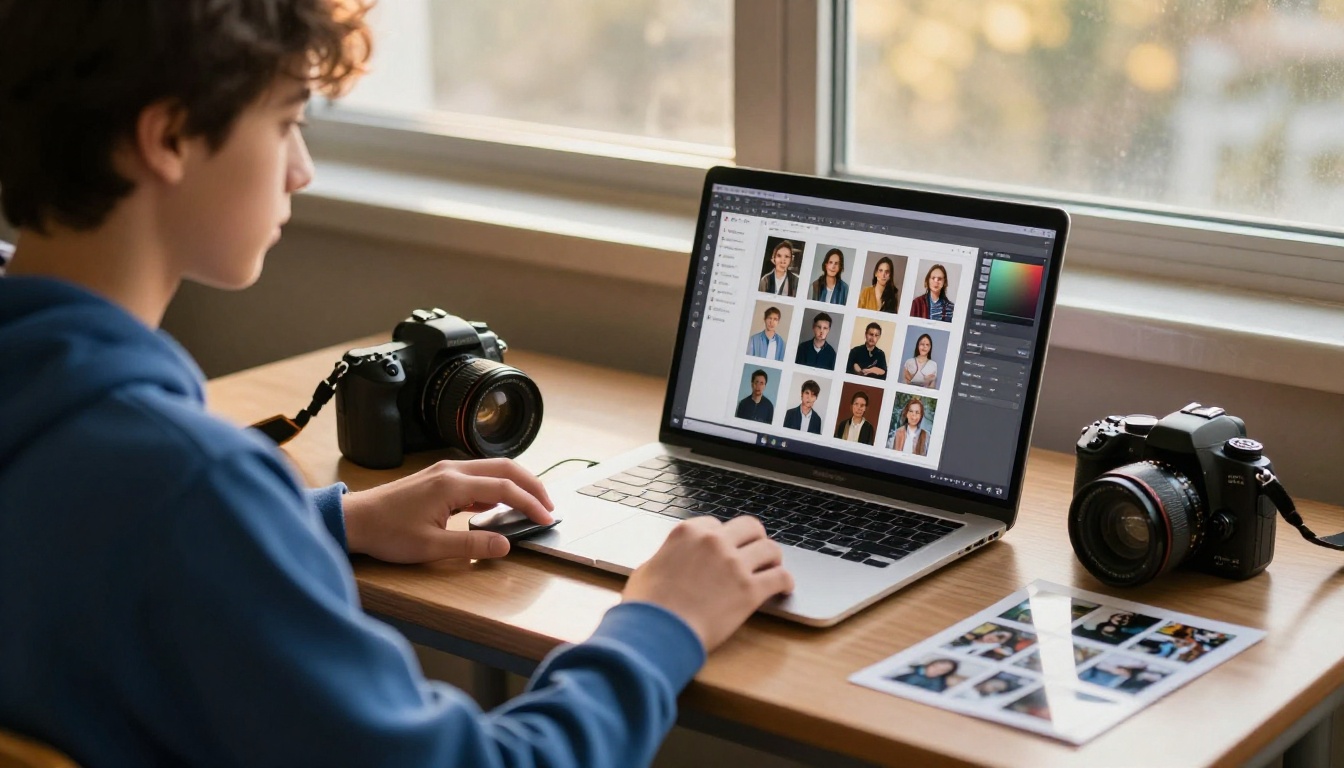
The color signature of a well-printed yearbook is distinct: slightly warm shadows, slightly muted highlights, and rich midtone saturation. Commercial lithographic printing on coated paper absorbs highlights and boosts midtone contrast in a way that gives photographs a depth that flat RGB screens cannot replicate by default.
Applying a Print Color Grade
To simulate this effect in your digital yearbook photos:
- Apply a curves adjustment: lift shadows slightly (input 0, output 15), pull highlights down slightly (input 255, output 240)
- Add a slight orange-yellow color cast to shadows (hue +10, saturation +8 in the shadows range)
- Reduce highlight saturation by 15-20% to prevent the blown-out pastel look that reads as "screen-only"
- Apply a film grain overlay at 4-6% opacity using a noise layer in multiply blending mode
This four-step process takes under two minutes per photo batch in any professional editing tool and produces the characteristic warmth and depth of commercial yearbook printing.
Warm vs Cool Yearbook Palettes
The school's colors naturally drive the palette for section dividers, headers, and accent elements. However, the background tone of your pages should almost always be warm rather than pure white. A very slight cream tint (approximately RGB: 252, 248, 240) on page backgrounds immediately reads as "paper" rather than "screen."
Paper Texture Simulation in Digital Files
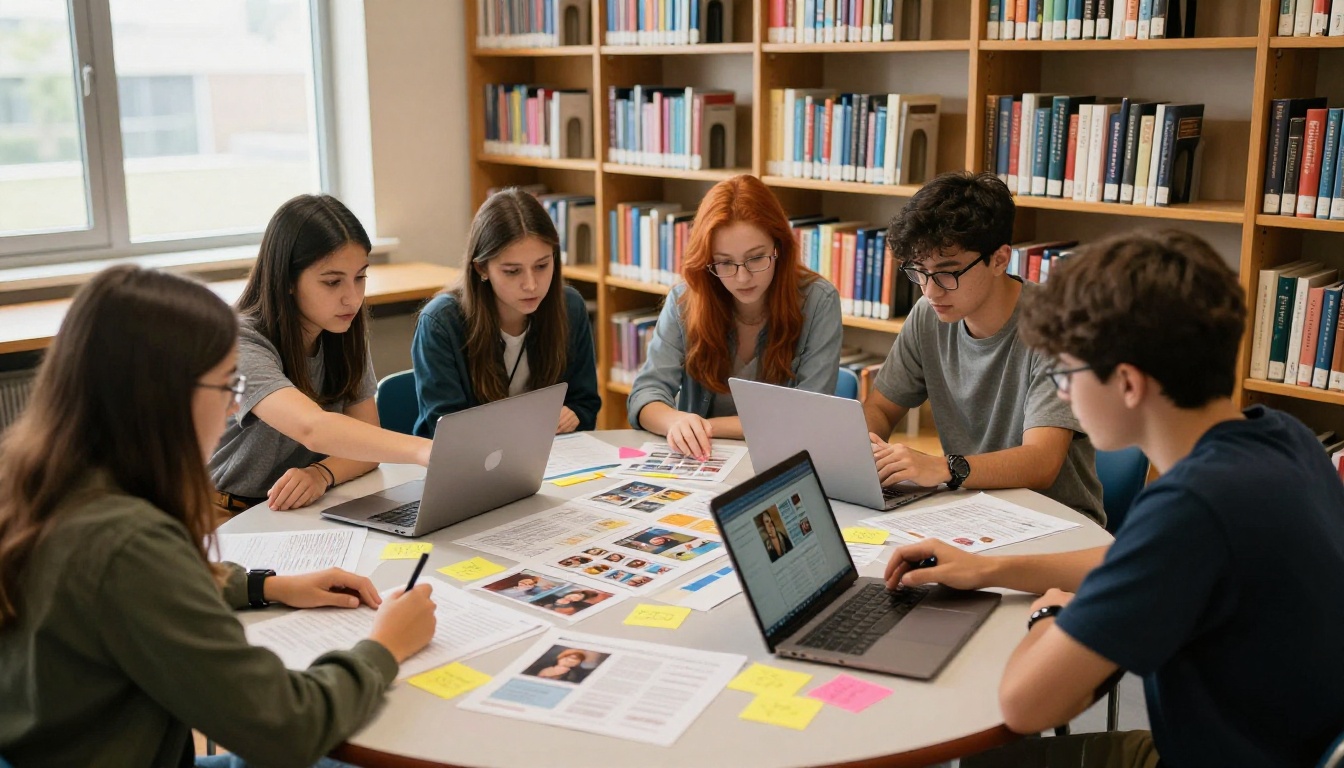
This is the step most DIY yearbook designers skip, and it is the one that makes the biggest perceptual difference. Physical paper has micro-texture. Even coated gloss stock has a surface geometry that reflects light non-uniformly, creating depth and warmth. Simulating this digitally is straightforward.
The Overlay Technique
- Download a high-resolution paper texture scan (search for "fine coated paper texture 8K" in royalty-free photo sites)
- Place it as a top layer over your entire page spread
- Set the layer blending mode to Multiply at 4-7% opacity for matte paper feel, or Screen at 3-5% for glossy coated stock
- Repeat the layer at the same settings with a slight rotation of 2-3 degrees for added depth
Grain and Vignette
Beyond paper texture, two additional effects sell the print illusion:
- Film grain: A subtle noise overlay at 3-5% opacity, screen blending mode, creates the organic variation that print has and screens lack
- Page edge vignette: A very faint darkening at the outer edges of each page (10% opacity, large feathered radial selection) simulates the ink density variation at page margins on offset presses
✅ Stack your effects in this order: base content, then paper texture, then grain, then vignette. Each layer should be so subtle on its own that you barely notice it. The cumulative effect is what matters.
How to Publish Your Yearbook as a Flipbook
Once your yearbook design is complete, the delivery format determines how much of that print-quality work survives the journey to readers' screens. Sharing a flat PDF loses the page-turn experience entirely. Flipbooks AI converts your PDF into an interactive flipbook with realistic page-turn animations, preserving the tactile feel in a digital format.
The Yearbook Flipbook Maker tool is built specifically for this workflow.
Step-by-Step: From PDF to Interactive Yearbook
1. Prepare Your Export
Export your finished yearbook as a high-resolution PDF. Use PDF/X-1a or PDF/X-4 preset if available. Set image compression to maximum quality, no downsampling below 300 DPI, and embed all fonts.
2. Create Your Account
Go to Flipbooks AI and sign up. No credit card required for initial setup.
3. Upload Your PDF
Click "New Flipbook," select your PDF file, and upload. The conversion process takes 30-90 seconds depending on page count. A 100-page yearbook typically converts in around 60 seconds.
4. Apply Custom Branding
In the editor, configure:
- School name and logo
- Brand colors for the viewer interface
- Background color or texture for the reading environment
- Custom domain or subdomain if available on your plan
5. Add Page Effects
Enable realistic page curl and shadow in the viewer settings. The "hardcover" page style mimics the weight of a real bound book. Set page flip speed to "medium" for the most realistic feel.
6. Configure Sharing Options
- Direct link: Share a URL with the full school community instantly
- Embed code: Paste into your school website with two lines of HTML
- Password protection: Set a school-only password to keep the yearbook private until official distribution day
7. Enable Analytics (Professional Plan)
Track who has viewed the yearbook, which sections get the most time, and generate a contact list for alumni outreach. Available on the Professional plan.
Flipbooks AI Plan Comparison for School Yearbooks
| Feature | Free | Standard | Professional |
|---|
| Flipbooks per account | 1 | Unlimited | Unlimited |
| Watermark on viewer | Yes | No | No |
| Custom branding | No | Yes | Yes |
| Password protection | No | Yes | Yes |
| Viewer analytics | No | No | Yes |
| Offline PDF download | No | Yes | Yes |
| Embed on website | No | Yes | Yes |
| Lead generation forms | No | No | Yes |
💡 For most school yearbook committees, the Standard plan is the right starting point. No watermarks, unlimited flipbooks for a full archive of past years, and password protection for controlled distribution.
Distributing Your Yearbook Without Printing a Single Copy
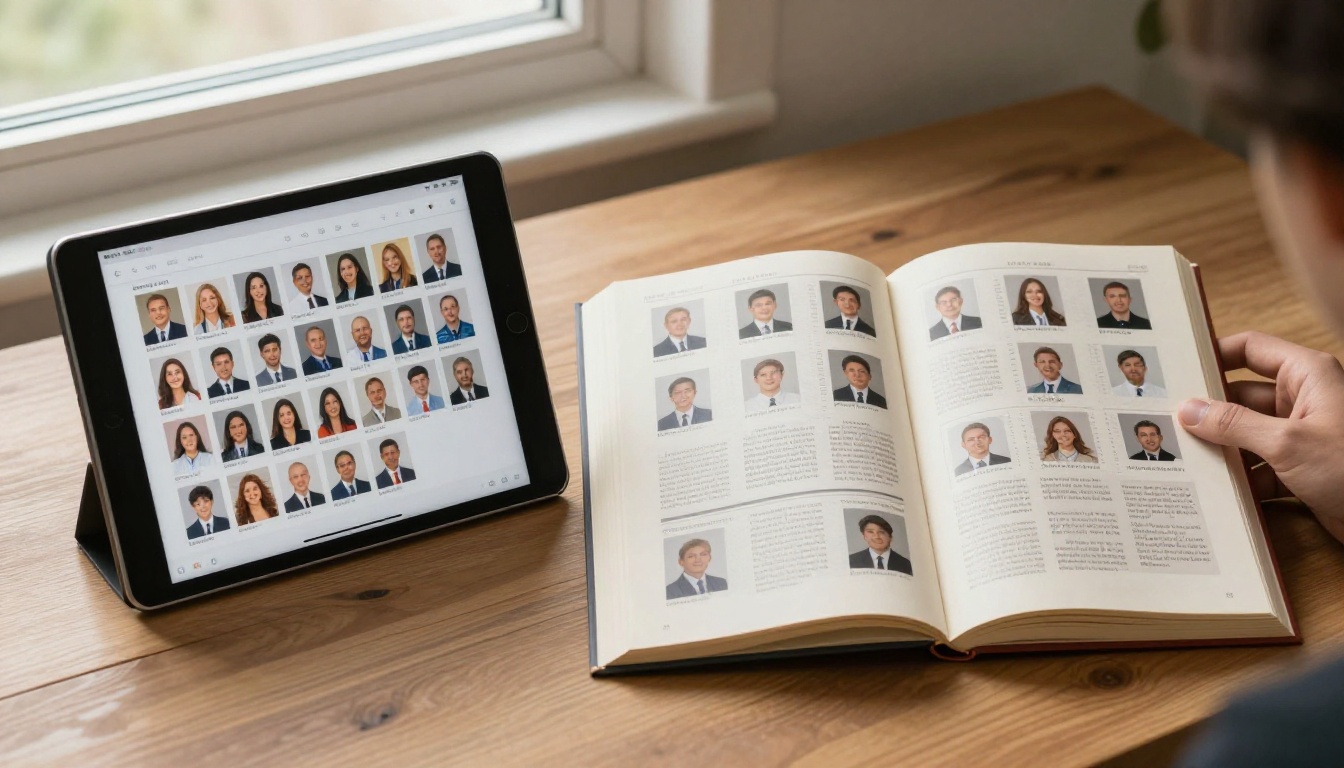
A yearbook that looks and feels like print is worth nothing if nobody can access it. Distribution for digital yearbooks is simpler than print logistics, but it still requires a clear plan.
Sharing Options Compared
| Method | Best For | Privacy Level | Setup Time |
|---|
| Direct link | Whole school community sharing | Low (public) | Instant |
| Password-protected link | Controlled school-only access | Medium | 2 minutes |
| Embed on school website | Permanent online archive | Configurable | 5 minutes |
| QR code on printed card | Physical distribution day handout | Low (semi-public) | Instant |
| Downloaded PDF | Offline access and personal backup | High | 1 click |
Offline Downloads
Students who want a permanent personal copy can download the PDF directly from the flipbook viewer on Flipbooks AI. This gives them both the interactive online experience and a high-quality offline backup with no printing required and no distribution logistics.
Building a Multi-Year Archive
One of the biggest advantages of digital yearbooks is permanence without physical storage. Create a separate flipbook for each school year and organize them in your Flipbooks AI account. Students can access any past yearbook from the same embed on the school website, creating an instant historical archive that costs nothing to maintain year over year.
The Year Everyone Remembers
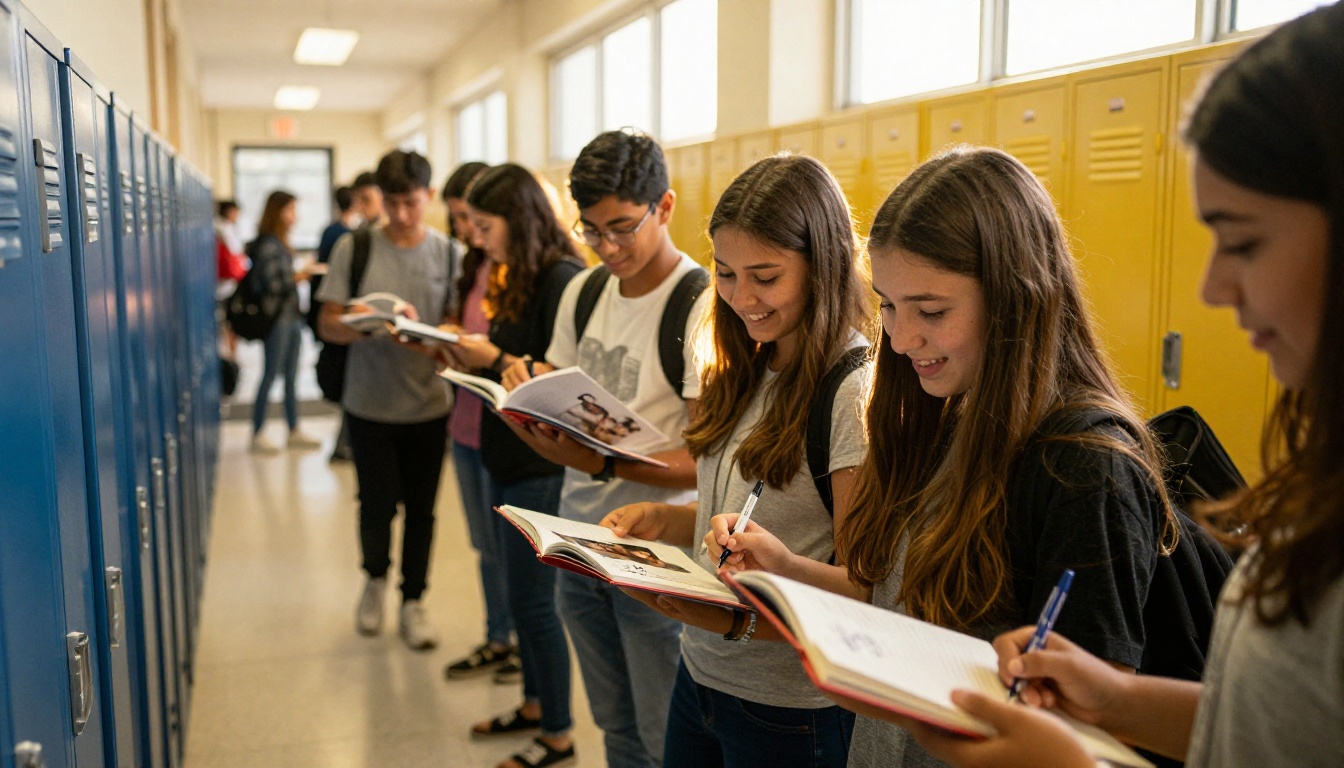
A yearbook that feels like print is not an accident. It is the result of specific decisions made at every stage: how photos are shot and edited, how type is set and spaced, how color is graded, how layouts are structured, and how the finished product is delivered. None of these steps requires professional printing equipment or a large budget. They require attention to the details that make physical books feel the way they do.
The schools producing the best digital yearbooks today are combining disciplined design workflows with tools like Flipbooks AI to deliver experiences that would have cost thousands in commercial printing a decade ago. The tactile quality of a printed book is not locked behind a printing press. It is a set of visual and typographic decisions that can be made in any design application and preserved beautifully in an interactive flipbook format.
Your yearbook committee does not have to choose between budget and quality. They just have to choose the right workflow.
Ready to take your yearbook from flat to unforgettable? Create your account on Flipbooks AI and convert your first yearbook in minutes. Browse all yearbook and school tools to find the right fit, or compare pricing plans to pick the option that works for your school.



