That physical magazine sitting on your shelf has a limited lifespan. Paper degrades, colors fade, and decades-old issues become fragile enough to crumble at the spine. The good news: turning a scanned magazine into a living, interactive digital flipbook is a genuinely straightforward process when you follow the right sequence. Whether you are preserving a family archive, digitizing a vintage fashion publication, or converting a brand's print catalog for online readers, this walkthrough addresses every step with the precision you need.
Flipbooks AI makes the final publishing step seamless, transforming your assembled PDF into a beautiful page-turning experience in minutes. But before you hit upload, the quality of your scan determines everything downstream.
Why Physical Magazines Deserve Digital Life
Vintage magazines are cultural artifacts. A 1978 issue of a fashion quarterly or a 1992 trade publication carries visual language, advertising history, and editorial voice that no digital archive fully replicates. When you convert these to interactive flipbooks, three things happen simultaneously:
- Preservation: The physical copy no longer bears the risk of daily handling
- Accessibility: Anyone with a link can read the magazine from any device
- Searchability: Digital formats allow text extraction and indexing
The challenge most people run into is not the publishing step but the preparation step. Poor scan resolution, inconsistent page orientation, and unoptimized PDFs are the three reasons most scanned magazine flipbooks look bad. This article eliminates all three.
What You Need Before You Start
Getting your equipment right before scanning a single page saves hours of re-scanning later. Here is what the process requires:
Hardware:
- A flatbed scanner (not a sheet-fed scanner for magazines with bound spines)
- A computer with at least 8GB RAM for handling large image files
- Optional: a book scan cradle for thick spine magazines
Software:
- Scanning software (EPSON Scan, Canon CanoScan, VueScan, or SilverFast)
- PDF assembly tool (Adobe Acrobat, PDF24, or Smallpdf)
- Optional: image editing software (Photoshop, GIMP, or Affinity Photo) for corrections
File Storage:
- At least 5GB of free disk space per 100-page magazine (working files are large)
- An organized folder structure before you scan the first page
💡 Pro Tip: Create a folder structure like /MagazineName/Year/Issue/Pages/ before scanning. Renaming 200 files after the fact is miserable. Naming them sequentially as you scan (page_001.tif, page_002.tif) makes the PDF assembly step trivial.
Flatbed vs. Sheet-Fed: The Right Call Every Time
| Scanner Type | Best For | Avoid When |
|---|
| Flatbed | Bound magazines, fragile pages, thick spines | Never avoid for magazines |
| Sheet-Fed | Loose, unbound documents only | Any bound publication |
| Book Scanner (overhead) | Very rare antique magazines, no-bend requirement | Standard magazines |
For any magazine where removing pages would destroy the spine, a flatbed is non-negotiable.
How to Scan Your Magazine Properly
Scanning is where most people underinvest their time and pay for it in visual quality. These settings are not suggestions; they are the difference between a publishable flipbook and a blurry disappointment.
Resolution Settings That Actually Work
The resolution debate usually centers on 300 DPI vs. 600 DPI. Here is the practical answer:
| Content Type | Recommended DPI | File Format | Notes |
|---|
| Full-color photo pages | 300 DPI | TIFF or JPEG 90+ | Balances quality and file size |
| Text-heavy pages | 400 DPI | TIFF | Sharper character edges |
| Fine illustration/art pages | 600 DPI | TIFF | Captures halftone dot detail |
| Black-and-white pages | 300 DPI | PDF (grayscale) | Smaller file, clean output |
⚠️ Warning: Scanning at 72 DPI might seem fast, but the output is unusable at zoom. A reader pinching to zoom on their tablet will see pixelation immediately. 300 DPI minimum for all color pages.
Page-by-Page Scanning Discipline
- Open the magazine to the first spread (front page + inside front page, counted as spread 1)
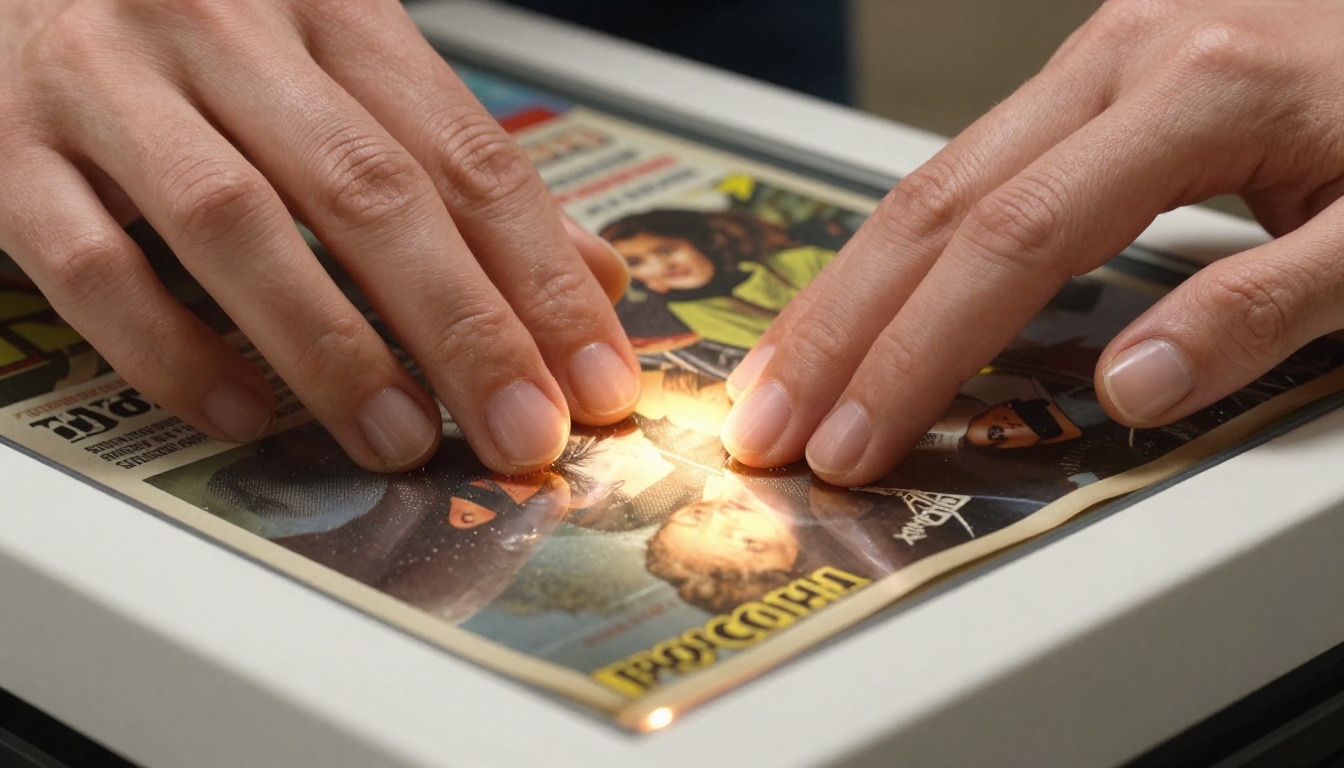
- Place pages face-down on scanner glass, aligned to the top-left corner marker
- Preview scan before committing to check for skew (pages tilted more than 1 degree look amateurish)
- Scan at chosen resolution, save as TIFF to preserve maximum data
- Name the file immediately: page_001.tif, page_002.tif, etc.
- Repeat for every page, including inside back page and back page
For two-page spreads in a magazine: Scan the spread as one image, then split it in post. Attempting to scan each page separately leaves a visible spine gap in the final flipbook.
✅ Best Practice: After every 20 pages, review your scanned files in a quick slideshow. Catching a crooked scan on page 20 is far better than discovering it on page 200 after you have assembled the PDF.
Preparing Your Scanned Files for Upload
Raw scans from a flatbed scanner need preparation before you build the PDF. Skipping this step is how you end up with a flipbook where some pages are rotated 90 degrees and the front image has a coffee-colored cast.
Corrections to Apply Before PDF Assembly
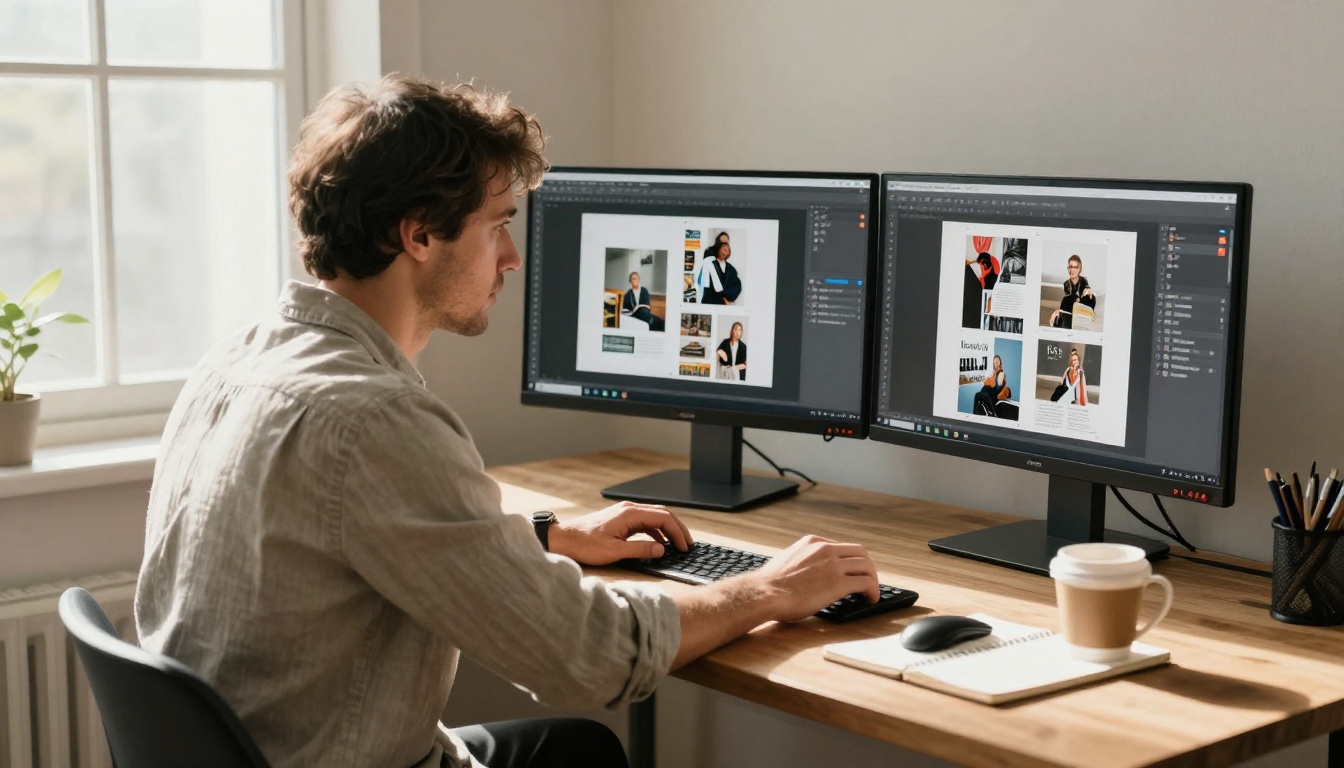
Deskew: Rotate any pages that are not perfectly level. Even 0.5 degrees of tilt is visible in a page-turning flipbook.
Color correction: Aged magazines often have yellowed whites. A gentle curves adjustment in any photo editor brings whites back to neutral without killing the vintage character of the images.
Crop to page edge: Remove the white scanner border from every page. Each page in your flipbook should fill its frame edge to edge.
Consistent page size: If your magazine has a consistent trim size (say, 8.5 x 11 inches), every scan should match exactly. Mixed page sizes create awkward jumps in the flipbook reader.
Building Your PDF
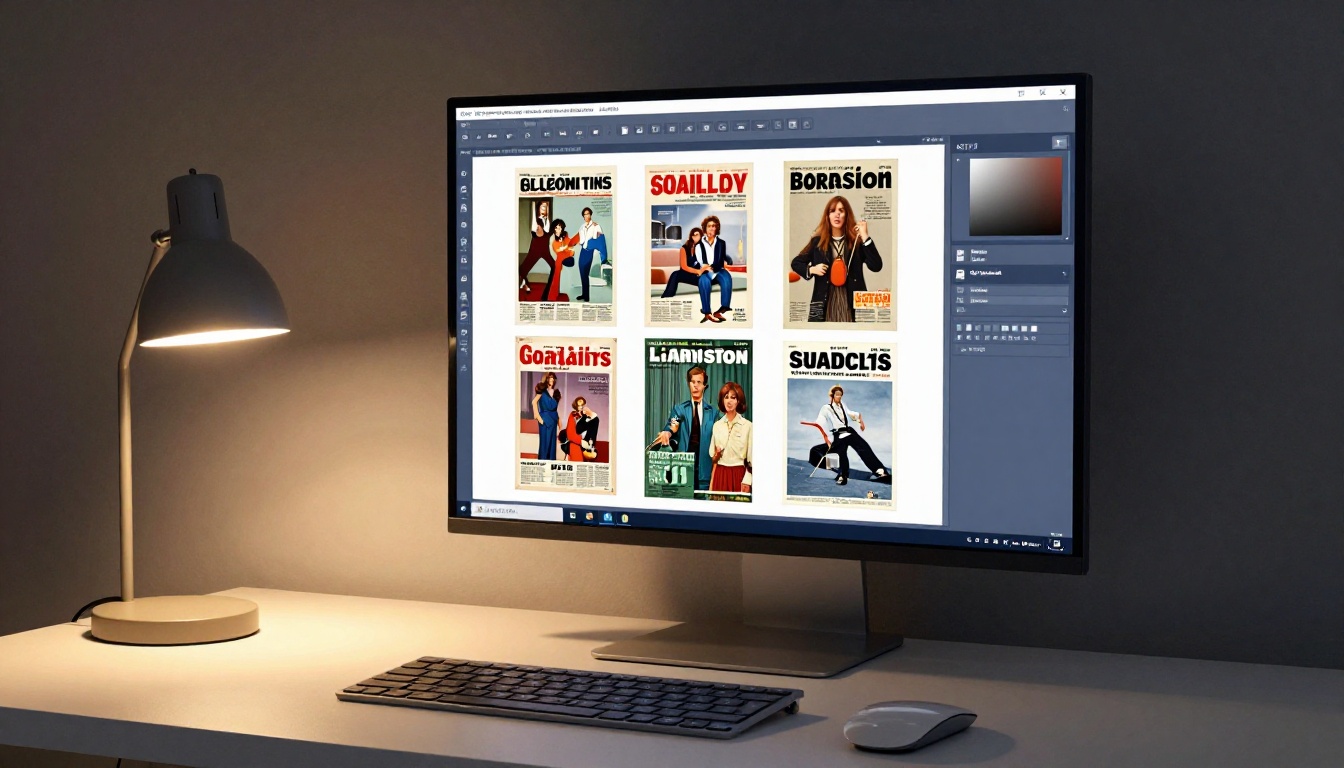
Once your image files are corrected and sequentially named, PDF assembly is straightforward:
- Open Adobe Acrobat (or a free alternative like PDF24 or LibreOffice)
- Select "Create PDF from multiple files"
- Add your page files in order, page_001 through the final page
- Set the output quality: for a magazine, PDF/X-1a is a print-quality standard, but for web publication, a web-optimized PDF with JPEG compression at 90% quality is sufficient
- Export and review the PDF in full-screen mode before uploading
💡 Pro Tip: Keep your "master" PDF (TIFF-quality) and create a separate "web" PDF (compressed for upload). The master stays in your archive; the web version is what you publish. Never overwrite the master.
File Size Targets
A 100-page magazine at 300 DPI in a web-optimized PDF should land between 15MB and 45MB. Much larger suggests uncompressed images inside the PDF. Much smaller suggests over-compression that will show JPEG artifacts on screen.
Creating the Flipbook from Your Scanned Magazine
With a clean, web-optimized PDF ready, the publishing step is where everything comes together. Flipbooks AI converts your PDF into a fully interactive, page-turning digital magazine in minutes.

How to Publish on Flipbooks AI
- Create your account: Visit Flipbooks AI and sign up for free
- Select your tool: For magazine content, the Magazine Flipbook Creator is purpose-built for this format
- Upload your PDF: Drag your web-optimized PDF into the upload area. The platform processes and converts each page automatically
- Wait for conversion: Processing time depends on page count. A 100-page magazine typically converts in under 2 minutes
- Preview your flipbook: Review every page spread in the built-in preview mode before publishing
✅ Best Practice: Check page 1 (front), page 2 (inside front), and a random interior spread during preview. If these three look correct, the rest of the magazine almost always does too.
Feature Comparison by Plan
| Feature | Free | Standard | Professional |
|---|
| Flipbooks per account | 3 | Unlimited | Unlimited |
| Watermark | No | No | No |
| Custom branding | No | Yes | Yes |
| Password protection | No | Yes | Yes |
| Analytics dashboard | No | No | Yes |
| Lead generation forms | No | No | Yes |
| Offline downloads | No | No | Yes |
| Embed on website | Yes | Yes | Yes |
All plans, including free, publish flipbooks with no watermark. For magazine archives shared publicly, the Standard plan's unlimited flipbooks and custom branding make it the practical choice. Compare all pricing options to choose what fits your project.
Customizing Your Digital Magazine
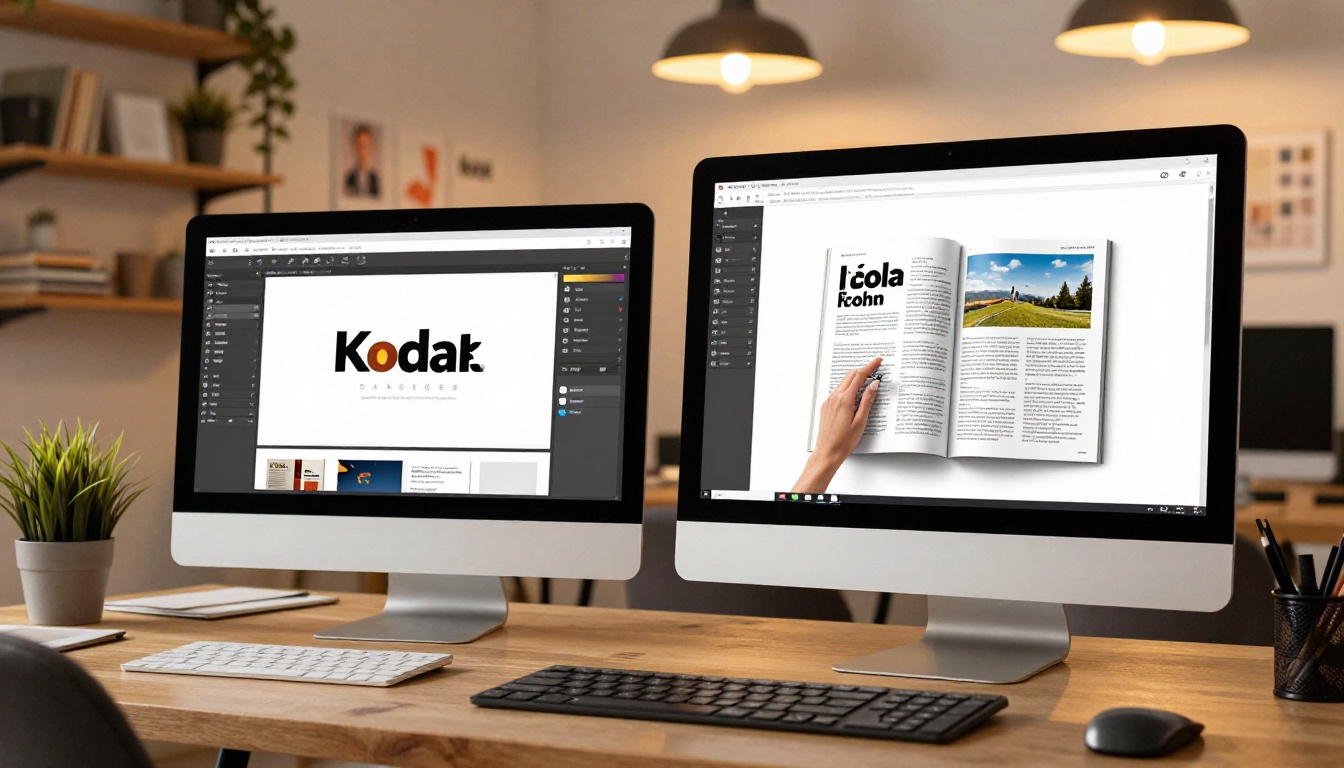
A scanned magazine flipbook does not have to look like a raw digitization job. With the right customization, it can look like a professionally published digital edition.
Customization Options Worth Using
Thumbnail image: The front image appears in any gallery or embed. Make sure it is the front page of the magazine, not a blank page.
Custom background color: Choose a background that complements the magazine's era. A dark background suits vintage print; white suits modern editorial.
Page effects: The page-turn animation can be adjusted for speed and style. A slower, more deliberate page turn suits archival content.
Branding: Add your logo or the original publication's masthead to the flipbook header.
Table of contents: If you know the page numbers of major sections, adding a clickable table of contents transforms navigation in a long magazine.
💡 Pro Tip: For vintage magazine archives, a dark or sepia-toned background reinforces the period authenticity of the content. For contemporary magazines, white matches the original print reading experience.
Sharing and Publishing Your Flipbook
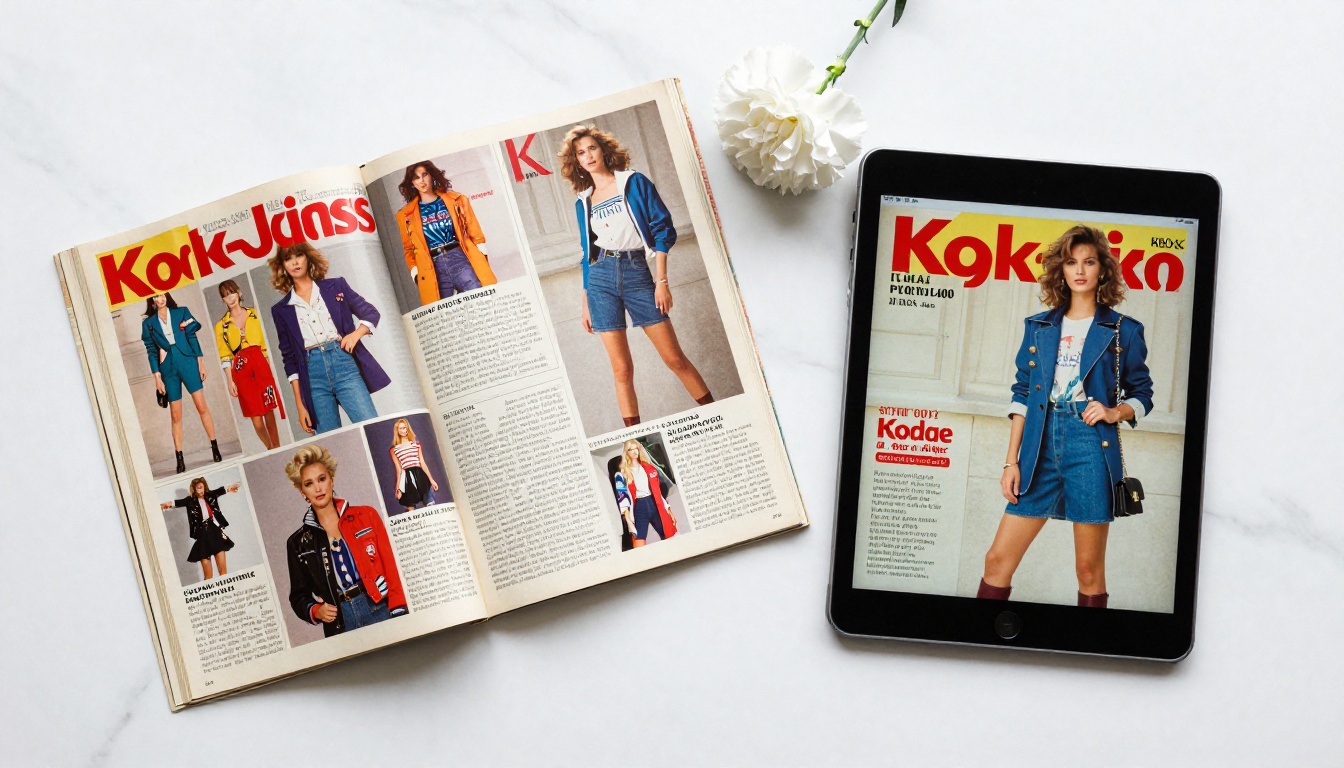
A flipbook sitting in your account unlisted helps no one. The sharing options in Flipbooks AI address every common distribution scenario.
Distribution Methods
Direct link: Every flipbook gets a permanent URL. Share it anywhere: email newsletters, social media, WhatsApp, or printed QR codes that link to the digital version.
Embed on website: Copy the embed code and paste it into any website's HTML. The flipbook loads inline, giving visitors the page-turning experience without leaving your site. The Embed Flipbook on Website tool simplifies this for any platform.
Password protection: For private magazine archives (family collections, internal publications, subscriber-only content), password protection restricts access to authorized readers only.
PDF download: Give readers the option to download the original PDF for offline reading.
Who Benefits from Scanned Magazine Flipbooks
The use cases extend well beyond personal archiving:
- Libraries and archives: Institutions digitizing periodical collections for public access
- Brands and agencies: Republishing vintage advertising for brand history content
- Fashion and design communities: Preserving reference material from print eras
- Educators: Making period publications accessible to students in digital learning environments
- Family historians: Converting decades of collected magazines into shareable family archives
The Multi-Device Reality
A digital flipbook is only as good as its worst reading experience. A scanned magazine that looks perfect on desktop but breaks on mobile is a publication that most of your audience will never finish.
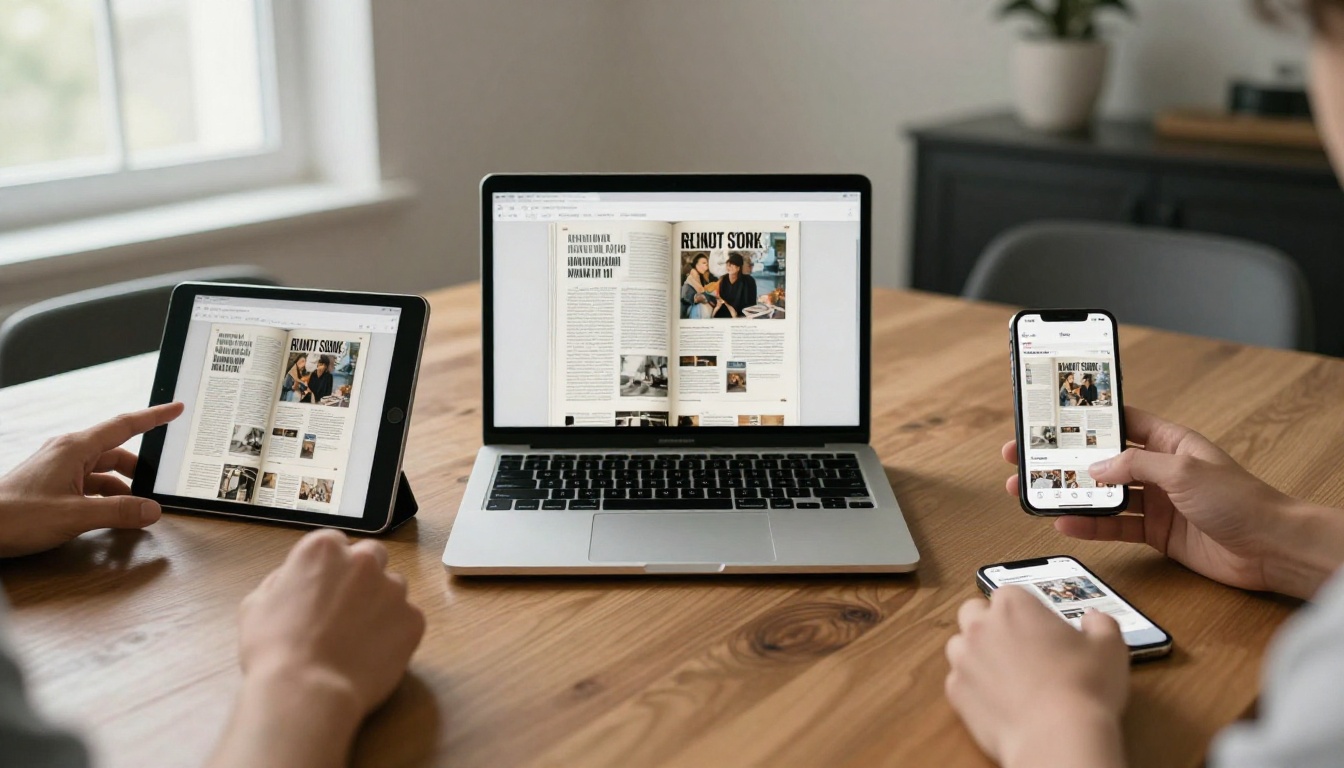
Flipbooks AI renders flipbooks responsively across all screen sizes. On mobile, the single-page view replaces the double-page spread automatically. On tablet, the spread view returns with touch-swipe navigation. On desktop, keyboard shortcuts and scroll navigation both work.
For scanned magazines specifically, the zoom functionality matters more than in regular publications. Readers zooming into a 1960s advertisement or a detailed photo spread need to see clean, readable resolution. This is why the 300 DPI minimum at the scan stage is not optional.
Building a Magazine Archive
If you are converting more than one issue, you are building an archive. And an archive benefits from a systematic approach.

Archive Organization Tips
- Consistent naming convention: "MagazineName_YYYY_MM" (example: VogueUS_1978_03) gives you a sortable, searchable archive
- Batch upload: With an unlimited plan, upload entire runs of a publication in one session
- Category tagging: Group issues by year, topic, or publication to make browsing manageable
- Analytics tracking: On the Professional plan, analytics show which issues get the most traffic, helping you prioritize which issues to digitize next
For large-scale digitization projects, the E-Magazine Publishing Tool is specifically optimized for multi-issue publication workflows.
Cost Comparison: DIY vs. Professional Services
| Approach | Upfront Cost | Per-Issue Time | Quality Control |
|---|
| DIY (your scanner + Flipbooks AI) | Scanner $80-$400 | 2-4 hours/issue | Full control |
| Professional scanning service | $0 upfront | Days/weeks turnaround | Variable quality |
| Camera scanning rig (DIY) | $200-$800 | 1-2 hours/issue | High, if calibrated |
| Phone scanning app | $0 | 30-60 min/issue | Lower resolution |
For most individuals and small organizations, the DIY flatbed scanner approach delivers the best combination of quality, speed, and cost over the long term. The scanner pays for itself within the first 10-15 issues.
Taking Your Archive Further
Once your scanned magazine is live as a flipbook, additional Flipbooks AI tools can extend what you do with the content. The Digital Portfolio Creator works well for editorial teams curating highlights from multiple issues into a single showcase. For publications that include annual indices or reading lists, the Interactive E-Book Publisher handles supplementary content alongside your magazine archive.
✅ Best Practice: After publishing your first flipbook, share the link with 2-3 people who did not help create it. Their feedback on readability and navigation will surface issues that familiarity blinds you to.
The full process from scanner to published flipbook is achievable in an afternoon for a single issue. With a systematic workflow and the right tools, a collection of 50 or 100 issues becomes a properly structured digital archive that outlasts any physical shelf.
Ready to start? Create your first flipbook free on Flipbooks AI, or check pricing plans to find the right tier for your archive project. Every issue you digitize is one that can never be lost to time, water damage, or a house move.
Browse all flipbook tools to see what else you can build once your magazine is live.



