Over 60% of all web traffic now happens on mobile devices. If your flipbook was designed with a desktop browser in mind, a significant portion of your audience is getting a frustrating, pinch-to-zoom experience that sends them clicking away within seconds. Mobile optimization is not a nice-to-have anymore. It is the baseline expectation for any digital publication that wants to be taken seriously.
Flipbooks AI was built with this reality in mind, offering a mobile-responsive platform that handles much of the heavy lifting automatically. But even with the right tool, there are choices you can make during the creation process that dramatically improve how your flipbook performs on a phone or tablet. This article walks through all of them.
Why Mobile Readers Behave Differently
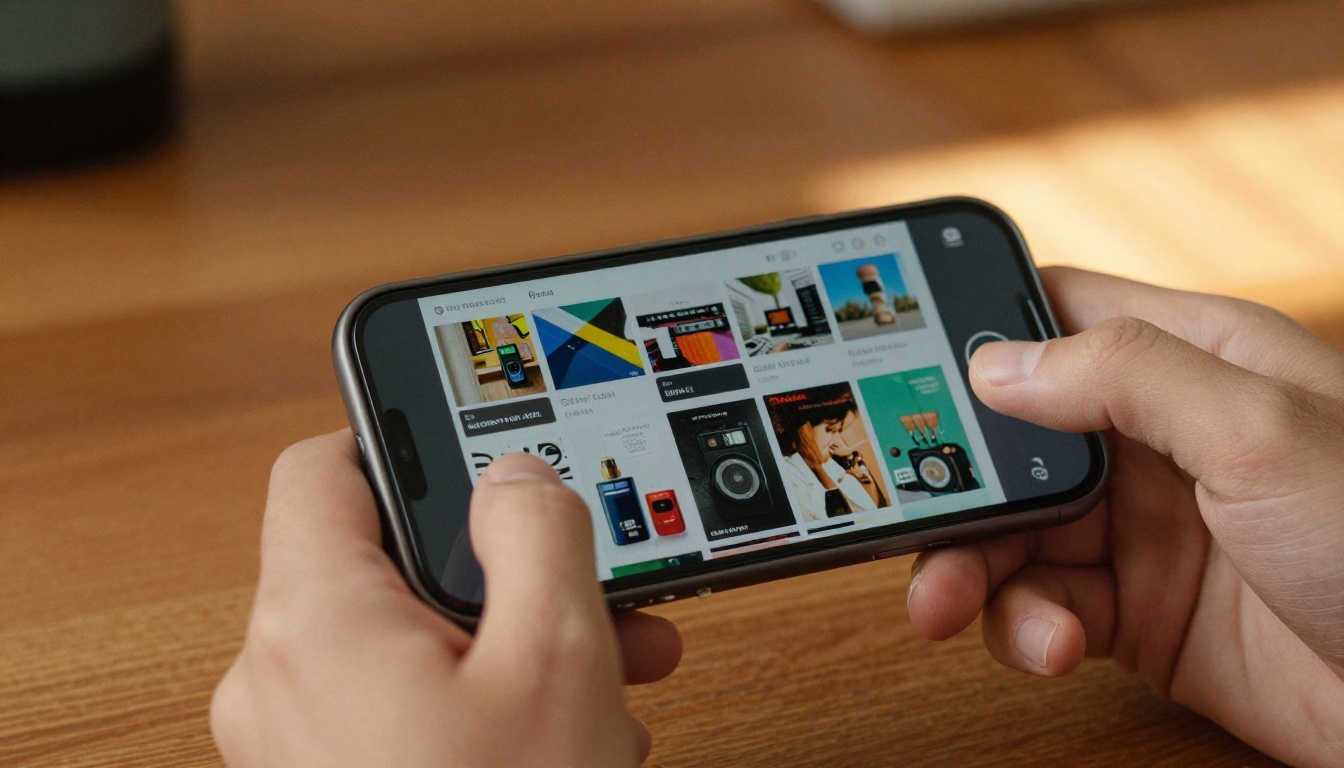
Mobile users do not read the same way desktop users do. They scroll faster, they skim more aggressively, and they make snap judgments about whether content is worth their time within the first three seconds. A flipbook that loads slowly, requires pinching to read text, or has tap targets too small for a finger is not just annoying. It is actively costing you readers, leads, and sales.
The physics of mobile interaction are also different. A mouse cursor can hover with precision. A finger cannot. Navigation buttons, page controls, and clickable elements need to be larger, more spaced out, and more forgiving than their desktop equivalents. This is not just a design preference. It is a usability requirement.
💡 Pro tip: Google's Core Web Vitals now factor in mobile experience directly. A mobile-unfriendly flipbook embedded on your website can hurt your overall SEO ranking.
There are three pillars to mobile-friendly flipbook design: layout and typography, touch navigation, and loading performance. Every practical recommendation in this article falls into one of those three categories.
What "Mobile-Friendly" Actually Means
Before optimizing anything, it helps to know exactly what you are aiming for. A truly mobile-friendly flipbook checks all of the following boxes:
- Text is readable without zooming: Body copy should be at minimum 16px equivalent. No fine print that requires pinching.
- Tap targets are large enough: Any interactive element should be at least 44x44 pixels, per Apple's Human Interface Guidelines.
- Pages load in under 3 seconds: On a 4G connection. Anything slower and bounce rates climb sharply.
- Navigation works with one thumb: Controls should be reachable without awkward repositioning of the hand.
- Images scale correctly: No cropping, no overflow, no horizontal scrolling.
- Portrait and landscape both work: Readers rotate their phones. Your flipbook should handle it gracefully.

Layout and Typography for Small Screens
Single-Column Always Wins
Multi-column layouts that look elegant on a 27-inch monitor collapse into an unreadable mess on a 6-inch screen. The safest structure for mobile-first flipbooks is a single-column layout with generous white space. This means one column of text, images that span the full width of the page, and section breaks that are visual rather than structural.
If your flipbook source is a PDF, design it at a standard A4 or Letter size but treat the central 70% of the page width as the safe zone for critical content. Content that sits in the outer 15% on each side risks being too small to read on mobile without zooming.
Font Size and Line Height
This is the single most common mobile readability failure. Text that looks perfectly sized on a PDF design tool at 10pt or 11pt is borderline illegible on a phone screen when scaled down.
| Font Element | Desktop Minimum | Mobile Minimum |
|---|
| Body Text | 11pt | 14pt equivalent |
| Subheadings | 14pt | 18pt equivalent |
| Headings | 18pt | 24pt equivalent |
| Captions | 9pt | 12pt equivalent |
| CTA Buttons | 12pt | 16pt equivalent |
Line height matters just as much as font size. Tight line spacing on desktop becomes claustrophobic on mobile. Aim for a line height of 1.5 to 1.6 times the font size. This gives each line room to breathe and makes scanning significantly more comfortable.
⚠️ Warning: Script fonts and decorative typefaces look beautiful in print but become illegible at small sizes on low-DPI screens. Reserve them for headlines only, never for body text.
Image Placement That Works on Any Screen
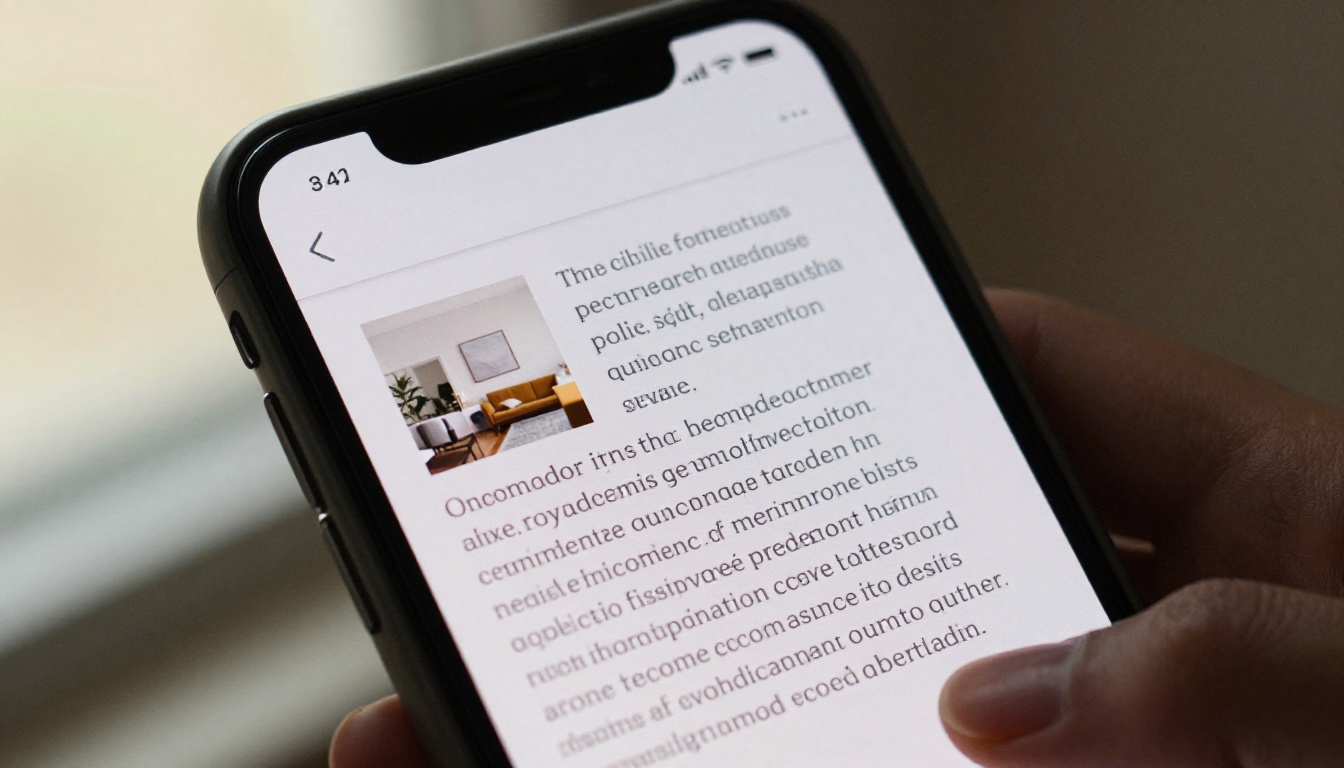
Images embedded inline with text create wrapping problems on narrow screens. The safer approach is full-width images placed between text sections rather than floated beside them. This structure flows naturally on both portrait and landscape orientations without requiring the reader to scroll horizontally or zoom.
Touch Navigation That Actually Feels Good
Swipe vs. Tap: Giving Readers Both
Mobile readers expect to swipe left and right to flip pages. This is intuitive, natural, and fast. But swipe-only navigation creates a problem: readers who want to skip several pages at once have no good way to do it without swiping many times.
The ideal touch navigation system combines both:
- Swipe gestures for sequential page-by-page movement
- Tap zones on the left and right edges of the screen for previous/next page
- A thumbnail navigation panel that opens on tap, allowing readers to jump to any page
Flipbooks AI implements all three of these navigation modes by default, which is one of the main reasons it outperforms static PDF embeds on mobile devices.
Button and Control Sizing
Navigation controls on mobile need to be finger-sized, not cursor-sized. Here is how the sizing breaks down in practice:
| Control Type | Minimum Size | Recommended Size |
|---|
| Page Turn Arrow | 36x36px | 48x48px |
| Thumbnail Toggle | 40x40px | 52x52px |
| Zoom Button | 36x36px | 44x44px |
| Menu / Settings | 40x40px | 48x48px |
| Share Button | 36x36px | 44x44px |
Spacing between controls matters as much as the size of the controls themselves. Two buttons placed 4px apart will both trigger on a sloppy tap. Leave at least 8px of space between any two interactive elements.
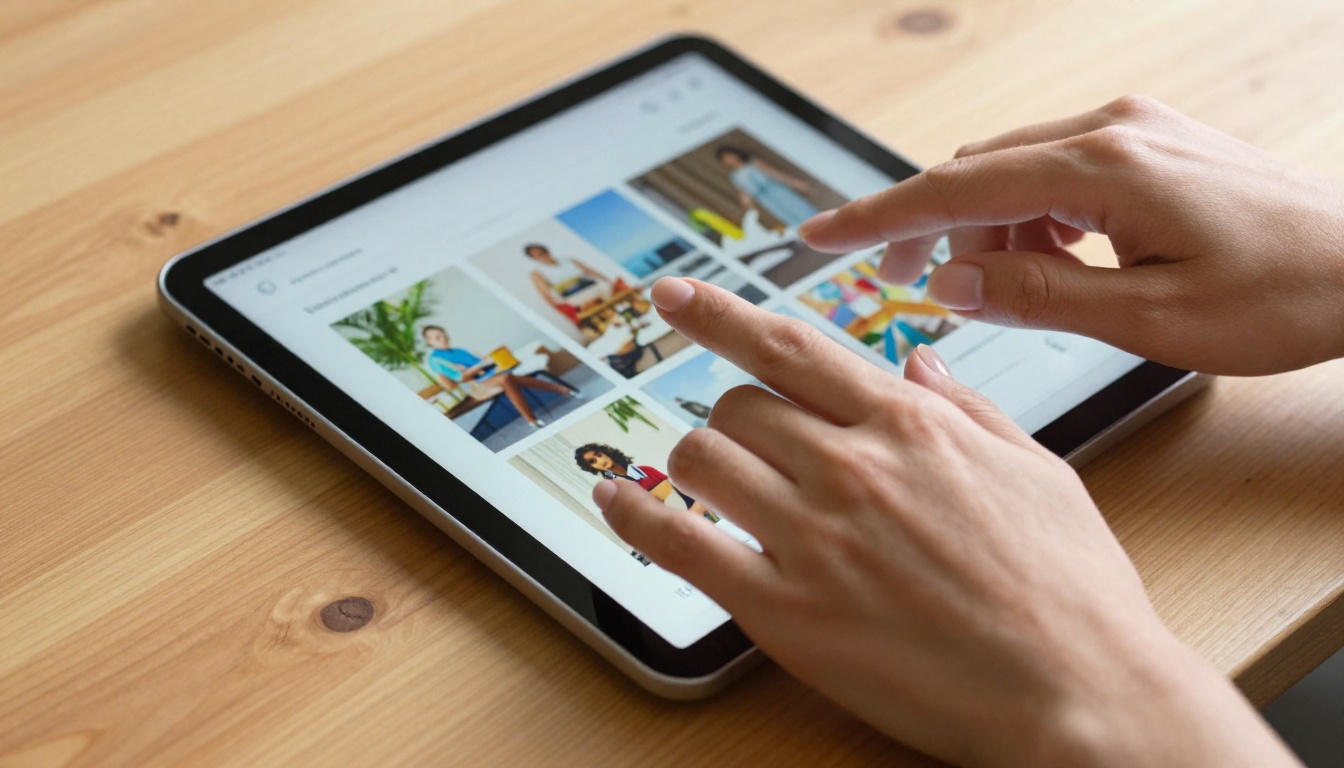
✅ Best practice: Always test your flipbook's touch navigation with actual fingers on an actual device, not just in a browser's mobile simulation mode. The difference in feel is significant.
Pinch-to-Zoom Handling
Pinch-to-zoom should work but should not be required. If readers need to zoom in just to read your content, the content itself needs to be larger. However, disabling zoom entirely is a mistake. Some readers have visual impairments and rely on browser zoom as an accessibility feature. Never lock the viewport with maximum-scale=1 or user-scalable=no.
Loading Speed on Mobile Devices
Why Mobile Loading Is Different
Mobile connections are slower and less stable than home broadband. A flipbook that loads instantly on a desktop over fiber will stall for seconds on a 4G connection in a moving vehicle or an area with weak signal. Every unnecessary byte you add to your flipbook is a fraction of a second added to the load time on mobile.

The three biggest contributors to slow flipbook loading on mobile are:
- Uncompressed images: A single unoptimized full-page image can be 5MB or more. At mobile speeds, that is several seconds of load time for one page.
- Too many pages loading at once: Loading all 40 pages simultaneously when the reader is only on page 1 wastes bandwidth.
- Heavy fonts: Decorative font families with multiple weights add hundreds of kilobytes per variant.
Lazy Loading: The Essential Technique
Lazy loading means loading content only when it is about to be needed, rather than all at once. For flipbooks, this means loading the current page and the next two or three pages, while the rest load in the background as the reader progresses.
This single technique can reduce initial load time by 60-80% for longer publications. Flipbooks AI implements progressive lazy loading automatically, so your readers are never waiting for pages they have not reached yet.
Image Optimization Before Upload
Before uploading your PDF or images, run through these steps:
- Export at 150 DPI for screen-only publications (72-96 DPI is sufficient for some cases, but 150 gives a clean retina appearance)
- Use JPEG for photos, PNG only for images with transparency, and WebP where possible
- Compress images using a tool before embedding in your source PDF
- Remove embedded fonts that are not used in your document
- Flatten any transparency effects that force PDF renderers to create complex compositing layers
💡 Pro tip: Aim for a final PDF file size under 5MB for publications under 20 pages. For longer publications, 500KB per page is a healthy target.
Creating a Mobile-Friendly Flipbook with Flipbooks AI
Flipbooks AI was designed from the ground up for cross-device reading. Here is how to use the platform to produce a flipbook that works beautifully on every screen size.
Step 1: Create Your Account
Go to flipbooksai.com/account and create your account. The Standard plan and above include unlimited flipbooks with no watermarks, which is the minimum you need for serious publishing work.
Step 2: Upload Your PDF
From the dashboard, click New Flipbook and upload your prepared PDF. Flipbooks AI converts it automatically into an interactive digital publication. The conversion preserves your fonts, images, and layout while adding the interactive page-turning experience.
✅ Best practice: Before uploading, run your PDF through a compression tool and verify the file is under 20MB. Larger files take longer to process and produce heavier flipbooks.
Step 3: Configure Mobile Display Settings
In the flipbook editor, locate the Display Settings panel. Here you can:
- Toggle Mobile-Responsive Layout on (it is on by default)
- Set the default view to Single Page for mobile, rather than double-page spread, which is unreadable on phones
- Enable Auto-Fit to Screen so pages scale correctly on any viewport
- Choose your Page Flip Animation: the simple slide is faster and more mobile-friendly than the 3D curl
Step 4: Apply Branding Without Breaking Mobile Layout
Custom branding is available on all plans. Add your logo, set your brand colors, and customize the navigation bar. When doing this, keep mobile constraints in mind:
- Use a logo that is horizontal or square (tall logos get cramped on small screens)
- Keep the navigation bar minimal: logo, share button, and full-screen toggle are enough
- Choose high-contrast colors for navigation controls so they are visible on both light and dark page backgrounds
Step 5: Set Up Sharing for Mobile Access
Once your flipbook is published, Flipbooks AI gives you multiple sharing options, all of which work perfectly on mobile:
- Direct link: Share a URL that opens in the reader's mobile browser without any app installation
- Embed code: Place the flipbook directly on your website using a responsive iframe that adapts to any container width
- QR code: Generate a QR code that links directly to your flipbook, perfect for print materials and business cards
- Password protection: Restrict access to private flipbooks while maintaining full mobile functionality
💡 Pro tip: Use the Embed Flipbook on Website tool to generate a responsive embed code that automatically adjusts the flipbook height to match the reader's screen.
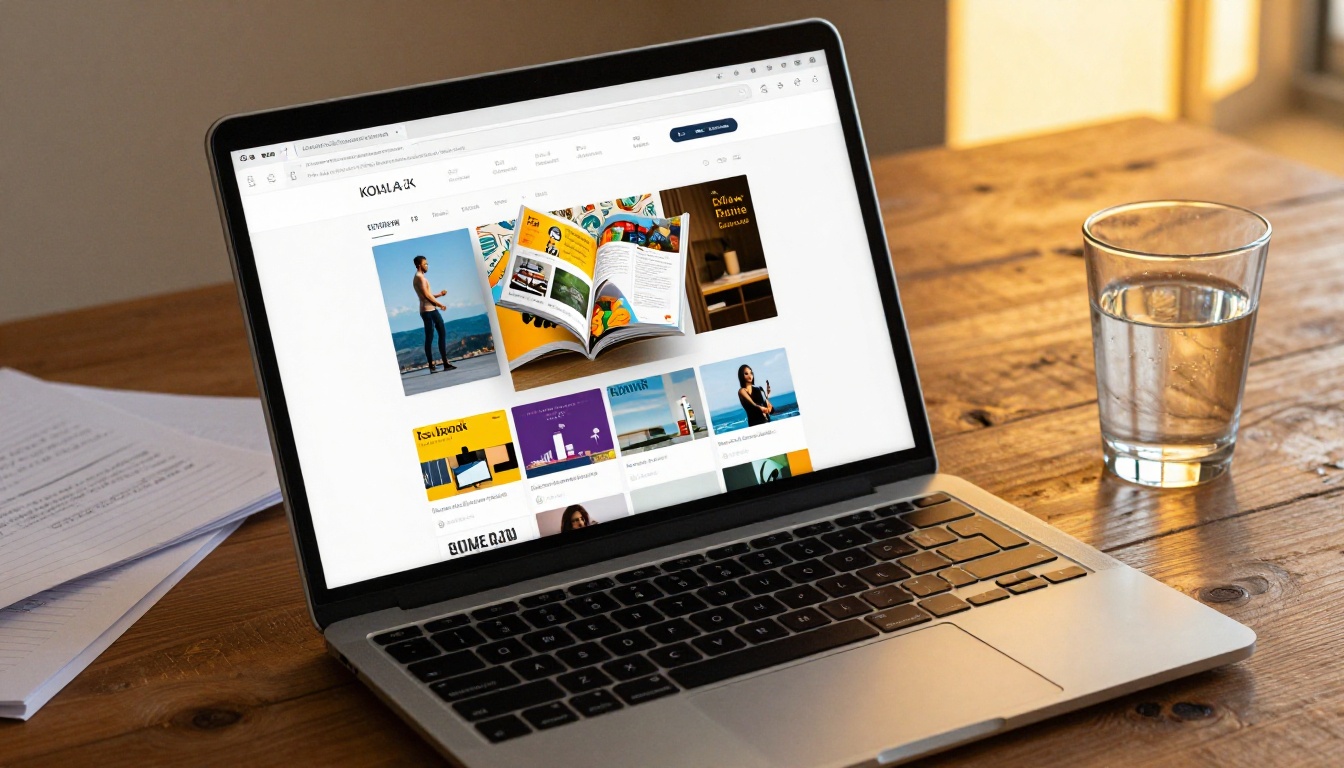
Step 6: Track Performance with Analytics
On the Professional plan, you get access to per-reader analytics including device type breakdown. This shows you exactly what percentage of your readers are on mobile, which pages they spend the most time on, and where they drop off. Use this data to refine your layout and content decisions for future publications.
Testing Your Flipbook on Real Devices
The Devices That Matter Most
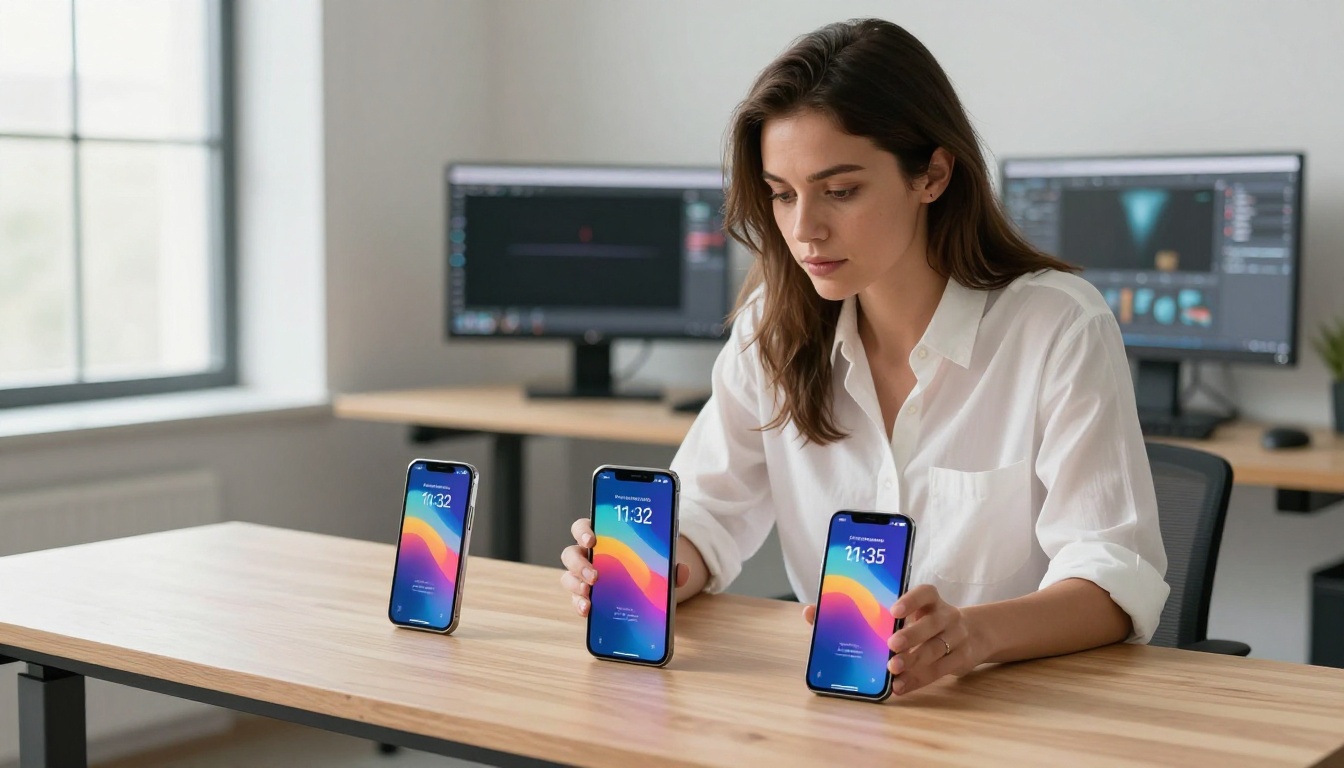
You cannot test mobile performance in a browser's DevTools simulator alone. The simulate mode does not replicate real touch responsiveness, real network conditions, or real rendering performance. Test on at least these device categories:
| Device Category | Screen Size | Main Issue to Test |
|---|
| Small Android phone | 5" / 360px wide | Text readability, navigation touch targets |
| Large Android phone | 6.7" / 412px wide | Layout proportions, image scaling |
| iPhone standard | 6.1" / 390px wide | Safari rendering, iOS scroll behavior |
| iPhone Plus/Max | 6.7" / 430px wide | Landscape mode handling |
| iPad / tablet | 10-11" / 768px wide | Double-page vs single-page display |
What to Check on Each Device
Run through this checklist on each test device:

⚠️ Watch out for: The most common failure point in real-device testing is embedded video content. Videos that autoplay on desktop often require an explicit tap on mobile, and the play button overlay can block surrounding content. Test all multimedia elements specifically.
Mobile-Specific Use Cases Worth Building For
Different types of flipbooks face different mobile challenges. Here is how to approach the most common categories:
Product Catalogs: Readers browse product catalogs on their phones while shopping in-store or comparing options on the couch. Use the Product Catalog tool and prioritize large product images with minimal text per page. Price and product name should be readable without zooming.
Restaurant Menus: Diners often look up menus on their phones while walking to a restaurant. The Restaurant Menu Creator produces mobile-optimized menu layouts by default. Keep menu sections short and use clear visual dividers between categories.
Digital Brochures: Real estate agents and hotel marketers often share brochures via WhatsApp or iMessage, which means they open in a mobile browser with no prior context. The Real Estate Brochure and Hotel Brochure tools produce share-ready flipbooks that load fast from a direct link.
E-Books and Courses: Educational content needs longer reading sessions on mobile, which means comfortable typography above everything else. The Interactive E-Book Publisher supports customizable reading settings so readers can adjust text size to their preference.
Portfolios: Creative professionals share their Digital Portfolio via Instagram bio links, which are almost always opened on mobile. Large, full-bleed images with minimal text create the most impact on small screens.
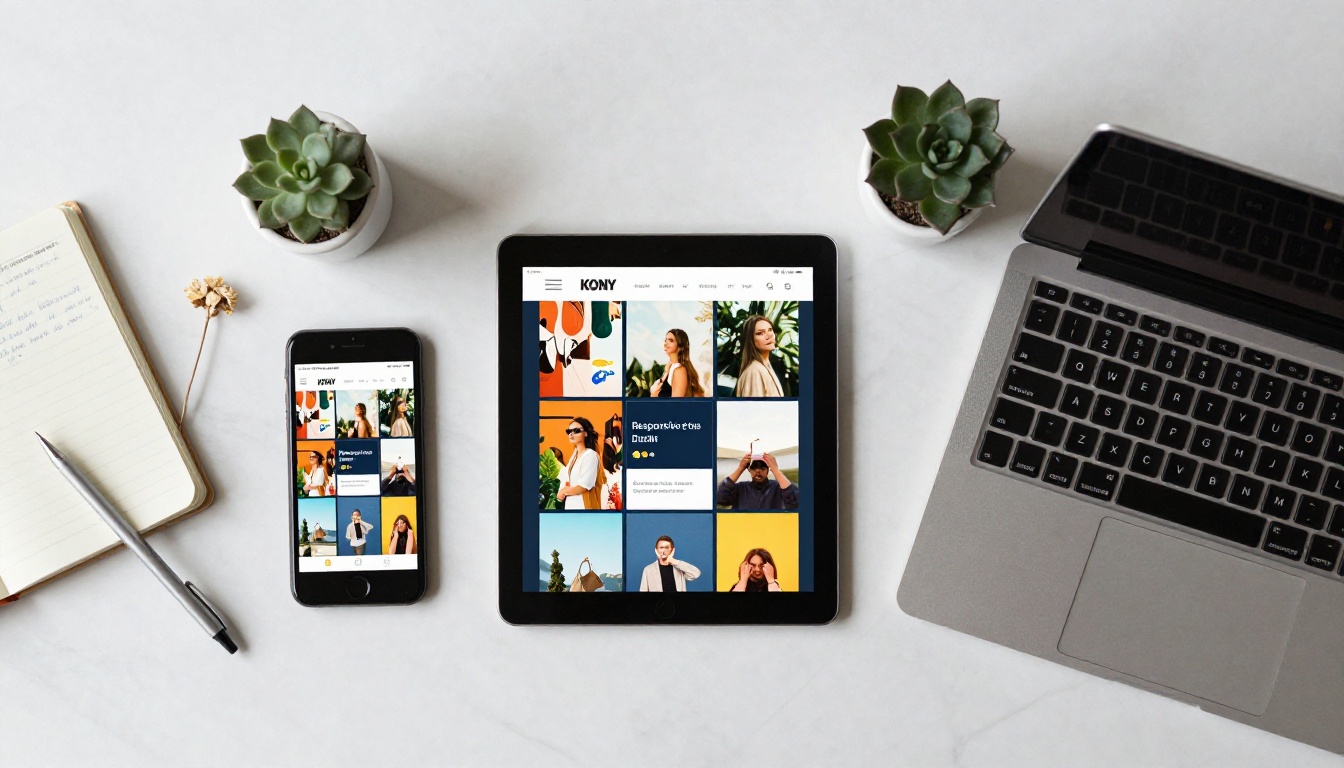
Make Every Reader Count
Mobile readers are not a secondary audience. They are often your primary audience, and they deserve a flipbook experience that respects their time, their device, and their patience. The gap between a flipbook that feels polished on mobile and one that feels like an afterthought is not a matter of skill. It is a matter of deliberate design choices made before and during the creation process.
Start with a mobile-first mindset when designing your source PDF. Choose a platform that handles the technical complexity of responsive rendering. Test on real devices before sharing. And iterate based on real usage data.
Ready to build flipbooks that work as well on a 5-inch phone screen as they do on a 27-inch monitor? Create your account on Flipbooks AI and start publishing with confidence.
Browse all available flipbook tools to find the right template for your specific use case, or compare pricing plans to see which features fit your workflow.



