There's a specific feeling people get when they pick up a beautifully printed magazine. The pages have weight. They turn with a satisfying drag. The layouts breathe. The photography fills every inch of the page. Your PDF can have all of that, and it doesn't require a design degree or expensive software to get there. Flipbooks AI makes the transformation straightforward, turning a static document into a rich, interactive publication that readers actually want to sit with.
Why a Flat PDF Feels Wrong
PDFs were built for printing and archiving, not for reading experiences. When you send someone a PDF link, they scroll past it. The page structure stays rigid. Images sit within margins. There's no tactile pull to move from one section to the next.
A real magazine works differently. It uses visual hierarchy, white space, full-bleed imagery, and a physical page-turn rhythm that pulls readers forward. When you replicate these qualities digitally, engagement goes up dramatically. The difference isn't just cosmetic. It's structural.
What Makes a Magazine Feel Real
- Page-turn animation: Readers expect to flip pages, not scroll. The physical gesture triggers a different kind of engagement.
- Full-bleed photography: Images that touch all four edges of a page create immersion. PDF margins kill this effect.
- Typographic hierarchy: Magazines use display fonts, pull quotes, and varied text sizes to create rhythm. Standard PDFs stay monotonous.
- Double-page spreads: When two pages work as one visual canvas, the reading experience widens.
- Tactile texture: Even digitally, paper texture and page shadow create depth and dimension.
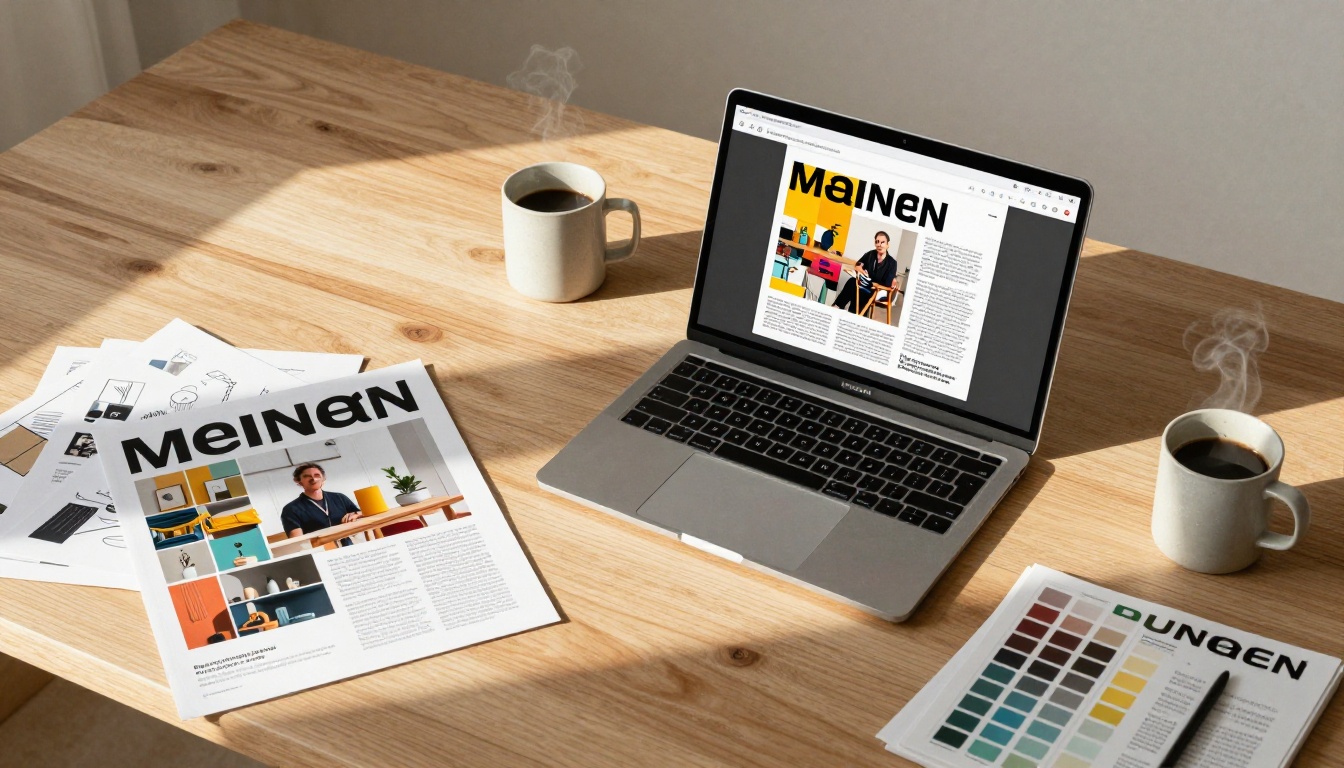
The Real Gap Between PDFs and Print
Most people assume making a PDF "look better" means cleaning up fonts or adjusting margins. That's not the problem. The real gap is the absence of interactivity and visual depth. Here's a direct comparison:
| Feature | Standard PDF | Magazine-Style Flipbook |
|---|
| Page navigation | Scroll or click arrows | Realistic page-flip animation |
| Image presentation | Boxed within margins | Full-bleed, edge-to-edge |
| Media embedding | Static only | Video, audio, links |
| Mobile experience | Pinch-zoom, frustrating | Responsive, fluid |
| Reader engagement | Passive skimming | Active page-turning |
| Sharing options | Download link only | Embed, direct link, password |
| Analytics | None | Page views, time-on-page |
| Branding | None | Custom logo, colors, domain |
The difference is not minor. It's the difference between handing someone a photocopy and giving them a printed issue from a newsstand.
Three Layers That Separate a PDF From a Magazine
Before touching any tool, it helps to identify the three layers that create the gap between a flat document and a genuine magazine experience.
Layer 1: Visual Structure
The layout itself has to breathe. That means wide columns with enough whitespace between them, drop caps or large initial letters to open each section, pull quotes in oversized type to break up dense text, and varied image sizing that moves between full-page hero images and smaller supporting shots. If your PDF already has a strong layout, the conversion will look stunning immediately. If it was designed as a word-processing document, a quick layout pass in Canva, Adobe InDesign, or Google Slides before converting will pay off significantly.
Layer 2: The Page-Turn Experience
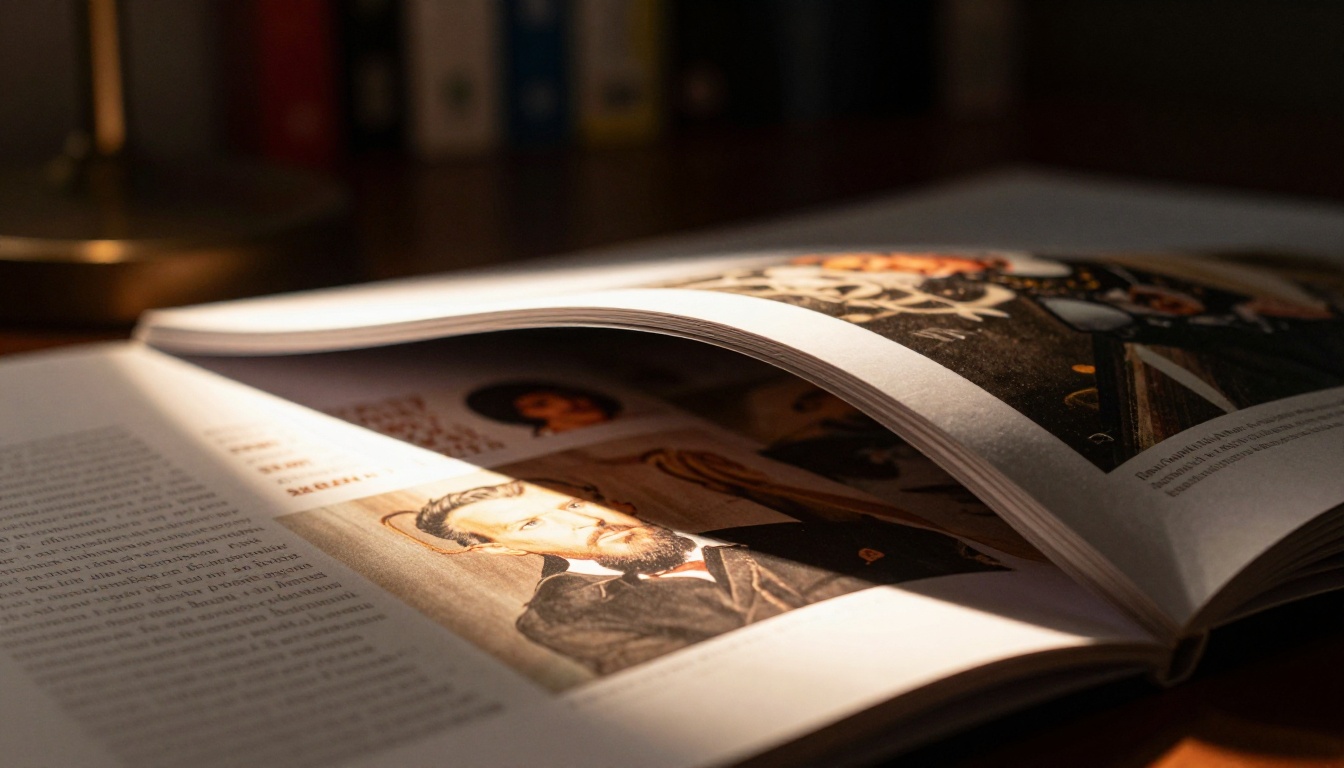
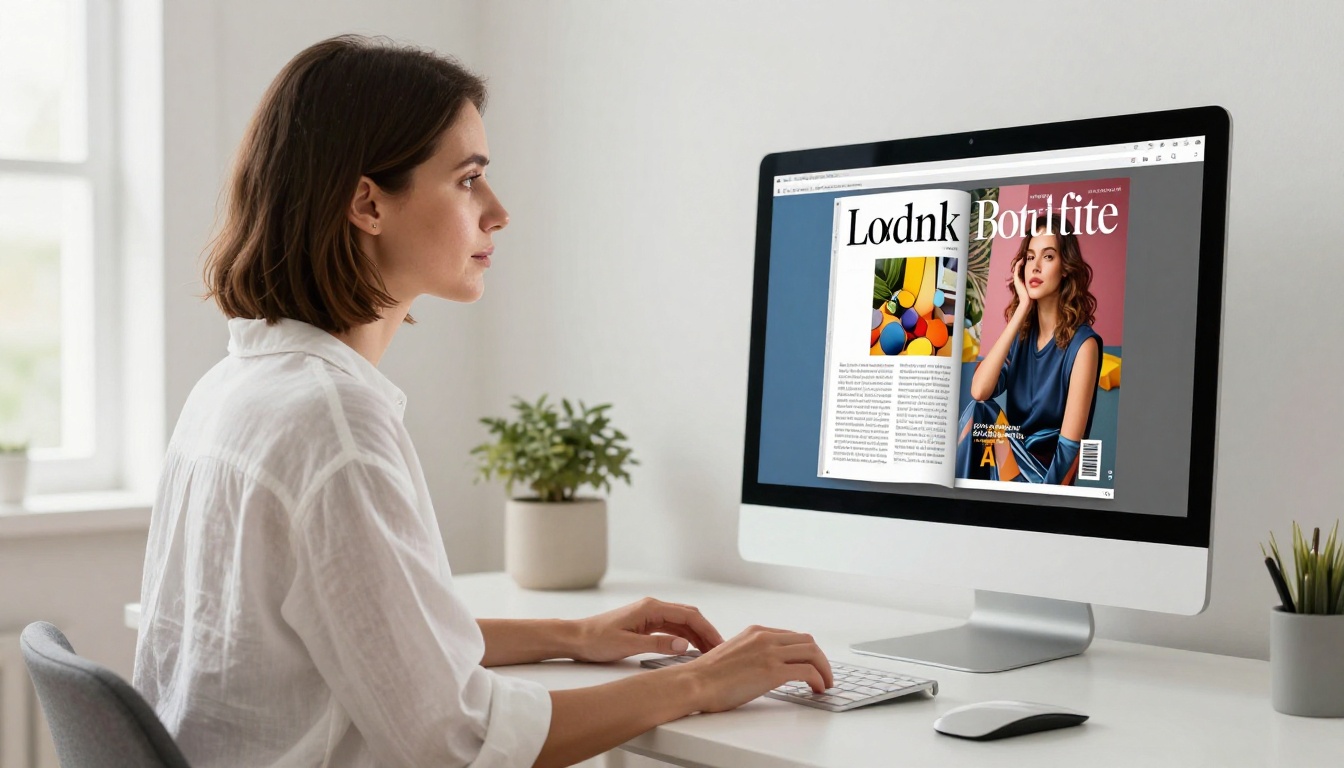
This is the single biggest visual upgrade available. When a PDF becomes a flipbook, readers interact with it the same way they would a physical publication. They reach for the corner of the page. They watch it arc and land on the other side. The paper texture catches a simulated light source. Flipbooks AI renders this effect in HTML5, meaning it runs in any browser without plugins. The page curl is physics-based and responds to mouse drag or touch input.
Layer 3: Interactivity
A magazine published digitally should do things print cannot. That means clickable links within articles or ads, embedded video that plays in-page, audio for narration or ambient sound, a table of contents with jump navigation, and social sharing buttons that let readers spread specific pages. Once all three layers are active, your PDF stops being a document and starts being a publication.
How to Do It With Flipbooks AI
Here's the full process, step by step.
Step 1: Prepare Your PDF
Before uploading, run a quick review of your source file:
- Resolution: Images should be at least 150 DPI for crisp on-screen display
- Embedded fonts: All custom fonts must be embedded in the PDF, not just referenced
- Page size: Standard magazine dimensions work well (8.5x11 portrait or A4)
- Bleeds: If your design has edge-to-edge imagery, confirm bleed settings are correct
A well-prepared PDF produces a dramatically better flipbook. Spend 10 minutes here and save yourself frustration later.
Step 2: Upload and Convert
Go to Flipbooks AI and create a free account. From your dashboard, click New Flipbook, drag and drop your PDF file, and wait for processing (usually under 60 seconds for a 20-page document). Preview the result immediately in your browser.
The PDF to Flipbook Converter handles the conversion automatically. No configuration is required at this stage.
Step 3: Customize the Visual Feel
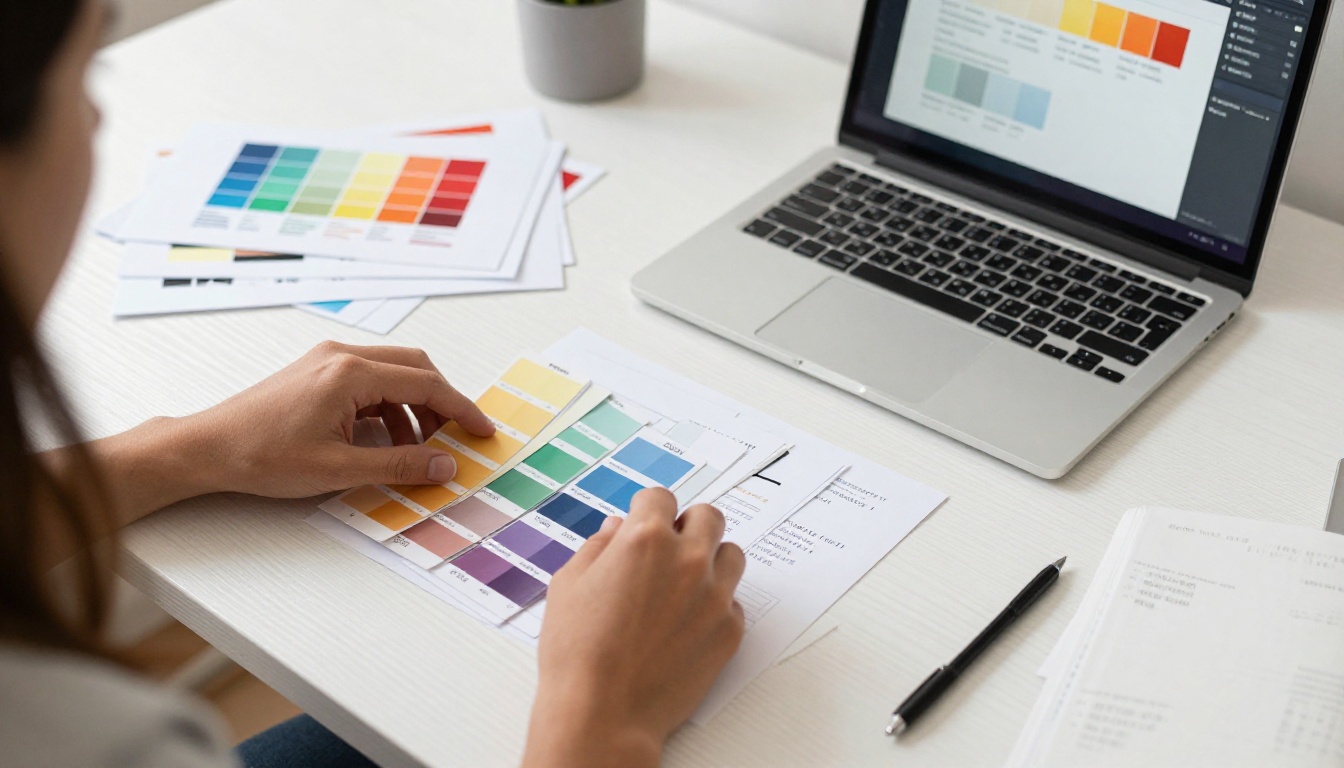
Once converted, the real creative work begins. In the Flipbooks AI editor, you have full control over:
Branding options:
- Upload your logo (appears in the flipbook header or corner watermark)
- Set your brand color for the toolbar and interface
- Add a custom cover thumbnail for link previews
Page effects:
- Toggle between soft page curl and hard cover styles
- Adjust page shadow intensity for depth
- Enable or disable background texture (felt, linen, or plain)
Typography overlay:
- Add captions or text overlays to specific pages
- Insert clickable hotspots that link to external URLs or internal pages
Step 4: Add Multimedia
This is where digital publications leave print completely behind. In the editor, select any page, click Add Media, and choose from video embed (YouTube or Vimeo), audio file, or an interactive link zone. Resize and position the media overlay anywhere on the page. A fashion catalog can have a video lookbook playing directly on its cover. A real estate brochure can include a virtual tour clip embedded in the property listing spread.
Step 5: Configure Sharing and Privacy
Before publishing, set who can access your flipbook:
- Public link: Anyone with the URL can view immediately
- Password protected: Ideal for internal documents, client previews, or premium content
- Embed code: One-click copy for pasting into any website or blog post
- Custom domain: Professional plan users can map their own domain for full white-label control
The Embed Flipbook on Website tool makes embedding completely painless, with responsive sizing options for any container width.
Choosing the Right Plan
Not every project has the same requirements. Here's how the plans compare for magazine-style publishing:
| Feature | Free | Standard | Professional |
|---|
| Flipbooks | 3 | Unlimited | Unlimited |
| Watermark | Yes | No | No |
| Password protection | No | Yes | Yes |
| Custom branding | No | Yes | Yes |
| Analytics | No | No | Yes |
| Lead generation | No | No | Yes |
| Offline downloads | No | No | Yes |
| Embedded media | Limited | Yes | Yes |
| Custom domain | No | No | Yes |
For a serious publication, the Standard plan removes the watermark and adds password protection. The Professional plan adds analytics, which matters when you want to track which spreads hold reader attention longest. Compare all plans to find the right fit.
Real Use Cases That Work Well
Fashion and Lifestyle Brands
A seasonal lookbook sitting in a PDF folder gets ignored. The same content in a flipbook format gets shared, embedded on brand websites, and featured in email campaigns. The Interactive Lookbook Designer is purpose-built for this workflow.
💡 For fashion flipbooks, use double-page spreads for hero campaign shots. The seam between two pages creates a dramatic center fold effect exactly like a printed editorial spread.
Real Estate Agencies
Property brochures with multiple listings benefit enormously from the flipbook format. Agents can embed virtual tour videos directly into the property spread, link to external listing pages, and password-protect the document for specific client presentations. The Real Estate Brochure tool gets you started fast.
Publishing and Media Companies
Independent publishers creating niche magazines can publish monthly digital editions without printing costs. Readers get the full magazine experience while publishers get page-by-page analytics showing which spreads hold attention longest. The E-Magazine Publishing Tool handles ongoing publication workflows at scale.
Corporate Communications
Annual reports and investor communications carry more authority when they look like professionally printed materials. The Annual Report Creator converts financial PDFs into polished interactive documents that stakeholders actually read in full.
Layout Design Tips Before You Convert
Getting the most out of the conversion requires thinking about your PDF layout with the flipbook format in mind. These are the decisions that matter most.
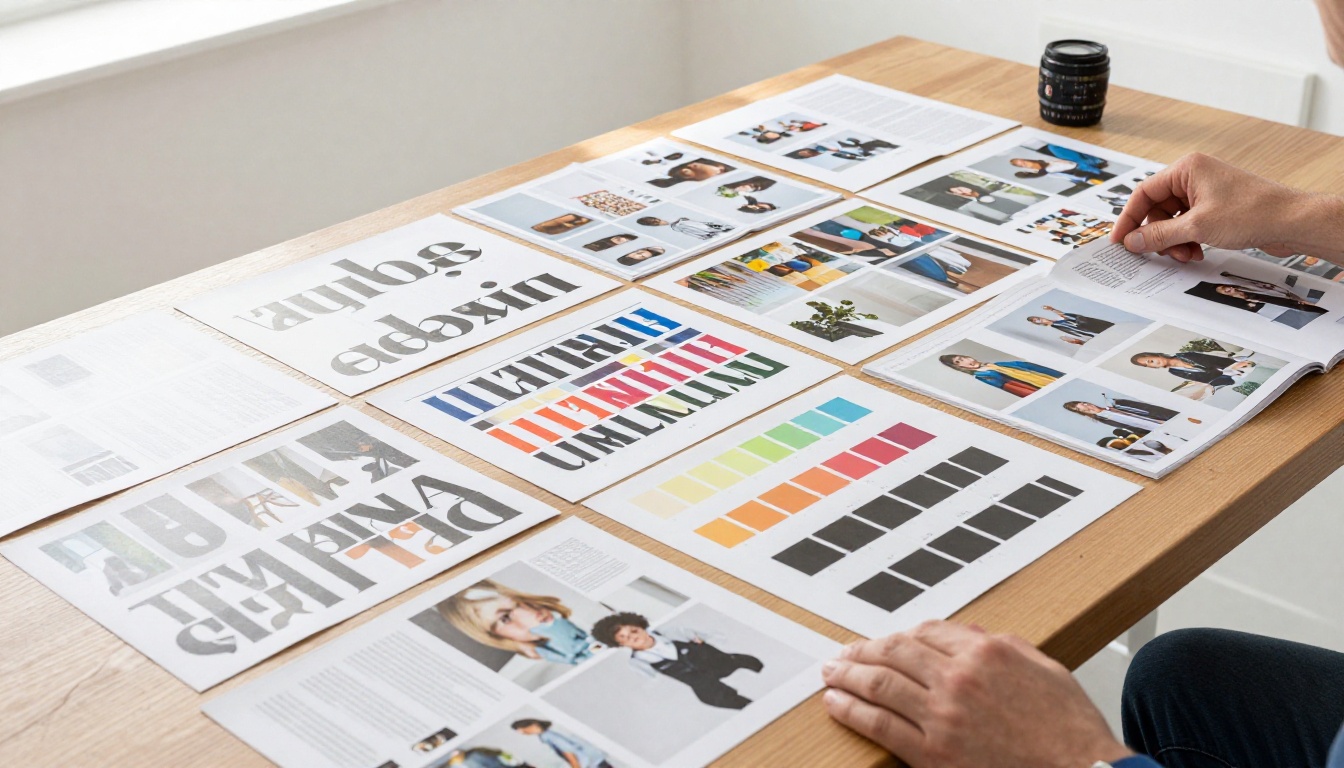
Think in Spreads
Design pages in pairs. Page 2 and page 3 will display together as a spread. If you have a full-bleed image that spans both pages, it will appear as a seamless double-page visual in the flipbook, exactly like a printed magazine. This is the single most cinematic effect available to you in digital publishing.
⚠️ If your PDF uses design elements that span specific pages, verify the page numbering in Flipbooks AI matches your intended spread pairing before publishing publicly.
Make the Cover Work Hard
The cover is the first impression. It should use a full-bleed hero photograph as the primary element, feature your publication name in a large display font at the top, include 3 to 4 cover lines (teaser headlines for inside stories) in the lower third, and carry a date or issue number for series publications. A strong cover drives significantly more clicks when the flipbook is shared as a thumbnail link.
Typography for the Digital Page
| Use Case | Recommended Style |
|---|
| Headlines | Serif display font, high contrast |
| Body copy | Clean sans-serif, high legibility |
| Pull quotes | Bold condensed or italic serif |
| Captions | Light sans-serif, smaller point size |
| Cover title | Custom display or slab serif |
Mixing a serif headline with a sans-serif body text is the standard editorial formula for good reason. It creates instant visual hierarchy without requiring additional design effort.
The Mobile Reading Experience
Over 60% of digital magazine readers access content on phones. A PDF on mobile is a pinch-and-zoom ordeal. A flipbook on mobile is a swipe-through experience that feels native to the device.
Flipbooks AI automatically adapts the flipbook for mobile:
- Portrait mode: Single page view with swipe navigation
- Landscape mode: Double-page spread view with touch-flip gesture
- Pinch zoom: Works within the flipbook without breaking the page structure
- Offline access: Professional plan users can enable offline downloads for reading without a connection
The difference in perceived quality is significant. A reader accessing your flipbook on an iPhone experiences a publication that feels designed for the device, not forced onto it.

Sharing a Flipbook vs. Sharing a PDF
The distribution difference is one of the most underrated benefits of the format switch:
| Sharing Method | PDF | Flipbook |
|---|
| Direct link | Requires download | Opens instantly in browser |
| Email | File size limits apply | URL only, no attachment needed |
| Website embed | Viewer plugin required | HTML5, no plugins |
| Social media preview | No visual preview card | Thumbnail and title card |
| Analytics | None | Page views, duration, clicks |
| Version updates | Must resend the file | Update once, link stays current |
| Password access | Separate encryption required | Built-in access controls |
When you share a flipbook link, the reader clicks and is immediately inside the publication. No downloads. No waiting. No compatibility errors.
✅ Use the embed code to place your flipbook directly on your website or landing page. Visitors read the full publication without ever leaving your site, which keeps your bounce rate down and dwell time up.
What Readers Actually Notice
Here's an honest summary of what changes when a PDF becomes a proper magazine flipbook:
- First impression: Readers immediately recognize the format as a publication, not a document. This sets a higher expectation for the content quality inside.
- Scroll depth: Page-flip navigation creates natural stopping points. Readers who would have scrolled to 40% of a PDF often reach 80% or more of a flipbook.
- Return visits: Shareable links and browser bookmarking make it easy to come back. PDFs don't support this behavior naturally.
- Brand perception: A beautifully formatted flipbook signals investment and professionalism in a way that even a well-designed PDF does not replicate.
- Sharing behavior: Readers share flipbooks because the flip animation and thumbnail preview make the content feel worth sharing. PDF links rarely get passed on.
The format does the work. Your content just needs to be inside it.
Beyond Magazines
Once you're comfortable with the workflow, the same approach applies across a wide range of publication types. The E-Book Flipbook Generator handles long-form content. The Magazine Flipbook Creator is built specifically for editorial publications. For niche categories, tools like the Fashion Catalog, Photography Portfolio, and Newsletter Flipbook Publisher each come pre-configured with layouts and settings optimized for that content type.
The platform also handles non-publishing use cases with equal effectiveness. A spa menu, a restaurant's seasonal offerings, a hotel brochure, and a product catalog all benefit from the same page-flip presentation that magazines use. The principle is identical: static documents become interactive experiences that people actually engage with.
Start Publishing Like a Real Magazine
Your PDF is already most of the way there. The layout exists. The content is written. The images are in place. Converting it to a magazine-quality interactive publication takes minutes, not days, and the result is a document people will actually read, share, and return to.
Get started for free on Flipbooks AI and see the transformation in real time. If you're working on a specific type of publication, browse all flipbook tools to find the template built for your use case. When you're ready to publish without watermarks and with full customization, choose a plan that fits your publishing needs.



