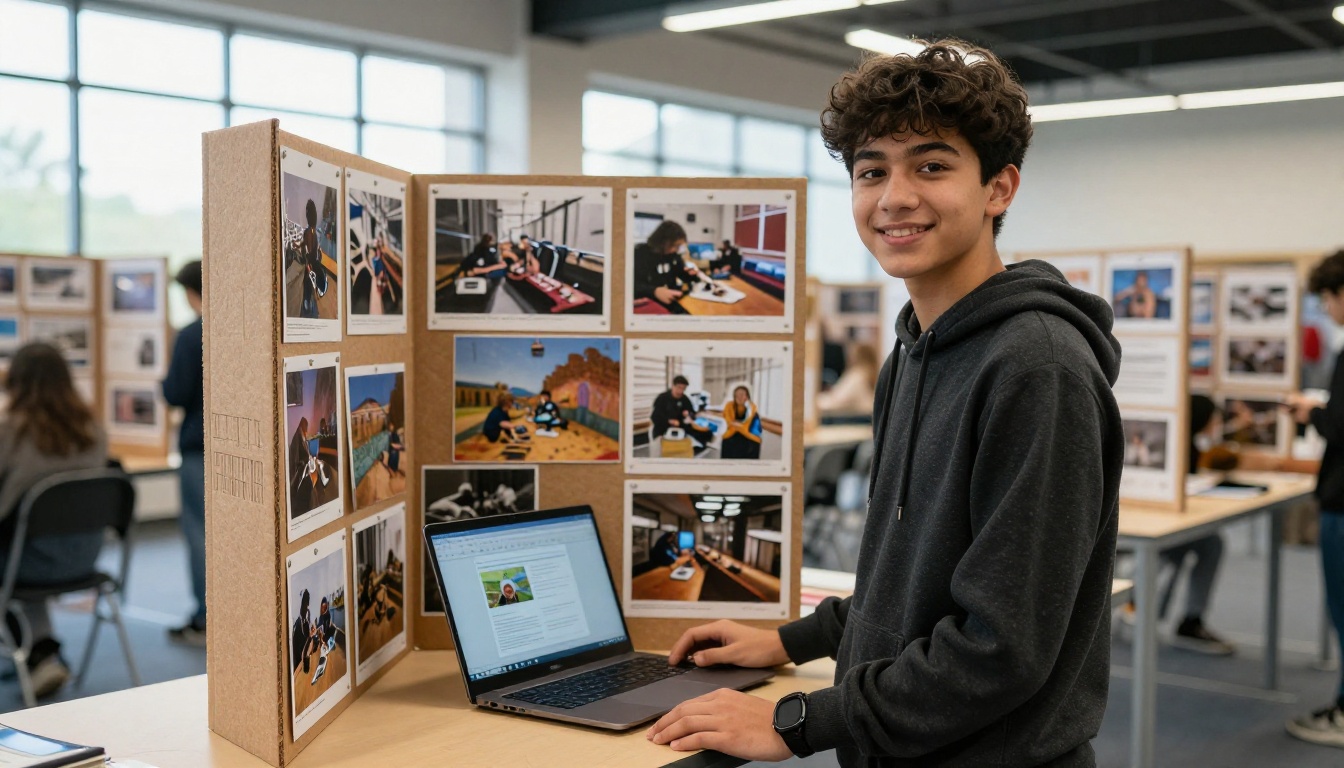
School projects used to mean poster boards, glue sticks, and printed photos taped in crooked rows. Today, students who hand in a polished interactive flipbook don't just get better grades — they get remembered. If you've ever wondered how to make your school project an interactive flipbook, you're about to find out exactly how to do it in less than an hour using Flipbooks AI.
Whether you're working on a history timeline, a science fair report, or a book review, the same principle applies: a digital flipbook takes your flat content and adds page-turning animation, clickable links, embedded images, and a professional look that no paper report can match.
Why Static Reports Don't Cut It Anymore
Teachers grade hundreds of projects every year. A well-formatted Word document or printed report blends into the pile. An interactive digital flipbook doesn't.
What Makes a Flipbook Different From a PDF
A PDF is a locked document. You scroll through it. It sits there. A flipbook, on the other hand, has:
- Animated page turns that mimic a real physical book
- Clickable hyperlinks to sources and related content
- Embedded images and charts that look intentional, not pasted in
- Mobile-responsive layout that works on any device
- Shareable URL your teacher can open directly from email
The experience of reading a flipbook signals effort and polish. That alone changes how your work is perceived.
Teachers Notice the Difference
Here's a direct comparison between submitting a traditional project and a flipbook:
| Feature | Paper Report | PDF | Interactive Flipbook |
|---|
| Page-turn animation | No | No | Yes |
| Clickable links | No | Sometimes | Yes |
| Embedded images | Printed only | Static | High quality, scalable |
| Shareable via link | No | Email attachment | Direct URL |
| Mobile-friendly | No | No | Yes |
| Professional appearance | Basic | Moderate | High |
| Teacher impression | Average | Above average | Stands out |
The evidence is clear: format matters, especially when content quality is similar across the class.
What You Need Before You Start
You don't need any design experience or expensive software. The process is straightforward if you prepare your content first.
Preparing Your Content the Right Way
Before uploading anything, organize your project into a logical structure. Think of each major section as a two-page spread:
- Title page — project name, your name, class, and date
- Introduction — the question or topic you're addressing
- Research sections — your findings, organized by subtopic
- Visual pages — charts, diagrams, images, and infographics
- Sources — properly formatted citations and bibliography
💡 Pro tip: Use Google Slides or Canva to design your pages. Export as a single PDF when done. This gives you full control over layout before converting to a flipbook.
Choosing the Right File Format
Flipbooks AI converts PDFs directly into interactive flipbooks. That means your design source can be anything — Google Slides, Canva, Microsoft Word, PowerPoint, or Adobe InDesign — as long as you export it as a PDF before uploading.
| Source Tool | Export Format | Works With Flipbooks AI |
|---|
| Google Slides | PDF | Yes |
| Canva | PDF | Yes |
| Microsoft PowerPoint | PDF | Yes |
| Microsoft Word | PDF | Yes |
| Adobe InDesign | PDF | Yes |
| Google Docs | PDF | Yes |
✅ Best practice: Design at 16:9 ratio (1920x1080px) for the best visual result on screens.
How to Build Your Flipbook Step by Step
Once your PDF is ready, the actual flipbook creation takes minutes. Here's the full process using Flipbooks AI.
Step 1: Create Your Free Account
Go to flipbooksai.com/account and sign up. The free tier gives you access to the core conversion tools immediately. No credit card required to start.
Step 2: Upload Your PDF
From your dashboard, click New Flipbook and upload your PDF file. The platform processes each page automatically and applies the page-turn animation. For a typical 10-15 page school project, this takes under 30 seconds.
⚠️ Important: Make sure your PDF is under the file size limit for your plan. For most school projects (10-20 pages), this is never an issue.
Step 3: Customize Your Design
This is where your flipbook goes from good to impressive:
- Title page: Set your first page as the thumbnail people see first
- Colors: Match your school colors or subject theme (blue for science, green for environmental projects)
- Background: Choose white for a clean academic look or add a subtle texture
- Page effects: The flip animation is on by default — leave it enabled
- Table of contents: Enable this for longer projects so readers can jump between sections

Step 4: Add Interactive Elements
Standard plans let you embed:
- Images at full resolution without compression
- Hyperlinks to your sources (add these in your original PDF design)
- Videos from YouTube or Vimeo directly onto pages
For a history project, this means you can link to primary source documents or embed a documentary clip right on the relevant page. For a science project, link directly to the journal article you cited.
Step 5: Share With Your Teacher
Once published, your flipbook gets a unique shareable URL. Copy it and submit it through your school's learning management system (Google Classroom, Canvas, Moodle) or paste it directly into an email.
Your teacher clicks the link. The flipbook opens instantly in their browser. No downloads, no attachments, no compatibility issues.
💡 Pro tip: Use the Course Material Publisher tool if your teacher wants a more formal academic format with a clean table of contents and structured navigation.

Best School Projects That Work as Flipbooks
Not every project benefits equally from the flipbook format. These types work exceptionally well.
Science Fair Reports
Science projects have charts, data tables, photographs of experiments, and methodology sections. A flipbook lets you:
- Present each experiment phase on its own spread
- Embed a time-lapse video of your experiment if you filmed it
- Add clickable citations to your sources
- Include a dedicated data visualization page with charts that render crisply
The result looks closer to a published scientific paper than a middle school assignment.
History Timelines and Research Papers
History projects live and die by visual storytelling. A flipbook lets you:
- Dedicate each page to a specific era or event
- Add historical photographs at full resolution
- Link to primary source archives online
- Use color-coded sections per time period for quick orientation
💡 Think of it as your own personal digital textbook chapter. Teachers who see this level of presentation take notice immediately.
Book Reports and Literature Reviews
A flipbook book report can include:
- Character maps as visual diagrams
- Direct quotes in stylized pull-quote format
- A timeline of the plot across pages
- Your personal analysis in a distinct section with different visual styling
Use the Interactive E-Book Publisher tool for literature-based assignments — it's specifically built for text-heavy, multi-chapter content.

Tips to Make Your Flipbook Stand Out
There's a difference between a flipbook that merely converts your PDF and one that genuinely impresses. These details make it count.
Adding Images and Videos That Actually Help
Every image you include should serve the content. Decorative filler images weaken your project. Strong image choices include:
- Data visualizations: Charts you created from your research data
- Process photos: Step-by-step photos of a lab experiment or building process
- Maps and diagrams: Annotated geographic or biological diagrams relevant to your subject
- Infographics: One-page visual summaries of complex information
For video, embed only short clips (under 3 minutes) that directly support your argument. A 45-second time-lapse or a relevant 2-minute documentary excerpt adds value. A 15-minute lecture does not.
Using Color and Visual Hierarchy
Your flipbook's visual consistency signals professionalism. Follow these rules:
- Pick 2-3 colors max and use them consistently across headings, dividers, and callout boxes
- Use one heading font and one body font throughout the whole document
- Leave white space — cramped pages are harder to read and look rushed
- Bold your key facts so readers can skim and still absorb the core findings
Sharing Options Beyond Email
Once your flipbook is published, you have multiple ways to submit and share it:
| Sharing Method | How to Use It | Best For |
|---|
| Direct URL | Copy link from dashboard | Email submission |
| Embed code | Paste into school website | Class webpage projects |
| Password protection | Set in privacy settings | Private or sensitive content |
| PDF download | Enable in settings | Backup for teachers who prefer files |
| QR code | Auto-generated in dashboard | Printed companion materials |
✅ Always test your link in an incognito browser window before submitting. What works when you're logged in should also work for someone viewing it without an account.
Free vs. Paid: What Students Actually Need
Most students can complete an excellent school project flipbook on the free tier. Here's what's available at each level.
What You Get at No Cost
The free plan on Flipbooks AI includes everything you need for a standard school project:
- PDF to flipbook conversion
- Animated page-turn effect
- Shareable URL
- Basic customization (colors, background)
- Mobile-responsive display
For a one-time school project, this is entirely sufficient.
When Upgrading Makes Sense
If you're working on recurring class projects throughout the semester, running a school newspaper, or creating materials for a club or student organization, the Standard and Professional plans add meaningful value:
| Feature | Free | Standard | Professional |
|---|
| Flipbooks per month | Limited | Unlimited | Unlimited |
| Custom branding | No | Yes | Yes |
| Password protection | No | Yes | Yes |
| Analytics | No | No | Yes |
| Lead generation | No | No | Yes |
| Offline downloads | No | No | Yes |
| Watermark | Yes | No | No |
💡 The Standard plan removes all watermarks and adds unlimited flipbooks — worth considering if you have multiple projects throughout the semester. Check pricing plans for current rates.

Common Mistakes Students Make
Even a technically correct flipbook can fall flat if these errors slip through.
Too many pages with no visual breaks. Walls of text on every page signal a last-minute effort. Break content into visual sections with headers, images, and white space between ideas.
Using tiny fonts. Your flipbook will be viewed on laptop screens and tablets. Body text below 14pt becomes difficult to read. Stick to 16-18pt for body copy and 24-32pt for headings.
Skipping the title page. The first page is the first impression. Treat it like a book jacket: project title, your name, an image that sets the tone, and clean typography. This page gets seen before anything else.
Not testing the link before submitting. A flipbook URL that returns an error or asks for login credentials will cost you points that have nothing to do with your content quality.
Ignoring mobile view. Your teacher may open your link on a phone. Flipbooks AI handles mobile responsiveness automatically, but verify your page layouts look clean at smaller sizes before you submit.
⚠️ Avoid submitting the same flipbook template as your classmates. Customize the colors, first page, and layout so your project looks distinct from anyone else who might be using the same tools.
Flipbooks AI offers a set of specialized tools that align directly with common school project formats. Instead of starting from a blank PDF, these tools give you a structured starting point matched to the assignment type:
Each tool provides a pre-structured template matched to the use case, so you're not designing from scratch.
Get Your Project Seen
Submitting a flipbook isn't just about getting a good grade on one assignment. It's a habit worth building. Students who present their work professionally — from high school through college and into professional life — consistently get noticed.
The investment is minimal: your content is already written. Converting it to a flipbook takes less time than formatting a Word document properly. And the result is a polished, shareable piece of work you can add to a digital portfolio, share with college admissions contacts, or simply keep as a record of your best work.
Ready to build your first one? Create your free account on Flipbooks AI and upload your PDF in minutes. No watermarks on your first project, no credit card required.
Browse the full list of student tools and templates to find the format that fits your assignment. If you're planning ahead for a semester of projects, compare pricing plans to see what fits your needs.
Your next school project deserves better than a stapled stack of papers.



