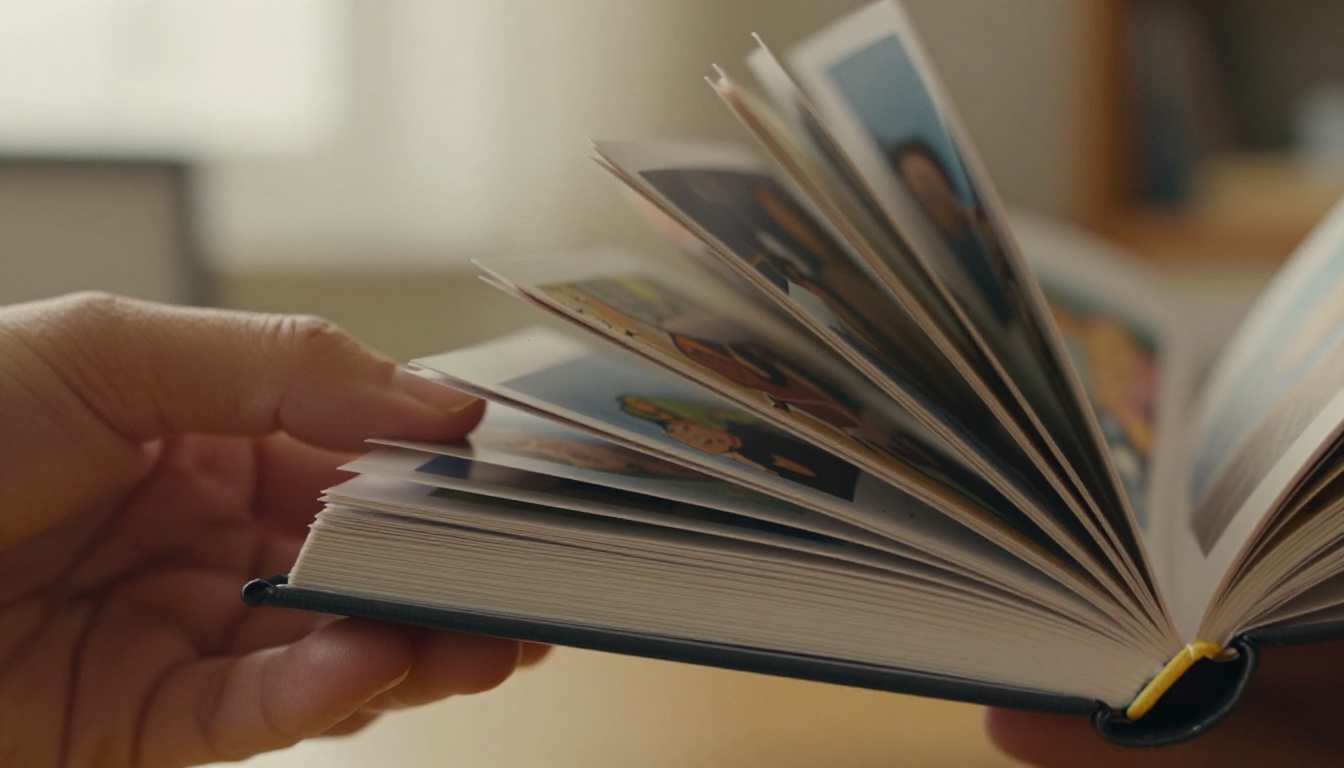
Printing a physical flipbook from digital files is one of those projects that looks simple until you're standing in front of a printer holding 60 pages of misaligned frames. The difference between a crisp, satisfying flip and a blurry mess comes down to three things: how you prepare your files, what paper you use, and how you bind the pages. If you also want a digital version that lives online alongside your printed one, Flipbooks AI turns any PDF into an interactive page-flip experience in minutes.
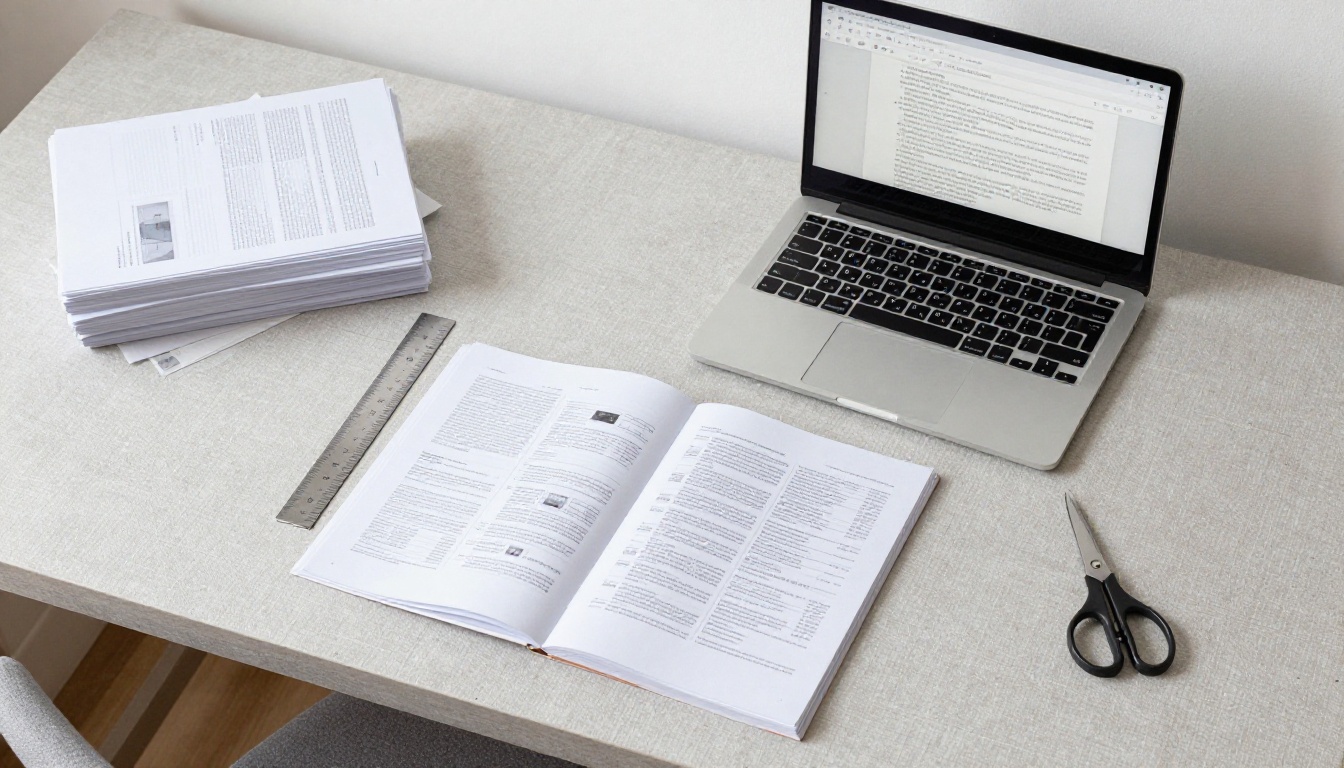
What You Need Before You Print
Before opening any print dialog, get these basics sorted. Skipping this step is how most people end up reprinting everything twice.
File Format That Actually Works
PDF is the gold standard for printing flipbooks. Unlike PNG or JPEG sequences, a multi-page PDF preserves exact page order, maintains vector sharpness for any drawn or text elements, and feeds cleanly into both home printers and professional print services.
Acceptable formats:
- PDF (strongly recommended): preserves print order, resolution, and bleed settings
- PNG sequence: works for home printing, but requires manual ordering
- JPEG sequence: acceptable if exported at 100% quality (no compression artifacts)
⚠️ Avoid JPEG exports at anything below 90% quality. Compression artifacts show up clearly when pages are small and held close.
If your flipbook was created in a tool like After Effects, Procreate, or even PowerPoint, export as a PDF with individual frames as pages. Each page equals one flipbook frame.
The Right Paper Weight
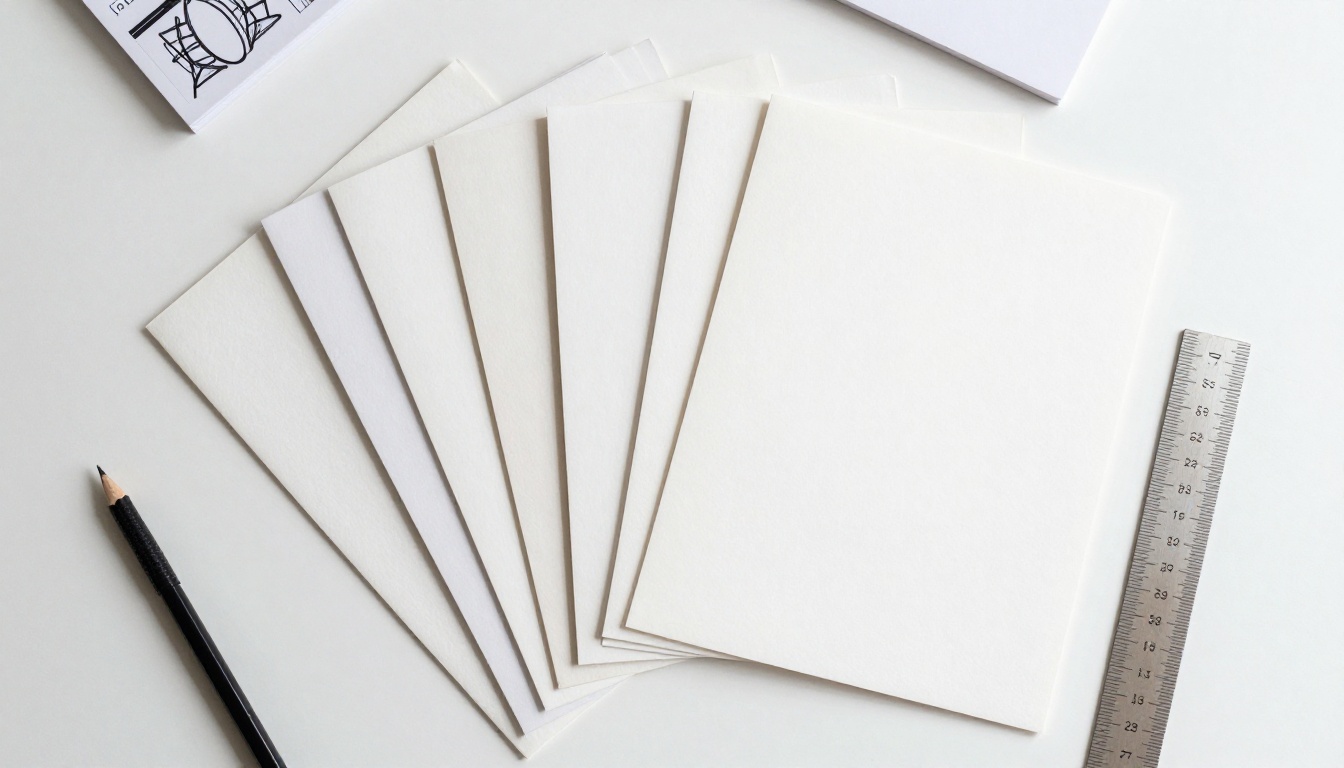
Paper weight changes everything about how a flipbook feels in hand. Too light and the pages flop. Too heavy and they won't flip cleanly.
| Paper Weight (gsm) | Feel | Best For |
|---|
| 60-75 gsm | Very thin, almost tissue-like | Not recommended |
| 80 gsm | Standard printer paper | Short flipbooks under 30 pages |
| 90-100 gsm | Slightly heavier, good snap | Most home flipbooks |
| 120-160 gsm | Card-weight, professional | Professional or gift flipbooks |
| 200+ gsm | Cardstock, very stiff | Front or back pages only |
The sweet spot for most printed flipbooks is 90-100 gsm. It's heavier than copy paper, holds ink well, and flips with a satisfying snap.
Setting Up Your Digital Files
Getting the file right before printing saves paper, ink, and frustration. These are the settings that matter.
Resolution and DPI
Flipbook frames are small, which means low-resolution images look worse here than on a large print. Use a minimum of 300 DPI for any raster content. Vector artwork scales cleanly at any DPI.
- 300 DPI: minimum acceptable for printed flipbooks
- 600 DPI: ideal for photo-based or highly detailed frames
- 72 DPI (screen resolution): will look visibly soft when printed — never use this for print
When exporting from animation software, look for a "print quality" or "high resolution" export option. In Adobe Animate, set the export DPI to 300 or higher. In Procreate, choose "Print" as the export preset.
Page Order and Margins
Flipbooks are flipped from the bottom right corner upward. That means frame 1 should be at the bottom of the stack. If your frames are in reverse order, your animation runs backward.
Checklist before printing:
- Frame 1 = first in the animation sequence = bottom of the stack = last page to print
- Check your PDF page order in Preview (Mac) or Adobe Reader by scrolling through all pages
- Add 3-5mm margin on all sides so frames aren't cut off during trimming
- Print on one side only (simplex) unless you're intentionally making a double-sided flipbook
💡 Print a test page first. A single test page costs seconds. A misprinted 80-page run costs real money and time.
Printing at Home vs. a Print Shop
Both paths work. Which one is right depends on your quantity, quality requirements, and budget.
Home Printer Setup
Most inkjet printers handle flipbook printing well. Laser printers are faster and produce crisper black-and-white output, but colors are sometimes less accurate than inkjet.
Printer settings to use:
- Quality: Best or High Quality, not Draft or Normal
- Paper type: Set to match your actual paper (Photo, Matte, or Plain)
- Color: Full color unless your flipbook is intentionally black and white
- Scaling: 100%, never let the printer auto-scale or fit to page
- Duplex or Two-sided: Off, single-sided only
Professional Print Services
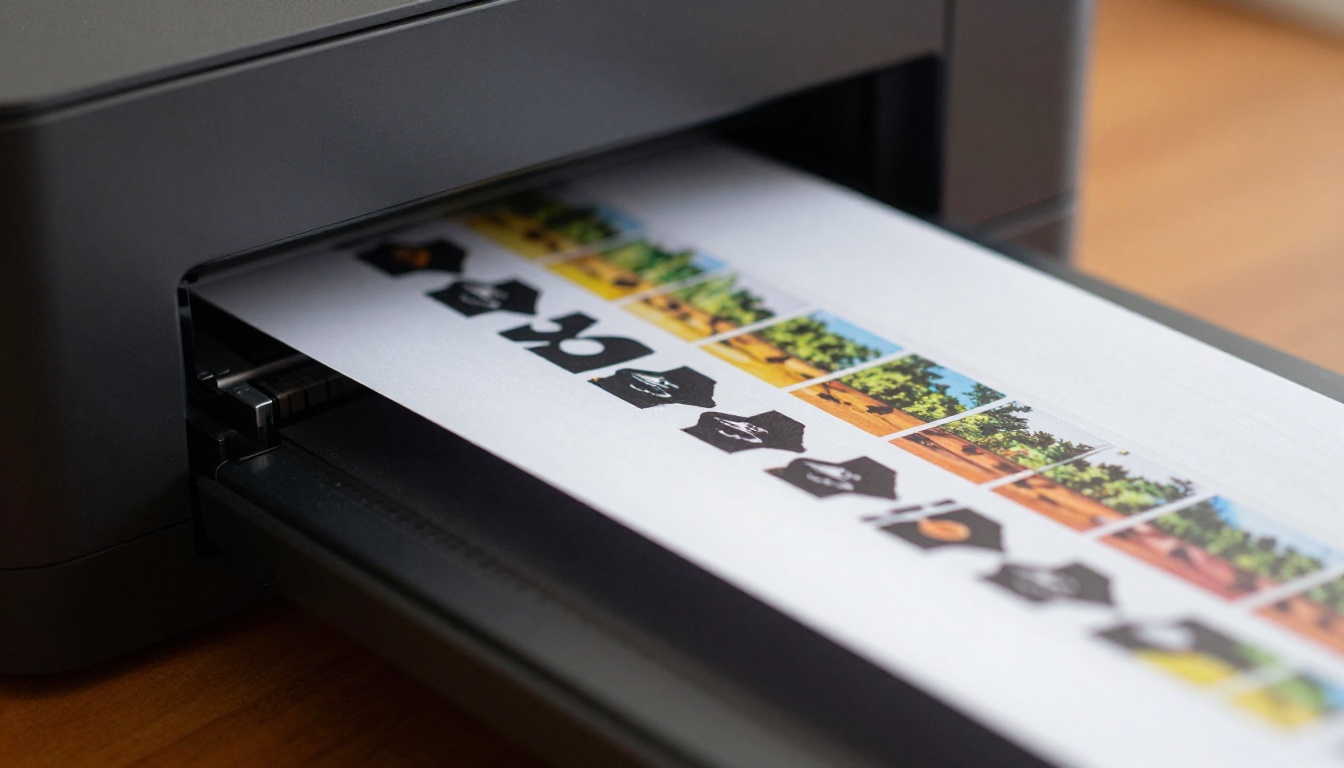
For larger runs, gifts, or anything that needs to look polished, professional printers deliver results that home inkjets can't match. Services like FedEx Office, Staples Print Center, or local print shops all accept PDFs.
What to tell the print shop:
- Single-sided printing on 100 gsm paper (or specify your preference)
- No scaling — print at actual size, 100%
- No collation — you want all pages in sequence as a single stack
- Matte finish, since gloss can cause pages to stick together during flipping
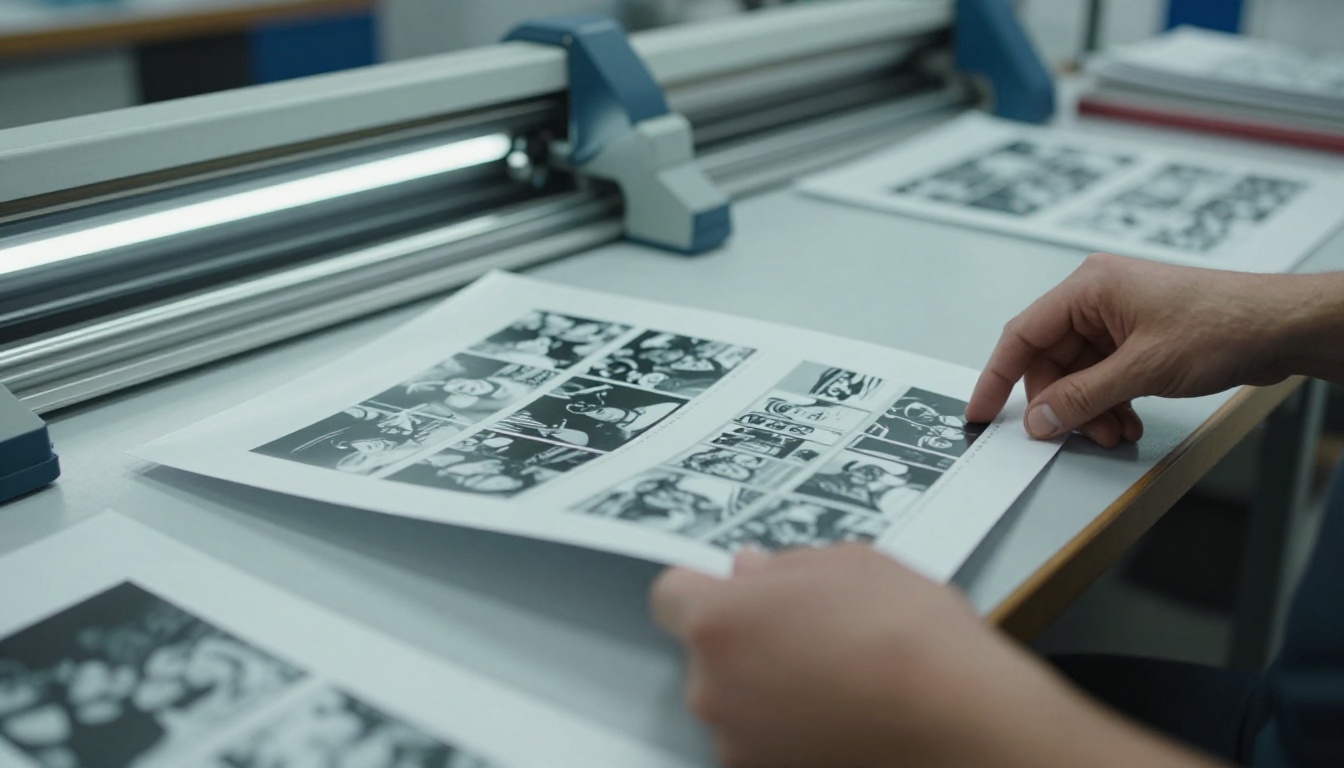
Home vs. Print Shop: Side-by-Side
| Factor | Home Printer | Professional Print Shop |
|---|
| Cost per page | $0.05-$0.25 | $0.08-$0.50 |
| Setup time | Immediate | 1-3 business days |
| Quality ceiling | Good | Excellent |
| Minimum quantity | 1 | Usually 1+ |
| Paper options | Limited to what you stock | Wide selection available |
| Best for | Prototypes, personal use | Gifts, events, bulk orders |
| Color accuracy | Varies by printer and calibration | Consistent and professionally calibrated |
✅ For your first flipbook, print at home. Once the design is locked, use a professional service for the final version.
How to Bind Your Flipbook
Binding is where most printed flipbooks fail. The pages need to stay together at exactly one corner so the rest can fan freely when flipped.
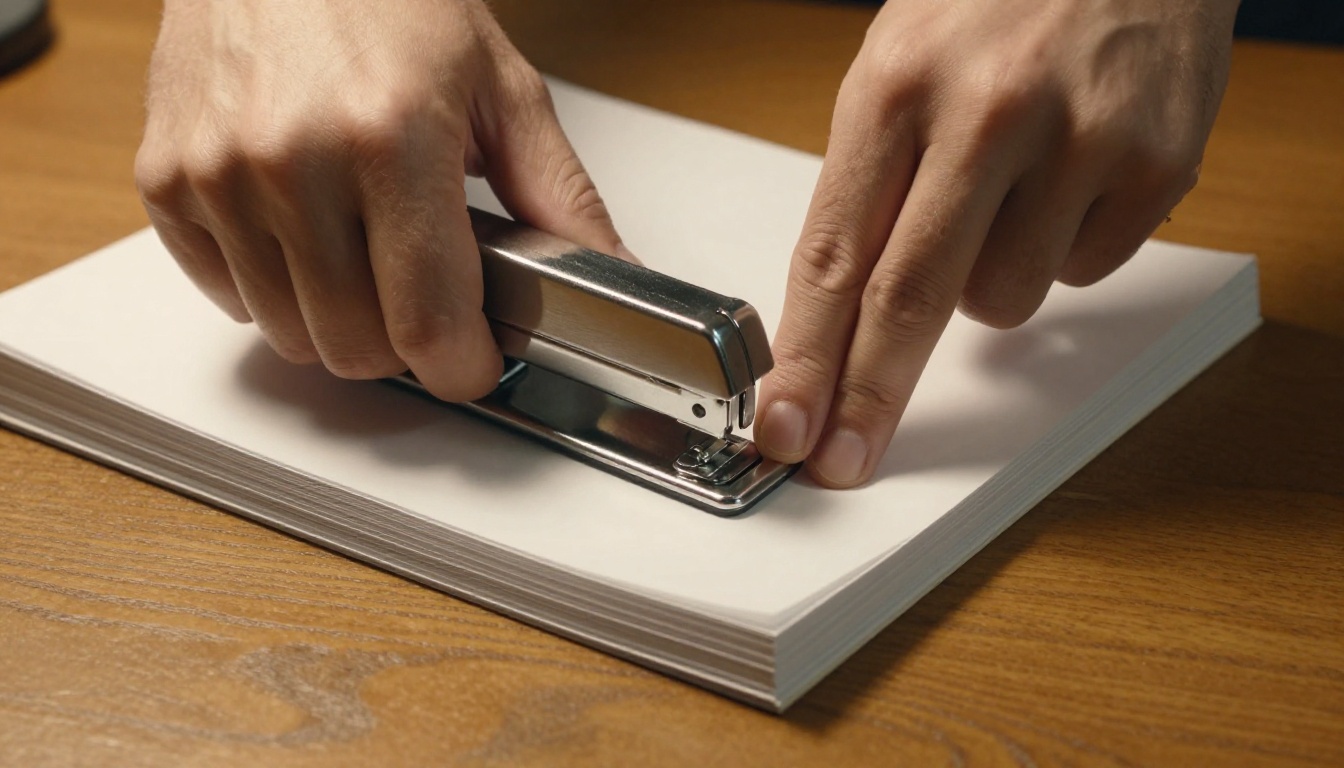
Corner Staple Method
The simplest and most effective binding for home flipbooks:
- Stack all pages in correct order, with frame 1 at the bottom
- Align all pages perfectly at one corner before stapling
- Use a corner stapler to place 1-2 staples in the bottom-right corner
- Optional: add a small piece of electrical tape over the staple for a cleaner, softer finish
Saddle Stitch Binding
For flipbooks with a front and back page, saddle stitching (stapling through the center fold) works if your flipbook has an even number of pages and a clear spine. This is the method professional printers use for booklets and programs.
Other Binding Options
| Method | Tools Needed | Durability | Difficulty |
|---|
| Corner staple | Corner stapler | Good | Easy |
| Binder clip | Binder clip | Moderate | Very easy |
| Glue stick binding | PVA glue | Good | Easy |
| Rubber band | Rubber band | Low | Very easy |
| Perfect binding | Glue plus cover stock | Excellent | Hard |
💡 Binder clip binding is great for quick prototypes. Just clip the stack at the bottom-right corner and flip away to test the animation instantly.
Trimming for Consistency
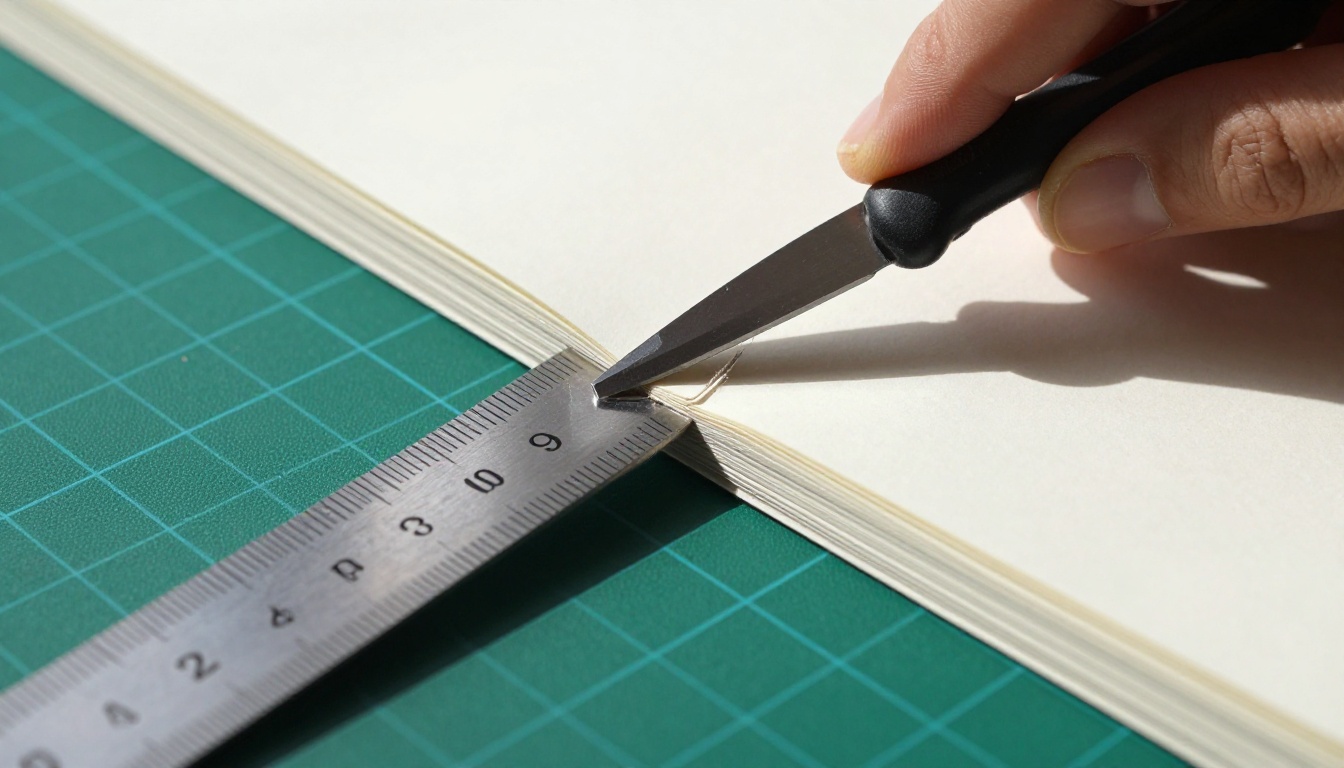
If you printed on full letter or A4 sheets, you'll need to trim each page down to your target flipbook size. A 3x3 inch or 3x4 inch frame size is typical for most flipbooks.
Use a craft knife and metal ruler on a cutting mat to trim multiple pages at once. Stack 5-10 pages, align all edges carefully, and cut in one clean confident stroke. Inconsistent trimming is one of the main causes of jumpy animation.
Build a Digital Version with Flipbooks AI
Once your physical flipbook is printed, there's a strong case for having a digital counterpart. Flipbooks AI converts any PDF into an interactive digital flipbook with a realistic page-turn effect, shareable link, and embed capability, without any design work required.
Upload Your PDF
- Go to Flipbooks AI and create a free account
- Click Upload PDF from the dashboard
- Select your flipbook PDF (the same file you sent to the printer)
- Wait for conversion — typically under 60 seconds for most files
The platform automatically processes each page and renders it as a digital flip page with smooth, realistic page-turn animation.
Customize Your Flipbook
After upload, you can apply branding and visual settings:
- Custom thumbnail: set a specific frame as the opening image viewers see first
- Brand colors: match your background to your brand palette
- Page effects: enable shadow effects and realistic page curl
- Multimedia: embed videos or audio tracks into specific pages
- Password protection: restrict access to private flipbooks
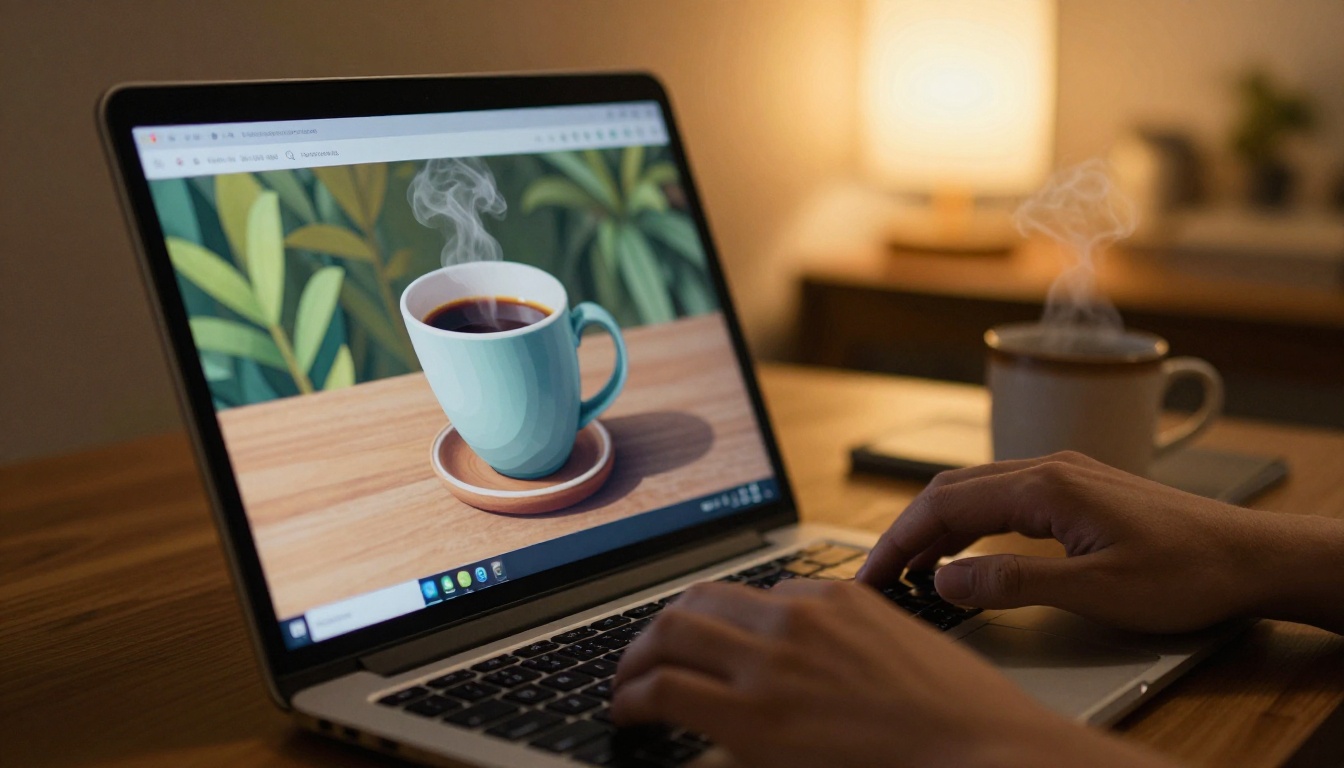
Share, Embed, or Download
Flipbooks AI gives you multiple ways to distribute your digital flipbook alongside the printed version:
- Direct link: share a URL that works on any device and browser
- Embed code: paste into any website or CMS using the Embed Flipbook on Website tool
- QR code: print it on the back page of your physical flipbook
- Offline download: available on the Professional plan
- Analytics: track views, time on page, and reader behavior with the Professional plan
✅ Print the QR code on the back page of your physical flipbook so readers can scan it and see the animated digital version immediately on their phone.
Common Mistakes That Ruin Printed Flipbooks
These are the issues that show up in almost every first attempt, and all of them are avoidable.
1. Wrong page order
Printing frames in reverse order is the most common mistake. Always verify frame 1 is at the bottom of the stack before you bind anything.
2. Printing at 72 DPI
Screen-resolution exports look acceptable on a monitor but terrible when printed small. Always export at 300 DPI or higher.
3. Using paper that's too light
Standard 80 gsm copy paper works in a pinch, but it flops when fanned. Upgrading to 90-100 gsm makes a noticeable difference in the flip feel.
4. Inconsistent page size
If any pages are even slightly different sizes, the animation looks jumpy and uneven. Crop all frames to exactly the same pixel dimensions before exporting.
5. Scaling during printing
"Fit to page" in the print dialog rescales your frames and changes their proportions relative to each other. Always print at 100%.
6. Binding in the wrong spot
A flipbook bound at the top or left side won't flip properly. The staple goes in the bottom-right corner only, full stop.
Print Specs at a Glance
Use this table as your go-to reference before sending anything to print.
| Setting | Recommended Value |
|---|
| File format | PDF (multi-page) |
| Resolution | 300 DPI minimum |
| Paper weight | 90-100 gsm |
| Print mode | Single-sided (simplex) |
| Color mode | Full color or black and white |
| Scaling | 100%, no fit-to-page |
| Finish | Matte |
| Binding location | Bottom-right corner |
| Frame size | 3x3 inch or 3x4 inch typical |
| Minimum frames for smooth animation | 24-30 pages |
💡 Want to see the animation before committing to a full print run? Upload your PDF to Flipbooks AI first. The digital preview will show you exactly how the animation flows before you spend a single sheet of paper.
Ready to Print (and Go Digital)
Printing a flipbook from digital files takes a bit of prep, but once the workflow is dialed in, the results are genuinely satisfying. A well-printed flipbook on 100 gsm paper with a clean corner staple flips with a snap that's hard to replicate digitally.
That said, physical and digital aren't mutually exclusive. The same PDF you print can become a shareable, embeddable digital flipbook in under a minute. Get started for free on Flipbooks AI and see what your files look like in interactive form.
If you need specific tools beyond the basic flipbook format, Flipbooks AI has dedicated creators for product catalogs, restaurant menus, e-books, digital portfolios, and many more. Browse the full tools directory to find one built for your specific use case.
Compare pricing plans to find the right tier. The Standard plan includes unlimited flipbooks with no watermarks, and Professional adds analytics, lead generation, and offline downloads.