Nothing sours an event faster than a line that does not move. Guests arrive excited, then stand for ten minutes while someone hunts for a name on a printed list. An iPad check in kiosk fixes that in about an hour of setup, and you can build a working version for free. Pair it with a digital welcome packet made on Flipbooks AI, and every guest walks in badged, informed and ready to enjoy the day.
This article shows you the hardware, the free setup steps, the app options worth comparing, and how a flipbook welcome packet replaces the pile of paper you used to hand out at the door.
Why Use an iPad Kiosk?
A kiosk is simply a tablet locked to one task: finding a guest and confirming they arrived. That sounds small, but it changes how the entrance of your event feels.
Speed at the Door
Staff typing names into a laptop can process maybe two or three guests a minute. A self-serve kiosk lets guests do it themselves, and several guests can check in at once if you run more than one iPad. Lines shorten, and your team is free to greet people instead of reading a spreadsheet.
Data You Actually Use
Every tap becomes a timestamp. You find out when your crowd really arrives, how many registered guests never showed, and which ticket types check in first. That information helps you plan staffing, catering and the next event.
💡 Pro tip: Log the check in time, not only the name. A simple arrival curve tells you whether to open the doors fifteen minutes earlier next time.
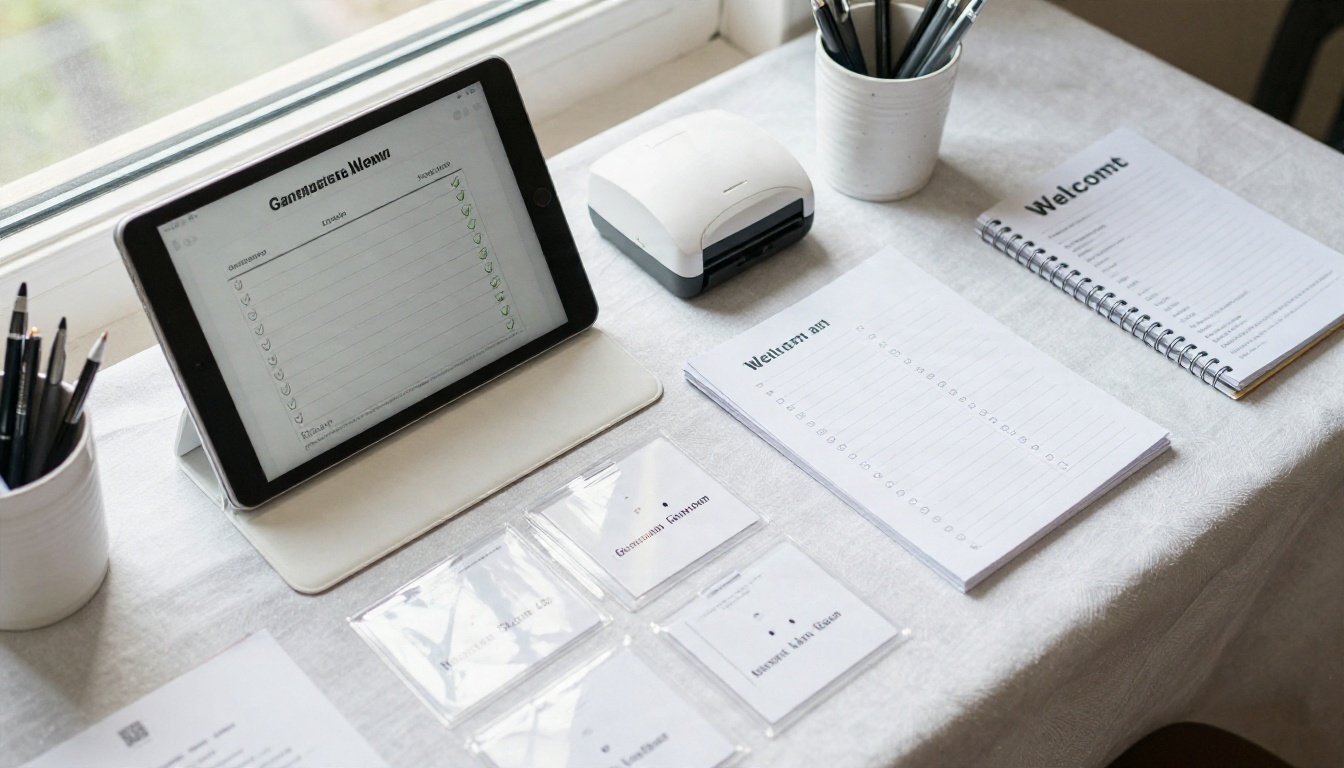
Free Setup in Six Steps
You do not need a paid platform to start. If you already own an iPad and have a Google or Microsoft account, you can have a working kiosk this afternoon.
Hardware You Need
| Item | Required? | Typical cost | Notes |
|---|
| iPad (any recent model) | Yes | Already owned | Screen size of 10 inches or more is easier for guests |
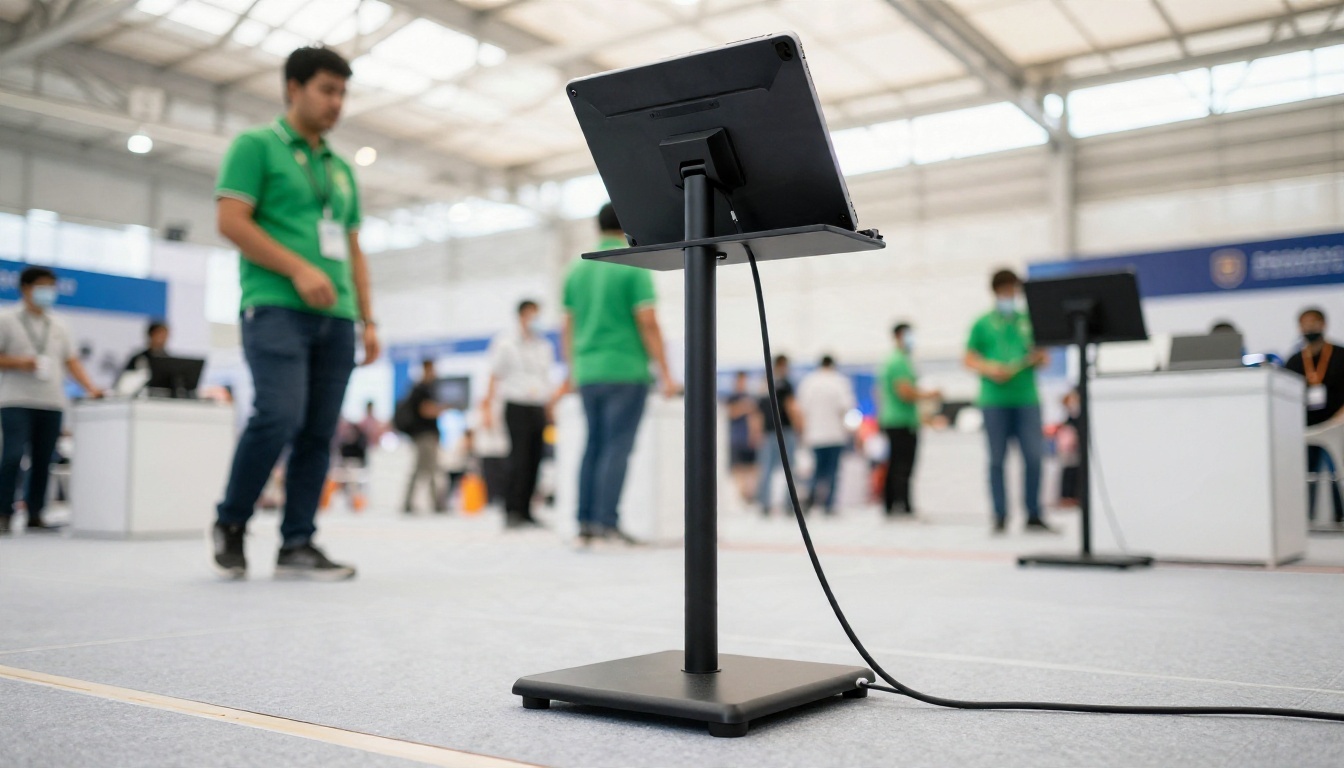
| Stand or table mount | Recommended | Low | Stops tablets from wandering off |
| Power cable and extension | Yes | Low | Events run long, batteries do not |
| Label or badge printer | Optional | Medium | Skip it for small events and use pre-printed badges |
| Wi-Fi or hotspot | Yes | Free to low | Test it in the actual room |
Lock Down the iPad
Before guests touch the screen, keep them inside one page. Open Settings, then Accessibility, and turn on the single app lock built into iOS. Start it with the check in page open in the browser. Guests can tap the form but cannot leave it. Turn off notifications and set auto-lock to never.
The Six Steps
- Build the guest list in a spreadsheet with columns for name, email, ticket type and a blank "arrived" column.
- Create a check in form that searches the list, or use a simple form where guests enter their name and email.
- Open the form in the iPad browser and add it to the home screen so it launches full screen.
- Enable the single app lock so the page cannot be closed.
- Run a test with five fake guests and confirm the arrived column updates.
- Place a printed sign with a short instruction: "Tap, type your name, grab your badge."
⚠️ Warning: Test on the venue network, not your home Wi-Fi. A kiosk that cannot reach the internet is only an expensive paperweight.
App Options Compared
Free setups work well for gatherings under 150 people. Beyond that, a dedicated app usually pays for itself in saved staff time. Here is how the main approaches stack up.
| Approach | Cost | Works offline? | Badge printing | Best for |
|---|
| Spreadsheet plus web form | Free | No | Manual | Meetups, workshops, classes |
| Database form view | Free tier available | No | Manual | Small teams that want filters |
| Ticketing platform organizer app | Often free with ticket sales | Limited | Sometimes | Ticketed events |
| Dedicated check in app | Paid, often per event | Often yes | Yes | Conferences, trade shows |
| Custom kiosk web page | Developer time | Depends | Yes | Recurring corporate events |
Pricing and free limits change often, so check each provider's current terms before you commit.
Spreadsheet and Form Setups
This is the scrappiest route and honestly a fine one. A shared spreadsheet gives you a live guest list, and a form gives guests something to tap. The weakness is search: guests with common names can get lost. Add a unique code to each registration email and ask guests to type it for large lists.
Dedicated Event Apps
Purpose-built apps scan QR codes from confirmation emails, mark guests as arrived in under a second and print a badge on the spot. If your registration already runs on a ticketing platform, look at its own organizer app first. It will sync automatically, and that saves a lot of cleanup.
Picking by Event Size
| Guest count | Recommended setup | Number of iPads |
|---|
| Under 50 | Spreadsheet and form | 1 |
| 50 to 150 | Form with QR codes or organizer app | 1 to 2 |
| 150 to 500 | Dedicated check in app with printing | 2 to 4 |
| 500 and above | Dedicated app plus staffed fast lane | 4 or more |
What Is a Flipbook Welcome Packet?
Check in gets guests through the door. The welcome packet tells them what to do once they are inside. A flipbook welcome packet is a digital booklet with realistic page turns that guests open on their phone or on the kiosk itself, instead of carrying a stack of paper.
What Goes Inside
A good packet answers the questions your staff would otherwise field fifty times:
- Agenda and session times with room names
- Venue map showing restrooms, exits and the food area
- Speaker and performer bios
- Wi-Fi name and password
- Sponsor pages with clickable links
- Contact numbers for event staff
- Short videos or audio from the host
If you only need a schedule, the Event Program Maker is a quick starting point.
Why It Beats Paper
| Factor | Printed packet | Flipbook welcome packet |
|---|
| Last minute changes | Reprint everything | Update once, live instantly |
| Cost per guest | Printing and assembly | Near zero |
| Links, video, audio | Not possible | Built in |
| Tracking opens | Impossible | Available with analytics |
| Waste | Left on chairs | None |
| Reach after the event | Lost | Link stays alive |
A conference organizer who changes a room assignment at 8 a.m. can fix the packet in two minutes. Every guest sees the update the next time they open it.
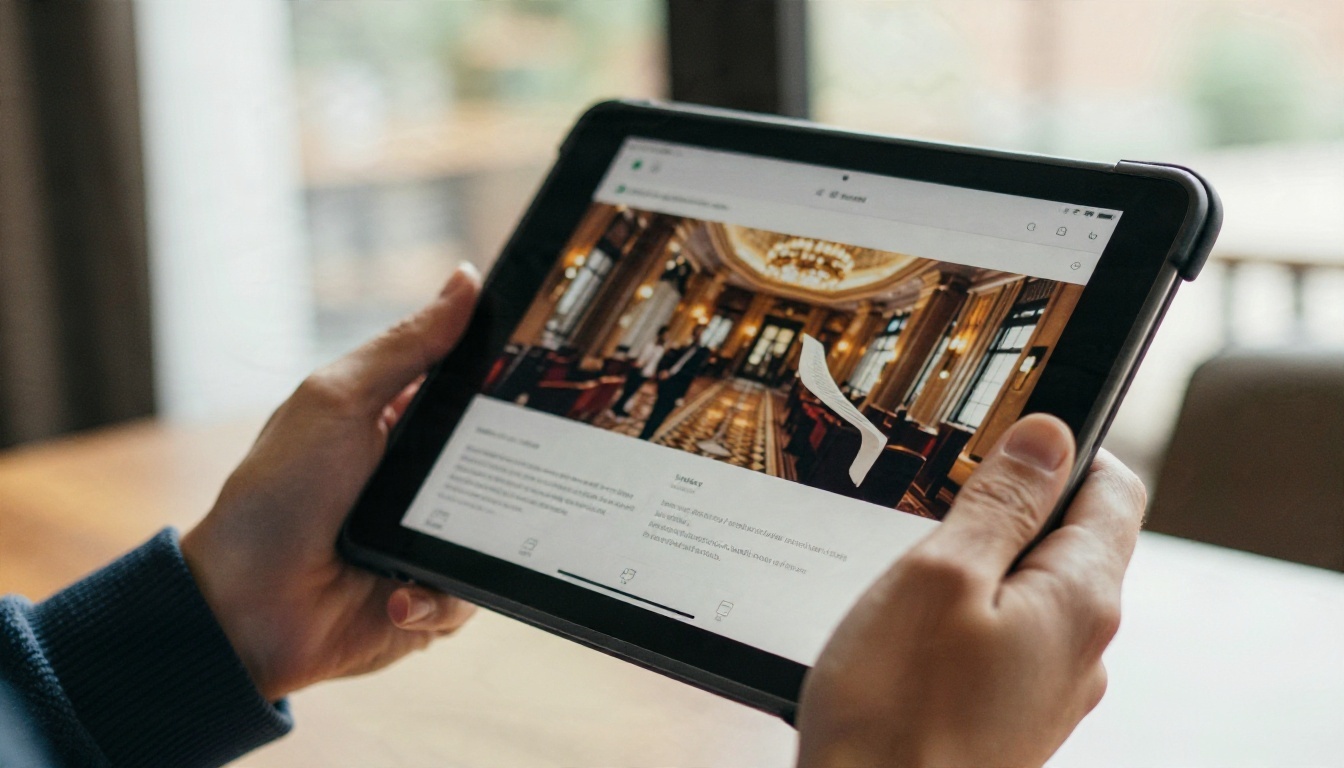
How to Create a Welcome Packet with Flipbooks AI
If you already have a PDF of your agenda or program, you are most of the way there. You can create a free account and publish in a few minutes.
Upload and Convert
- Design your packet in any tool you like (Canva, Word, Google Slides) and export it as a PDF.
- Sign in at Flipbooks AI and choose to create a new flipbook.
- Upload the file. The PDF to Flipbook Converter turns each page into a turnable page with realistic flip effects.
- Wait a few seconds for the conversion, then preview the result on desktop and phone.
💡 Design your pages in portrait or a mobile friendly size. Guests will read mostly on phones, so keep text large.
Brand and Customize
After conversion, make the packet look like your event:
- Custom branding: add your logo and event colors
- Page effects: choose the flip style and speed
- Multimedia: embed a welcome video from the host or an audio message
- Clickable links: point sponsor logos, maps and registration pages to live URLs
- No watermarks: your packet carries only your brand
The design is mobile responsive, so pages resize properly on any screen.
Share, Protect and Track
| Sharing option | When to use it |
|---|
| Direct link | Email it to guests before the event |
| QR code on the kiosk | Guests scan it right after checking in |
| Website embed | Add the packet to your event landing page |
| Password protection | Private events, VIP sessions, internal staff packets |
| Offline download | Venues with weak mobile signal |
On the Professional plan you also get analytics and lead generation. You can see how many guests opened the packet, which pages they spent time on, and collect contact details before the booklet opens. Compare plans on the pricing page to see which tier fits.
Connect the Kiosk and the Packet
The real payoff comes when both pieces work together. The kiosk handles identity, and the packet handles information. Link them so guests never have to ask where to go next.
Add a QR Code to the Thank You Screen
When a guest finishes checking in, show a confirmation screen with a friendly message and a QR code that opens your flipbook. Guests scan it with their phone camera while the badge prints. Two seconds later, they are reading the agenda.
Send the Link Before the Event
Email the packet link the morning of the event. Guests who read it ahead of time arrive knowing where to park, which session to join first and what to bring. Your check in line gets shorter because there are fewer questions at the desk.
A Real World Scenario
A nonprofit hosting a 200 person fundraiser used one iPad kiosk, one spreadsheet and one flipbook packet. Guests scanned a QR code on arrival, grabbed a badge and opened the packet to find their table number and the auction item list. The team skipped printing 200 booklets, and the host updated the auction list twice during cocktail hour without anyone noticing.
For longer sessions with a lot of reference material, a Training Manual Flipbook works the same way, just with more pages.

Common Mistakes to Avoid
Most kiosk problems come from the same few oversights.
- Skipping the venue Wi-Fi test. Bring a mobile hotspot as a backup.
- Leaving the iPad unlocked. A curious guest will open the camera, then the browser, then your guest list.
- No staffed backup lane. Some guests will always need help, and the kiosk should never be the only option.
- Publishing a packet with tiny text. If you have to pinch to zoom, guests will not read it.
- Forgetting privacy. Do not show the full guest list on screen. Show only matching names as someone types.
✅ Best practice: Run a ten minute dress rehearsal with two colleagues the day before. Every problem you find now is one fewer at the door.
Quick Checklist
- Charged iPads and spare cables
- Single app lock turned on
- Venue Wi-Fi tested, hotspot ready
- Badges or label printer loaded
- QR code sign printed and taped near the screen
- Welcome packet link tested on iPhone and Android
- One staff member assigned to help
Ready for Your Next Event?
A free iPad kiosk gets guests checked in quickly, and a flipbook welcome packet makes sure they know where to be once they are inside. Start with the simple spreadsheet setup, then upgrade the app only when your guest count demands it.
Build your first packet today: create a free Flipbooks AI account, browse all the flipbook tools for event programs, brochures and manuals, or compare pricing plans if you want analytics and lead generation for your next event.



