Someone taps your link on a phone, waits four seconds, and then a gray viewer appears with text so small it looks like a legal notice. They close the tab. That is the usual fate of a raw PDF link on mobile, and it happens every day to brochures, menus, reports, and catalogs. The fix is rarely a better PDF. The fix is a better link. Below you will find exactly how to link to a PDF from a website, an email, and social media so it opens fast and reads well on a small screen, including a method that turns the file into a page-turning reader using Flipbooks AI.
Why Mobile Breaks Most PDF Links
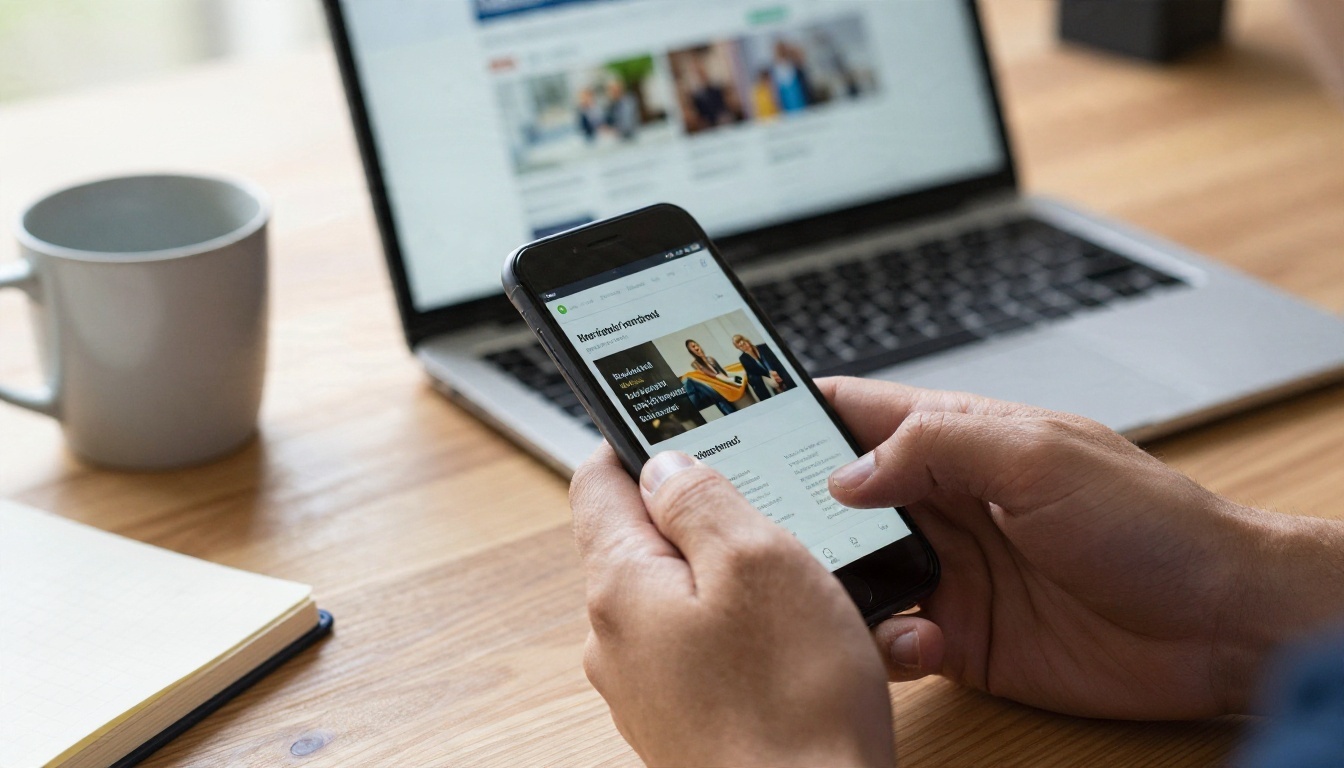
A PDF was built to print the same way everywhere. A phone screen is the opposite of a sheet of paper: narrow, vertical, and controlled by a thumb. When you point a link straight at a .pdf file, you hand the phone's browser a job it handles badly.
The Download Problem
Some phones open the file in a built-in viewer. Others download it silently and leave the reader wondering where it went. On a slow connection, a 30 MB file with full-resolution photos can take long enough that people give up before page one appears.
The Pinch and Zoom Problem
A letter-size page shrunk to a 6-inch screen forces constant pinching, dragging, and squinting. Readers lose their place. Buttons inside the PDF are often too small to tap. Links inside the file may open in a different app and drop the reader somewhere unexpected.
💡 Quick test: Send your current PDF link to your own phone, switch off Wi-Fi, and open it on mobile data. If you cannot read the first page comfortably within five seconds, your audience cannot either.
Raw PDF Link vs. Flipbook Link
Here is how the two approaches behave on a phone.
| Feature on mobile | Direct .pdf link | Flipbook link |
|---|
| Load behavior | Full file downloads before reading | Pages load as the reader turns them |
| Text size | Fixed page size, constant zooming | Responsive layout that fits the screen |
| Page turning | Scrolling a long strip | Swipe or tap, like a real publication |
| Branding | Browser's default viewer | Your colors and logo |
| Tracking | Almost none | Views and reading data (Professional plan) |
| Access control | Anyone with the file | Optional password protection |
| Link preview | Often a bare filename | Clean title and thumbnail |
Linking to a PDF on Your Website
Your site is the channel you control most, so it is the right place to get the basics right. Half of mobile visitors will meet your PDF here before any other channel.

Write Link Text That Sets Expectations
Compare these two examples:
- Weak: "Click here"
- Better: "View the 2026 spring catalog (24 pages)"
The second version tells the reader what they get, roughly how long it is, and that it is a document. People on mobile data appreciate knowing that before they tap. If the file is large, say so.
Use Buttons and Embeds, Not Bare Links
A text link inside a paragraph is a tiny target. On mobile, use a full-width button with at least 44 pixels of height and some space around it. Better still, embed the document directly on the page so the reader never leaves. The Embed Flipbook on Website tool produces an embed code that resizes itself to any screen, so the same snippet works on a phone, a tablet, and a desktop monitor.
A few website habits that pay off immediately:
- Open in the same tab when the link leads to an embedded reader, so the back button works as expected.
- Add a visible title above the embed so the page has context for search engines and for people.
- Place the link above the fold on mobile, not in a footer nobody scrolls to.
- Keep the file name human, such as
spring-catalog instead of FINAL_v7_new(2).
⚠️ Warning: Avoid target="_blank" on every link by default. On some mobile browsers it spawns a new tab the reader never finds again.
Linking to a PDF in Email
Email is where mobile reading dominates. Many inboxes are opened on a phone first, which makes this the most unforgiving channel for oversized attachments.

Attachment or Link?
An attachment feels safe, but it has real costs. Large files can bounce, land in spam, or sit unopened because the reader does not want to spend mobile data. A link keeps the email light and lets you change the document later without resending anything.
| Approach | Mobile experience | Risk | Best for |
|---|
| Attached PDF | Download, then open in a separate app | Size limits, spam filters | Invoices and contracts |
| Link to raw PDF | Opens in a basic viewer | Slow load, tiny text | Internal notes |
| Link to flipbook | Opens as a readable, swipeable page | Needs a short setup | Catalogs, brochures, newsletters |
Button Links That Get Tapped
Put one clear call to action near the top of the email. Use a button, not a pasted URL. Here is a simple pattern that works:
- Subject line: "Your new menu is ready"
- Preview text: "Tap to flip through 12 pages on your phone"
- Button text: "Open the menu"
- Fallback line below: "Button not working? Copy this link: flipbooksai.com/your-menu"
The fallback line matters. Some corporate mail apps strip buttons, and a plain link ensures nobody is stuck.
✅ Best practice: Put only one document link per email. Two competing buttons split attention, and on a narrow screen they look like a wall of options.
For recurring sends, a Newsletter Flipbook Publisher setup lets you keep the same link every month while swapping the content behind it. Subscribers bookmark one address and always get the latest issue.
Social apps add a new twist: most of them open links inside their own in-app browser. That browser can be slower, can block downloads, and sometimes cannot display PDFs at all. A direct .pdf link in a bio or a post is a gamble. A web-page link is safe.
Instagram and TikTok Bios
You only get one clickable link in most bios. Point it to a page that opens cleanly in the in-app browser, such as a flipbook or a simple landing page. Then use your captions and stories to tell people what is waiting there.
Example caption: "New lookbook is live. Link in bio, swipe through it like a magazine."
For fashion and design brands, an Interactive Lookbook Designer layout pairs well with this approach because visitors already expect visual, swipe-based content.
Facebook and LinkedIn Posts
These platforms generate a preview card from the page you link to. A raw PDF often produces a blank or generic card. A web page with a proper title and thumbnail produces a clean card that invites a tap.
On LinkedIn, put the link in the first comment if you notice the post reaching fewer people with the link in the body. Test both and watch your numbers.
X and WhatsApp
On X, short links and one-line hooks win. On WhatsApp, links are shared person to person, so the preview card and the page title matter even more. People forward what looks trustworthy.

Channel Cheat Sheet
| Channel | Best link target | Placement | Main mobile risk |
|---|
| Website | Embedded flipbook or button | Above the fold | Tiny tap targets |
| Email | Button to flipbook link | Top third of the message | Attachment size limits |
| Instagram | Flipbook link in bio | Bio and story sticker | In-app browser limits |
| Facebook | Flipbook link in post | Post body | Blank preview card |
| LinkedIn | Flipbook link | Body or first comment | Reduced reach on external links |
| WhatsApp | Short flipbook link | Direct message | Heavy files on mobile data |
How to Create a Mobile Link with Flipbooks AI
If you want one link that behaves the same on every channel, converting the PDF into a flipbook is the shortest route. The steps below take a few minutes.
Step 1: Start and Upload
- Go to Flipbooks AI and create an account.
- Choose the PDF to Flipbook Converter.
- Drag your PDF into the upload area, or pick it from your device.
- Wait a few seconds while each page is turned into a responsive, swipeable page. Text stays sharp and no watermark is added.
You can also start from a template built for your use case, like the Digital Catalog Maker, the Restaurant Menu Creator, or the Digital Portfolio Creator.
Step 2: Customize the Look
- Add your logo and pick brand colors for the toolbar and background.
- Choose a page-turn effect that fits your content, such as a soft curl for magazines or a flat slide for reports.
- Insert videos, audio, and clickable links on any page. A menu can play a short clip of the chef. A catalog can link each product to a checkout page.
- Preview the result on a phone-sized window before publishing.
Step 3: Share and Embed
- Copy the direct link for email, bios, and messages.
- Copy the embed code to place the flipbook inside a web page.
- Turn on password protection if the content is private, for example a client proposal or an internal price list.
- Allow offline download for readers who want a copy for a flight or a bad signal area.
Step 4: Pro Features
On the Professional plan, you get analytics and lead generation. You can see how many people opened the link, which pages held attention, and, if you add a form, who asked for the document. The Standard plan and above give you unlimited flipbooks, which is handy if you publish a new issue every week. Compare options on the pricing page.
💡 Pro tip: Create one flipbook per campaign. Then you can compare which link, email, or post brought the most readers.
Mistakes That Break Mobile Links
Even a well-built document fails when the link around it is careless. These are the problems seen most often.
| Mistake | What happens on a phone | Quick fix |
|---|
| Linking to a 40 MB file | Long wait, many abandon | Compress images or use a flipbook |
| "Click here" link text | Reader unsure what opens | Name the document and page count |
| Tiny inline link | Missed taps, frustration | Use a full-width button |
| Link behind a login wall | Reader gives up | Use a password only when needed |
| Long ugly URL | Wraps badly, looks risky | Shorten it or use a clean slug |
| No fallback text in email | Dead end in strict mail apps | Add a plain link under the button |
| Different link per channel | Hard to track results | Use one link per campaign |
Do a Five-Minute Mobile Audit
Before you publish, run through this short checklist:
- Open the link on both an iPhone and an Android phone.
- Test it on mobile data, not only on office Wi-Fi.
- Open it from inside the Instagram or Facebook app, not only the regular browser.
- Tap every button with one thumb.
- Check that the first page makes sense without zooming.
⚠️ Warning: Never trust a desktop preview. A page that looks perfect in a wide browser window can be unreadable on a narrow screen.

Real Examples You Can Copy
Theory helps, but copyable examples save time. Here are four scenarios with the wording and link setup that work.
A restaurant sharing a menu. Link in the Instagram bio to a flipbook menu. Pin a story that says "Tap the link, swipe through the menu." Add a QR code on tables that points to the same address, so the printed code and the online link always match.
A real estate agent sending a brochure. Email subject: "Floor plans for 14 Willow Lane." One button reads "Open the brochure." The flipbook includes a video walkthrough on page two and a contact form on the last page.
A retailer promoting a catalog. A website banner reads "Browse the new catalog" and opens an embedded flipbook. Each product page links to the store. The email version uses the same link, so analytics roll up in one place.
A freelancer sending a portfolio. The LinkedIn post carries a short hook and one link. The portfolio flipbook is password protected for client work and public for the sample pages.

Why Evening Reads Matter
Many readers open these links on the sofa after work, one-handed, with low battery and a mediocre signal. That is the person you are designing for. If the link opens quickly, reads at a normal size, and needs no pinching, they will actually finish your document.
A Short Wording Library
Copy and adapt any of these:
- "Tap to flip through the full lookbook"
- "Open the 12-page menu on your phone"
- "View the latest issue, no download needed"
- "Read the report in under five minutes"
Share Your PDF Today
A mobile-friendly link is not a design project. It is a small habit: point to a page that fits a phone, name what the reader gets, and give them one clear thing to tap. Do that on your website, in your emails, and across social media, and the same PDF will perform far better than it did as a bare file.
Ready to try it? Get started for free on Flipbooks AI and turn your next PDF into a link that opens well on any phone. Browse all flipbook tools to find a template for menus, catalogs, brochures, and portfolios, or compare pricing plans to see which one fits your volume. When you are ready to publish at scale, choose your plan and start sharing.



