Your brand colors do more than decorate a page. They signal trust, personality, and professionalism before a single sentence is read. When you make a digital brochure that matches your brand colors, you are not just creating a pretty document. You are building a consistent identity that your audience will recognize on any screen, in any format, at any zoom level. Flipbooks AI makes this process precise, repeatable, and genuinely beautiful.
Why Brand Color Consistency Matters
Color is one of the most powerful recognition tools in any visual identity system. Consistent use of brand colors increases recognition significantly across all audience segments. When your brochure uses slightly off-brand shades, it creates subtle doubt about your professionalism.
The problem is surprisingly common. A designer opens a PDF, picks colors "by eye," and the result drifts from your actual brand palette. Multiply that across dozens of documents and you end up with a fragmented identity that confuses your audience rather than building trust.
The Cost of Color Inconsistency
| Problem | Visible Impact | Business Cost |
|---|
| Wrong hex codes in print | Colors appear different from digital | Reprinting fees, brand confusion |
| Inconsistent shades across docs | Documents feel unrelated | Weakened brand recognition |
| No digital color standards | Every designer uses slightly different tones | Time lost fixing brand assets |
| Platform-specific color shifts | Colors look different on web vs. PDF | Confusing customer experience |
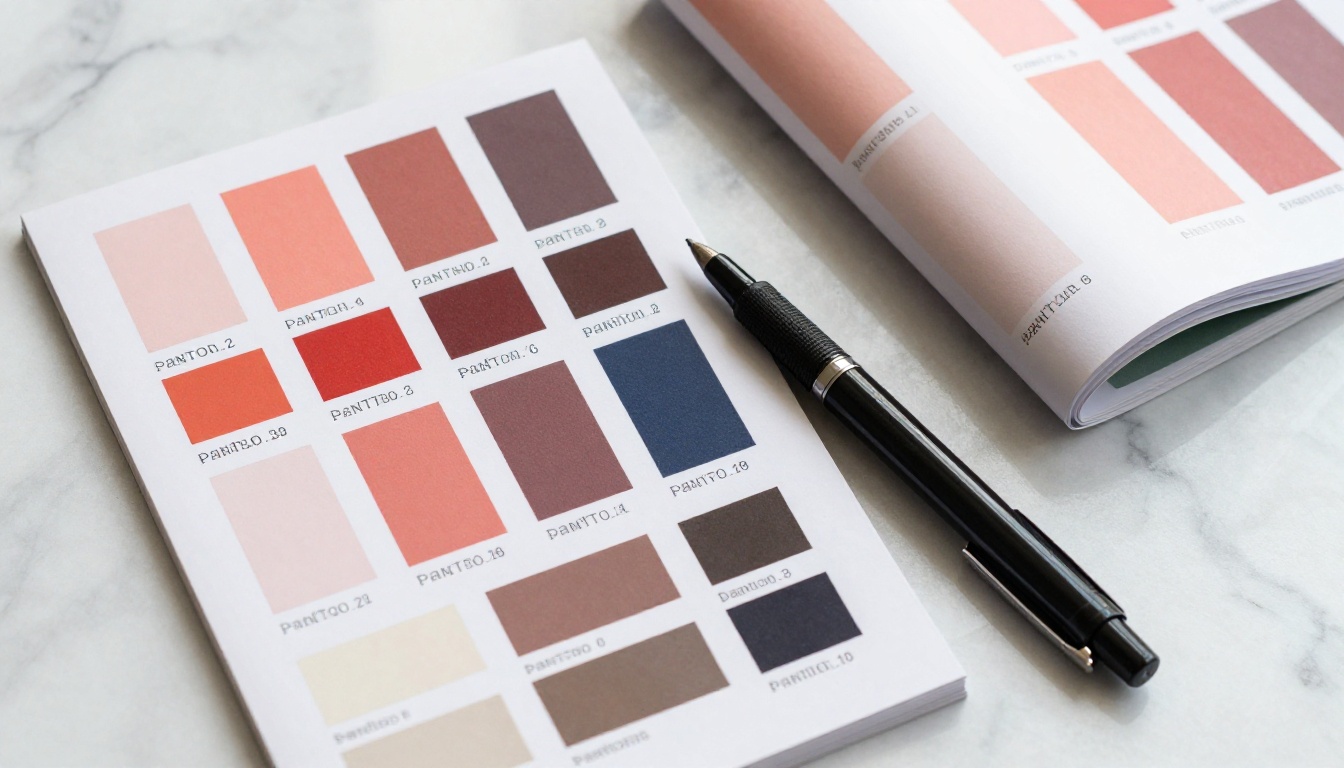
💡 Pro Tip: Always maintain a brand style guide that includes both HEX codes (for digital) and Pantone references (for print). This single document becomes your brochure's color bible.
Building Your Brand Color Palette First
Before you open any design tool or upload any PDF, your color palette needs to be locked and documented. This is the foundation everything else builds on.
Primary, Secondary, and Accent Colors
Most brand palettes follow a simple three-tier hierarchy:
- Primary color: Your dominant brand color. Used for headers, major backgrounds, and CTAs.
- Secondary color: Supports the primary. Often used for subheadings, borders, and highlights.
- Accent color: Used sparingly for emphasis. Buttons, callout boxes, and icons.
A tight palette of three to five colors is almost always stronger than a sprawling rainbow. The constraint forces intentional choices.
Documenting Your Exact Codes
For a digital brochure to match your brand colors exactly, you need these values documented:
| Color Format | Use Case | Example |
|---|
| HEX | Web, digital PDFs, flipbooks | #C0392B |
| RGB | Screen-based designs | rgb(192, 57, 43) |
| CMYK | Print production | C:0 M:70 Y:78 K:25 |
| Pantone | Physical print matching | PMS 7621 C |
| HSL | CSS, web animations | hsl(5, 63%, 46%) |
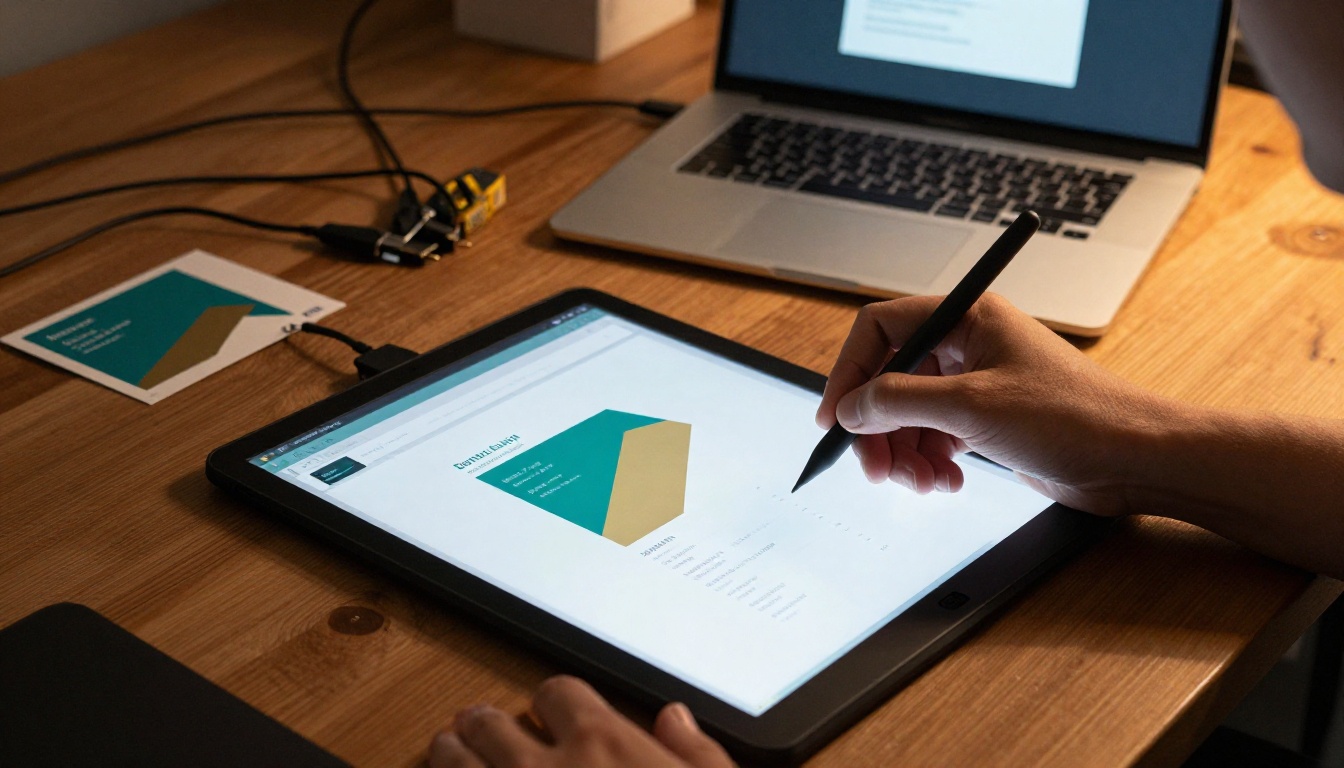
⚠️ Warning: Never build a brochure using only visual color matching. If you use an eyedropper on your logo, you may pick up anti-aliasing artifacts that are slightly off from your actual brand color. Always use the documented hex code.
How to Make a Digital Brochure That Matches Your Brand Colors
Flipbooks AI is built for exactly this kind of brand-precise publishing. The platform accepts your PDF, converts it to an interactive flipbook, and gives you direct control over every color-related element of the experience.
Step 1: Prepare Your Branded PDF
Your brochure journey starts in your preferred design tool, whether that is Adobe InDesign, Canva, or Figma. Before exporting:
- Set all colors using your documented HEX or CMYK values. Never use "close enough" approximations.
- Embed all fonts so they do not substitute on export.
- Export as PDF/A or high-quality print PDF for best color fidelity.
- Do a final color check by opening the PDF on both a calibrated monitor and a standard laptop screen.
Step 2: Upload to Flipbooks AI
Head to Flipbooks AI and create your account. The upload process is straightforward:
- Click "Create Flipbook" from your dashboard.
- Drag and drop your PDF or click to browse and select the file.
- Wait for conversion. High-resolution PDFs with many pages may take a moment.
- Preview the result on the default viewer before making any customizations.
The Online Brochure Designer tool handles the conversion automatically and maintains your PDF's embedded colors with high accuracy.
Step 3: Apply Your Brand Colors to the Viewer
This is where your branding truly takes shape. After conversion, go to the customization panel:
- Viewer background color: Set this to your primary brand color or a neutral tone that complements it.
- Toolbar color: Match it to your secondary color.
- Button and icon colors: Use your accent color for interactive elements.
- Progress bar: Brand it with your primary color.
- Logo placement: Upload your logo to the viewer header or footer.
✅ Best Practice: Use your lightest brand color or white for the viewer background. Dark viewer backgrounds can overpower your brochure's internal design.

Step 4: Set Up Custom Branding Elements
Beyond colors, your brand identity in a digital brochure extends to several other elements:
- Custom domain: Serve your flipbook from your own domain instead of a generic URL.
- Favicon: Upload your brand icon so it appears in browser tabs.
- Sharing thumbnail: Customize the social sharing image to use your branded cover page.
- Loading screen: Replace the default loader with your logo and brand colors.
All of these are available on Flipbooks AI and create a seamless branded experience from the moment someone clicks your link. No watermarks appear on any published flipbook, keeping your presentation clean and professional.
Step 5: Sharing Your Branded Brochure
Once your brochure looks exactly right, you have multiple distribution options:
- Direct link: Share via email, social media, or messaging apps.
- Embed code: Use the Embed Flipbook on Website tool to place your brochure directly on your site.
- Password protection: Lock private brochures behind a password. Available on Standard plans and above.
- QR code: Generate a QR code that links to your flipbook for print and event use.
Color Psychology in Brochure Design
Picking brand colors is not arbitrary. Color psychology directly influences how your audience feels when reading your brochure. Knowing this helps you choose colors that reinforce what your brand stands for.
| Color Family | Common Brand Associations | Best Used For |
|---|
| Deep Navy/Blue | Trust, reliability, professionalism | Financial, corporate, legal |
| Coral/Red tones | Energy, passion, urgency | Retail, food, lifestyle |
| Forest Green | Growth, nature, health | Wellness, sustainability, food |
| Gold/Amber | Premium, luxury, warmth | Hospitality, fashion, jewelry |
| Slate/Charcoal | Sophistication, editorial | Tech, fashion, editorial |
| White/Ivory | Clarity, minimalism, clean | Healthcare, lifestyle, premium |
💡 Pro Tip: Your background color should never compete with your primary brand color. If your brand is deep navy, use white or light grey as the brochure background to let the color breathe.
Real-World Branding Scenarios
Hotel and Hospitality
A boutique hotel with a warm beige and terracotta palette can use the Hotel Brochure Designer to create a flipbook that carries those colors into the viewer chrome, page backgrounds, and interactive elements. When a guest receives the brochure link via email, every pixel reinforces the hotel's warmth and luxury positioning.
Real Estate
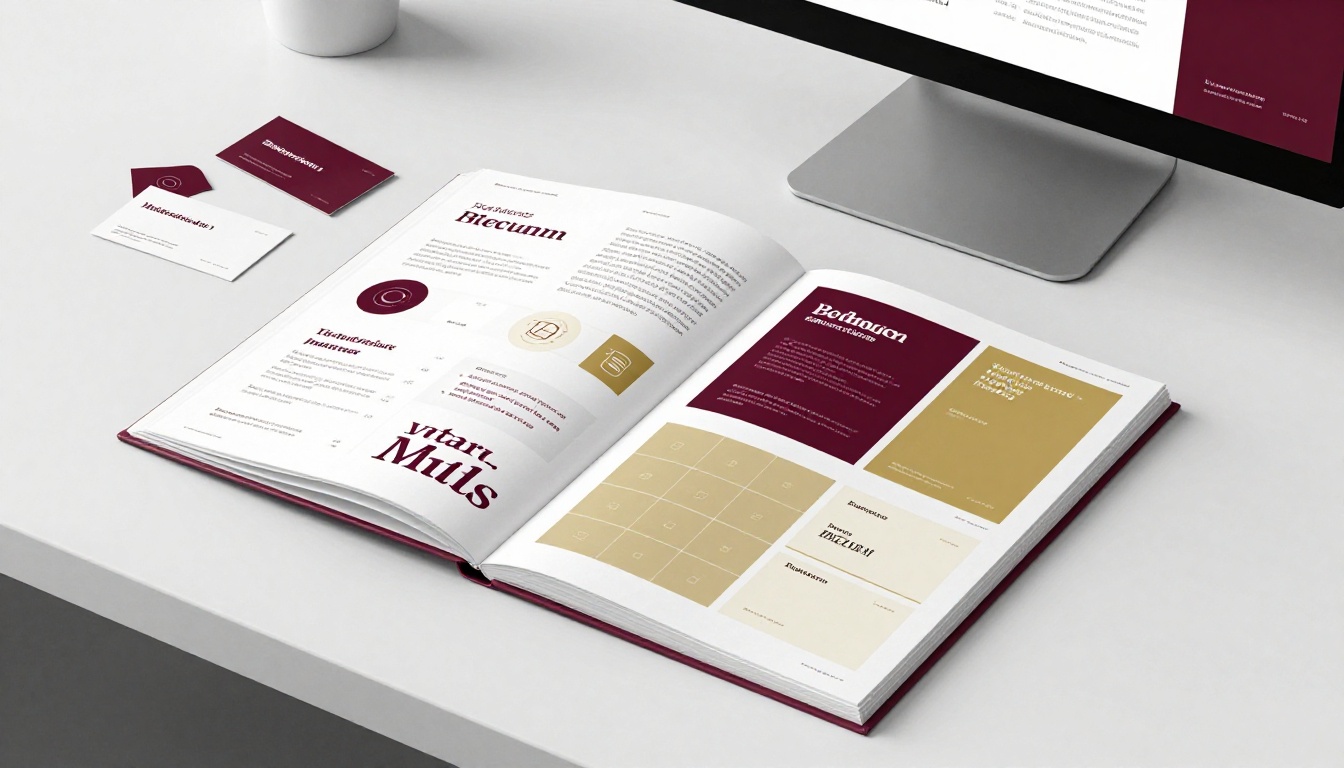
A real estate agency with a signature navy and gold brand can use the Real Estate Brochure Creator to publish property listings where the viewer header matches their business cards and website. Consistency across all touchpoints builds the trust that clients need before making large purchasing decisions.
Fashion and Retail
A fashion brand with a soft blush and charcoal palette can publish seasonal lookbooks using the Interactive Lookbook Designer. The brand-colored flipbook viewer wraps each season's collection in a consistent visual identity that clients immediately associate with the label.
Common Color Mistakes in Digital Brochures
Even experienced designers make these errors. Here is what to watch for:
1. Relying on "similar" colors instead of exact codes
Your brand has specific hex values for a reason. #2C3E50 and #2E4057 look almost identical on screen but are measurably different. Always paste the exact code directly from your brand documentation.
2. Ignoring dark mode
Many users browse with dark mode enabled. Test your brochure viewer in both light and dark system settings to make sure your brand colors hold up under both conditions.
3. Using too many colors
A brochure with six brand colors plus gradients plus photography is visually exhausting. Limit active color choices to three, then use photography and white space to balance the layout.
4. Forgetting interactive state colors
Buttons change color when hovered or clicked. If you do not set these states to a brand color, the default blue will appear and break your visual consistency. On Flipbooks AI, these interactive states are all fully customizable.
5. Low contrast text
Brand colors are beautiful. But if your brand's primary color is a medium-saturation tone and you place body text in it over a similarly toned background, readability drops sharply. Always check contrast ratios using the WCAG contrast checker before publishing.

Comparing Flipbooks AI Plans for Brand Features
Different plans on Flipbooks AI offer different levels of brand customization. Here is what matters specifically for brochure branding:
| Feature | Free | Standard | Professional |
|---|
| Custom brand colors in viewer | ✓ | ✓ | ✓ |
| Logo placement | ✓ | ✓ | ✓ |
| No watermarks | ✗ | ✓ | ✓ |
| Unlimited flipbooks | ✗ | ✓ | ✓ |
| Custom domain | ✗ | ✓ | ✓ |
| Password protection | ✗ | ✓ | ✓ |
| Analytics dashboard | ✗ | ✗ | ✓ |
| Lead generation forms | ✗ | ✗ | ✓ |
| Offline downloads | ✗ | ✗ | ✓ |
For most branded brochure use cases, the Standard plan provides everything needed. The Professional plan adds analytics so you can see exactly which pages of your brochure readers spend the most time on, which is powerful data for refining future content.
Digital vs. Print: Color Differences to Expect
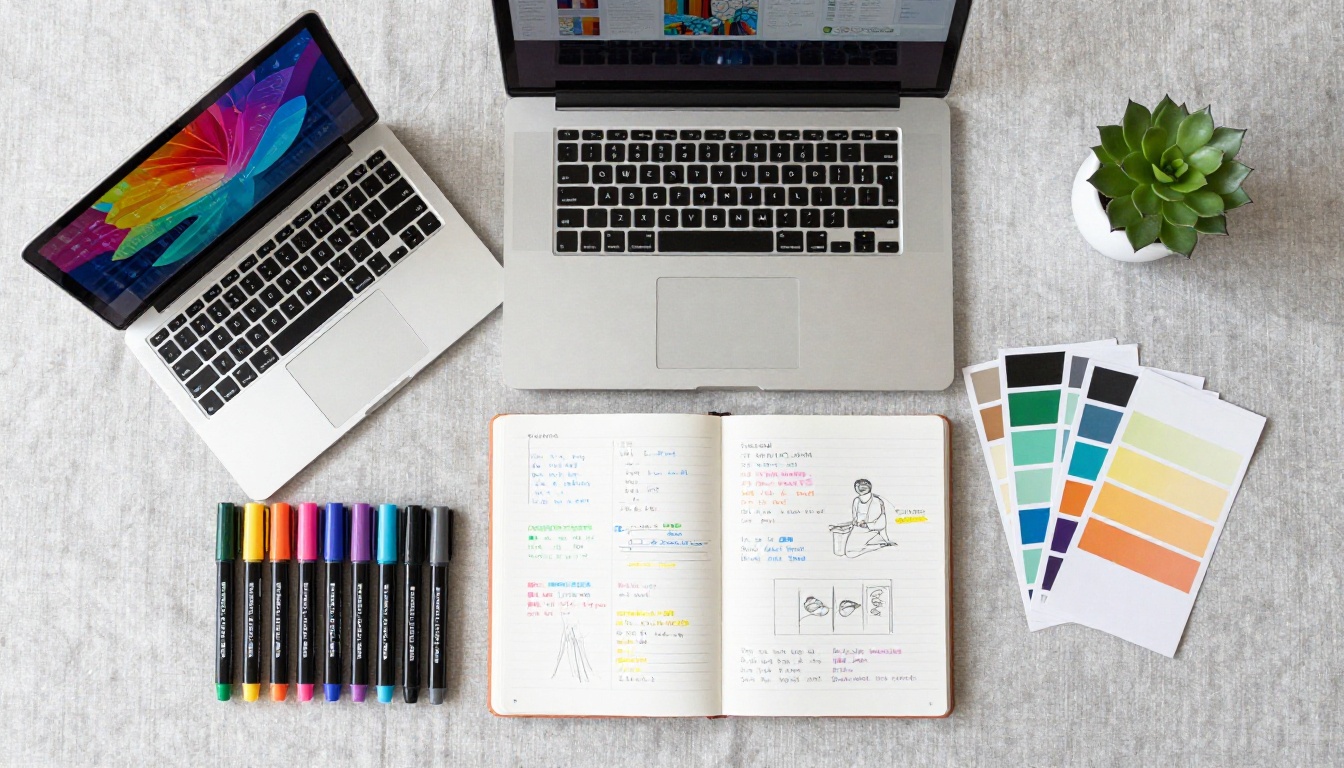
When you move from a printed brochure to a digital one, colors can shift in ways that surprise designers. Here is a quick reference for what to expect:
| Factor | Print | Digital Flipbook |
|---|
| Color model | CMYK | RGB/HEX |
| Color rendering | Ink on paper | Backlit screen pixels |
| Brightness range | Limited | Full luminance range |
| Color accuracy | Device-dependent | Profile-dependent |
| Consistency | Varies by printer | Consistent across platforms |
The implication: your digital brochure can often look more vivid than the printed version. Colors that felt slightly flat in print can become vibrant on screen. This is an advantage. Review your PDF on-screen before uploading and make final color adjustments in your design software if needed.
⚠️ Warning: If your brand has existing printed materials, do not assume the screen version will match exactly. Brief your team on these differences so no one is surprised when the digital brochure looks brighter than the printed counterpart.
The Brochure Flipbook Maker handles general brochure creation, but Flipbooks AI also offers industry-specific tools that come pre-configured for common branding patterns in each sector:
Using the right tool for your industry means less customization work to reach a branded result that looks professional from the first page.
Typography and Color: The Combination That Defines Brand Voice
Color alone does not define your brand in a brochure. Typography works alongside color to create a complete identity. Here is how to align them:
- Headline fonts: Bold and distinctive. Set in your primary brand color against a neutral background for maximum impact.
- Body text: Always black or very dark grey. Never set body text in a brand color. Readability is non-negotiable.
- Callout text: Your accent color works well here for pull quotes and statistics.
- Caption text: Slightly lighter grey. Brand color use here is optional but effective when applied subtly.
A brochure that uses brand colors only for headlines and accents, with clean black body text, will always read as more professional than one where brand color is applied indiscriminately across all text levels.
Testing Your Brochure Across Devices
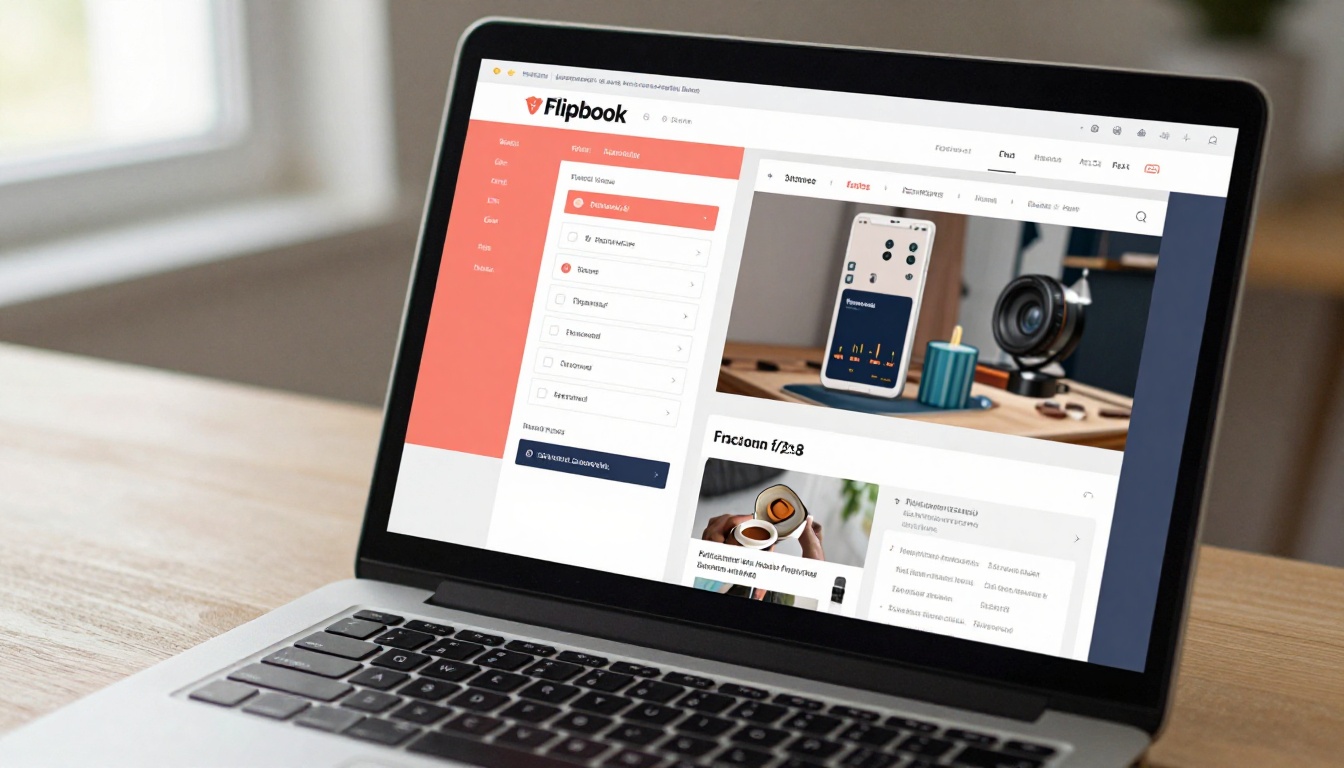
Before you send a branded brochure to any client or publish it to your website, test it in at least these environments:
- Desktop browser (Chrome on Windows)
- Desktop browser (Safari on Mac)
- iPhone Safari
- Android Chrome
- Tablet in landscape mode
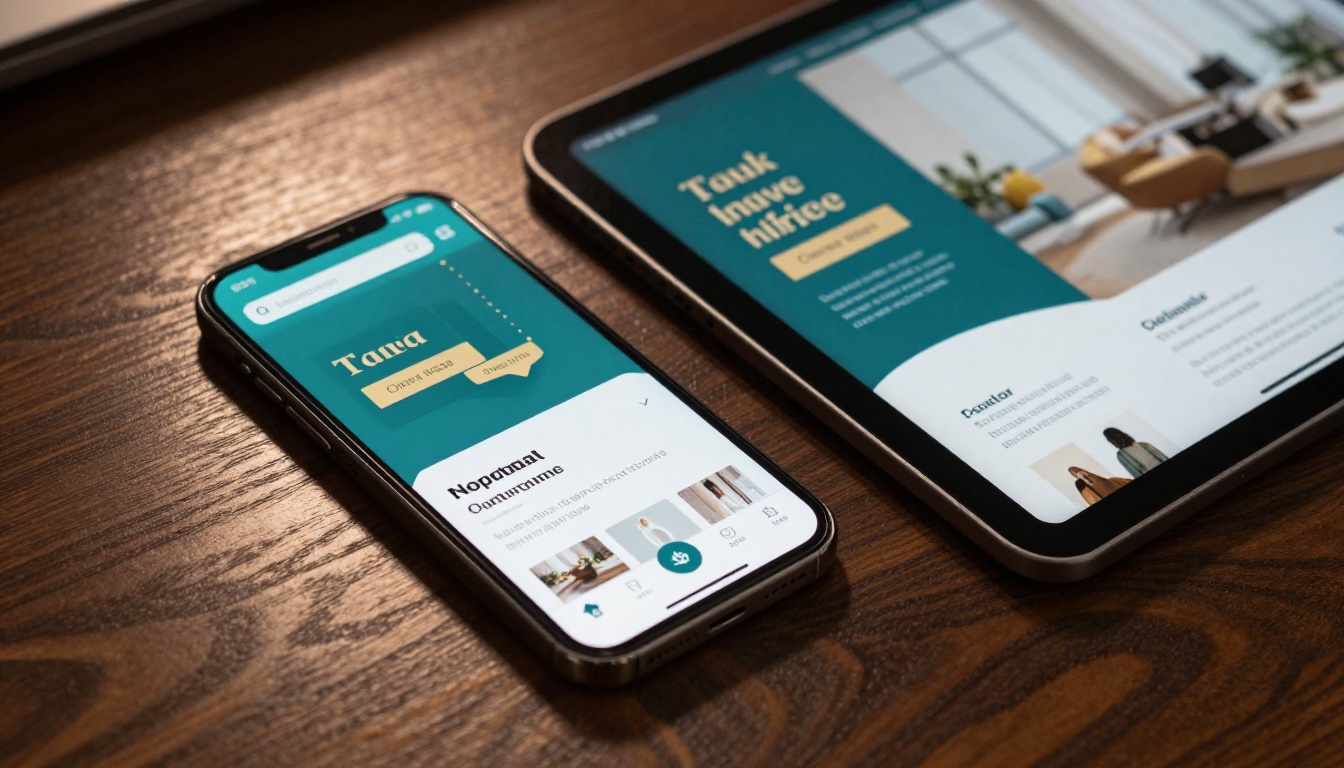
Flipbooks AI produces mobile-responsive flipbooks by default, but your internal PDF design and color choices affect how the brochure looks across screen sizes. Specifically check:
- Do colors look consistent across devices?
- Is text readable at all zoom levels?
- Do your brand colors in the viewer chrome match on mobile?
- Does the loading screen show your logo correctly on small screens?
✅ Best Practice: Share a test link with a colleague on a different device before the final publish. A second set of eyes on a different screen catches color and layout issues that you have grown blind to after hours of editing.

Your Brand, Published in Minutes
Making a digital brochure that matches your brand colors is no longer a task that requires a developer, a custom CMS, or a specialist agency. With a clear color palette documented, a well-designed PDF exported correctly, and a platform built for brand-precise publishing, the whole process takes less than an hour from first upload to shareable link.
Every detail matters: the viewer chrome color, the toolbar tint, the button accent, the logo in the header. When all of these elements use your exact brand hex codes, your brochure stops looking like a generic document and starts functioning as a genuine brand asset.
Ready to publish your first branded flipbook? Get started for free on Flipbooks AI and see your brand colors come to life in a format your audience can interact with on any device.
Browse all available flipbook tools to find the right template for your industry and use case. Compare pricing plans to choose the level of customization that fits your branding needs.



