Adobe InDesign is where some of the most polished print layouts in the world are built. Magazines, brochures, catalogs, annual reports, product sheets: they all start their life in InDesign. But when it comes time to share that work digitally, most designers default to a flat PDF. That is a missed opportunity. When you convert an InDesign file into an interactive flipbook, you give your layout the digital life it deserves: realistic page turns, mobile responsiveness, embed capability, and an experience that actually holds people's attention. Flipbooks AI makes this conversion fast, clean, and free of watermarks.
Why InDesign Files Work So Well for Flipbooks
Precision layouts that translate cleanly
InDesign is built for precise, multi-page layouts. Every element sits on a grid. Margins, gutters, bleeds, and master pages create visual consistency across every spread. When you export that to a high-quality PDF and then convert it to a flipbook, that precision comes through. The flipbook does not reformat or reflow the content. It renders your pages exactly as you designed them, which means your typography, image placement, and color hierarchy all stay intact.
This is a significant advantage over tools that try to build flipbooks from raw content. With InDesign, you are exporting a finalized design, not asking software to interpret loose text and images.
From print-ready to digital without starting over
Many designers have InDesign files sitting in their archives that were originally created for print. Annual reports from previous years, product catalogs, event brochures: these do not have to be rebuilt from scratch to have a digital presence. The InDesign-to-flipbook workflow breathes new life into existing assets with minimal effort.
Setting Up Your InDesign File Before Export
Getting the file ready before you hit Export is where most problems either get solved or created. A few checks here save considerable time later.
Document settings and bleed
If your document was set up for print, it may have 3mm bleeds on all sides. That is correct for press output, but for a digital flipbook you may want to reconsider. Bleeds that extend beyond the page edge are usually cut off in PDF viewers and flipbook renderers. For digital output, setting bleed to zero creates cleaner page borders. If your design uses full-bleed photography that intentionally runs to the edges, keep the bleed and export with the correct crop marks settings.
Also confirm your document is set to the correct page size. A4 and US Letter both work well for flipbooks. Non-standard sizes work too, but they may create letterboxing on certain screen sizes.
Resolving the Links panel before export
Open your Links panel (Window > Links) and look for any yellow warning triangles or red question marks. These indicate modified or missing linked files. A missing link will produce a low-resolution placeholder in your exported PDF, and that blurry image will show up in your flipbook.
⚠️ Always relink missing files before exporting. A flipbook with blurry images reflects directly on the quality of your work.
If you have embedded all images directly into the InDesign file rather than linking them externally, this step is less critical. But for most production workflows, linked files are the norm.
RGB vs CMYK for screen
Print documents are typically set up in CMYK. Screens display in RGB. When you export to PDF for flipbook use, convert your color space to RGB (specifically sRGB). This is handled in the PDF export settings under the Output tab. CMYK files often look dull on screen because monitors cannot render the full CMYK gamut.
💡 Pro tip: Use the sRGB IEC61966-2.1 color profile in your PDF export output settings. Colors will appear more vivid and accurate across all screens and devices.
Exporting from InDesign to PDF
This is the critical step. A poorly configured export can ruin an otherwise polished InDesign file.
The right PDF export preset
InDesign comes with several built-in PDF presets. For flipbook use, the best starting point is PDF/X-4 or the High Quality Print preset. These preserve image quality and embed all fonts. Avoid the Smallest File Size preset for flipbooks because it compresses images too aggressively and creates visible JPEG artifacts on large screen displays.
| PDF Preset | Best For | Image Quality | File Size |
|---|
| Smallest File Size | Email attachments | Low (artifacts) | Very small |
| High Quality Print | Flipbooks, web | High | Medium |
| PDF/X-1a | Press-ready print | Very high | Large |
| PDF/X-4 | Flipbooks, digital | High (transparency) | Medium |
| Interactive PDF | Hyperlinks, forms | Medium | Medium |
Interactive PDF vs Print PDF
InDesign lets you export two types of PDFs: Print and Interactive. Most flipbook platforms work best with Print PDFs because they render page by page reliably. Interactive PDFs can include clickable hyperlinks, buttons, and video, but many platforms strip these out during conversion.
If clickable links in your flipbook are important to you, check whether your flipbook platform supports them. Flipbooks AI preserves hyperlinks embedded in the PDF, so exporting as Interactive PDF with hyperlinks enabled carries those links through to the final flipbook.
Keeping file size manageable
Large PDFs slow down flipbook loading times. Target a final PDF size between 5MB and 25MB for most projects. A few settings help with this:
- Set image resolution to 150 PPI, not 300 PPI, which doubles file size for no visible screen benefit
- Enable Compress Text and Line Art in the Compression settings
- Flatten transparency if your document uses complex effects
- Subset fonts at 100% to embed only the glyphs actually used in the document
How to Convert Your PDF into a Flipbook with Flipbooks AI
Once your PDF is exported and ready, the conversion process on Flipbooks AI takes just a few minutes.
Step-by-step: from upload to live flipbook
- Create your account at flipbooksai.com/account or log in if you already have one.
- Click "New Flipbook" from your dashboard.
- Upload your PDF by dragging and dropping or browsing your files. Flipbooks AI accepts PDFs up to several hundred pages.
- Wait for conversion. The platform processes each page and renders it for the page-turn viewer. For a 20-page document this typically takes under 30 seconds.
- Preview your flipbook. The page-turn viewer opens automatically. Flip through every page to check that images, typography, and layout all render correctly.
- Publish. Once you are satisfied, hit Publish to generate a shareable link.
✅ No watermarks, ever. Even on the free plan, your flipbook will not show any Flipbooks AI branding unless you actively choose to add it.

Customization options after upload
After publishing, the real customization begins. Flipbooks AI gives you control over the visual experience beyond what InDesign can define.
- Background color or texture: Choose a background for the flipbook viewer to frame your pages
- Page effects: Control the speed and style of the page-turn animation
- Table of contents: Auto-generate navigation from your PDF bookmarks
- Logo placement: Add your brand logo to the flipbook viewer
- Custom domain: Publish on your own domain for a fully branded experience (Professional plan)
Branding, colors, and page effects
If your InDesign file is for a client, white-labeling the flipbook viewer is a professional touch. Remove Flipbooks AI interface elements and replace them with your client's colors and logo. This turns the flipbook into a seamless part of their brand experience rather than a third-party tool. For catalog-specific projects, the Catalog Flipbook Creator offers dedicated templates that pair well with InDesign-exported PDFs.
Flipbooks AI Features Worth Using
Not all flipbook platforms are the same. Here is what Flipbooks AI offers across its plans:
| Feature | Free | Standard | Professional |
|---|
| Flipbooks per account | 3 | Unlimited | Unlimited |
| Watermarks | None | None | None |
| Password protection | No | Yes | Yes |
| Custom branding | Limited | Yes | Yes |
| Analytics | No | Basic | Full |
| Lead generation forms | No | No | Yes |
| Offline downloads | No | Yes | Yes |
| Embed on websites | Yes | Yes | Yes |
| Custom domain | No | No | Yes |
| Video and audio embed | No | Yes | Yes |
For design professionals delivering work to clients, the Standard plan covers most needs. The Professional plan at flipbooksai.com/pricing adds analytics and lead capture, which is valuable if the flipbook is part of a marketing campaign or a sales tool.
Design Choices That Hold Up in Flipbooks
Not every InDesign design translates equally well to flipbook format. A few decisions at the design stage make a real difference in the final output.
Typography and font embedding
InDesign embeds fonts in exported PDFs by default. This is critical for flipbook rendering. If fonts are not embedded, the PDF viewer substitutes them with system fonts, which can break your entire typographic hierarchy.
In the PDF export dialog, open the font configuration section and ensure Subset fonts below is enabled (set to 100%). This embeds all glyphs used in your document.
⚠️ Avoid fonts with licensing restrictions. Some foundry licenses prohibit embedding. If you receive a font embedding warning during export, switch to an OFL-licensed alternative.
Avoid overly thin font weights at small sizes. These render poorly at screen resolution and can become illegible in the flipbook viewer on mobile screens.
Image resolution and placement
For flipbooks viewed on screen, 150 PPI is the sweet spot. Higher resolution bloats the file without visible improvement. Lower resolution creates visible compression artifacts, especially on large photographs or hero images that span a full page.
Images placed in InDesign at less than 100% effective resolution (shown in the Links panel) will look soft in the flipbook. Either replace them with higher-resolution originals or avoid placing them at a size larger than intended.
| Image Use Case | Minimum Resolution | Recommended |
|---|
| Full-page hero image | 100 PPI | 150 PPI |
| Small thumbnail or icon | 72 PPI | 100 PPI |
| Logo (vector SVG/EPS) | N/A (vector) | N/A (vector) |
| Half-page photo | 100 PPI | 150 PPI |
| Text-heavy infographic | 150 PPI | 200 PPI |
Place all photos at actual size or smaller in InDesign to maintain resolution integrity. Scaling up a 300x300px image to fill a full page will always produce a blurry result in both print and digital output.
Sharing and Embedding Your InDesign Flipbook
A flipbook that nobody can find is not doing much. Flipbooks AI gives you several ways to distribute your published document.
Embed codes for websites
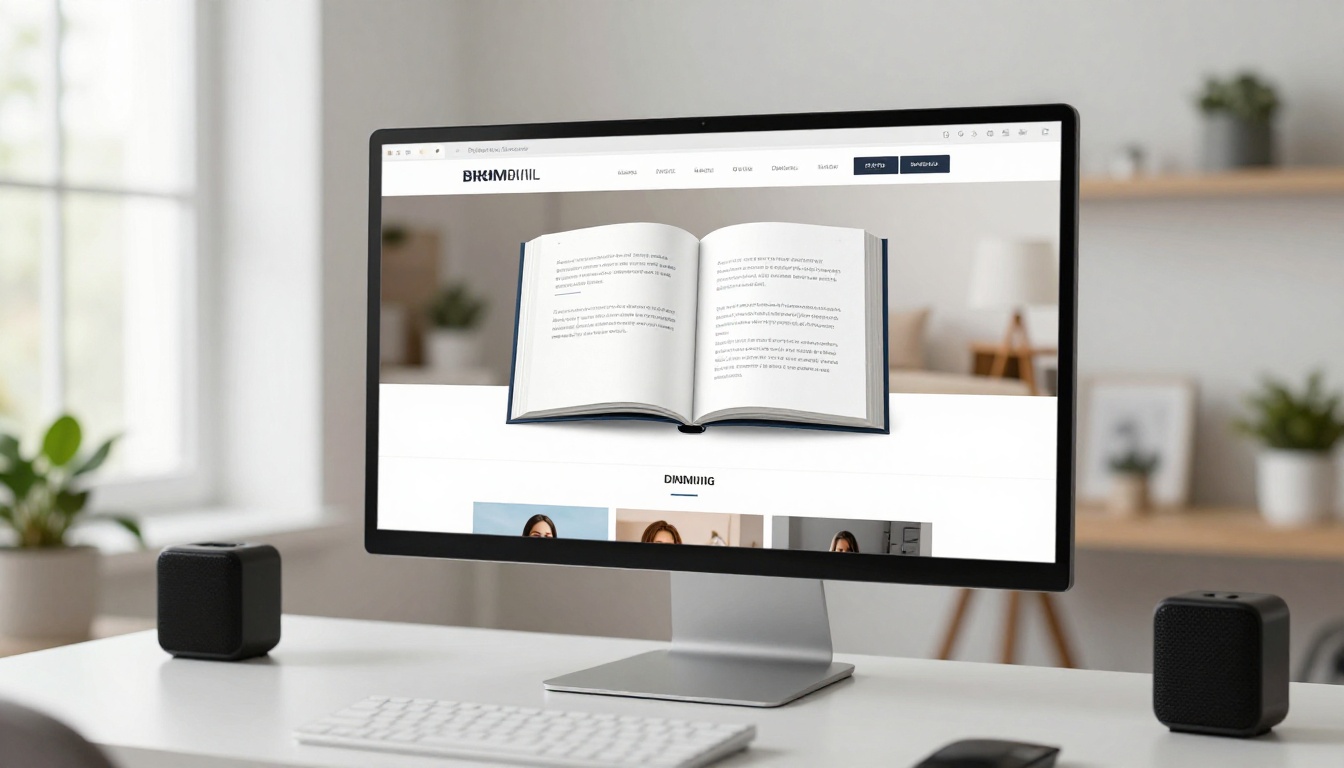
Every flipbook on Flipbooks AI comes with an embed code that works in any website builder: WordPress, Squarespace, Webflow, or raw HTML. Copy the <iframe> snippet from your flipbook's share panel and paste it into your page.
The embedded flipbook is fully responsive. It resizes to fit any container, so it works on mobile without any additional configuration. For designers building client sites, the Embed Flipbook on Website tool provides customizable embed options including specific start page, toolbar visibility, and container dimensions.
Direct links and password protection
Every published flipbook gets a unique URL. Share it directly in email, Slack, social media, or printed QR codes. If the document contains sensitive information (pricing sheets, internal reports, client presentations), enable password protection from the flipbook settings.
Password protection is available on the Standard plan and above. The recipient enters the password in the flipbook viewer before the pages load. No sign-up required on their end.
For public-facing flipbooks, the direct link is shareable anywhere. For private documents, password protection paired with a direct link keeps access controlled without needing to set up user accounts or permissions.
Common Problems and How to Fix Them
| Problem | Likely Cause | Fix |
|---|
| Blurry images in flipbook | Low-resolution source images or exported at low DPI | Re-export PDF at 150 PPI, check Links panel for low-resolution files |
| Missing fonts in flipbook | Fonts not embedded in PDF | Enable font subsetting in InDesign PDF export settings |
| Colors look washed out | Document exported in CMYK | Re-export with sRGB color profile in Output settings |
| Pages appear in wrong order | PDF page order mismatch | Check Section Options in InDesign Pages panel |
| Large file loads slowly | High-resolution export or uncompressed images | Reduce export resolution to 150 PPI, enable compression |
| Hyperlinks not working | Exported as Print PDF instead of Interactive | Re-export with Interactive PDF settings, enable Hyperlinks option |
| Design Tool | Flipbook Workflow | Layout Control | Difficulty |
|---|
| Adobe InDesign | Export PDF, upload to flipbook platform | Highest (professional page layout) | Steep |
| Adobe Illustrator | Export multi-page PDF | High (single-page focus) | Moderate |
| Canva | Export PDF, upload | Moderate (template-based) | Minimal |
| Microsoft PowerPoint | Export PDF or PPTX converter | Low (slide-based) | None |
| Google Slides | Export PDF | Low | None |
| Figma | Export PDF | High (UI-focused) | Moderate |
InDesign remains the strongest starting point for print-quality flipbooks because its layout engine is specifically built for multi-page document design. If you need professional typography, color management, and CMYK-to-RGB control, there is no better foundation.
Start Publishing Your InDesign Work as Flipbooks
You have invested real time in those InDesign layouts. A static PDF sells that work short. Converting them to interactive flipbooks with Flipbooks AI takes minutes, costs nothing to start, and gives your designs the digital presence they were always capable of.
Whether you are publishing a client brochure, an internal report, a product catalog, or a magazine, the workflow is the same: export a clean PDF from InDesign, upload it, customize the viewer, and share. The PDF to Flipbook Converter handles the heavy lifting.
If you are delivering branded flipbooks for clients on a regular basis, compare pricing plans to find the tier that fits. The Standard plan covers unlimited flipbooks with password protection and offline downloads. The Professional plan adds full analytics, lead generation, and custom domains for teams using flipbooks as part of a broader content or sales strategy.
Ready to start? Create a free account and upload your first InDesign export today.



