How to Make a Flipbook with Subtitles for Your Videos
Adding subtitles to your videos inside a flipbook changes how audiences interact with your content. Whether your viewers watch on mute, have hearing impairments, or speak different languages, captions make every second of your video count inside a shareable, interactive publication that works on any device.
Adding subtitles to video content embedded inside a flipbook is one of those decisions that looks minor but pays off in a dozen different ways at once. Captions increase how long people watch, they open your content to viewers with hearing impairments, and they make your flipbook readable in a noisy coffee shop or a silent office with the sound turned off. If you have been creating video content and want to publish it inside a polished, shareable digital publication, making a flipbook with subtitles for your videos is the next step worth taking on Flipbooks AI.
This article walks through subtitle formats, tools, step-by-step creation methods, and the specific workflows that help you ship accessible, professional-grade flipbooks with captioned video every time.
Why Subtitles in Video Flipbooks Actually Matter
Most video content is watched without sound. That is not a guess. Facebook's own internal data has shown that as much as 85% of video on the platform is played on mute. When your flipbook contains an embedded video with no captions, a significant portion of your audience is sitting through silent footage they cannot interpret.
The Silent Viewing Reality
Whether someone is commuting on a train, sitting in a waiting room, or browsing at their desk next to sleeping coworkers, audio is off by default in many real-world scenarios. Subtitles mean your message still lands regardless of the audio situation. This is not an edge case; it is the norm for how people consume digital content in 2024.
Accessibility Is No Longer Optional
Over 430 million people worldwide have disabling hearing loss, according to the World Health Organization. For any organization that publishes educational, corporate, or marketing content, accessible video is increasingly both a legal expectation and a professional standard. A captioned video inside your flipbook is a straightforward way to be inclusive without overhauling your entire production process.
More Time on Page, More Search Signals
Captioned video keeps readers inside your flipbook longer. When a viewer can follow a video without audio, they stay. Longer session times signal quality to search engines, and the text content of your captions can be indexed too, contributing to broader discoverability for your publication over time.
Caption Formats You Need to Know
Before you embed a subtitled video inside a flipbook, you need to prepare that video correctly. That starts with knowing which caption format to use and why it matters.
SRT Files Explained
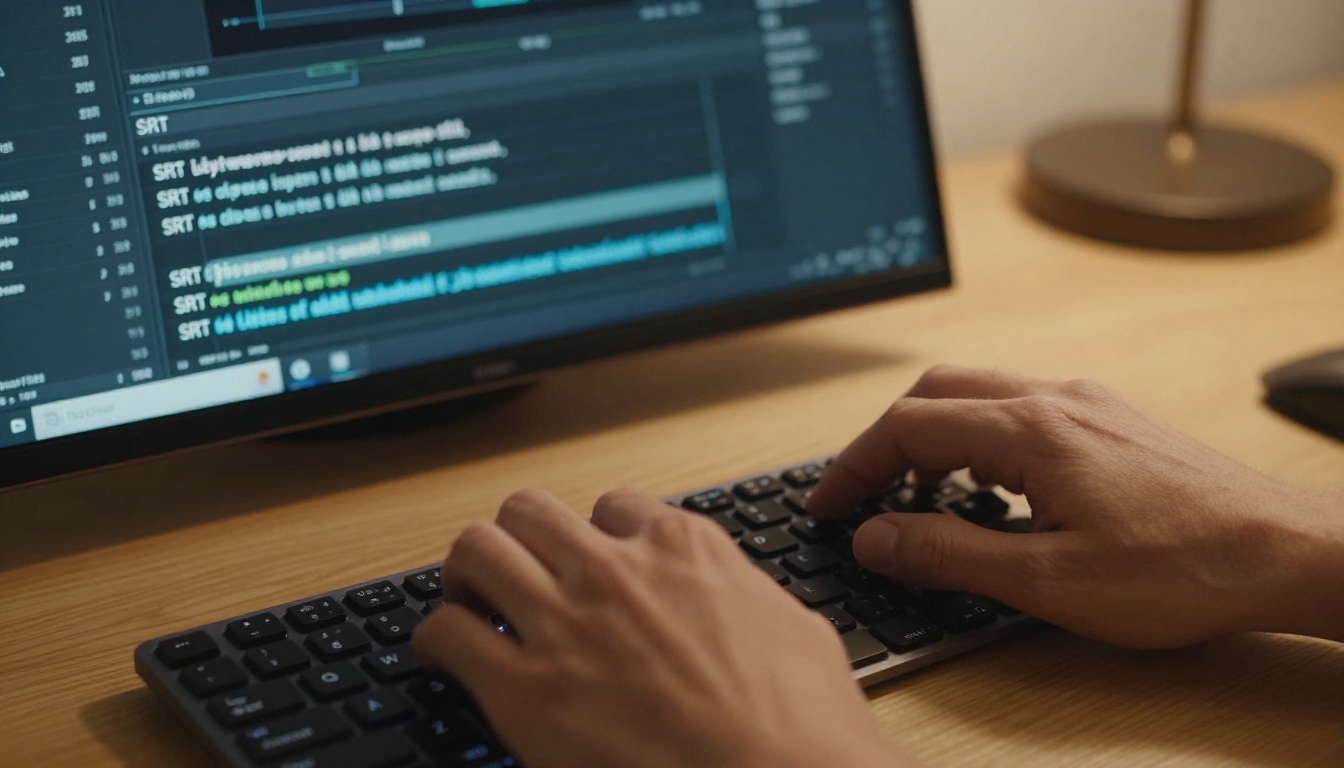
SRT (SubRip Subtitle) is the most widely supported caption format in existence. It is a plain text file with numbered entries, timestamps, and caption text. Every major video platform, editing tool, and player supports SRT. If you are starting from scratch, SRT is your default choice.
A basic SRT entry looks like this:
1
00:00:01,000 --> 00:00:04,500
Welcome to our product demo flipbook.

2
00:00:05,000 --> 00:00:08,200
Here you will see how captions work in real time.
VTT vs SRT: Which to Use
WebVTT (Web Video Text Tracks) is the web-native format. HTML5 video players use it natively, making it the better choice for content embedded in web pages, including flipbooks hosted online. SRT is better for editing workflows, while VTT is better for web delivery.
Feature
SRT
VTT
ASS/SSA
Browser support
Via conversion
Native HTML5
Limited
Styling options
None
Basic CSS
Rich styling
Editing ease
Very easy
Easy
Complex
Platform support
Universal
Web-focused
Desktop players
Best for
Creation and editing
Web embedding
Desktop video
💡 If your platform accepts both, export your captions as SRT for editing and convert to VTT for web embedding. Most online converters handle this in seconds at no cost.
Burned-In vs Soft Captions
There is a critical distinction in how captions attach to video:
Burned-in (hardcoded): Captions are baked directly into the video pixels. They always display, cannot be turned off, and require no player support.
Soft captions: Stored as a separate track. Viewers can toggle them on or off, and they can be restyled.
For flipbook embedding, burned-in captions are the safer choice because they display regardless of the video player's caption support inside the flipbook environment. When you cannot control the player, baking the captions in removes all uncertainty.
Tools for Creating Subtitled Videos
You do not need expensive software to caption your videos. Several solid tools exist at different price points, each with a different workflow.
Tool
Price
Auto-Captions
Export Formats
Best For
CapCut
Free
Yes (AI)
SRT, MP4 burn-in
Social and short-form
DaVinci Resolve
Free / $295
Yes (paid tier)
SRT, VTT, burn-in
Professional editing
Adobe Premiere Pro
$55/month
Yes
SRT, burn-in
Full productions
Kapwing
Free / $16/month
Yes (AI)
SRT, VTT, burn-in
Quick web workflows
Clideo
Free / $9/month
Manual
SRT, burn-in
Simple edits
Zubtitle
$19/month
Yes (AI)
SRT, burn-in
Social video creators
✅ For most flipbook use cases, Kapwing or CapCut handles the captioning step in minutes. Export a burned-in MP4 and you are ready for the next step.
Auto-Caption vs Manual Transcription
AI auto-captioning has become accurate enough for most professional use cases, particularly for clear audio in English. For technical terms, accented speech, or multiple speakers, always review and correct the auto-generated captions before burning them in. A wrong word in a caption damages credibility faster than having no caption at all.
Caption Timing and Readability Rules
Solid captions follow specific formatting rules that make them readable at video speed:
Max 2 lines per caption block
42 characters per line maximum
Minimum 1 second display time per caption
Maximum 7 seconds per caption block
1-2 frames gap between caption changes
These rules exist because human reading speed at video pace is consistent. Violating them causes caption fatigue, where readers give up trying to follow the text halfway through your video.
How to Make a Flipbook with Subtitles for Your Videos on Flipbooks AI
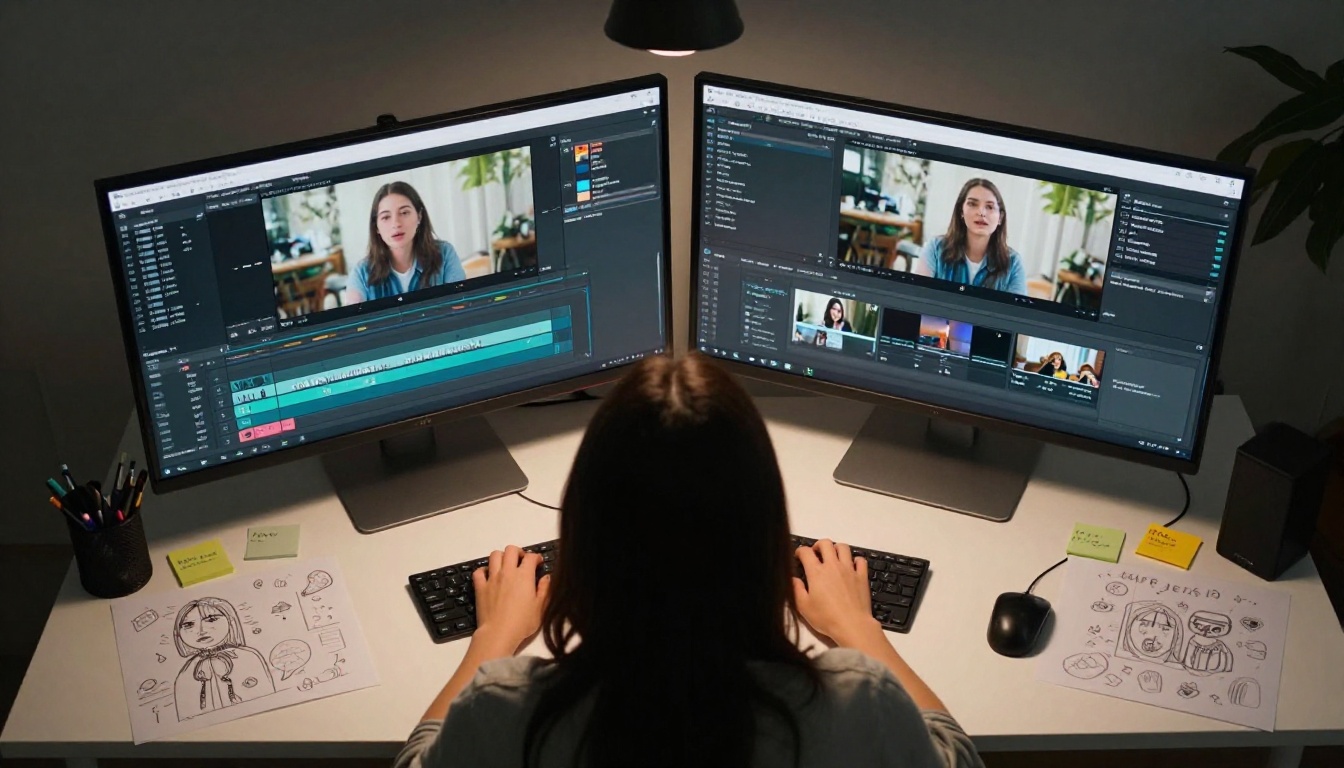
Once your video has captions burned in and is exported as an MP4, you are ready to build your flipbook. Flipbooks AI provides a clean, fast pipeline from PDF upload to shareable publication with embedded multimedia, no coding required.
Step 1: Prepare Your PDF with a Video Placeholder
Flipbooks are built from PDF files. The PDF defines your layout, text, and visual structure. Where you want your captioned video to appear, insert a placeholder image or a black rectangle in your PDF. This marks the position and size of the video embed in the final flipbook.
Design your PDF in Canva, Adobe InDesign, or any layout tool. Export at high resolution (300 DPI minimum) to ensure crisp page quality throughout the publication.
⚠️ Do not try to embed actual video files into the PDF. The PDF is structural only. Video embedding happens inside the Flipbooks AI editor after upload, using the multimedia tool.
Step 2: Upload Your PDF to Flipbooks AI
Go to Flipbooks AI and create your account or sign in.
Click New Flipbook and upload your PDF file.
Wait for the conversion to finish. Flipbooks AI processes your pages and creates an interactive, page-turning version automatically.
Once conversion is done, open the flipbook editor.
Step 3: Embed Your Captioned Video
Inside the Flipbooks AI editor:
Navigate to the page where your video placeholder sits.
Select the Multimedia or Embed option in the editor toolbar.
Upload your captioned MP4 directly, or paste a video URL from YouTube or Vimeo.
Resize and position the video player over your placeholder area.
Enable autoplay or click-to-play depending on your preference.
Since your video already has burned-in captions, every viewer sees the subtitles regardless of their device or browser caption settings.
Step 4: Customize Branding and Settings
Flipbooks AI lets you brand every element of your publication:
Upload your logo to appear on every page
Set custom brand colors for the flipbook toolbar and controls
Choose page flip animations (classic curl, slide, or fade)
Add a custom domain for your publication URL
Set password protection if your content is private or gated
💡 For accessibility-focused publications, choose high-contrast toolbar colors. This helps viewers with low vision navigate your flipbook more easily alongside the captioned video content.
Step 5: Publish and Share
Once your flipbook is ready:
Click Publish to make it live.
Copy the Direct Link to share via email, social media, or messaging apps.
Use the Embed Code to place your flipbook directly on your website or learning management system.
For gated content, enable Password Protection in settings.
Analytics: See exactly which pages viewers spend time on and where they drop off
Lead Generation: Capture emails before viewers access your flipbook
Offline Downloads: Let viewers save your flipbook for reading without an internet connection
Who Gets the Most From Captioned Video Flipbooks
Educators and Course Creators
An online course flipbook with captioned video tutorials reaches students regardless of hearing ability, language, or environment. A language instructor can publish a flipbook where each page contains a video lesson with subtitles in both the source and target language, creating a dual-track experience without any specialized software.
A product launch flipbook with a captioned demo video performs better than one without captions. Buyers often review product materials in environments where they cannot play audio. A captioned flipbook means the product story still gets told in full. This is especially true for B2B content reviewed in offices or shared conference rooms.
Pair captioned product videos with a Digital Catalog Maker layout to create a browsable, video-rich product catalog that sells even in silence.
Corporate Training Departments
HR and L&D teams that produce onboarding flipbooks with embedded training videos face a clear accessibility requirement. New employees with hearing loss cannot be excluded from standard onboarding materials. Captioned videos inside a flipbook solve this without creating separate accessibility versions of the same content.
Flipbooks AI Plans at a Glance
Knowing which plan fits your captioned flipbook workflow saves time before you start building.
Feature
Free
Standard
Professional
Flipbooks
3
Unlimited
Unlimited
Watermarks
Yes
No
No
Custom branding
No
Yes
Yes
Password protection
No
Yes
Yes
Video embedding
Yes
Yes
Yes
Analytics
No
No
Yes
Lead generation
No
No
Yes
Offline downloads
No
No
Yes
Custom domain
No
Yes
Yes
💡 Even on the Free plan, video embedding works. You can test your entire captioned video flipbook workflow before upgrading. When you are ready to remove watermarks and add branding, the Standard plan is the practical starting point for professional use.
Real-World Use Cases for Video Flipbooks With Captions
Product Demo Flipbooks
A software company publishes a quarterly product update flipbook with a captioned walkthrough video on the first page. Sales reps share the link in email outreach. Prospects open it on their phone during a commute. The captions mean they absorb the full demo without needing headphones, removing a real barrier to conversion.
Event Recap Publications
A conference organizer builds a post-event flipbook with highlight reel videos from each session. Captioned video means attendees who missed a session can follow it later, and the publication doubles as an accessibility-compliant record of the event that can be distributed to press or sponsors.
Language Learning Materials
A language school publishes weekly lesson flipbooks with short video dialogues. Each video includes captions in both the student's native language and the target language. The flipbook format lets students flip between vocabulary pages and video practice in the same document, removing the friction of switching between tabs or apps during study sessions.
Caption Styling That Actually Works
Not all caption designs are equally readable. These are the settings that produce the clearest subtitles for flipbook-embedded video:
Font: Sans-serif fonts (Arial, Helvetica, Open Sans) are easier to read at small sizes on screens than serif fonts. Use a single typeface throughout.
Color: White text on a semi-transparent black background is the accessibility standard because it works across all background colors in the video frame.
Size: Minimum 32px font size for video at 1080p. Scale up for shorter videos or smaller display contexts.
Position: Bottom center of the frame, above any lower-third graphics or UI elements already in the video.
⚠️ Avoid placing captions at the very bottom pixel row of the frame. Some video players crop the bottom edge slightly, cutting off the last line of text before viewers can read it.
Testing on Mobile Before Publishing
Over 60% of digital content is consumed on mobile devices. Before you publish your captioned flipbook, open it on a smartphone and verify:
Caption text is readable at mobile scale without squinting
The video player controls do not obscure the captions during playback
The flipbook page-turn navigation does not interfere with video interaction
Flipbooks AI generates mobile-responsive flipbooks automatically, but caption legibility at small screen sizes depends on the font size and contrast you chose during video production.
Caption Accuracy Is Everything
A flipbook is a permanent publication. Unlike a live stream where errors disappear, a flipbook circulates for months or years. Caption errors in a publication that carries your brand name are embarrassing in a way that live errors are not. Before you burn your captions into the video:
Watch the full video with captions on and audio off
Check every technical term, proper noun, and number carefully
Verify timing: captions should appear with the spoken word, not before or after it
Have a second person review it if the content is client-facing or public-facing
Auto-generated captions from AI tools regularly misinterpret homophones, accented speech, and domain-specific vocabulary. A final manual pass is always worth the twenty minutes it takes.
Beyond Subtitles: Making the Whole Flipbook Accessible
Captions are one part of an accessible flipbook. Here are the others worth building in:
Alt text on images: Describe every image you place in your PDF before uploading to ensure screen reader users receive the same information as sighted viewers
Logical reading order: Structure your PDF so the page flows left to right, top to bottom for screen reader software
High contrast text: Avoid light gray text on white backgrounds in your page design
Sufficient font size: Minimum 11pt body text in the PDF translates to readable flipbook pages across devices
All of these choices sit in your PDF design, before the flipbook is even built. The more accessible your source document, the more accessible the resulting publication at every step of its life.
Ready to Build Yours
Making a flipbook with subtitles for your videos is a two-part workflow: caption the video first, then embed it inside a flipbook built for sharing. The captioning step takes thirty minutes with the right tool. The flipbook creation on Flipbooks AI takes another ten.
The result is a publication that works for every viewer, on every device, in every environment, whether sound is on or off.
Ready to create your first accessible video flipbook? Get started for free on Flipbooks AI, or view pricing plans to find the tier that fits your output volume. Browse all available flipbook tools to see what else you can build alongside your video publications.