You built the layout. You spent hours in Photoshop getting the column grids right, selecting typefaces that feel editorial, and placing photography with precision. The magazine looks exactly the way you imagined it as a PSD file. But the moment you want readers to actually flip through it online, most designers freeze. They assume it requires a developer, expensive software, or months of learning new tools. None of that is true. This article walks you through the full workflow to make a digital magazine from Photoshop without coding, from proper file setup to a live, shareable publication that looks as good on a phone as it does on a desktop.
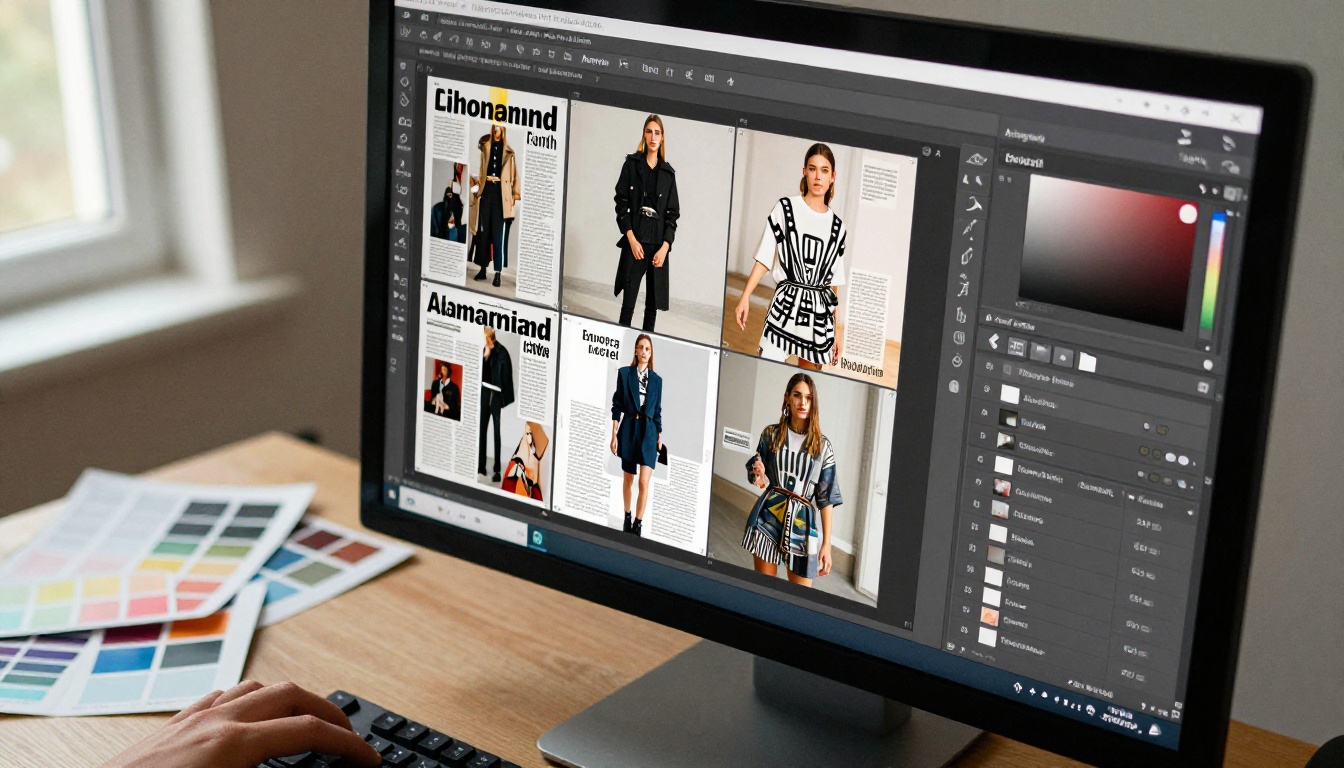
Why Photoshop Still Wins for Magazine Design
The Designer's Toolbox
Photoshop has been the industry standard for editorial design for decades, and for good reason. Its pixel-level control over typography, image retouching, color grading, and layer management gives designers a degree of precision that vector-based tools cannot always match. When you are dealing with full-bleed fashion photography, custom lettering, or complex blending effects, Photoshop delivers results that feel alive and tactile.
The challenge has never been Photoshop itself. The challenge has always been the gap between a finished PSD and a format that can be published online and read on any device.
What Photoshop Handles That Others Don't
| Feature | Photoshop | Canva | InDesign |
|---|
| Pixel-level photo editing | ✅ Full | ❌ Limited | ❌ Limited |
| Custom blending modes | ✅ Yes | ❌ No | ❌ No |
| High-res PDF export | ✅ Yes | ✅ Yes | ✅ Yes |
| Editorial typography control | ✅ Strong | ⚠️ Basic | ✅ Strong |
| Multi-page artboard support | ✅ Yes | ✅ Yes | ✅ Yes |
| Direct digital publish | ❌ No | ⚠️ Limited | ⚠️ Limited |
Photoshop is the right tool for the creative heavy lifting. For the publishing step, you need something else, and that is where a platform like Flipbooks AI fills the gap perfectly.
💡 If your magazine is mostly text-heavy with minimal photo manipulation, consider designing in InDesign and using Photoshop for individual spread artwork. Both apps export PDF files that work perfectly with flipbook conversion tools.
Setting Up Your Photoshop File the Right Way
Getting your PSD structured correctly before you export saves a lot of frustration later. A poorly organized file creates a messy PDF, and a messy PDF produces a broken-looking digital magazine.
Page Size and Artboard Setup
For a standard magazine, use an artboard size of 210 x 297mm (A4) at 300 DPI for print quality. If you are designing exclusively for digital, 1270 x 952px at 96 DPI works well for widescreen devices. Each page of your magazine should be its own artboard within the same Photoshop document.
To add artboards in Photoshop:
- Go to File > New and choose "Artboard" as the document type
- Set the artboard size to match your desired page dimensions
- Use the Artboard Tool (Shift+V) to add additional pages
- Name each artboard sequentially: Cover-Page, Page-02, Page-03, and so on
Color Mode, Resolution, and Bleed
Always work in RGB color mode when designing for digital publication. CMYK is for print. RGB gives you richer screen colors and avoids color shifting when the file renders on-screen.
⚠️ If you are repurposing a print file designed in CMYK, convert it to RGB before exporting. Go to Image > Mode > RGB Color. Some colors will shift slightly, so review each spread after conversion.
Resolution checklist before export:
- Minimum 150 DPI for digital-only magazines
- 300 DPI if the file will also go to print
- Rasterize all smart object layers to avoid rendering issues
- Flatten adjustment layers that are final and will not be changed
Organizing Layers for Clean Output
A clean layer structure means cleaner PDF output. Group layers by page section: headers, body text, images, decorative elements. This also helps if you ever need to make edits quickly.
✅ Name your groups clearly. A layout with groups called "Photo Hero," "Headline Text," "Body Copy," and "Footer" is infinitely easier to work with six months later than one with "Layer 1," "Layer 2," and "copy of Layer 2 final FINAL."
From PSD to PDF: The Export That Changes Everything
The bridge between Photoshop and a digital magazine is a PDF file. Once you export your PSD as a high-quality, multi-page PDF, the hard work is essentially done. The rest is handled by your publishing platform.
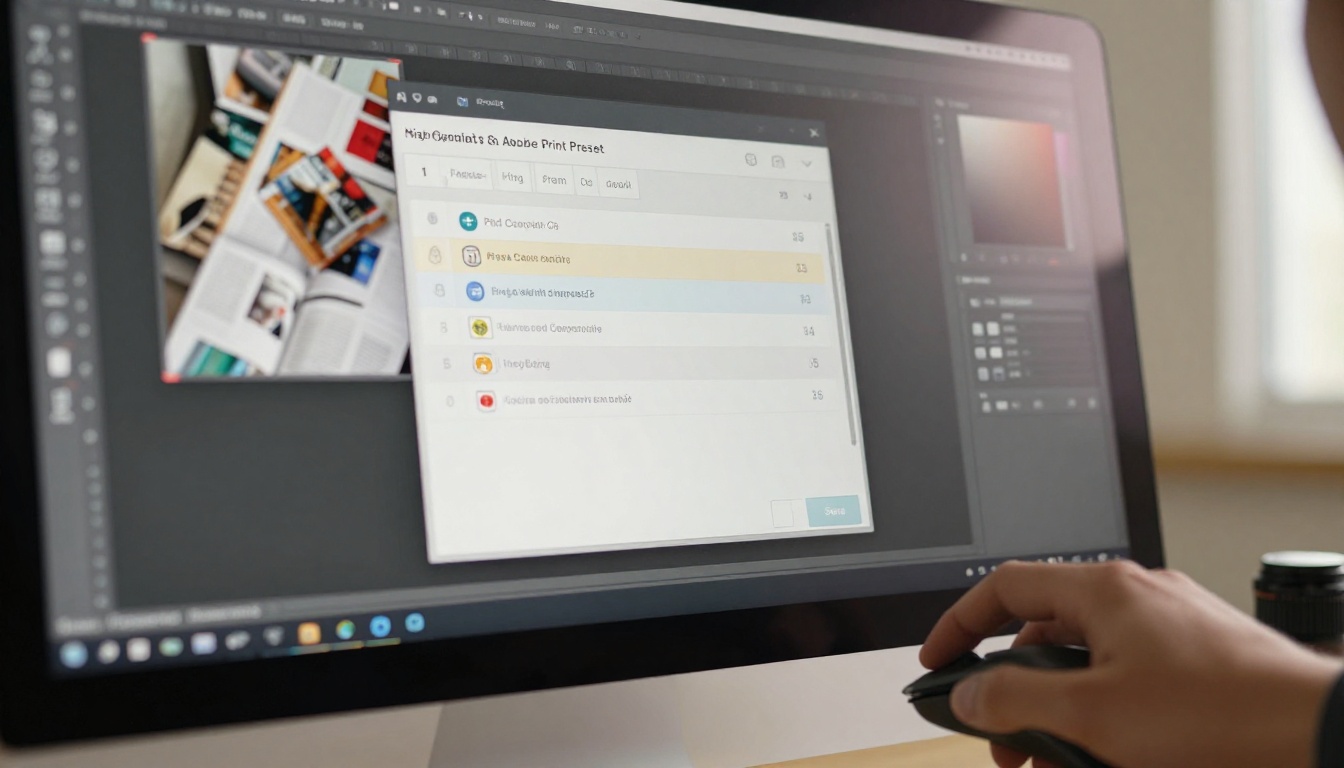
Export Settings That Matter
To export your Photoshop artboards as a multi-page PDF, follow these steps:
- Go to File > Export > Artboards to PDF
- Choose your destination folder
- Select "All Artboards" to include every page
- Under PDF Options, choose "High Quality Print" as the preset
- Set image compression to JPEG with quality at 80 for a balance of file size and visual sharpness
- Make sure "Preserve Photoshop Editing Capabilities" is unchecked for a smaller, cleaner file
- Click Export
💡 If your magazine has interactive hyperlinks you want to preserve in the digital version, use Adobe Acrobat Pro to add them to the PDF after export. Platforms like Flipbooks AI will preserve clickable links inside the converted flipbook automatically.
Multi-Page Artboards Explained
Photoshop handles multi-page documents through artboards. Each artboard becomes one page in the exported PDF. The export order follows the artboard order in your layers panel, so arrange them top to bottom before exporting.
Common export mistakes to avoid:
- Forgetting to merge visible layers before exporting, which causes transparency issues
- Leaving hidden layers that accidentally render in the output
- Exporting at screen resolution (72 DPI) instead of print quality
- Using a document color profile that shifts colors unexpectedly on-screen
Turning Your PDF Into a Digital Magazine
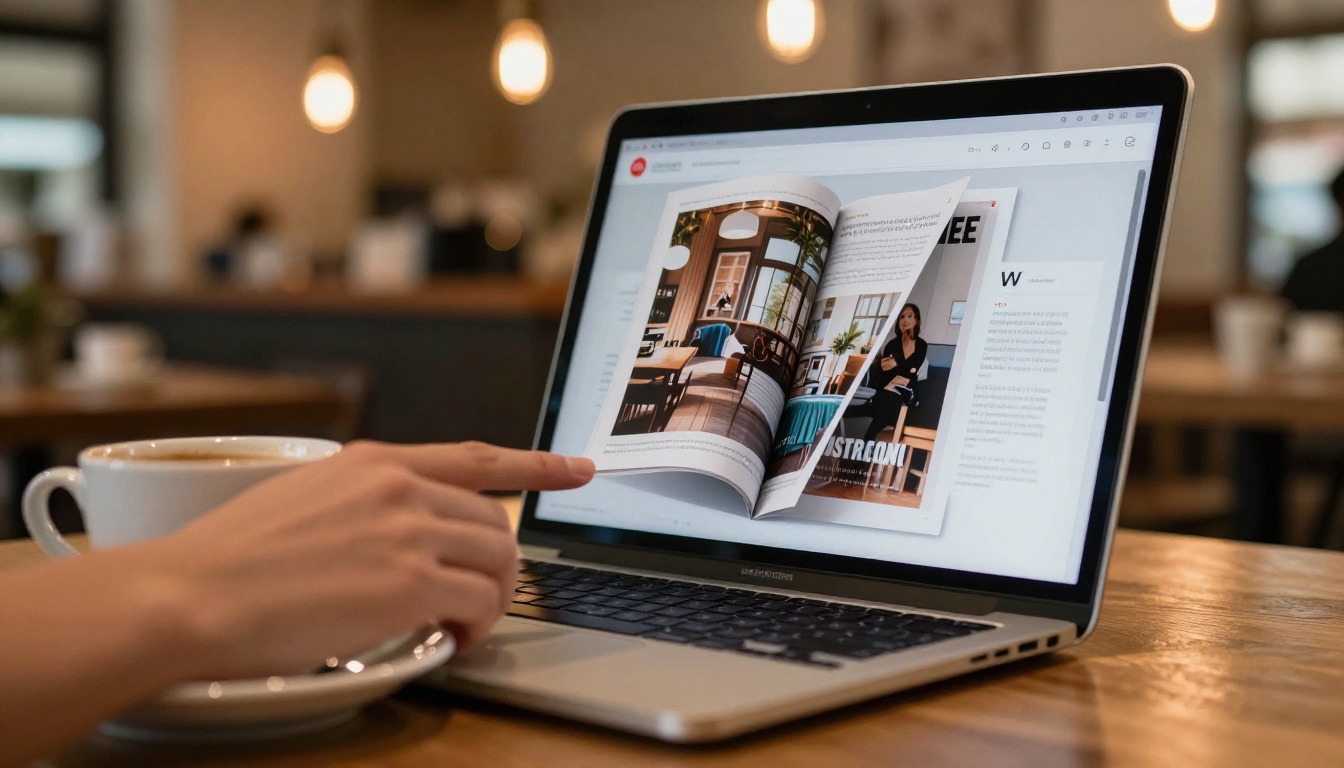
Once you have your PDF, you are one upload away from a fully interactive digital magazine. No code, no plugins, no developer required. The conversion process takes your static PDF pages and wraps them in an interactive reader with realistic page-flip animation, navigation controls, zoom functionality, and mobile responsiveness.
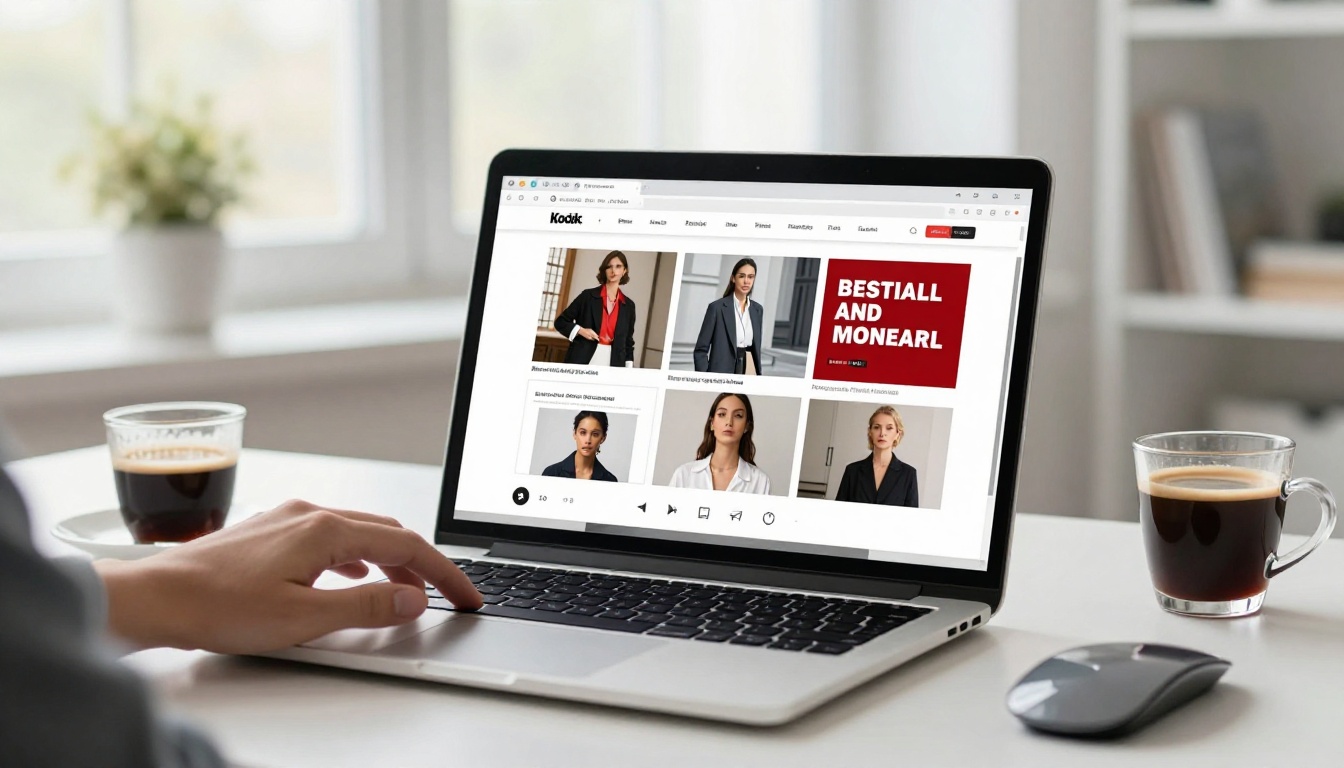
What Actually Happens During Conversion
When you upload a PDF to a flipbook platform, the tool does several things automatically:
- Rasterizes each PDF page at high resolution for crisp on-screen rendering
- Generates page-turn animations that simulate a physical magazine
- Creates a responsive viewer that adapts to any screen size
- Produces a shareable URL so anyone can read it in a browser without downloading anything
- Optionally embeds the reader in any website via a simple iframe code
The result feels like reading a real magazine, not scrolling through a static PDF viewer.
How to Publish Your Magazine with Flipbooks AI
Flipbooks AI is purpose-built for exactly this workflow. It takes your exported PDF and turns it into a polished, branded digital magazine in minutes. Here is the complete process.

Step-by-Step: PSD to Published Magazine
Step 1: Create Your Account
Go to flipbooksai.com/account and sign up. No credit card required to start. You get access to the core conversion and publishing tools immediately.
Step 2: Upload Your PDF
From your dashboard, click "Create New Flipbook" and upload the PDF you exported from Photoshop. Files with up to several hundred pages convert without issues.
Step 3: Wait for Conversion
The platform processes your PDF page by page. For a 40-page magazine, conversion typically completes in under two minutes. A live progress indicator shows you where it stands.
Step 4: Customize Your Branding
Once converted, open the customization panel. Here you can:
- Set a custom background color or texture behind the flipbook viewer
- Upload your brand logo to appear in the reader header
- Choose a page transition style (classic page flip, slide, or fade)
- Set a custom thumbnail for the flipbook preview image
Step 5: Add Password Protection (Optional)
For magazines you want to share with a specific audience, like clients, subscribers, or internal teams, enable password protection in the settings panel. Readers will need to enter the password before accessing the content.
Step 6: Embed or Share
Once your magazine is live, you have several distribution options:
- Direct link: Copy the shareable URL and paste it anywhere (social media, email, bio links)
- Embed code: Copy the iframe snippet and paste it into any website or CMS
- QR code: Generate a QR code that links directly to your magazine for use on print materials
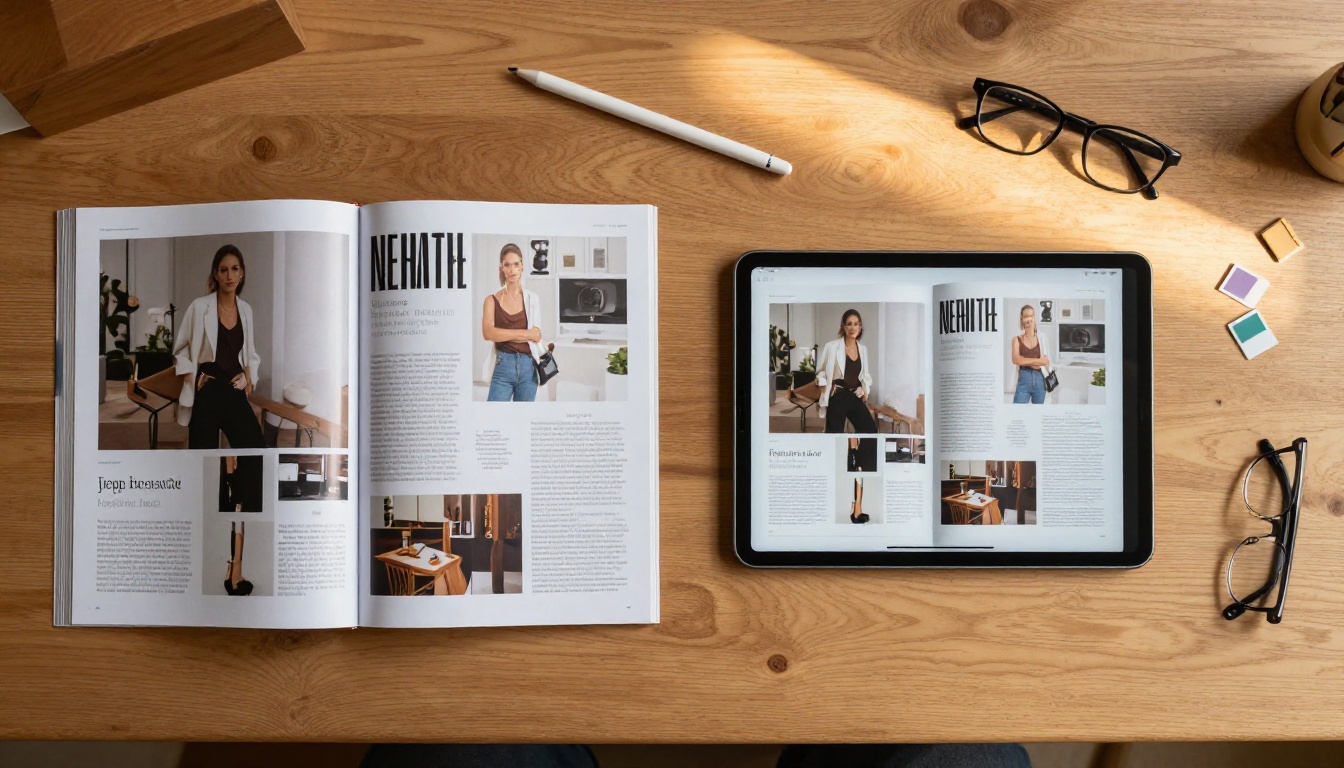
✅ Use the E-Magazine Publishing Tool for editorial publications, or the Magazine Flipbook Creator for a streamlined workflow tailored specifically to magazine formats.
Features That Make a Difference
- No watermarks: Your magazine stays clean and professional on all plans
- Mobile-responsive design: The viewer adapts automatically to phones and tablets
- Embed videos and audio: Add multimedia directly into the digital publication
- Offline downloads: Readers can save the magazine for offline access
- Custom branding: Remove platform branding on paid plans for a fully white-labeled result
If you are deciding where to do your design work before converting to flipbook, here is how the most common tools compare:
| Design Tool | PDF Export Quality | Photorealism | Multi-Page Support | Learning Curve | Best For |
|---|
| Adobe Photoshop | ✅ Excellent | ✅ Best-in-class | ✅ Artboards | Medium | Photo-heavy magazines |
| Adobe InDesign | ✅ Excellent | ⚠️ Moderate | ✅ Native pages | High | Text-heavy publications |
| Canva | ✅ Good | ⚠️ Limited | ✅ Yes | Low | Quick, template-based |
| Affinity Publisher | ✅ Excellent | ⚠️ Moderate | ✅ Yes | Medium | Budget alternative to InDesign |
| Figma | ⚠️ Good | ⚠️ Limited | ✅ Frames as pages | Low | UI-focused layouts |
All of these tools output a PDF that works with Flipbooks AI. The choice of design app does not change the publishing workflow at all.
Common Mistakes That Ruin Digital Magazines
Even experienced designers make these errors when moving from print to digital for the first time.
Wrong Color Profile
The most common issue. Exporting a CMYK file without converting to RGB first results in washed-out, inaccurate colors in the digital version. Always check your color mode before exporting.
File Size Too Large
A 500MB PDF will either fail to upload or convert into a laggy reading experience. Use JPEG compression at 70-80% quality during export. A well-optimized 40-page magazine should land under 30MB.
Ignoring Bleed on Digital-Only Files
For digital-only publications, you do not need bleed. Including it adds unnecessary whitespace around your pages in the digital viewer. Set your artboard to the exact finished trim size with no extra bleed area.
Typography Rasterized at Low Quality
If your type layers are rasterized at 72 DPI, they will look blurry on high-resolution retina screens. Either keep type as vector (do not rasterize text layers), or work at 300 DPI and rasterize at that higher resolution.
⚠️ Never flatten your entire document to a single rasterized layer before exporting. This destroys text sharpness. Export with text layers intact or at 300 DPI minimum.
Real-World Uses for Photoshop-Made Digital Magazines
This workflow applies to a wide range of publishing scenarios. Here is how different professionals use it every day:
Every single one of these starts with the same process: design in Photoshop, export as PDF, upload and convert. The specific tool on Flipbooks AI changes based on your publication type, but the workflow stays identical.
What a Professional Plan Gets You
The free tier handles the basic conversion and sharing workflow. But if you publish regularly or need premium features, here is what each plan includes:
| Feature | Free | Standard | Professional |
|---|
| Watermark-free | ✅ | ✅ | ✅ |
| Unlimited flipbooks | ❌ | ✅ | ✅ |
| Custom branding | ❌ | ✅ | ✅ |
| Password protection | ❌ | ✅ | ✅ |
| Embed on website | ✅ | ✅ | ✅ |
| Offline downloads | ❌ | ✅ | ✅ |
| Analytics and stats | ❌ | ❌ | ✅ |
| Lead generation forms | ❌ | ❌ | ✅ |
| Video and audio embeds | ❌ | ✅ | ✅ |
For designers who publish client work, the Standard plan removes the platform branding entirely and gives you unlimited publications. Browse the pricing plans to find what fits your volume.
Mobile Reading Without Extra Work
One of the biggest advantages of this workflow is that your magazine becomes mobile-responsive automatically. You do not need to design a separate mobile version. The flipbook viewer handles layout adaptation, zooming, and navigation on touchscreens without any input from you.
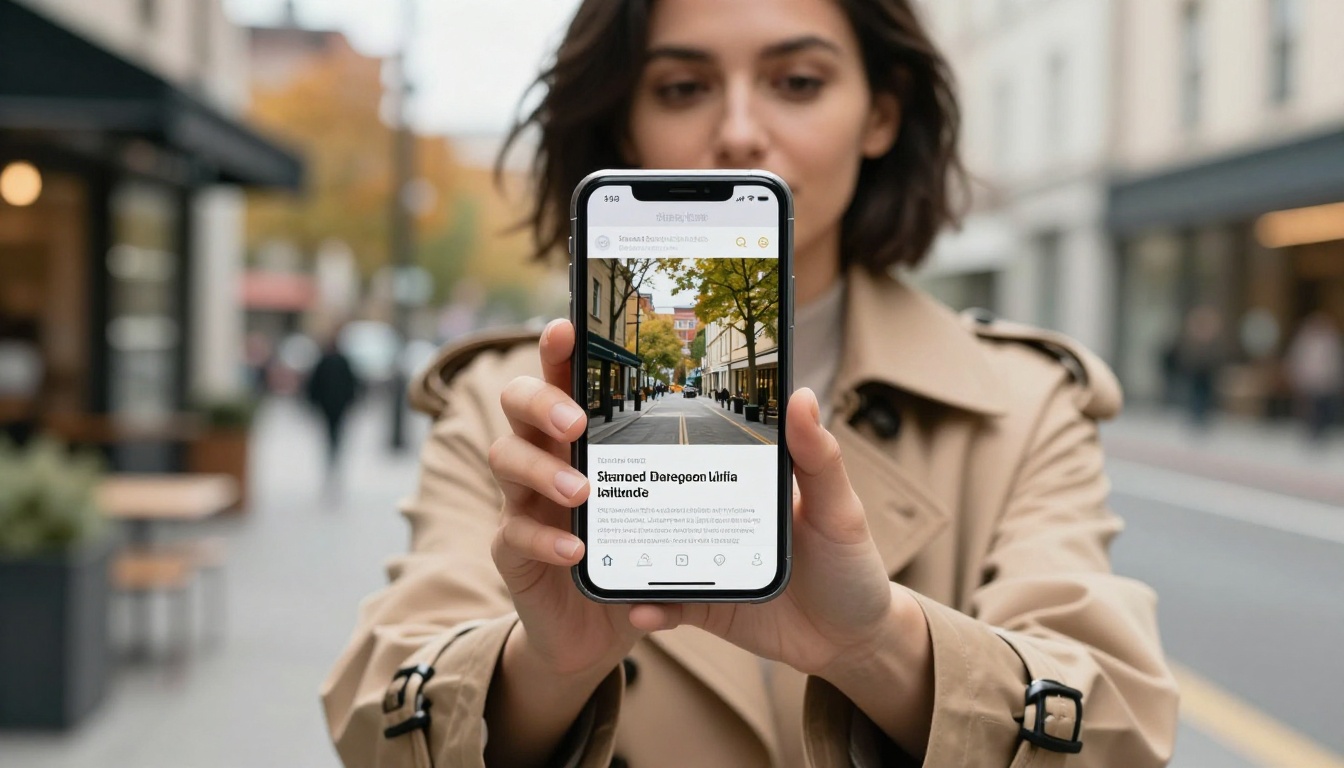
Readers can swipe through pages on a phone, pinch to zoom in on detail, and share the link directly from their browser. The experience feels native and fluid, not like a scaled-down website.
Your Magazine Is Ready to Publish
You already have everything you need. Photoshop for design, a PDF export, and a platform built specifically to turn that PDF into something worth sharing. The process takes a fraction of the time most designers expect, and the output looks professional from the very first publish.
Ready to take your Photoshop design live? Create your account on Flipbooks AI and upload your first magazine in minutes. No coding, no developer, no waiting.
Browse all available flipbook tools to find the exact template for your publication type. Whether you are publishing a fashion magazine, a corporate report, or a photography portfolio, there is a dedicated tool built for it.
If you plan to publish regularly, check pricing plans to find the right tier for your volume. The Standard plan removes all limits and gives you custom branding for a fully white-labeled experience.



