If your monthly newsletter still lives in a .pub file, the clock is ticking. Microsoft announced October 2026 as the end of support for Publisher, and that date has now passed. The good news is that finding a Microsoft Publisher alternative for newsletters is easier than it has ever been, and most of the options cost nothing. This article compares the free design tools, shows where to find templates that look professional, and walks through sharing every issue online as a page-turning flipbook with Flipbooks AI.
Whether you run a bakery mailer, a school bulletin or a nonprofit update, the goal is the same: build a good-looking issue once, then put it in front of readers without printing, attaching heavy files or fighting with email clients.
Why Publisher Users Are Leaving
The Retirement Date Problem
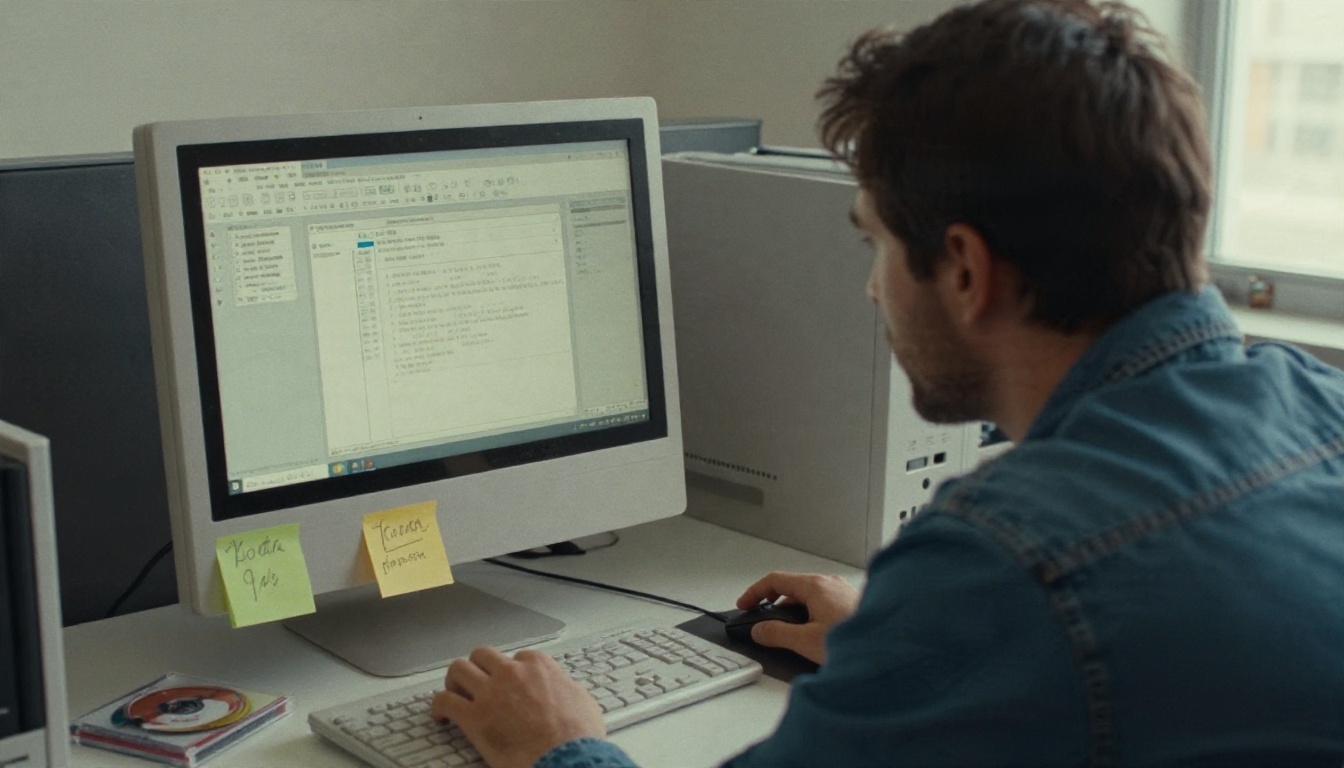
Publisher was never the flashiest tool, but it did one job well. It let people who were not designers lay out a two-page or four-page newsletter with text boxes, images and a few clean columns. Now that support has ended, there are no more security patches, no new templates and no guarantee that your files will open in future versions of Windows or Office.
That creates a quiet risk for small teams. A newsletter template that took years to refine can become unreadable if the software around it disappears. Moving now, while you still have working files, is far easier than rebuilding from memory later.
⚠️ Warning: Do not wait until a file refuses to open. Export every active newsletter from Publisher to PDF today, and keep the original .pub files in a backup folder.
Where Desktop Layouts Fall Short
Even before the retirement news, Publisher had real limits for newsletters:
- Files were heavy. A photo-rich issue could reach 20 MB, which many inboxes reject.
- Readers needed the right app. A .pub file does not open on a phone.
- Sharing was clumsy. You exported a PDF, attached it, and hoped for the best.
- No feedback loop. You never knew who opened the issue or which page they read.
- Collaboration was painful. Two people could not edit the same file at once.
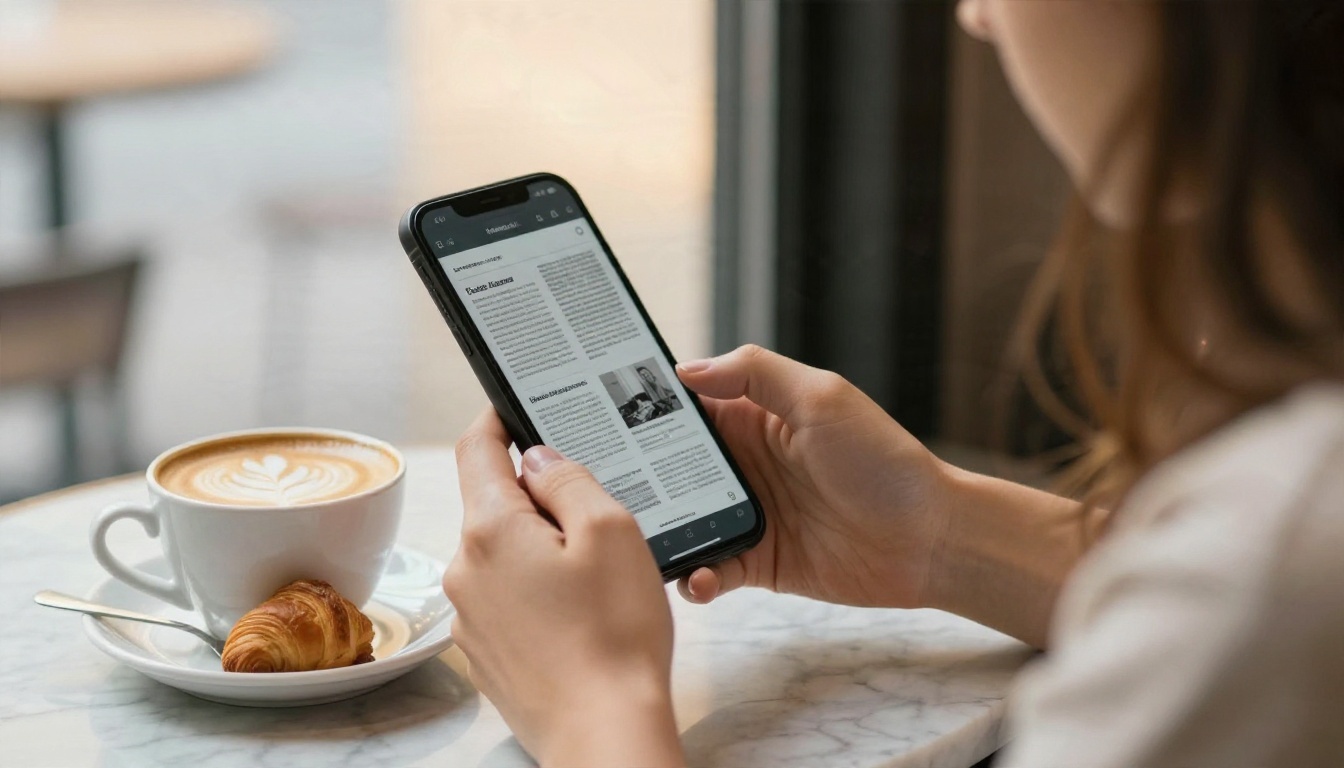
Mobile reading is the biggest gap. Most newsletter readers now open issues on a phone, and a static PDF pinched and zoomed on a small screen is a poor experience.
What a Good Replacement Needs
Must-Have Features
Before picking a tool, decide what you actually need. This table maps common newsletter tasks to the features that matter.
| Newsletter Task | Feature You Need | Why It Matters |
|---|
| Laying out columns and images | Drag-and-drop editor or page layout tools | Matches what Publisher users already expect |
| Keeping a consistent look | Reusable templates and brand colors | Every issue feels familiar |
| Sending to subscribers | Shareable link or embed code | No attachments, no size limits |
| Reading on phones | Mobile-responsive output | Most readers are on small screens |
| Limiting access | Password protection | Useful for member or staff newsletters |
| Measuring results | Analytics | Shows which stories get read |
Output Matters Most
Most free design apps are good at the first half of the job: making the page. Far fewer help with the second half: delivering it. A newsletter nobody opens is just a nice file on your hard drive.
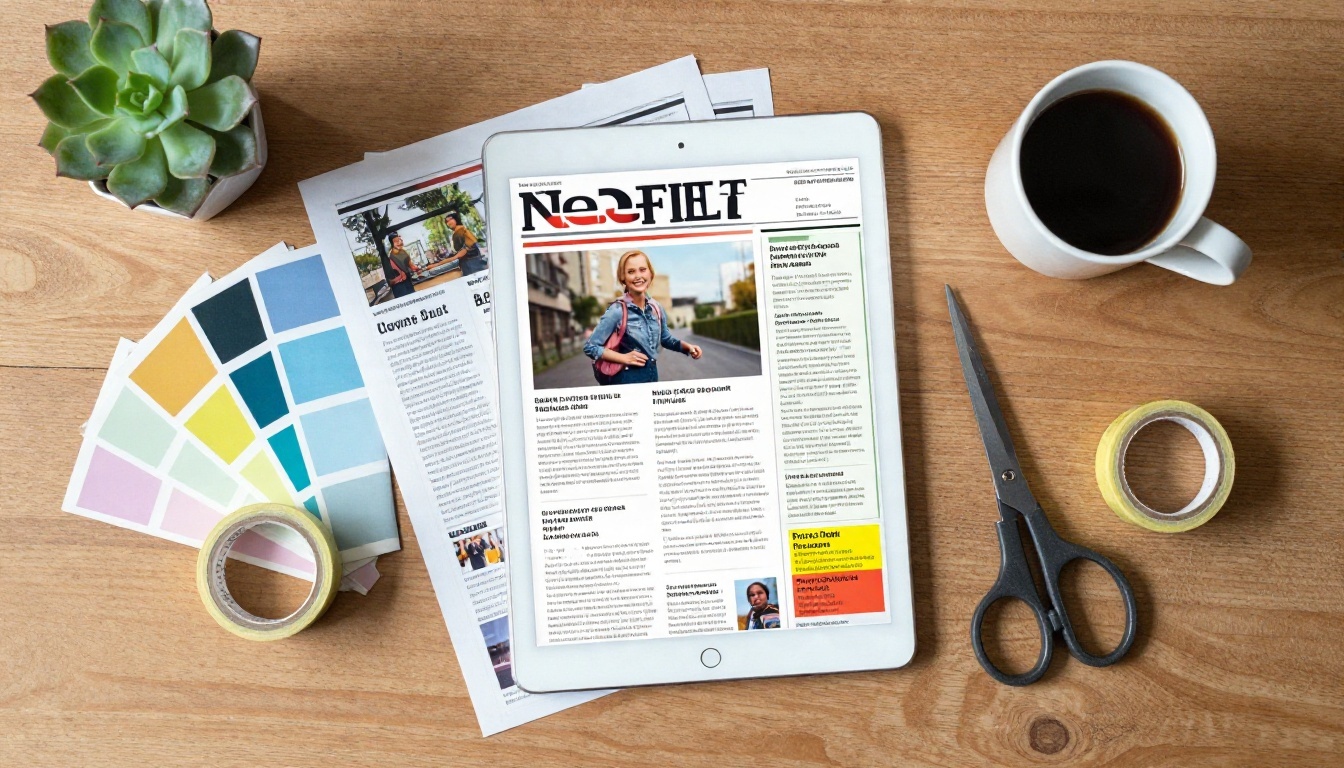
That is why a smart setup uses two layers. Design in whatever tool feels comfortable, export a PDF, then publish that PDF through a viewer built for reading. The PDF to Flipbook Converter does exactly that step, turning a flat export into a flipbook with realistic page turns, a clean link and no watermark.
Design Tools Side by Side
Here is how the most popular free options stack up for newsletter work. Free plans change often, so check each vendor's current terms before committing.
| Tool | Best For | Free Plan | Template Library | PDF Export | Weak Spot |
|---|
| Canva | Fast, polished layouts | Yes | Very large | Yes | Best templates sit behind a paid plan |
| Google Docs or Slides | Text-heavy issues, team editing | Yes | Small | Yes | Limited layout control |
| Scribus | Print-ready, precise layout | Yes, open source | Minimal | Yes | Steep ramp for new users |
| LibreOffice Writer | Simple two-column issues | Yes, open source | Small | Yes | Looks dated without effort |
| Affinity | Designers wanting full control | Free from Canva | Few built in | Yes | Not made for casual users |
| Flipbooks AI | Publishing and sharing the finished PDF | Try it free | Tool pages per format | Starts from PDF | Not a layout editor |
Where Each One Fits
Think of these as parts of a workflow rather than rivals.
- Canva is the closest spiritual successor for people who liked Publisher's approachable feel. Pick a template, swap text and photos, export.
- Google Docs wins when three people need to write one issue together. Export to PDF when copy is final.
- Scribus suits volunteers who want print-quality output and do not mind a technical interface.
- Affinity fits a designer on staff who wants desktop-level control without a subscription.
- Flipbooks AI handles what none of the above do well: turning the finished file into an interactive, trackable online issue.
💡 Pro tip: You do not have to pick one winner. Many small teams draft in Google Docs, polish in Canva and publish through Flipbooks AI.
Newsletter Templates That Work

Layouts by Audience
A template is only useful if it fits the people reading it. Match the layout to the audience before you start customizing.
| Audience | Best Layout | Typical Length | Content Mix |
|---|
| Local business customers | Single column, big photos | 2 to 4 pages | Offers, new products, one story |
| Parents and students | Two column, headlines first | 4 to 6 pages | Dates, announcements, photos |
| Members and donors | Magazine style, pull quotes | 6 to 12 pages | Impact stories, thanks, events |
| Internal staff | Clean grid, short blurbs | 2 to 4 pages | Updates, policies, shout-outs |
| Industry subscribers | Editorial, data callouts | 6 to 10 pages | Insights, charts, interviews |
Starting from a purpose-built layout saves hours. The Newsletter Flipbook Publisher is designed for this exact format, and the School Newsletter Creator gives education teams a head start.
Setting Up a Reusable Template
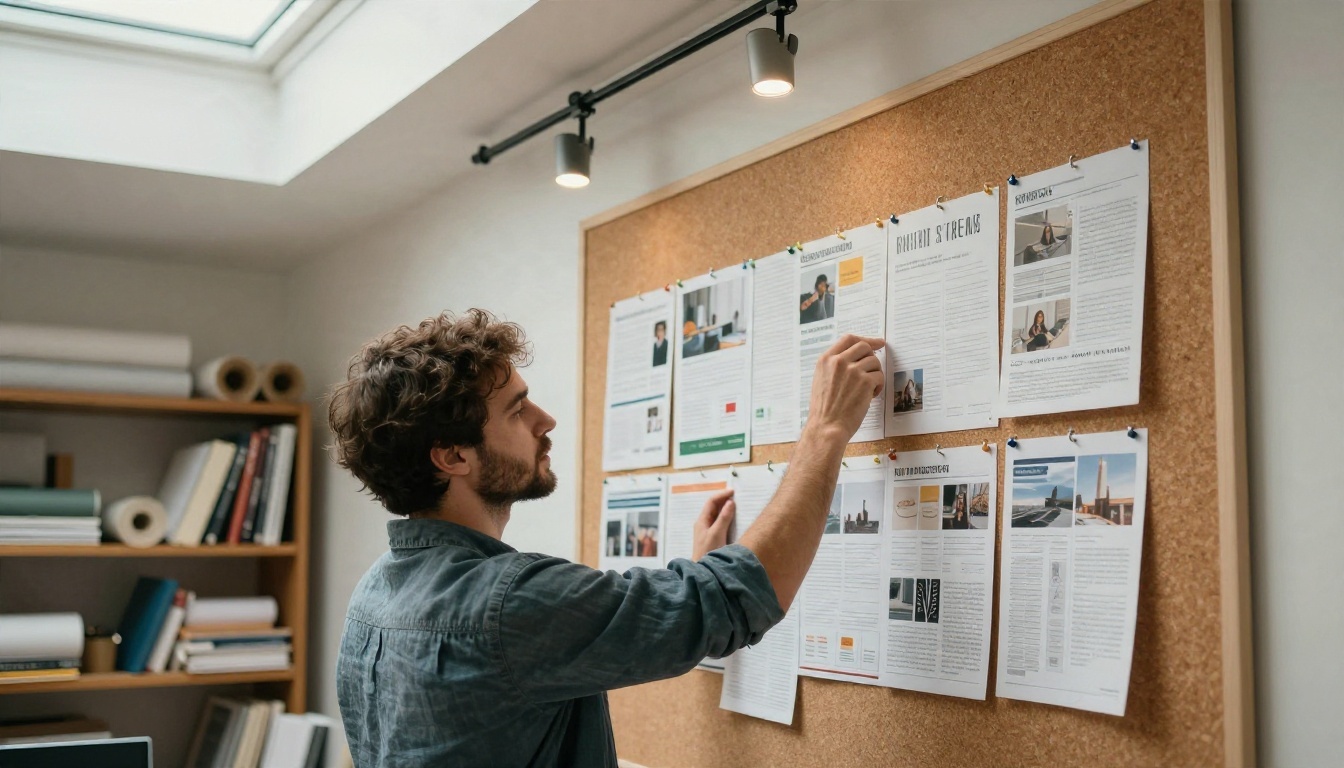
Build one strong template and reuse it for every issue. Here is a simple process:
- Pick two fonts only. One for headlines, one for body text.
- Lock in three brand colors. A main color, an accent and a neutral.
- Fix the page grid. Use the same margins and column widths every time.
- Create a masthead. Logo, issue number and date at the top of page one.
- Add repeating blocks. A letter from the editor, an events box and a closing call to action.
- Save as a duplicate. Never edit the original file; copy it each month.
✅ Best practice: Keep body text at 10 to 12 points and headlines at least twice that size. This keeps issues readable on phones when the flipbook scales down.
How to Create a Newsletter Flipbook
If your Publisher issue is finished, or you have a PDF from any of the tools above, you can have it online in a few minutes. This is the part of the workflow where a dedicated viewer pays off.
Create Your Account
Go to Flipbooks AI and create an account. Compare plans on the pricing page if you expect to publish every month. The Standard plan and above allow unlimited flipbooks, which suits a regular newsletter schedule.
Upload Your PDF
Follow these steps:
- Export from your design tool. In Publisher, choose File, then Export, then PDF. In Canva or Google Docs, use Download as PDF.
- Check page order. Make sure pages appear in reading order, not as printer spreads, unless you intend spreads.
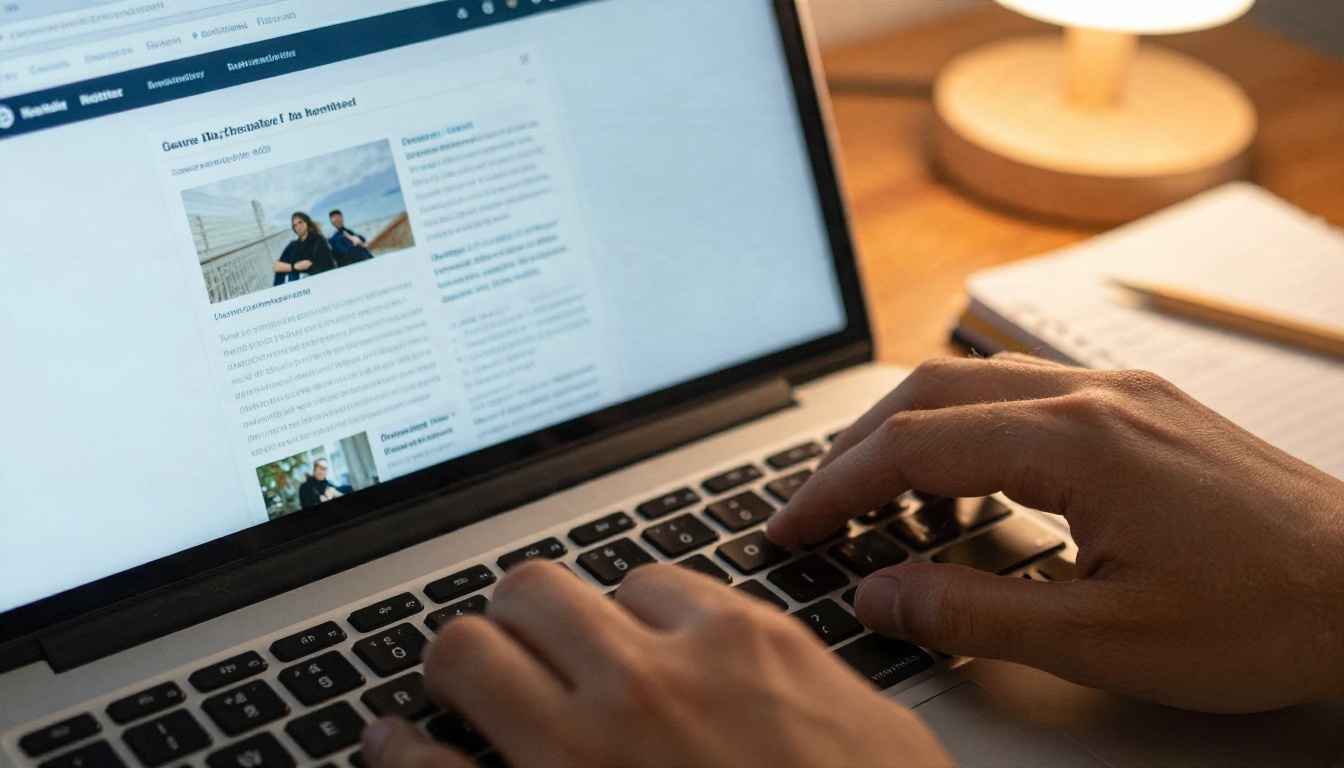
- Upload the file. Drag the PDF into your dashboard. Conversion usually takes under a minute.
- Preview the result. Flip through each page and confirm that images are sharp and text is readable.
Screenshot description: the dashboard shows a large upload area in the center and a list of your existing flipbooks below, each with a thumbnail of its first page.
Brand It Your Way
Once converted, customize the viewer so it feels like your publication, not a generic reader.
- Custom branding: add your logo and choose background colors that match your masthead.
- Page effects: choose a realistic page curl and turning sound, or keep it minimal.
- Multimedia: embed videos and audio, such as a welcome message from the editor or a short event clip.
- No watermarks: your issue carries your brand only, never a third-party badge.
Sharing Online Without Friction
Links, Embeds and Passwords
Sharing is where an online newsletter beats a PDF attachment. Pick the method that fits each audience.
| Sharing Method | Best For | Setup Effort | Notes |
|---|
| Direct link | Email, text messages, social posts | Seconds | One URL for every reader |
| Embed code | Your website or blog | A few minutes | See the Embed Flipbook on Website tool |
| Password protection | Members, staff, donors | Seconds | Keeps private issues private |
| Offline download | Readers with poor connections | Built in | Handy for events and travel |
A typical routine looks like this: publish the flipbook, paste the link into your email platform, add the embed to a "Latest Issue" page on your website and post the link on social channels. Every channel points to the same live issue, so a typo fix updates everywhere.
💡 Pro tip: Use a short, consistent link text such as "Read the March issue" in every email. Familiar wording trains readers to click.
Track What Readers Do
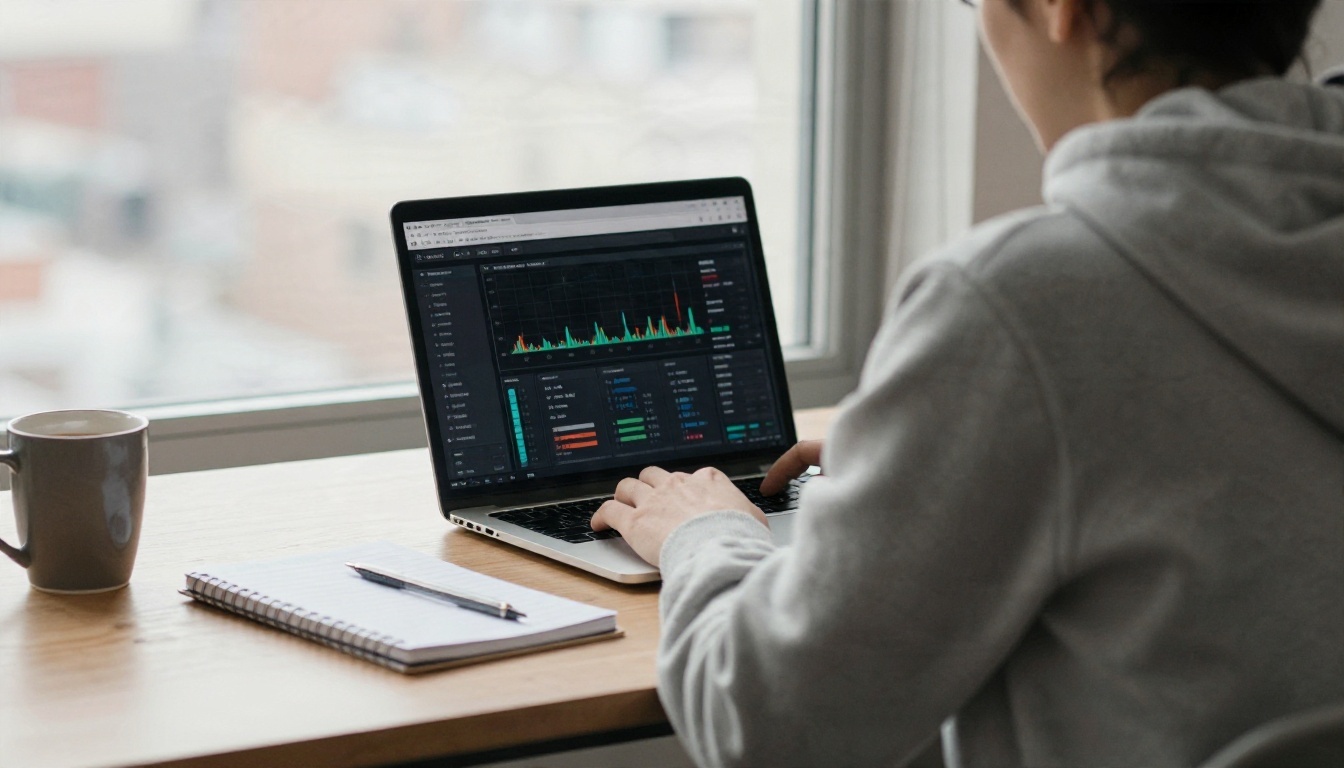
The Professional plan adds analytics and lead generation. You can see how many people opened an issue, which pages held attention and where readers dropped off. If page five consistently loses half your audience, that tells you where to tighten the next issue.
Lead capture lets you request an email address before a reader opens a premium issue, which is useful for gated content such as industry reports or member updates. Publisher could never offer that.
Real-World Newsletter Examples
A Neighborhood Bakery
A bakery owner used to print 200 copies of a seasonal flyer. Now she designs a four-page issue in Canva, exports a PDF and publishes it as a flipbook. She prints a small QR code on every bag and receipt, and customers scan it at the counter or at home.

Results she tracks each month:
- Printing savings: no more bulk copies for every issue.
- Seasonal menu reach: the link goes out to her email list in minutes.
- Repeat visits: a coupon on the last page gives her a clear measure of who read all the way through.
A School Bulletin
A primary school office manager had been building a monthly bulletin in Publisher for ten years. When support ended, she moved the template to Google Docs so the principal and two teachers could add their sections directly. She exports the PDF, publishes it with a password, and shares the link in the parent app. Parents on phones see a clean flipbook rather than a zoomed PDF.

Other teams make similar moves:
- Nonprofits publish impact updates with the Non-Profit Annual Report format and link them from donor emails.
- Real estate agents send monthly market updates as flipbooks with embedded property videos.
- Event organizers turn schedules into an Event Program Maker issue that attendees open on their phones.
Your Move This Week
You do not need to rebuild everything at once. Here is a simple plan for the next seven days:
- Day 1: Export your last three Publisher newsletters to PDF and back up the originals.
- Day 2: Pick a design tool from the comparison table and rebuild your masthead.
- Day 3 to 4: Recreate your main template with two fonts and three colors.
- Day 5: Design your next issue using the new template.
- Day 6: Upload the PDF and customize the viewer.
- Day 7: Share the link, add the embed to your website and check how it looks on a phone.
Ready to publish your first issue? Get started for free on Flipbooks AI, browse all flipbook tools to find a format that fits your newsletter, or compare pricing plans to choose the one that works for your publishing schedule.



