You open a brochure file from three years ago, and your computer no longer has the software to edit it. Sound familiar? Microsoft Publisher is a desktop-only, Windows-only program, and many small teams, schools and freelancers no longer want to pay for or install it. The good news: a Microsoft Publisher alternative on Google is already sitting in your browser, and it costs nothing. This article shows how to build real, print-ready brochures with Google Docs, Google Slides and a few online tools, then turn the finished PDF into a page-turning digital version with Flipbooks AI.
Why People Are Leaving Publisher
Publisher was built for a different era. You installed it, saved files locally, emailed them around, and prayed that everyone had the same fonts. That workflow breaks down fast when a team is spread across laptops, tablets and phones.
The Real Cost of Desktop Lock-In
The sticker price is only part of it. Think about the hidden costs that pile up around a desktop-only layout program:
- Version chaos: "Brochure_final_v7_REAL.pub" lives in six inboxes.
- Platform limits: Mac users, Chromebook users and phone users are shut out.
- No live feedback: Reviewers must wait for an email attachment instead of leaving a comment.
- Fragile files: Missing fonts and linked images break the layout on another machine.
What You Actually Need
Most brochures are not complicated. A tri-fold for a dental clinic, a bi-fold for a school open day, a one-page service sheet for a landscaping company. What matters is a handful of things: controlled page size, columns, solid image placement, readable type, and a clean PDF export. Browser-based tools handle all of that.
💡 Pro tip: Before you pick any tool, write down your final format. Is it a 6-panel tri-fold on letter paper, an A4 bi-fold, or a screen-only brochure? Format decides the tool, not the other way around.
Google Docs as a Brochure Maker
Google Docs is the most underrated Publisher substitute. It is not a design program, but for text-heavy brochures it is fast, familiar and collaborative.
Set Up the Page
- Go to File > Page setup.
- Choose Landscape orientation for a tri-fold.
- Set margins to about 0.5 inches (1.27 cm) on every side.
- Pick your paper size: Letter or A4.
- Click OK, then set a base font. Two fonts maximum keeps things tidy.
Build Three Columns
You have two options. The first is Format > Columns > 3 columns, which flows text across panels automatically. The second, and usually better for brochures, is a single-row table with three cells. Tables let you pin an image to the top of one panel, set a background color per cell, and keep each panel independent.
For a cleaner result, set the table borders to 0 pt and use a slightly wider gutter by adding an empty narrow column between each content cell.
Export a Print-Ready PDF
Choose File > Download > PDF document. Open the PDF and zoom in to check that images are sharp and no text is clipped at the margins. If your printer needs bleed, Docs cannot add it, so either choose borderless printing or use a layout tool with bleed support.
⚠️ Warning: Docs reflows content when text changes. After every edit, scroll through every page to confirm a panel did not spill onto page two.
Google Slides for Visual Layouts
If Docs is great for text, Google Slides is the closer match for how Publisher actually behaves. Every object is free-floating, so you drag a photo, a shape or a text box wherever you want and snap it to guides.

Why Slides Often Wins
- Free positioning: Layer images, shapes and text with no reflow surprises.
- Guides and snapping: Use View > Guides > Add vertical guide to mark panel edges.
- Masters: Put repeated elements such as a logo bar into the theme layout once.
- Real-time teamwork: Comments, suggestions and version history work just like Docs.
- Clean shapes: Rounded rectangles, circles and lines make badges, icon holders and dividers easy.
Set a Custom Page Size
- Open a new presentation.
- Choose File > Page setup > Custom.
- For a letter tri-fold, enter 11 x 8.5 inches (landscape).
- For a one-page A4 flyer, enter 8.27 x 11.69 inches.
- Draw two vertical guides at one-third and two-thirds of the width.
- Duplicate the slide for the reverse side, so slide 1 is the outside and slide 2 is the inside.
Design Inside the Panels
Keep a safe margin of about 0.25 inches from every fold. Place the cover panel on the right side of the outside page, because that is the one people see first when the brochure is closed. Use a headline of 28 to 36 pt, body text at 10 to 12 pt, and no more than three colors.
✅ Best practice: Export each slide as a PNG at high resolution for quick social previews, and as a PDF for printing. One file, two outputs.
Docs and Slides are free and flexible, but sometimes you want templates, stock photography, or print-ready bleeds. A few browser tools fill that gap.
| Tool | Best For | Templates | Print Bleed | Collaboration |
|---|
| Google Docs | Text-heavy brochures | Few | No | Excellent |
| Google Slides | Visual, free-form layouts | Some | No | Excellent |
| Canva | Template-driven designs | Thousands | Yes | Good |
| Adobe Express | Quick branded layouts | Many | Limited | Good |
| Google Drawings | Single-page flyers | None | No | Excellent |
| Flipbooks AI | Turning PDFs into digital brochures | Via PDF upload | Not applicable | Link sharing |
Free tiers change often, so check each tool's current limits before you commit to a project deadline.
When a Template Tool Makes Sense
Choose a template-based editor if you need to produce a brochure in twenty minutes with no design background. They shine for event flyers, menus and simple promotional pieces. The trade-off is that many of the best templates and stock photos sit behind a paid plan.
When Docs or Slides Is Enough
If your brand already has a color palette, a logo and a few photos, Docs or Slides is plenty. You also avoid yet another account and another login for your team.
Docs vs Slides vs Online Editors
Here is a direct comparison to help you choose fast. Scores are simple: High, Medium, Low.
| Criteria | Google Docs | Google Slides | Template Editors |
|---|
| Ease for beginners | High | High | High |
| Layout freedom | Low | High | Medium |
| Text editing speed | High | Medium | Medium |
| Image handling | Medium | High | High |
| Print-ready export | Medium | Medium | High |
| Cost | Free | Free | Free and paid |
| Works offline | Yes, with setup | Yes, with setup | Usually no |
Quick Decision Rules
- Mostly text, lists and addresses? Use Docs.
- Photo-driven, lots of shapes? Use Slides.
- Zero design experience and a tight deadline? Use a template editor.
- Screen-only audience? Skip print entirely and publish a flipbook.

How to Create a Brochure Flipbook with Flipbooks AI
A PDF brochure is fine for printing, but it is a clumsy thing to read on a phone. You pinch, you zoom, you scroll sideways. A flipbook fixes that. Pages turn the way paper does, the layout fits any screen, and you can send one link instead of a 14 MB attachment.
Here is the full workflow, from your Google Docs or Slides export to a shareable page-turning brochure.
Step 1: Create Your Account
Head to Flipbooks AI and create an account. Then browse the tools directory to see which converter fits your project. The Online Brochure Designer and the Brochure Flipbook Maker are the two most relevant for this workflow.
Step 2: Upload and Convert
- Export your finished design from Docs or Slides as a PDF.
- In Flipbooks AI, click to upload and select the file, or use the PDF to Flipbook Converter.
- Wait a few seconds while pages are converted into flippable spreads.
- Preview the result and check that every panel reads in the right order.
💡 Pro tip: For a tri-fold, export the outside and inside as separate pages in the right reading order. A viewer then sees the cover, the inside spread, and the back panel in a natural sequence.
Step 3: Customize the Look
Open the editor and adjust the details that make it feel like your brand:
- Branding: Add your logo and choose a background color that matches your palette.
- Page effects: Set the page curl, flip speed and shadow to taste.
- Multimedia: Embed a short video or an audio message right on a page.
- Links: Turn website addresses, phone numbers and booking buttons into clickable hotspots.
- Mobile view: The layout is responsive, so it adapts to phones and tablets automatically.
There are no watermarks, ever, so the finished brochure looks like yours alone.
Step 4: Share It Your Way
| Sharing Option | Best Use | Protection |
|---|
| Direct link | Email, chat, QR codes | Optional |
| Embed code | Your website or landing page | Optional |
| Password lock | Private client proposals | Yes |
| Offline download | Trade shows with weak Wi-Fi | Controlled |
To place your brochure on a site, follow the steps on the Embed Flipbook on Website page. Paste the embed snippet into your page builder, and it displays inline with no pop-ups.
Step 5: Track What Happens
On the Professional plan, you get analytics and lead generation. See how many people opened your brochure, which pages held attention, and capture an email address before a reader gets past page one. Review the pricing plans to see which tier fits your volume, and note that unlimited flipbooks begin with the Standard plan.
Print or Digital: Which Wins?
Honest answer: it depends on where your reader is standing when they pick it up.

| Situation | Print | Digital Flipbook |
|---|
| Hand-out at a front desk | Excellent | Good with QR code |
| Email follow-up after a call | Poor | Excellent |
| Social media sharing | Poor | Excellent |
| Trade show table | Excellent | Good |
| Tracking who read it | Not possible | Built in |
| Updating a typo | Reprint | Replace and republish |
Real-World Examples
A travel agency prints a few hundred brochures for the shop window, then sends the flipbook link to every inquiry. Customers on a phone see the same pages that walk-ins hold, and the agency can add a Travel Guide Flipbook for popular destinations.
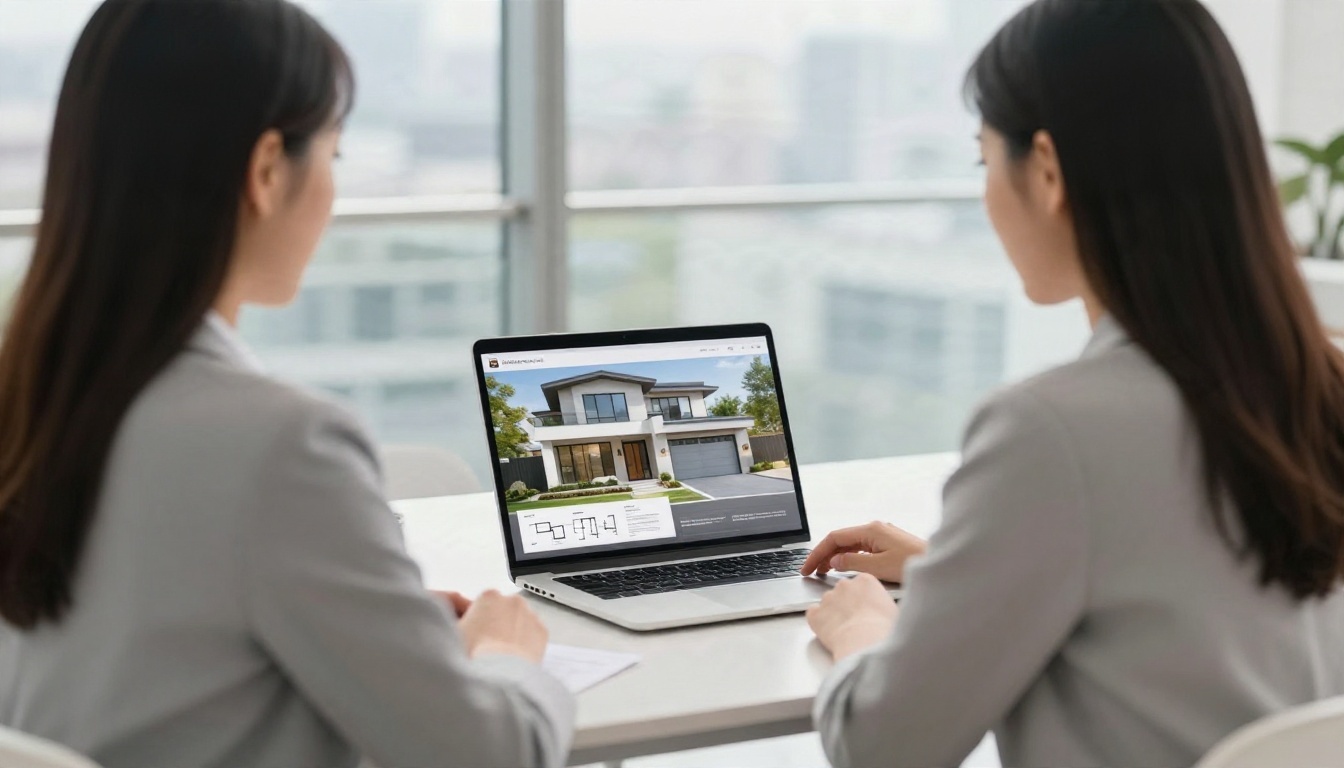
A real estate agent builds a one-page property sheet in Slides, exports it, and publishes it through the Real Estate Brochure Creator. The listing link goes into text messages, while a printed copy waits at the open house.
A boutique hotel designs a services brochure in Docs and turns it into a lobby-ready QR code using the Hotel Brochure tool. Guests scan it from their room and see spa hours, dining times and local tips without calling the front desk.
A restaurant could do the same with a Restaurant Menu Creator, and a fashion shop could present seasonal looks through a Fashion Catalog.
Reading on a Phone
Most first views of a brochure now happen on a phone, often in a cafe, on a train or in a waiting room. A flipbook respects that. Text stays readable, links stay tappable, and there is no download step to put people off.

Five Mistakes That Ruin Brochures
Whatever tool you use, the same errors show up again and again.
- Too many fonts. Two is plenty. Use one for headlines and one for body text.
- Tiny text. Anything under 9 pt becomes hard to read on paper, and unreadable on a phone.
- Low-resolution photos. A blurry image looks worse in print than on screen. Aim for at least 300 DPI at the printed size.
- Ignoring the fold. Never place a face, a phone number or a headline across a crease.
- No clear next step. Every brochure needs one action: call, scan, book, or visit.
⚠️ Warning: Always print a test copy on cheap paper before ordering a batch. Panels often land a few millimeters off, and the fold order is easy to get backwards.
A Fast Pre-Print Checklist
- Spell-check names, prices, phone numbers and web addresses.
- Confirm the right page size and orientation in the PDF.
- Fold a paper copy by hand and read the panels in order.
- Ask a colleague to review in comment mode before exporting.
- Save the source file in a shared Drive folder with a clear name and date.
Talk to Your Printer
Many local shops accept PDFs from Docs and Slides without trouble, and they will tell you if your file needs bleed or a different color profile. A five-minute chat saves a costly reprint.
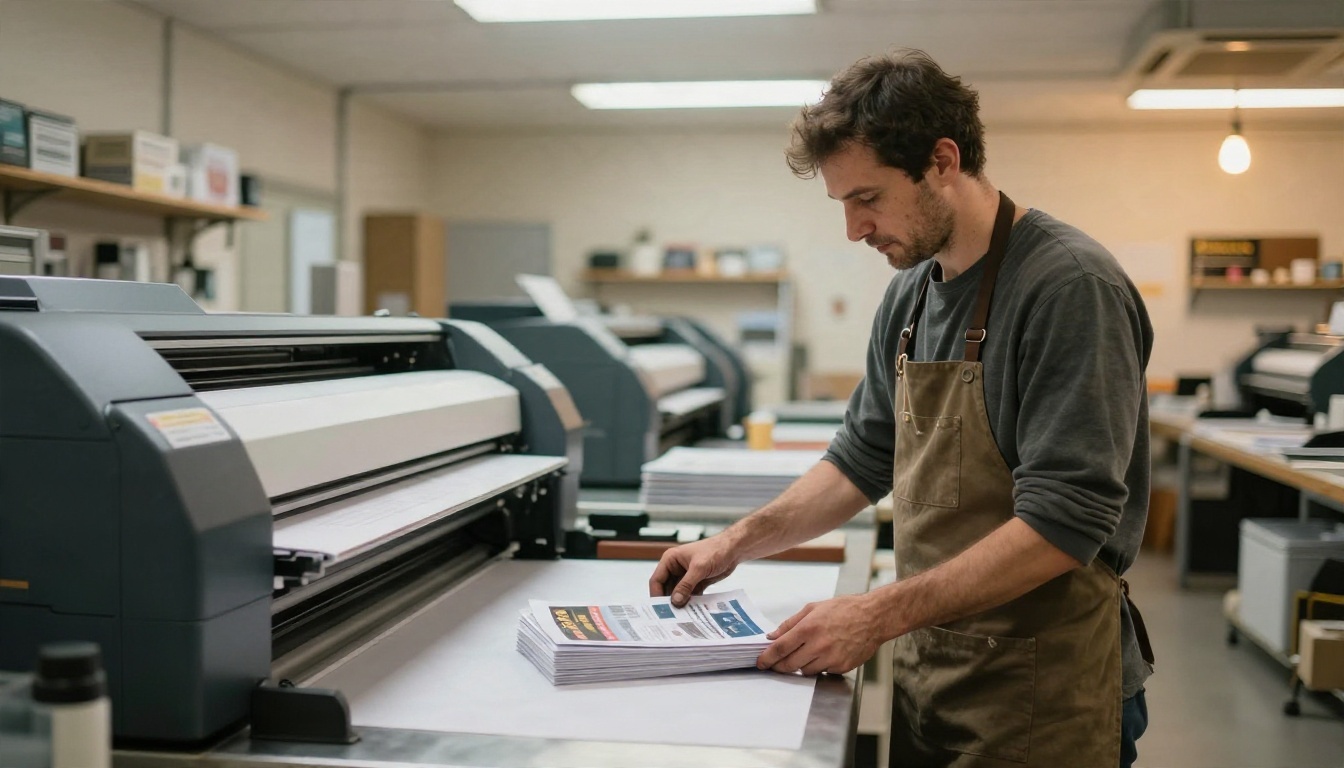
Publisher is no longer the only road to a good brochure. Use Google Docs when the message is mostly words, Google Slides when the design is mostly pictures, and a template editor when time is short. Then give your readers a better experience than a flat attachment.
Ready to turn your PDF into something people actually enjoy flipping through? Get started for free on Flipbooks AI, browse all flipbook tools and templates, or compare pricing plans to choose the one that suits your project. When you are ready to commit, sign in and pick a plan in one step.



