Microsoft Publisher has reached the end of the road, and if you still have a folder full of .pub files, you have a decision to make. The good news: browser-based tools now do most of what Publisher did, often with better templates and no installation. The catch is that every one of them has its own free-plan rules, pricing tiers and sharing limits, and those details decide whether a tool actually works for you. This article compares the main options side by side, then shows how to turn any finished layout into a shareable page-turning publication with Flipbooks AI.
Why People Are Leaving Publisher
What Changed in 2026
Microsoft announced that Publisher would be retired in October 2026, and that date has now passed. The app does not vanish from machines overnight, but it no longer receives support, and Microsoft points users toward Word, PowerPoint and Designer instead. For anyone who built a school newsletter, a menu or a trifold brochure in Publisher, that advice feels like being told to hammer a nail with a screwdriver.
Word handles text well but fights you on layered graphics. PowerPoint handles shapes well but was never built for print bleed or multi-page booklets. That gap is exactly why so many people are searching for a proper replacement.
⚠️ Do this first: open each important .pub file while you still can and export it to PDF. A PDF keeps your layout, fonts and images intact, and almost every alternative below can import or reference it.
What You Actually Need to Replace
Before comparing tools, list the jobs Publisher did for you. Most people use only a small slice of it:
- Single-page print items: flyers, posters, certificates, business cards
- Multi-page documents: newsletters, booklets, catalogs, programs
- Fine layout control: text boxes, columns, snapping guides, bleed marks
- Offline file ownership: a file you can open years later without a subscription
- Sharing: emailing a PDF, printing, or posting something online
Sharing is the part people forget. Publisher produced files for print and email. Today your readers expect a link they can open on a phone, and that is where the limits of each online tool start to matter.
The Best Online Alternatives Compared
Canva
Canva is the closest thing to a default choice. The template library is huge, drag-and-drop editing is forgiving, and you can export print-ready PDFs. The free plan covers most flyers and social posts. Paid plans add brand kits, background removal, resizing and premium stock assets.
Best for: flyers, posters, social graphics and quick newsletters.
Watch out for: long multi-page documents get sluggish, and precise typography control is weaker than in a real layout program.
Adobe Express
Adobe Express offers a clean editor, solid fonts and tight links to Adobe's wider ecosystem. The free tier is generous for simple projects, while premium templates, extra fonts and some effects sit behind a paid plan. It suits people who already use Adobe accounts and want something lighter than InDesign.
Google Docs and Slides
Not glamorous, but free and collaborative. Docs works for text-heavy newsletters with a few images, and Slides can produce decent posters and one-page flyers if you set a custom page size. Real-time editing with colleagues is the main advantage. The weakness is the lack of print controls such as bleed and crop marks.
Scribus and Affinity
If you want real desktop publishing without a Microsoft subscription, Scribus is a free, open-source layout program with proper CMYK and bleed support. Its interface feels dated and the ramp-up is steep. Affinity became free after Canva acquired it, and it offers professional layout tools, though it is a desktop install rather than an online editor. Check the current terms on each vendor's site before you commit.
Quick Comparison
| Tool | Runs in browser | Free plan | Multi-page strength | Print controls |
|---|
| Canva | Yes | Yes, with limits | Moderate | Good (PDF print export) |
| Adobe Express | Yes | Yes, with limits | Moderate | Basic to good |
| Google Docs / Slides | Yes | Yes | Good for text | Basic |
| Scribus | No (desktop) | Fully free | Strong | Excellent |
| Affinity | No (desktop) | Free at time of writing | Strong | Excellent |
| Marq (formerly Lucidpress) | Yes | Limited | Strong for brand templates | Good |

Templates: Who Has What
Templates were one of Publisher's strongest selling points, so this is where switching hurts most. The reality is that every major online tool now ships more templates than Publisher ever did, but quality and licensing vary.
Print Templates
Canva and Adobe Express lead here. You can start from a flyer, brochure, menu, certificate or invitation and adjust the size afterward. Marq focuses on brand-controlled templates for teams, which is useful when twenty people need to produce the same newsletter without breaking the style rules.
Multi-Page Templates
Newsletters, booklets and catalogs are where templates get thin. Many tools give you a good first page and leave you to build the rest. For these projects, a common workflow is to design pages in Canva or Docs, export a PDF, and then publish that PDF as a flipbook. Purpose-built options include the Newsletter Flipbook Publisher and the Digital Catalog Maker.
Template Licensing
Free templates are not always free to use commercially. Some premium elements inside a "free" template are locked, and exporting with them requires a paid plan. Look for small crown or lock icons before you spend an hour on a design.
| Need | Strong starting point | What to check |
|---|
| One-page flyer | Canva, Adobe Express | Premium asset locks |
| Trifold brochure | Canva, Marq | Panel sizes and fold lines |
| Monthly newsletter | Google Docs, Canva | Page count limits |
| Product catalog | Canva plus PDF export | Image resolution |
| Recipe or event booklet | Scribus, Affinity | Bleed settings |

Pricing Reality Check
Pricing pages change often, so treat every number here as an approximation and confirm it on the vendor's site. The pattern is more useful than the exact figure: free plans are good enough for casual use, and paid plans start to matter when you need brand consistency, bulk resizing, team workspaces or premium assets.
What Free Really Gets You
- Access to thousands of templates, minus the premium ones
- PDF and image export, sometimes with quality caps
- A limited amount of cloud storage
- Basic collaboration through shared links
When Paying Makes Sense
Paying is rational when design is part of your income or your brand. A single-person shop printing two flyers a year does not need a subscription. A marketing team producing weekly newsletters does.
| Plan type | Typical monthly cost range | Who it suits |
|---|
| Free tier | $0 | Occasional flyers and posters |
| Individual paid plan | Roughly $10 to $15 | Freelancers, small shops |
| Team plan | Per-seat pricing, often $10 to $30 per person | Marketing teams, schools |
| Desktop (Scribus, Affinity) | $0 at time of writing | Print-focused users who accept a steeper ramp-up |
💡 Pro tip: annual billing usually costs noticeably less than monthly billing. If you only need a tool for a single project, pay monthly and cancel after exporting your files.
Sharing Limits Nobody Mentions
This is the section most comparison articles skip, and it is where surprises happen. You build a gorgeous newsletter, then discover you cannot share it the way you expected.
Watermarks and Branding
Some free tiers add a small badge to published pages or limit which export formats are clean. Always do a test export before you commit a whole project.
Page Caps and File Size
Free plans sometimes cap the number of pages in a shared document or the size of an uploaded PDF. A 60-page catalog with high-resolution photos can hit those limits quickly.
Link Control
Ask three questions of every tool: Can I protect the link with a password? Can I turn sharing off later? Does the link expire? Design platforms often offer "anyone with the link" sharing and little else, which is fine for a bake sale poster and risky for a client proposal.
| Sharing feature | Design tools (typical) | Flipbook platform |
|---|
| Public link | Yes | Yes |
| Password protection | Often paid or missing | Available |
| Page-turn reading experience | No | Yes |
| Embed on a website | Limited | Yes, with embed code |
| Reader analytics | Rare | Professional plan |
| Offline download | Varies | Available |
How to Create a Shareable Flipbook with Flipbooks AI
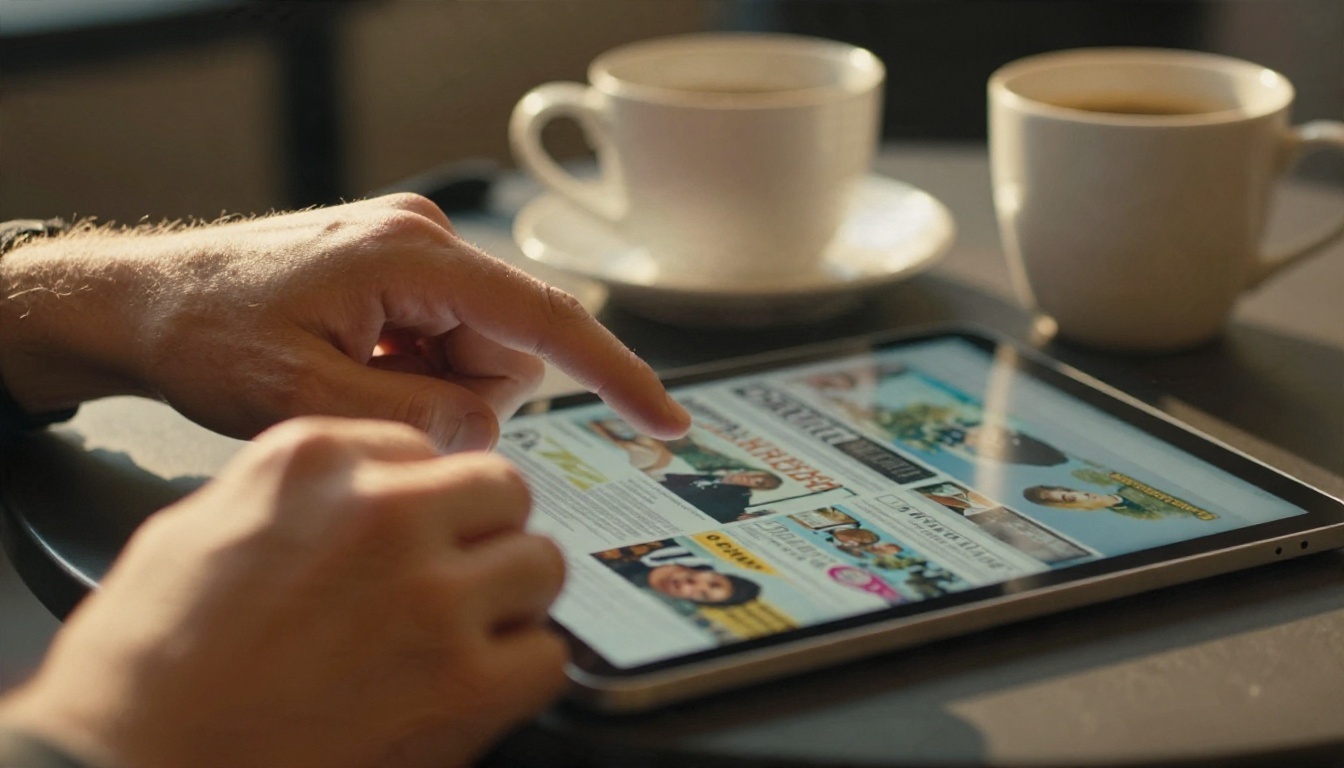
Design tools are good at layout. They are less good at delivering a polished reading experience to other people. A flipbook fills that gap: your PDF becomes a page-turning publication that opens in any browser and works on mobile. Here is the full process.
Step 1: Get Started and Upload Your PDF
- Go to Flipbooks AI and create an account.
- Export your finished layout from Canva, Adobe Express, Docs, Scribus or an old Publisher file as a PDF.
- Upload it with the PDF to Flipbook Converter. Conversion takes a short while, and each PDF page becomes a flipbook page.
Screenshot description: after upload you will see a preview of your document with a page-turn animation and a settings panel on the side.
Step 2: Customize the Look
- Add your custom branding: logo, colors and background.
- Choose page effects such as the turning animation and shadow.
- Embed multimedia. Videos and audio can be added so a static newsletter becomes interactive.
- Check the mobile view, since the design is mobile-responsive by default.
Step 3: Choose How to Share
- Copy the direct link and paste it into an email or social post.
- Use the Embed Flipbook on Website option to paste an embed code into your site.
- Turn on password protection for private documents like client proposals or staff handbooks.
Step 4: Use the Extra Features
- Analytics and lead generation are part of the Professional plan, so you can see who opened your publication and collect contact details.
- Offline downloads let readers save a copy.
- No watermarks, ever, so your brand stays front and center.
- Unlimited flipbooks are included from the Standard plan up. See the pricing plans for the full breakdown.
✅ Best practice: export your PDF at the final page size and keep fonts embedded. A clean PDF in means a clean flipbook out.
Real-World Examples
The Neighborhood Bakery
A bakery builds a seasonal menu and flyer in Canva's free plan, exports a PDF and uploads it as a flipbook. The owner prints the flyer and puts a QR code to the flipbook on the counter. Customers browse the full menu on their phones, and updating a price means re-uploading one PDF rather than reprinting everything. A Restaurant Menu Creator suits this exact case.
The Office Newsletter
An internal communications team used Publisher for a monthly newsletter. They now draft in Google Docs for easy editing by several people, export the PDF, and publish a password-protected flipbook for staff. Printing is optional, and the team can check readership through analytics. The Newsletter Flipbook Publisher handles that workflow.
The Freelance Designer
A freelancer who needs real print control uses Affinity or Scribus for layout, exports PDFs with bleed for the printer, and uses a flipbook for client previews. Clients review pages online without installing anything. A Digital Portfolio Creator turns the same PDFs into a showcase.

Which Option Fits You
Use this short decision list:
- Want the easiest switch? Start with Canva or Adobe Express.
- Working with a team on text-heavy documents? Google Docs.
- Need professional print output at no cost? Scribus or Affinity.
- Need to share multi-page work online with control? Convert the PDF to a flipbook.
Common mistakes to avoid:
- Starting a 40-page project in a tool built for posters.
- Skipping a test export and finding a watermark at the last minute.
- Ignoring link privacy on documents with prices or client details.
- Losing your
.pub files because you never converted them to PDF.
💡 You do not have to pick only one tool. Most people end up designing in one place and publishing in another.
Pick Your Replacement Today
Publisher's retirement is an annoyance, but it is also a chance to move to tools that are easier to share and cheaper to run. Choose a designer that matches your layout needs, export a clean PDF, and publish it where readers can actually enjoy it.
Ready to try it? Get started for free on Flipbooks AI, browse all flipbook tools to find the right template for your project, or compare pricing plans to pick the one that fits your workload.



