A booklet used to mean a print run, a courier and a week of waiting. Now you can build one in an afternoon, publish it as a page-turning web document, and send it to anyone with a single link. An online booklet creator makes that possible, and platforms like Flipbooks AI turn a plain PDF into something readers actually want to flip through.
This article is for anyone who needs a booklet and doesn't want to fight software to get one: a café owner with a new menu, a teacher with a course pack, a real estate agent with a neighborhood overview, a small brand with a product lineup. You will see what free options exist, how templates save time, which design rules matter most, and how to share the result without emailing a heavy attachment.
What an Online Booklet Creator Does
At its simplest, an online booklet creator lets you assemble a short, multi-page document in a browser and publish it digitally. The better ones go further. They add page-turn animation, mobile-friendly reading, embedded video, and a shareable web address.
Most people searching for this term want one of three outcomes:
- Design a booklet from scratch using a template and drag-and-drop editing.
- Convert a booklet they already made in Canva, Word, InDesign or Google Docs into an interactive version.
- Share it easily, ideally without a download, a login wall or a watermark.
That third point is where many free tools fall short, and it is why the sharing section below gets so much attention.
Booklet, Brochure or Flipbook?
These words overlap, so here is a quick way to separate them.
| Format | Typical length | Best for | Reading experience |
|---|
| Booklet | 8 to 40 pages | Manuals, menus, programs, lookbooks | Sequential, page by page |
| Brochure | 2 to 8 panels | Quick promotion, services overview | Scan and skim |
| Flipbook | Any length | Digital display of any of the above | Animated page turns, works on phones |
| Plain PDF | Any length | Archiving, printing | Static scroll, often awkward on mobile |
A flipbook is really the digital delivery layer. You can design a booklet anywhere, then publish it as a flipbook. If you want a purpose-built option for shorter documents, the Online Brochure Designer and the Brochure Flipbook Maker both fit that job.
Who Gets the Most Out of One
- Restaurants and cafés replace printed menus that go out of date within a season.
- Real estate agents share a property booklet before a viewing, so buyers arrive informed.
- Teachers and trainers distribute course material that students can open on any device.
- Event organizers publish a program that attendees can check from their seats.
- Freelancers and studios send a portfolio booklet that feels more considered than a folder of files.
Free Options Worth Trying
Free is a fair place to start. The trick is knowing what "free" actually limits. Some tools give you the editor but lock the export. Others let you publish but stamp a logo on every page. A few expire your link after a trial period.
Where Free Tools Usually Fall Short
Before you commit hours to a design, check these five things:
- Watermarks on exported or published pages.
- Page limits that cut a 24-page booklet down to 10.
- Link expiry that quietly kills the URL you already shared.
- Export restrictions such as low-resolution PDFs.
- Mobile reading, because a booklet that needs pinch-zooming loses its audience.
Free Route Comparison
| Route | Cost | Design control | Sharing by link | Watch out for |
|---|
| Word or Google Docs | Free | Basic | PDF attachment or Drive link | Layouts shift between devices |
| Free design apps with templates | Free tier | High | Often a view link | Premium assets, export limits |
| Free PDF editors | Free tier | Medium | Rarely | Watermarks, page caps |
| Flipbook converters | Free to try | Medium | Yes, web link and embed | Features vary by plan |
A practical approach is to design the pages in whatever tool you already know, then upload the PDF to a flipbook converter. You keep the design freedom of a layout app and add the sharing power of a web viewer. The PDF to Flipbook Converter does exactly this, and you can try it free before choosing a plan.
💡 Pro tip: Test your free tool with a throwaway file first. Publish a three-page sample, open the link on your phone, and look for watermarks, blurry text and slow loading before you build the real thing.
Templates That Save Hours
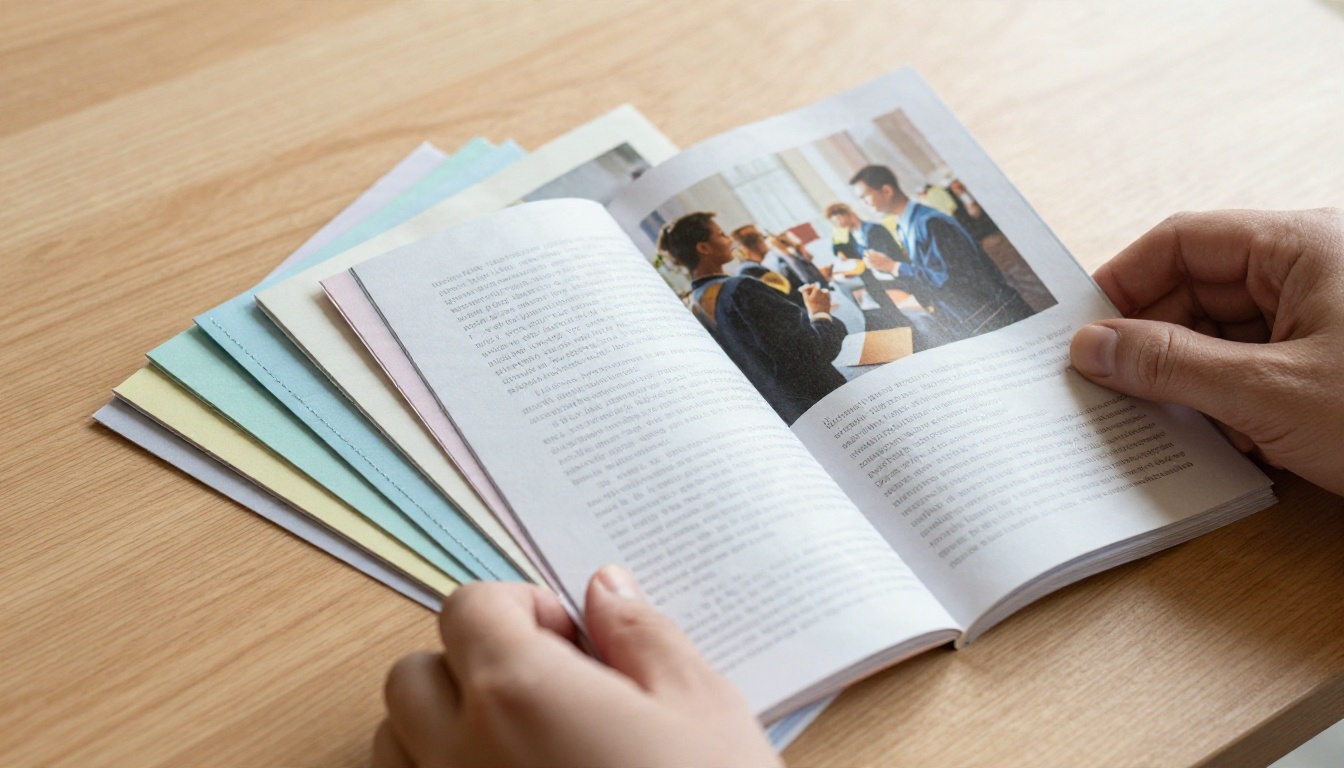
A good template isn't about copying someone else's look. It gives you a working grid, sensible type sizes and a page rhythm, so your effort goes into content instead of alignment.
Match the Template to the Job
Choosing by purpose beats choosing by looks. A menu needs scannable prices. A manual needs numbered steps and generous white space. A lookbook needs large photographs and very little text.
Three Template Habits Worth Keeping
- Keep the structure, replace everything else. Swap the sample text, photos and colors, but leave the grid alone.
- Cut sections you don't need. A template with 20 pages is a menu, not a mandate. Delete layouts that don't serve your content.
- Duplicate your best page. Once one spread looks right, reuse it for the rest so the booklet feels consistent.
Design Tips That Hold Up
You don't need a design degree for a booklet that looks professional. You need restraint and a few repeatable rules.

Start With the Page Size
Choose the size before you design anything. Changing it later forces you to rebuild every layout.
- A5 or half-letter portrait suits menus, programs and short manuals. It reads well on a phone.
- Square works for portfolios and lookbooks.
- A4 or letter fits reports and longer reading material.
Keep margins generous, at least 12 mm on every side, so text never feels crowded and nothing gets clipped if you also print the booklet.
Typography Rules That Always Work
- Use two fonts at most. One for headings, one for body text.
- Set body text at 10 to 12 pt for print-sized pages. On screen, check it on a phone before you finalize.
- Keep line length around 45 to 75 characters. Longer lines tire the eye.
- Use size and weight, not decoration, to show hierarchy. Skip underlines and shadows.
Color and Images
Pick one main color, one supporting color and one neutral. Then repeat them. A booklet with five competing colors reads as noise.
Photographs should be sharp and well lit. A single strong image on a page beats four mediocre ones. If you use stock photos, choose ones with natural light and real textures, since polished, over-staged shots tend to look generic.
| Design choice | Do this | Avoid this |
|---|
| Fonts | Two families, clear sizes | Five fonts, random italics |
| Colors | A small palette, used often | A new color on every page |
| Images | High resolution, one focal point | Stretched or pixelated files |
| White space | Room around text blocks | Filling every corner |
| Page flow | Consistent headers and folios | Shifting layouts spread to spread |
✅ Best practice: Design the first spread and the last spread first. The opening sets the tone and the closing carries your call to action. Everything in between is easier once those two are fixed.
Design for the Phone First
Most people will open your link on a phone. That changes a few decisions:
- Make buttons and links large enough for a thumb.
- Avoid text smaller than 9 pt.
- Don't tuck critical details, such as an address or price, into a corner.
- Keep each page to one idea, so the zoom level stays comfortable.
How to Create a Booklet with Flipbooks AI
If you already have a designed PDF, or you plan to design one in another app, here is a straightforward way to publish it. The steps below use Flipbooks AI.
Step by Step
- Create your account. Head to Flipbooks AI and sign up. You can try the platform before choosing a plan.
- Upload your PDF. Drag your booklet file into the uploader. The platform converts each page into a flipbook spread, and you will see a preview in your browser within moments.
- Check the page order. Scroll through the preview and confirm that facing pages line up the way you intended, especially for covers and centerfolds.
- Apply your branding. Add your logo, set a background color that matches your palette, and choose how pages turn. Keep the animation subtle so it supports the content.
- Add multimedia. Embed a video demo, an audio greeting or clickable links on a page. This is where a booklet stops being a static document.
- Set privacy. Choose whether the booklet is public, link-only or protected by a password.
- Publish and copy the link. You get a shareable web address, plus an embed code for your site.
- Test on two devices. Open the link on a phone and a laptop before sending it to anyone.
💡 Pro tip: Name your PDF file clearly before uploading, for example "spring-menu-2026". When you manage several booklets later, readable names save a lot of confusion.
Features Worth Knowing
Several features matter specifically for booklets:
- No watermarks, ever. Your pages stay clean, which matters when the booklet represents your business.
- Unlimited flipbooks on the Standard plan and above, handy if you publish seasonal menus or a new edition every month.
- Password protection for internal manuals, client proposals and private events.
- Offline downloads so readers can save the booklet for places with weak signal.
- Mobile-responsive design that adapts to any screen size.
- Analytics and lead generation on the Professional plan, which show how many people opened your booklet and let you capture contact details. See the pricing plans for the full breakdown.
| Need | Feature | Plan level |
|---|
| Publish a clean booklet | No watermark, mobile reading | All plans |
| Publish many booklets | Unlimited flipbooks | Standard and above |
| Keep content private | Password protection | See pricing |
| Track readers and capture leads | Analytics, lead generation | Professional |
Sharing by Link, Embed or Print
Sharing is where an online booklet earns its keep. Instead of attaching a 30 MB file that bounces from inboxes, you send a short link that opens instantly.
Direct Link
A direct link is the fastest option. Paste it into an email, a WhatsApp message, a social bio or a QR code. Readers tap and the booklet opens without a download.
Some ideas that work well:
- QR code on a table tent that opens the current menu.
- Link in an email signature pointing to your latest catalog.
- Pinned message in a group chat for event attendees.
Embed on Your Website
An embed puts the booklet directly on a page of your site, so visitors read it without leaving. Copy the embed code and paste it into your page builder. The Embed Flipbook on Website tool explains the process in more detail.
Password Protection
When the content isn't meant for everyone, add a password. A training manual for staff, a pricing sheet for wholesale clients and a draft proposal are all good candidates. Share the link and the password through separate messages for a bit of extra care.
Which Method Fits
| Method | Speed | Best for | Reader effort |
|---|
| Direct link | Instant | Email, chat, social | One tap |
| QR code | Instant | Print, signage, packaging | Scan with a phone |
| Website embed | A few minutes | Landing pages, blogs | None, already on the page |
| Password-protected link | Instant | Private or client content | One extra step |
| Offline download | Instant | Travel, low signal | Save to device |
A Real-World Example
Take a small family restaurant with a seasonal menu. Previously, they reprinted 200 copies every quarter, and a price change meant a handwritten correction on each one.
Here is how they switched:
- They designed an eight-page A5 menu in a layout app and exported a PDF.
- They uploaded it to a flipbook converter and added their logo and brand color.
- They generated a QR code from the booklet link and printed it on table stands.
- When prices changed, they replaced the PDF in the same flipbook, and the link stayed the same.
The result was no reprint costs for small edits, and diners always saw the current menu. For more ideas along these lines, the Menu Flipbook Designer is a good place to see how it looks in practice.

Mistakes That Cost You Readers
Even a well-designed booklet can underperform if the basics slip. These are the problems that show up most often.
Too Much Text Per Page
Dense paragraphs work in print because readers hold the page close. On a phone, they become a wall. Break copy into short blocks, add subheadings and let images carry some of the message.
Skipping a Proof
Read every page aloud once. Check prices, phone numbers, dates and spellings. Ask a colleague to review it too, since fresh eyes catch what yours have stopped seeing.
Forgetting a Call to Action
Every booklet should end with one clear next step: book a table, request a quote, visit a page, send an email. Put it on the last page, and repeat it on the first if the booklet is long.
Sending a Heavy File
If a reader has to wait for a download, many will simply not open it. Use a link instead, and keep your images compressed to a sensible size before uploading.
Ignoring Updates
An old booklet in circulation can hurt trust. Decide how often you will review it, and use a platform where updates keep the same link.
⚠️ Warning: Never reuse a free template's stock photos without checking the license. Some assets are free to view but not free to publish commercially.
Quick Checklist Before You Publish
Ready to Publish Your Booklet?
You don't need a design team or a print budget to produce a booklet that looks professional and travels well. Choose a format that suits your content, start from a template that matches the job, keep the design simple, and publish it as a flipbook people can open with one tap.
Here is where to go next:
Your first booklet can be live today.



