You have a PDF that took weeks to design, and the way most people will read it is a plain download that nobody opens. An online page flip creator fixes that by turning the file into a publication with real page turns, fast loading and a link you can send anywhere. Flipbooks AI is one of the tools that does this, but the market is crowded, and the questions people ask before choosing are always the same: Is there a free option? What will it really cost? Can I embed it on my site? Does it work on a phone?
This article answers those four questions with plain comparisons, a step-by-step tutorial and real examples, so you can choose a tool in one sitting.
What an Online Page Flip Creator Does
A page flip creator takes a static document, usually a PDF, and converts it into a browser-based reader. The reader shows spreads, animates the page turn, lets people zoom and search, and works from a single URL. No app, no plugin, no download.

Flipbook vs Plain PDF
A PDF is a file. A flipbook is an experience. The difference shows up in how people behave once they open it.
| Feature | Plain PDF | Online Flipbook |
|---|
| Opens in browser instantly | Sometimes, but slow on large files | Yes, pages load as needed |
| Page turn animation | No | Yes |
| Embeds on a web page | Awkward | Clean embed code |
| Mobile reading | Pinch and scroll | Responsive layout |
| Links, video and audio | Limited | Supported |
| Reader statistics | None | Available on higher plans |
| Password protection | File-level only | Per publication |
Who Actually Uses One
Anyone who sends the same document to many people. That includes restaurants with seasonal menus, boutiques with lookbooks, agents with property brochures, schools with newsletters and freelancers with portfolios. If your document is read on a screen, a flipbook is almost always the better container.
💡 Pro tip: If your PDF is under five pages, a flipbook still helps, but the real payoff starts around ten pages, where scrolling a PDF gets tiring.
Free Options and Their Limits
Searching for a free page flip creator returns dozens of results, and nearly all of them make the same trade: the tool is free, but the output carries a cost.
Typical Free Plan Restrictions
Here is what you will usually run into on free tiers across the category:
- Watermarks on every page or on the loading screen
- Page caps, often somewhere between 10 and 30 pages
- Publication caps, sometimes just one or two flipbooks
- Expiry, where the link dies after a few weeks or months
- No embedding, or embeds that show the vendor's banner
- No custom branding, so your logo is replaced by theirs
⚠️ Warning: A watermark on a document you send to clients tells them you chose the cheapest route. For sales material, that signal costs more than a subscription.
When Free Is Enough
Free works in a few honest cases:
- A one-off school project or class handout
- A personal portfolio you only share with friends
- A quick test to see how your PDF renders before you commit
- An internal draft that never leaves your team
For anything customer-facing, check whether the free tier removes watermarks and keeps links alive. If it does not, the paid plan is the real product. You can try Flipbooks AI free and see how your own file looks before deciding.
| Need | Free Tier Usually Fine? | Better Choice |
|---|
| Class handout | Yes | Free |
| Client proposal | No, watermark hurts | Paid, no watermark |
| Public menu or catalog | No, links may expire | Paid with embed |
| Lead capture | No | Professional plan |
| Private internal report | Partly | Paid with password |
Pricing: What You Really Pay For
Subscription pricing for page flip software varies a lot, and the headline number rarely tells the whole story. What matters is which limits sit behind each plan.

Plan Comparison
Flipbooks AI keeps its plan structure simple. The table below shows how the tiers differ in practice. For current rates, always check the pricing page, since figures change.
| Capability | Free Trial | Standard | Professional |
|---|
| No watermarks | Yes | Yes | Yes |
| Unlimited flipbooks | Limited | Yes | Yes |
| Custom branding | Basic | Yes | Yes |
| Password protection | Limited | Yes | Yes |
| Embed on your website | Yes | Yes | Yes |
| Video and audio inside pages | Yes | Yes | Yes |
| Offline downloads | No | Yes | Yes |
| Analytics | No | No | Yes |
| Lead generation forms | No | No | Yes |
The pattern is useful: Standard suits creators who publish a lot and want clean output, while Professional is for teams that need to measure reading behavior and capture contact details.
Hidden Costs to Watch
Whatever tool you pick, read the plan details for these items before paying:
- Per-flipbook pricing, which punishes you for publishing often
- Storage or bandwidth overage, which shows up when a catalog goes viral
- Branding removal as an add-on, a common trick on lower tiers
- Annual-only billing presented as a monthly price
- Export limits, which lock your content inside the platform
✅ Best practice: Count how many publications you will make in a year, then divide the annual price by that number. A plan with unlimited flipbooks usually wins the moment you pass four or five.
Embedding on Your Website
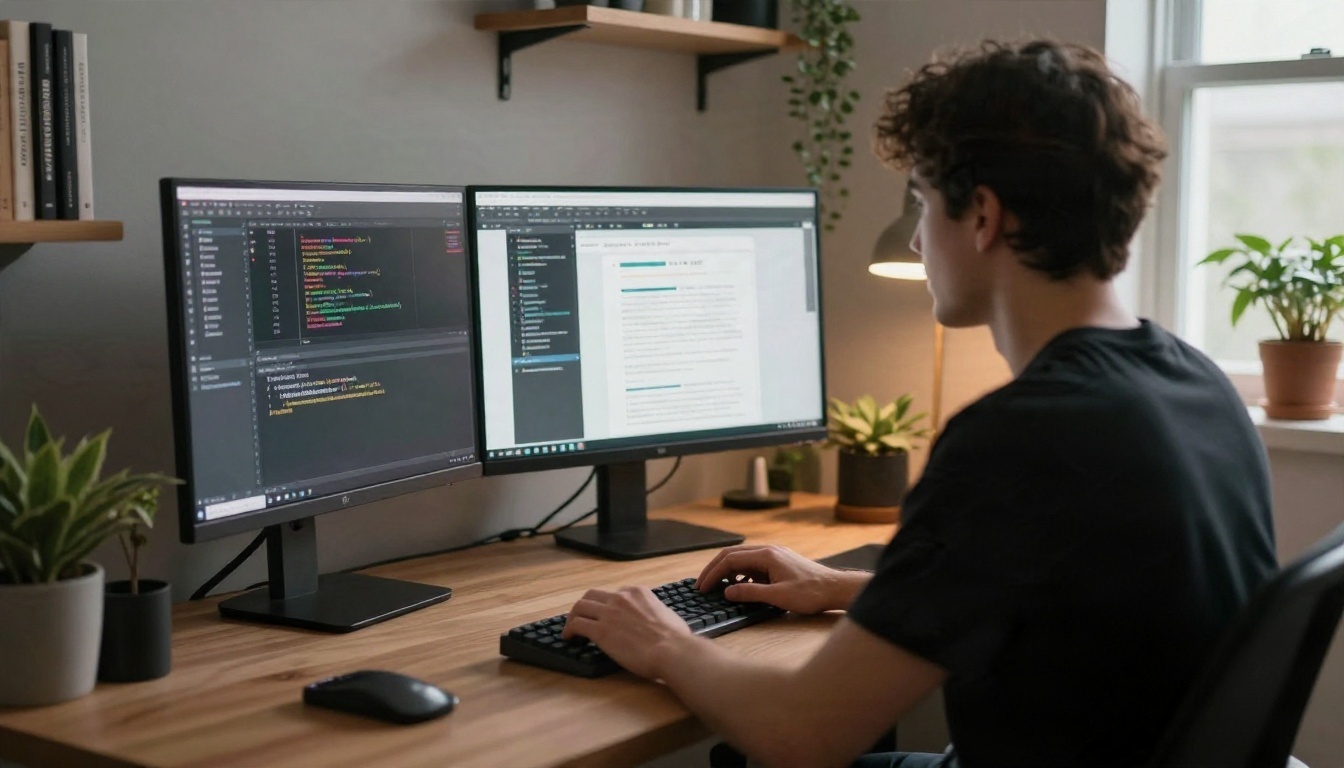
Embedding is where a flipbook stops being a file and becomes part of your site. Readers stay on your page, your brand stays visible and you control the surrounding content.
Iframe vs Direct Link
You have two main ways to share. The right one depends on where the reader is.
| Method | Best For | Pros | Cons |
|---|
| Embed code (iframe) | Website pages, landing pages | Reader stays on your site | Needs a page that allows custom HTML |
| Direct link | Email, social posts, QR codes | Works anywhere | Reader leaves your site |
| Password-protected link | Private proposals, internal files | Controlled access | Reader needs the password |
| Offline download | Trade shows, poor connections | Reads without internet | Not trackable |
For a walkthrough of the process, the Embed Flipbook on Website tool page explains how the code snippet works with common site builders.
Embed Checklist
Before you paste the code, run through this list:
- Choose a container width of at least 700 pixels on desktop, so spreads stay readable
- Set the embed to scale with the container, not to a fixed pixel size
- Place it below your main headline, not buried at the bottom of the page
- Add a short text summary above it for search engines
- Test the page on a phone before publishing
💡 Pro tip: Search engines cannot read a flipbook the way they read text. Write two or three paragraphs of real content around the embed so the page still ranks.
Mobile Support That Works
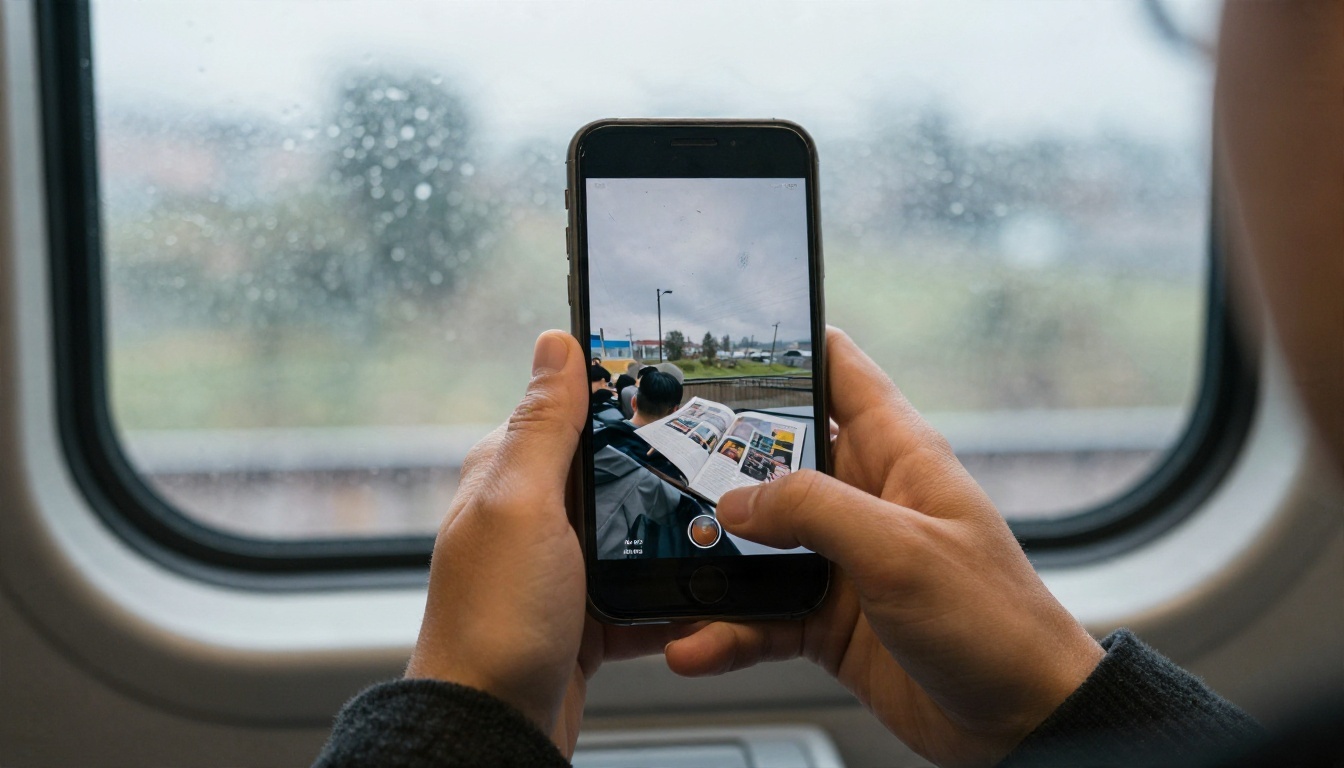
More than half of your readers will open the link on a phone. A flipbook that only looks good on a desktop is a flipbook that fails most of its audience.
Responsive Reading
A good mobile reader does not shrink a two-page spread into a tiny rectangle. It switches to a single-page view on narrow screens, supports swipe gestures and lets readers pinch to zoom on small text. Flipbooks AI uses a mobile-responsive design, so the layout adapts automatically without you building a second version.
What to look for in any tool:
- Single-page mode on portrait screens
- Swipe and tap gestures for page turns
- Fast first load, with later pages fetched in the background
- Zoom that does not break the layout
- Fullscreen mode for a distraction-free read
Testing Before Launch
Do not trust the preview alone. Open your publication on at least three devices:
| Device | What to Check |
|---|
| Small phone | Text size, tap targets, load time |
| Tablet | Spread vs single-page behavior |
| Laptop | Zoom, fullscreen, embed width |
Also test on a slow connection. If the first page takes more than a few seconds, your PDF is probably too heavy. Compress images before upload and the flipbook will feel much faster.
⚠️ Warning: Tiny body text that looks fine on a 27-inch monitor becomes unreadable on a phone. Use at least 10 pt type in the source PDF.
How to Create a Flipbook with Flipbooks AI
If you want to see all of the above in action, here is the process from blank screen to shareable link. It takes about ten minutes for a typical brochure.

Upload and Convert
- Go to Flipbooks AI and create an account.
- Click the button to start a new flipbook.
- Drag your PDF into the upload area. The PDF to Flipbook Converter processes the pages and builds the reader automatically.
- Wait for the conversion to finish. A typical file takes under a minute.
- Open the preview and check that every page rendered correctly.
💡 Pro tip: Export your PDF at 150 DPI for screens. Print-resolution files at 300 DPI or more load slower and add nothing on a monitor.
Customize Look and Branding
Once the pages are in, open the design settings:
- Upload your logo and place it in the toolbar.
- Pick brand colors for the background and controls.
- Choose the page effect, from a realistic curl to a simple slide.
- Add links to your product pages, booking form or contact details.
- Drop in video or audio on pages where a short clip adds value.
There are no watermarks, ever, so the finished flipbook looks like your own product.
Share, Protect, Track
Now decide how people will see it:
- Copy the direct link for email and social posts.
- Copy the embed code and paste it into your website.
- Turn on password protection for private proposals or internal documents.
- Enable offline downloads if readers will be without a connection, such as at a trade show.
- On the Professional plan, switch on analytics to see views and reading time, and add lead generation forms to capture emails before readers open the file.
Real-World Use Cases
Theory is useful, but examples show where the value lands. Here are scenarios that work well with a page flip creator.
Restaurants and Cafes
A restaurant can replace a printed menu that needs reprinting every season. With the Restaurant Menu Creator, a new menu goes live by uploading an updated PDF, and the QR code on each table never changes.

Retail and Catalogs
Boutiques and furniture sellers can publish seasonal lookbooks and send one link to their mailing list. Tools such as the Product Catalog generator and the Fashion Catalog creator are built for this. Add links on each product page so a reader can go straight to checkout.

Real Estate
Agents benefit most from password protection and mobile reading. A buyer opens the Real Estate Brochure on a phone while standing outside the property, and the agent sees from analytics whether the second visit happened.

Creative Portfolios
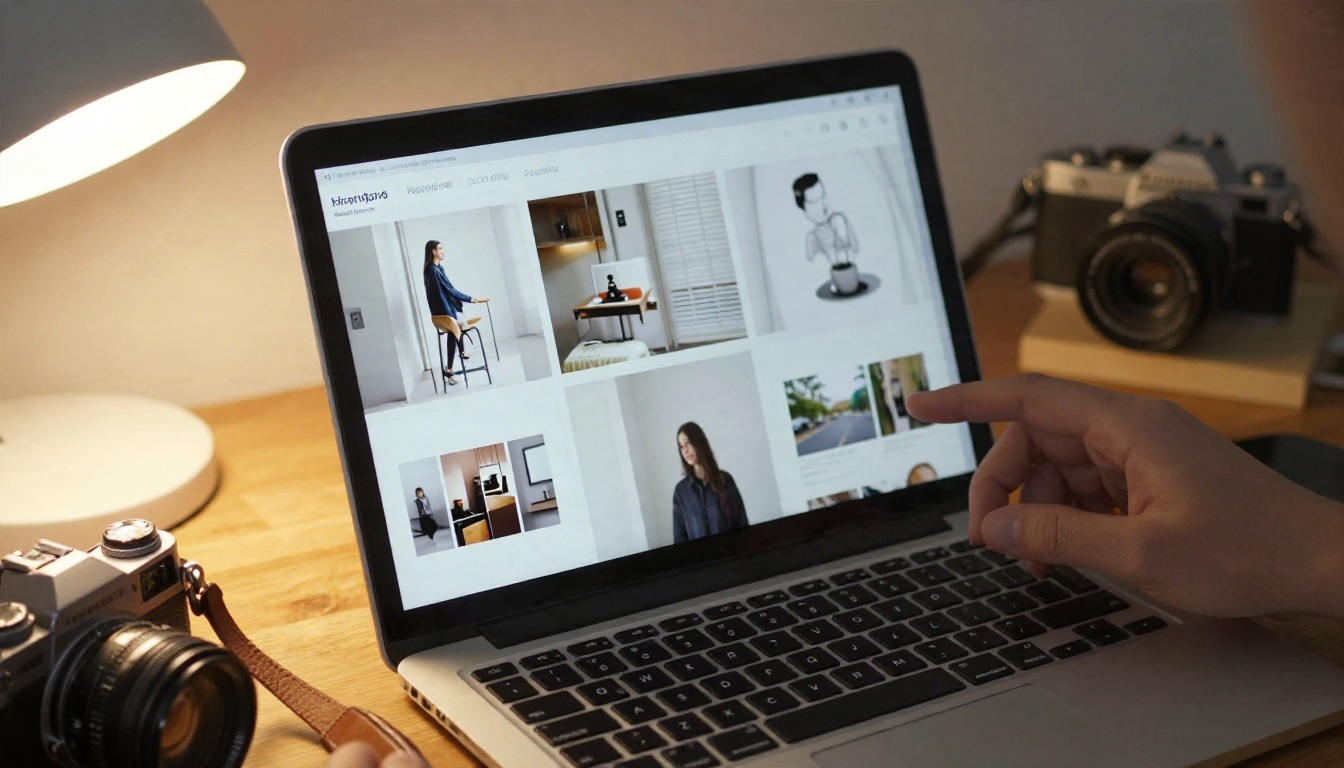
Photographers and designers want their work shown large and without clutter. A Photography Portfolio in book format feels closer to a printed monograph than a scrolling gallery, and it can be embedded on a personal site.
Choosing a page flip creator comes down to four checks. Run each tool through them and the decision becomes obvious:
- Free: Does the free tier remove watermarks and keep links alive, or is it only a demo?
- Pricing: Does the plan limit the number of flipbooks, pages or views?
- Embedding: Can you paste a clean code snippet and control the width?
- Mobile: Does the reader switch to single-page view and load quickly on a phone?
If a tool fails any of these, keep looking. If it passes all four, you have your answer.
Ready to publish your first flipbook? Get started for free on Flipbooks AI, browse all the tools and templates to find the one that fits your document, or compare pricing plans to see which tier matches your volume.



