A flipbook looks like paper, but without sound it can feel like a slideshow in a nice costume. The soft paper turn sound effect that plays as a page lifts is a tiny detail, yet it tells the brain "this is a real publication." Get the page-flip sound settings right and readers linger, swipe more slowly, and remember the experience. Get them wrong and they mute the tab before page three.
This article shows which sounds suit which content, where to find or record them, the volume and timing numbers that hold up on real devices, and how to add audio to a flipbook built with Flipbooks AI. You will also find comparison tables, a step-by-step tutorial, and a list of mistakes that quietly ruin otherwise good flipbooks.
Why Page Flip Sound Matters
Most people have turned a few thousand physical pages in their lives. The rustle, the faint snap at the end of the arc, the soft thud of paper settling: all of it is stored as a pattern. When a digital page curls and the matching sound plays, the pattern completes itself and the interface fades into the background.
The Psychology of Paper Noise
Sound is processed faster than visuals, so a good page-turn cue lands before the eye has finished reading the new spread. That tiny head start does three things:
- Confirms the action. The reader knows the page changed, even on a slow connection or a crowded layout.
- Sets the tone. A heavy hardcover thud says "serious annual report." A light flick says "weekend lifestyle magazine."
- Builds familiarity. Readers who grew up with printed catalogs and magazines trust the format faster.
💡 Pro tip: Think of the sound as seasoning, not the meal. If readers notice it consciously, it is probably too loud or too long.
When Silence Works Better
Not every flipbook needs audio. A legal contract, a safety manual read in a quiet office, or a document that people skim at speed can feel noisy with a sound on every flip. A sensible rule: use sound when the flipbook is meant to be experienced (magazines, lookbooks, portfolios, menus, albums) and keep it optional or off when it is meant to be processed (policies, price sheets, compliance files).
| Content Type | Sound Recommended? | Reason |
|---|
| Fashion lookbook | Yes, soft | Mood and tactile feel sell the product |
| Restaurant menu | Yes, light | Mimics a real menu being opened |
| Photography portfolio | Yes, subtle | Keeps focus on images, adds polish |
| Annual report | Optional | Professional tone, readers may be at work |
| Training manual | Off by default | Readers jump between pages often |
| Legal or compliance PDF | No | Distraction with no benefit |
Types of Page-Flip Sounds
Not all paper sounds are the same. A glossy magazine, a thick catalog, and a handmade notebook each make a distinct noise, and mismatching them is one of the quickest ways to make a flipbook feel off.
| Sound Style | Length | Character | Best For |
|---|
| Soft paper flick | 0.3 to 0.5 s | Light, airy, quick | Magazines, newsletters, lookbooks |
| Heavy book turn | 0.6 to 0.9 s | Deep, slow, with a faint thud | Hardcover books, yearbooks, annual reports |
| Glossy snap | 0.3 to 0.4 s | Crisp, slightly bright | Product catalogs, brochures |
| Notebook rustle | 0.4 to 0.7 s | Dry, textured, intimate | Recipe books, travel journals, portfolios |
| Quick multi-page riffle | 0.8 to 1.2 s | Fast fan of pages | Jumping several pages at once |
Soft Paper Flick
The workhorse. It is short enough that readers can turn pages quickly without sounds piling on top of each other. If you only pick one file, pick this one and keep the volume low.
Heavy Book Turn
A weighty sound suits publications with thick stock and a formal feel. Because it runs longer, it can overlap with the next flip when a reader taps quickly, so test it at speed before you commit.
Glossy Magazine Snap
Coated paper makes a brighter, crisper noise than uncoated stock. Use it for fashion, product, and travel content where images are the star. A tiny high-frequency "pop" at the end of the sound sells the glossy impression.
Where to Find or Record Your Sound
You have three realistic options: record your own, use a royalty-free library, or buy a premium pack. Each has trade-offs in cost, uniqueness, and legal risk.
Record It Yourself
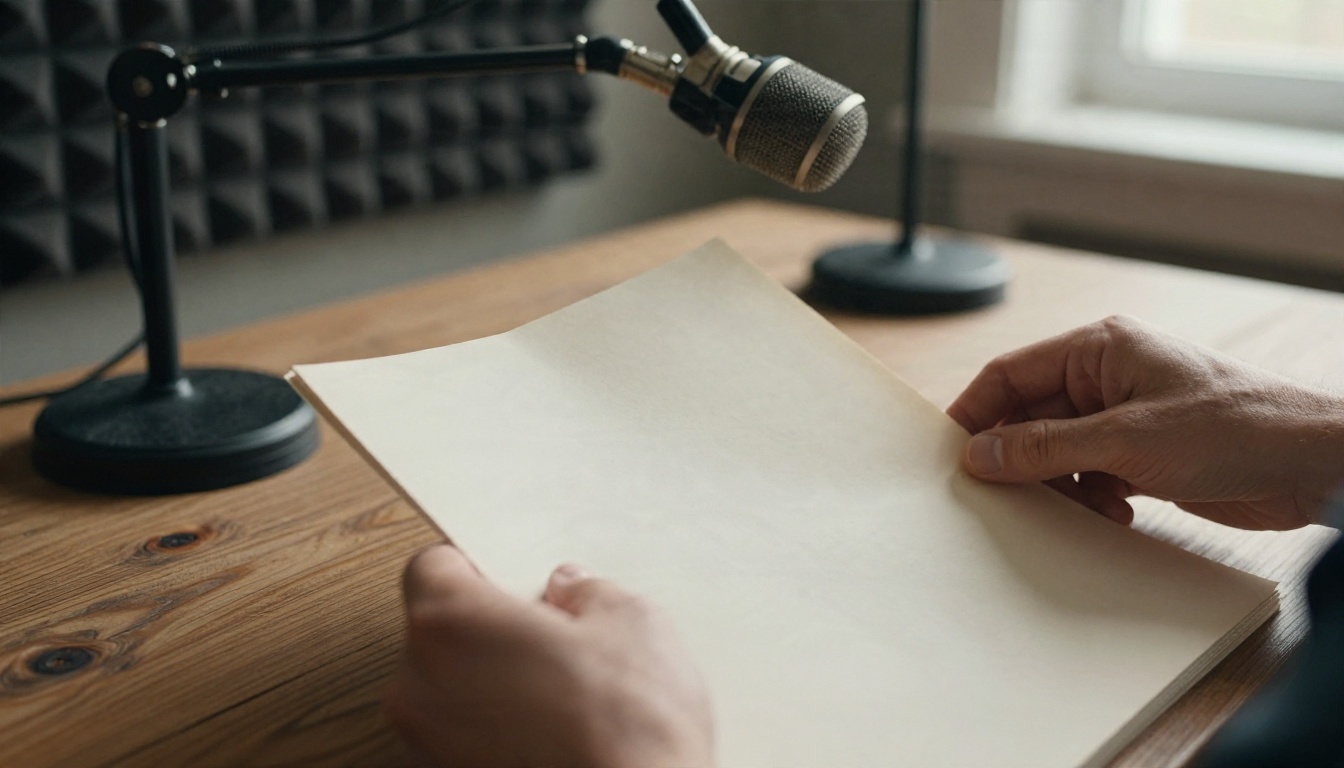
Recording a custom paper turn sound effect is easier than it sounds, and the result is 100% yours with no licensing questions.
- Pick a quiet room. Soft furnishings absorb echo. A closet full of clothes works surprisingly well.
- Use the real paper. If your flipbook comes from a printed catalog, record that exact catalog.
- Place the microphone 20 to 30 cm from the page. Closer adds thumps, farther adds room noise.
- Record 20 flips. Pick the three cleanest and trim silence from the start and end.
- Normalize and fade. Add a 10 ms fade-in and a 30 ms fade-out so the file does not click.
- Export as MP3 or AAC. A 128 kbps file keeps each clip well under 50 KB.
💡 A phone voice recorder held at arm's length is enough for a first draft. You can replace it with a studio recording later without touching the flipbook layout.
Royalty-Free Libraries
Free and low-cost sound libraries offer hundreds of page-turn clips. They are fast, but many people use the same ones, so your flipbook may sound identical to a competitor's. Always read the license, because "free to download" does not always mean "free to use commercially."
Licensing Checklist
| Source | Cost | Uniqueness | Legal Risk | Effort |
|---|
| Your own recording | Free | Very high | None | Medium |
| Free library (CC0) | Free | Low | Low | Low |
| Free library (attribution) | Free | Low | Medium, credit required | Low |
| Premium sound pack | Paid | Medium | Low | Low |
| Commissioned sound designer | Paid, higher | Very high | None | Low |
Keep the license text or receipt in the same folder as the audio file. If a client or platform ever asks, you will have the answer in ten seconds.
Sound Settings That Actually Work
Good audio on a website is mostly about restraint. The numbers below come from the habits of people who listen on laptop speakers, cheap earbuds, and phones in a noisy train carriage.
Volume and Length
| Setting | Recommended Value | Why |
|---|
| Peak level | Around -12 dBFS | Audible without startling anyone |
| Average loudness | Around -20 LUFS | Sits below voice and music |
| Clip length | 0.3 to 0.8 s | Prevents overlap during fast flipping |
| File size | Under 50 KB | Loads instantly, even on weak mobile data |
| Format | MP3 or AAC | Supported by virtually every browser |
| Fade-out | 20 to 50 ms | Removes clicks at the end |
If your flipbook also plays background music or a narration clip, keep the page sound at least 6 dB lower than both. Otherwise every turn feels like someone dropping a book on the table.
Autoplay Rules in Browsers
Modern browsers block audio that starts without a user action. The good news for flipbooks: a page turn is triggered by a click, tap, or swipe, and that counts as the gesture. The practical consequences:
- The first sound may need a real interaction before it plays. Do not expect sound on a page that loads and flips on its own.
- Never rely on sound to deliver critical information. Treat it as a bonus layer.
- Offer a visible mute toggle so readers stay in control.
⚠️ A flipbook that plays background audio the moment it loads will be muted by the browser and annoy anyone whose browser allows it. Let readers opt in.
Mobile Behavior
Phones add their own twists. Many devices in silent mode mute web audio entirely, earbuds change how the sound feels, and thumbs flip pages faster than a mouse does. Test on at least one iPhone and one Android phone, in silent mode and with sound on, before you publish.
On a train, bus, or office floor, readers often have sound off by default. Design your flipbook so it works perfectly in silence and simply feels richer when sound is on.
How to Add Page Flip Sound with Flipbooks AI
If your content is already a PDF, you can have a sound-enabled flipbook ready in a few minutes. Flipbooks AI turns PDFs into page-turning publications with no watermarks, and it supports embedded audio and video, custom branding, and mobile-responsive viewing.
Step by Step
- Create your account. Go to Flipbooks AI and sign in. You can start with a free account and compare options on the pricing page.
- Upload the PDF. Use the PDF to Flipbook Converter. Pages are converted into a realistic, page-turning layout automatically.
- Choose the page effect. Pick the flip style that fits your content: a soft curl for magazines, a firmer turn for books.
- Add your audio. Upload your short paper turn clip, or place a longer audio track such as ambient music or narration on specific pages.
- Set the volume. Keep the page sound low and test it with headphones and laptop speakers.
- Apply branding. Add your logo, colors, and background so the flipbook matches your site.
- Preview on mobile. Open the preview on a phone and flip fast, slow, and backward.
- Share it. Copy the direct link, or use the Embed Flipbook on Website option to place it in your page.
✅ Best practice: Preview with the volume at 50% on your device. If the sound is comfortable there, it will be fine for most readers.
Branding, Sharing, and Analytics
Once the flipbook sounds right, finish the details that make it professional:
- Custom branding: logo, brand colors, and a matching background.
- Sharing options: direct links, embed codes, and password protection for private content.
- Offline downloads: let readers keep a copy for travel or low-signal areas.
- Analytics and lead generation: available on the Professional plan, so you can see which pages hold attention. See plans and features.
| Capability | What It Does | Where It Helps Most |
|---|
| Embedded audio and video | Adds sound, music, or narration | Lookbooks, portfolios, menus |
| Password protection | Limits access to approved readers | Client proposals, internal reports |
| Embed code | Places the flipbook on your site | Landing pages, blogs |
| Offline download | Saves a copy to the reader's device | Travel guides, manuals |
| Analytics (Professional) | Shows how readers move through pages | Sales and marketing publications |
Real-World Examples
Sound is easiest to judge in context. Here is how different businesses can put a paper turn sound effect to work.

Retail and Catalogs
A boutique bookstore can turn its seasonal list into a flipbook and use a glossy snap so browsing on a tablet feels like leafing through a printed catalog. Try the Digital Catalog Maker or the Product Catalog Generator for this kind of project.
Food and Hospitality
A restaurant can use a light flick on its menu, so a guest scanning a QR code at the table hears the familiar rustle of a real menu opening. The Restaurant Menu Creator and the Hotel Brochure Designer fit well here.
Creative Work
Photographers and designers can pair a soft rustle with large images so the portfolio feels like a quality print book. The Digital Portfolio Creator and the Wedding Album Flipbook are natural starting points. Couples tend to share wedding albums with relatives on phones, so keep the sound subtle and optional.
| Use Case | Suggested Sound | Volume | Extra Audio |
|---|
| Seasonal catalog | Glossy snap | Low | None |
| Restaurant menu | Soft flick | Low | Optional ambient track |
| Photography portfolio | Notebook rustle | Very low | None |
| Wedding album | Heavy book turn | Low | Soft instrumental track |
| Annual report | Soft flick | Off or very low | None |
| Yearbook | Heavy book turn | Medium-low | Voice clips on select pages |
Common Mistakes to Avoid
Most sound problems are not technical. They come from small decisions made late in the process.
- Using a clip that is too long. Anything over a second collides with the next flip.
- Playing a different sound on every page. Variation sounds natural up to about three clips. After that it sounds random.
- Forgetting the mute control. Readers in offices and public spaces need a quick way out.
- Ignoring mobile testing. A sound that is perfect on a desktop can clip on phone speakers.
- Mismatching sound and paper. A heavy hardcover thud on a lightweight newsletter feels wrong, even if readers cannot say why.
- Skipping the license check. One takedown notice can cost more than a sound pack.
- Letting sound carry information. If a reader cannot hear it, nothing important should be lost.
⚠️ Accessibility note: Some readers use screen readers or are sensitive to sudden sounds. Keep the default volume gentle and make sure every action works without audio.
A quick self-test before you publish: close your eyes, flip ten pages at normal speed, and ask yourself whether the sound feels like a helpful whisper or a repeated interruption. If you hesitate, lower the volume or shorten the clip.
Ready to Add Sound to Your Flipbook?
A well-chosen page-turn sound is a small touch with a big payoff. Pick a clip that matches your paper stock, keep it short and quiet, test on phones, and always give readers a way to mute.
Ready to build one? Create your free account on Flipbooks AI, upload your PDF, and add audio in minutes. Browse all flipbook tools to find the template that suits your project, or compare pricing plans when you need analytics, lead generation, and unlimited flipbooks.



