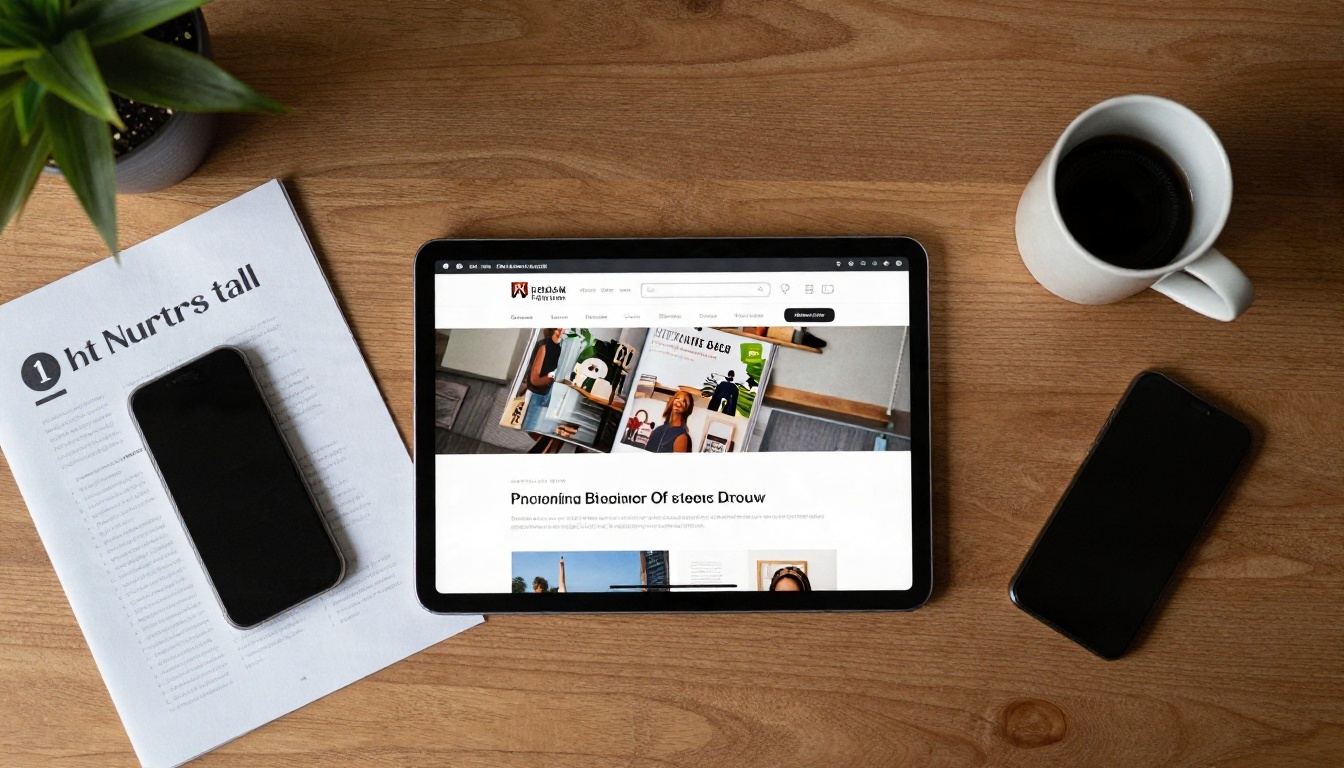
PDF Page Turning: Software Options, Embed on Website, Free Plans and Limits
Weighing PDF page turning software? This article compares desktop, browser-based and plugin options, shows how to embed a flipbook on your website with a simple iframe, and breaks down what free plans really restrict, from watermarks to page caps, so you can choose with confidence.
You have a PDF that deserves better than a download link. Maybe it is a catalog, a lookbook, a menu or an annual report, and you want readers to flip through it like a real publication, right on your website. That is what PDF page turning is about, and the market for it is crowded, confusing and full of fine print. Tools like Flipbooks AI turn a static file into a book-style reader in minutes, but plenty of other options exist, and each one comes with trade-offs around cost, watermarks and embedding.
This article compares the main software categories, shows exactly how to embed a flipbook on a website, and spells out what free plans usually restrict. By the end you will know which route fits your project and which limits to check before you upload anything.
💡 Quick answer: If you need a clean, watermark-free reader that embeds with one snippet, a browser-based platform is almost always the fastest path. Desktop software and DIY plugins make sense only in specific cases, covered below.
What PDF Page Turning Really Means
A page turning PDF is a normal PDF converted into an interactive reader. Readers see two-page spreads, click or swipe to flip, zoom in on details and sometimes play embedded video or audio. Under the hood, the software renders each PDF page as a web-friendly image or HTML layer and wraps it in a viewer with animation.
You will also hear it called a flipbook, a digital publication, an HTML5 flipbook or an online page flip viewer. Search engines treat these terms as near neighbors, so they all describe roughly the same goal.
Why Readers Prefer Flip Effects
Print habits run deep. A familiar page curl signals "this is a publication, take your time." That matters for content people browse instead of skim:
Catalogs and price lists where shoppers scan page by page
Magazines and newsletters that rely on layout and photography
Portfolios and lookbooks where pacing is part of the design
Training manuals that readers move through in order
A plain PDF opens in a separate tab or a download dialog. A flipbook stays inside your page, keeps your branding visible and loads the first spread quickly instead of waiting on a large file.
Where a Plain PDF Falls Short
Large PDFs are slow on mobile, hard to track and easy to forward without any trace. You cannot see which pages people read, you cannot capture an email before they open it, and you cannot update the file without breaking old links. A hosted flipbook fixes most of that.
Feature
Plain PDF link
Hosted flipbook
Opens inside your site
No
Yes, via embed
Page flip animation
No
Yes
Mobile friendly reading
Pinch and scroll
Responsive layout
Read tracking
Rarely
Often included
Password protection
Limited
Commonly offered
Update without new link
No
Usually yes
Software Options Compared
Three broad categories cover nearly every tool on the market. Each has a different cost profile and a different amount of setup work.
Desktop Software
Desktop applications install on your computer, convert PDFs locally and export a folder of HTML files. You then upload that folder to your own hosting. This gives you control and works offline, but it also hands you the maintenance: hosting, updates, compatibility testing and mobile checks all fall on you. Exports can also feel dated if the software has not kept pace with browsers.
Browser-Based Platforms
Cloud platforms such as Flipbooks AI work from a browser. You upload a PDF, the platform converts and hosts it, and you receive a link and an embed code. There is nothing to install, updates happen on the platform side, and sharing takes seconds. Pricing is typically subscription based, and the real differences show up in watermarks, page limits and analytics.
Plugins and Open Source Libraries
WordPress plugins and JavaScript libraries can render page flip effects on your own site. They look attractive on paper because the license can be cheap or free, but expect real work. You handle PDF conversion, performance tuning, mobile touch behavior and security patches. For a developer with spare time, that is fine. For a marketing team on a deadline, it rarely is.
Option type
Setup time
Hosting
Mobile quality
Best for
Desktop software
Hours
Your own server
Depends on export
Offline or local control
Browser-based platform
Minutes
Included
Responsive by default
Most businesses and creators
Plugin or library
Hours to days
Your own site
Needs testing
Developers with custom needs
⚠️ Watch out: Some "free" desktop converters bake a logo into every page of the output. Always open an exported sample before you commit to a tool.
Free Plans and Their Limits
Free tiers are a fair way to test a tool, but they are built to nudge you toward a paid plan. Knowing the usual restrictions saves you from publishing something you will have to redo.
Common Free Plan Restrictions
Most free offerings limit one or more of the following:
Watermarks or branding stamped on the viewer or on every page
Page caps, often a few dozen pages per document
File size caps that reject image-heavy PDFs
Flipbook count, sometimes just one to three active publications
Expiry, where unpaid flipbooks are deleted after a period
Disabled embedding, so the flipbook only opens on the vendor's page
No password protection or lead capture
Limit
Why vendors use it
What it means for you
Watermark
Free advertising
Looks unprofessional on client work
Page cap
Pushes larger publications to paid
Long catalogs get cut off
Flipbook count
Controls storage cost
Updates may require deleting old ones
Link expiry
Reduces stale hosting
Shared links can quietly die
Embed blocked
Keeps traffic on vendor site
Your website loses the reader
Watermarks and Branding Rules
A watermark is the biggest dealbreaker for business use. A catalog with another company's logo across the corner tells customers you did not invest in presentation. Flipbooks AI publishes no watermarks, ever, and unlimited flipbooks are included from the Standard plan up. You can see the exact tiers on the pricing page.
When Free Is Enough
A free plan works well for:
Testing the conversion of a tricky PDF with lots of images
Personal projects like a family recipe collection or a school assignment
Short-lived content you will delete in a few weeks
Checking embed behavior on a staging page before you buy
It stops working once you publish client-facing material, need analytics, or manage several documents at once.
✅ Best practice: Run your single worst PDF through the free tier first. Heavy scans, large photos and odd fonts expose problems faster than a clean one-page test.
How to Embed on Your Website
Embedding is where flipbooks become part of your brand instead of a link you hand off. The process is almost the same on every platform.
Iframe Embed Basics
Most platforms generate an iframe snippet. It looks like this in principle:
You paste it into an HTML block on your page, and the flipbook loads inside the layout. Set the width to 100 percent so it scales, and give it a fixed height that suits your template. The Embed Flipbook on Website tool walks through the exact snippet for your publication.
Embedding in Site Builders
Nearly every site builder accepts an iframe through a custom HTML or embed block. The steps are the same in spirit:
Open the page editor and add an HTML or embed element
Paste the iframe code
Resize the block so it spans the content width
Preview on desktop and phone
Publish
If the block refuses the code, check whether your plan allows custom HTML. That restriction sits on the website builder, not the flipbook tool.
Speed and Mobile Checks
A flipbook that loads slowly hurts your page. Before you go live, run through this list:
Compress oversized images in the source PDF
Keep the embed below the fold if the page has other heavy content
Test touch swiping on a real phone, not just a resized browser window
Confirm fullscreen mode works on iOS and Android
Make sure the embed height does not cut off the controls
Check
Pass condition
Fix if it fails
Load time
First spread appears within a few seconds
Compress images, reduce page count
Mobile swipe
Pages flip smoothly with one finger
Switch to single-page view on small screens
Fullscreen
Opens and closes cleanly
Add allowfullscreen to the iframe
Zoom
Text stays readable
Export the PDF at higher resolution
Create a Page Turning PDF with Flipbooks AI
If you want the shortest route from PDF to live embed, here is the workflow on Flipbooks AI. It works for anything from a one-page menu to a hundred-page report.
Step 1: Start and Upload
Head to the account page and sign up. From your dashboard, choose to create a new flipbook and drop in your file. The PDF to Flipbook Converter handles the conversion automatically, so within moments you see your pages as a spread you can flip through. Text stays sharp, links in the original PDF stay clickable and layouts remain intact.
Step 2: Customize the Look
Next, shape the reader so it matches your brand:
Custom branding: add your logo and set brand colors
Page effects: adjust flip animation and background
Multimedia: embed videos and audio directly on pages
Layout: choose spread or single-page display
The result is mobile-responsive by default, so readers on phones get a layout that fits, not a shrunken desktop view.
Step 3: Share and Protect
Sharing options include:
A direct link for email and social posts
An embed code for your site
Password protection for private content such as investor decks or client proposals
Offline downloads for readers who want a copy
Paste the embed snippet into your website as described above, and the flipbook is live.
Step 4: Add Pro Features
On the Professional plan you gain analytics and lead generation. You see which pages hold attention, how long readers stay and where they drop off. Lead capture can ask for an email address before the first page opens, which turns a catalog into a list-building asset. Compare the tiers on the pricing page, or start free and upgrade when you are ready.
💡 Pro tip: Put your most important page, such as a bestseller or a call to action, on the first spread. Analytics will confirm whether readers actually reach the later pages.
Real-World Use Cases
Different industries lean on different features. A few patterns repeat.
A restaurant uploads its PDF menu with the Restaurant Menu Creator, embeds it on the homepage and updates seasonal dishes without changing the link.
A boutique shares a seasonal collection through the Interactive Lookbook Designer and links pages straight to product listings.
A real estate agent sends buyers a property brochure from the Real Estate Brochure Creator with a password for premium listings.
A finance team publishes results with the Annual Report Creator and tracks which sections investors read.
A trainer distributes a Training Manual Flipbook to new hires, with offline downloads for field staff.
Use case
Most useful feature
Typical plan need
Restaurant menu
Easy updates, embed
Entry level
Product catalog
Unlimited flipbooks, branding
Standard
Investor report
Password protection, analytics
Professional
Marketing brochure
Lead capture
Professional
Personal project
Basic conversion
Free trial
Choosing the Right Option
Instead of comparing every feature, answer five questions in order.
Will it appear on a client-facing page? If yes, rule out anything with a watermark.
Do you need to embed it? Confirm embedding is allowed on the plan you will use.
How many documents will you publish? If it is more than a few, look for unlimited flipbooks.
Do you need to know who reads it? Pick a plan with analytics and lead generation.
Who will maintain it? If the answer is "nobody," avoid self-hosted setups.
Mistakes That Cost Time
Uploading the wrong PDF. Use a web-optimized export, not a print file with crop marks.
Ignoring file size. A 200 MB file will frustrate readers on mobile.
Skipping the phone test. Many embeds look fine on desktop and clumsy on small screens.
Forgetting link updates. Choose a platform where you can replace the PDF while keeping the same URL.
Relying on a free tier for a launch. Expiry and limits tend to bite at the worst moment.
⚠️ Heads up: Check the terms on any free plan for deletion policies. A flipbook that vanishes after a campaign has gone live is hard to recover.
Ready to Publish Yours?
The right page turning setup is the one that fits the work you already have: a PDF, a website and a reader who should enjoy the experience. Browser-based platforms save the most time, free plans are best for testing, and self-hosted tools suit people who enjoy tinkering.
If you are ready to try it, create your account on Flipbooks AI and convert your first PDF today. Browse the full list of flipbook tools and templates to find one built for your content, and compare pricing plans when you need analytics, lead generation or unlimited publications. Your PDF is already written. Now let people turn the pages.