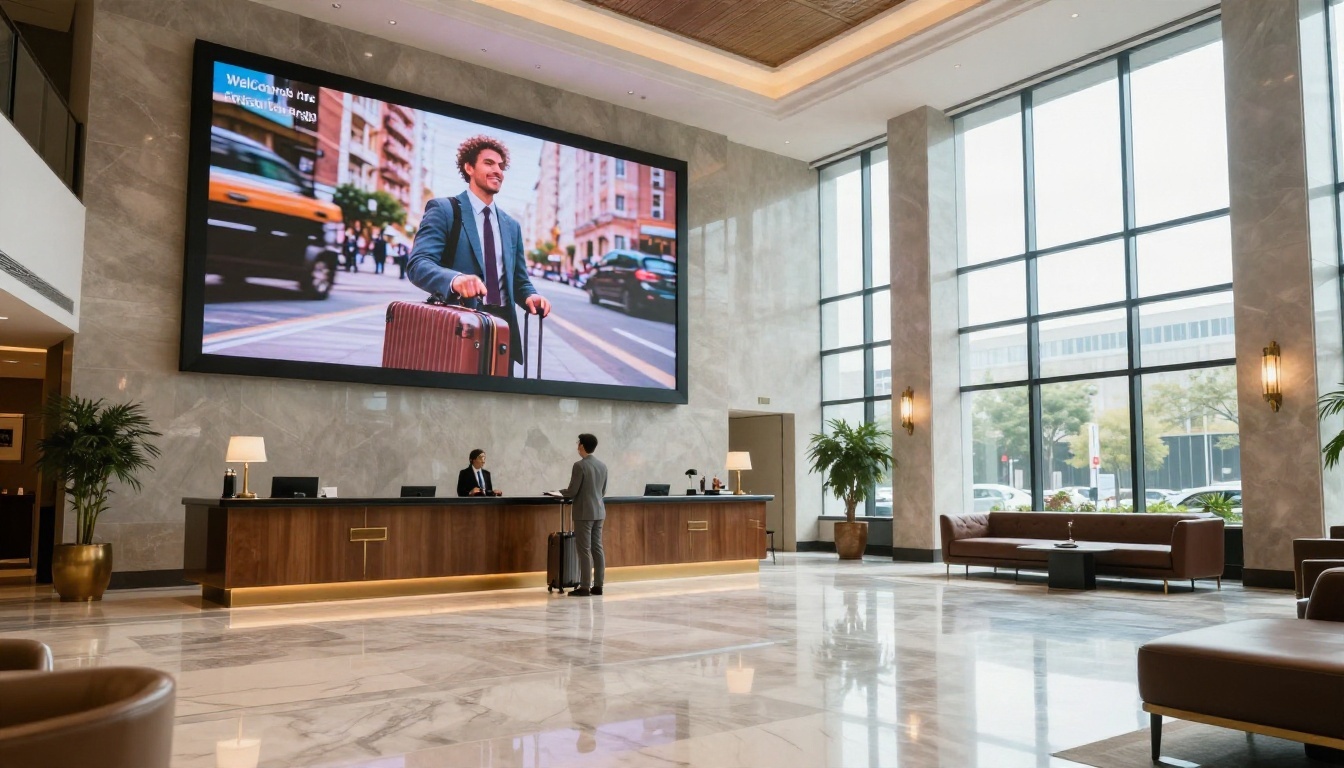
A PDF that stops on its last page is a problem the moment nobody is standing next to the screen. At a trade show booth, in a hotel lobby, or in a shop window, someone has to walk over, jump back to page one, and press play again. A PDF presentation loop removes that chore. The slides advance on a timer, reach the final page, and return to the first one without a single click. This article shows how to loop a PDF slideshow on a Mac, in Adobe Acrobat, and online, with honest notes on where each method falls short. And if you also want the same file to work as a page-turning web document, Flipbooks AI handles that side, which we will get to in a moment.
Why Loop a PDF Presentation
A looping deck is a quiet salesperson. It repeats the same message to every person who walks past, all day, with no fatigue and no coffee breaks. The format matters because PDF is the one file type that looks identical on every machine, so teams export their final design to PDF and expect it to play anywhere.
The catch is that PDF was built as a document format, not a slideshow format. Looping and auto-advance exist, but they live in different menus depending on the app. That is why a simple question ("how do I make this repeat?") produces so many conflicting answers.
Where Loops Pay Off
Looping is useful far beyond conference halls. Here are the scenarios that come up most often:
| Scenario | What loops | Typical timing per page |
|---|
| Trade show booth | Product deck on a wall display | 6 to 10 seconds |
| Hotel or office lobby | Welcome slides, event schedule | 8 to 12 seconds |
| Retail window | Seasonal offers, new arrivals | 4 to 6 seconds |
| Classroom break | Announcements, reading prompts | 10 to 15 seconds |
| Reception waiting area | Services, price list, team photos | 8 to 10 seconds |

What a Good Loop Needs
Before picking a method, check that it can do three things:
- Auto-advance each page after a set number of seconds.
- Restart at page one after the last page, with no pause on a blank screen.
- Stay awake, meaning the display does not dim, lock, or show a notification halfway through.
If a method misses any of these, you will end up babysitting the screen anyway.
Loop a PDF on Mac
Macs give you three realistic paths: Preview, Keynote, and PowerPoint for Mac. Only two of them produce a dependable loop.
Preview Slideshow Limits
Open the PDF in Preview and choose View > Slideshow, or press Shift + Command + F. Preview plays the pages full screen and lets you step through them. It is great for a quick review, but it is not built for unattended playback. In our testing approach, the practical limits are clear:
- Timing and looping options are minimal compared with a presentation app.
- Moving between pages usually depends on you, not a timer.
- Any stray click or notification can interrupt the show.
Treat Preview as a viewer. For a loop that runs by itself, move the pages into an app that has real playback settings.
💡 Pro tip: If you only need the slides for a 20-minute demo and you will be standing there, Preview is fine. The moment you walk away, switch tools.
Use Keynote for a Real Loop
Keynote is already on most Macs, and it has an explicit loop setting. The process takes about five minutes:
- Open Keynote and create a blank presentation that matches the shape of your PDF pages (16:9 for most decks).
- In Preview, open the PDF, show the thumbnail sidebar, select all pages, and drag them into Keynote's slide navigator, or export each page as an image and insert them one per slide.
- Open the Document tab in the right sidebar.
- Under Presentation Type, choose Loop Slideshow.
- Tick Automatically play and set the delay between slides, for example 8 seconds.
- Press Play from the first slide and watch one full cycle to confirm it returns to slide one.
Keep in mind that the pages become images inside Keynote. Text will no longer be selectable and hyperlinks from the PDF may not survive, so check any clickable elements before you rely on them.
PowerPoint on Mac
If your team lives in Microsoft Office, the equivalent is under Slide Show > Set Up Slide Show, where you pick Loop continuously until 'Esc' and enable timings for each slide. The PDF pages must be inserted as pictures first, which is the same trade-off as with Keynote.
| Mac method | Auto-advance | True loop | Keeps PDF text | Effort |
|---|
| Preview slideshow | Limited | No | Yes | Very low |
| Keynote | Yes | Yes | No (images) | Low |
| PowerPoint for Mac | Yes | Yes | No (images) | Low |
| Acrobat full screen | Yes | Yes | Yes | Low |
Loop a PDF in Adobe Acrobat
Acrobat is the only major tool on this list that loops the PDF itself, without converting pages to images. Text stays sharp, links keep working, and file size does not balloon. The settings are tucked inside Preferences, which is why many people never find them.
Turn On Full Screen Settings
On both Mac and Windows, the setting is called Full Screen in the preferences list.
- Open the PDF in Adobe Acrobat or Acrobat Reader.
- Go to Edit > Preferences on Windows, or Acrobat > Settings on Mac.
- Choose Full Screen from the left-hand list.
- Tick Loop after last page.
- Tick Advance every and enter the seconds per page.
- Click OK.
Set Auto Advance Timing
On the same Full Screen panel, you can also decide how the show behaves:
- Advance every X seconds: the main timer for each page.
- Escape key exits: keep it on if you need a way out, and switch it off only for a dedicated kiosk machine.
- Mouse click advances one page: switch it off to stop visitors from skipping slides.
- Transition: pick a fade or leave it at none for the cleanest look.
⚠️ Warning: Acrobat stores these settings per computer, not inside the PDF. If you send the file to a colleague, the loop will not follow it. They need to repeat the steps on their own machine.

Launch and Exit Cleanly
Press Command + L on Mac or Ctrl + L on Windows to enter full screen. The deck plays from the current page, so go to page one first. To exit, press Esc. A good habit is to run one full cycle with a stopwatch to confirm the timing feels right for your audience.
✅ Best practice: Set the page count times the seconds per page and compare it to the time visitors actually spend in front of the screen. A 30-page deck at 10 seconds per page takes five minutes per cycle, which is too long for a lobby where people stay thirty seconds.
Loop a PDF Slideshow Online
Sometimes the screen is not yours. It might be a client's monitor, a shared meeting room, or a browser tab on a smart TV. In those cases an online option is easier than installing software.
The Google Slides Route
Google Slides cannot open a PDF directly, so the usual path is to convert the PDF to PowerPoint or to images, upload it to Google Drive, and open it in Slides. From there:
- Choose File > Share > Publish to web.
- Pick the Link tab and set Auto-advance slides to your chosen interval.
- Tick Restart the slideshow after the last slide.
- Click Publish and copy the link.
Open that link in a browser, press F11 for full screen, and the deck loops. It works on almost any device with a browser, but remember that the published link is public to anyone who has it.
Share It as a Flipbook
An auto-playing loop and a flipbook solve different problems. A loop is for people who walk past. A flipbook is for people who sit down, click, and read. When the same PDF needs to serve both audiences, run the loop on the lobby screen and put a flipbook version on your website, in an email, or behind a QR code printed next to the display. Visitors who like what they saw can take the full document away on their phone.
Create a Flipbook with Flipbooks AI
The loop handles the passers-by, and a flipbook handles the people who want more. The PDF to Flipbook Converter turns your existing file into a page-turning document with no watermark. Here is the full process.

Step-by-Step Setup
- Open the platform. Go to Flipbooks AI and create an account. You can start with the same PDF you used for the loop.
- Upload the PDF. Drag the file into the upload area. The conversion keeps your page order, fonts, and layout, and finishes in moments for a typical deck.
- Customize the look. Add your logo, choose a background color that matches your brand, and pick page-turning effects. For slide decks, a clean white or dark backdrop makes the slides stand out.
- Add multimedia. Embed a video or audio clip on a page when a slide needs a spoken explanation.
- Preview on mobile. The result is mobile-responsive, so check it on a phone before you share it.
- Publish. Copy the direct link or the embed code, then place it on your website or send it by email.
If the deck is a sales pitch specifically, the Sales Presentation tool and the Presentation Flipbook Designer are built for that case.
Sharing and Protection Options
| Sharing option | Best for | Notes |
|---|
| Direct link | Email and chat | Fastest to send |
| Embed code | Websites and landing pages | See the Embed Flipbook on Website tool |
| Password protection | Private decks, investor material | Only people with the password can open it |
| Offline download | Travel and weak connections | Visitors keep a copy on their device |
Analytics and Lead Capture
On the Professional plan, you can see how people read the flipbook and capture leads before they open it. That closes the gap that a looping display cannot: a screen in a lobby tells you nothing about who watched, but a flipbook tells you who read page twelve. See the pricing plans to compare features, and note that unlimited flipbooks start on the Standard plan.
💡 Pro tip: Print a small QR code under the lobby display that links to the flipbook. Interest from the loop becomes a measurable visit.
Which Method Fits You
Pick based on where the deck will run and who controls the machine. This table puts every option side by side:
| Method | Needs software | Loops by itself | Keeps links | Works on any screen | Best for |
|---|
| Preview | No (built in) | No | Yes | Mac only | Quick review |
| Keynote | Yes (free on Mac) | Yes | No | Mac only | Kiosk on a Mac |
| PowerPoint | Yes | Yes | No | Mac and Windows | Office teams |
| Adobe Acrobat | Yes | Yes | Yes | Mac and Windows | Highest PDF quality |
| Google Slides online | Browser only | Yes | Partly | Any browser | Remote and shared screens |
| Flipbook | Browser only | No (reader controlled) | Yes | Any device | Reading, sharing, tracking |
A simple rule of thumb: if the file must stay a real PDF, use Acrobat. If the screen is a Mac Mini behind a counter, use Keynote. If you cannot touch the screen at all, use a browser-based link.
Fix Common Loop Problems
Even a well-built loop can fail on the day. These are the issues that show up most often, and what to do about each.
Slides Move Too Fast or Too Slow
Time each page by the amount of text on it. A title page can run 4 seconds. A page with a chart and three bullets needs at least 10. Read each slide out loud once: if you cannot finish before it changes, the timer is too short.
The Screen Goes to Sleep
An unattended Mac will dim or lock unless you tell it not to. Open System Settings, go to Lock Screen, and set the display to never turn off while connected to power. On Windows, adjust the power plan the same way. Also turn on Do Not Disturb so notifications do not pop up over the slides.
Pages Have Different Sizes
If a deck mixes portrait and landscape pages, the loop will show black bars and jump around. Export the PDF again with a single page size before you start.
| Problem | Likely cause | Quick fix |
|---|
| Loop stops on last page | Loop option not ticked | Enable Loop after last page or Loop Slideshow |
| Settings missing on another computer | Acrobat stores settings locally | Repeat the preferences on each machine |
| Fuzzy text | Low-resolution page images | Export at 150 dpi or higher |
| Visitors skip slides | Mouse click advance is on | Turn off click-to-advance |
| Display dims mid-show | Power settings | Disable sleep and notifications |

⚠️ Warning: Always test the loop for at least three full cycles before the event. A mistake on cycle one is easy to spot. A mistake that only appears on cycle three, such as a memory slowdown, is the one that embarrasses you in front of visitors.
Start Your Loop Today
You now have three ways to keep a PDF playing without a person nearby: Keynote on a Mac, Adobe Acrobat's full screen preferences, and an online link for screens you do not control. Pair the loop with a shareable version of the same file, and every glance at the display can turn into a proper reading session.
Ready to turn your PDF into something people can open, flip through, and share? Get started for free on Flipbooks AI, browse all flipbook tools to find the right fit for your deck, or compare pricing plans when you need analytics, lead generation, and offline downloads.



