You have forty pages of PDF to get through, a commute in ten minutes, and eyes that already ache from screens. Turning that file into audio is the obvious fix, and it no longer needs paid software. Free online readers, built-in operating system voices and neural AI narrators can all turn a PDF into speech today. This article compares them, shows which audio formats to pick, and finishes with a practical method for publishing narrated documents through Flipbooks AI.
What PDF to Audio Really Means
The phrase covers two different jobs, and mixing them up is the most common reason people pick the wrong tool.
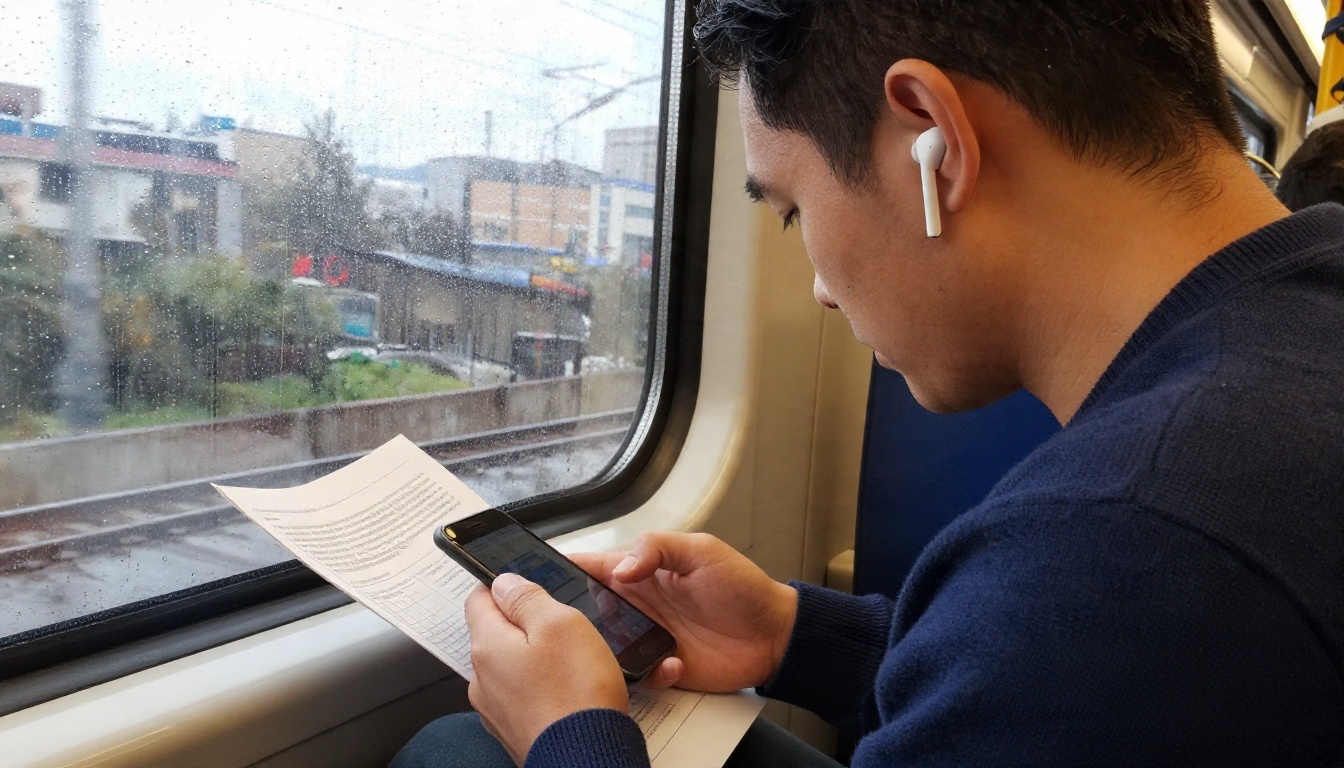
Reading aloud means a tool speaks the text while you keep the PDF open. Nothing is saved. Exporting audio means the tool produces a file, usually MP3, that you can play offline, share or embed. Some free tools only do the first. Fewer do the second without a paywall or a daily character cap.
Text to Speech in Plain Terms
Every PDF to audio tool follows the same pipeline: extract the text layer, clean it up, send it to a speech engine, and play or save the result. The quality of the voice gets the attention, but the quality of the extracted text matters just as much. A beautiful AI voice reading a jumbled paragraph still sounds broken.
Why Scanned PDFs Fail
A scanned PDF is a photograph of a page. It has no text layer, so a reader has nothing to speak. You need optical character recognition (OCR) first. Many free converters include it, but accuracy drops with skewed pages, small fonts and handwriting.
💡 Quick test: open the PDF and try to select a sentence with your cursor. If you can highlight individual words, the text layer exists. If the whole page highlights as one block, it is an image and needs OCR.
Free options fall into three groups. Each has a different trade-off between convenience, voice quality and file export.
Built-In Reading Features
Your device probably already speaks PDFs. Major browsers, PDF viewers and mobile operating systems include a read-aloud or speak-screen function. They cost nothing, need no upload, and keep your files private on your own device. The downside is that most of them play audio live and cannot save it.
Browser Based Converters
Web tools let you drop in a PDF and press play. Some offer a download button for an MP3 on the free tier, usually with limits on length, voice choice or daily use. They are the fastest route if you want a file without installing anything.

Desktop and Mobile Apps
Free apps often handle long documents better than web pages because they run locally and do not time out. Many have a free core with optional paid voices. Check whether the free version lets you export audio or only listen inside the app.
| Tool type | Cost | Saves MP3 | Voice quality | Privacy |
|---|
| Built-in OS or browser reader | Free | Rarely | Good to very good | High, stays on device |
| Free web converter | Free with limits | Often | Good to excellent | Depends on the site |
| Desktop app free tier | Free with upsell | Sometimes | Good | High |
| Mobile reading app | Free with upsell | Rarely | Good to excellent | Depends on the app |
⚠️ Privacy check: a web converter uploads your document to someone else's server. For contracts, medical records or unpublished manuscripts, prefer an on-device reader.
How AI Voices Compare
The difference between a robotic reading and a pleasant one comes down to the speech engine.
Neural Versus Classic Voices
Classic text to speech stitches together recorded sound fragments. It is clear but flat, with odd stress on names and numbers. Neural voices generate speech from a trained model, which gives natural rhythm, breathing pauses and smoother sentence endings. Most modern free tools now offer at least a few neural voices, though the best ones are often capped.
Picking Language and Speed
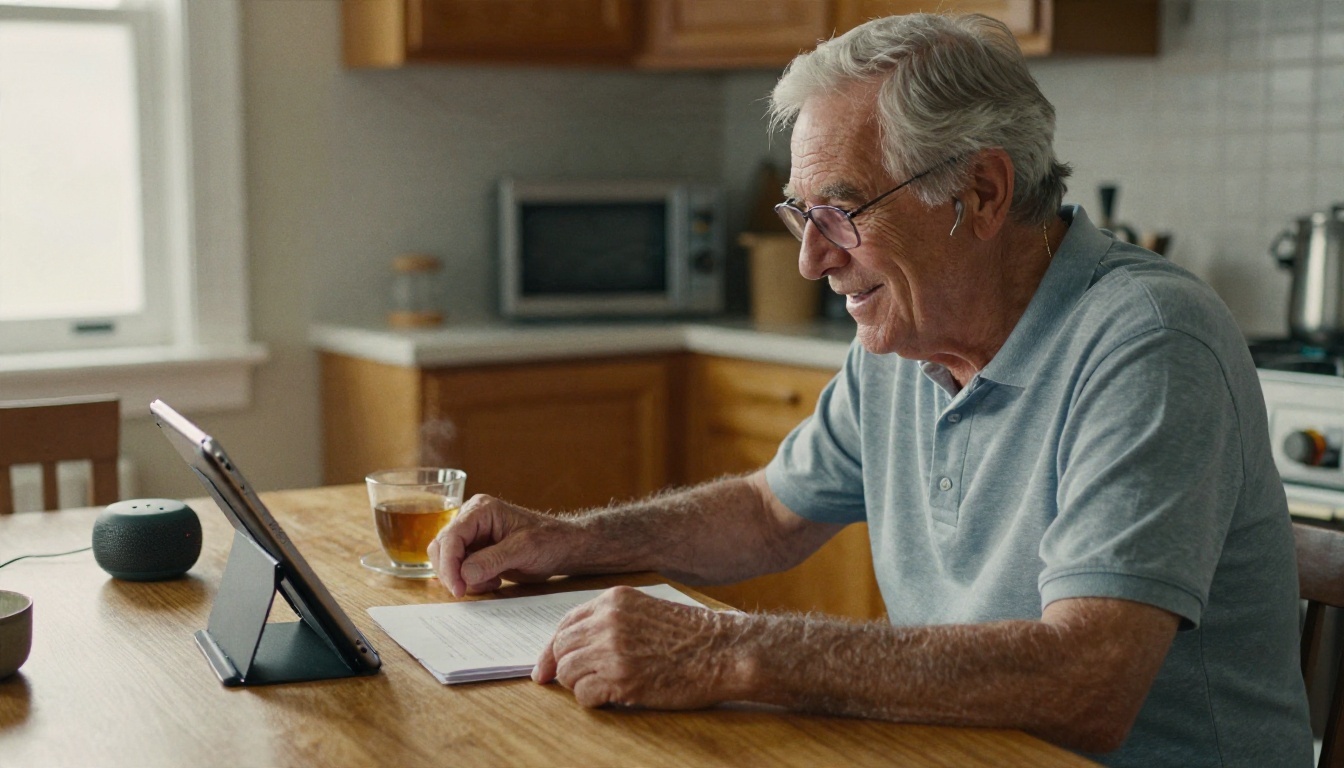
Choose the voice language that matches the document, not your device. A French PDF read by an English voice is unintelligible. Then adjust speed: most people find 1.1x to 1.3x comfortable for familiar material, while dense technical text is better at 0.9x to 1.0x.
Handling Names, Numbers and Tables
Even good voices stumble on abbreviations, chemical formulas and table cells. Expect to proof-listen the first few minutes. Tables often get read cell by cell without context, so a summary paragraph above each table helps listeners follow.
| Voice feature | Classic TTS | Neural AI voice |
|---|
| Natural rhythm | Limited | Strong |
| Pronunciation of names | Inconsistent | Usually good |
| Emotional tone | None | Subtle variation |
| Long listening comfort | Tiring | Comfortable |
| Free availability | Almost always | Common, with caps |
Audio File Options Explained
If your tool exports a file, the format you pick affects size, compatibility and quality.
MP3, WAV and M4A
MP3 is the safe default. It plays on every phone, car stereo and browser, and a spoken hour usually fits in a small file. M4A (AAC) gives slightly better quality at the same size and works well on Apple devices. WAV is uncompressed and huge, useful only if you plan to edit the audio further.
| Format | Typical size per hour of speech | Compatibility | Best for |
|---|
| MP3 | Small | Universal | Sharing, embedding, podcasts |
| M4A | Small | Very high | Apple devices, audiobooks |
| WAV | Very large | High | Editing and mastering |
| OGG | Small | Moderate | Web and open platforms |
Splitting Long Documents
A single three-hour file is awkward to navigate. Export one audio file per chapter or per section instead. Listeners can resume where they stopped, and you can embed only the relevant clip beside each topic.

✅ Best practice: name files in reading order, for example 01-introduction.mp3, 02-methods.mp3. Every player then sorts them correctly.
Prepare Your PDF First
Five minutes of cleanup saves an hour of frustrating listening.
Clean the Text Layer
Remove page numbers, running headers and footnote markers from the text you plan to convert. Otherwise the voice announces "page twelve" in the middle of a sentence. If you have the source document, export a fresh PDF rather than converting an old one.
Fix Reading Order
Multi-column layouts, sidebars and pull quotes can confuse extraction. The reader may jump from column one straight into a caption. Tagged PDFs, which carry reading order information, behave far better. If your authoring software offers an "accessible PDF" export option, use it.

A Quick Pre-Conversion Checklist
- Confirm the PDF has selectable text, or run OCR.
- Delete cover pages, tables of contents and legal boilerplate you do not want read.
- Spot-check how the voice pronounces product names and acronyms.
- Decide the output: live listening, MP3 download, or embedded audio.
- Test on the device your audience will actually use.
How to Add Audio to a PDF Flipbook
A narrated PDF is useful. A narrated PDF that readers can flip through while the audio plays is better. With Flipbooks AI, you can turn your PDF into a page-turning flipbook and embed audio files beside the pages they belong to. The platform supports embedded video and audio, and no watermarks are added.
Here is the process, from a blank account to a shared link.
Step 1: Create Your Account
Go to Flipbooks AI and sign up. If you plan to publish many narrated documents, look at the pricing plans first, since unlimited flipbooks come with the Standard plan and above.
Step 2: Upload the PDF
Open the PDF to Flipbook Converter and upload your cleaned file. The converter keeps your page layout, text and images, and produces a responsive flipbook that works on phones and desktops.
Step 3: Generate or Record the Audio
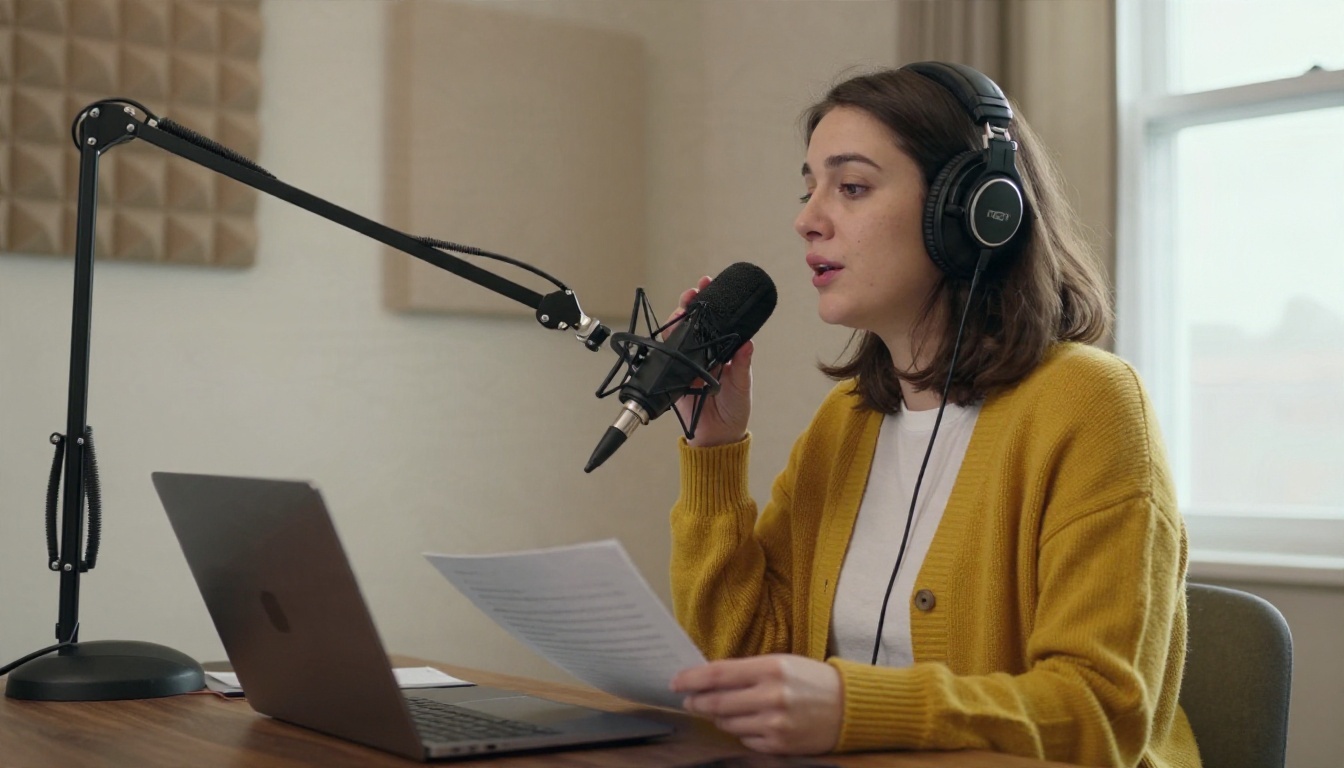
Create MP3 files with any of the free tools above, one per chapter. You can also record yourself speaking. A personal voice adds trust for newsletters, sales material or training content.
Step 4: Embed Audio and Customize
Add each audio clip to the page where its section begins. Then set your branding: logo, colors, background and page-turn effects. A short audio intro on the first page works well, for example "Press play to hear this report."
Step 5: Share With Control
Publish the flipbook and pick how readers reach it:
- Direct link for email and messaging
- Embed code for your website, using the Embed Flipbook on Website tool
- Password protection for private or client-only material
- Offline download so audio and pages travel with the reader
Step 6: Use Professional Features
The Professional plan adds analytics so you can see which pages get attention, and lead generation forms that capture contact details before readers access the content. Compare plans on the pricing page.
| Capability | Plain PDF with audio file | Flipbook with embedded audio |
|---|
| Page-turn reading | No | Yes |
| Audio beside the content | No | Yes |
| Works on mobile | Depends on viewer | Responsive by default |
| Password protection | Limited | Built in |
| Reader analytics | None | Professional plan |
| Branding | Minimal | Custom colors and logo |
💡 Pro tip: keep each clip under five minutes. Short audio blocks are more likely to be played than a single long track attached to the whole document.
Real-World Use Cases
Audio versions pay off in more situations than most publishers expect.
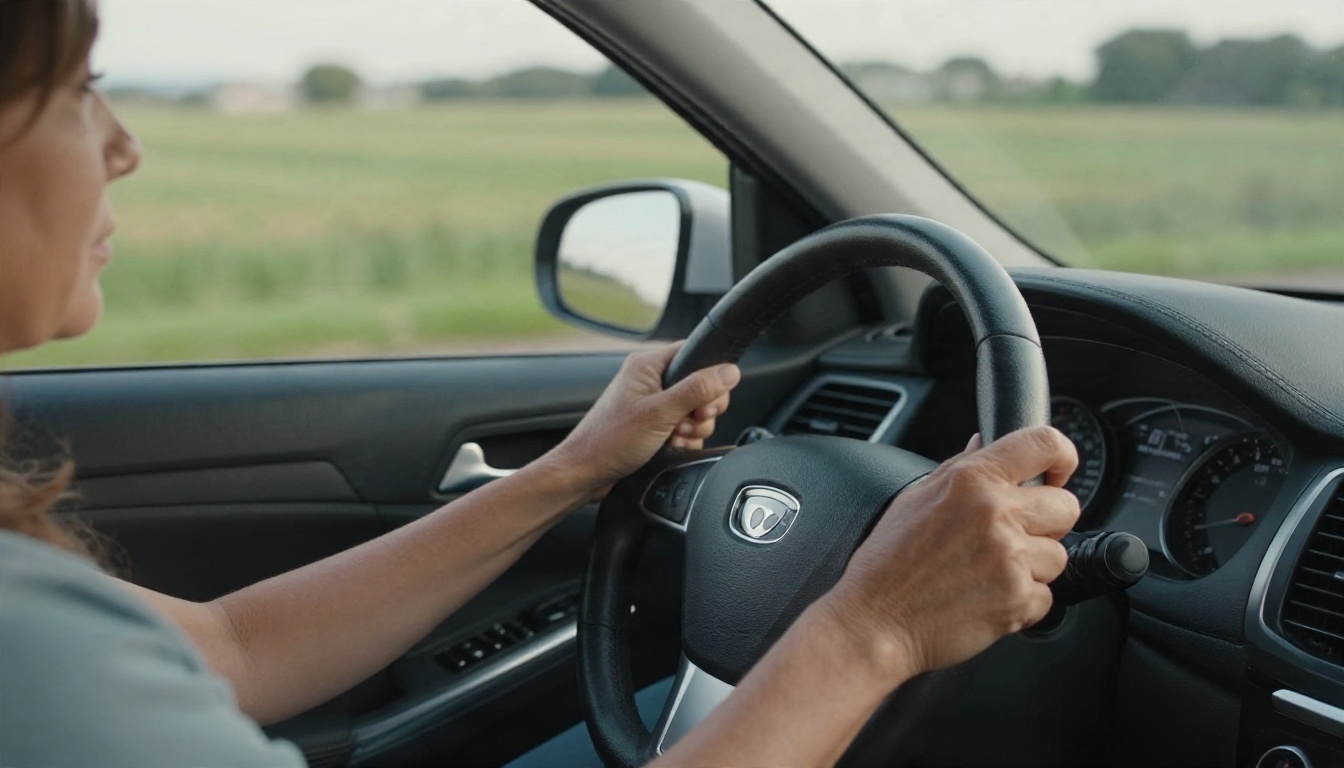
- Commuters and drivers: a monthly report becomes something people can absorb hands-free instead of postponing.
- Students: reading a chapter while following the printed page improves focus, especially for people with dyslexia or attention difficulties. The Course Material Publisher is a natural fit for narrated study packs.
- Accessibility: people with low vision or reading disabilities benefit from audio that is available without needing special software.
- Teams: a Training Manual Flipbook with spoken steps helps new hires who learn better by listening.
- Sales and marketing: a narrated Product Catalog lets customers hear product highlights while they browse images.
Which Option Fits Your Situation
| Your situation | Best starting point |
|---|
| One-off document, private content | Built-in reader on your device |
| Need an MP3 quickly | Free web converter with export |
| Long book with many chapters | Desktop app or chapter-by-chapter export |
| Audience needs audio plus visuals | Narrated flipbook |
| Client-facing or branded material | Flipbook with password and analytics |
Common Mistakes to Avoid
Most disappointing results trace back to a few repeat errors.

- Converting without checking the text layer. Scans produce silence or gibberish.
- Ignoring the daily character limit. Free tiers often cut off mid-chapter. Split the document in advance.
- Using one voice for every language. Switch the voice when the content switches.
- Skipping a listening test. Play the first two minutes and the most technical page before you publish.
- Publishing without rights. Only convert documents you own or have permission to adapt into audio.
⚠️ Copyright reminder: turning a purchased book or a third-party report into a shared audio file can breach its license. Personal listening and accessibility use are different from public distribution.
Ready to Publish Listenable Documents?
Free tools make it easy to hear any PDF, and a little preparation makes the result pleasant. Start with the built-in reader for private reading, use a web converter or desktop app when you need MP3 files, and publish the finished audio inside a flipbook when you want readers to see and hear your content together.
Ready to try it? Create your free account on Flipbooks AI, upload a PDF with the PDF to Flipbook Converter, and add your first audio clip today. Browse all flipbook tools to find a template for your use case, or compare pricing plans to choose the one that matches your publishing volume.



