You finished the design, exported the PDF, and emailed it to a client. Then the replies started: "It won't open on my phone," "The file is too big," "Can you resend it?" A PDF is a great way to store a brochure, but it is a clumsy way to share one. A PDF to brochure converter fixes that by turning your flat file into a page-turning online brochure that loads in any browser. With Flipbooks AI you can do it in a few minutes, and this article shows you how, plus which free tools are worth your time, which templates fit your content, and how to share the result.
💡 Quick answer: Upload your PDF to an online converter, pick a layout, add your branding, and share the resulting link, embed code, or QR code. No design software required.
Why Convert a PDF to a Brochure
Most people searching for a PDF to brochure converter fall into two camps. The first group already has a PDF and wants it to look and behave like a real brochure. The second group needs a quick way to publish a product sheet, hotel overview, or property listing without hiring a designer. Both groups want the same thing: something that looks professional and is easy to send.
Print Still Has Limits
Printed brochures are beautiful, but they cost money per copy, go out of date the moment a price changes, and sit in a drawer until someone needs them. You also cannot tell who read yours. A printer will not tell you that a prospect spent three minutes on page four.
What a Digital Brochure Adds
An online brochure keeps the page-turn feel but removes the friction. Here is what changes when you convert:
- Instant updates: fix a typo or a price and every viewer sees the new version.
- Mobile friendly: pages resize for phones and tablets, so nobody pinches and zooms.
- Small links instead of heavy attachments: no more bounced emails.
- Embedded media: add video and audio right inside the pages.
- Tracking: see how readers move through your pages (on plans that include analytics).
Search for "free PDF to brochure converter" and you will find dozens of options. They are not equal. Some add a watermark, some limit page counts, and some only export a static file that is not really a brochure at all.
| Tool Type | Typical Free Limit | Watermark | Page Turn Effect | Best For |
|---|
| Basic PDF editors | Few exports per day | Often yes | No | Quick edits |
| Template design apps | Limited templates | Sometimes | No | Designing from scratch |
| PDF viewers with sharing | File size cap | Sometimes | No | Simple file hosting |
| Flipbook platforms | Varies by plan | Check each one | Yes | Interactive brochures |
| Flipbooks AI | Free to start, no watermarks | No | Yes | Branded, shareable brochures |
What "Free" Usually Means
Free tools usually pay for themselves in one of three ways: a watermark across your pages, a cap on how many files you can make, or a link that expires after a few days. None of these is a dealbreaker for a one-off test. They become a problem when a client opens your brochure and sees another company's logo on it.
⚠️ Watch out: A watermark on a sales brochure can undermine trust. Always preview the output before you send it to a customer.
Features Worth Checking
Before you commit to a tool, run through this short checklist:
- Does it keep your original fonts, images, and links intact?
- Is there a watermark on the free plan?
- Can you set a custom link or embed it on your own site?
- Does it work smoothly on a phone?
- Can you protect private brochures with a password?
Brochure Templates That Work
A converter handles the file. A template handles the first impression. If you are still designing the PDF, choosing the right format early saves hours of rework later.
Tri-Fold, Bi-Fold, Single Sheet
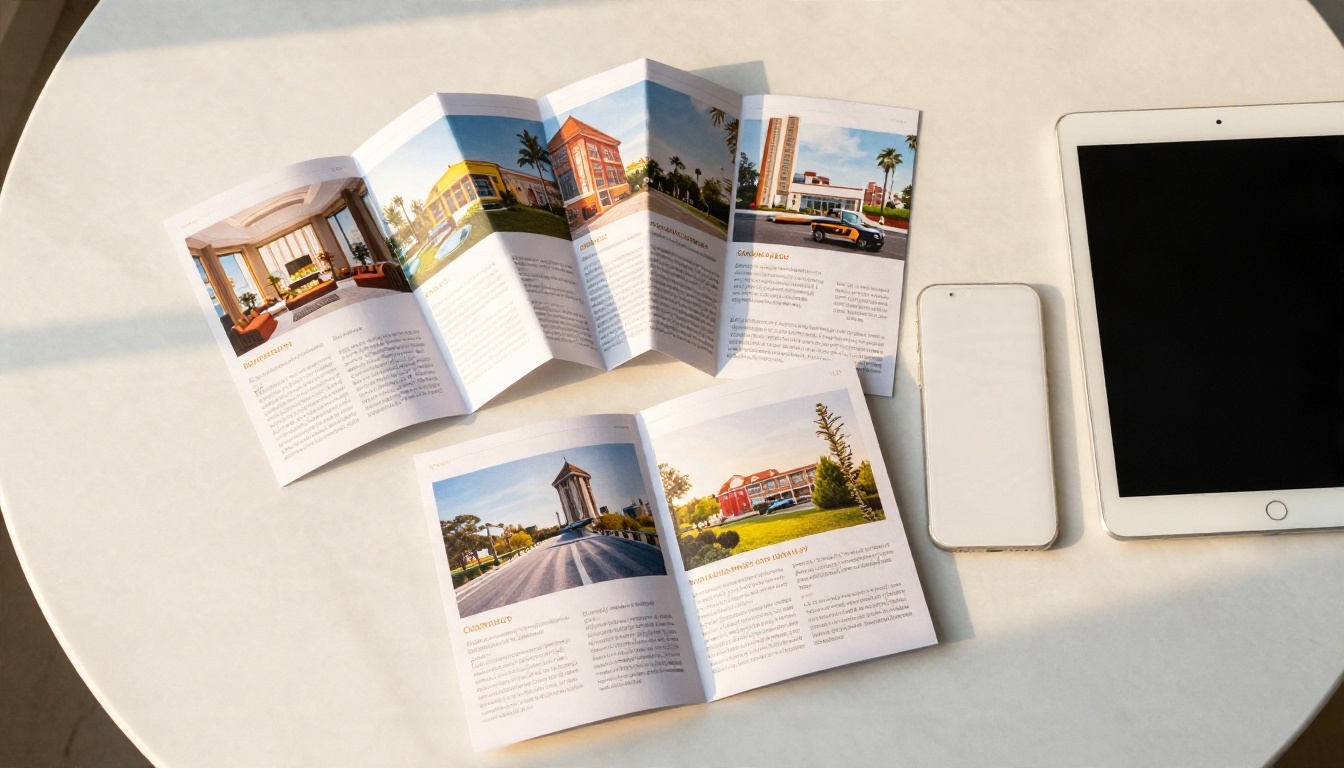
Each layout has a job. Pick based on how much you need to say and how the reader will move through it.
| Layout | Panels | Best Use | Reading Flow |
|---|
| Single sheet | 1 to 2 sides | Flyers, price lists, event notices | Scan in seconds |
| Bi-fold | 4 | Company intros, menus, course outlines | Cover, spread, back |
| Tri-fold | 6 | Travel, hotels, real estate, services | Panel by panel |
| Multi-page booklet | 8 or more | Catalogs, annual reports, portfolios | Page by page |
When you convert a tri-fold or bi-fold PDF into a flipbook, the panels become pages. That means you should export your PDF in reading order rather than in print order, so page two follows page one on screen.
💡 Pro tip: Export a separate "screen version" of your PDF in reading order. Keep the print version for the printer.
Template Picks by Industry
You do not have to start from a blank page. These purpose-built tools on Flipbooks AI match common brochure types:
How to Create a Brochure with Flipbooks AI
This is the fastest route from PDF to shareable brochure. The whole process takes a few minutes for a typical file.

Step by Step
- Open the platform. Go to Flipbooks AI and create an account. You can start without paying.
- Upload your PDF. Drag your file into the upload area, or pick it from your computer. The converter reads each page and turns it into a flipbook page, keeping images, links, and text sharp.
- Check the preview. Flip through the pages. You should see smooth page-turn motion and the same layout you designed. If a page looks off, fix it in your source file and upload again.
- Customize the look. Add your logo, choose background colors, and pick a page effect that suits your brand. Calm effects suit law firms and clinics, while livelier ones work for travel and retail.
- Add multimedia. Drop in a short video tour, a product demo, or background audio. Embedded media works well on hotel and restaurant brochures.
- Publish and share. Copy the direct link, grab the embed code, or generate a QR code. Set a password if the brochure is private.
✅ Best practice: Upload the highest quality PDF you have. Compressed files make text blurry after conversion.
Customization Options
| Option | What It Changes | Good Example |
|---|
| Custom branding | Logo, colors, background | Agency adds its brand colors |
| Page effects | How pages turn | Soft turn for a luxury hotel |
| Embedded video | Moving content inside pages | Property walkthrough |
| Embedded audio | Sound or narration | Gallery guide for an exhibition |
| Mobile layout | How pages adapt on small screens | Single page view on phones |
Professional Plan Features
If you send brochures to prospects and want to know what happens next, look at the Professional plan. It adds analytics, lead generation, and offline downloads. Lead generation lets you ask for a name and email before someone opens your brochure, which turns a simple file into a lead capture tool. Compare plans on the pricing page to see which one fits your volume. Standard plans and above include unlimited flipbooks, and no plan adds a watermark.
Sharing Options Compared
Making the brochure is half the job. The other half is getting it in front of the right people in the format they prefer.

| Sharing Method | Setup Time | Best For | Privacy Control |
|---|
| Direct link | Seconds | Email, chat, social posts | Optional password |
| Embed code | Minutes | Your website or landing page | Follows your site |
| QR code | Minutes | Print ads, shop windows, packaging | Link level |
| Password protection | Seconds | Client proposals, internal documents | High |
| Offline download | Seconds | Trade shows, poor connections | Plan dependent |
Direct Links and Email
A direct link is the easiest option. Paste it into an email, a text message, or a social bio. Because it is a link and not an attachment, it never bounces and never clogs an inbox. You can also change the brochure behind the link at any time.
Embedding on Your Website
If you want visitors to read the brochure without leaving your page, use the embed code. Paste it into your site builder and the flipbook appears inline. The Embed Flipbook on Website tool walks through the setup.
QR Codes for Print and Retail
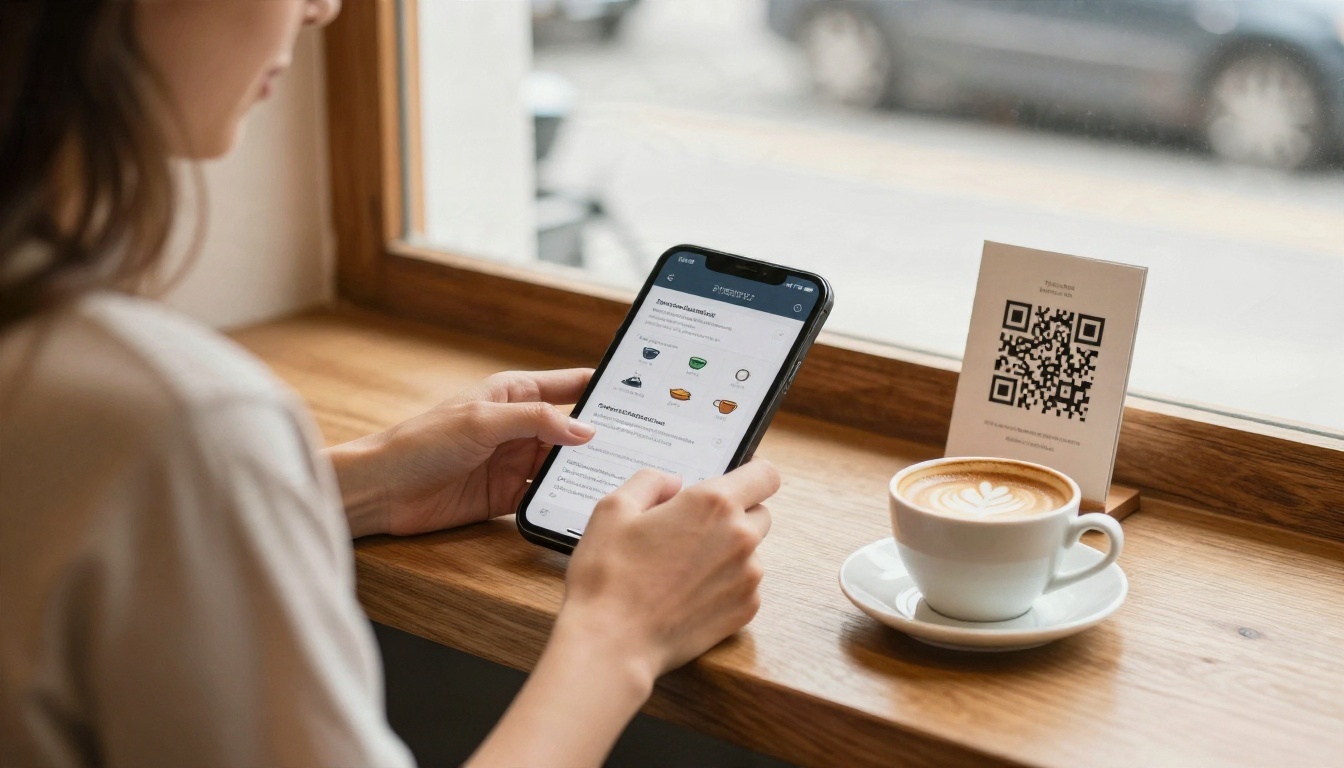
QR codes bridge physical and digital. Print one on a poster, a business card, or a table tent, and customers land directly on your brochure. This is also how you keep a printed postcard short while still giving people the full story online.
Password Protection
Not every brochure is public. A pricing sheet for one distributor, or a proposal for one client, should not be searchable. Add a password and share it separately. Only people who have both the link and the password can read it.
⚠️ Reminder: Send the password through a different channel than the link, such as a text message instead of the same email.
Real-World Examples
Theory is useful, but a few concrete scenarios show how this works.
A Hotel Sends Room Packages
A small boutique hotel has a PDF with room types, rates, and a spa menu. Instead of attaching it to every inquiry, the front desk shares one link. When rates change in spring, they upload the new PDF and the same link shows the new version. Guests also see a short video of the rooftop terrace inside the brochure.
A Real Estate Agent Shares Listings
An agent exports a tri-fold listing as a PDF, converts it, and adds the QR code to the yard sign. Buyers scan it, flip through photos on their phone, and request a viewing. With lead capture on a Professional plan, the agent sees who opened the brochure and can follow up. The Real Estate Brochure Creator is built for this exact workflow.
A Cafe Owner Updates a Menu Brochure
A cafe prints a QR code on every table. The code opens a digital brochure with the seasonal menu and catering options. When an item sells out, the owner updates the PDF in two minutes. No reprinting, no crossed out prices. The Restaurant Menu Creator fits this use case well.
A Trainer Shares a Course Outline
A freelance trainer uses a bi-fold PDF to describe course modules and prices. She embeds the flipbook on her booking page and shares a password protected version with corporate clients that includes special rates.
Common Mistakes to Avoid
Even a good converter cannot rescue a poorly prepared file. These are the problems that show up most often.
- Uploading a low resolution PDF. Text looks soft and photos look muddy. Export at print quality when possible.
- Using print order instead of reading order. Tri-fold files often have pages arranged for folding, so the flipbook reads out of sequence.
- Forgetting mobile. Tiny fonts that look fine on a desktop become unreadable on a phone. Use at least 10 point body text.
- Skipping the preview. Always flip through every page before you publish.
- Choosing a tool with a hidden watermark. Check the output, not just the marketing page.
- Sharing without a plan. Decide whether the audience needs a link, an embed, or a QR code before you hit publish.
💡 Pro tip: Keep a version number in your PDF file name, such as "brochure_v3.pdf." It makes it easy to know which version is currently live.
Quick Decision Table
Not sure which route to take? Use this table to match your situation to the best option.
| Your Situation | Best Choice | Why |
|---|
| One time test with no budget | Free plan on a flipbook platform | Low risk, quick preview |
| Client facing sales brochure | Platform with no watermark and custom branding | Keeps your look consistent |
| Brochure for your website | Embed code | Readers stay on your page |
| Print plus digital campaign | QR code | Connects paper to the online version |
| Confidential pricing | Password protected link | Controlled access |
| Many brochures per month | Standard plan or above | Unlimited flipbooks |
Ready to Convert Your PDF?
You already did the hard part when you designed the brochure. The rest is a few clicks. Get started for free on Flipbooks AI, upload your PDF, and share your first online brochure today. If you want to see which layout suits your industry, browse all the flipbook tools, or try the PDF to Flipbook Converter directly. When you are ready for analytics, lead capture, and offline downloads, compare the pricing plans or upgrade through your account.



