You have a PDF that someone needs to read right now. It weighs 18 MB, your email client refuses to send it, and the recipient is on a phone with a patchy signal. This is exactly the moment a PDF to link converter earns its place. Instead of pushing a heavy file across the internet, you upload it once, get a short URL, and let people open it with a single tap. Some tools do this with no account at all, and platforms like Flipbooks AI go a step further by turning the same PDF into a polished, page-turning reader that lives behind that link.
This article shows how the process works, which free online options are worth your time, what "no sign up" really means in practice, and how to build a link you can actually trust with client work.
Why Links Beat Attachments
The Attachment Problem
Email attachments fail in boring, predictable ways. Many providers cap messages at 20 to 25 MB. Corporate filters quarantine unknown files. Phones download the whole PDF before showing a single page, which is painful on mobile data. And once the file is sent, you lose all control: if you spot a typo five minutes later, the wrong version is already sitting in twelve inboxes.
A link flips that situation. The file lives in one place, and everyone who clicks sees the same current version.
What a Link Gives You
- Tiny message size. A URL is a few dozen characters, so it fits in an email, a text message, a chat thread or a QR code.
- One source of truth. Replace the file behind the link and every recipient sees the update.
- Better mobile reading. Good hosts stream pages instead of forcing a full download.
- Optional tracking. Some platforms show you who opened the document and for how long.
- Easy revocation. You can disable or password protect a link later, which is impossible with an attachment already delivered.
| Feature | Email attachment | Shared link |
|---|
| File size limit | Usually 20 to 25 MB | Often far higher |
| Update after sending | Impossible | Replace file, same URL |
| Mobile experience | Full download first | Opens in browser |
| Open tracking | None | Available on some tools |
| Access control | None once sent | Password or removal |
| Works in chat and social bios | Poorly | Yes |
💡 Pro tip: If your PDF is under 5 MB and sent to one person, an attachment is fine. The moment it goes to a group, a customer list or a social profile, use a link.
How a PDF to Link Converter Works
Upload, Host, Share
Every converter follows the same three steps, whatever the branding says:
- Upload. You drag a PDF into the browser. The file travels to the tool's server over an encrypted connection.
- Host. The service stores it and generates a unique address, usually a short random string at the end of a domain.
- Share. You copy that address and paste it wherever you like.
The difference between tools lies in what happens when someone clicks. A basic host serves the raw PDF and lets the browser handle it. A smarter platform renders each page as a web view, which loads faster and looks the same on every device. That second approach is what a PDF to flipbook does, and it is why many people now prefer a PDF to Flipbook Converter over a plain file host.
What "No Sign Up" Really Means
"No sign up needed" is attractive because it removes friction. You land on a page, upload a file, and get a link in under a minute. That is genuinely useful for a one-off share.
But there is a trade-off worth knowing about. Without an account, nobody can tie the file to you. That usually means:
- The link may expire after a few days or weeks.
- You cannot delete or replace the file later, because the tool does not know it is yours.
- You get no analytics, since there is no dashboard to show them in.
- Upload size limits tend to be tighter.
For a lunch menu you will not reuse, that is acceptable. For a client proposal or a portfolio, it is risky.
| Option | Account needed | Link lifespan | Reading experience | Analytics | Best for |
|---|
| Anonymous upload host | No | Often temporary | Raw PDF in browser | No | Quick one-off shares |
| Cloud drive share link | Yes | Until you remove it | Drive viewer | Limited | Internal team files |
| Flipbook platform such as Flipbooks AI | Yes, with a free start option | Stays live while your account is active | Page-turning flipbook, mobile friendly | Available on the Professional plan | Brand-facing documents |
Hidden Costs of Free
Free is rarely free in every dimension. Watch for these:
- Watermarks stamped across your pages.
- Ads wrapped around the reader.
- Forced downloads that undo the whole point of a link.
- Unclear data handling, where nobody states how long your file is kept.
⚠️ Never upload contracts, ID scans, medical records or financial statements to a tool that does not publish a clear privacy policy. A convenient link is not worth a leaked document.
How to Create a Link with Flipbooks AI
If you want more control than an anonymous host offers, here is the full workflow on Flipbooks AI. It takes a few minutes, and the result is a link that looks professional.
Step 1: Create an Account and Upload
Head to Flipbooks AI and create an account. Once you are in the dashboard:
- Click the button to create a new flipbook.
- Drag your PDF into the upload area, or pick it from your computer.
- Wait a few seconds while the platform converts every page into a web-ready view.
Your text stays sharp, images keep their color, and internal PDF links remain clickable. You can find a dedicated walkthrough on the PDF to Flipbook Converter page.
Step 2: Customize the Look
Before sharing, spend two minutes on presentation:
- Branding: add your logo and choose a background that matches your site.
- Colors: set the toolbar and accent shades to your palette.
- Page effects: keep the realistic page turn, or switch to a simpler slide view.
- Multimedia: embed video or audio on any page for a richer read.
Everything is mobile responsive by default, and there are no watermarks, ever, so the reader looks like part of your brand.
Step 3: Choose How to Share
Once the flipbook is ready, you get several ways to distribute it:
| Sharing option | How it works | Best use |
|---|
| Direct link | Copy the URL and paste anywhere | Email, chat, social bios |
| Embed code | Paste a snippet into your page | Websites and landing pages |
| QR code | Print or display a scannable code | Posters, packaging, events |
| Password protection | Visitors must enter a password | Private proposals and drafts |
| Offline download | Viewers save a copy | Field teams with weak signal |
For websites, the Embed Flipbook on Website tool shows exactly where to paste the code. For private documents, switch on password protection before you send the link.
Step 4: Add Analytics and Lead Capture
Professional plan users can see how readers behave: which pages they stop on, how long they stay, and where they came from. You can also place a lead form in front of the document, so a downloadable price list becomes a way to collect contact details. Compare the options on the pricing page to see which plan suits your volume. The Standard plan and above also remove limits on how many flipbooks you can publish.
✅ Best practice: Name each flipbook clearly, such as "Spring Price List 2026". When you manage dozens of links, a clear name saves real time.
Real Situations Where Links Win
Theory is fine, but links earn their keep in everyday work. Here are the scenarios that come up most.

Freelancers and creatives. A designer exports a 60 MB portfolio PDF. Nobody wants to open that from a cold email. Hosted as a flipbook, it loads in seconds and the link fits neatly in an Instagram bio. The Digital Portfolio Creator is built for exactly this.

Real estate agents. A listing brochure sent as a link can be updated when the price changes, with no need to chase old copies. Agents can also show it on a tablet during a viewing. Try the Real Estate Brochure tool.

Teachers and students. A syllabus or reading pack shared by link opens on any device, including the old laptop in the library. Instructors can use the Course Material Publisher to keep everything in one place.

Small shops. A boutique owner updates prices every season. One permanent link on a counter QR code means customers always see the current list. The Digital Price List Generator fits this case well.
You can also browse every option in the flipbook tools directory.
Mistakes That Break Shared Links
Oversized Files
A 120 MB PDF full of uncompressed photos will crawl on any host. Before uploading, compress images, remove hidden layers and export at screen resolution rather than print resolution. A document that opens in two seconds gets read. One that takes twenty gets closed.
Wrong Permissions and Expiring Links
Two classic failures hit teams every week:
- "Request access" screens. Cloud drive links default to private in many accounts. Test the link in a private browser window before you send it.
- Silent expiry. Anonymous hosts may delete files after a set time. If the link matters, use a platform where you control the lifespan.
⚠️ Always click your own link on a phone, on mobile data, before sending it to anyone important. If it works there, it will work almost anywhere.
Security and Privacy Checks
When to Add a Password
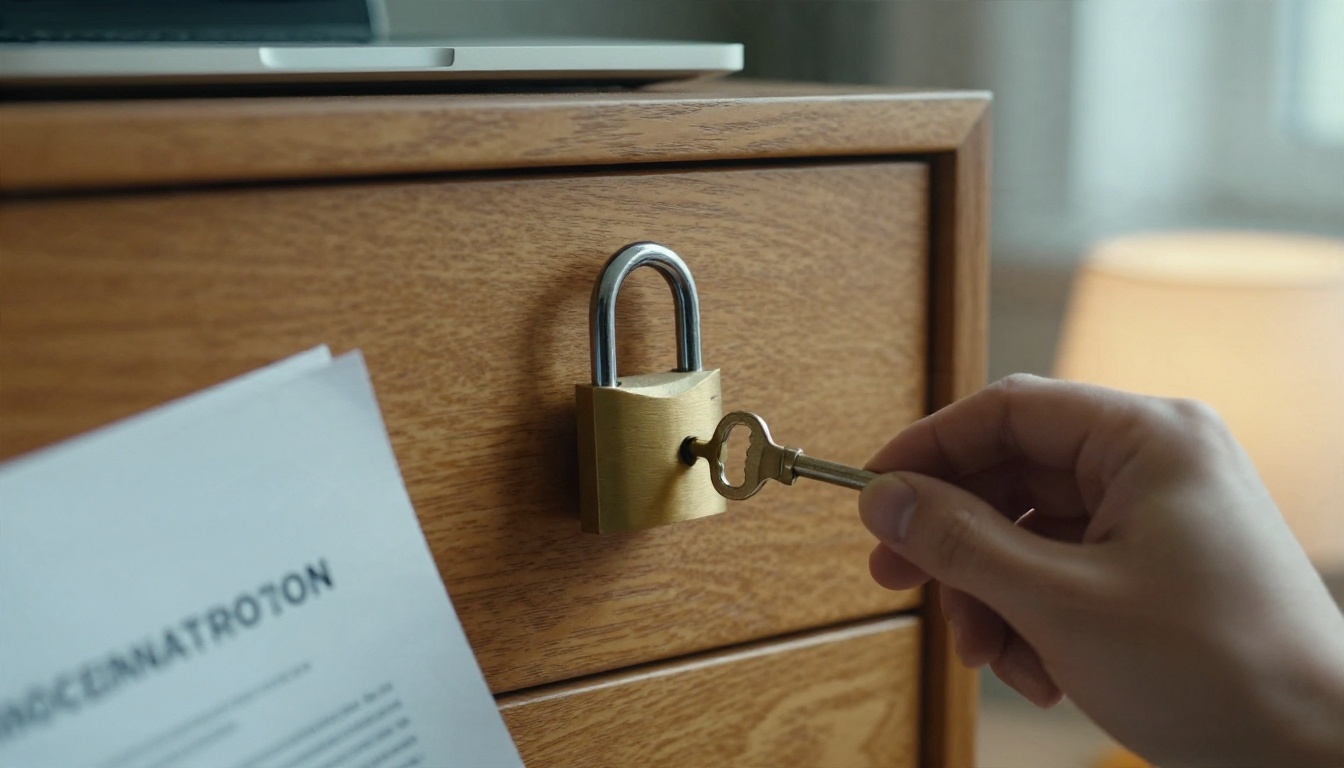
A link is only as private as the people who receive it. Anyone with the URL can open it, and URLs get forwarded. Add a password whenever the document includes pricing you negotiate, client data, unreleased designs or internal plans. Send the password through a different channel than the link, for example the link by email and the password by text message.
Clean the File First
PDFs carry hidden baggage: author names, editing history, comments and sometimes tracked changes. Before you upload:
- Open Document Properties and clear the author and title fields.
- Delete comments and highlights meant only for you.
- Flatten form fields if you do not want them edited.
- Re-save and check the file size once more.
| Check | Why it matters | Time needed |
|---|
| Remove metadata | Hides author and software details | 1 minute |
| Compress images | Faster load on mobile | 2 minutes |
| Set a password | Limits who can read it | 30 seconds |
| Test on a phone | Catches broken access | 1 minute |
Ready to Share Your First Link?
A good PDF link does three things: it opens instantly, it looks like your brand, and it stays under your control. A throwaway upload host handles the first goal. A flipbook platform handles all three.
If you need a link right now for a one-time share, an anonymous converter will do the job. If the document represents your business, create your free account on Flipbooks AI, upload your PDF, and send a link that readers actually enjoy opening. Browse the full set of tools and templates to find a layout for catalogs, menus, brochures or reports, and compare pricing plans when you are ready for analytics, lead capture and unlimited flipbooks.



