Your phone holds thousands of photos, and almost nobody ever sees them. A photo flip book fixes that: it takes a set of pictures and presents them as an album with real page-turning motion, one link, and no app to install. With an online maker like Flipbooks AI, the whole job takes less time than printing a single photo at the drugstore.
This article walks through what photo flip books are, which free options exist, how to build one step by step, and the sharing ideas that actually get people to open it. Whether you are making a wedding album, a trip diary or a portfolio, the process is the same.
What a Photo Flip Book Really Is
The term gets used for two quite different things, so let's separate them.
The Paper Version
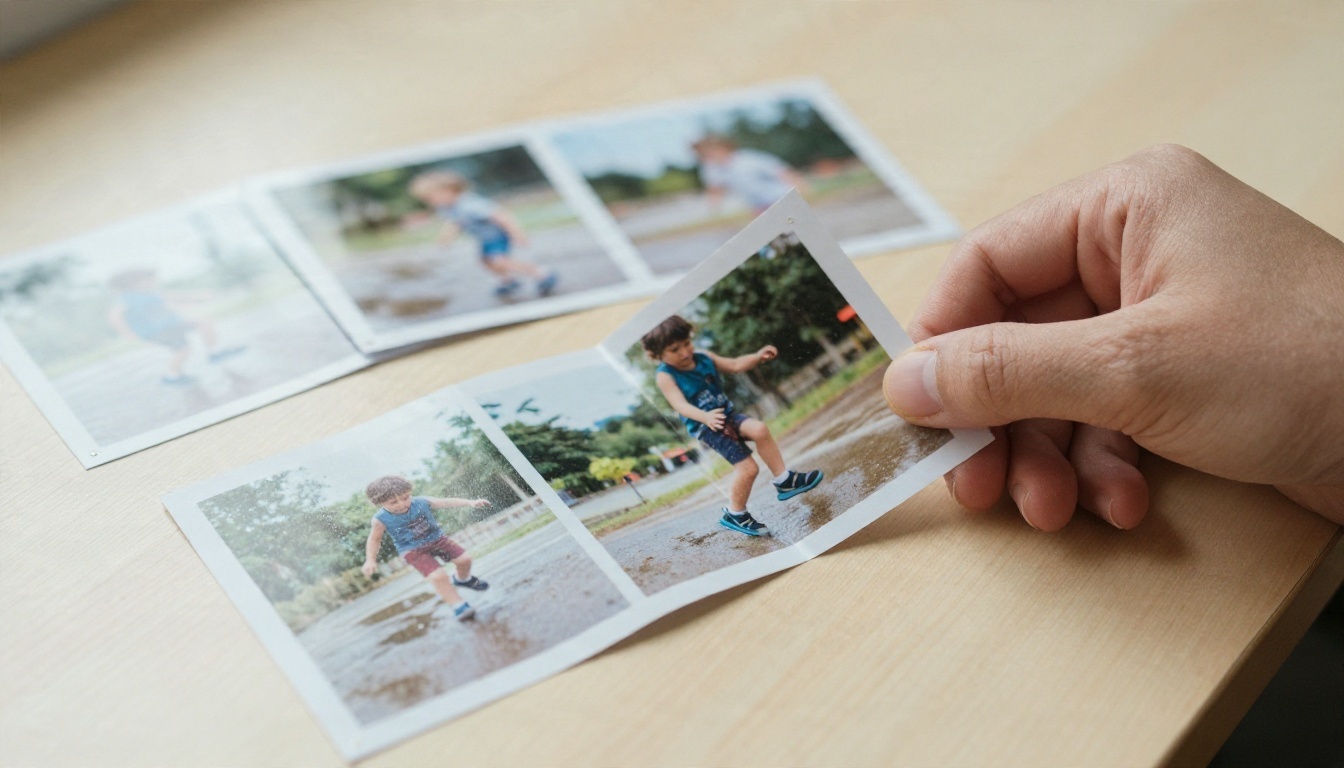
The classic flip book is a small stack of pages where each image differs slightly from the last. Rifle the corner with your thumb and the picture appears to move. It is charming, cheap, and great for a child's birthday party. It is also limited to a few seconds of motion and one copy at a time.
The Online Version
The digital version is something else. It is a page-turning photo album that lives on the web. Each page can hold one large photo or a layout of several, and the reader flips through with a click, a swipe, or a tap. Because it is a link, a hundred people can open it at once, on any device.
That second meaning is what most people searching for an online maker want, and it is what the rest of this article focuses on.
| Format | Cost per copy | Motion | Sharing | Best for |
|---|
| Paper thumb flip book | Low | Short animation | Hand it over | Party favors, kids |
| Printed photo book | Medium to high | None, static pages | Mail a copy | Gifts, shelves |
| Online photo flip book | Close to zero | Realistic page turns | One link, unlimited readers | Albums, portfolios, events |
💡 Pro tip: You do not have to choose. Many people build the online version first, share it widely, then order a printed copy for the two or three people who want something to hold.
Choosing an Online Maker
Search results are crowded with tools that look identical in screenshots. The differences show up only after you have spent an hour building something.
What to Look For
Before you upload anything, check these points:
- Watermarks: Some free tools stamp their logo on every page. That is fine for a draft, but awkward for a wedding album.
- Image quality: Does the tool recompress your photos into blurry mush, or keep them sharp when zoomed?
- Mobile behavior: Most readers will open your link on a phone. The pages must resize and respond to swipes.
- Privacy controls: Family photos are personal. Password protection is not a luxury.
- Export and embed options: Can you place the album on your own site or blog?
- Page limits: A 20-page cap is fine for a recipe card but tight for a honeymoon.
Free Options Compared
Free options generally fall into a few types. The table below describes typical trade-offs, not specific products, so always read the current terms of any tool before you commit.
| Option type | Typical cost | Watermark | Privacy | Typical limit | Good for |
|---|
| Free tier of a flipbook maker | Free | Sometimes | Link or password, varies | Page or file count | Trying the format |
| Slide deck export as images | Free | None | Depends on host | Manual, no page-turn motion | Quick, plain albums |
| Photo app auto-albums | Free | None | Tied to the app | Few layout choices | Sharing inside one app |
| Paid flipbook platform | Subscription | None | Password and analytics | Generous or unlimited | Regular use, branding |
Where Free Runs Out
Free plans tend to stop helping at three moments: when you want your own branding, when you need to know who opened the album, and when you want to make more than a handful of flipbooks. If you are making one album for one occasion, free is usually enough. If you plan to make a new album every season, look at the pricing plans early so you do not rebuild everything later.
Prepare Your Photos First
The maker only assembles what you give it. Ten minutes of preparation changes the result more than any template.
Pick and Sequence
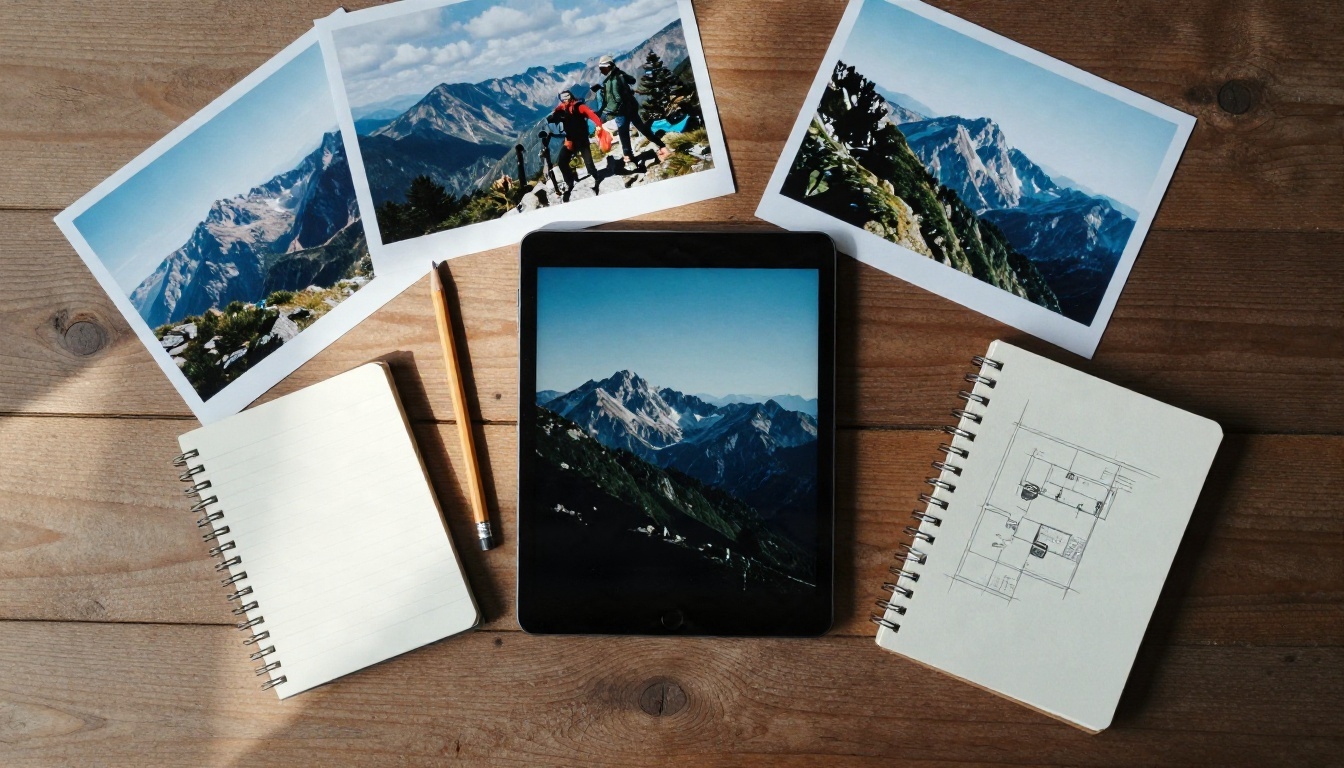
Most albums are too long. Aim for the best 20 to 40 photos, then arrange them in a story rather than by date alone.
- Open strong. Start with a wide, scenic shot that sets the place.
- Alternate scale. Follow a landscape with a close-up, then a portrait.
- Group by mood. Put the quiet moments together and the lively ones together.
- End on a feeling. A sunset, a hug, an empty chair after the party.
- Cut duplicates. If two photos look alike, keep the sharper one.
Size and Export
Flipbooks AI turns a PDF into a flipbook, so the easiest path is to lay your photos out in a PDF first. Any tool that exports PDF works: a word processor, a slide editor, or a layout app.
- Use one photo per page for impact, or two to four for a scrapbook feel.
- Keep photos at their original or high resolution before exporting.
- Choose landscape pages for travel and weddings, portrait for portfolios and lookbooks.
- Add a short caption under a photo only when the picture needs context.
⚠️ Watch out: A PDF exported with "smallest file size" will compress your photos heavily. Choose a high quality export, then check one page at 100% zoom.
How to Create a Photo Flip Book with Flipbooks AI
Here is the full process, from file to shareable link. You can follow along with the dedicated PDF to Flipbook Converter, or browse the photography portfolio tool if your album is more of a showcase.
Upload Your PDF
- Go to Flipbooks AI and create an account.
- Choose the option to create a new flipbook.
- Drag your photo PDF into the upload area, or select it from your computer.
- Wait a few seconds while the pages are converted. Each PDF page becomes a flipbook page with realistic turning motion.
- Open the preview and flip through to confirm the order.

Customize the Look
This is where an album stops looking like a document and starts feeling like yours.
- Colors and background: Match the backdrop to your photos. Warm cream suits family albums, deep charcoal makes landscapes and portraits stand out.
- Page effects: Adjust the turning style so it feels natural, not showy.
- Branding: Add a logo or title if the album is for clients or an event.
- Multimedia: Embed a short video clip or an audio track, for example a favorite song behind a wedding album or a spoken welcome on the first page.
- Mobile check: Open the preview on your phone before you publish.
Share It
Once you are happy, choose how people will reach the album:
- A direct link to paste in a message or email
- An embed code for a blog or website, see the Embed Flipbook on Website tool
- Password protection for private family content
Pro Features Worth Knowing
Some features matter most when you share beyond family. On the Professional plan you get analytics and lead generation, so you can see how many people opened your album and collect contact details from interested readers. That is useful for photographers and small studios. Offline downloads let readers keep a copy, and the platform adds no watermarks, ever. Compare tiers on the pricing page, where unlimited flipbooks start at the Standard plan.
| Feature | Personal album | Portfolio or client work |
|---|
| PDF to flipbook | Yes | Yes |
| Custom colors | Nice to have | Important |
| Password protection | Recommended | Often needed |
| Embed on website | Optional | Important |
| Analytics and lead capture | Rarely needed | Very useful |
| Offline download | Handy for relatives | Handy for clients |
✅ Best practice: Always test your link in a private browser window and on a phone before sending it. What looks right on your own screen may behave differently for others.
Examples Worth Copying
Seeing how others use the format makes it easier to plan yours. Here are four scenarios that work well.
The Wedding Album
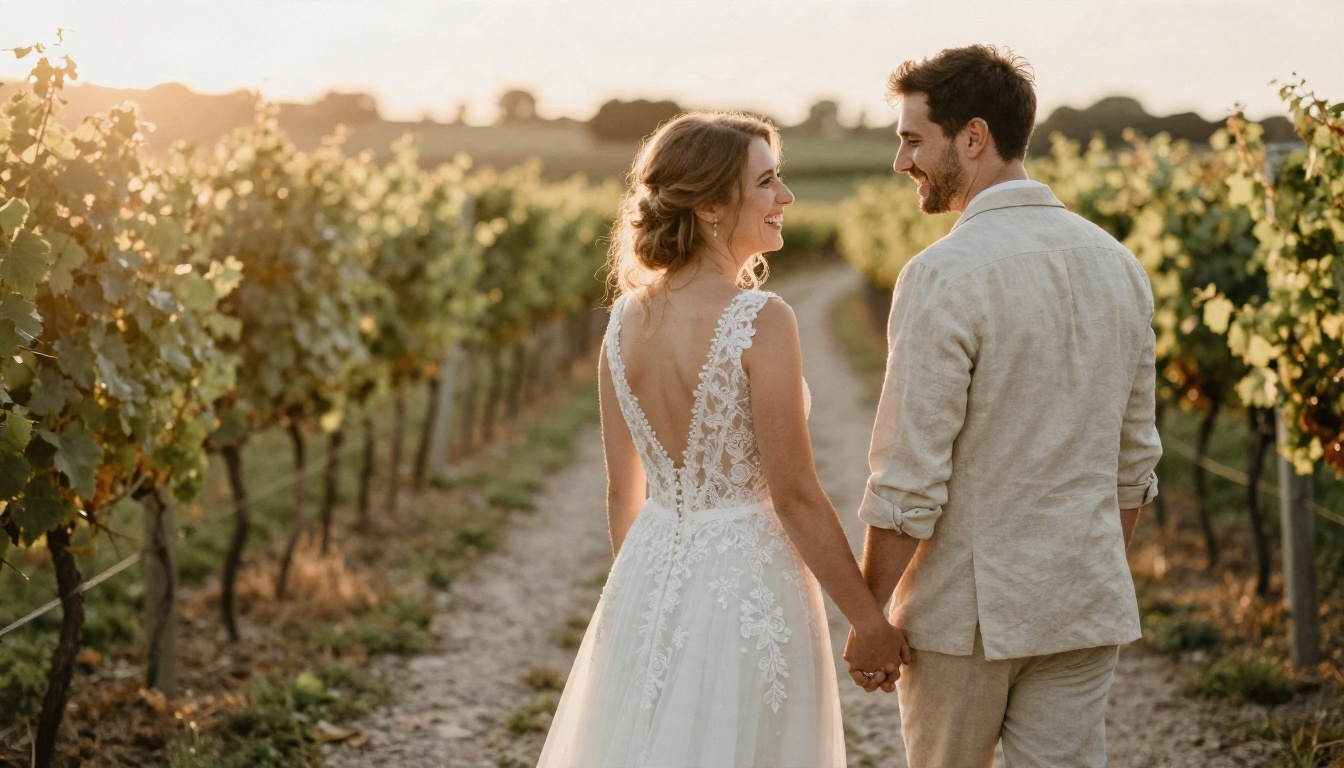
A couple can build a 30-page album with the ceremony, portraits, and reception candids, add a song as background audio, and send one link to every guest. There is no need to wait weeks for a printer or mail copies. For ready-made inspiration, see the Wedding Album Flipbook tool.
The Trip Diary
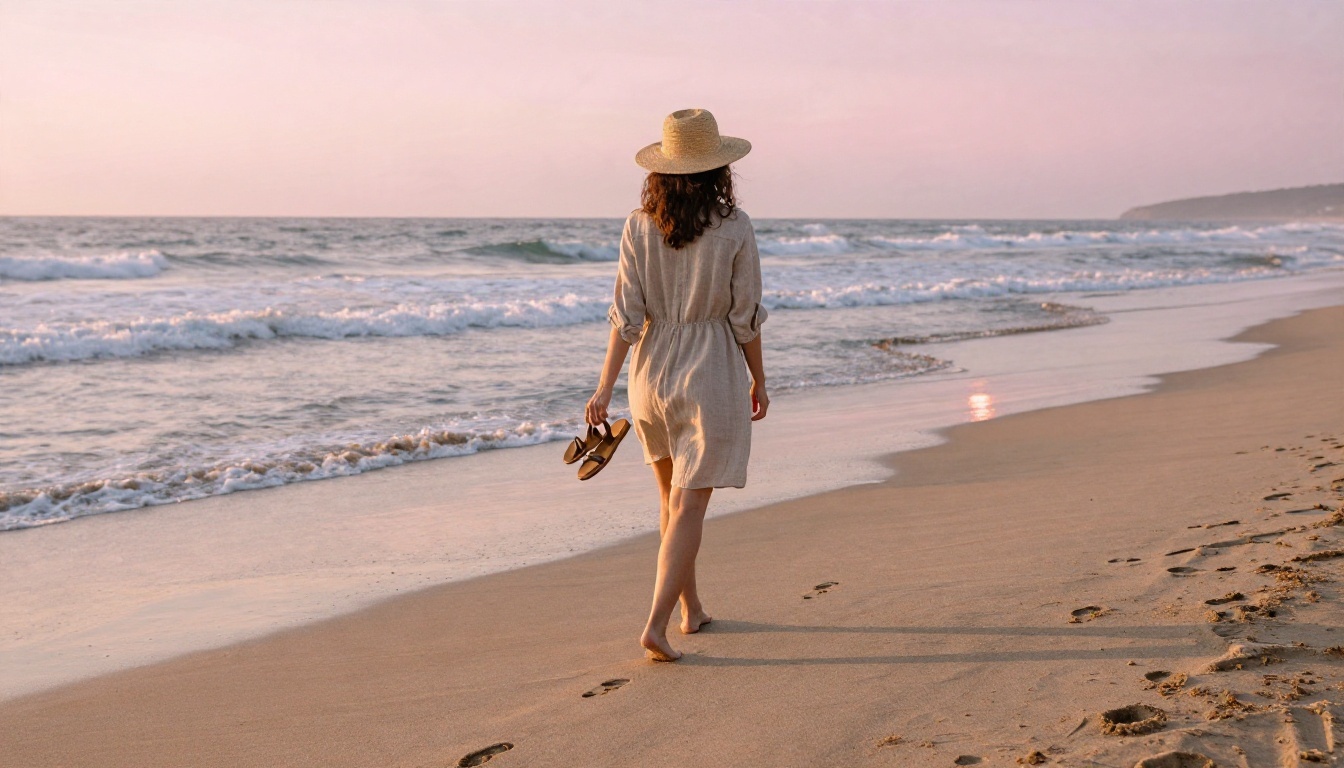
A week-long trip works best as one page per day: a wide opener, two favorite moments, and a one-line caption. Friends flip through your route as if they were beside you. If the trip doubles as a how-to for others, the Travel Guide Flipbook tool is a natural fit.
The Family Year in Review
Pick one photo per month and add a short note. Send it to grandparents at the end of the year. It replaces the group message with 200 compressed images, and it stays in order.
The Photographer's Portfolio
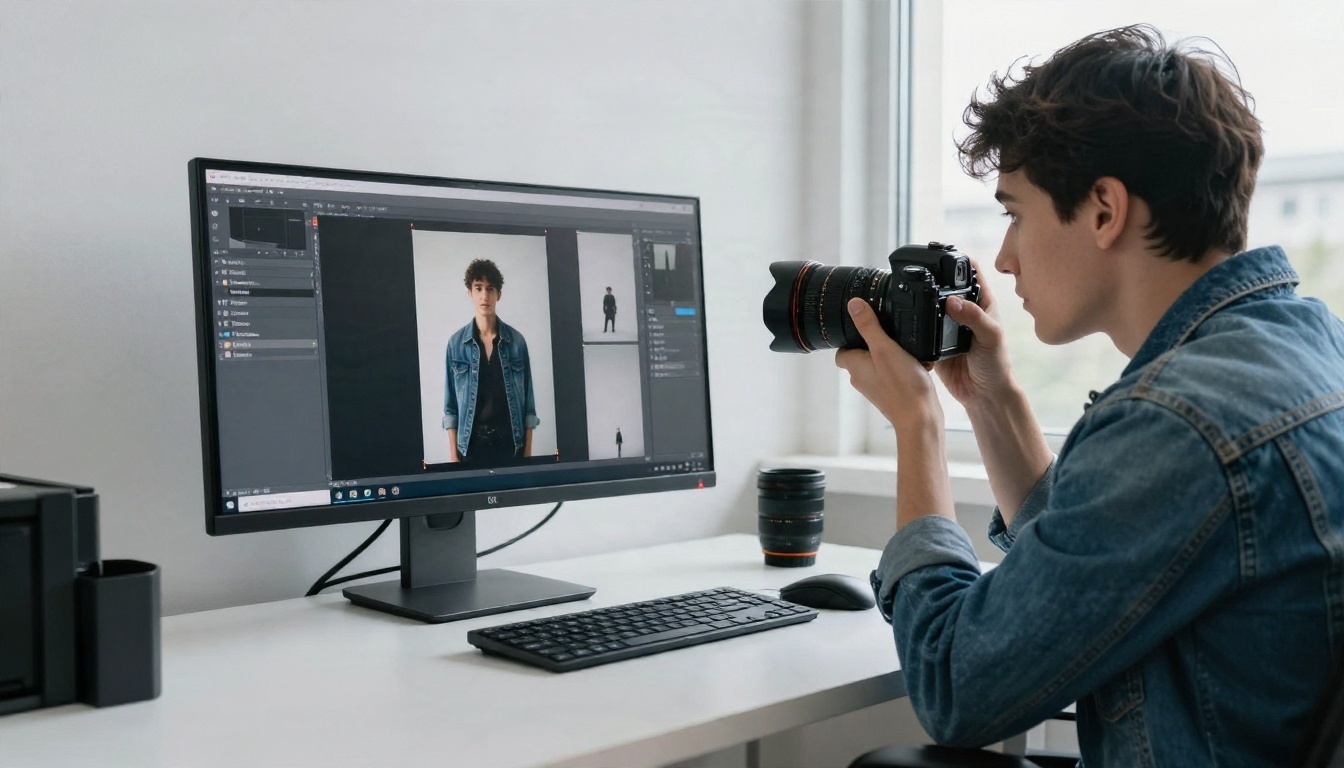
A flip book gives a portfolio a sense of sequence that a gallery grid lacks. Clients see your work in the order you chose, with the pacing of a magazine. Build one with the Digital Portfolio Creator or the Portfolio Flipbook Builder.
Ideas for Sharing
A great album nobody opens is just a file. These ideas raise the odds that people actually flip through it.
Send a Link With a Hook
Do not just paste a URL. Write one line that makes opening it easy: "Eight minutes of our week in Lisbon, best on your phone." Setting expectations about length helps people decide to click.
Use a QR Code
Turn the link into a QR code and place it on a thank-you card, a table at an event, or the back of a printed invitation. Guests scan it and the album opens in their browser.
Embed It on a Page
For a blog, a family website or a photographer's homepage, embed the flipbook so it appears right in the page. Visitors do not have to leave to see it.
Protect Private Albums
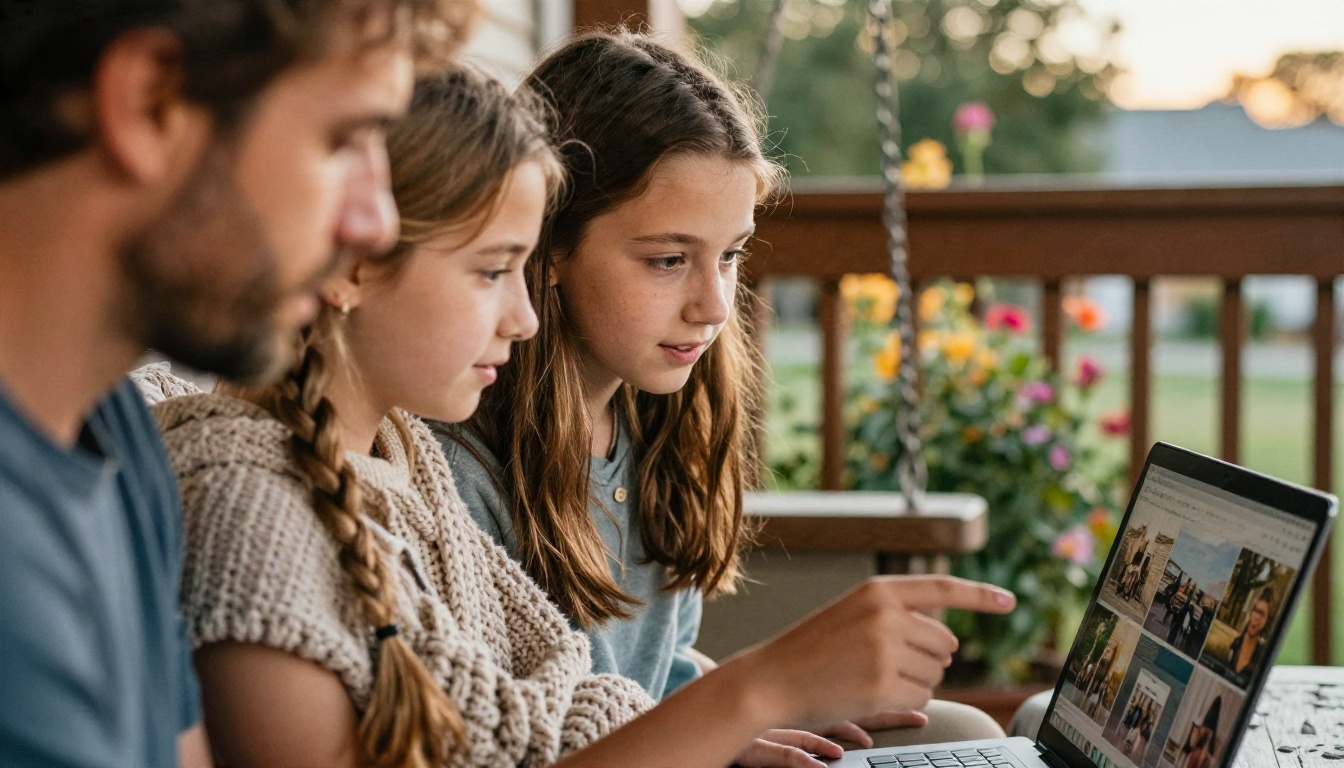
Pictures of children and family gatherings deserve a layer of privacy. Use password protection, send the password in a separate message, and avoid posting the link on public social feeds.
| Sharing method | Effort | Privacy level | Best moment to use it |
|---|
| Direct link in a message | Very low | Medium | Quick family updates |
| Link with password | Low | High | Children, private events |
| QR code | Low | Medium | Weddings, parties, printed cards |
| Website embed | Medium | Low to medium | Portfolios, blogs |
| Offline download | Low | Depends on recipient | Relatives with poor internet |
Common Mistakes
Most disappointing albums fail for the same handful of reasons.
- Too many photos. Fifty near-identical beach shots will lose a reader by page ten.
- Low-resolution exports. Zoomed pages look soft and the whole album feels cheap.
- Ignoring phones. If you only test on a laptop, you may miss text that is too small on a narrow screen.
- Crowded captions. Let the picture do the work, and keep text to a line.
- Sharing before checking. Typos, wrong order and a stray screenshot are easy to fix before you send the link and awkward afterward.
💡 Quick fix: Ask one friend to open your link on their phone and tell you where they got bored. That page is probably the one to cut.
Make Yours Today
You already have the hard part: the photos. The rest is arranging them and picking how to share. Here is a short plan you can finish this evening:
- Choose 25 photos and put them in a story order.
- Export them as a high-quality PDF.
- Upload the PDF and adjust colors and page effects.
- Test on your phone, then send the link.
Ready to build your first album? Create your account on Flipbooks AI, browse all the flipbook tools for the layout closest to your idea, and compare pricing plans if you want analytics, branding and unlimited flipbooks.



