You have a newsletter due Friday, a blank page, and no designer on call. That is exactly the gap the Piktochart AI newsletter generator tries to fill: type a topic, get a structured layout with headings, blocks and visuals, then adjust it until it looks like yours. It works well for the design half of the job. The distribution half is where most teams stumble, because a pretty PDF attached to an email rarely gets read. This article covers what Piktochart's AI tool does, what you get for free, which templates are worth your time, how the alternatives compare, and how to publish the finished piece as an interactive flipbook with Flipbooks AI.
Piktochart started as an infographic maker and grew into a general visual communication platform. Its AI features sit on top of that editor, so you are not generating a loose block of text. You are generating a designed page you can keep editing.
How the AI Draft Works
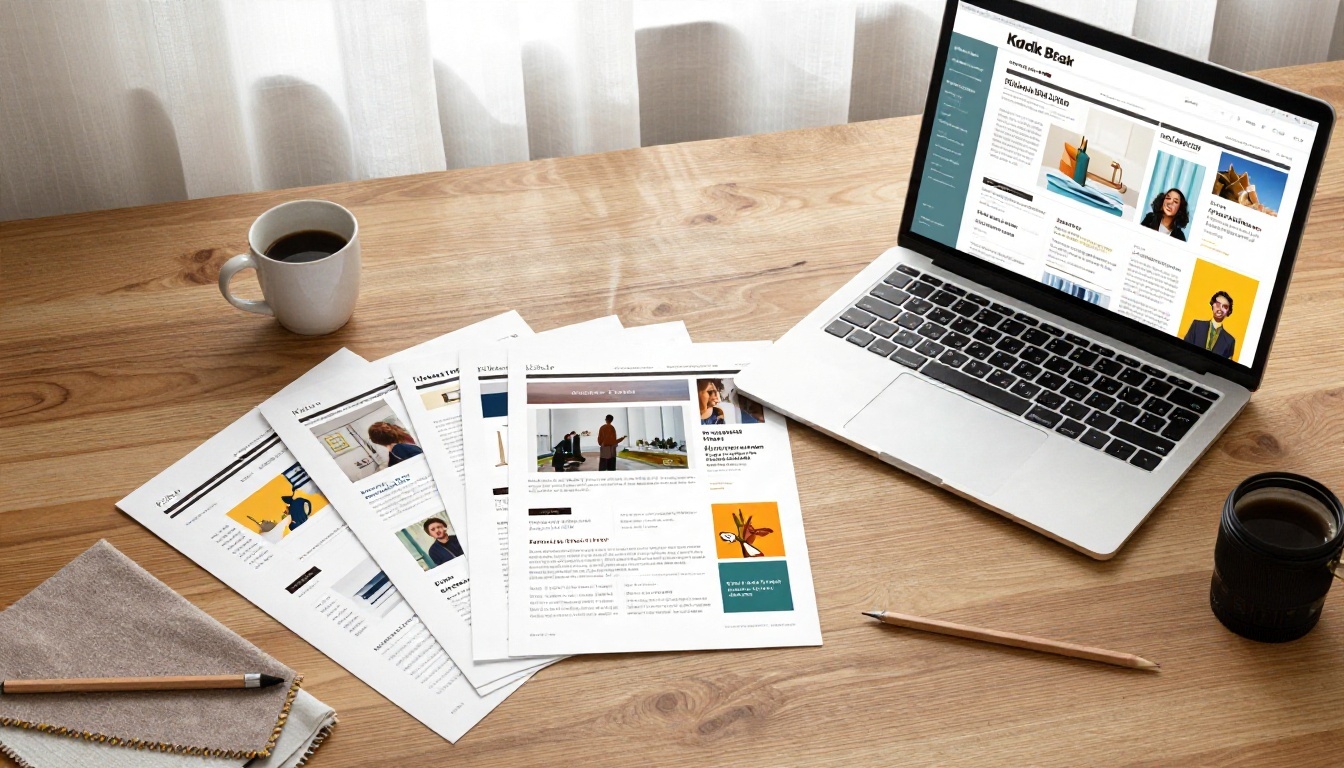
The workflow is short. You describe the newsletter (audience, topic, tone), and the AI proposes a structure: a masthead area, a lead story, two or three secondary blocks, a call-to-action strip and a footer. Placeholder copy and suggested icons or images fill each block.
What you can usually expect:
- A full layout instead of a single text field
- Editable headings, body copy and color palettes
- Brand kit support, so fonts and colors stay consistent
- Export to formats like PDF, PNG or a shareable link
💡 Pro tip: Feed the AI real facts. A prompt like "monthly update for a 40-person accounting firm, three tax deadlines, one client story" produces far better drafts than "business newsletter."
Where It Fits Best
Piktochart shines when your newsletter is visual first: internal updates with charts, nonprofit impact summaries, school bulletins, small-business roundups. It is less suited to heavy, text-only editorial newsletters or to complex email automation, since it is a design tool rather than an email platform.
Free Options: What You Actually Get
Free plans change often, so treat the table below as a typical pattern and check the current plan page before you commit to a workflow.
Free Plan Limits
| Feature | Typical Free Plan | Typical Paid Plan |
|---|
| Template access | Limited selection | Full library |
| AI generation | Small allowance or trial credits | Larger or expanded allowance |
| Exports | Basic formats, often with limits | PDF, PNG and more |
| Branding | Platform branding may appear | Removable |
| Brand kit | Restricted | Fonts, colors, logos saved |
| Collaboration | Minimal | Team workspaces |
The pattern is familiar across design tools: you can build and test for free, but polished, unbranded, high-volume output usually needs a paid tier.
Smart Ways to Stay Free
If your budget is zero, these habits stretch a free plan a long way:
- Draft the copy first in a plain document, then paste it in. AI credits go to layout, not rewrites.
- Reuse one master design each month instead of generating from scratch.
- Export once, after proofreading, to avoid burning through export limits.
- Host the output elsewhere. A free flipbook link is more useful than a watermarked PDF.
⚠️ Watch out: A free export with platform branding can look unprofessional to clients. Preview the final file before sending it to your list.
Templates Worth Starting With
A good template saves more time than any AI prompt. The trick is picking a structure that matches your content rhythm, not the prettiest thumbnail.
Template Types by Use Case
| Template Style | Best For | Content Density | Typical Length |
|---|
| Single-column update | Internal team news | Low | 1 page |
| Magazine grid | Brand storytelling | Medium | 2 to 4 pages |
| Data highlight | Reports, nonprofits | Medium | 2 pages |
| Event roundup | Schools, communities | High | 2 to 3 pages |
| Product spotlight | Retail, e-commerce | Low | 1 to 2 pages |
Single-column layouts load fast and read well on phones. Magazine grids look impressive but need strong photography to avoid feeling crowded.
Customizing Without Breaking the Layout
Most newsletter designs fall apart through small edits that add up. A few rules prevent that:
- Keep to two fonts. One for headings, one for body text.
- Limit your palette to three colors plus neutrals.
- Use real photos wherever possible. Stock icons everywhere make a page feel generic.
- Leave white space. Cramming one more block rarely helps.
- Align your call-to-action with the primary brand color so it stands out.
If your newsletter is closer to a periodic magazine, the Newsletter Flipbook Publisher and Magazine Flipbook Creator are built for that format.
Piktochart Alternatives Worth a Look
No single tool wins every scenario. Some alternatives are stronger on email delivery, others on template variety or price.
Side-by-Side Comparison
| Tool | Strength | Weak Spot | Best Fit |
|---|
| Piktochart | Visual layouts, infographics, AI drafts | Not an email sender | Visual newsletters and reports |
| Canva | Huge template and asset library | Can feel crowded, many paid assets | General marketing design |
| Mailchimp | Email delivery and list management | Design flexibility is narrower | Regular email campaigns |
| Beehiiv | Newsletter publishing and growth tools | Less focus on print-style design | Writer-led newsletters |
| Adobe Express | Strong brand and photo tools | Learning curve for new users | Teams in the Adobe ecosystem |
| Flipbooks AI | Turns any PDF into a page-turning flipbook | Not a design editor | Publishing and sharing the finished piece |
Notice the last row. Design tools, email platforms and publishing tools solve different problems. You can combine them rather than choose just one.
How to Choose
Ask three questions:
- Is design the bottleneck? Pick Piktochart, Canva or Adobe Express.
- Is delivery the bottleneck? Pick Mailchimp, Beehiiv or a similar email platform.
- Is readership the bottleneck? Add a flipbook layer so people actually open and flip through the content.

The Problem With Email Attachments
Here is the uncomfortable truth about most designed newsletters: they live and die as PDF attachments. Recipients on phones pinch and zoom, corporate filters strip large files, and nobody can tell whether the file was opened.
Why PDFs Fall Short
| Problem | PDF Attachment | Flipbook Link |
|---|
| Mobile reading | Pinch and zoom | Responsive, page-turn feel |
| File size limits | Often blocked or clipped | Just a link |
| Tracking | None | Open and page analytics |
| Updates | Resend a new file | Update once, link stays |
| Access control | Anyone with the file | Password protection available |
| Rich media | Static | Embedded video and audio |
A flipbook keeps your Piktochart design exactly as you built it while fixing the delivery problems. That is why it makes a strong companion to any AI newsletter generator.
How to Create a Newsletter Flipbook with Flipbooks AI
This section assumes you have finished your design in Piktochart (or Canva, or anywhere else) and exported a PDF.
Step 1: Export Your PDF
In Piktochart, choose the PDF export option and pick the highest quality available. Check that every page is in the right order and that links inside the design still work.
Step 2: Upload and Convert
Go to Flipbooks AI, create an account, and upload your file. The PDF to Flipbook Converter turns each page into a flippable spread within moments. Text stays sharp, and no watermarks are added.
Step 3: Customize the Look
Once your flipbook opens in the editor, adjust the details:
- Branding: add your logo and choose background colors that match the newsletter
- Page effects: pick the page-turn style and speed
- Multimedia: drop in video or audio on any page, such as a short message from your founder
- Links: make buttons and URLs clickable so the call-to-action still works
💡 Pro tip: Use a background color that matches your newsletter's margin color. The flipbook then feels like one continuous design.
Step 4: Share It Your Way
You have several options for distribution:
- Direct link to paste in your email platform or social posts
- Embed code to place the newsletter on your website using the Embed Flipbook on Website tool
- Password protection for private or members-only editions
- Offline download for readers who want a local copy
Step 5: Use the Pro Features
On the Professional plan (see the pricing plans), you get analytics showing who opened the newsletter and which pages held attention, plus lead generation forms that collect email addresses before readers continue. The Standard plan and above also allow unlimited flipbooks, handy if you publish every month.

Real-World Examples
Abstract advice only goes so far. Here is how different teams combine a design generator with a flipbook.
A Boutique Shop
A small retailer builds a monthly product spotlight using a Piktochart template, exports it, and publishes it through the Digital Catalog Maker. Customers get a link by email and in-store QR codes. The owner can see which pages were viewed most and restock accordingly.
A School Office
A school administrator designs a bright event roundup and uses the School Newsletter Creator to publish it. Parents open one link on their phones, flip through pages, and tap straight into permission forms.
A Nonprofit Team
A nonprofit builds a data-driven impact update with charts and photos. They share it with donors through a password-protected flipbook, then embed a public version on their website. For bigger yearly summaries, the Non-Profit Annual Report tool follows the same workflow.
A Consulting Firm
A consultancy sends a quarterly briefing to clients. Because the flipbook includes lead capture and analytics, the partners see which clients read the pricing page and follow up with a call.

A Simple Workflow You Can Reuse
Put everything together and the monthly routine looks like this:
| Stage | Tool | Time Estimate |
|---|
| Write copy | Any document editor | 45 minutes |
| Generate layout | Piktochart AI | 15 minutes |
| Polish design | Piktochart editor | 30 minutes |
| Export PDF | Piktochart | 2 minutes |
| Publish flipbook | Flipbooks AI | 10 minutes |
| Send link | Email platform | 10 minutes |
Roughly two hours from blank page to published newsletter, and most of that is writing, which no tool can fully replace.
✅ Best practice: Save your finished flipbook link in a shared document. Each month you can duplicate the previous edition, swap the content, and keep the same branding.
Ready to Publish Your Newsletter?
Piktochart's AI generator gets you a layout fast, and the free plan is enough to test the idea. The real payoff comes when you pair it with a delivery format people enjoy reading.
Design it in Piktochart, publish it as a flipbook, and give your readers something they will actually flip through.



