You spent weeks on the brochure. Then it goes out as a 14 MB PDF attachment, lands in a spam folder, and gets opened on a phone where the text is the size of a grain of rice. That is how most brochures die. The fix is not a prettier layout. It is a better way to present an interactive brochure so clients can open it instantly, flip through it naturally, and act on it while they are still interested. With Flipbooks AI, you can turn a PDF into a page-turning brochure and share it by link, embed it on your website, or present it live in a meeting.
This article walks through all three routes. You will see how to build the brochure, which sharing method fits which situation, how to protect private offers, and how to find out whether anyone actually read what you sent.
Why Interactive Beats a PDF Attachment
A PDF is a file. An interactive brochure is an experience that happens to be delivered in a browser. That difference matters more than most sales teams realize.
The Problem With Email Attachments
Attachments are blocked by corporate filters, trimmed by mobile mail apps, and forgotten in download folders. Even when they arrive, the client has to download, open a separate viewer, and pinch to zoom. Every extra step costs you readers.
There is also the version problem. Once a PDF is in someone's inbox, you cannot fix a typo or swap an outdated price. The old file lives on forever, forwarded to people you never met.
What Clients Actually Experience
An interactive brochure opens from a link in one tap. Pages turn with a realistic flip effect, images load fast, and the layout adapts to the screen. Videos play inside the page. Buttons jump straight to your booking form or product page.

Here is a quick side-by-side of what changes for the client and for you:
| Factor | PDF Attachment | Interactive Brochure |
|---|
| Opening it | Download, then open a viewer | One tap on a link |
| Mobile reading | Pinch and zoom | Responsive layout |
| Video and audio | Not supported | Embedded in the page |
| Updating content | Resend a new file | Update once, link stays the same |
| Access control | None after sending | Password protection |
| Read tracking | None | Analytics on the Professional plan |
| File size limits | Blocked above 10 to 25 MB | No attachment at all |
💡 Pro tip: If your clients are mostly on phones, test your current PDF on a real handset before anything else. If you have to zoom to read body text, an interactive version will pay for itself in the first week.
Create Your Brochure with Flipbooks AI
Sharing only works if the brochure itself is worth opening. The good news is that you do not need to rebuild your design. If you already have a PDF from InDesign, Canva, Word, or PowerPoint, most of the work is done.
Here is the full process, step by step.
Upload and Convert Your PDF
- Go to Flipbooks AI and sign in or create an account.
- Choose the Brochure Flipbook Maker or the general PDF to Flipbook Converter.
- Drag your PDF into the upload area. Each page is converted into a flipbook page automatically.
- Wait for the preview to render. Most brochures are ready in well under a minute.
- Flip through the preview and check that fonts, images, and margins look right.
If you are starting from scratch, the Online Brochure Designer gives you a layout to build on. Industry teams can also pick specialized tools such as the Hotel Brochure Designer, the Real Estate Brochure Creator, or the Automotive Brochure Generator.
Customize Branding and Page Effects
A brochure that looks like a generic viewer feels cheap. Spend ten minutes on the details:
- Brand colors: Match the background and toolbar to your palette.
- Logo: Add your own mark so the page feels like part of your company.
- Page effects: Pick the flip speed and shadow style that suit your tone. A law firm may want subtle; a travel agency can go bolder.
- No watermarks: Flipbooks AI never stamps its own logo on your work, which keeps the presentation looking professional.
Add Video, Audio, and Links
This is where interactive earns its name. Drop a 30 second product demo onto the page where you introduce the product. Add a voice greeting on the first spread. Place a clear button on the final page that points to your booking calendar.
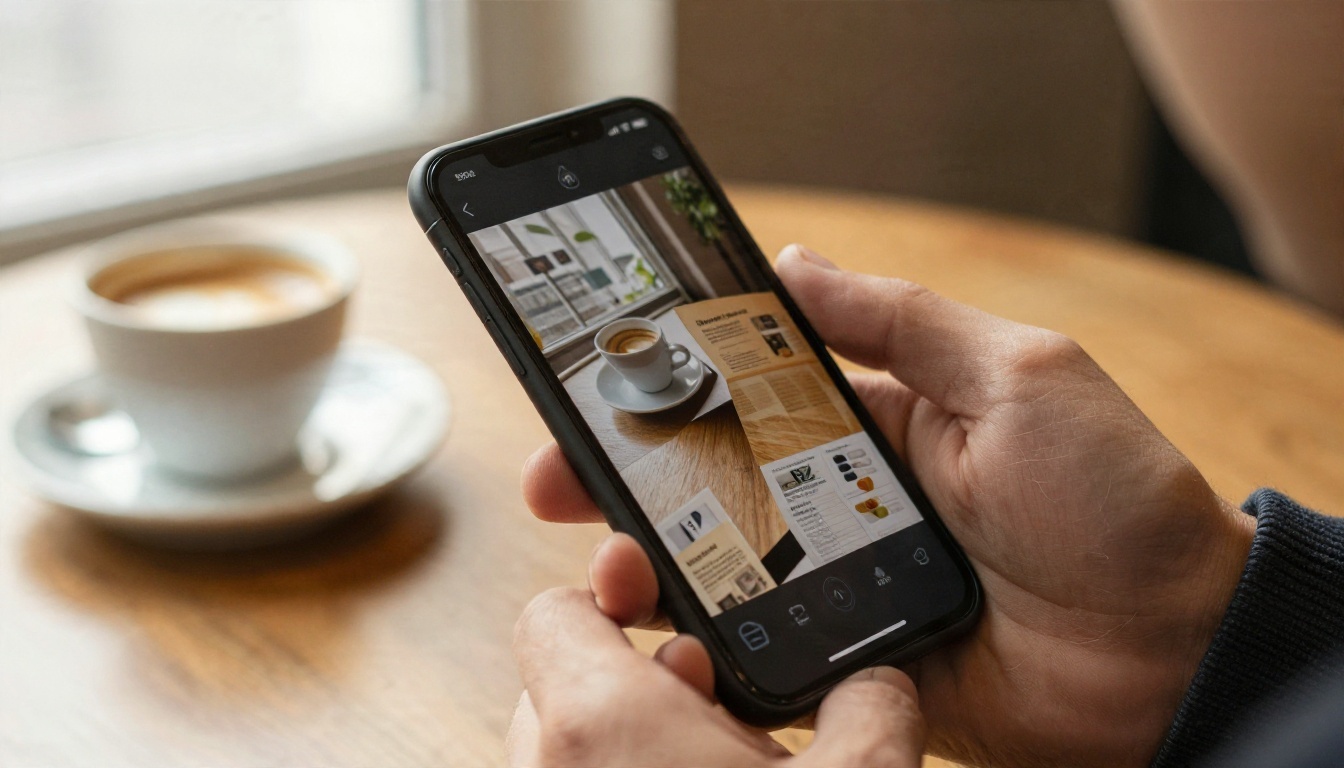
✅ Best practice: Keep embedded videos under a minute. Clients skim brochures. A short clip gets watched; a five minute webinar recording does not.
Sharing Online: Links, Email, and QR Codes
Once the brochure is published, you get a unique URL. That single link is the foundation of every sharing method below.
Direct Links for Fast Follow Ups
The simplest option is also the most used. Paste the link into a proposal, a chat message, or a CRM note. Because the brochure is hosted online, you can fix a price or swap a photo later and every existing link shows the new version.
Good places for a direct link:
- The second paragraph of a follow up email, not buried at the bottom
- A WhatsApp or LinkedIn message right after a call
- The footer of your email signature
- A proposal PDF that needs a visual appendix
Email and Messaging Tips
Do not just write "see attached." Write one line that tells the client what they will find and how long it takes. For example: "Here is our 12 page product brochure. The pricing page is on spread 9."
Short, specific context lifts open rates because the client knows exactly what they are clicking.
QR Codes in Print
Interactive does not have to be digital only. Put a QR code on a business card, a trade show banner, a restaurant table tent, or a printed flyer. Scanning it opens the full brochure on the visitor's phone, which means your printed piece can hold a hundred pages of detail without costing a cent more to produce.
Here is how the main sharing methods compare:
| Method | Best For | Setup Time | Trackable | Works Offline |
|---|
| Direct link | Follow ups, proposals | Seconds | Yes (Professional) | No |
| Email with link | Prospect outreach | Minutes | Yes (Professional) | No |
| QR code | Events, print, signage | Minutes | Yes (Professional) | No |
| Website embed | Landing pages, product pages | 10 to 15 minutes | Yes (Professional) | No |
| Offline download | Remote sites, flights | Seconds | Limited | Yes |
Embed It on Your Website
A link is great for one to one conversations. An embed is better when you want the brochure to live on a page where clients already look for information.
Copy the Embed Code
- Open your published brochure in the dashboard.
- Click the share option and choose the embed tab.
- Copy the generated code snippet.
- Paste it into the HTML block of your website builder, whether that is WordPress, Webflow, Wix, Squarespace, or custom code.
- Save and preview the page on desktop and mobile.
The Embed Flipbook on Website tool explains the options in more detail, including size and responsive behavior.
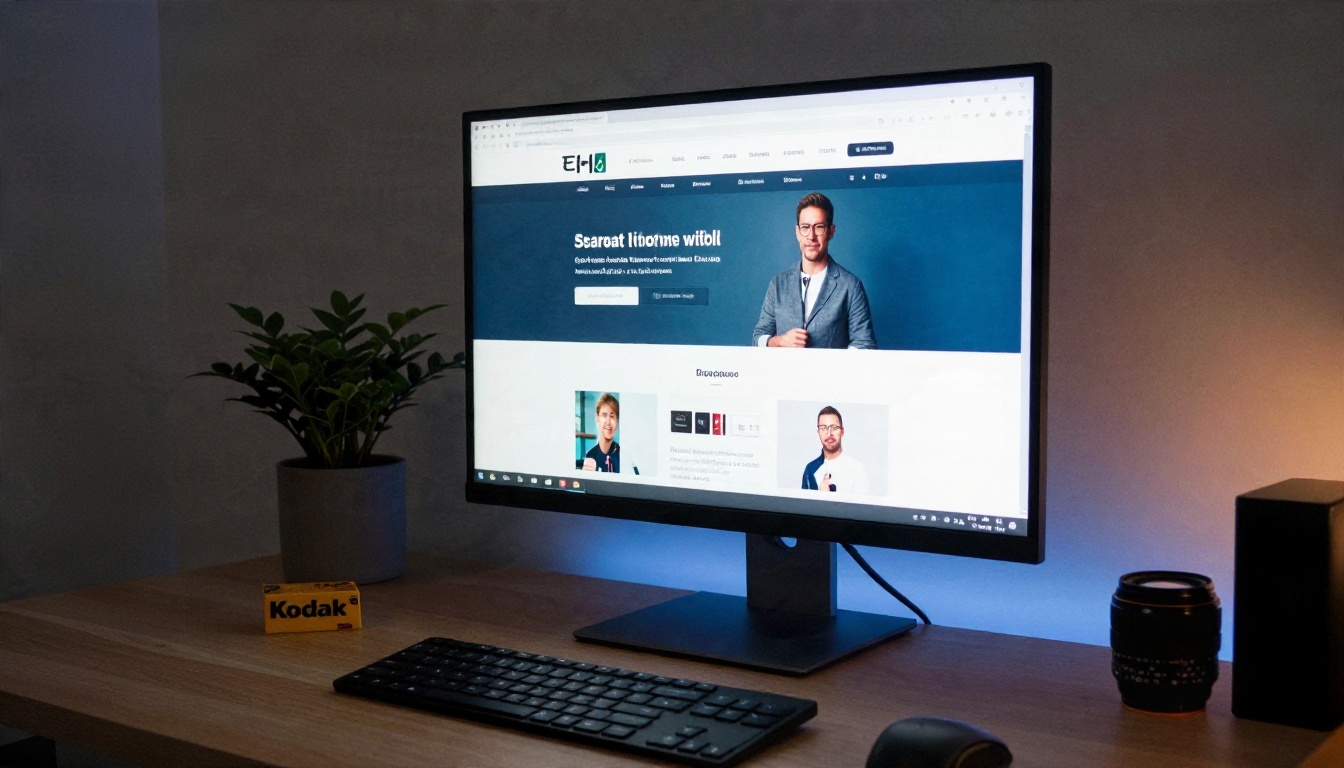
⚠️ Watch out: Some website builders strip out iframe code on free plans. If your embed shows up blank, check that custom code blocks are allowed on your hosting tier.
Placement That Converts
Where you put the embed decides whether it gets read. Three placements work consistently well:
- Product or service pages: Place the brochure right under the headline so visitors can browse before scrolling through text.
- Dedicated "Brochure" landing page: Useful for ad campaigns and email links. One page, one purpose.
- Resource centers: Group several brochures together so returning visitors can find the right one.
Make the embed large enough to read comfortably. A tiny window defeats the purpose. On mobile, let it take the full width of the screen.
Present Live to Clients
Sending a brochure is passive. Presenting one is where deals move. An interactive brochure gives you a visual script that keeps the conversation focused.
In the Room
For in person meetings, open the brochure on a large display or share it from a tablet. Flip through slowly and talk around each spread instead of reading it aloud.
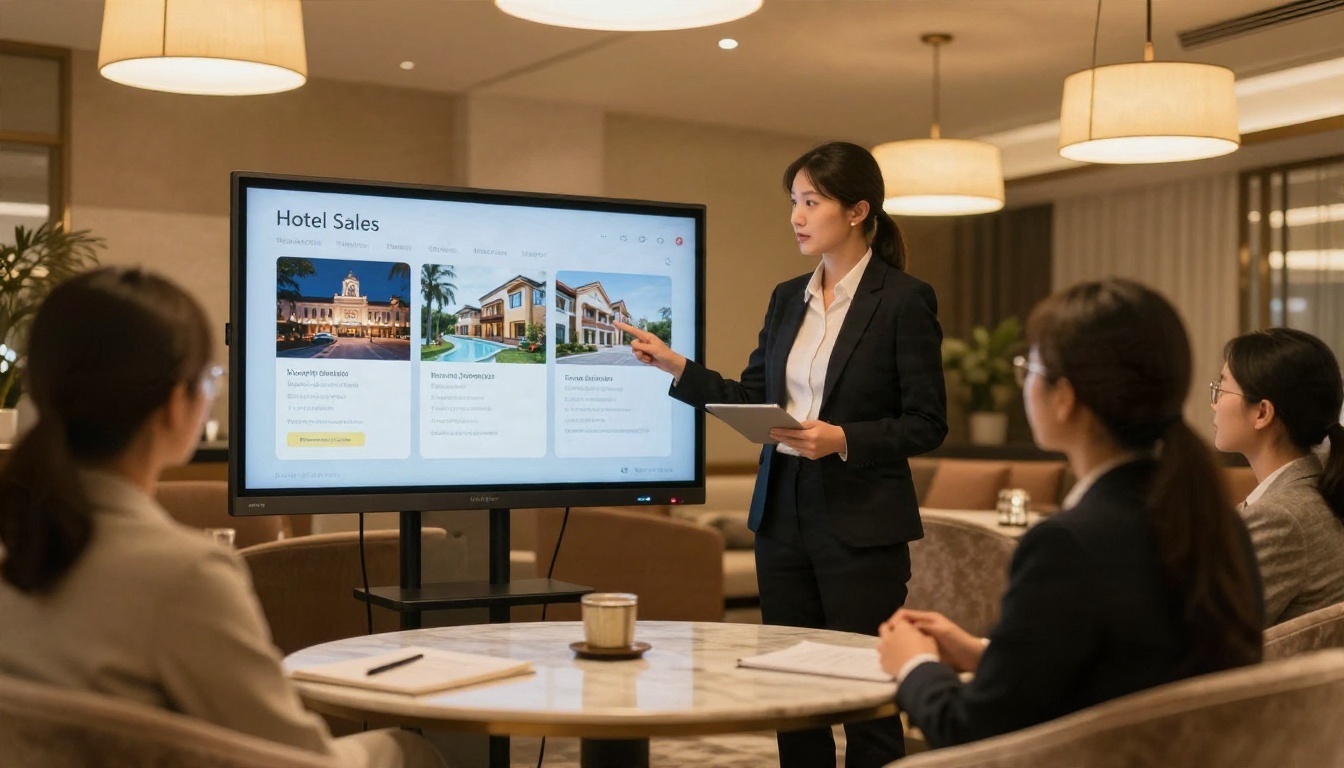
A simple rhythm that works:
- Open with the outcome. Start on the page that shows the end result, not the company history.
- Let them drive. Hand the tablet over for the product pages. Clients who touch the screen stay engaged longer.
- Play the video at the right moment. Use it to prove a claim you just made.
- End on the action page. Finish where the next step is one click away.
For sales presentations that need a more structured deck feel, the Sales Presentation Flipbook and Presentation Flipbook Designer tools are worth a look.
On a Video Call
Remote presenting has its own traps. Share your browser tab instead of your whole screen so notifications stay private. Zoom the brochure so the page fills the shared window. Give the client the link at the end of the call so they can reopen it at their own pace.

If the client's connection is shaky, the offline download feature lets you send a local copy so they can still follow along.
💡 Pro tip: Paste the brochure link into the meeting chat before you start sharing. Clients on mobile can open it on their own device and follow your pace.
Protect and Track What You Send
Pricing sheets, early product specs, and partner terms should not be public. At the same time, you want to know whether the client opened the file you sent. Both problems have simple fixes.
Password Protection for Private Offers
Add a password to any brochure so only the intended recipient can view it. Share the password through a different channel than the link, for example by text message while the link goes by email.
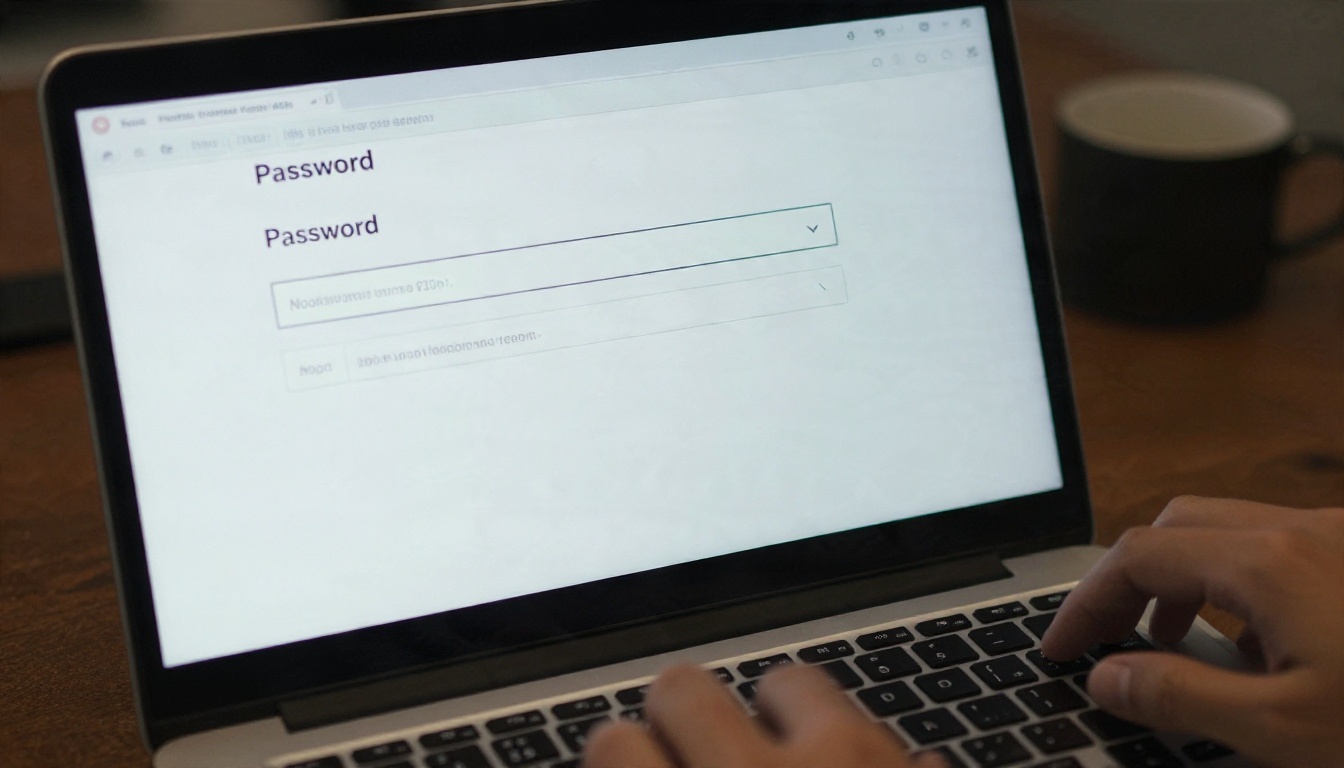
Good candidates for password protection:
- Wholesale price lists
- Confidential proposals for a single client
- Pre launch product brochures
- Partner and distributor kits
Analytics and Lead Capture
On the Professional plan, you get analytics and lead generation. Instead of guessing, you can see how many people opened the brochure, which pages held their attention, and where they dropped off. Lead capture lets you ask for a name and email before the brochure opens, so each view becomes a contact in your pipeline.

Here is how to turn those numbers into action:
| What You See | What It Usually Means | What To Do |
|---|
| Many opens, few reach the pricing page | The first pages are too long | Move pricing earlier or shorten the intro |
| Readers stop at one specific page | Confusing layout or heavy text | Rewrite or split that page |
| Opens spike after a follow up | The timing is right | Call the same day |
| Very few opens from email | The message did not explain the value | Rewrite the subject and first line |
Check the pricing plans to see which tier fits your volume. The Standard plan includes unlimited flipbooks, while analytics and lead generation come with Professional.
Real Examples From Three Industries
Theory is useful, but seeing the pattern in action is better. Here is how different teams put the same workflow to use.
| Industry | How They Share | What Goes Inside | Result They Want |
|---|
| Real estate | Link in listing message, QR code on yard signs | Photo tours, floor plans, neighborhood video | More showing requests |
| Hotels and venues | Embed on event page, live on a lobby screen | Room galleries, meeting layouts, catering menus | Faster event bookings |
| Manufacturing | Password protected link to distributors | Spec sheets, price tiers, installation clips | Fewer pricing questions by email |
A real estate agent can send a brochure to a buyer straight after a viewing. The buyer reopens it on the train home, shares it with a partner, and comes back to book a second visit.
A hotel sales manager can embed the venue brochure on the events page, then present the same file on a lobby screen during site tours. One file, two uses, always up to date.
A manufacturer's sales rep can protect the distributor brochure with a password and replace outdated prices at the source, instead of chasing old PDFs across dozens of inboxes.
✅ Best practice: Create one brochure per audience rather than one giant file for everyone. A short, focused brochure is easier to share and easier to measure.
Common Mistakes to Avoid
Even a polished brochure underperforms when the delivery is sloppy. Watch for these:
- Sending the link with no context. Always say what is inside and why it matters.
- Skipping the mobile check. Open the brochure on your own phone before you send it.
- Burying the call to action. Put a clear next step on the last page and again near the middle.
- Forgetting to update. Review pricing and contact details every quarter.
- Sharing sensitive pages without a password. If a page contains numbers you would not post on social media, protect it.
A short pre send checklist helps:
- Flip every page on desktop and mobile.
- Click every button and play every video.
- Confirm that the password, if any, works in a private window.
- Send the link to yourself first.
- Note the send time so you can compare it with the analytics later.
Ready to Send Yours?
A good brochure should not wait in a downloads folder. Upload your PDF, add your branding and a video or two, then share it as a link, a QR code, or an embed that lives on your site. When the meeting comes, present it live and leave the link behind so the client can keep reading.

Here is where to go next:
Your next client meeting is a good deadline. Build the brochure this week, test it on your phone, and walk in with something that opens in a single tap.



