A customer unboxes your product, gets stuck on step three, and goes looking for the manual. If the only copy is a 40 MB PDF buried on a support page, you have already lost them. A product manual PDF is easy to produce, but a good one needs a clear structure, a layout people can scan, and a link they can open on a phone in two seconds. This article gives you a free template outline, a sample layout you can copy, and every practical way to share the finished file online, including turning it into a page-flip document with Flipbooks AI.
Why a Product Manual PDF Still Works
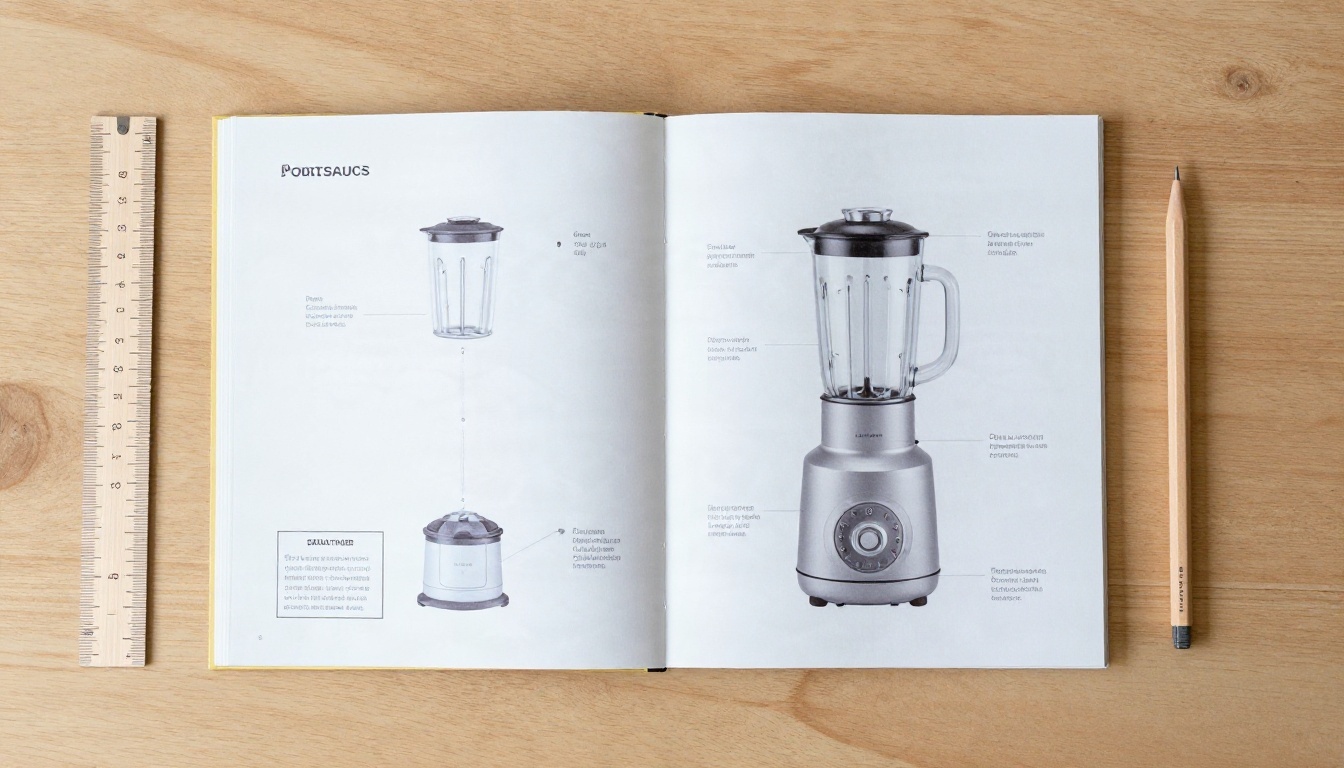
People joke that nobody reads manuals. The data from support desks says otherwise: they read them when something goes wrong, when they set up a device for the first time, or when they want to confirm a warranty rule. That is a high-intent moment, and your manual is the only page they will give full attention to.
A PDF remains the default format because it keeps fonts, diagrams and page order exactly as you designed them. It prints cleanly, it works offline, and it is accepted by retailers, distributors and compliance teams.
What Readers Actually Want
When someone opens a manual, they have one of four goals:
- Set up the product quickly and safely
- Fix a specific error or odd behavior
- Look up a spec, part number or maintenance interval
- Confirm warranty, safety or regulatory details
Every page in your template should serve at least one of those goals. If a page does not, cut it or move it to an appendix.
Printed vs PDF vs Flipbook
Not every format fits every situation. Here is how the three most common options compare for a typical product manual:
| Feature | Printed booklet | Plain PDF download | Online flipbook |
|---|
| Cost per copy | High | None | None |
| Works offline | Yes | Yes, after download | Yes, with offline download |
| Easy to update | No, reprint needed | Medium, re-upload and re-link | Easy, replace the file |
| Reading on mobile | Not applicable | Pinch and zoom | Responsive pages |
| Tracks who reads it | No | Rarely | Yes, with analytics |
| Share with one link | No | Yes, but a heavy file | Yes, loads instantly |
| Protect with a password | No | Limited | Yes |
💡 Pro tip: Keep the PDF as your master file and publish a flipbook version as the one you link everywhere. You get print quality and a lightweight online experience from the same source.
Free Product Manual Template Outline
Below is a template structure that works for appliances, electronics, tools, furniture and software-connected hardware. Copy it into Word, InDesign, Canva or Google Docs, fill in your details, and export to PDF.

The Section Outline
| Section | What goes in it | Typical length |
|---|
| Title page | Product name, model number, version, date | 1 page |
| Safety information | Warnings, symbols, intended use | 1 to 2 pages |
| What is in the box | Parts list with numbered illustrations | 1 page |
| Product overview | Labeled diagram, buttons, ports, indicators | 1 to 2 pages |
| Setup and installation | Numbered steps with photos or diagrams | 2 to 6 pages |
| Daily use | Main functions, modes, settings | 2 to 5 pages |
| Care and maintenance | Cleaning, replacement parts, schedule | 1 to 2 pages |
| Troubleshooting | Problem, cause, fix table | 1 to 3 pages |
| Specifications | Dimensions, power, materials, certifications | 1 page |
| Warranty and support | Terms, contact details, QR link to help center | 1 page |
Copy-Paste Template Text
Here is starter wording you can adapt. Replace the brackets with your own details.
[Product Name] User Manual
Model [XXXX] | Version [1.0] | Updated [Month Year]
Before you begin: Read the safety information on page [2]. Keep this manual for future reference and share it with any new owner.
Step 1. Unpack. Remove all packaging. Check the parts list on page [3]. If anything is missing, contact support at [email or link].
Step 2. Place. Put the product on a flat, dry surface at least [10 cm] from walls.
Step 3. Connect. Plug the power cable into the port marked [A]. The indicator light turns [green] when ready.
Notice the pattern: one action per step, a location reference, and a visible confirmation of success. That rhythm is what makes instructions feel effortless.
⚠️ Warning: Safety text is not decoration. If your product is regulated (electrical, food contact, children's items), check the labeling rules in each market where you sell before you finalize the safety pages.
A Sample Layout That Works
Layout decides whether a manual feels friendly or intimidating. You do not need a designer, only a few consistent rules.
Page Grid and Spacing
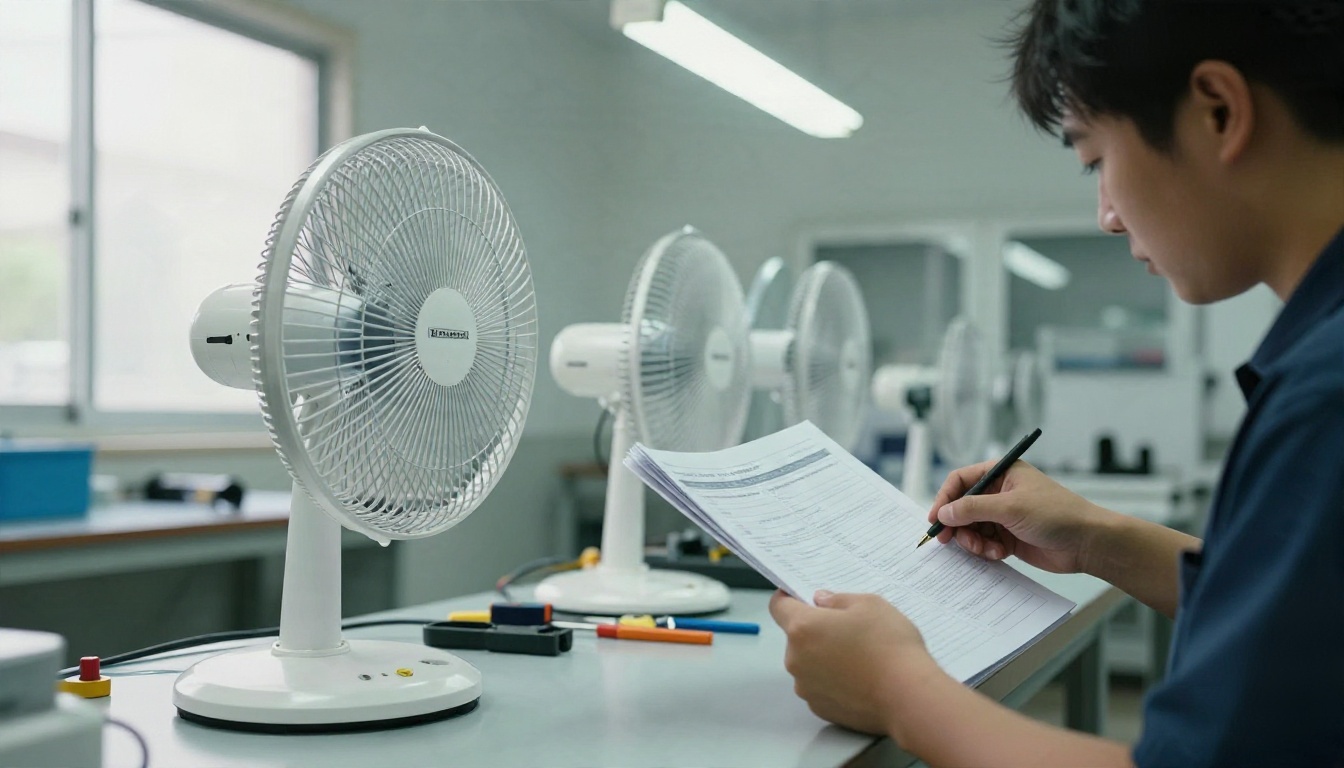
Use a simple two-column grid on A4 or US Letter: a narrow left column (about 30 percent) for step numbers, icons and short notes, and a wide right column (about 70 percent) for text and images. This keeps headings aligned and leaves white space around diagrams.
Recommended starting values:
| Element | Recommended setting |
|---|
| Page size | A4 or US Letter, portrait |
| Margins | 18 to 20 mm all around |
| Body font | Sans serif, 10 to 11 pt |
| Heading font | Same family, bold, 16 to 20 pt |
| Line spacing | 1.4 |
| Image resolution | 150 to 200 DPI for screen, 300 DPI for print |
| Color | One accent color plus black and gray |
Diagrams and Warning Boxes
A labeled diagram is worth a full paragraph. Number the parts on the illustration and match them to a legend below. Place warnings in a shaded box with an icon so they cannot be missed, and use the same style on every page.
- Warnings (risk of injury): red or orange border
- Cautions (risk of damage): yellow border
- Tips: light blue background
- Notes: plain gray text with an icon
Writing Steps People Follow
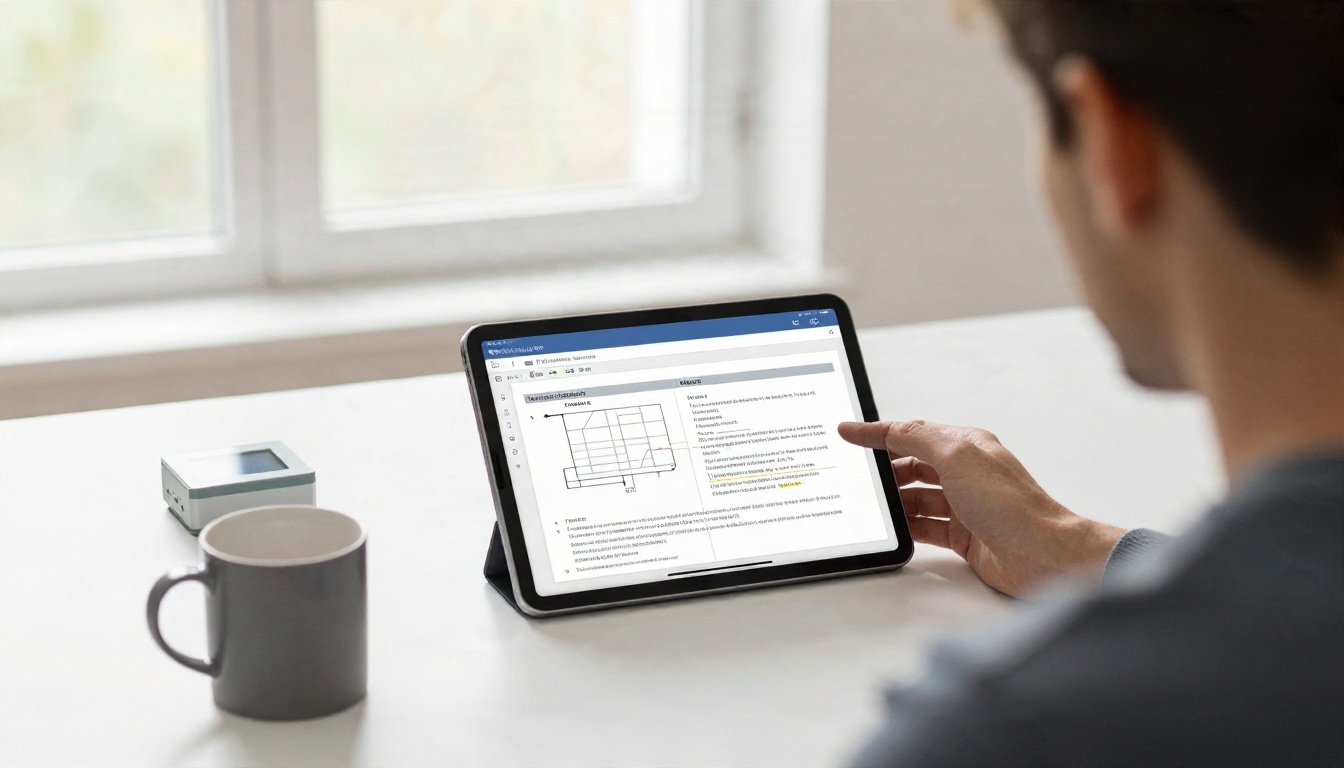
Good layout falls apart if the words are slippery. Technical writers follow a handful of habits that you can borrow today.
One Action Per Step
Each numbered step should contain a single action and, when useful, the result. Compare these two versions:
- Weak: "Make sure the device is placed correctly and connected, then turn it on and wait for it to be ready."
- Strong: "1. Press and hold the power button for 3 seconds. 2. Wait until the light turns green."
Start every step with a verb. Use the same word for the same part every time. If the button is called "Start" on page 4, do not call it "Run" on page 9.
Common Mistakes
- Writing for engineers instead of first-time users
- Skipping the troubleshooting table, which is the most visited page in most manuals
- Using tiny screenshots that become blurry on mobile
- Hiding the model number, so support cannot tell which version the reader owns
- Forgetting a version date, which makes old and new manuals impossible to tell apart
✅ Best practice: Ask someone who has never seen the product to follow your setup pages with no help. Every moment they hesitate is a sentence you need to rewrite.
How to Create a Manual Flipbook with Flipbooks AI
A PDF is a good master file. A flipbook is a better way to deliver it. Readers get page turns, fast loading, mobile-friendly reading and a clean link, and you get control over who sees what. The PDF to Flipbook Converter handles the heavy lifting, and for teams building internal documents there is also a Training Manual Flipbook tool.

Upload and Convert
- Go to Flipbooks AI and create an account.
- Click the upload button and select your manual PDF. Files with embedded fonts and compressed images convert fastest.
- Wait a few moments while the pages are converted into a flipbook. Table of contents links and text are preserved.
- Preview the result. Check that diagrams are sharp and that the page order is correct.
💡 If your PDF is very large, compress images to about 150 DPI before uploading. Readers on mobile data will thank you.
Customize Branding
Open the editor and adjust the look so the manual feels like part of your product line:
- Add your logo and set the background to your brand color
- Choose a page-turn effect and sound, or turn both off for a quieter reading experience
- Add video and audio to pages that benefit from motion, such as an assembly walkthrough
- Set a custom title and thumbnail so shared links look polished in chat apps and social feeds
There is no watermark on your flipbooks, so the manual stays 100 percent yours.
Pro Features Worth Using
Higher plans add tools that make a manual more useful to the business:
| Feature | What it does for a manual | Plan |
|---|
| Unlimited flipbooks | One flipbook per product, model or language | Standard and above |
| Password protection | Share dealer-only or pre-release manuals | Available on paid plans |
| Offline download | Lets installers keep the file on site | Available on paid plans |
| Analytics | See which pages and sections get read most | Professional |
| Lead generation | Ask for an email before opening a gated manual | Professional |
Check the pricing plans to see which combination suits your catalog size.
How to Share It Online
Once the flipbook is ready, you have several ways to put it in front of customers. The best choice depends on where your readers already are.
Direct Link, Embed, QR Code
| Method | Best for | Effort |
|---|
| Direct link | Emails, support replies, chat messages | Copy and paste |
| Embed code | Product pages, help centers, knowledge bases | Paste one snippet |
| QR code | Packaging, quick-start cards, product labels | Generate once, print forever |
| Social share | Launch announcements, community groups | One click |
| Offline download | Technicians, trade shows, poor connectivity | One click |
For product pages, use the Embed Flipbook on Website option. The manual appears inside your page, so shoppers can read the setup steps before they buy. That alone can reduce pre-sale questions.
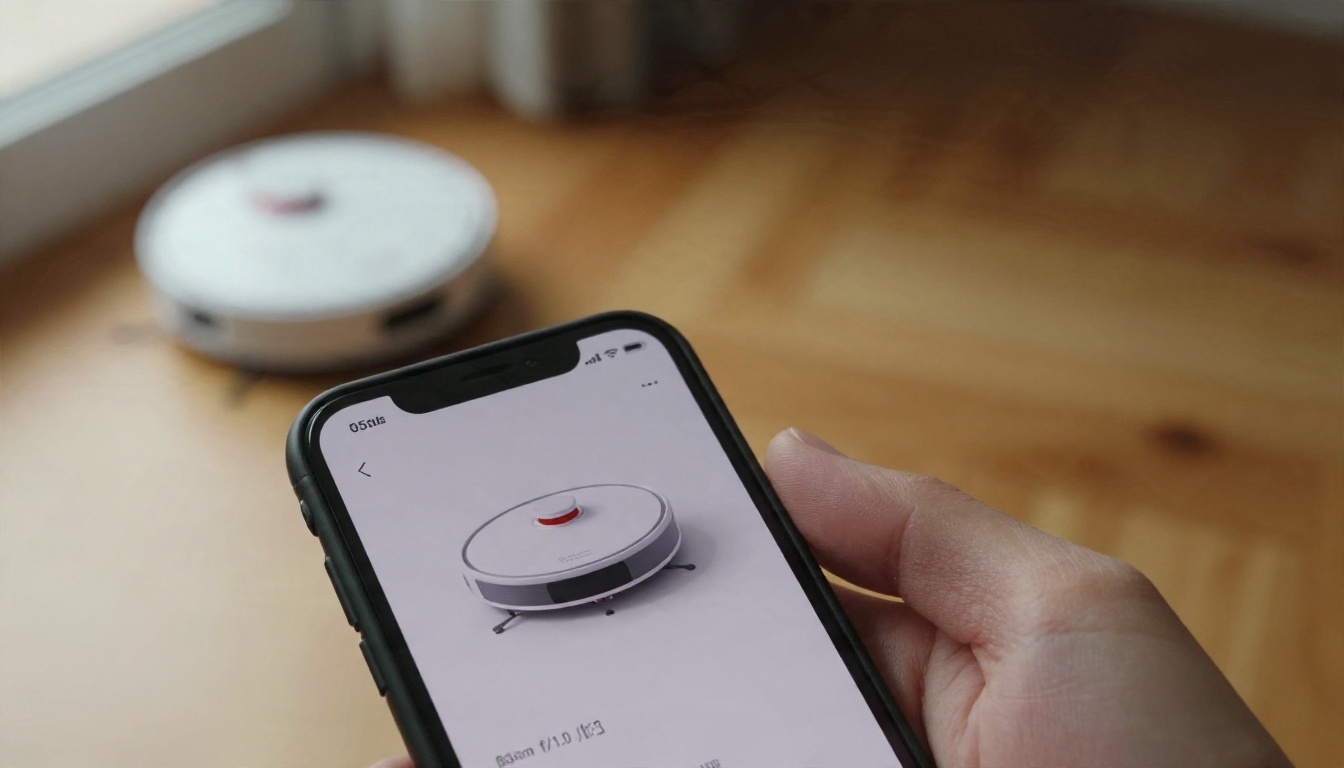
A QR code is the most underrated option. Print it on the box, the quick-start card or the product itself. Because the link points to a flipbook you can update at any time, the QR code never goes out of date even after a firmware change or a revised safety notice.
Password Protection
Not every manual is for everyone. Use a password when you are:
- Sharing a pre-launch manual with distributors
- Distributing installer-only or service documents
- Providing customer-specific instructions for enterprise buyers
Share the link in one message and the password in another. For anything highly sensitive, rotate the password regularly and track views in your analytics.
Real-World Examples
Here is how different teams put the same workflow to use:
- Small appliance brand: Uploads one PDF per model, adds a QR code to each box, and embeds the manual under the "Support" tab on each product page. Support emails about setup drop because the answer is one scan away.
- Furniture seller: Publishes assembly instructions with short embedded videos next to the trickiest steps. Returns caused by "missing parts" fall because customers can see what each part looks like. A Furniture Catalog Maker flipbook can sit next to the manuals for a consistent look.
- Equipment distributor: Uses password protection for dealer manuals and tracks which models get the most attention. See the Automotive Brochure Generator for a similar approach with vehicle accessories.
- Support team: Sends a link in every ticket reply instead of attaching a PDF, so the customer always sees the latest version.

Keep Your Manual Fresh
A manual is never finished on launch day. Products change, laws change, and customers find new ways to break things. Build a simple routine:
- Version every file. Put the version number and date on the title page and in the file name.
- Review after every product update. Match every screenshot and part number to the latest release.
- Read your support tickets monthly. Repeated questions point to weak pages.
- Replace, do not duplicate. Updating the existing flipbook keeps the link and QR code working.
- Archive old versions. Store previous PDFs in a tidy folder for compliance and warranty claims.

💡 Create a one-page checklist for each release: update diagrams, update specs, export PDF, replace the flipbook, test the QR code. It takes ten minutes and avoids most documentation errors.
Ready to Publish Your Manual?
You now have a template outline, a layout with real numbers, and a list of ways to put the finished document in front of customers. The fastest way to start is to take the PDF you already have and turn it into something people enjoy opening.
Pick one product, publish its manual today, print the QR code on the next shipment, and watch how quickly your support inbox quiets down.



