You spent weeks on the layout, the photography, and the editor's letter. Then the PDF sits in a shared folder and three people open it. If you want to publish magazines online and actually get readers, the format matters as much as the content. A page-turning edition that opens in a browser, sits on your own website, and travels as a single link gets read. A raw attachment mostly does not. This article walks through the free platform options, shows how to embed an issue on your site, and explains every way to share it, using Flipbooks AI for the hands-on steps.

Why Online Magazines Win
Print still has a place, but the economics and the reach of a browser edition are hard to ignore. A digital issue costs nothing to reproduce, never sells out, and can be corrected after launch.
Print Cost Versus Digital Reach
Every printed copy has a unit cost, a shipping cost, and a storage cost. Every digital copy has none of those. Once the PDF exists, the thousandth reader costs the same as the first.

| Factor | Printed Issue | Online Flipbook Issue |
|---|
| Cost per extra reader | Printing plus postage | Effectively zero |
| Time to reach readers | Days or weeks | Minutes |
| Fixing a typo after launch | Not possible | Re-upload the file |
| Links and video inside pages | None | Clickable links, embedded media |
| Reader data | Almost none | Opens, time on page, location |
| Shelf life | Limited by stock | Permanent URL |
💡 Pro tip: Keep your print run if you have one. Publish the same PDF online so the issue works as a sample for people who never see a physical copy.
What Readers Expect Today
Readers expect an issue to open instantly, work on a phone, and not ask for a login or an app install. They also expect the page-turn feel they know from print. A plain PDF viewer scrolls like a document. A flipbook looks and feels like a magazine, which is why it holds attention longer on glossy, photo-led content.
"Free" means very different things depending on where you publish. Before you upload anything, decide which category fits your goal.
Four Types of Free Option
- Document hosting sites. Fast to use and good for reach, but the viewer is usually a scrolling document with the host's branding around it.
- Social and community platforms. Built-in audiences, though you give up control of design, ads, and what appears next to your issue.
- Flipbook makers with a free tier. Page-turn effects and embed codes, usually with limits on the number of publications or on branding.
- Self-hosted PDF on your own site. Total control, but no page-turn view, no analytics, and heavy files on mobile.
| Option | Page-Turn Look | Embed on Your Site | Share by Link | Typical Free Limit |
|---|
| Document hosting site | No | Often | Yes | Branding, ads, public by default |
| Social or community platform | Sometimes | Sometimes | Yes | Platform decides layout and reach |
| Flipbook maker (free tier) | Yes | Yes | Yes | Count of flipbooks, plan-specific extras |
| Self-hosted PDF | No | Link only | Yes | Your own bandwidth and storage |
Check each provider's current terms before you commit, because free tiers change often.
Where Free Plans Get Limiting
The usual pressure points are the same everywhere:
- Watermarks or forced branding on every page.
- A cap on the number of publications, which hurts if you publish monthly.
- Public-only visibility, so subscriber issues cannot be protected.
- No analytics, so you never learn which pages people read.
⚠️ Warning: A watermark on a free plan is fine for a test. On a client issue or a paid subscriber edition it looks unprofessional. Check this before you share the link widely.
Flipbooks AI publishes with no watermarks, ever. Unlimited flipbooks come with the Standard plan and above, so a monthly or weekly magazine does not run into a publication cap. See the pricing page for what each plan includes today.
How to Publish With Flipbooks AI
If you want the page-turn experience, here is the full process. The Magazine Flipbook Creator and the E-Magazine Publishing Tool both follow this path.
Prepare Your PDF
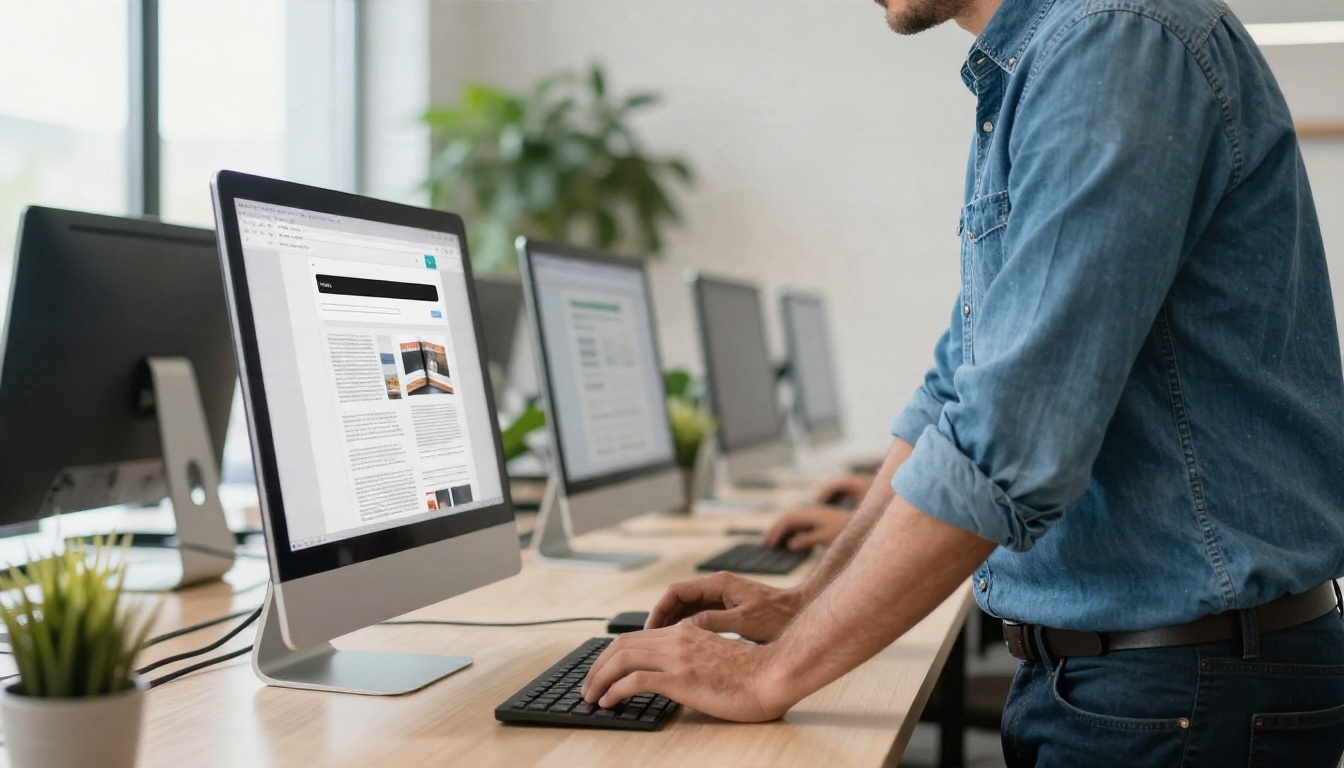
Export from your layout software at a size that balances sharpness and speed.
- Export spreads or single pages consistently. Do not mix them.
- Keep images at about 150 dpi for screen reading. Higher only slows loading.
- Embed fonts, or outline them, so text renders the same everywhere.
- Add real hyperlinks in the layout. They stay clickable after conversion.
Upload and Convert
- Go to Flipbooks AI and create an account.
- Choose to create a new flipbook and drag your PDF into the upload area.
- Wait for conversion. The PDF to Flipbook Converter turns each page into a turnable page with a realistic fold effect.
- Preview the result on desktop and then on your phone.
✅ Best practice: Always test the first and last three pages. Cover pages and back pages are where layout errors tend to hide.
Brand It and Add Media
Customization is where a generic viewer becomes your magazine.
- Custom branding: upload your logo, set the background color, and match your brand palette.
- Page effects: adjust the page-turn style and sound.
- Multimedia: embed videos and audio directly on a page, for example an interview clip beside the article it belongs to.
- Mobile-responsive design is built in, so the issue adapts to phones and tablets without extra work.
Pick the Right Template Tool
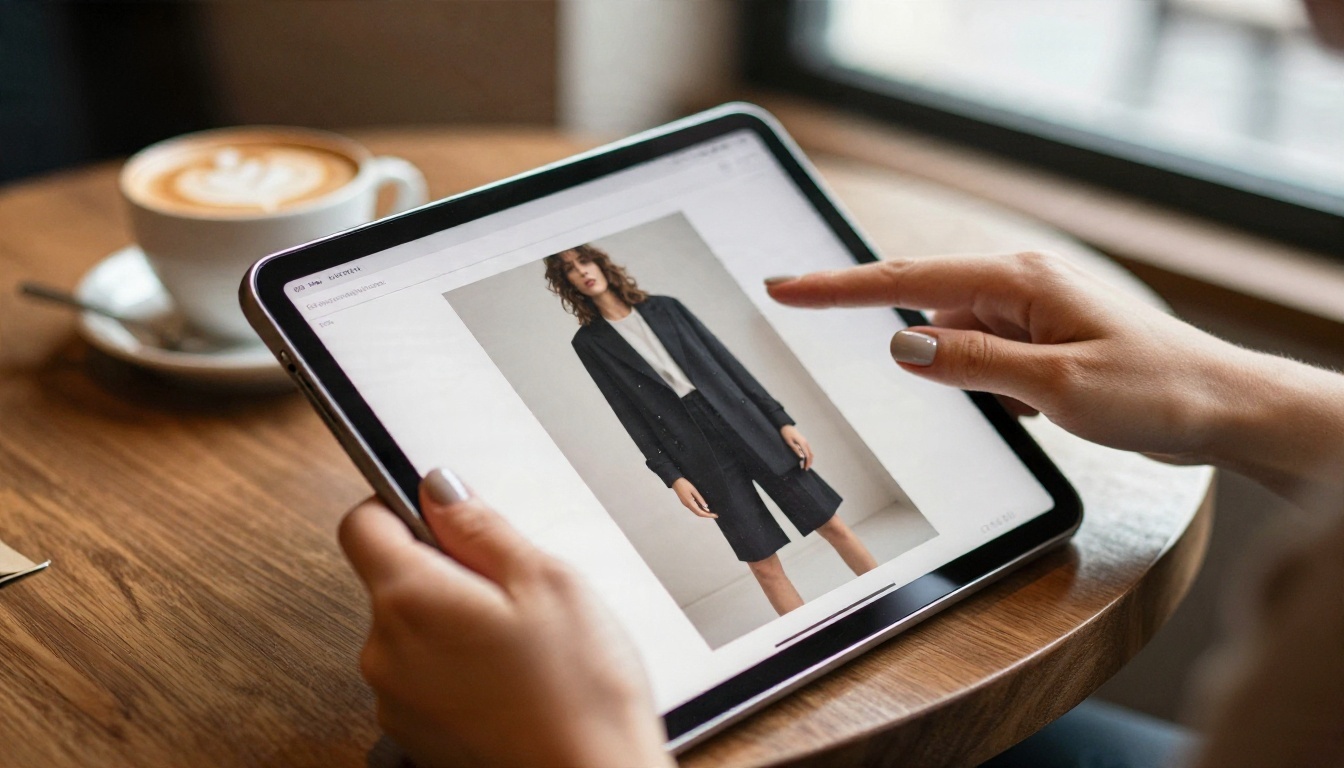
Different magazine types have slightly different needs, and Flipbooks AI has tools for each:
You can browse the whole tools directory if your format is not listed here.
Embedding on Your Website
A link is useful, but an embedded issue keeps readers on your own domain, next to your navigation, your newsletter signup, and your shop. The Embed Flipbook on Website tool is built for this.
Copy the Embed Code
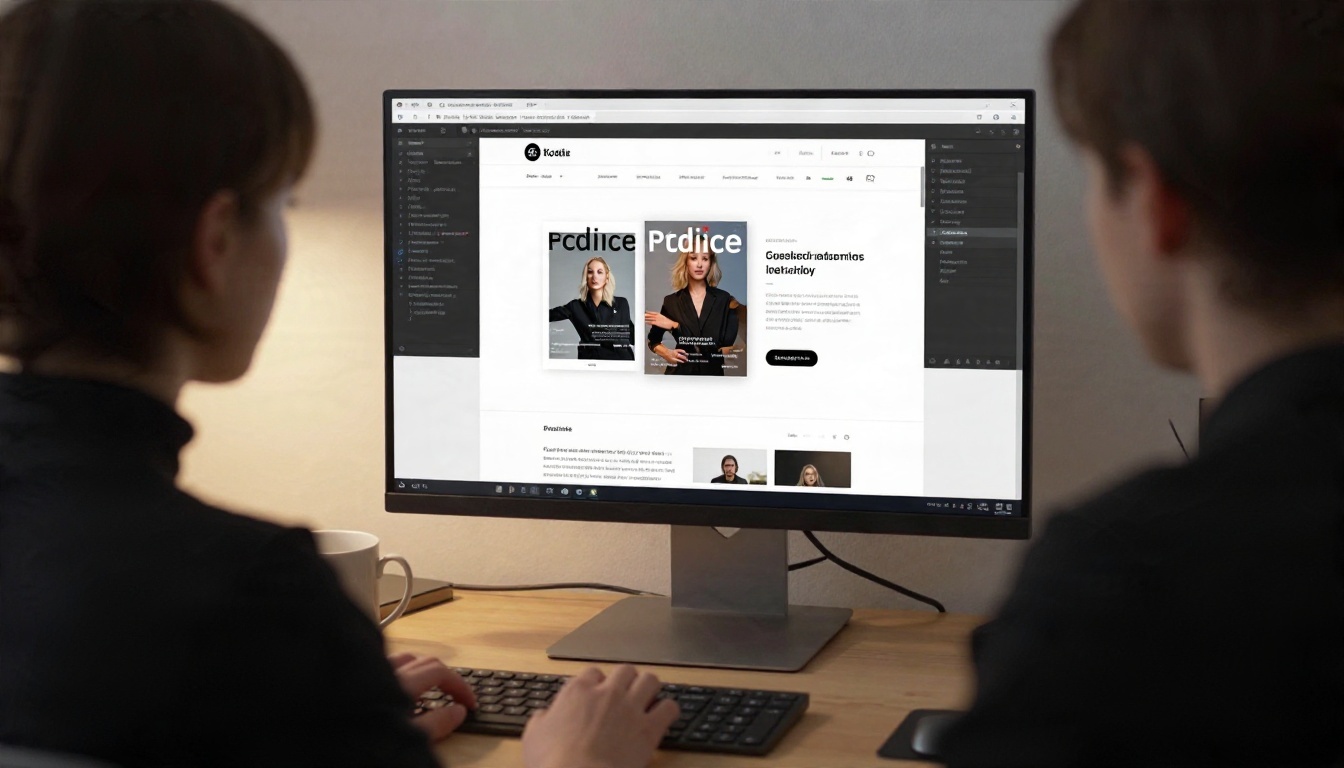
- Open your finished flipbook and choose the share or embed option.
- Copy the generated snippet. It is typically an iframe.
- Paste it into an HTML block on your page. Most site builders have a "custom HTML" or "embed" element.
- Publish the page and reload it to check the viewer loads.
A typical embed looks like a single iframe line with a source URL, a width, and a height. Do not edit the source URL. Change only the dimensions.
Size It for Every Screen
An embed that looks perfect on a laptop can be tiny on a phone. Use these rules of thumb:
| Placement | Suggested Width | Suggested Height |
|---|
| Full-width page section | 100% | 600 to 800 px |
| Blog post body | 100% of the column | 500 to 650 px |
| Sidebar teaser | 100% of the sidebar | 400 px |
💡 Pro tip: Set the width to 100% rather than a fixed pixel value. The viewer then scales with the container, which matters most on phones.
Keep the Page Fast
An embed loads content from another server, so treat it like any heavy element.
- Place it below the fold if the page also has a large hero image.
- Add a short intro paragraph above it. Search engines read your text, not the contents of the iframe.
- Use a descriptive heading such as "Read the Spring Issue Online" so the page ranks for what it is.
- Link to the standalone flipbook URL as well, as a fallback for readers whose browsers block embeds.
Sharing by Link
The link is the simplest thing you will ever publish, and it travels everywhere: email, chat apps, social posts, bio links, and printed QR codes.

One Link, Many Channels
Every flipbook gets its own direct URL. Use the same link in each channel so your numbers stay in one place.
| Channel | How to Use the Link | Tip |
|---|
| Email newsletter | Button linked to the issue | Use a cover thumbnail as the button image |
| Social posts | Post with the link in the caption or bio | Pin the post for the length of the issue |
| Messaging apps | Paste directly | Works well for client previews |
| Printed material | QR code pointing to the link | Test it on two phones before printing |
| Website menu | "Latest Issue" nav item | Update the target when you publish the next one |
Lock It When Needed
Not every issue is public. A subscriber edition, an internal magazine, or an early client proof should be restricted.
- Password protection limits access to people who have the password.
- Share the password in a separate message from the link.
- Change the password between issues so old subscribers do not keep access forever.
⚠️ Warning: A link without a password is public to anyone who has it. Treat it like a public webpage, and do not send unreleased content that way.
Let People Keep a Copy
Some readers want to read on a flight or in a place with a weak signal. Offline downloads let them save the issue, which is also useful for event programs and conference magazines where Wi-Fi is unreliable.
Track What Readers Do
Publishing is half the job. The other half is learning what people actually read, so the next issue is better.

Analytics That Matter
The Professional plan adds analytics and lead generation, so you can see more than a raw open count. Compare the plans to decide whether that is worth it for your title.
| Metric | What It Tells You | What to Change |
|---|
| Opens | How well the link is promoted | Improve your subject line or post |
| Time spent | Whether the issue holds attention | Shorten, or reorder features |
| Pages viewed | Where readers drop off | Move the strongest story earlier |
| Location and device | Who your audience really is | Adjust format and language |
Turn Readers Into Leads
If the magazine supports a business, use lead capture so readers can leave their details before opening or at a chosen page. A travel company, a furniture brand, or a local restaurant group can all use a magazine as a lead magnet rather than a plain brochure. For example, the Travel Guide Flipbook tool suits a destination magazine that doubles as a booking funnel.
Real Examples From Small Teams
Seeing the workflow in context helps. These are typical setups, not guarantees of results.

- Independent fashion zine: publishes quarterly, embeds each issue on its homepage, and shares the direct link on social posts. It uses the Interactive Lookbook Designer for photo-heavy spreads.
- Local business magazine: sends a password-protected link to paying members and keeps older issues in a public archive page.
- Photography collective: publishes a portfolio magazine and uses the Photography Portfolio tool to keep image quality high.
- Corporate communications team: turns the internal PDF into a branded issue and tracks which departments open it.

Mistakes to Avoid
Most publishing problems are small and fixable before launch.
Five Common Slip-Ups
- Uploading a huge, uncompressed PDF. It loads slowly and loses readers on mobile.
- Skipping the phone test. Many readers will arrive from a messaging app on a small screen.
- Changing the link between issues. Readers bookmark the old one. Keep a stable "latest issue" page and update the embed there.
- Forgetting a call to action. End the issue with a subscribe link, a shop link, or a contact page.
- Leaving an unreleased issue public. Use a password until the official publish date.
A Quick Pre-Launch List
- PDF compressed and fonts embedded
- Links inside the pages tested
- Branding applied, no stray watermark
- Embed tested on desktop and phone
- Password set where needed
- Share link ready for email, social, and QR
Publish Your First Issue Today
You do not need a developer, a print run, or an app to put a magazine in front of readers. You need a clean PDF, a platform that does not hide your work behind a watermark, and one link you can use everywhere.
Ready to see your own issue turn pages? Create your free account on Flipbooks AI and upload your first PDF. If you want unlimited issues, password protection, and analytics, compare the pricing plans and pick the one that matches your schedule. You can also browse all flipbook tools and templates to find the best fit for your next edition.



