A QR code on a table is only as good as the menu behind it and the sign that holds it. Get either wrong and guests wave down a server, squint at a tiny square, or land on a PDF that takes forever to load. This article gives you free QR code menu template designs, exact print sizes, and table sign ideas that work in real dining rooms. You will also see how to build the menu itself as a page-turning flipbook with Flipbooks AI, so the code points to something worth opening.
Paper menus get sticky, torn, and outdated the moment a price changes. A QR menu fixes all three problems with one printed square. Update the digital file, and every table shows the new version at once.
What Guests Expect Now
Most diners already scan codes for parking, boarding passes, and payments. They don't need a tutorial. What they do expect:
- A fast load. Under three seconds on mobile data, not hotel Wi-Fi.
- Readable text. No pinching and zooming to read a dessert list.
- Clear sections. Starters, mains, drinks, and allergens easy to find.
- A sign that explains itself. A short line like "Scan for menu" removes any doubt.
The Real Cost of Paper
Reprinting menus for a seasonal change can cost far more than a single acrylic stand that lasts for years. Add the time staff spend wiping, replacing, and counting menus, and the savings grow.
| Cost Item | Printed Menus | QR Code Menu |
|---|
| Price change | Reprint every copy | Edit one file |
| Seasonal rotation | New print run | Publish a new page |
| Damaged copies | Replace constantly | Replace one small sign |
| Language versions | Separate print per language | One link, several files |
| Allergen updates | Often delayed | Same day |
💡 Pro tip: Keep one or two laminated paper menus behind the bar. Some guests have no phone battery, and it costs almost nothing to be ready.
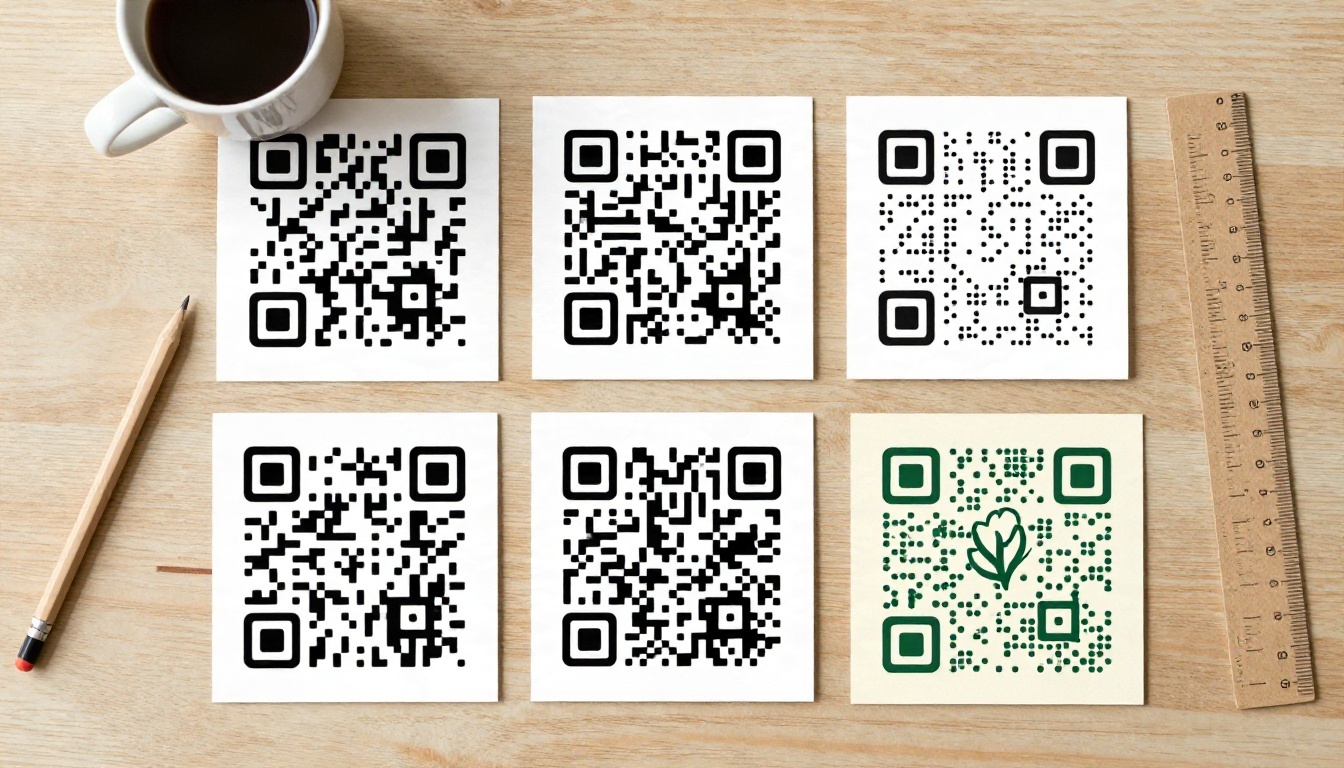
A good template does three jobs: it frames the code, it tells guests what to do, and it matches your brand. Below are four layouts you can recreate in any free design tool, then export as PDF or PNG for printing.
Minimal Black and White
The workhorse. A white square, a centered black QR code, and two words underneath: "Scan Menu". High contrast means it scans from a wide range of angles and in dim light. This layout suits modern bistros, coffee shops, and anywhere with a clean interior.
Rustic Kraft Paper
Use a warm brown kraft background with the QR code printed on a white or cream inner panel. Never print a code directly on dark kraft; the contrast drops and scanners struggle. Add a thin hand-drawn border and your logo above the code. Great for farm-to-table spots and bakeries.
Botanical Border
A cream card with a light green leaf border around the edge and the code centered inside a generous white margin. The decoration stays outside the code area. Perfect for brunch cafes, tea rooms, and spas.
Dark Mode for Bars
A charcoal card with a white code on dark can work, but only if the scanner supports inverted codes. Many phones do, though older models don't. The safer route: place a white rounded square on the dark card and print the black code on it.
| Template Style | Best For | Scan Reliability | Print Cost |
|---|
| Minimal black and white | Any venue | Excellent | Lowest |
| Rustic kraft | Cafes, bakeries | Very good with white panel | Low |
| Botanical border | Brunch, tea, spa | Excellent | Medium |
| Dark mode panel | Bars, lounges | Good with white panel | Medium |
⚠️ Warning: Never apply gradients, patterns, or photos behind the code itself. Decoration belongs around it, not under it.
The Right Size for Your QR Code
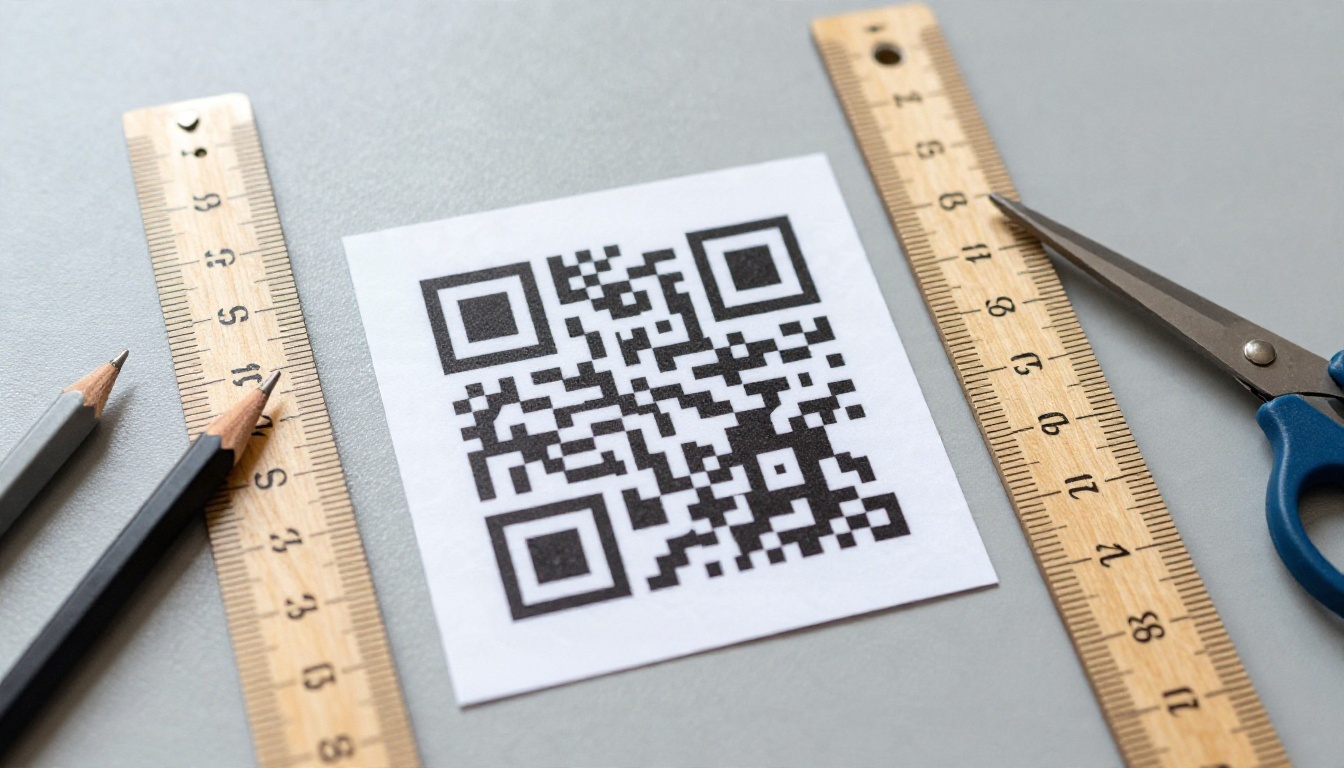
Size is where most templates fail. A code that looks elegant at 1.5 cm will frustrate guests holding phones at arm's length over a plate of food.
Minimum Print Sizes
A practical rule: the scanning distance should be about ten times the code width. If guests scan from 20 cm (8 in), the code should be at least 2 cm wide. Since table signs are scanned from a bit farther away and under mood lighting, go bigger than the minimum.
| Placement | Scan Distance | Recommended Code Size |
|---|
| Table tent or stand | 20 to 30 cm | 3 to 4 cm (1.2 to 1.6 in) |
| Coaster or sticker | 15 to 25 cm | 2.5 to 3 cm (1 to 1.2 in) |
| Window or door sign | 50 to 100 cm | 8 to 10 cm (3 to 4 in) |
| Wall poster | 1 to 2 m | 15 to 20 cm (6 to 8 in) |
| Outdoor patio sign | 30 to 50 cm | 5 to 6 cm (2 to 2.4 in) |
Contrast and Quiet Zone
Two details matter as much as size:
- Quiet zone. Leave a blank border around the code at least four modules wide (the little squares inside the code). Text or graphics touching the edge can break scanning.
- Contrast. Dark code on a light background is the safest. Avoid pastel colors, and test with the lowest screen brightness you can imagine a guest using.
The overall card size is flexible. Common choices are A6 (10.5 x 14.8 cm), 4 x 6 in, or a 10 cm square for compact tables.
✅ Best practice: Print one test copy, then scan it from every seat at a table with three different phones before ordering a full batch.
Table Sign Ideas That Get Scanned
The same code can sit on very different objects. The right choice depends on your table size, cleaning routine, and style.
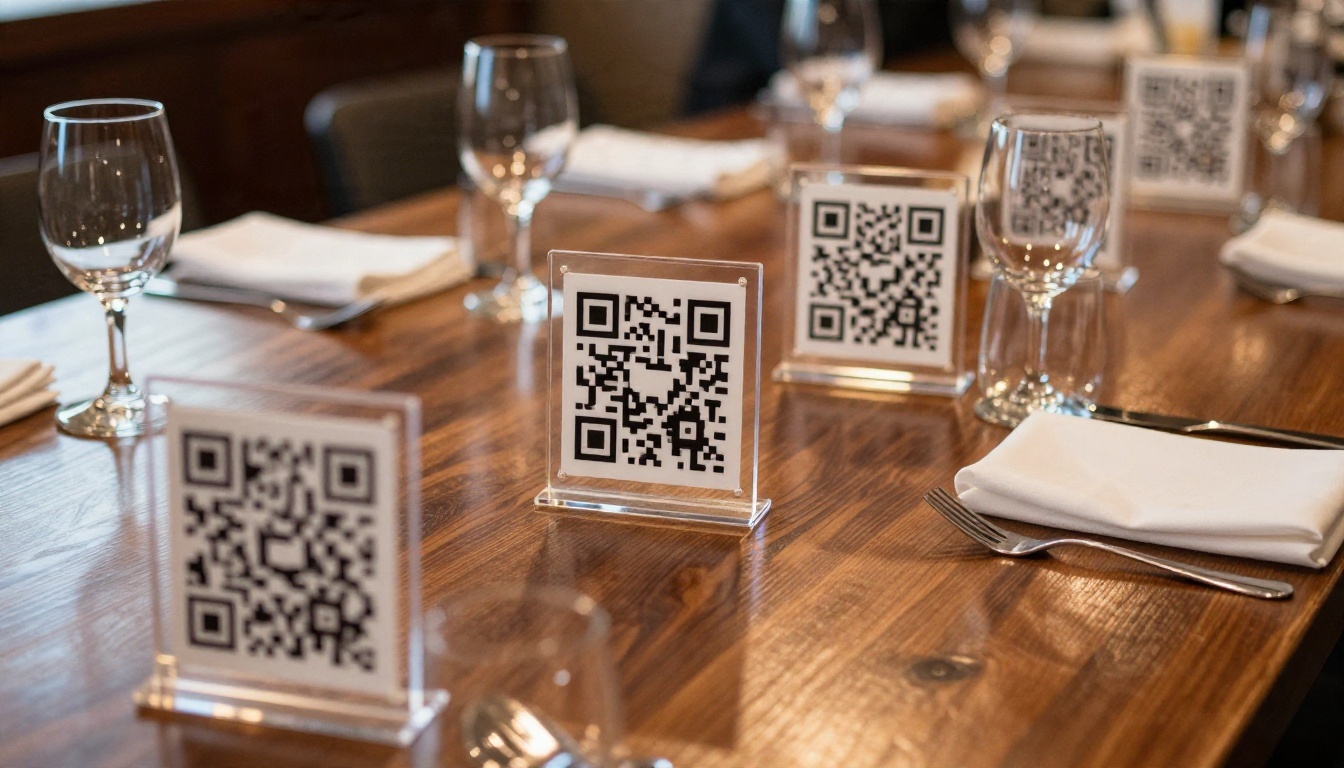
Acrylic Stands
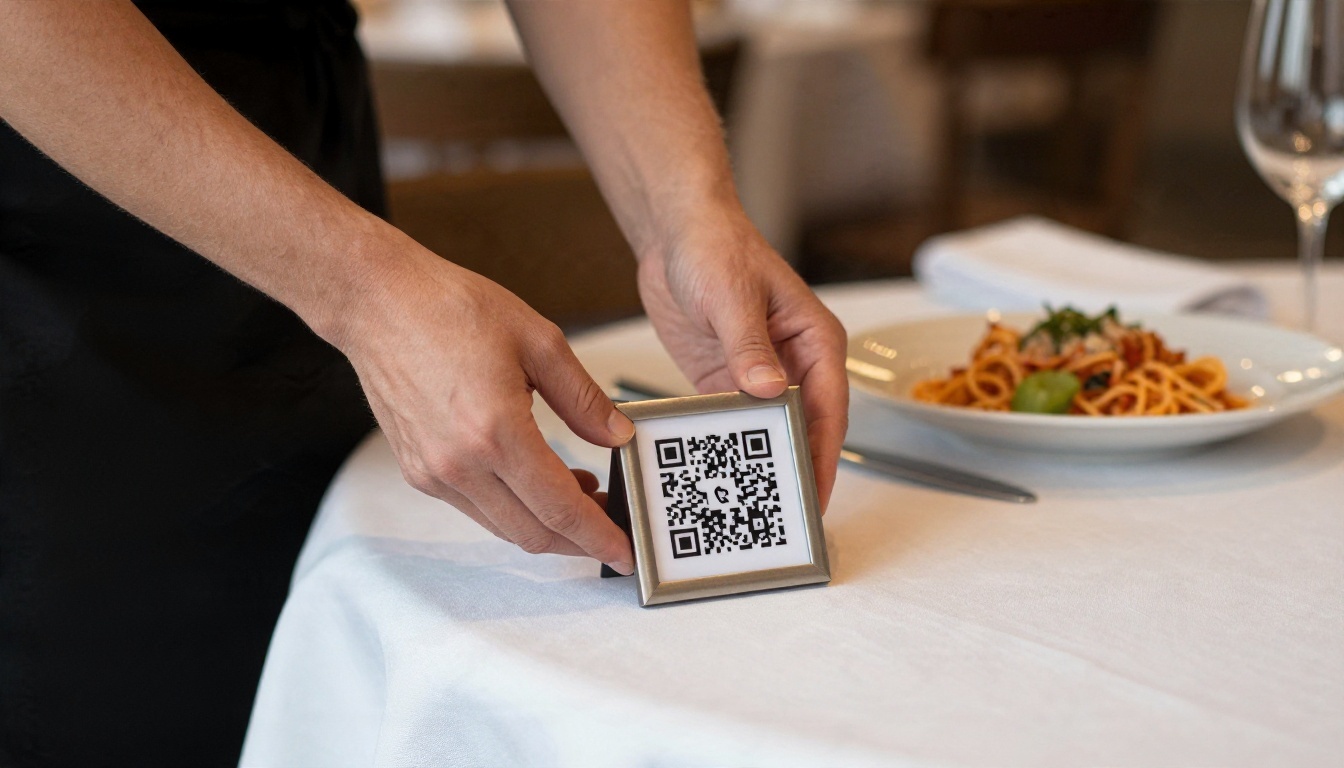
Clear acrylic stands are easy to wipe, hard to damage, and nearly invisible, which keeps the table tidy. Slide a printed card inside and swap it when your link or branding changes. Choose an anti-glare finish if your lighting is bright, because reflections can block the camera.
Table Tents
Folded cardstock triangles show two sides: one facing each side of the table. You can place a QR code on one face and a short seasonal message or wine pairing on the other. They are cheap and good for events, but replace them often.
Coasters and Stickers
A QR code printed on a coaster rides along with the drink and is naturally within reach. For a bar, this can be the main entry point to the cocktail list.
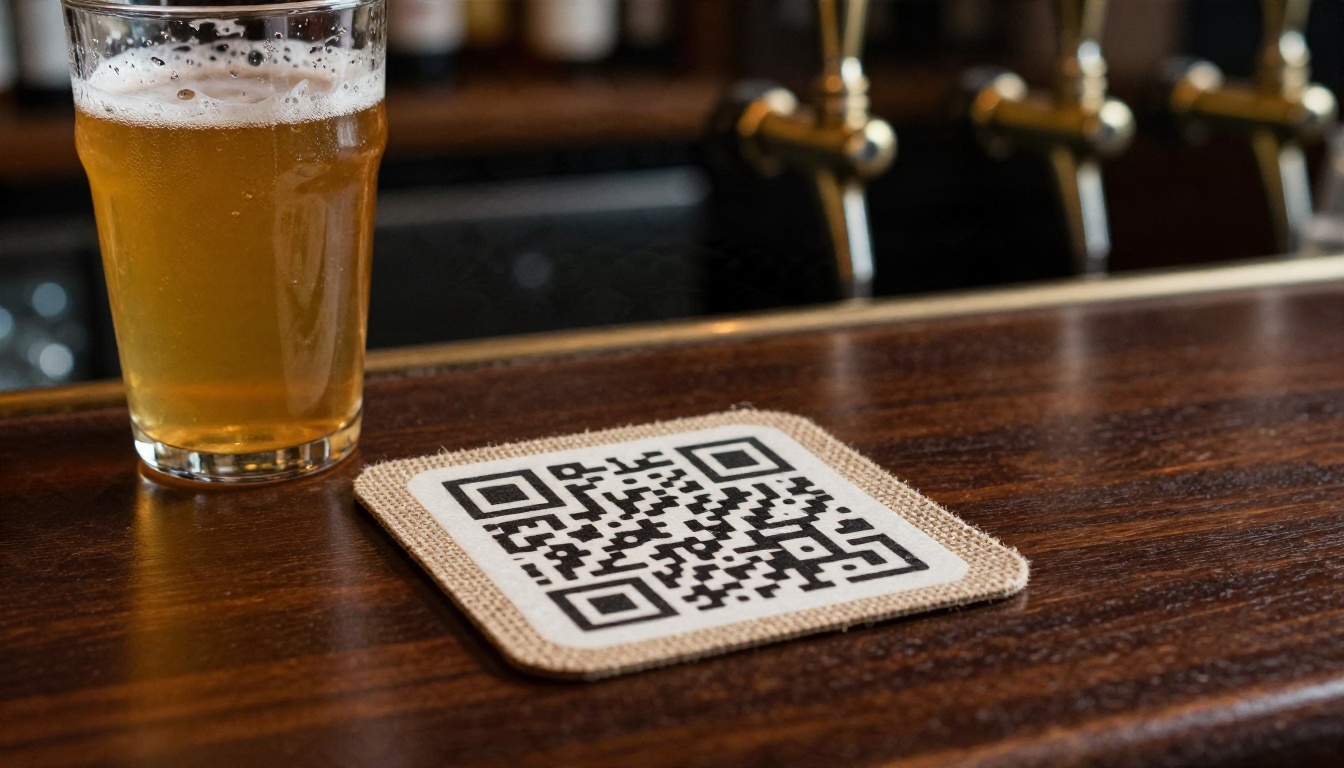
A word of caution: moisture and condensation smudge ink. Choose a waterproof or laminated finish, and keep the code at least 2.5 cm wide.
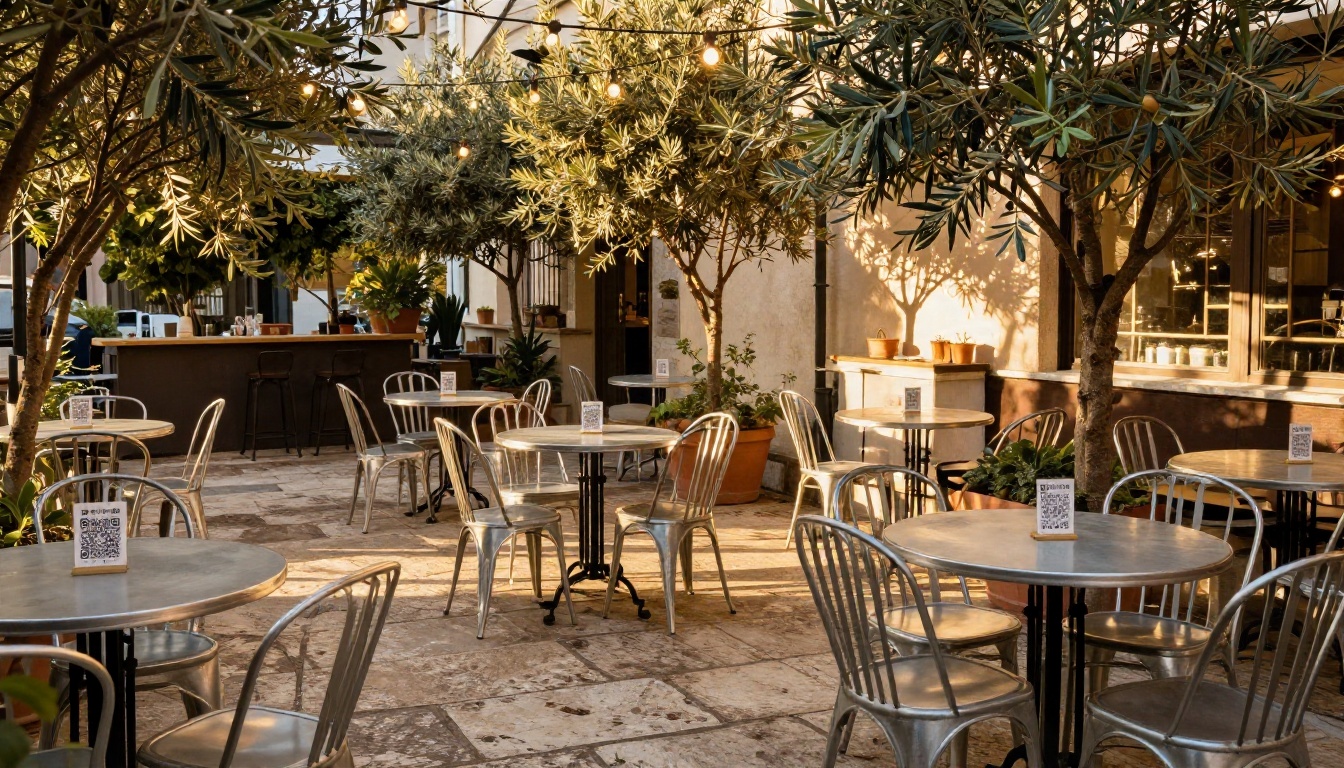
Patio and Outdoor Signs
Sunlight, wind, and rain are harsh. Use laminated or metal signs, weigh them down, and add a matte finish to cut glare. A sign fixed to the table with a small bracket will stay put when the breeze picks up.
| Sign Type | Durability | Looks | Cleaning | Best Setting |
|---|
| Acrylic stand | High | Sleek | Wipe clean | Restaurants, hotels |
| Table tent | Low | Casual | Replace | Events, pop-ups |
| Coaster | Medium | Playful | Replace weekly | Bars, pubs |
| Sticker on table | Medium | Subtle | Wipe | Cafes, food courts |
| Laminated card | Medium | Simple | Wipe | Outdoor, patio |
| Metal plaque | Very high | Premium | Wipe | Fine dining, terraces |
Add a Short Call to Action
A bare code does not tell guests what happens when they scan. Add a line:
- "Scan for today's menu"
- "Scan to see photos and allergens"
- "Scan to order and pay"
Short, friendly, and specific. Skip long paragraphs; nobody reads them on a table sign.
A QR code is just a doorway. What sits behind it matters. A flat PDF forces guests to pinch and scroll. A flipbook menu turns pages like a real menu, loads fast on mobile, and keeps your layout intact. Here is how to build one.
Step-by-Step Setup
- Get started. Go to Flipbooks AI and create an account.
- Prepare your menu. Design your menu pages in any tool you like and export them as a single PDF. Keep each page readable on a phone screen.
- Upload and convert. Use the Restaurant Menu Creator or the PDF to Flipbook Converter to turn the PDF into an interactive page-turning menu. If you prefer a layout built for this, try the Menu Flipbook Designer.
- Customize. Add your logo, brand colors, background, and page-turn effects. Embed a short video of a signature dish or an audio note if you like.
- Share. Copy the direct link, or use the embed option to place the menu on your website too.
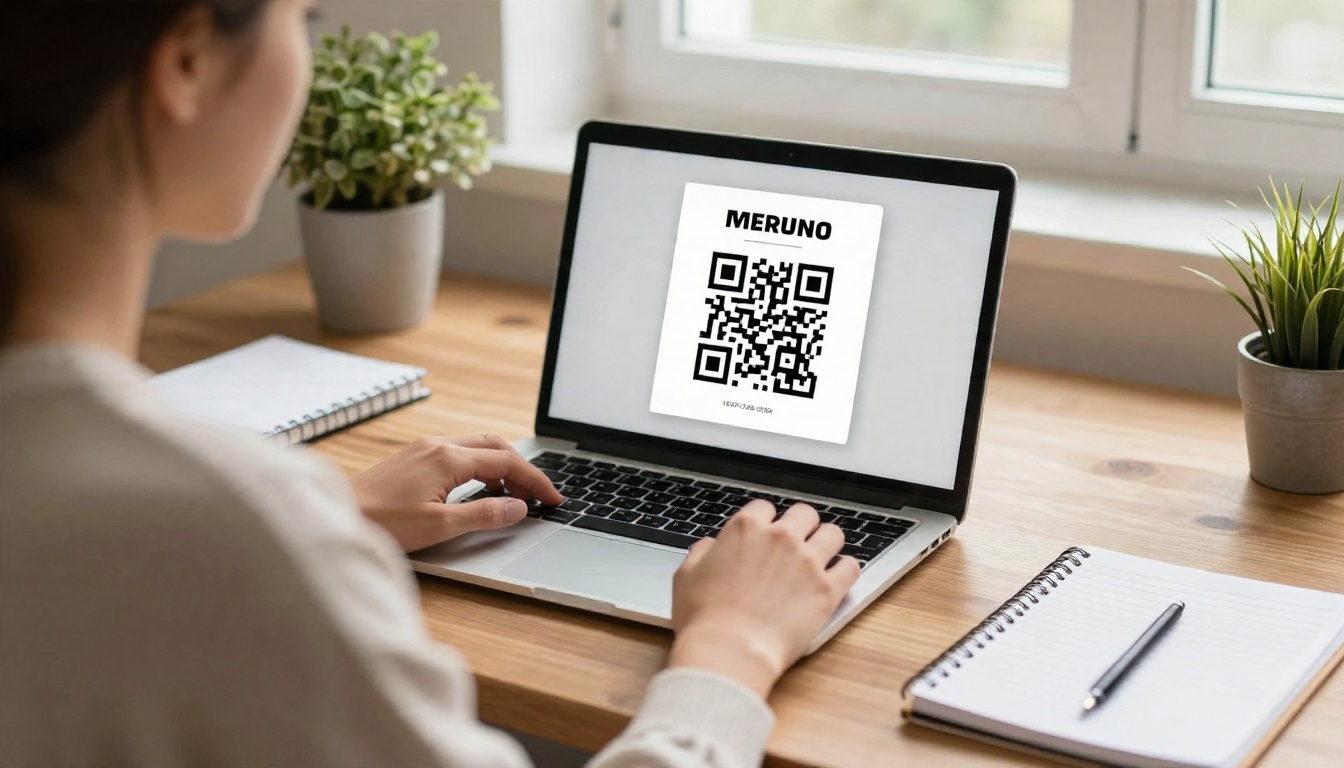
- Generate the QR code. Paste the flipbook link into any QR generator that supports static codes, download it as SVG or high-resolution PNG, and drop it into your chosen template.
- Print and test. Print a sample, scan from several phones, then order your full run.
Features Worth Using
- ✅ No watermarks, ever. Your menu looks like yours.
- ✅ Mobile-responsive design. Pages fit any phone without zooming.
- ✅ Custom branding. Match the template colors on your table signs.
- ✅ Password protection. Handy for private event menus or staff-only price lists.
- ✅ Offline downloads. Let guests save the menu for later.
- ✅ Analytics and lead generation on the Professional plan, so you can see which pages get viewed and collect emails for a newsletter.
Compare pricing plans to see which tier suits the number of venues and menus you run.
| Need | What to Use |
|---|
| One restaurant, one menu | Standard plan, one flipbook |
| Several seasonal or language menus | Unlimited flipbooks, Standard plan and above |
| Track views and collect emails | Professional plan with analytics |
| Spa or wellness list | Spa & Wellness Menu |
| Price list for a bar or shop | Digital Price List Generator |
💡 Pro tip: Because the QR code points to a link rather than a file, you can replace the menu inside your flipbook without reprinting a single table sign. Set it up once and keep the printed signs for years.
3 Mistakes That Kill Scans
Even a lovely template fails if you slip on one of these.
- Printing the code too small. Anything under 2 cm becomes a gamble, especially on glossy paper.
- Linking to a heavy PDF. A 40 MB file on cellular data means guests give up and ask for a paper menu. Compress images and use a flipbook that loads page by page.
- Forgetting to test. Colors that look fine on a monitor can lose contrast on paper. Test every sign type on both iPhone and Android.
A few smaller ones worth fixing:
- Using a dynamic code from a free service that expires after a trial. Your signs suddenly lead nowhere.
- Placing the sign where the candle, vase, or condiment bottle blocks it.
- Mixing too many fonts and colors around the code.
⚠️ Warning: If you use a free QR generator, confirm the code does not expire. A broken code on fifty tables is an expensive surprise.
A Quick Rollout Plan
You can go from idea to printed signs in a single week. Here is a simple schedule.
| Day | Task |
|---|
| Monday | Choose a template style and finalize your menu PDF |
| Tuesday | Build the flipbook menu and test the link on two phones |
| Wednesday | Generate the QR code and drop it into the template |
| Thursday | Print a test batch and scan at real tables |
| Friday | Adjust size or contrast, then order the full run |
| Weekend | Train staff to say "Scan the code, or I can bring a paper menu" |
Real-World Examples
- A neighborhood cafe uses a minimal black and white table tent. When the barista changes the pastry list, the flipbook updates in minutes and the printed tent stays the same.
- A bar places a laminated coaster code on every drink. Guests scan while waiting and browse the cocktail pages before the next round.
- A hotel restaurant runs several flipbooks for breakfast, dinner, and room service, each with its own acrylic stand and password for guest-only sections.
- A patio restaurant uses metal plaques with a matte finish so sunlight never washes out the code.
Train Your Staff
Even a perfect sign needs a human backup. Teach servers three things: how to point out the sign, how to help someone who struggles to scan, and where the paper backups live. A friendly sentence at the table does more than any design tweak.
Pick one of the template styles above, size the code for the way guests will actually scan it, and choose a sign material that fits your venue. Then build the menu worth scanning.
A clean template, a code that scans on the first try, and a menu that loads instantly: that is all your guests want from the table.



