You designed a beautiful brochure in Canva. Now you want it to behave like a real booklet: pages that turn, a link anyone can open on a phone, and no ugly watermark in the corner. Somewhere in that search you probably landed on Simplebooklet, wondered whether it plays nicely with Canva, and started comparing free options. This article sorts out the whole chain, from design to PDF to flipbook to sharing, and shows where a dedicated tool like Flipbooks AI slots in when the free routes run out of road.
Short version: Canva is a design tool, Simplebooklet is a web booklet builder, and a flipbook maker turns finished PDFs into page-turning publications. They overlap, but they are not the same thing. Once you see which job each one does, the free options make a lot more sense.
What This Search Really Means
People typing "Simplebooklet Flip Canva" are usually trying to answer one of three questions. Can I bring a Canva design into Simplebooklet? Is there a free way to make a flipbook from Canva? And how do I share the result online without paying for a plan on day one?
Those are practical, transactional questions. Nobody wants theory. They want a workable pipeline they can finish this afternoon.
Simplebooklet in one minute
Simplebooklet is a browser-based tool for building interactive booklets that open as a web page. Its strength is a mobile-friendly, scroll-and-tap experience with built-in sharing. Think of it as a small microsite shaped like a booklet, rather than a book with a visible page curl. Plans, limits and branding rules change over time, so check the current pricing page before you commit to anything.
Where Canva fits
Canva is where most people design. Brochures, lookbooks, menus, catalogs, proposals: all of them start as Canva documents. Canva can share a design as a view-only link and can download it as a PDF. What it does not do natively is produce a realistic page-flip effect, which is why third-party apps and flipbook platforms exist.
Where flipbooks come in
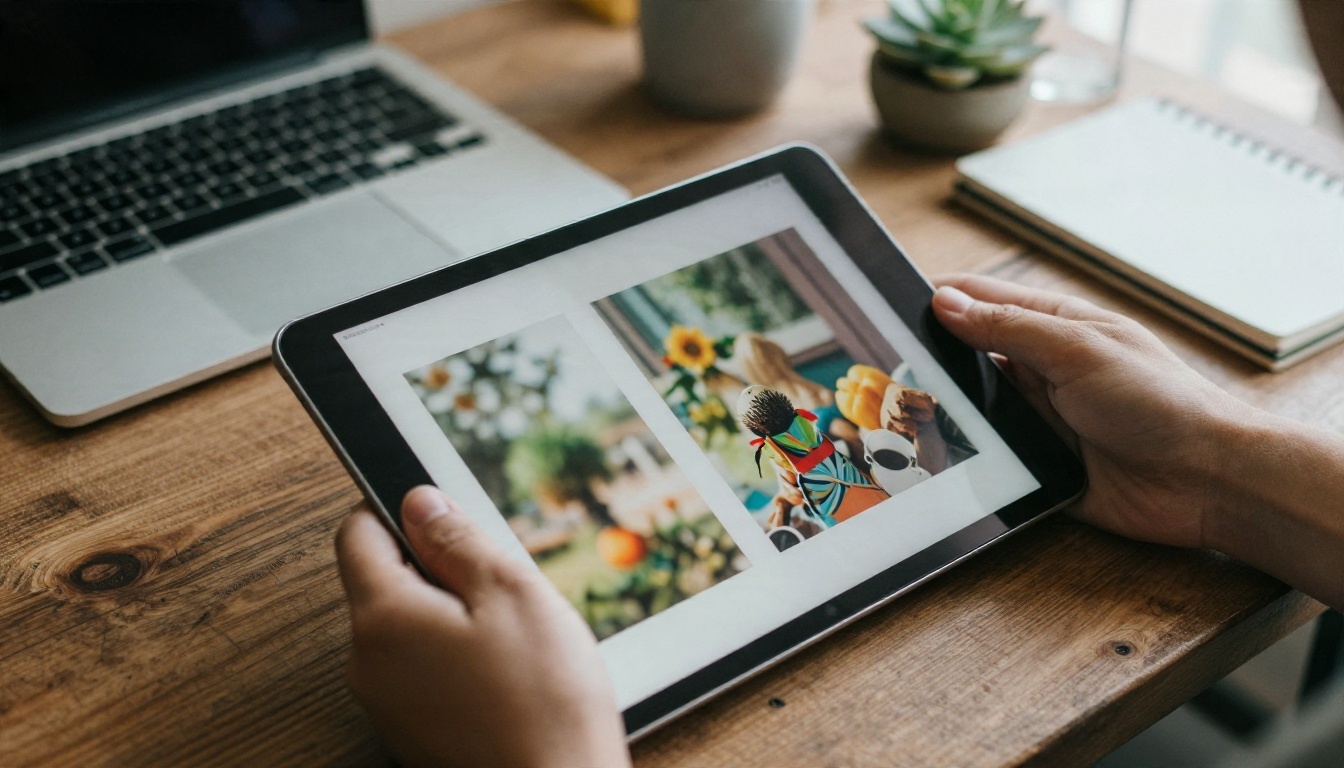
A flipbook takes a fixed-layout PDF and presents it with page-turn animation, zoom, and a shareable URL. The layout you built in Canva stays pixel-perfect, because the flipbook is rendered from the PDF rather than rebuilt block by block. That is the big difference from a booklet builder, where you often recreate content inside the tool.
Free Options Compared Side by Side
Let's put the realistic routes on one table. The right column matters most: it tells you what you give up by staying free.
| Route | Best for | Page-flip effect | Typical free-tier tradeoff |
|---|
| Simplebooklet free plan | Quick mobile booklets, simple sharing | Scroll or tap style, not a page curl | Limited booklets and platform branding |
| Canva share link | Fast view-only previews | None, scrolling pages | No flip, limited reader controls |
| Canva PDF + free flipbook tool | Keeping your exact layout | Yes | Often a watermark, page limits or expiry |
| Canva PDF + Flipbooks AI | Branded, shareable flipbooks | Yes | Paid plans unlock the full feature set |
💡 Pro tip: Before you build anything, open the pricing page of any tool you are considering and look for three words: watermark, expiry, page limit. Those three decide whether a free plan is usable or just a demo.
What "free" usually means
Free almost never means unlimited. It usually means one of four things: a trial period, a cap on the number of publications, a cap on pages or file size, or visible branding on every page. None of these is dishonest, but each one can break a client project at the worst moment.
Watermarks and limits to watch
A watermark on a restaurant menu or a real estate brochure looks careless. Expiring links are worse: a QR code printed on a poster that stops working after 30 days is a real problem. When you compare tools, ask what happens to a published link after the free period ends.
Exporting a Canva Design as a PDF
Everything downstream depends on this step. A sloppy PDF produces a blurry flipbook, no matter which platform you use.
The settings that matter
In Canva, use the Share button, choose Download, and select PDF. Then check these options:
- File type: PDF Standard for flipbooks and screens. Choose PDF Print only if you also plan to print it.
- Pages: Select all pages, or pick a range if you are testing.
- Flatten PDF: Leave it off if you want clickable links to survive. Turn it on if you only need a static document.
- Crop marks and bleed: Leave them off for screen use. They will show up as odd borders in a flipbook.
- Page order: Check that the cover is page one. Flipbooks treat page one as the front cover.
⚠️ Warning: Flattening a PDF removes live hyperlinks. If your brochure has buttons for booking or buying, keep Flatten off and test the links after conversion.
Fixing common export problems
| Problem | Likely cause | Quick fix |
|---|
| Blurry images | Low-resolution uploads | Replace with originals before export |
| Fonts look different | Missing or custom font | Use fonts Canva embeds, or outline text |
| File is too large | Many full-bleed photos | Compress images or export PDF Standard |
| Links do not work | PDF was flattened | Re-export with Flatten off |
| Spreads look wrong | Single pages exported as spreads | Design single pages, then export in order |
How to Create a Flipbook with Flipbooks AI
If your goal is a realistic page turn and a clean share link, this is the shortest path from a Canva PDF. The same steps work for catalogs, lookbooks, menus and reports.
Step 1: Create your account
Head to Flipbooks AI and sign in. You can look at the pricing plans at any point to see what each tier includes. Nothing you publish carries a Flipbooks AI watermark.
Step 2: Upload and convert
Open the PDF to Flipbook Converter and drop in the PDF you exported from Canva. Conversion takes moments for most files. Each PDF page becomes a flipbook page, so your layout, typography and images stay exactly as designed.
Here is a numbered checklist for the upload:
- Export your Canva design as PDF Standard.
- Upload the file in the converter.
- Wait for the page preview to finish rendering.
- Flip through every page on desktop and on your phone.
- Fix anything odd in Canva and re-upload. It is faster than patching it later.
Step 3: Customize the look
Once the flipbook opens, you can adjust the reader experience:
- Branding: Add your logo and pick background colors that match your brand.
- Page effects: Choose how pages turn and how the book rests on screen.
- Multimedia: Embed video and audio so a product page can actually play a demo.
- Mobile layout: The reader is responsive, so a single page fits a phone screen cleanly.
✅ Best practice: Keep your background color close to your cover color. The flipbook feels more like a physical object when the edges blend into the page.
Step 4: Share and protect it
You have several ways to publish:
- Direct link: Paste it into email, chat or social bios.
- Embed code: Use the Embed Flipbook on Website tool to place it inside any web page.
- Password protection: Lock private material such as client proposals or internal manuals.
- Offline download: Let readers save a copy for places with weak signal.
Step 5: Track what readers do
On the Professional plan, you get analytics and lead generation. You can see which pages hold attention and capture contact details before a reader opens the book. See what the Professional plan includes before you decide.

Sharing Online: Links, Embeds and QR Codes
Publishing is only half the job. How people reach your flipbook decides whether anyone reads it.
| Sharing method | Setup effort | Best use | Watch out for |
|---|
| Direct link | Very low | Email, DMs, social bios | Link can be forwarded freely |
| Website embed | Low | Landing pages, blogs, product pages | Page speed if you embed several |
| QR code | Low | Print, packaging, posters, table cards | Link must stay live for years |
| Password link | Low | Client proposals, internal manuals | Share the password separately |
| Offline download | None | Trade shows, travel | No live updates after download |
Why a direct link wins most of the time
A direct link is the most flexible format. It works inside email, text messages, Instagram bios and calendar invites. Test it on a phone first, because most readers will arrive from one.
Embedding without breaking your page
When you embed a flipbook, use a width that fits your content column and leave room for height. A flipbook that is cramped inside a narrow box defeats the point. If you need a hand with the placement, the embed tool page walks through the code.
💡 Pro tip: Put one embedded flipbook high on the page, not three scattered through it. Readers tend to engage with the first one and ignore the rest.
Real Scenarios: Which Route Fits
Different jobs want different tools. Here are four situations I see constantly, and what I would pick for each.
A café owner with a seasonal menu
A café can design a menu in Canva, export a PDF, and turn it into a flipbook with the Restaurant Menu Creator. Print the QR code on table cards. When prices change, upload a new PDF instead of reprinting everything.
A real estate agent with listing brochures
Agents need polished brochures and trackable leads. The Real Estate Brochure Creator handles the format, and analytics show which listings people actually open. A free watermarked demo will not impress a seller.
A freelancer with a portfolio
Designers and photographers care about how images look. A fixed-layout PDF converted with the Portfolio Flipbook Builder keeps full-bleed photography crisp. A scrolling booklet can work too, but it will reshape your layout.
A small shop with a changing catalog
Product ranges move quickly. The Digital Catalog Maker lets you republish an updated PDF while keeping the same link in your marketing.
| Scenario | Fast free test | Better long-term route |
|---|
| Café menu | Canva share link | PDF to flipbook with QR code |
| Real estate brochure | Simplebooklet free booklet | Flipbook with analytics and lead capture |
| Portfolio | Canva PDF to free flipbook | Branded flipbook with custom colors |
| Product catalog | Simplebooklet for a mobile page | Flipbook with embeds and updates |
Common Mistakes to Avoid
Most failed projects trip on the same handful of things. Here are the ones worth watching for.
Treating a booklet builder like a PDF viewer
If your layout matters, rebuilding it inside a booklet tool will change it. Fonts shift, spacing moves, and images crop differently. When fidelity matters, convert the PDF instead of rebuilding.
Skipping the phone test
Over half of readers will open your link on a phone. Check zoom, text size and page turns on a real device before you share the link anywhere.
Ignoring link longevity
Printed QR codes outlive almost every digital tool decision. Choose a platform you can still pay for in a year, and avoid free tiers that expire links.
Forgetting file size
A 150 MB PDF will load slowly for anyone on mobile data. Compress photographs before export, and keep your flipbook under a size that opens in a few seconds.
⚠️ Warning: Never publish a draft link to a client without opening it in a private browser window first. It is the easiest way to catch permission mistakes.
Pick Your Next Step
Here is a simple decision path:
- Need a quick mobile page and can live with branding? Try a free Simplebooklet booklet.
- Need a quick internal preview? Use a Canva view-only link.
- Need a real page turn, your exact layout, and no watermark? Export a PDF from Canva and convert it.
Ready to try it? Create your account on Flipbooks AI and convert your first Canva PDF in minutes. Browse all flipbook tools to find a template that matches your project, or compare pricing plans when you are ready for analytics, lead capture and unlimited publications.



