Every photo collection tells a story. The problem is that most photo collections never get told properly. They sit in folders on hard drives that nobody opens, or they get sent as chaotic attachment dumps over messaging apps, stripped of any order or context. Flipbooks AI changes that by giving your photos a format that is both beautiful to experience and effortless to share: a digital flipbook with real page-turn interaction that works in any browser, on any device, with a single shareable link.
This is not a slideshow. It is not a PDF attachment. It is a book your photos can actually live inside.
Whether you have 30 photos from a weekend trip or 200 shots from a decade of family milestones, the process of turning them into a shareable flipbook takes under fifteen minutes and requires no design skills. Here is exactly how to do it, and why the format makes such a visible difference.
Why Static Albums Miss the Point
The printed album problem
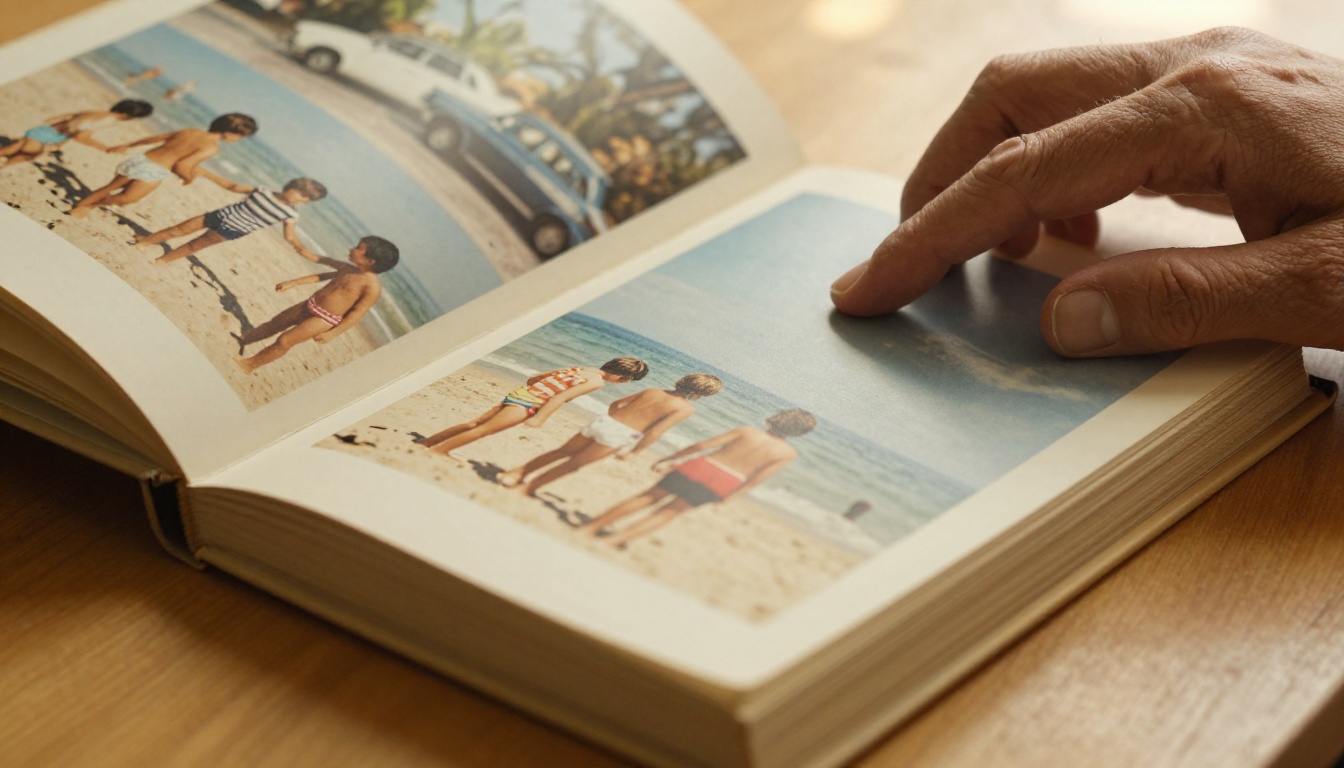
Printed photo books are beautiful objects. But they are also physically trapped. One person can hold them at a time. They cannot be shared across cities. They fade. They get stored in closets. When family members who live three time zones away ask to see the reunion photos, the best most people can do is send a chaotic mix of phone snapshots over WhatsApp, in varying quality, with no sequence and no story.
The photos are there. The intention is there. The format is the failure point.
What digital folders do wrong
Cloud storage solved the access problem but introduced a new one: browsing a folder of 200 raw image files is an unpleasant experience. There is no structure, no sequence, no narrative. It feels like sorting through evidence, not reliving a memory. People click through three photos and close the tab.
Photo collections need a format that delivers a beginning, a middle, and an end. Something that respects the story inside the images rather than treating them as a pile of data.
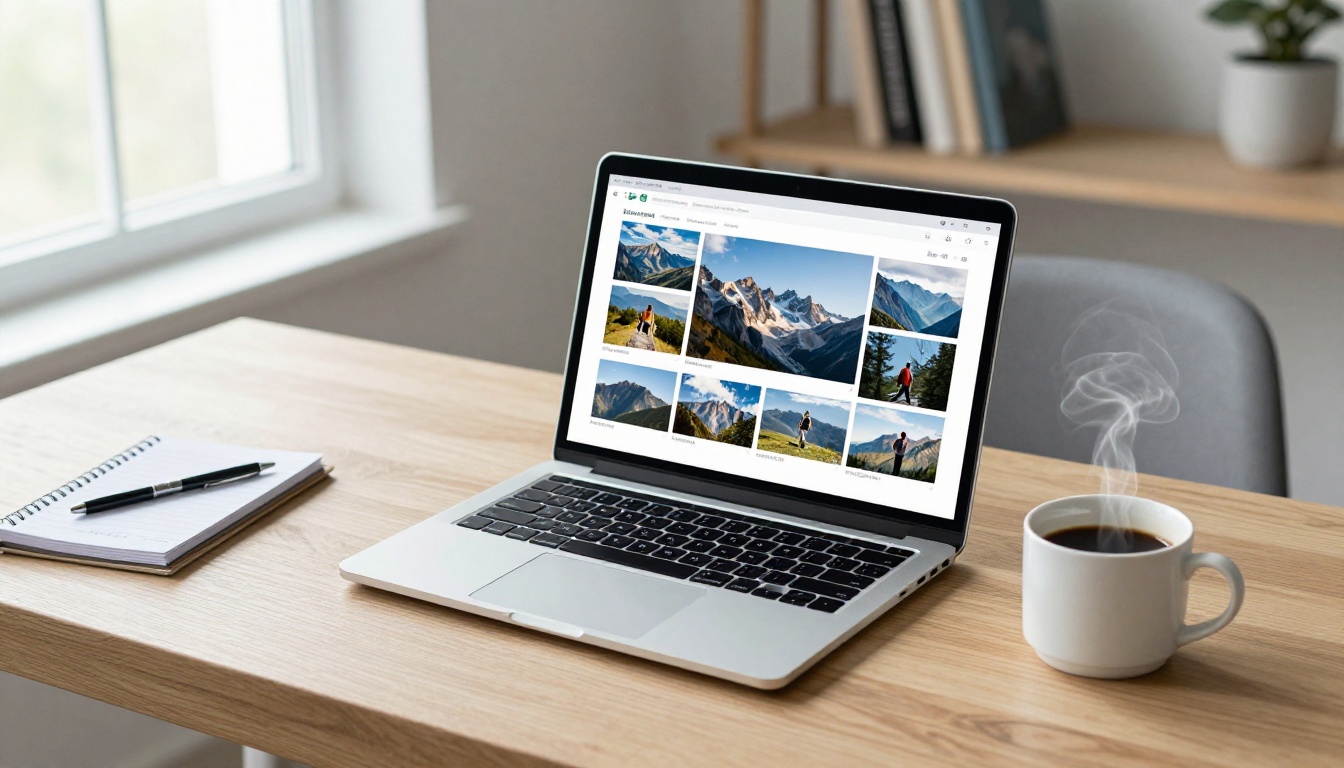
A digital flipbook is an interactive web experience. Your photos become pages in a book. The viewer clicks or swipes to turn pages, and the page-curl animation creates a reading rhythm that slows people down in the best possible way. They move through your photos intentionally, one spread at a time.
Why the page-turn effect actually matters
The page-turn interaction creates narrative pacing. Scrolling is passive. Turning a page is active. That small physical gesture, even when done on a touchscreen, changes how people engage with what they are looking at. They pause. They go back. They share a specific page.
Compared to a slideshow that auto-advances, a flipbook gives the viewer full control. Compared to a folder of images, it gives the viewer structure. That combination is why people actually finish reading flipbooks in a way they never finish browsing image folders.
A link becomes a lasting keepsake
Once your photo flipbook is live on Flipbooks AI, it has a permanent URL. That link works three years from now on devices that have not been invented yet. You can put it in an email, a family group chat, a holiday card, a wedding website, or directly into a social media post. Anyone who clicks it sees the flipbook immediately, no account required, no app to download.
💡 Pro tip: Save your flipbook link somewhere permanent, like a notes app or a shared family document. A flipbook is a digital heirloom if you treat it like one.
How to Build Your Photo Flipbook
The full process from raw photos to shareable link takes under fifteen minutes. These steps will get you there faster and with a better result.
Step 1: Edit and order your collection first
The single biggest mistake people make is uploading everything. More photos do not mean a better flipbook. They mean a longer, less focused one.
Before you touch any tool:
- Decide the scope: one event, one trip, one year, or one theme.
- Cut ruthlessly: Keep the 20-80 best photos. Delete duplicates and blurry shots.
- Arrange in sequence: Chronological works for events. Thematic works for portfolios.
- Name files numerically: 001.jpg, 002.jpg, 003.jpg so they compile in the right order.
Five minutes of curation here saves you from publishing a flipbook that loses people halfway through.
Step 2: Compile photos into a PDF
Flipbooks AI uses the PDF format for uploads. To compile your ordered photos:
- Open Canva, Google Slides, Adobe Express, or PowerPoint.
- Set the page size to 16:9 (1920x1080) for landscape, or 4:3 for a more traditional album look.
- Drop one photo per slide, in sequence.
- Export as PDF at 150-200 DPI.
For a 50-photo collection, this takes about four minutes in Canva using the single-image-per-page template.
✅ Best practice: Export at 150 DPI for personal sharing. Use 300 DPI for professional portfolios or client work where image quality is the priority.
Step 3: Upload to Flipbooks AI
Use the PDF to Flipbook Converter. The upload process:
- Drag and drop your PDF onto the upload area.
- The platform processes it automatically, typically under 60 seconds for most collections.
- A live preview appears. Your flipbook is already functional.
- Copy the link. You can share it right now.
No waiting for approval. No manual review. It is live the moment processing completes.
Step 4: Customize before sharing
Before you send the link anywhere, spend two minutes on presentation:
- Background: Dark backgrounds make photos pop visually. Light backgrounds give a cleaner, more printed-book feel.
- Page transitions: The soft page-curl is the most immersive option for photo albums.
- Opening title page: Add a simple text title as your first slide. "Summer 2024" or "Maria and James Wedding" gives viewers immediate context before they start turning pages.
- Branding: If this is for a client or a professional use, add your logo or studio name.
For photo-specific templates, the Photography Portfolio and Wedding Album Flipbook tools give you pre-built layouts designed for image-heavy content.

Sharing Options That Fit Each Situation
Not every photo collection needs the same sharing approach. Here is what works in each context.
Direct link for most situations
Copy and paste the URL anywhere. Works in every messaging app, email client, and social platform. The recipient opens it in their browser without any account or app. This is the default for personal sharing.
Embed on websites and blogs
Use the embed code from Embed Flipbook on Website to place the flipbook directly into a webpage. The viewer sees it inline without leaving your site. This works well for photography blogs, personal sites, and wedding websites.
Password protection for private content
For family-only albums, client previews, or anything with children's photos, password protection keeps the content private. Only people with the password can view it. Available on Standard plan and above, with no watermarks ever.
⚠️ Important: An obscure link is not privacy. If you are sharing photos of a private event, children, or a paying client's work, use password protection. It takes three seconds to set up and actually protects the content.
Analytics for professional photographers
The Professional plan adds viewer analytics: which pages people spent the most time on, total views, and unique visitor counts. This tells you which images resonated most and helps you build stronger client presentations over time. See all features on the pricing page.

Photo Collections That Work as Flipbooks
Some collections are naturally suited to this format. Others benefit from it in less obvious ways.
Family milestones
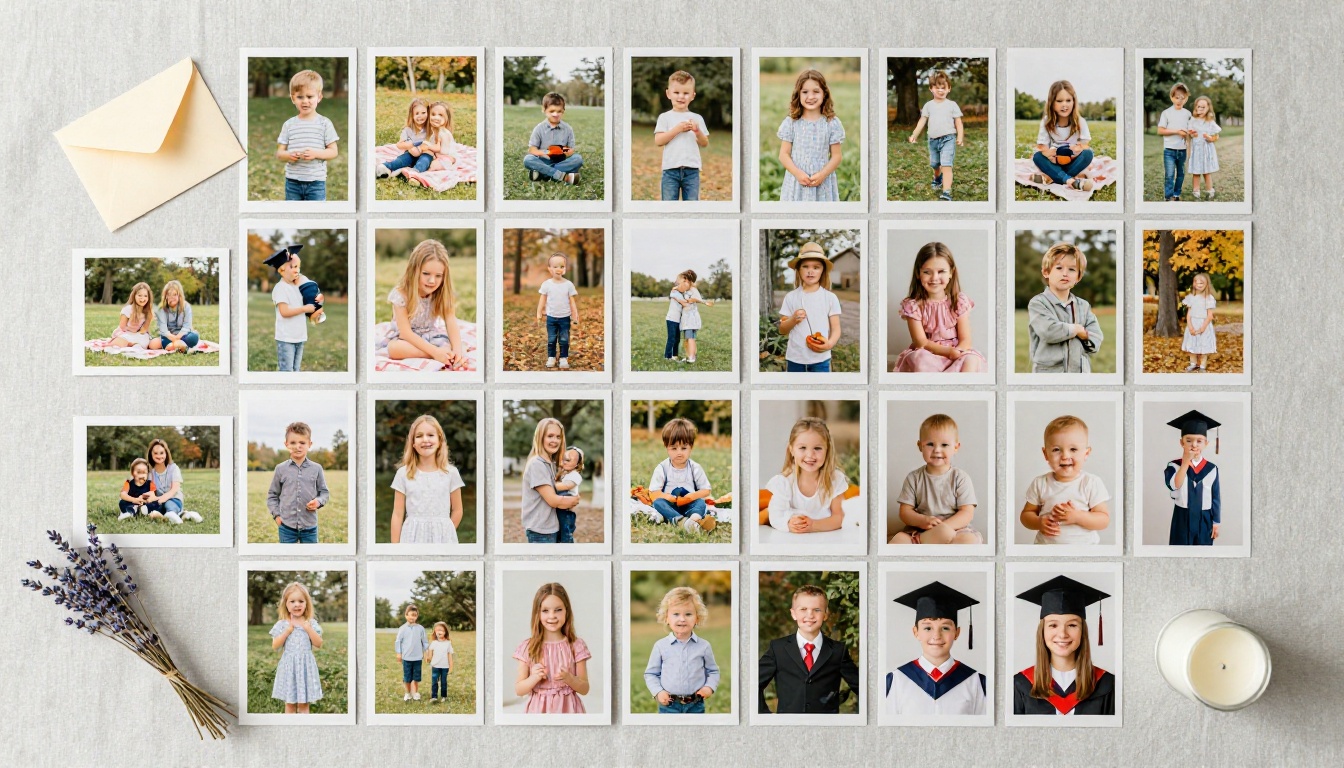
Reunions, birthdays, holidays, and anniversaries. These are the collections that most deserve a lasting format. A flipbook link in a family group chat becomes something people revisit for years. Unlike a shared album on social media that gets buried by the algorithm, a direct link is permanent and always accessible.
Wedding and event photography
Photographers and couples both benefit here. A flipbook works as a digital preview album, shareable within hours of the event. It reaches everyone who attended and everyone who did not. The Wedding Album Flipbook tool has layouts built specifically for this type of content.
Travel collections
A trip organized as a flipbook reads like a personal travel magazine. Arranged by day or by destination, the page-turn rhythm gives it a chapter feeling that no scrolling gallery can replicate.
Professional photography portfolios
Sending a flipbook portfolio to a client or creative director is a stronger move than sending a PDF or a gallery link. It is interactive, it looks considered, and the Digital Portfolio Creator provides templates that present work at a professional level.
Plan Comparison: What You Actually Get
| Feature | Free | Standard | Professional |
|---|
| Number of flipbooks | 1 | Unlimited | Unlimited |
| Watermarks | Yes | No | No |
| Password protection | No | Yes | Yes |
| Custom branding | No | Yes | Yes |
| Embed on websites | No | Yes | Yes |
| Video and audio embeds | No | Yes | Yes |
| Viewer analytics | No | No | Yes |
| Lead generation forms | No | No | Yes |
| Offline downloads | No | No | Yes |
For personal use with a single meaningful collection, Free gets you started. For anything you plan to share repeatedly or professionally, Standard eliminates watermarks and adds all sharing features. For photographers and businesses, Professional adds analytics and lead generation that justify the upgrade.
See the pricing page for current rates and active promotions.
Use Cases by Collection Type
3 Common Mistakes to Avoid
Getting the format right is straightforward. Most problems come from rushing the prep work.
Too many photos: A flipbook with 300 photos is not more impressive than one with 60. It is more exhausting. Cut until every remaining photo earns its place.
No opening title page: Viewers who receive a link with no context spend the first three pages figuring out what they are looking at. A single text title page eliminates that confusion instantly.
Wrong first image: The first photo is what people see before they start turning pages. If it is blurry, too dark, or does not communicate the subject clearly, many people will not bother clicking through. Put your single strongest image on page one.
💡 Pro tip: Test your flipbook on a phone before sharing. Most of your audience will view it on mobile. If the text is too small or images feel cramped, adjust your PDF layout before re-uploading.
PDF Resolution Quick Reference
| Resolution | File Size | Best For |
|---|
| 72 DPI | Very small | Quick mobile sharing, very large collections |
| 150 DPI | Small to medium | Personal albums, family sharing |
| 300 DPI | Large | Professional portfolios, client work |
Most personal use cases are well-served by 150 DPI. The difference between 150 and 300 DPI is barely visible on a phone screen, but the file size doubles. Uploading at 72 DPI is only worth it if you have an exceptionally large collection and mobile load speed is the top concern.
You have photos right now that the people in them have never properly seen. Or they saw them once, in a group chat thread, and they disappeared. A flipbook gives those photos a permanent home with a permanent address.
The process is genuinely fast. Organize your collection, compile a PDF, upload it to Flipbooks AI, and you have a shareable link ready in under fifteen minutes. From that point, every person you send it to gets the experience of actually turning through your story, at their own pace, on whatever screen they happen to be using.
Your photos are already there. The only thing missing is a format worth sharing them in.



