You have a shoebox of printed snapshots, a camera roll with 4,000 pictures, and a vague plan to do something with them. That is usually what sits behind a search for a turn photos into flip book app: you want pages that turn, on a screen or in your hand, without editing video or paying for a printed album. Good news: you can get there in about 20 minutes. This article compares phone apps, free online tools, and a PDF route through Flipbooks AI, so you can pick the setup that fits your photos and your patience.
What a Photo Flip Book Really Is
The phrase "flip book" means two different things, and mixing them up wastes a lot of time. Before you download anything, decide which one you want.
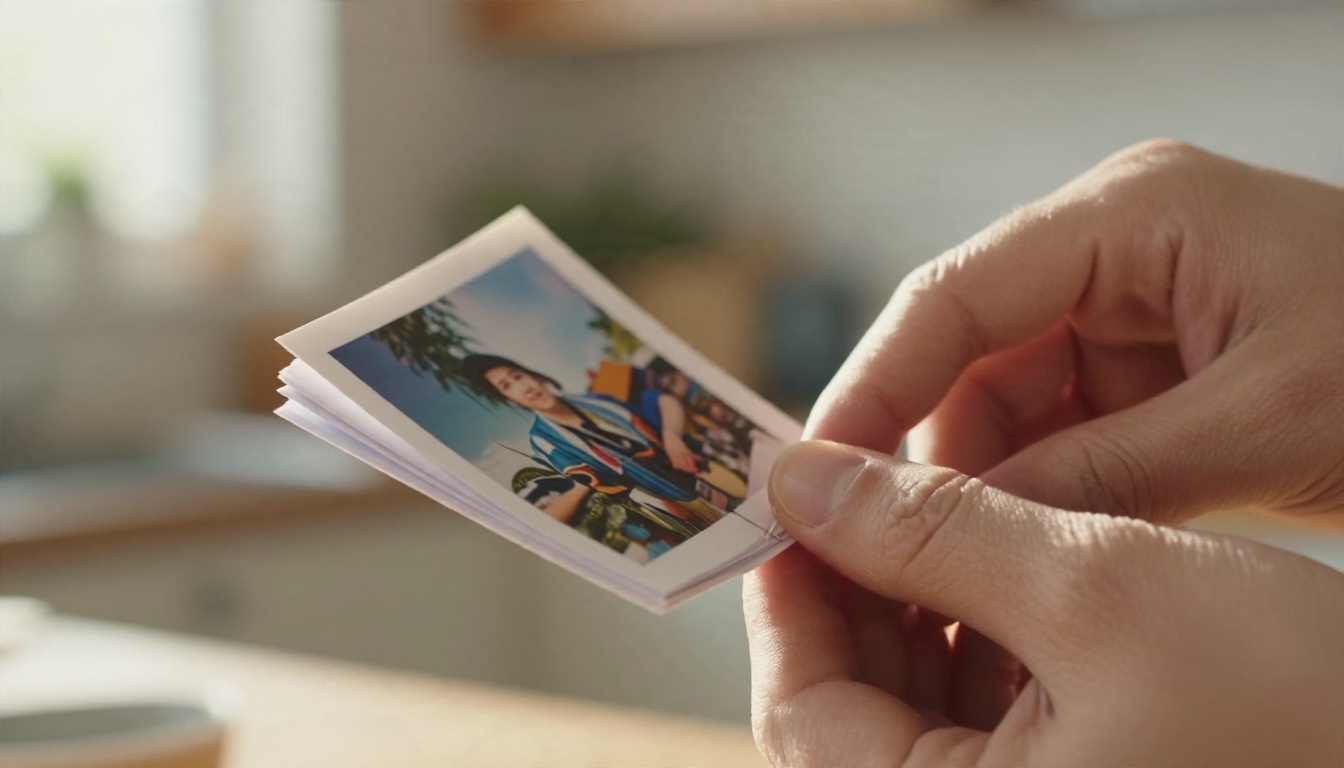
Paper flip books vs digital page turners
A classic flip book is a stack of near identical images. You riffle the edge with your thumb and the pictures play like a tiny film. A digital flipbook is a different animal: a set of pages, often built from a PDF, that you turn with a swipe or a click, with a realistic page curl and a shadow under the fold.
Most people typing this keyword want the second kind. They have photos from a wedding, a trip, a school year, or a grandparent's attic, and they want a tidy album they can send as a link.
What you need before you start
- Your photos in one place, either in your gallery or on a table ready to scan.
- A rough order, even if it is only "oldest to newest".
- A target device: will people view this on a phone, a laptop, or a TV?
- A sharing plan: private link, embed on a website, or a download.
💡 Pro tip: Write the story in one sentence first ("Our 2024 summer in Portugal"). It makes every later choice, from page count to cover photo, much faster.
Both routes work. The difference is where the work happens and how polished the result looks.
When a phone app makes sense
An app is the quickest path when your photos already live on your phone. You pick a batch, drag them into order, add a song, and export. Many apps also offer a slideshow or short video output instead of true page turning, so check the preview screenshots before you install.

Apps tend to shine for casual, one off projects. They tend to struggle with layout control, large photo counts, and sharing outside the app itself.
When an online tool wins
A browser based tool gives you a larger canvas, better text handling, and a link you can send to anyone, no install needed. If you want a polished album, a branded gift, or something that looks good on a big screen, online is the stronger pick. The trade off is that you need a decent connection to upload originals.
| Factor | Phone app | Online tool |
|---|
| Setup time | Minutes, after install | Minutes, nothing to install |
| Page turning effect | Often slideshow or video only | Real page curl is common |
| Layout control | Basic templates | Full control from a PDF |
| Sharing | In app or exported file | Public link, embed, password |
| Large photo sets | Can lag on older phones | Handles hundreds of pages |
| Best for | Quick personal clips | Albums, gifts, portfolios |
Free Options That Actually Work
"Free" comes with strings in this category, so it helps to know where they are before you invest an evening.
Built in tools on your phone
Your phone already does more than you think. Both major mobile systems let you select photos, build a shared album, and print the selection to a PDF. That PDF is the raw material for almost any online flipbook tool.
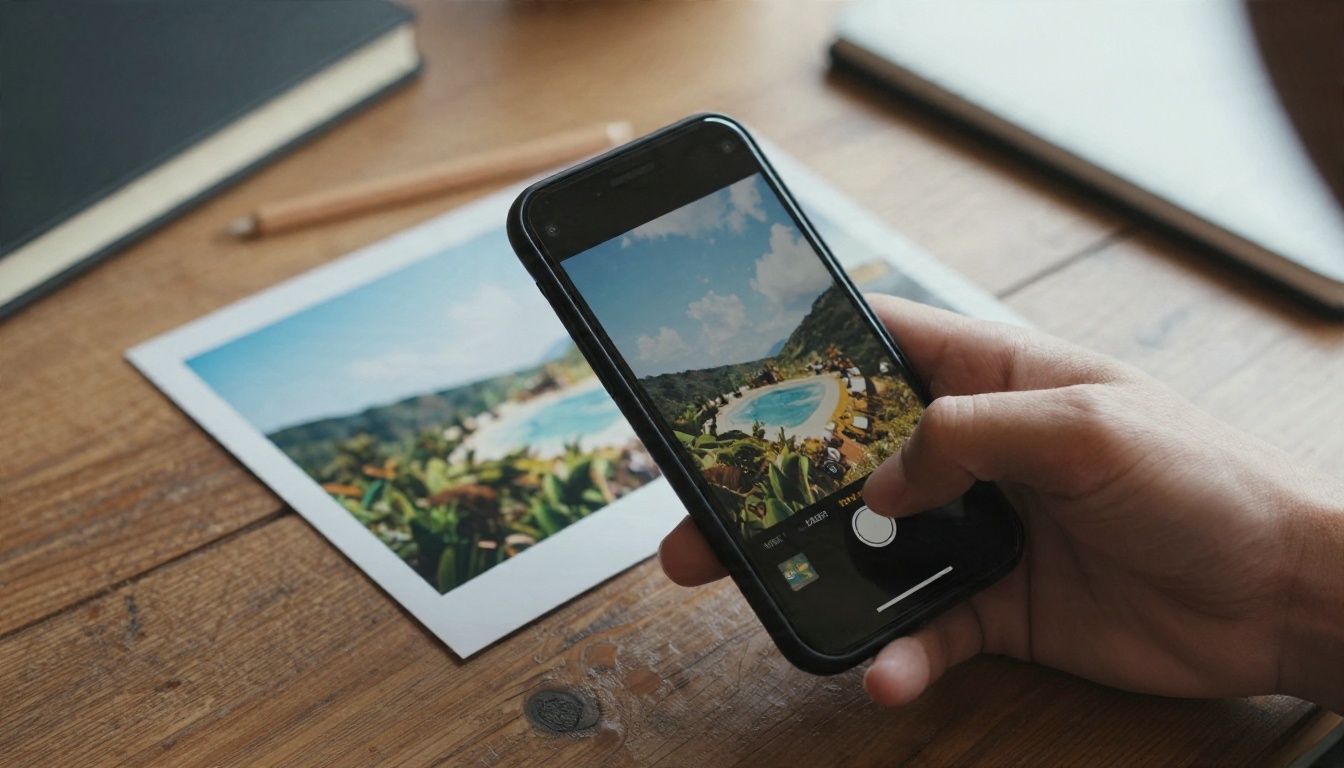
Here is the zero cost recipe:
- Open your gallery and select 20 to 40 photos.
- Use the share or print option and choose Save as PDF.
- Check the page order and orientation.
- Upload the PDF to a flipbook maker.
Free tiers and their limits
Free plans exist, but they usually trade something for the price. Watch for these four limits:
- Watermarks stamped on every page.
- Page caps, often a handful of pages only.
- Expiring links that vanish after a week or a month.
- Locked downloads, so you cannot keep a copy.
⚠️ Warning: Always open a free export on a second device before sending it to family. A watermark across a wedding photo is a bad surprise to find after the link has gone out.
| Free option | What you get | Typical catch |
|---|
| Phone gallery to PDF | Clean PDF, no account | No page turning on its own |
| Free app tier | Templates and music | Watermark, limited export |
| Free online flipbook tier | Page curl and a share link | Page or storage limits |
| Word processor export | Full layout control | Manual work, no effects |
| Printed photo book trial | Real paper album | Shipping fee, not digital |
You can check what the entry plan includes for Flipbooks AI on the pricing page. One thing worth knowing up front: the platform never adds watermarks to your flipbooks.
How to Build One on Your Phone
This workflow suits anyone who wants to start from a pile of prints or a messy camera roll and end with a single clean file.
Capture printed photos cleanly
Scanning old prints with a phone camera works well when you control the light. Place the print on a flat, dark surface near a window. Stand so your shadow does not fall on the paper, and keep the phone parallel to the print so the edges do not look bent.
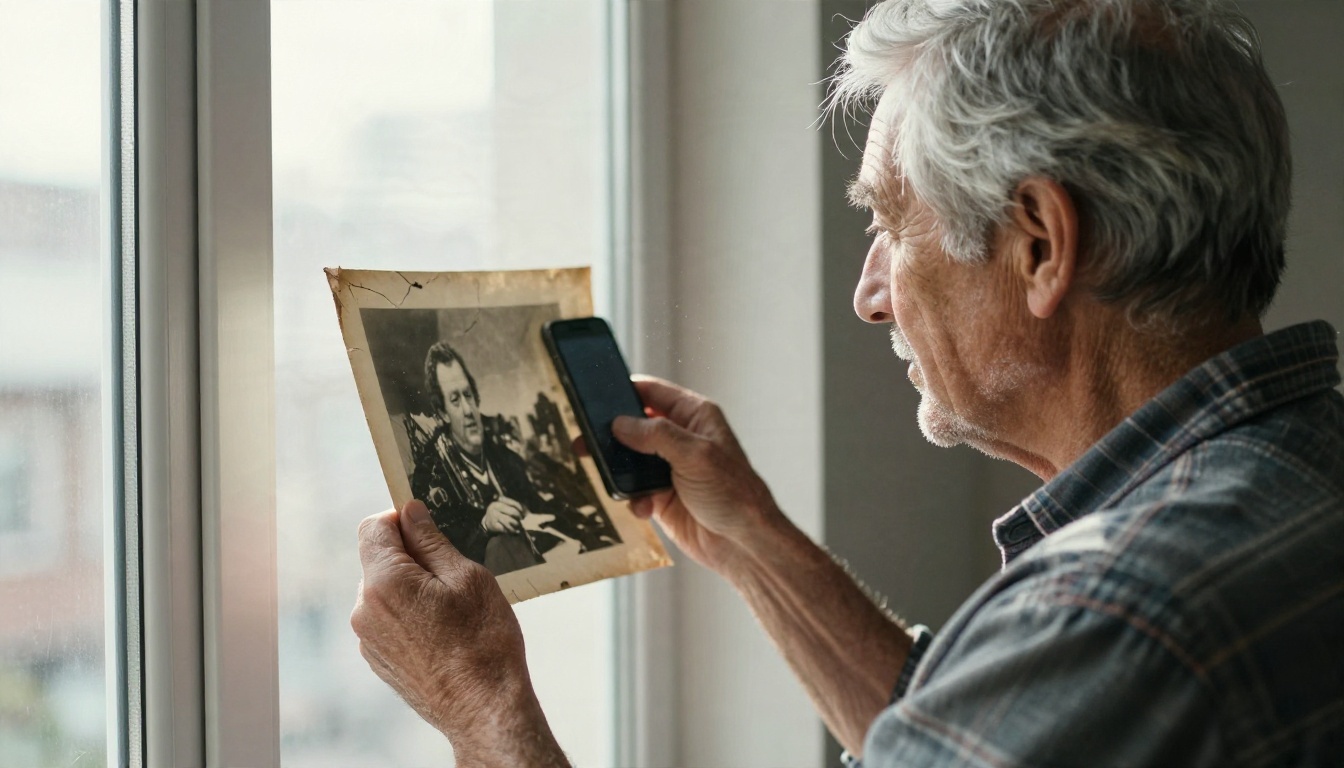
- Use daylight, not the flash. Flash creates a bright hotspot on glossy paper.
- Turn on the grid in your camera settings to keep the frame level.
- Tap to focus on the print, not the background.
- Crop after, using the built in editor, rather than leaving a wide border.
Pick, order, and trim
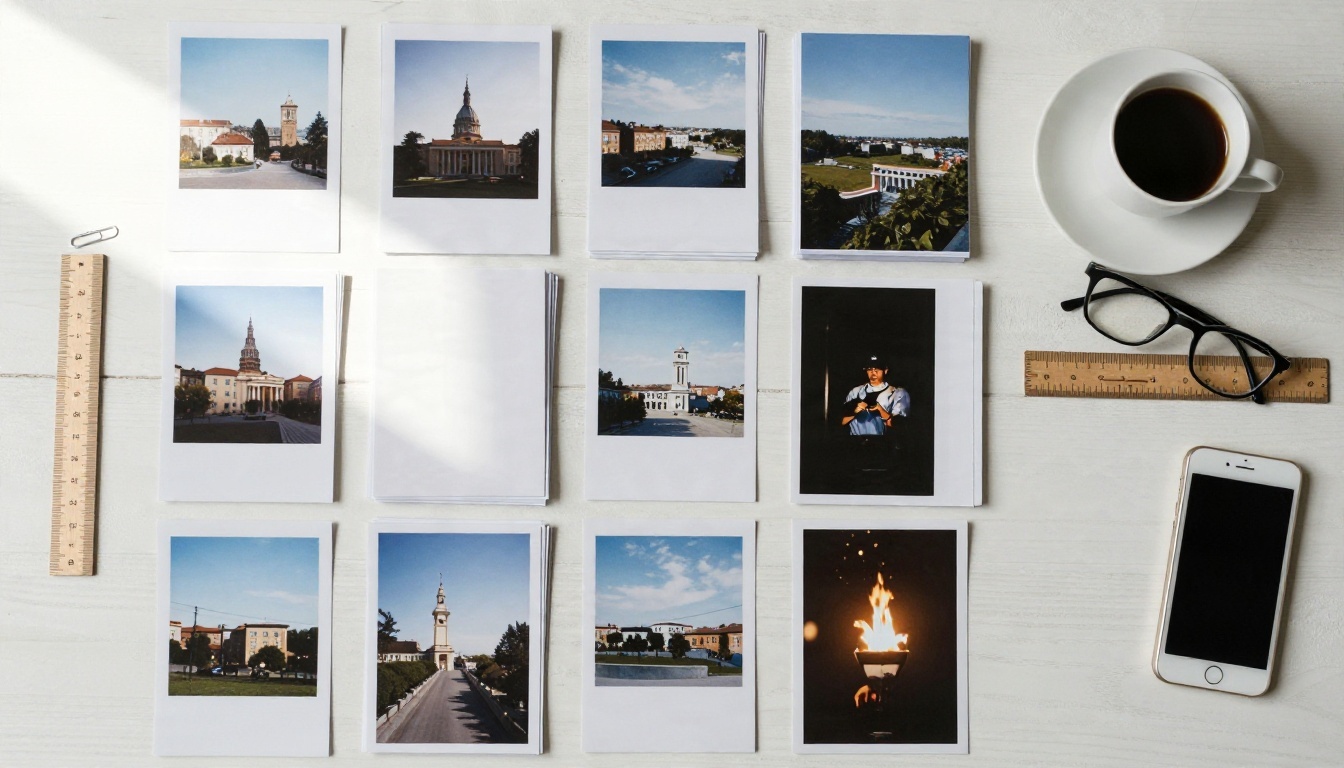
Fewer photos make a better flipbook. A 24 page album that people actually finish beats a 200 page dump they abandon on page nine.
- Sort into stacks by event or year.
- Cut duplicates. Keep the sharpest of every near identical shot.
- Lead with a strong opener, a face or a wide scene.
- Alternate wide shots, portraits, and details to set a rhythm.
- End on a quiet frame, such as a sunset or a group shot.
✅ Best practice: Keep file sizes sensible. Export photos at roughly 1600 to 2400 pixels on the long edge. That is sharp on any screen and keeps the PDF light enough to open fast on mobile data.
How to Create a Photo Flipbook with Flipbooks AI
If you want true page turning from your photos, the most reliable route is PDF first, then flipbook. Flipbooks AI turns a PDF into a flipbook with a realistic page effect, and it works on any phone browser, so you do not need a dedicated app. The PDF to Flipbook Converter is the core tool for this job.
Step 1: Create your account
Head to the account page and sign up. Then open the dashboard where your flipbooks will live.
Step 2: Upload and convert
- Click the upload button and choose your photo PDF.
- Wait a few seconds while the pages are converted.
- Check the preview and confirm the order is right.
If your album is a portfolio of images, the Photography Portfolio tool is built around exactly this kind of file. For event photos, the Wedding Album Flipbook page is a close fit.
Step 3: Customize the look
Personalize the flipbook so it feels like yours rather than a template:
- Background color that matches your photos, such as soft cream for vintage prints.
- Page effects, including the page curl and shadow.
- Branding, with your logo or name if the album is for a business or portfolio.
- Multimedia, like embedded audio or video clips for pages that need a soundtrack.
Step 4: Share it your way
Sharing is where an online flipbook beats a PDF attachment by a wide margin.
- Direct link you can paste into a message.
- Embed code for a blog or personal site, see Embed Flipbook on Website.
- Password protection for private family photos.
Pro features worth paying for
For personal albums, you rarely need more than the basics. If you plan to sell, pitch, or promote with your photos, the Professional plan adds analytics to see who opens your flipbook, lead generation forms, and offline downloads. Standard plans and above give you unlimited flipbooks. See the full list on the pricing page.
| Need | Best fit |
|---|
| One family album, shared by link | Basic plan with password protection |
| Several albums for different events | Standard plan, unlimited flipbooks |
| Photographer portfolio with client tracking | Professional plan, analytics and leads |
| Photos plus background music | Any plan with multimedia embedding |
Real World Uses for Photo Flip Books
A flipbook is not only for scrapbooking. Here is where people get the most value out of one.

- A grandparent's life story. Scan 30 prints, add short captions, and send a single link to the whole family.
- A holiday album. Package 40 trip photos in one tidy file instead of a shared folder nobody opens.
- A gift. Pair a digital album with a printed card containing the link.
- A creative portfolio. Photographers and designers can present a series with more polish than a gallery grid. Try the Digital Portfolio Creator.
- A recipe or memory book. Photograph handwritten family recipes and turn them into a Recipe Book Flipbook.
| Project | Page count | Best format | Sharing style |
|---|
| Holiday album | 20 to 40 | Landscape photos, short captions | Private link |
| Family history | 30 to 60 | Scanned prints, dates | Password protected |
| Wedding memories | 40 to 80 | Full bleed images | Link plus download |
| Portfolio | 15 to 30 | Large images, minimal text | Embed on website |
| Gift album | 12 to 24 | Mixed shots, one message page | Link in a card |
Common Mistakes to Avoid
Most disappointing flipbooks fail for the same few reasons.
- Uploading tiny thumbnails. Low resolution looks fine on a phone and soft on a laptop. Start with originals.
- Too many pages. Attention drops fast after 30 pages. Cut ruthlessly.
- Ignoring orientation. A mix of portrait and landscape shots can leave awkward white gaps. Pick one dominant format.
- No captions or dates. A name and a year turn a pile of pictures into a story.
- Skipping the mobile test. Open the flipbook on your own phone before sharing it.
- Forgetting privacy. Photos of children and relatives deserve a password, not a public link.
⚠️ Heads up: Photos with strong shadows on scanned prints can look muddy once converted. Re shoot them in even daylight instead of fixing them later.
Make Your First One Today
You do not need to hunt for a special app. Gather 20 photos, save them as a PDF on your phone, and turn that file into a page turning album. Create your account on Flipbooks AI and build your first flipbook in a single sitting. Browse all flipbook tools to find a template that suits your project, or look at the pricing plans if you want analytics, unlimited flipbooks, and offline downloads. Your photos have waited long enough in that shoebox.



