Sketch is where great design begins. Artboards get refined, layouts take shape, color systems click into place, and suddenly you have something worth showing the world. But when it is time to share that work, most designers export a PDF or a bundle of static images, and the experience falls flat. Clients scroll through a folder. Stakeholders forward a file that nobody opens. The design is great; the delivery is not. Flipbooks AI changes that by turning your exported Sketch files into interactive, page-flipping publications that people actually want to look at.
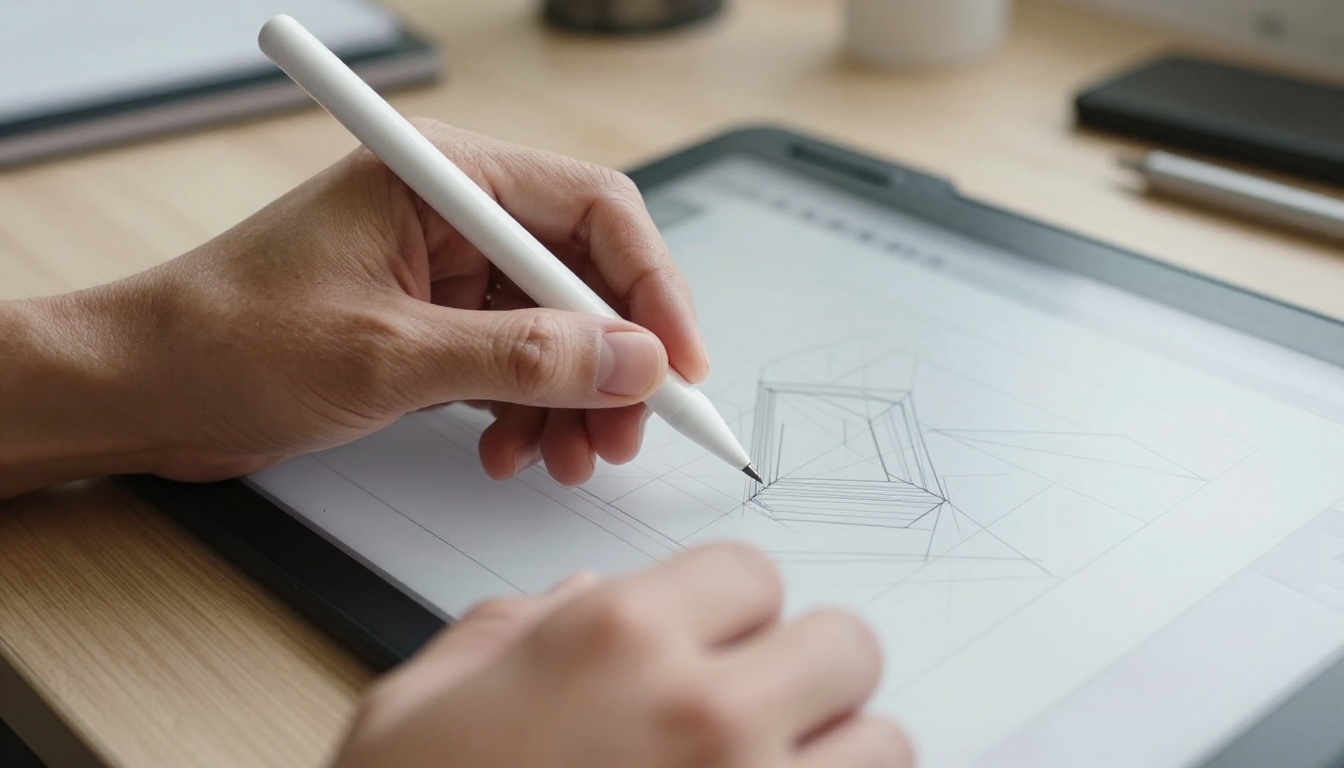
Static design deliverables have a shelf life problem. A PDF sent by email gets downloaded, half-opened, and forgotten. An image archive requires the client to figure out the correct viewing order. Neither format communicates the craft behind the work, and neither gives a viewer the tactile sense of moving through a document. Flipbooks solve this elegantly.
The Static Export Problem
Every designer who has shared work with clients knows the friction. You export 40 artboards as a PDF, compress it, email it, and then spend the next week answering questions like "which file do I open?" or "is this the final version?" The design is finished; the communication around it is broken.
Static files also lose context. A product UI flow that makes perfect sense in Sketch, where artboards are connected by prototype links, becomes a disconnected pile of screenshots when exported. The narrative disappears. The viewer has to reconstruct the story from fragments instead of experiencing it as a sequence.
Why Interactive Works Better
Interactive flipbooks preserve the experience of moving through a document. Pages turn. Sequences feel intentional. Links stay clickable. A 40-page product design presentation becomes something a client can actually sit with, forward to their team, and return to without losing their place.
💡 Designers who switch to flipbook delivery report faster client sign-off because stakeholders can review work at their own pace without needing to interpret folder structures or file naming conventions.
The format also signals professionalism in a way PDFs simply do not. When a client receives a link to a polished, branded flipbook, the first impression is already part of the deliverable.
Preparing Your Sketch File for Export
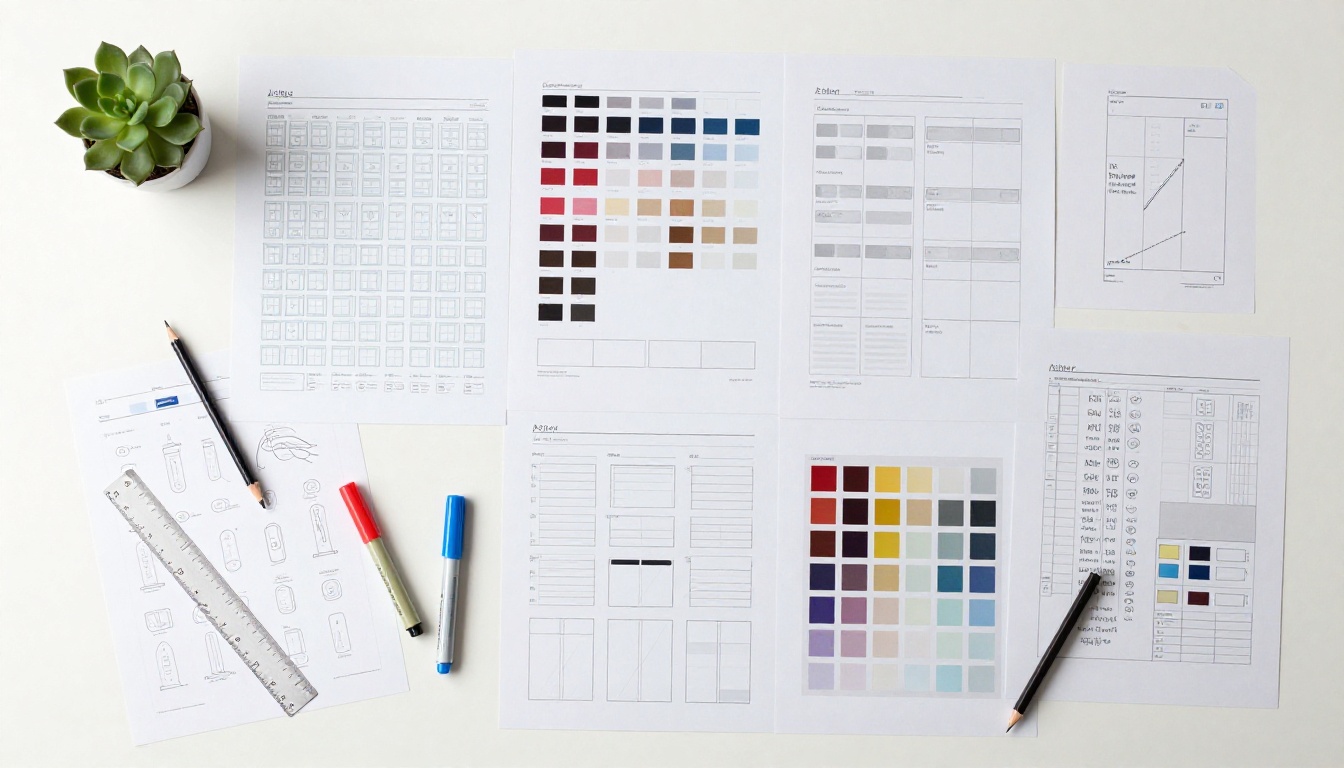
The conversion process starts inside Sketch. Getting your artboards set up correctly before export saves significant time later and produces a cleaner flipbook.
Artboard Setup for Flipbook Pages
Each artboard in your Sketch file becomes one page in the final flipbook. That means the order of artboards in your layers panel is the order they will appear when someone flips through the publication. Take the time to sequence your artboards deliberately before you export.
A few setup principles worth following:
- Consistent dimensions: All artboards should share the same width and height. Mixed-dimension artboards produce flipbooks with awkward page size jumps.
- 1920 x 1080px or A4 ratio: These dimensions translate cleanly to standard flipbook page sizes. Widescreen ratios work well for presentations; portrait ratios suit reports and catalogs.
- Named artboards: Name each artboard clearly, for example "01 Cover Page", "02 Overview", "03 Feature Detail". These names carry through to PDF bookmarks and make the document easier to audit.
- Resolved symbols: Make sure all Sketch symbols and linked components are fully resolved before export. Unresolved symbols can produce blank areas in the exported PDF.
Exporting to PDF from Sketch
Sketch's built-in PDF export is reliable and produces clean vector output. Use File > Export and select "All Artboards" or a specific page. Set the format to PDF and the scale to 1x for standard resolution, or 2x if you want crisp output on high-density displays.
⚠️ Avoid exporting individual artboards as separate files and then merging them in a PDF editor. This workflow often introduces inconsistent page sizes and metadata issues. Export directly from Sketch as a single PDF for best results.
The resulting PDF is what you will upload to Flipbooks AI to create your flipbook. Keep it under 200MB for fastest processing, though the platform handles larger files without issue.
How to Create Your Flipbook with Flipbooks AI
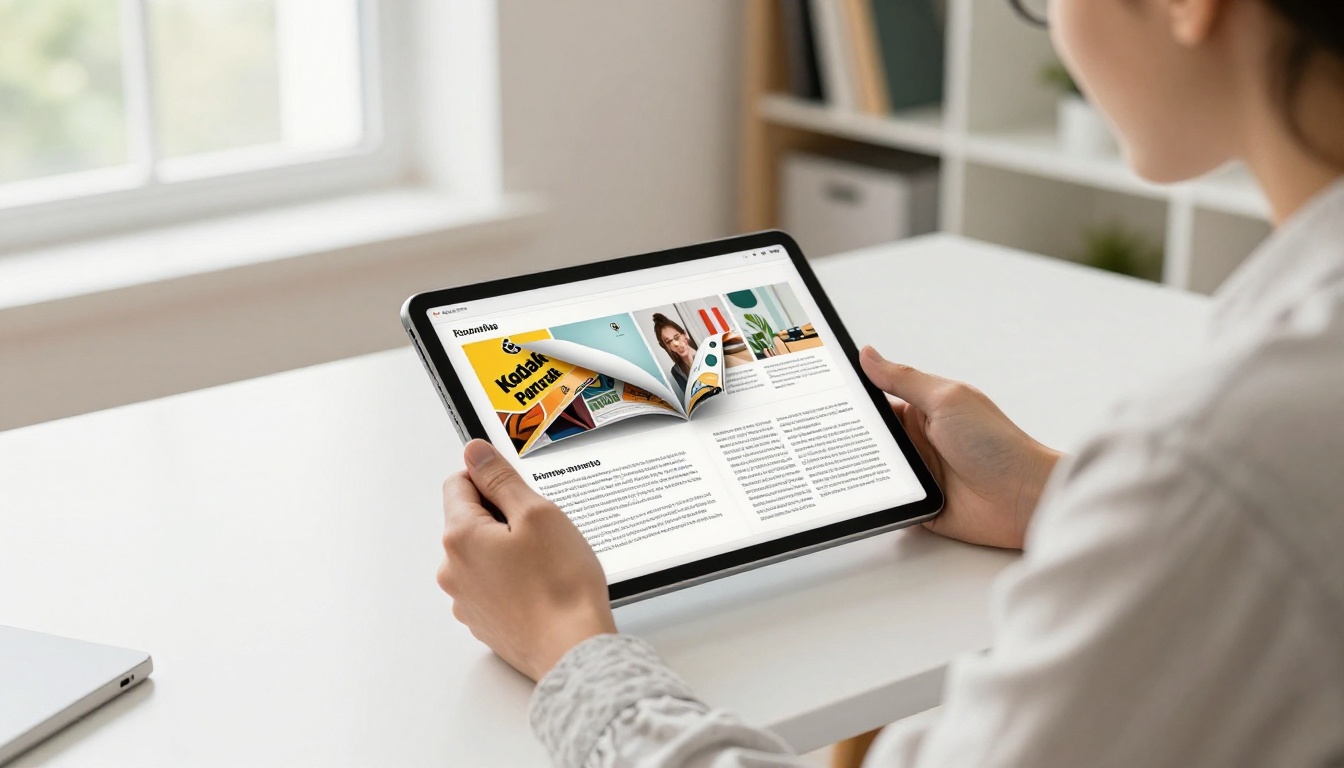
Once your PDF is exported from Sketch, the actual flipbook creation takes minutes. Here is the full process from upload to published link:
- Create your account: Go to Flipbooks AI and sign up. No credit card required to start.
- Upload your PDF: From the dashboard, click "Create New Flipbook" and upload the PDF exported from Sketch. The platform processes each page and renders it as a flipbook page with page-turn animation.
- Set your front page: Choose which page acts as the opening page, or upload a separate front image. The front page is what appears in shared link previews and embedded thumbnails.
- Customize the appearance: Adjust the background color, page shadow intensity, and toolbar color to match your design system. For client deliverables, matching the flipbook chrome to your brand colors adds a professional layer of consistency.
- Add your branding: Upload your logo and set custom colors. Standard plan and above support full custom branding with no platform watermarks anywhere on the publication.
- Configure sharing settings: Choose between a public link, a password-protected link for sensitive work, or an embed code to drop the flipbook directly into a client portal or website.
- Publish and share: Hit publish. Your flipbook gets a unique URL you can share instantly. For client presentations, the direct link option means they click once and see the work, no downloads required.
✅ Use password protection for work-in-progress designs and switch to a public link once the client has approved. This keeps confidential iterations private without changing the URL structure.
Best Use Cases for Sketch-Based Flipbooks

Sketch works across a wide range of design disciplines. The flipbook format fits all of them, but some use cases benefit more than others.
Design Portfolios
A portfolio delivered as a flipbook reads as a curated publication rather than a folder of screenshots. Each project gets its own section, pages flow in sequence, and the viewer stays in context. The Digital Portfolio Creator tool is built for exactly this, letting you structure your Sketch-exported pages into a polished, shareable portfolio with analytics to see who viewed which pages.
Freelancers sending portfolios to potential clients see better response rates when the work arrives as a link to a flipbook versus a PDF attachment. The link format signals intentionality. The flipbook format signals craft.
Client Presentations
UI/UX designers presenting app flows, wireframe progressions, or design system documentation benefit enormously from the flipbook format. Pages flip in sequence, the client sees the progression of the design rather than a stack of files, and the interactive format invites them to look around rather than just observe.
Use the Presentation Flipbook Designer to structure multi-chapter presentations with clear navigation between sections.
Product Mockups and Prototypes
Product teams using Sketch to design physical product packaging, print layouts, or marketing collateral can turn their mockup artboards into flippable lookbooks. A series of packaging variations, colorways, and application mockups becomes a flipbook that the marketing team can share internally and with external stakeholders without needing Sketch installed on their machine.
The Interactive Lookbook Designer is worth checking out for product design teams working on seasonal collections or product launches.
Flipbook Features That Designers Appreciate

The conversion from PDF to flipbook adds a layer of interactivity that static files cannot replicate. Here are the features that matter most for designers delivering work to clients.
Page Animations and Transitions
The page-curl animation is what makes a flipbook feel like a publication rather than a slideshow. Viewers interact with it instinctively. Pages have physical weight in the animation, which creates a sense of pacing that encourages reading rather than skimming.
Embedded Links and Media
Any hyperlinks in your exported PDF remain active in the flipbook. If your Sketch artboards contain prototype links exported as PDF annotations, or if you add links to your PDF before uploading, those links work in the final flipbook. This matters for:
- Interactive prototypes: Link artboard hotspots to other pages in the flipbook
- External resources: Link to live product pages, documentation, or supporting references
- Contact information: Email links and phone numbers in contact pages remain tappable on mobile
Standard plan and above support embedding video and audio directly into flipbook pages, which opens up possibilities for design presentations that include screen recordings of interactions or voiceover explanations.
Mobile-Responsive Design
Every flipbook created on Flipbooks AI is fully mobile-responsive. Clients reviewing work on their phones see the same clean page-flip experience as desktop viewers. This matters because a significant portion of client review happens on mobile, especially for stakeholders reviewing between meetings.
Comparing Flipbooks AI Plans for Designers

Choosing the right plan depends on how many projects you handle and what sharing features your workflow requires.
| Feature | Free | Standard | Professional |
|---|
| Flipbooks | 1 | Unlimited | Unlimited |
| Watermarks | Yes | No | No |
| Custom Branding | No | Yes | Yes |
| Password Protection | No | Yes | Yes |
| Analytics | No | No | Yes |
| Lead Generation | No | No | Yes |
| Offline Downloads | No | No | Yes |
| Embed on Website | Limited | Yes | Yes |
| Video and Audio Embed | No | Yes | Yes |
💡 Freelancers delivering client work should be on at least the Standard plan. Watermarks on client-facing deliverables undercut the professionalism of the work, and password protection is essential for keeping work-in-progress iterations private.
See the full pricing plans to find what works for your volume of projects.
Sharing Your Flipbook With Clients

Once published, you have several sharing options that suit different client situations.
Direct Links and Embed Codes
The direct link is the fastest way to share. Copy it, paste it into an email or Slack message, and the client clicks to open the flipbook in their browser without any download or account required. For design agencies with client portals, the embed code lets you drop the flipbook directly into a webpage using the Embed Flipbook on Website tool.
Password Protection for Private Work
For work-in-progress designs, early-stage wireframes, or confidential product work, password protection keeps your flipbook accessible only to people who have the password. This is considerably more secure than sharing PDF files, which get forwarded beyond their intended recipients with no control over access.
| Sharing Method | Best For | Privacy Level |
|---|
| Direct Link | Final approved work | Public |
| Password-Protected Link | Work in progress, NDAs | Private |
| Embed Code | Client portals, websites | Configurable |
| QR Code | In-person presentations | Public |
Analytics for Professional Plans
The Professional plan adds analytics that show you who viewed your flipbook, which pages they spent the most time on, how far through the document they read, and whether they came back for a second look. For designers who charge based on deliverable value, this data is genuinely useful. Knowing that a client spent eight minutes on your pricing section and skipped the timeline tells you exactly where to focus the next conversation.
Professional plan also includes lead generation, which adds a form to your flipbook that captures viewer contact information before granting access. Useful for agencies distributing case study flipbooks or credential documents to potential clients.
Common Sketch Workflows That Translate Well

Not every Sketch project converts to a flipbook with equal ease. Here is a reference table matching common Sketch design types to the flipbook tools that fit them best.
Each of these tools is built for a specific content type, but the upload-from-PDF workflow is identical across all of them. Your Sketch-exported PDF goes in; your flipbook comes out.
Real-World Scenarios Worth Knowing
A freelance UI/UX designer finishing a 35-screen mobile app design exports all artboards from Sketch as a single PDF, uploads to Flipbooks AI, and sends the client a password-protected link. The client reviews it on their phone during their commute, absorbs the full flow in sequence, and approves three sections before the designer's next morning.
A design agency pitching a rebrand project to a retail client builds a 20-page Sketch presentation including research, positioning, typography, and visual identity. They convert it to a flipbook and embed it in a custom pitch page using the embed code. The client's CEO, CMO, and marketing director all view it independently, and the analytics show which sections each person spent time with.
An in-house product designer at a SaaS company documents a quarterly design system update in Sketch and publishes it as a flipbook. The engineering team gets the link instead of a Confluence page dump, and the page analytics show which components attracted the most attention, informing the next sprint prioritization.
✅ Flipbooks work for any design output that benefits from sequential reading. If your Sketch file tells a story across artboards, a flipbook tells it better than a static PDF.
Take Your Sketch Work Further
The gap between creating good design and delivering it effectively is where a lot of work gets undervalued. Clients who struggle to open files or navigate folders spend less time with the actual design, which means they appreciate it less and provide feedback more slowly.
Converting your Sketch exports to interactive flipbooks is one of those workflow changes that pays off immediately. The setup takes five minutes the first time and under two minutes on every subsequent project once your branding is configured.
Ready to try it? Create your first flipbook on Flipbooks AI and see what your next Sketch project looks like as a publication. Browse all flipbook tools to find the format that fits your project type, or compare pricing plans to find the right tier for your practice.



